Deploy a workflow in Jitterbit Studio
Introduction
This page describes how to deploy workflows to the Harmony cloud. After you deploy an operation and its dependencies, you can execute those operations. For more information, see Operation deployment and execution.
Deployment methods
You can deploy workflows using two methods:
-
Deploy: Deploys all operations used by a workflow. When you use this option, the workflow is immediately deployed or validation errors that prevent deployment are reported.
-
Configurable deploy: Deploys selected workflows and operations. When you use this option, a deployment configuration screen opens where you can choose which workflows and operations to deploy.
Note
When you rename a project that you previously deployed, the new project name is automatically deployed and updated in Harmony. No other part of the project is automatically deployed.
Deploy
You can access the Deploy option from the project pane's Workflows tab. For more information, see Workflow actions menu in Project pane Workflows tab.
When you select Deploy, the workflow and its dependencies are immediately deployed. For the deploy to succeed, the workflow and its operations must be valid. If the workflow is invalid, a dialog displays the specific validation errors. For documentation on each error and how to resolve it, see Workflow validity or Operation validity.
Configurable deploy
You can access the Configurable Deploy option from the project pane's Workflows tab. This option opens a deployment configuration screen with the workflow and its dependencies selected by default. For more information, see Workflow actions menu in Project pane Workflows tab.
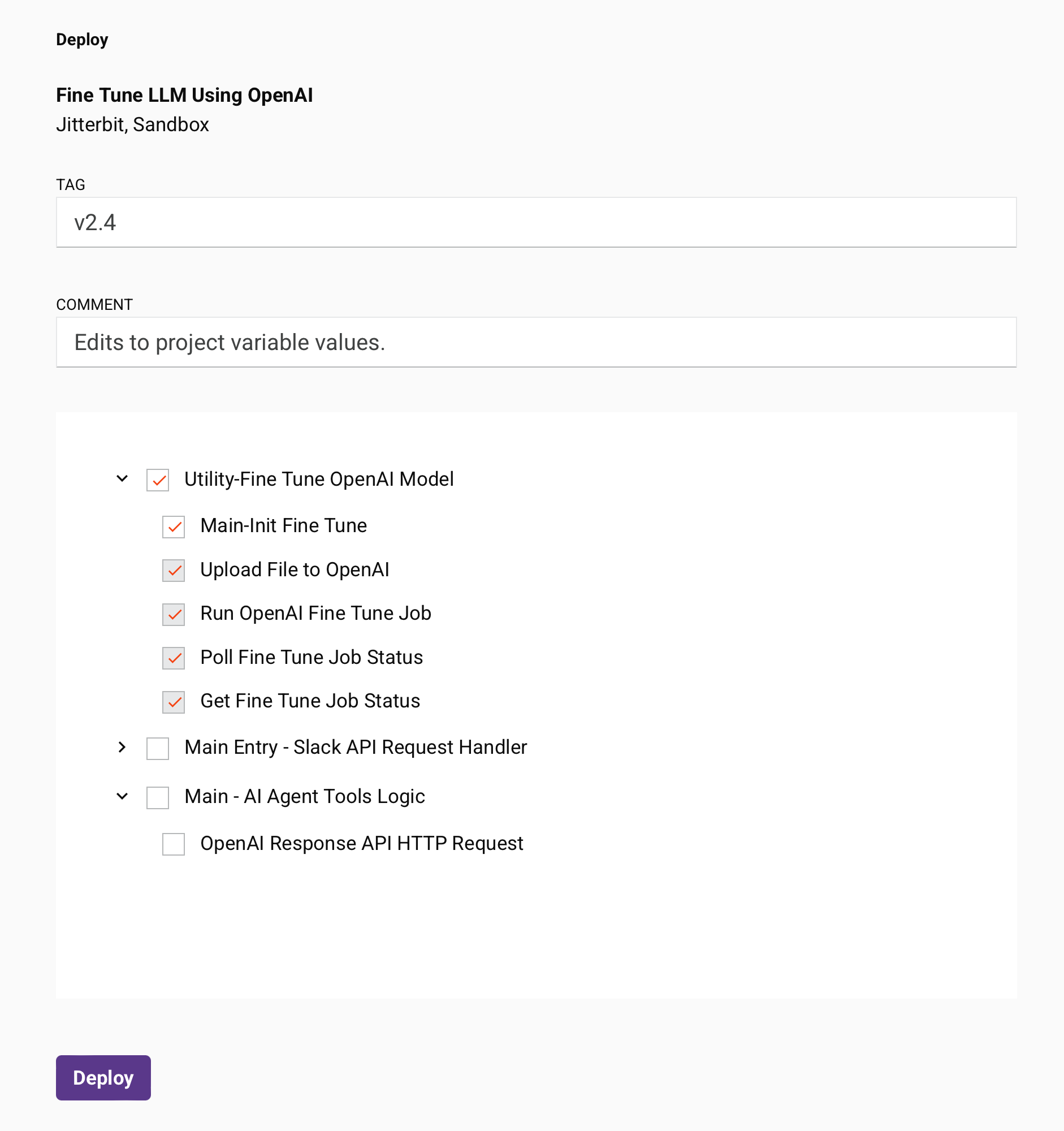
When you select Configurable Deploy, a deployment configuration screen opens where you can define a tag and comment and choose which workflows or operations to deploy.
-
Tag: Enter a tag to label the deploy event. The tag appears as a label on the deploy event and is recorded in the deploy details accessible from the project history. This field may be required depending on project-level deployment settings.
-
Comment: Enter a comment to describe the deploy event. The comment is recorded in the deploy details accessible from the project history. This field may be required depending on project-level deployment settings.
-
Select Workflows and Operations: Select the workflows or operations to deploy. The workflow and its dependencies are selected by default. You must select at least one item to enable the Deploy button.
When you select a workflow or operation, any dependent workflows or operations are also selected and cannot be cleared.
To collapse or expand workflows and operations, use the carets displayed to the left of the workflow or operation name.
Invalid workflows or operations appear in red italicized text. You must select only valid items to enable the Deploy button.
-
Deploy: Click to deploy the selected workflows or operations.
Deployment requirements
You can configure deployment requirements for each project during project creation and configuration.
If project-level deployment settings require a tag or comment, a dialog appears when you initiate a deploy so you can enter the required information. The configurable deploy screen also provides these fields.
Dialog text
Deploy Requirements
Your organization requires a comment and a tag when deploying.
-
Tag
-
Comment
- Tag: Enter a tag to label the deploy event. The tag appears as a label on the deploy event and is recorded in the deploy details accessible from the project history.
- Comment: Enter a comment to describe the deploy event. The comment is recorded in the deploy details accessible from the project history.
- Add Comment and Tag: Click to add the tag, comment, or both, and continue with the workflow deploy.
- Cancel: Click to close the dialog and return to the previous screen without deploying.