Messaging in Jitterbit EDI
Introduction
The Messaging page is where you view system log messages. To open it, use the Harmony portal menu to select EDI > Messaging:
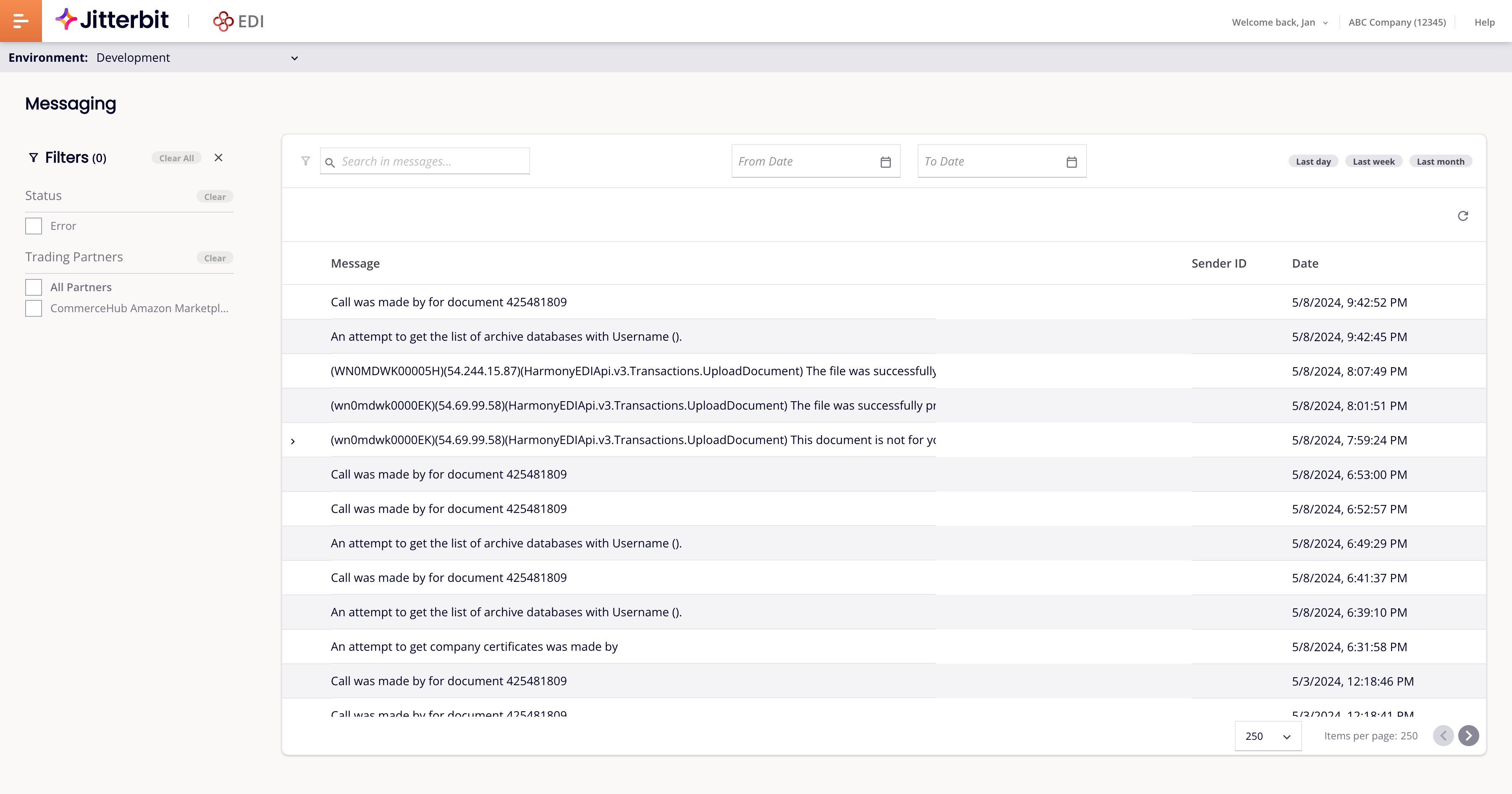
The page comprises two panes:
-
On the left, the filters pane;
-
In the main area, the messages pane.
Filters pane
Use the Filters pane to select filter options:
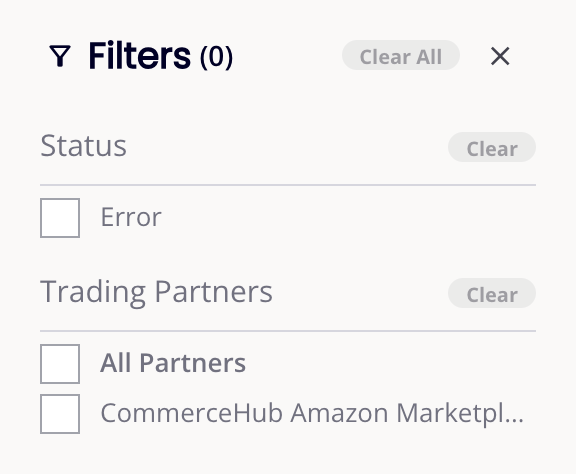
To remove all active filters at once, click Clear all. To close the filters pane, click the Close icon. To open it again, click the Filters icon in the toolbar.
If a trading partner you have selected as a filter is deleted by another user, it's removed from the filter list and the message list reloads. A notification tells you The trading partner is no longer available and was removed from the filters.
You can set the following filters:
-
Error: Select to show only messages with an error status.
-
All severity levels: Select to show messages of all severity levels, or select one or more of High, Medium, Low, or Info.
-
All trading partners: Select to show messages for all trading partners, or select one or more specific partners. Click More to list more partners.
-
All message categories: Select to show messages of all categories, or filter by message category and subcategory.
Filter by message category and subcategory
Message categories are hierarchical: a parent category can contain one or more subcategories. Click the Expand icon to reveal a category's subcategories, or the Collapse icon to hide them.
Select a parent category to filter by all of its subcategories at once, or select one or more subcategories to filter by only those. You can combine multiple parent categories and subcategories in a single filter. Messages that don't have a subcategory assigned are included when their parent category is selected.
Available categories are loaded dynamically and include the following:
-
Communication: Messages generated by communication channels, with subcategories AS2 and FTP.
-
Transaction: Messages generated by transaction processing.
Messages pane
The messages pane shows system log messages, optionally filtered according to the settings in the Filters pane.
Hover on a message, then click the Details icon in the Actions column to open the message details drawer.
When a Studio operation runs an EDI for Cloud v2 Get Document activity, the message that is logged includes the name of the operation. To find the messages for an operation, enter its name in the search bar.
Toolbar
The toolbar above the message list contains the following controls:

-
Filters: Open the Filters pane when it is closed.
-
Search bar: Enter text to find messages containing it, then press return.
-
Date filter: Click to open a date picker where you can set the start and end dates for the display period, using either relative or absolute date ranges.
-
Columns: Click to open the Columns drawer, where you can change the columns shown in the message list:
-
Use the search bar to find a column by name.
-
Click the icon to show or hide a column, or click Show All to show all columns.
-
Drag the icon to reorder columns.
-
-
Refresh: Refresh the messages list.
AS2 certificate expiration messages
When a certificate used by an AS2 connection is within 30 days of expiring, or has already expired, an error message is logged once per day for each expiring or expired certificate. For details, see Certificate expiration notifications in AS2 communications.
Column headings
The message list column headings are as follows:
-
Message: The message text.
-
Status: The message status. Messages with an error status show Error.
-
Severity: The message severity level, one of High, Medium, Low, or Info.
-
Trading partner: The name of the trading partner.
-
Category: The message category.
-
Subcategory: The message subcategory.
-
Creation date: The message creation date and time.
-
Actions: Hover on a message to reveal the Details icon, used to open the message details drawer.
To sort the message list, click a column heading.
To change which columns are visible, use the Columns control in the toolbar. Adjustments you make to column widths are saved and persist when you return to the page.
Message details
To view a message's details, hover on the message, then click the Details icon in the Actions column. The message's details open in a drawer, where you can review them without losing your place in the message list. When a message has no details to show, the icon is disabled and its tooltip reads No Details.
The drawer's title bar shows the message text and the trading partner name, and contains the following controls:
-
Download: Download the message's log entries.
-
Expand: Expand the drawer to the size of the browser window.
-
Previous message: View the previous message.
-
Next message: View the next message.
-
Close: Close the drawer.
Below the title bar, the message's log entries are listed with the following columns:
-
Message: The log entry text, including any error details.
-
Date: The log entry's date and time.
Page controls
At the bottom of the pane are the following page controls:

-
Items per page: The number of items per page. Select one of 100, 250, or 500.
-
Previous page: Go to the previous page.
-
Next page: Go to the next page.