Salesforce Org wizard in Jitterbit Design Studio
Create a Salesforce org
These steps creates a new connection to Salesforce.com from within Jitterbit Studio. The steps assumes that you have a Salesforce account. You will need to enter your credentials to create the connection between Harmony and your Salesforce account.
This connection can be used for the different Salesforce Wizards (query, upsert, insert, update, delete, and bulk process). Multiple connections to different servers and using different credentials can be configured in the same project.
Note
When opening an existing project that uses a previous Salesforce API version, you will be prompted to upgrade to the latest supported Salesforce API version. (An upgrade to a higher version implicitly includes all the features and objects of prior versions.)
The version of Salesforce API that is available depends on the Jitterbit agent and Design Studio version you are using. See Prerequisites and supported API versions for more information.
Basic authentication no longer supported by Salesforce
Starting with Salesforce API version 65, Salesforce no longer supports SOAP API login (basic authentication). To ensure continued operability in Design Studio Salesforce Orgs configured to use basic authentication, do not accept the prompt to upgrade your existing Design Studio projects to Salesforce API version 65. Before upgrading projects to Salesforce API version 65, you must reconfigure your Salesforce endpoints with the new Select OAuth 2.0 Client Credentials configuration option or your operations will fail.
Start the wizard
-
Click the
 icon at the top of the screen to display the Jitterbit Connect dialog window: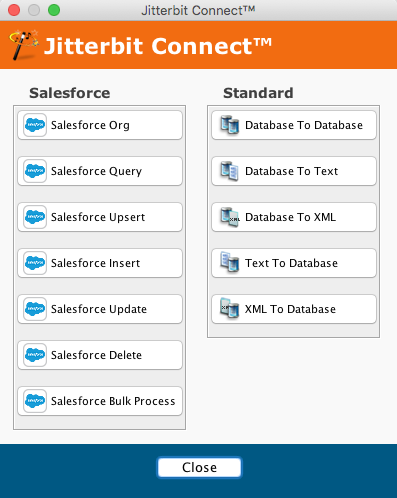
-
To start the wizard, click the Salesforce Org button in the Jitterbit Connect Wizard menu, which opens the wizard.
Enter the Salesforce login information
-
Click the Salesforce Org to display the New Salesforce Org screen and complete the fields:
-
Server host is completed by the system.
-
Select the Sandbox checkbox if you have created a Salesforce sandbox and want to connect with it.
-
If connecting to a Salesforce account using basic authentication:
-
Enter the User name and Password for the Salesforce account. A Salesforce account that does not have multi-factor authentication (MFA) enabled is required.
To configure a Salesforce account without MFA, make sure that the Permission Set assigned to the Salesforce system integration login does not have the selection Multi-Factor Authentication for API Logins. System integration login types are exempt from Salesforce's MFA requirement, as described by Salesforce in Is MFA required for my integration users? in their documentation Salesforce Multi-Factor Authentication FAQ.
-
Copy the Security Token received at your email address from Salesforce.
-
-
If connecting to a Salesforce account using 2-legged OAuth 2.0 client authentication (required beginning with Salesforce API version 65):
-
Select the Select OAuth 2.0 Client Credentials checkbox to enable the OAuth 2.0 client credential fields.
-
Enter the Instance URL, Client ID, and Client secret associated with your configured Salesforce app.
-
-
-
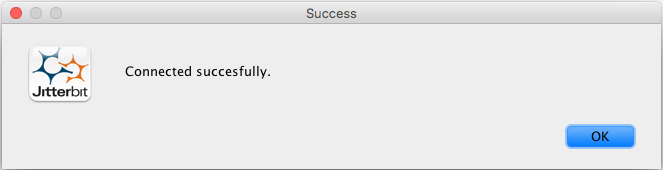
Click Test Salesforce Login button. You should receive a success message:
-
If there is an error, you will receive a message with instructions to help you resolve the problem.