Frame panels in Jitterbit App Builder
Overview
A Frame panel is a panel type that lets pages load into a fixed area of the screen, rather than replacing the screen entirely. Unlike other panel types, a Frame panel has no content of its own: it exists only to receive whichever page a link elsewhere on the screen sends into it. This is most commonly used to build a persistent side navigation menu, where the menu itself stays on screen while the Frame panel loads whichever page the reader selected.
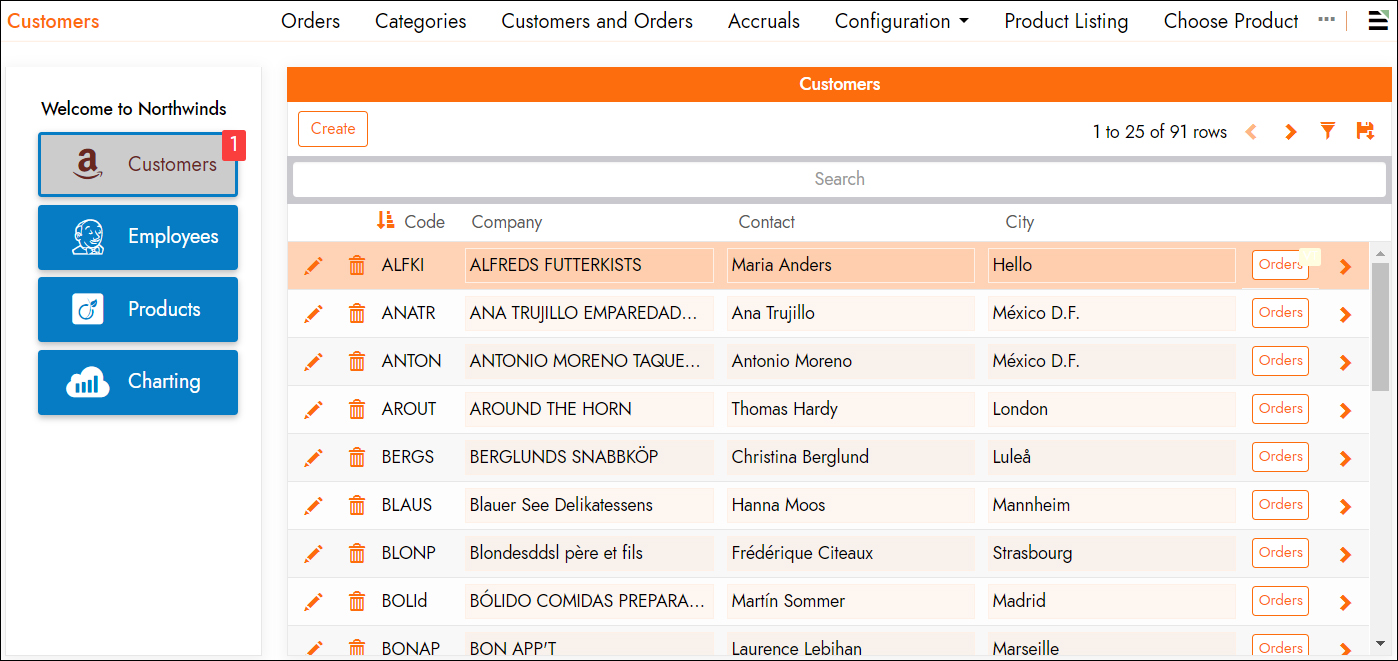
A Frame panel needs to be paired with another panel that drives content into it, since it has no navigation controls of its own. For example, the following page pairs a Frame panel on the right with a side navigation menu on the left, built from a Form panel with icon fields configured as navigation links: clicking an icon loads the corresponding page into the Frame panel.
This page covers:
-
Create and position a Frame panel
How to add a Frame panel to a page and control where it appears. -
Navigate into and out of a Frame panel
How to control link behavior into and out of a Frame panel, including exiting one entirely, using the Replace Page In History option within one, and linking into one with a custom URL. -
Pages inside a Frame panel
How App Builder decides which page loads into a Frame panel by default, how a loaded page can reference the Frame panel it's running in, and how a Frame panel reloads its container page's data.
At the end of the page, there is also a practical example demonstrating several of these features.
Create and position a Frame panel
Like any other panel type, you add a Frame panel to a page using the Create a panel wizard, selecting Frame as the panel type. A Frame panel's position and size are governed by the same Panel layout service as any other panel, so it can be positioned wherever a panel would normally go on the page.
Navigate into and out of a Frame panel
This section describes how to control link behavior into and out of a Frame panel, including how to exit a Frame panel entirely, how Replace Page In History behaves within one, and how to link directly into a Frame panel using a custom URL.
Exit the Frame panel
Setting a panel's Link Target to Exit Frame Panel lets a link inside a Frame panel navigate the whole screen instead of loading its target into the Frame panel. You can also navigate out of a Frame panel using Link To Page (from the Update Methods tab) or a Popup instead, if replacing the whole screen isn't the effect you want. See Configure how linked pages open for the full set of Link Target and Link To Page options.
Use the Replace Page In History option in a Frame panel
A control's Link To Page setting can also use Replace Page In History when that control lives inside a Frame panel, the same setting described in Configure how linked pages open. This is especially useful for a side navigation menu built with a Frame panel: without Replace Page In History, clicking several menu links in a row adds a new stop to the page history for each click, so pressing < Back would only step back through the menu's own history one link at a time before it ever reached the page the reader had open before they started using the menu. With Replace Page In History enabled on the menu's links, clicking additional links replaces the Frame panel's contents in place instead of adding new stops, so pressing < Back returns immediately to the page that was open before the reader started using the menu.
Link into a Frame panel with a custom URL
When you first link to a page from outside any Frame panel context (a page named ContainerPage, for example), the URL looks like a normal page URL: /app/MyApplication/ContainerPage. Once App Builder loads a page into a Frame panel on that page, it immediately updates the browser's address bar to reflect both pages: /app/MyApplication/ContainerPage/**PageInFrame**.
You can also link directly into a specific page inside a Frame panel by building an incoming URL in this same format. To filter which page loads into a Frame panel by a column value, add &Framed.{{ColumnName}}={{ColumnValue}} after the app and page names in the first part of the URL, for example: app/MyApplication/OuterPage/MyApplication/InnerPage?OuterPageCriteria=123&Framed.InnerPageCriteria=456.
Pages inside a Frame panel
This section describes how the pages that are loaded inside a Frame panel behave, including how App Builder decides which page loads by default, how a loaded page can reference the Frame panel it's running in from mvSQL, and how a Frame panel reloads its container page's data.
Default page
App Builder uses a Frame panel's own Link To Page setting to decide which page to render inside it by default, before the reader has clicked anything. Only a data-driven panel's Link To Page setting supports selection criteria for this purpose. Leave a Frame panel's Link To Page setting blank if you'd rather wait for a linked panel, such as a Form panel button, to provide the Frame panel's default page instead.
The Page() function
App Builder provides an mvSQL function called Page() that a page's data objects can call to determine which page is currently loaded, including when that page is loaded inside a Frame panel. Called without a parameter, Page() returns the UUID of the top-most page currently open. When a page is rendered inside a Frame panel, this lets that page's own data objects be aware of the context they're running in, for example to highlight the currently active navigation link, or to join to the App_Page rule to look up that page's name for a custom page label. Called instead with the string parameter 'frame', Page() returns the UUID of whichever page is currently loaded into the Frame panel.
Note
Page() works on any page in App Builder, not only on pages loaded into a Frame panel.
Data reloading
When App Builder processes a link inside a Frame panel, it fires a global reload on the container page that the Frame panel belongs to. This is useful when that container page also has a single-row panel used as a navigation menu, since the reload lets that panel's own data object refresh itself, for example to load the framed page's title or icon, or to apply conditional formatting that highlights the currently active menu link (using the Page() function described above).
Example: side navigation using a Frame panel
The following page combines a Frame panel across the top with a Form panel underneath it. The Form panel's Categories field is the first PageLinks value defined, and its two icon fields link to the Products and Categories pages, loading each one into the Frame panel above. This example uses these techniques:
- Tabs, with a minimum panel size of 1, so the Frame panel and Form panel are always shown together.
- A tiny Form panel.
- Conditional formatting that highlights the page icon currently shown in the Frame panel.
- A custom theme that styles the side-by-side icon links horizontally and evenly spaced.
