How to troubleshoot installation issues in Jitterbit App Builder
Introduction
This page provides some App Builder Windows installation troubleshooting tips.
Auto-starting
See Troubleshoot auto start behavior.
App Builder fails to start with a 500 error that indicates a configuration section is locked

Ensure that the ASP.NET Core Runtime Hosting Bundle required by App Builder is installed on the server; without it, IIS cannot load the application's configuration. See the System requirements for the required version, then restart IIS.
App Builder starts up but doesn't create any databases on the SQL Server
Ensure that the connection file is named correctly. In particular, make sure the extension is .xml and not .txt.
Cannot upload license file
Get "An unknown error occurred." Detailed message includes "405 POST Method not allowed". Or "Failed to deserialize license (d3fc6d4e835e)" error message.
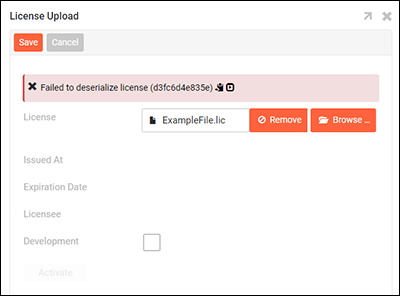
Uninstall or disable WebDAV on IIS, as it can interfere with App Builder. If WebDAV is required, contact Jitterbit support.
"Name not found" when granting application pool user permission to data directory
The Windows Server 2008 permissions editor is not able to find application pool identities. Administrators can use the command line instead. Start by launching the command prompt as an administrator. Switch to the installation root directory, e.g. C:\inetpub\wwwroot\Vinyl, then run the following commands:
ICACLS data /grant "IIS AppPool\Vinyl":F
ICACLS keys /grant "IIS AppPool\Vinyl":F
ICACLS logs /grant "IIS AppPool\Vinyl":F
Troubleshooting
For related troubleshooting, see the following in the App Builder troubleshooting guide: