Microsoft Excel connector in Jitterbit Studio
Summary
The Microsoft Excel connector establishes access to Microsoft Excel.
Important
We recommend using the Microsoft Excel v2 connector to connect to Microsoft Excel as it allows for additional configuration properties.
The Microsoft Excel connector provides an interface for creating a Microsoft Excel connection, the foundation used for generating instances of Microsoft Excel activities. These activities, once configured, interact with Microsoft Excel through the connection.
The Microsoft Excel connector is accessed from the design component palette's Project endpoints and connectors tab (see Design component palette).
WARNING: While the connector is capable of pulling data from Excel files hosted on a variety of cloud data stores using its Query activity, the Create, Update, and Delete activities are not supported outside of local files in this connector. See Establishing a connection for details.
Known issue
The Excel connector is not compatible with private agent version 12.x. Testing a connection or running an operation returns the error HttpErrorResponse: This connector was not found on the Jitterbit Agent. Please be patient with us while the connector is downloaded across the agents. This may take up to several minutes. The Microsoft Excel v2 connector is not affected by this issue; use it instead.
Endpoints created with this connector are included in endpoint usage reporting and count toward your license.
Connection documentation
In addition to the Microsoft Excel connection, see the comprehensive Microsoft Excel connection details page. Configuration details such as these are included on that page:
- Getting Started: Initial steps for establishing a connection.
- Advanced Features: User-defined views and SSL configuration.
- Data Model: The data model that the connector uses to represent the endpoint.
- Advanced Configurations Properties: Properties that can be defined to configure a connection for both basic and advanced configurations.
Activity documentation
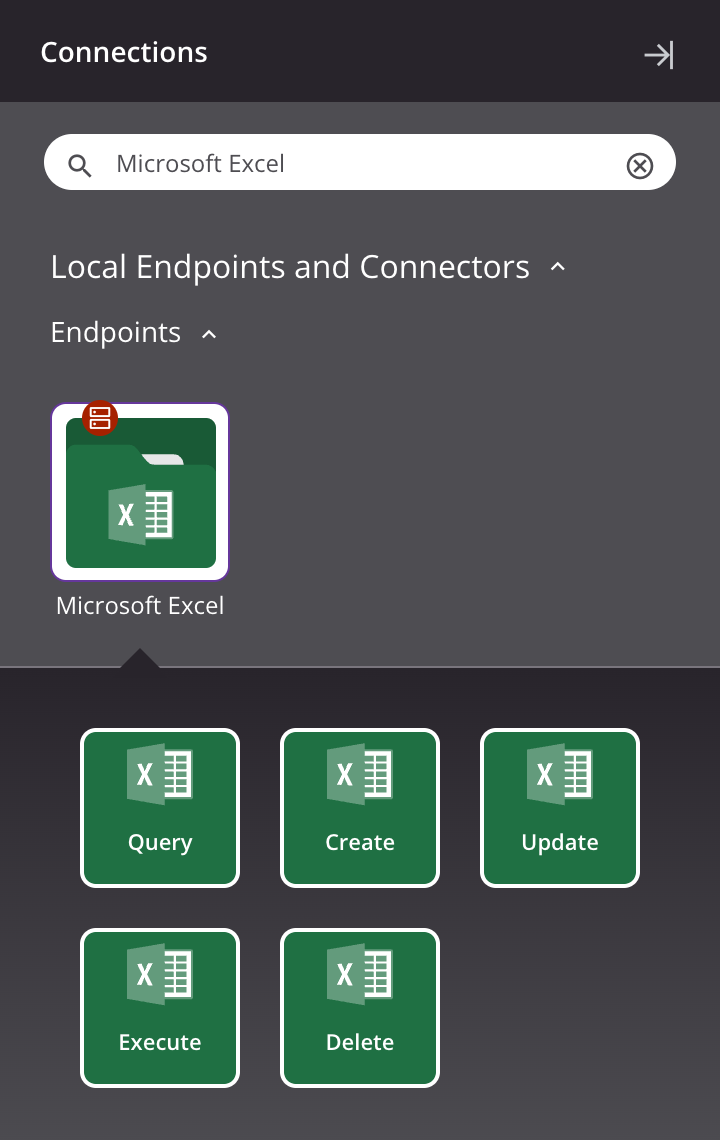
Together, a specific Microsoft Excel connection and its activities are referred to as a Microsoft Excel endpoint:
-
Query: Retrieves records from a table at Microsoft Excel and is intended to be used as a source in an operation.
-
Create: Inserts a record into a table at Microsoft Excel and is intended to be used as a target in an operation.
-
Update: Updates a record in a table at Microsoft Excel and is intended to be used as a target in an operation.
-
Delete: Deletes a record from a table at Microsoft Excel and is intended to be used as a target in an operation.
-
Execute: Executes a procedure at Microsoft Excel and is intended to be used as a target in an operation.
Prerequisites and supported API versions
This connector can be used only with private agents.
Agents automatically download the latest version of this connector when required. On private agents, you can suspend these updates with the Disable Auto Connector Update organization policy.
Refer to the endpoint documentation for information on the schema nodes and fields.
OAuth authentication
OAuth authentication is supported as described in Configure OAuth connections.
Troubleshooting
If you experience issues with the Microsoft Excel connector, these troubleshooting steps are recommended:
-
Click the Test button in the connection configuration to ensure the connection is successful and to ensure the latest version of the connector is downloaded to the agent (unless using the Disable Auto Connector Update organization policy).
-
Ensure any Microsoft Entra ID app registrations associated with the connection are not using the deprecated Azure AD Graph.
-
Check the operation logs for any information written during execution of the operation.
-
Enable operation debug logging for private agents to generate additional log files and data.
-
Enable connector verbose logging for this connector by adding this logger configuration entry to your private agent's
logback.xmlfile:<logger name="org.jitterbit.connector.verbose.logging.Excel" level="TRACE"/>For more information on connector verbose logging, see Verbose logging for connectors using Jitterbit private agents.
-
Check the agent logs for more information.
-
For additional troubleshooting considerations, see Operation troubleshooting.