Publish an operation as an API in Jitterbit Studio
Introduction
This page describes how to configure and publish a custom API (to expose an operation for consumption) from within Studio. The Publish as an API option is accessible from an operation's action menu.
Alternatively, custom APIs can be created from the API Manager using the UI or the AI Assistant.
For a task-oriented walkthrough of publishing an operation as a REST API, including response configuration and security, see Expose a Studio operation as a REST API.
Note
Once published, a custom API counts as an API URL against your Harmony subscription allowance.
Custom APIs (published and draft) are displayed in these locations:
- The APIs page of API Manager.
- The project pane's Resources tab for the Studio project associated with the custom API.
Prerequisites
To use the Publish as an API option in the operation's action menu, these prerequisites must be met:
-
The organization being accessed must have a subscription to API Manager and have the appropriate role permissions and environment access levels. For information about adding API Manager to your license, contact your Customer Success Manager (CSM).
-
The operation must not have any undeployed changes.
Configure the API
After clicking the Publish as an API option on the operation's action menu, an API configuration drawer opens along the bottom of the project designer. The five steps of the configuration process are described below:
Profile
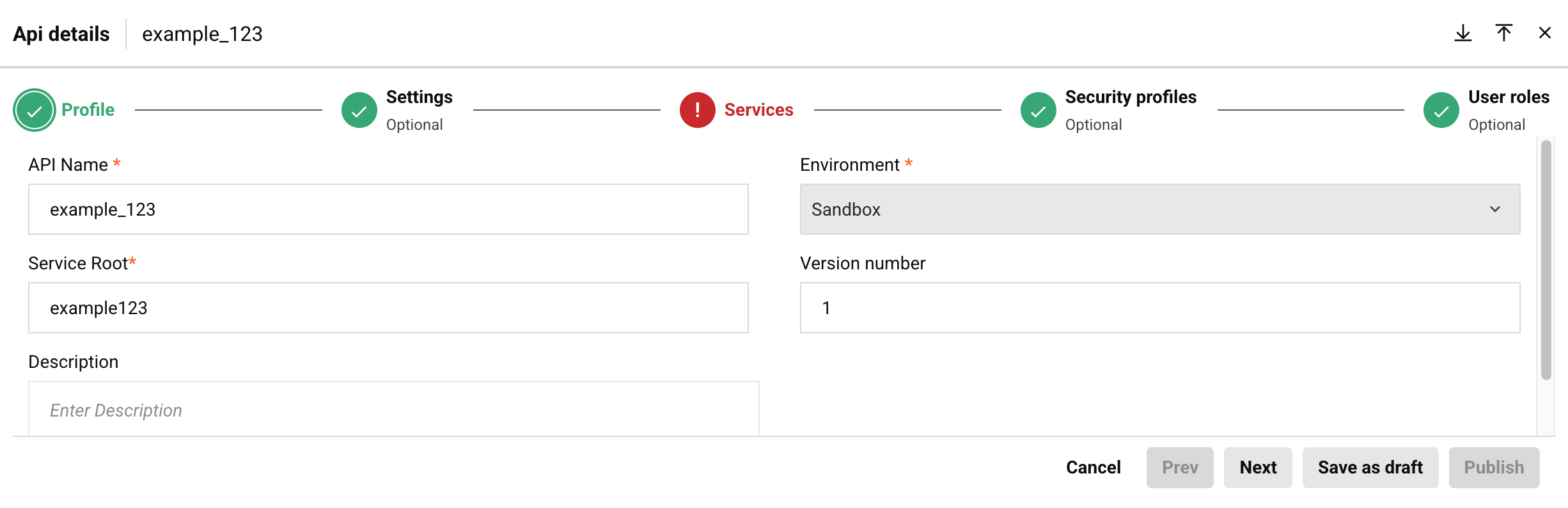
Enter the following basic information about the API.
Note
Optional settings such as path parameters, query parameters, and request headers can be set in API Manager (see Services tab in Custom API).
-
API Name: Enter a name for the API to use for internal identification purposes.
-
Service Root: The public name of the API to use as part of the API's service URL. By default, this field is populated with the operation name converted to camel case. This field does not allow spaces or certain special characters. Using special characters other than an underscore (
_) is not recommended. These special characters are allowed:_~()$;/\?:@=&'!*@,+- -
Description: Enter an optional description for the API.
-
Environment: This field is set to the environment of the project currently being accessed and cannot be changed.
-
Version number: Enter an optional version to use as part of the API's service URL. This field allows a maximum of 50 characters and does not allow spaces or certain special characters. Using special characters other than a period (
.) or a hyphen (-) is not recommended. Common naming conventions include incrementing versions, such asv1.0,v1.1,v1.2, or using a date that the API was published, such as2023-09-21.
Settings
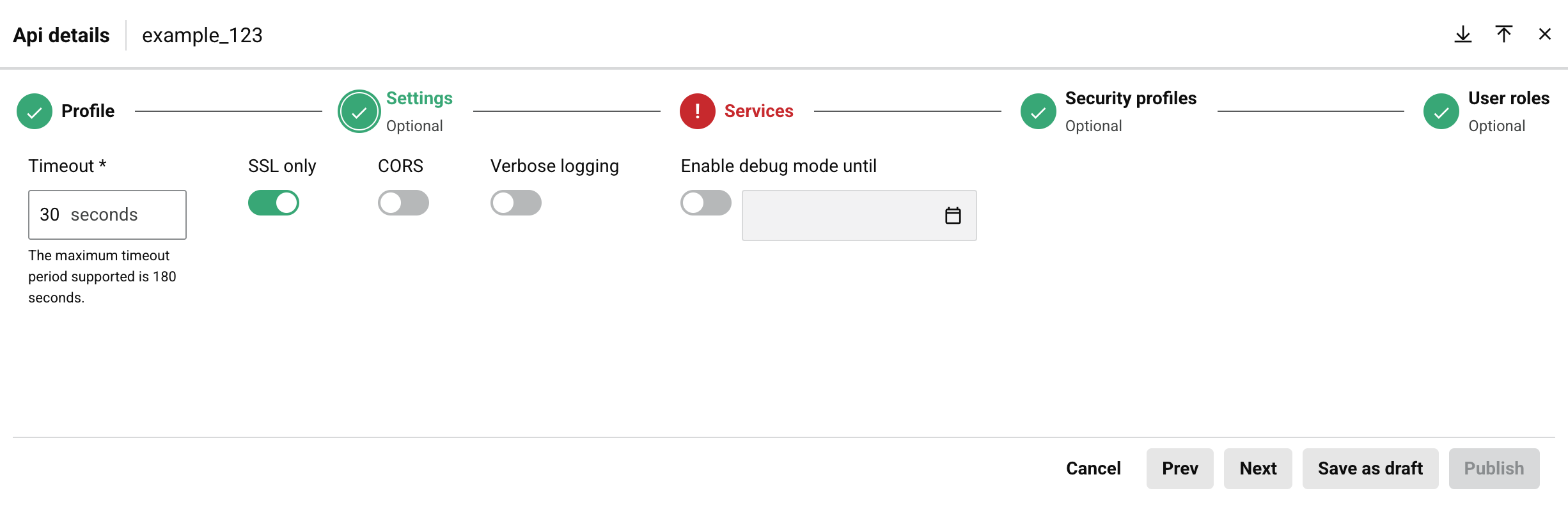
Continue configuring the API. These settings are optional.
-
Timeout: Enter the number of seconds before the API will time out. The default is
30seconds. The maximum is180seconds.Note
This setting is independent of the Operation time out setting available within the operation's Options tab. Operation timeout settings are not used for API Manager APIs unless a private agent is used and the
EnableAPITimeoutsetting in the private agent configuration file is enabled. -
SSL only: This option is toggled on by default and requires the use of SSL encryption (recommended).
-
CORS: Toggle on to enable Cross-Origin Resource Sharing (CORS) (not recommended). Activating this toggle shows the following message:
Dialog text
Enable CORS
Allowing any origin to access an API is not recommended due to potential security risks. One key concern is that it causes the operation assigned to the OPTIONS method to execute without authentication. Before enabling this setting, please confirm that it aligns with your organization’s security policies.For more information, see Cross-Origin Resource Sharing on MDN.
ContinueCancel -
Verbose logging: Toggle on to enable verbose logging. Verbose logs for APIs include request and response data in each API log to help monitor incoming and outgoing data and facilitate debugging. As this can create large log files, verbose logging is disabled by default. Activating this toggle shows the following message:
Dialog text
Enable verbose logging
Verbose logging for APIs allow the user to decide whether each API log should contain request and response data. This functionality helps to monitor incoming/outgoing data and debug API issues.
ContinueCancel -
Enable debug mode until: Select to enable debug mode and enable entering a corresponding date and time on which debug mode will be disabled. The maximum length of enablement is two weeks. Activating this toggle shows the following message:
Dialog text
Enable debug mode
Debug mode enables full tracing for all requests received via this URL. When enabled, the system captures the complete content of each API request and response for up to 24 hours. This includes all operations triggered by the API. Due to the high volume of data generated and potential storage impact, debug mode can only be enabled for up to two weeks.
ContinueCancel
Services
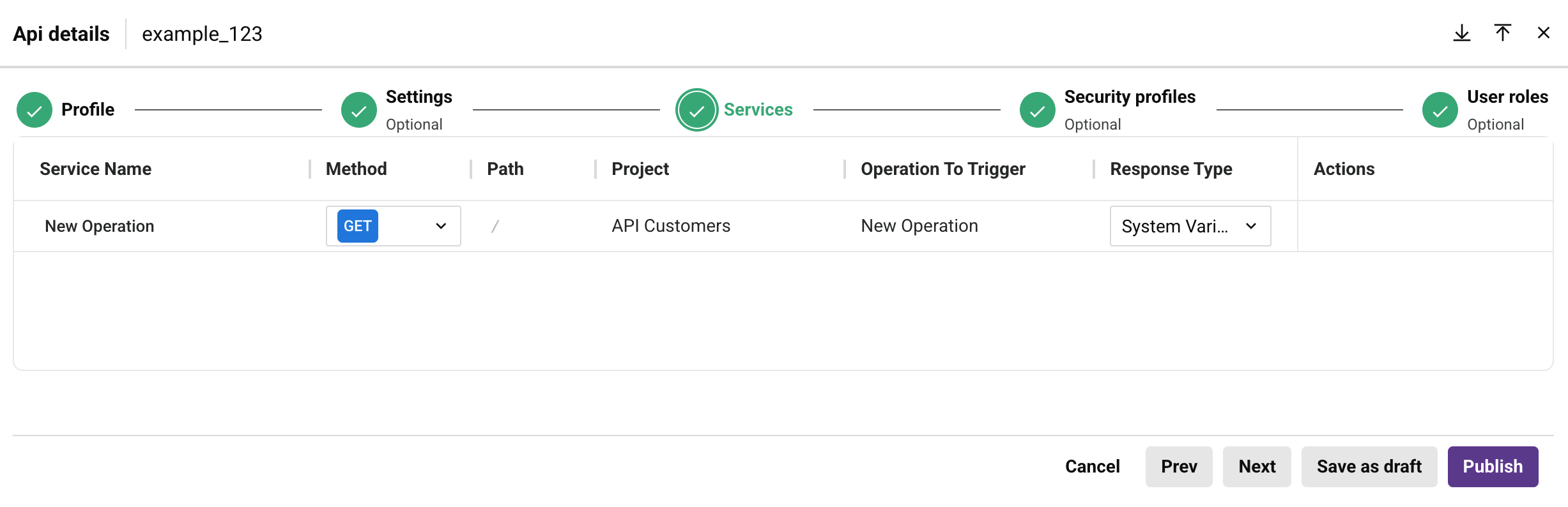
Configure services for your API.
-
Service Name: Enter a name for the API service. By default, this field is set to the operation's name.
-
Method: Select from one of ALL, CUSTOM, DELETE, GET, POST, or PUT as the request method to be used for the selected operation. Selecting ALL will create separate
DELETE,GET,POST, andPUTrequest methods for the operation (theCUSTOMmethod is not included).Note
API services using a
CUSTOMmethod will not have OpenAPI documentation generated through the Portal Manager page due to a limitation of the OpenAPI specification. -
Path: The path for the request.
-
Project: (Visible only for custom APIs and OData APIs.) The name of the Studio project.
-
Operation To Trigger: (Visible only for custom APIs and OData APIs.) The name of the operation being called.
-
Response Type: (Visible only for custom APIs and OData APIs.) This field is required. Select from one of Final Target, System Variable, or No Response:
-
Final Target: The API response is the final target of the operation. When this response type is selected, the operation must have (as the final target of the operation chain) a Studio API Response activity. If any other final target is used, the API response will be empty.
-
System Variable: The API response is set in a Jitterbit variable in the operation. When this response type is selected, the operation must have (as part of an operation chain) a script that sets the Jitterbit variable
jitterbit.api.responseequal to the response that you want the API to return. If this variable is not set, the API response will be empty. -
No Response: The API response is blank. If the request to run the selected operation is accepted, the API will return an immediate empty response with HTTP code 202.
-
-
Actions: Hover over the service row to reveal additional actions:
-
Copy API service URL: Click to copy the API service URL to your clipboard. (You'll see a confirmation of the action.)
-
Go to API Service: Opens the Summary & Confirmation page for the API, where you can edit the API's settings.
-
Duplicate: (Visible only for custom APIs and OData APIs.) Creates a duplicate of the API service. You must change either the request method or the Path as each API service must have a unique combination of those fields.
-
Delete: Deletes the API service.
-
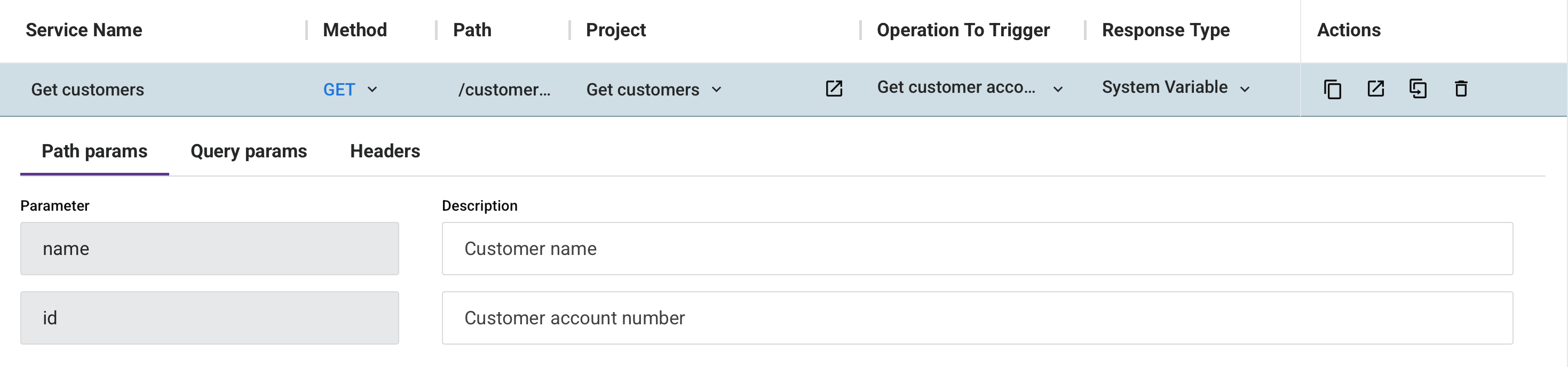
When you click a custom API service row, these tabs appear:
Path params tab
When request parameters are included in the Path, this tab is populated with these fields:

-
Parameter: Displays the request parameters defined in the Path.
-
Description: Optionally, enter a description for the request parameters.
Query params tab
This tab allows you to add query parameters to the API service:

-
Add Parameter: Click to add a query parameter to the API service. When clicked, these fields become available:
-
Parameter: Enter the name of the query parameter.
-
Description: Optionally, enter the description of the query parameter.
-
Delete: Click the delete icon next to a query parameter to delete that parameter.
-
Headers tab
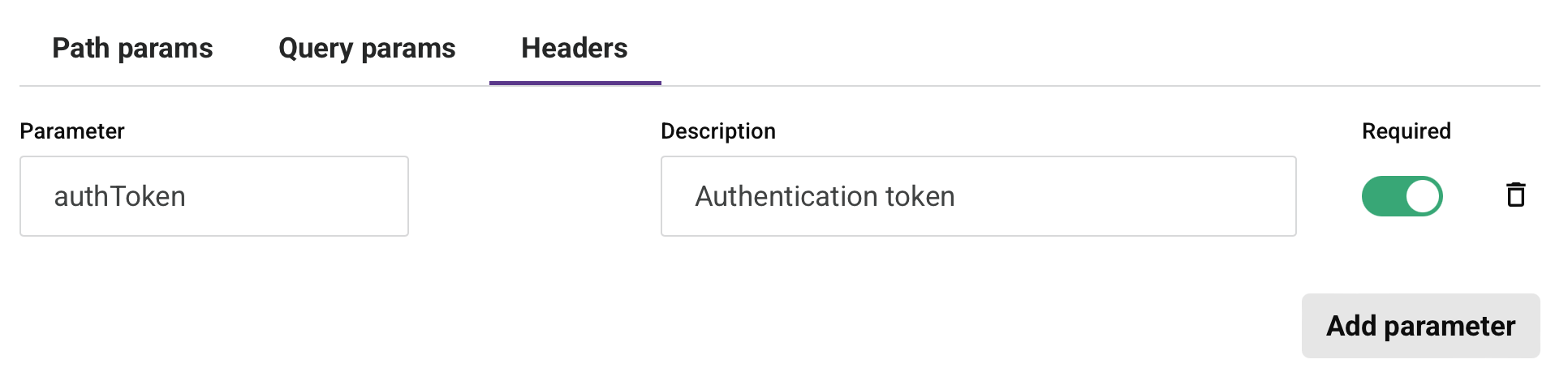
This tab allows you to add request headers to the API service:
-
Add Parameter: Click to add a request header to the API service. When clicked, these fields become available:
-
Parameter: Enter the name of the request header.
-
Description: Optionally, enter the description of the request header.
-
Required: Select if the request header should be required for each API service request.
-
Delete: Deletes the request header.
-
Security profiles
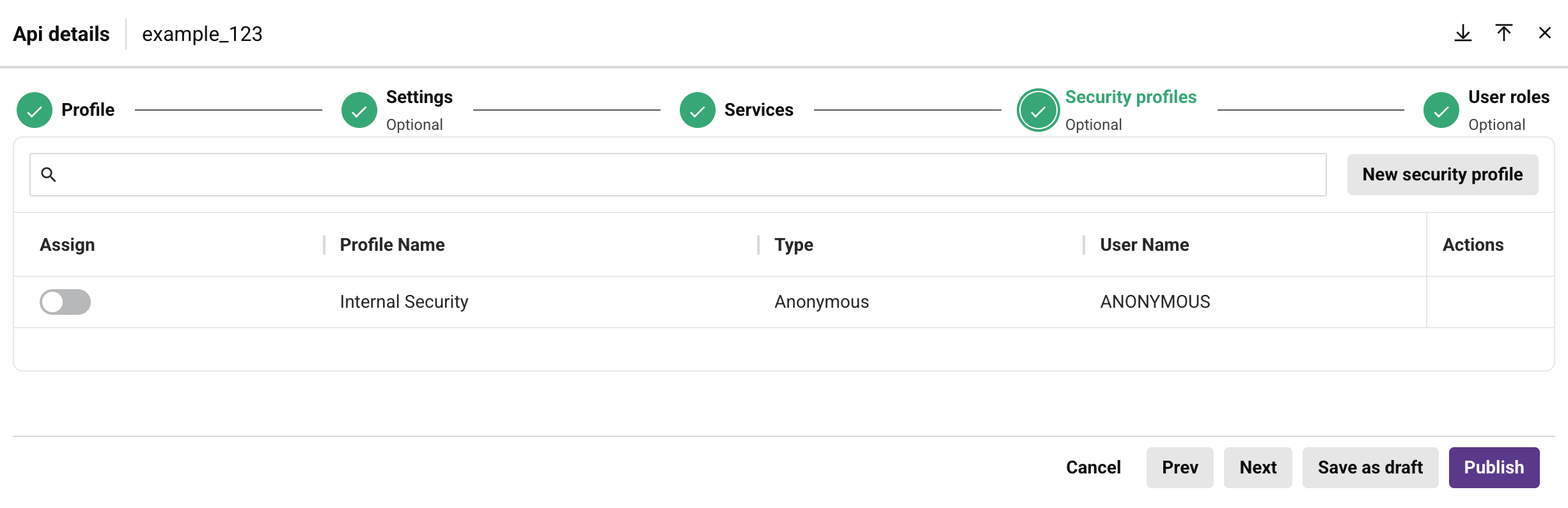
Configure security profiles for the API. These settings are optional.
-
Search: Enter any part of the security profile name, type, or username into the search box to filter the list of services. Use alphanumeric characters only. The search is not case-sensitive.
-
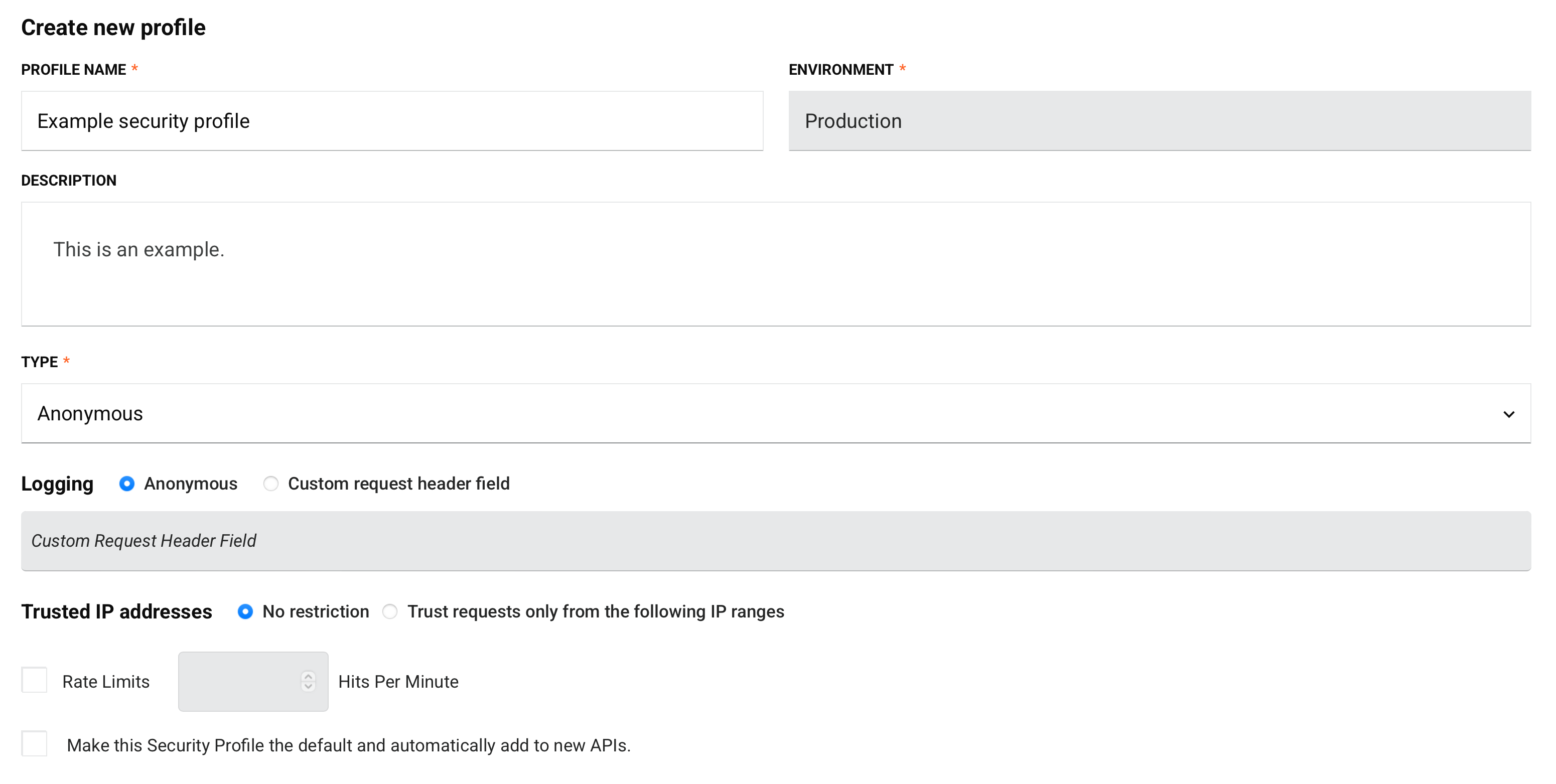
New security profile: Opens a drawer to configure a new security profile (see Security Profiles):
The list of existing security profiles to choose from shows them in a table with the following columns:
-
Assign: Use the toggle to assign or unassign the security profile to the API.
Security profile assignment rules
-
Multiple profiles: You can assign multiple security profiles with the same authentication type to an API. Only
basicandAPI keyauthentication types can be used together. -
Publishing changes: When you unassign a security profile from an API using the toggle, the change is saved as a draft. You must publish the API for the change to take effect. Until the API is published, the security profile is still considered "in use" and cannot be deleted from the Security Profiles page.
-
-
Profile Name: The name of the security profile.
-
Type: The authentication type, one of Anonymous, API key, Basic, or OAuth 2.0.
-
User Name: Displays the username for any security profiles using Basic authentication. Otherwise, the authentication type is displayed.
-
Actions: Hover over the security profile row to reveal an additional action:
- Go to security profile: Opens the configuration screen for the security profile.
User roles
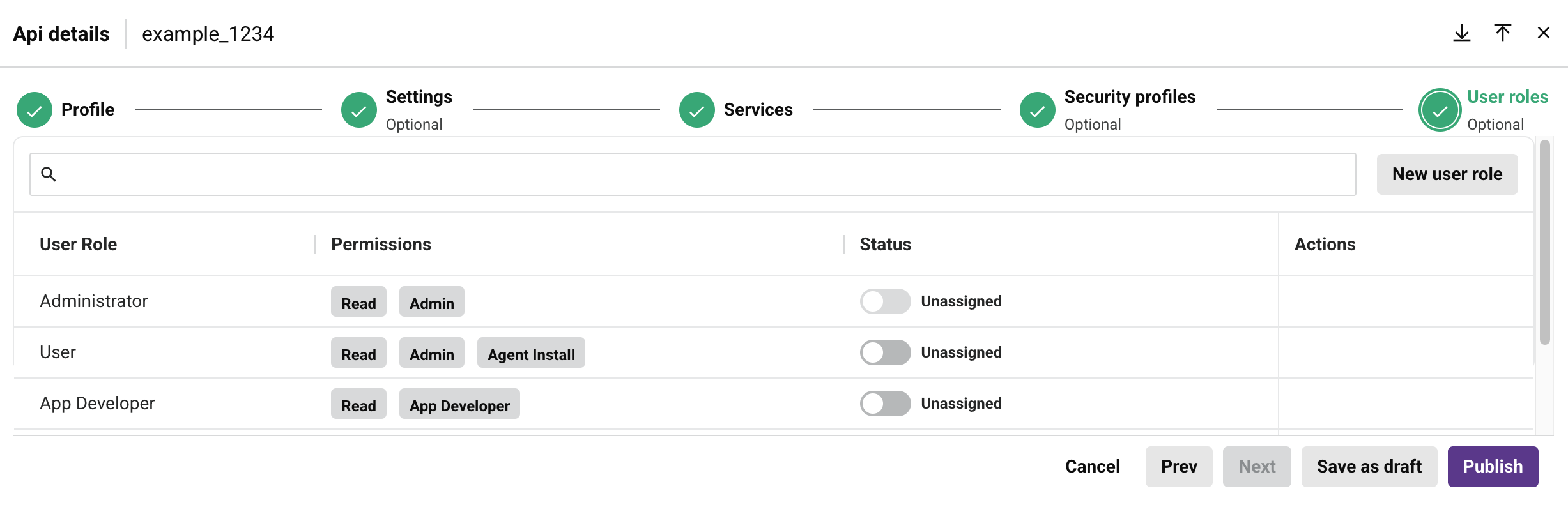
Configure organization roles whose members have access to the API. These settings are optional.
Note
This tab is visible only for custom APIs and OData APIs.
You can sort the table by User Role by clicking the respective header row.
-
Search: Enter any part of the user role, permission, or status into the search box to filter the list of services. Use alphanumeric characters only. The search is not case-sensitive.
-
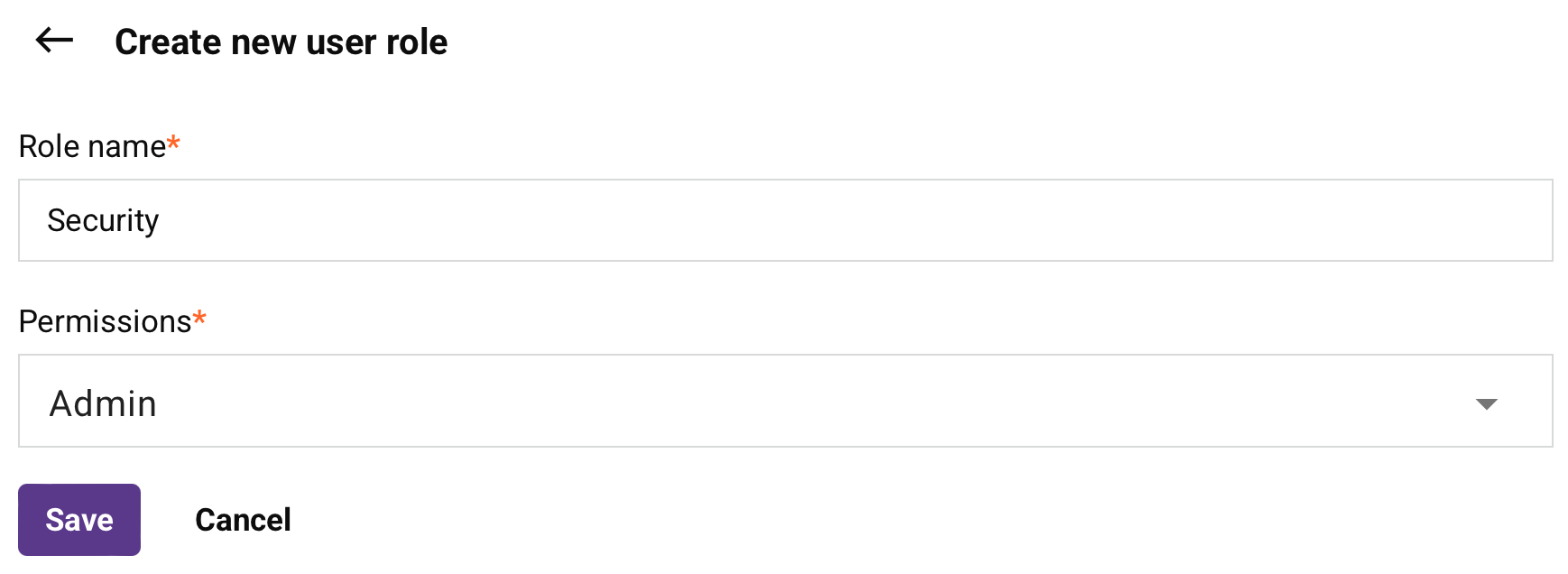
New user role: Opens a drawer to configure a new user role:
-
Role name: Enter a unique name for the role.
-
Permissions: Click to open the menu, then select at least one permission from the list.
Role management rules
These rules apply for managing roles in APIs:
- Users with Admin permission or Write environment access can assign or unassign roles to APIs.
- Users with Admin permission can create and assign new roles.
- Users with Admin permission cannot be unassigned from any API by any user.
-
Save: Saves the role and adds it to the table of roles.
-
Cancel: Closes the drawer without saving changes.
-
-
Permissions: The permissions a user currently has.
-
Status: Displays whether the user role is assigned or not assigned to the API.
-
Actions: Hover over the user role row to reveal an additional action:
- Go to user role: Opens the Management Console's User Management page.
Footer
The drawer's footer shows these options. They can be enabled or disabled depending on how much you've already configured:
-
Cancel: Closes the dialog without saving.
-
Prev: Return to the previous step.
-
Next: Advance to the next step.
-
Save as draft: Saves the API in Draft status and is accessible from the API Manager APIs page. A draft API does not count as an API URL against your Harmony subscription allowance. You can access and complete the configuration of the draft API from the API Manager APIs page.
-
Publish: Saves the API in Published status. The API is live and accessible within five minutes. A published API counts as an API URL against your Harmony subscription allowance. You can access the published API from the API Manager APIs page.
Important
Operations triggered by an API Manager custom API have additional logging that can be enabled. For details on what appears in operation logs and how to enable additional logging, see API request and response data in Operation logs.