Auto Build features in Jitterbit App Builder
App Builder includes a set of tools designed to automate the most repetitive tasks in application development. Collectively referred to as Auto Build features, they cover different layers of an application: the application wizard lays the foundations for a new app, accelerators speed up rule and page creation from tables, and copy tools move data objects across data sources.
Create a new application
App Builder provides two wizards for creating a new application. The one-step wizard, accessible from the Site Menu, requires only an application name and a single click to start. When it finishes, it automatically creates the following:
- Home page
- Home and Configuration menu entries
- Parameters page (under the Configuration submenu), linked to a Parameter single-row popup page
- Parameter table with the following columns: Application, Version, ParameterID, and audit columns
- Parameter business object
- Reports menu item (displayed once a chart is added to the application)
If you need more control over the initial setup, such as connecting the application to an existing data source or choosing a specific home page layout, use the multi-step wizard, accessible from the IDE, instead.
For full instructions on both approaches, see Create a new app.
Accelerators
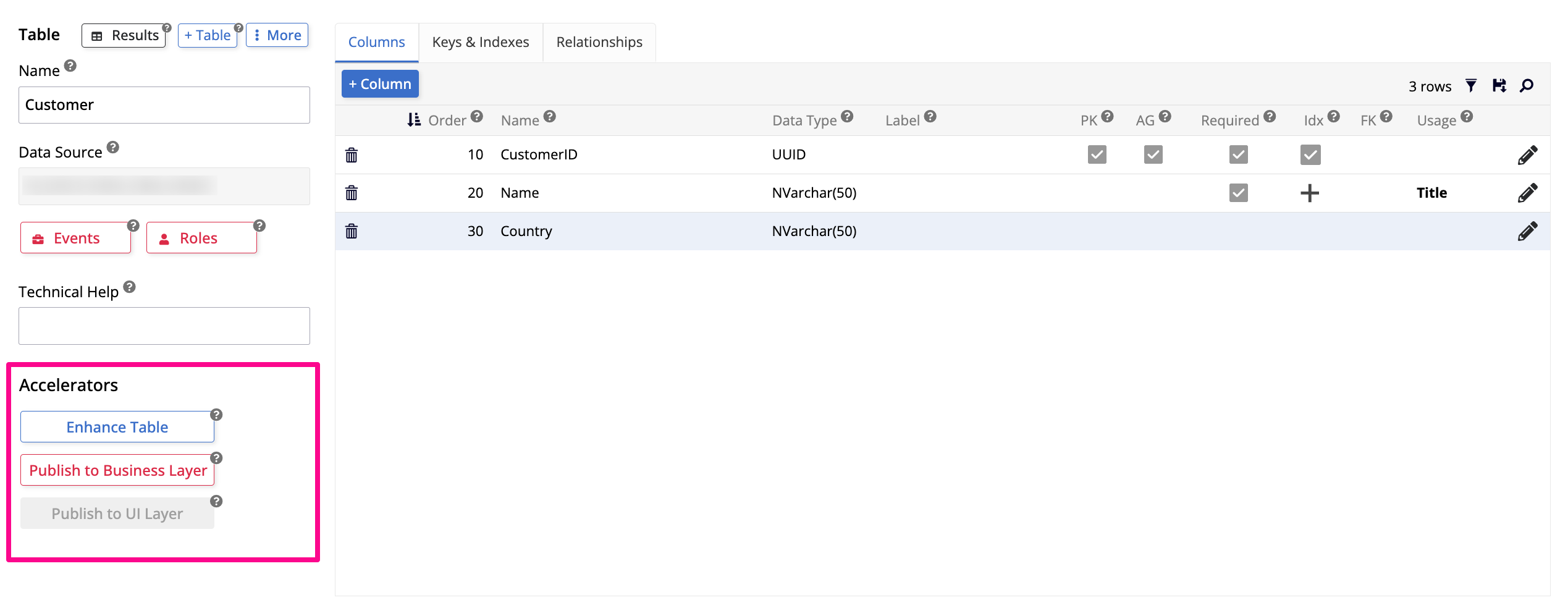
When you build a new table in App Builder, a series of accelerators become available. They can be used to make your tables auditable, and to speed up the creation of objects and pages based on the tables. These options are available in the Accelerators section of the Table panel.
Note
Using the Table wizard automatically adds columns to support audit and user-selectable functionality, and creates views in the business layer.
Audit Lite
Audit Lite is an App Builder feature to help make all your application's tables easily auditable. Clicking Enhance Table (then Proceed) adds five columns to track information about when a table was modified, and by whom. Jitterbit recommends applying Audit Lite to all tables in an application.
| Column | Description |
|---|---|
IsActive |
Indicates whether a record is active. Assigned the User Selectable usage type, which filters out inactive records in list controls. |
AddedBy |
The username of the person who created the record. |
AddedOn |
The date the record was created. |
ChangedBy |
The username of the person who last modified the record. |
ChangedOn |
The date the record was last modified. |
Publish to Business Layer
Every table in an application's data layer typically requires at least one corresponding rule in the business layer before its data can be surfaced in the UI. For an application with several tables, this means creating many rules. The Publish to Business Layer accelerator lets you generate these rules directly from the table, without having to go through the rule builder manually.
Clicking Publish to Business Layer (then Proceed) creates two rules based on the table: a business object and a list object (if the table has a title column defined).
Note
The accelerator names the business object using "Business Object" in parentheses rather than the "Source" convention used when creating rules manually. This does not affect how the rule works.
Publish to UI Layer
After rules are in place, the next step is to create pages so that users can interact with the data the rules expose. This pattern repeats for every major entity in an application: a table, its rules, and the pages that display them. The Publish to UI Layer accelerator speeds up this step by launching the page creation wizard pre-configured for the selected table.
Clicking Publish to UI Layer opens the same page creation wizard available from the Pages tab. The wizard lets you select a menu and a layout. The layout determines how many pages are created. For example, selecting Grid and Form generates two pages: a Grid page named with the pluralized table name and a Form page named after the table itself. If the table name doesn't have a distinct plural form (for example, Equipment), App Builder automatically generates a unique name for the Form page instead of reusing the table name, so the two pages don't end up with the same name.
Copy a table
The Copy Table feature lets you copy a data source table to an external or staging data source.
Note
Copying a table across data sources does not bring along any associated data or business objects (including Table (Source) objects).
To copy a table:
- Go to App Workbench > Tables.
- Locate the table you want to copy and click its Open Record icon.
-
Click More > Copy Table. The Copy Table Settings dialog opens:
- Select the destination data source in the Copy to Datasource field.
- (Optional) Enter a name in the New Table Name field. For example, you might name the Customer table
zCustomerwhen copying it to a staging environment.
-
Click Copy Table. App Builder starts a background job to complete the copy.
Copy a rule
App Builder lets you copy a rule along with its associated events and roles.
To copy a rule:
- Go to App Workbench > Rules.
- Locate the rule you want to copy and click its Open Record icon.
-
Click More > Copy Rule. The Copy Rule page opens:
- Select whether to copy associated Events and Roles by checking the corresponding checkboxes.
- Click Copy.
-
When the copy is complete, App Builder opens the Business SQL screen for the copied rule with "(New)" appended to the name.
Copy a page
To copy a page:
- Go to App Workbench > Pages and open the page edit screen. Alternatively, navigate to the page in the application, open the action drawer, and select Live Designer.
-
Click More, then select one of the following:
- Copy Page: App Builder creates a copy of the page within the same application and opens it.
- Copy Page to Another App (available from the App Workbench page edit screen only): Select the target application and confirm.
Copy a panel
To copy a panel:
- Go to App Workbench > Pages and open the page edit screen. Alternatively, navigate to the page in the application, open the action drawer, and select Live Designer.
- On the panel you want to copy, click More > Copy Panel.
- Select the target application and the page within that application where the panel should be added.
- App Builder copies the panel and opens the target page.