Internationalization and localization in Jitterbit App Builder
App Builder supports internationalization and localization. Specifically, App Builder can render dates and numeric values in a region-specific format. For instance, App Builder can render the date 2023-05-16 as 5/16/2023 to a user in a US English locale (en-US) or 16.05.2023 to a user in a German locale (de-DE).
Culture
App Builder's localization support is based on Microsoft .NET's concept of culture. A culture provides date and numeric formatting rules for a specific region. Cultures are mapped to IETF language tags.
How is the user's culture determined?
App Builder can determine the user's preferred culture in one of the following ways:
-
App Builder will attempt to determine the user's culture automatically. App Builder will analyze the
Accept-Languageheader provided by the browser. The value is matched to an App Builder culture. -
The culture may be explicitly set on the App Builder user account. This can be done by an administrator or by users themselves if self-servicing has been enabled.
-
The user agent can set the culture by appending
$culture={language-tag}to the URL query string. -
If the culture cannot otherwise be determined, the default system culture is used. See Set the default culture.
Culture and background jobs
When executing background jobs, the effective culture depends on how the job is queued.
-
If the job is scheduled by a user (i.e., by clicking a button), the user's preferred culture is used.
-
If the job is queued by a schedule, then the service user account's culture is used.
Extensibility
Cultures are defined by the runtime environment. Developers cannot register new cultures. However, developers can retrieve a list of existing cultures by querying the Culture public data object.
How to review and edit language, locale, and time zones
-
Open the Action Drawer menu.
-
Click View User Profile. A dialog opens.
-
The dialog shows fields where you can edit localization and time zone settings:

Note
If you're updating your Language, you will need to refresh the browser window to see the updated information.
Set the default culture
By default, App Builder uses en-US as the system culture. As of App Builder 4.61, administrators can change this to any supported culture.
Note
The default culture applies only when a user's culture cannot be determined by any other method. It does not override cultures set on individual user accounts or via the URL query string.
To set the default system culture:
-
Sign in to App Builder as an administrator.
-
Navigate to IDE > Additional Settings.
-
In the Manage panel, click Parameters. A dialog opens.
-
Click More > Global Date/Time Override. Another dialog opens.
-
Enter an IETF language tag in the Default Culture field (for example,
pt-BRorde-DE).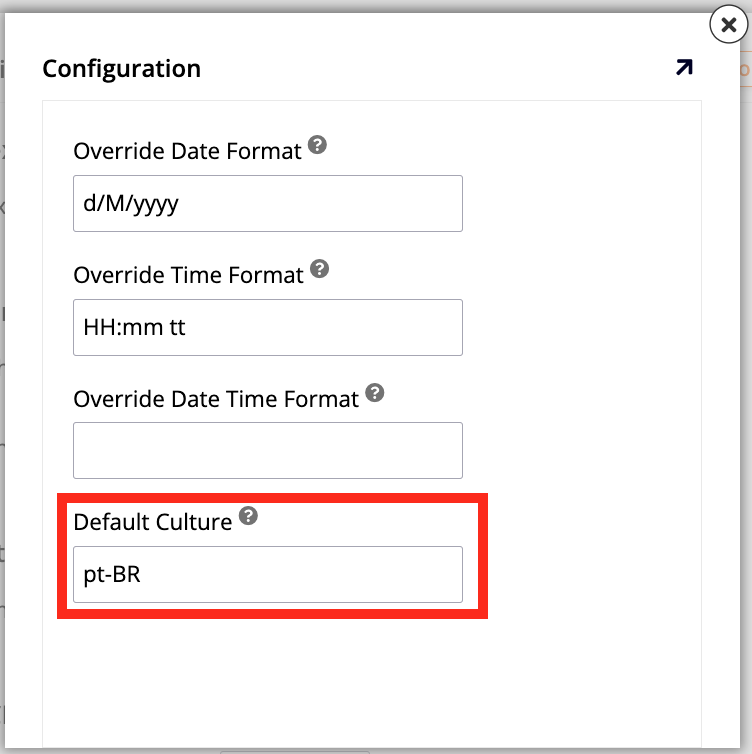
Override date and time format
By default, App Builder formats dates and times according to each user's culture settings.
As of App Builder 4.60, administrators can override this behavior by configuring system-wide format strings that apply to all users, regardless of their individual culture.
Note
System-wide format strings take precedence over culture-specific formats. When a system-wide format is set, all users will see dates and times in that format, regardless of their configured culture or locale.
Format strings
System-wide date and time formats use .NET format strings, the same standard used by culture-specific formats. The following settings are available:
| Setting | Description | Example value |
|---|---|---|
DateFormat |
Format for date-only values. | MM/dd/yyyy |
TimeFormat |
Format for time-only values. | HH:mm:ss |
DateTimeFormat |
Format for combined date and time values. | MM/dd/yyyy HH:mm:ss |
When a setting is left empty, App Builder defaults back to the format defined by the user's culture.
Note
The Date control uses the bootstrap-datetimepicker library, which expects a different format string syntax than .NET. App Builder automatically maps the configured .NET format strings to the library's expected format. No additional configuration is required.
Configuration steps
To configure system-wide date and time formats:
-
Sign in to App Builder as an administrator.
-
Navigate to IDE > Additional Settings.
-
In the Manage panel, click Parameters. A dialog opens.
-
Click More > Global Date/Time Override. Another dialog opens.
-
Enter the desired format strings in Override Date Format, Override Time Format, and/or Override Date Time Format.
Tip
These settings are stored in the App Builder configuration and survive upgrades. This is the recommended approach for applying a consistent date format across all users, replacing the previous workaround of modifying the database directly.
Known issues and limitations
Accept-Language quality values
The Accept-Language header allows user agents to weight language preferences by assigning a "quality value". App Builder does not honor the quality value. Instead, App Builder uses the first language tag.
Calendars
App Builder only supports the Gregorian calendar.