Controls in Jitterbit App Builder
A control displays a single piece of data, such as text, an image, or a date. Controls are the building blocks of an App Builder application: one or more controls make up a panel, and one or more panels make up a page, so the specific controls you choose determine what your users can see and edit. Controls can be one of several types, which control what the data shown looks like (see Control types for a list of every type available).
This page teaches how to add controls to a panel and how to delete them.
Add controls to a panel
Follow these steps to add one or more controls to a panel.
-
Navigate to the panel, using either the Live Designer or the App Workbench:
-
From the app preview, open the page containing the panel, select Action Drawer > Live Designer, then select the panel in the page view.
-
From the App Workbench, open the Pages tab, then in the Pages panel, locate the page containing the panel and either double-click its row or click the Open record icon. In the Page Panel Layout panel, find the panel and click Controls.
-
-
If you're in the Live Designer, click the All Controls tab. If you're in the App Workbench, you're already looking at the panel's list of controls.
-
Choose how many controls to add:
-
To add a single control, click + Control. In the Add a Control dialog, select a Column, or a Control Type directly if the control doesn't map to a column:
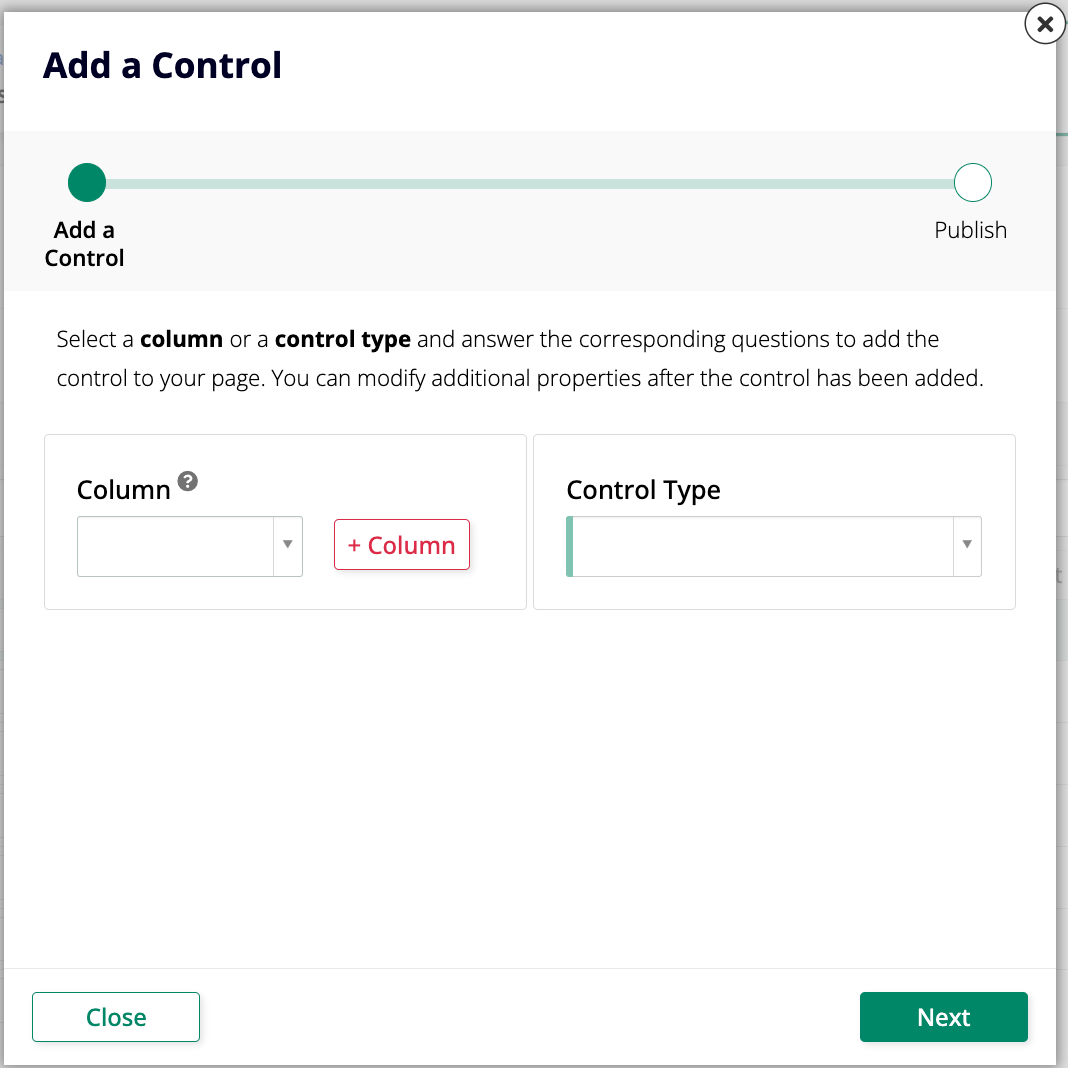
Click Next, review the proposed change, and click Finish.
-
To add several controls at once, click + Controls. The Add Controls dialog lists the panel's remaining business object columns that don't already have a control, each with a suggested Control Type:
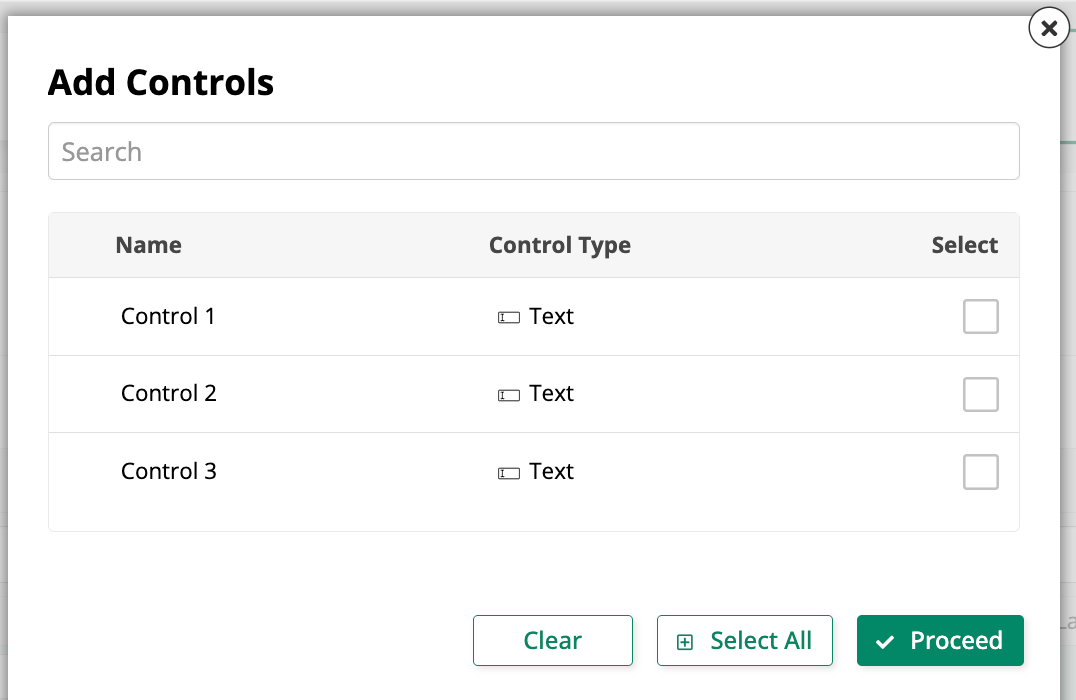
Select the ones you want, or click Select All, then click Proceed.
-
Tip
If a panel ends up with many controls, consider organizing them into control groups for a cleaner layout.
To configure a control further after adding it, such as giving it a navigation link, double-click its row in this same list to open its settings. See Configure a control as a navigation link for an example.
Delete a control
To delete a control from a panel, follow these steps:
-
Locate the panel that currently houses the control. Repeat Steps 1 and 2 of the instructions to add a control.
-
Find the control you want to delete on the list of controls and click the trash icon.
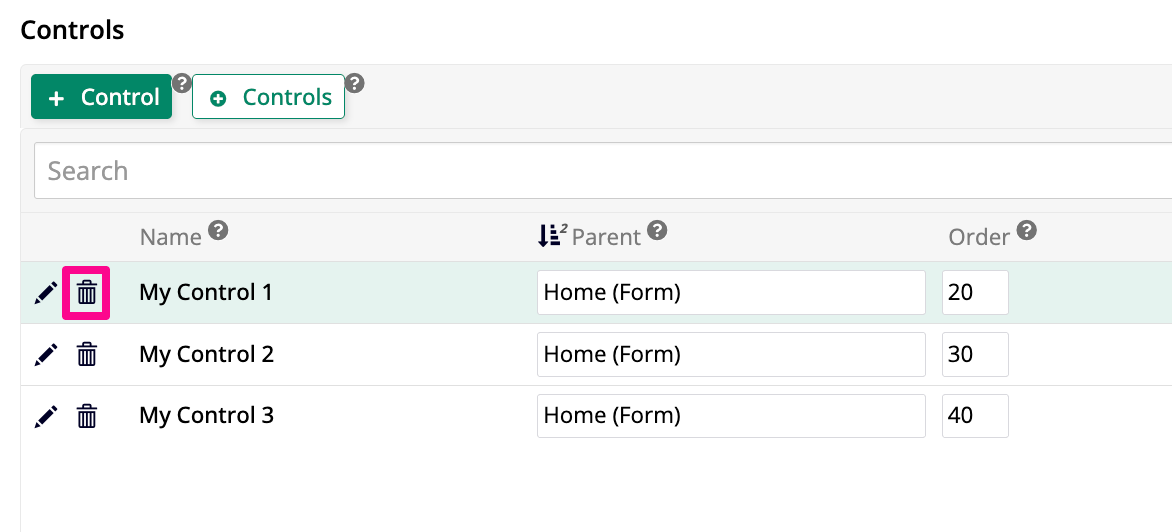
-
App Builder will ask for confirmation. Click Proceed.