Validation rules in Jitterbit App Builder
Validations are a rule purpose used to protect data integrity. They can run against data that end users enter manually, rejecting records that violate business logic (for example, duplicate records). If a CRUD rule is defined for a business object, its validations also run automatically whenever that CRUD rule executes. Validation messages shown to users are configurable and support dynamic substitution for a better user experience.
Like other rules, a validation rule is created in the business layer and only takes effect once it's registered on an event. For a full walkthrough of creating a validation rule and registering it on an intrinsic event, see Validation rules in Introduction to App Builder - Lesson 7: More about rules, and Validations in Appendix B for a more advanced example. This page covers the Validation dialog's fields in detail, along with best practices to keep in mind when working with validation rules.
Register a validation on an event
Once a validation rule's WHERE clause defines the data it should catch, register it on an intrinsic or custom event so that it runs. In the event's Validations panel, click Register to open the Validation dialog:
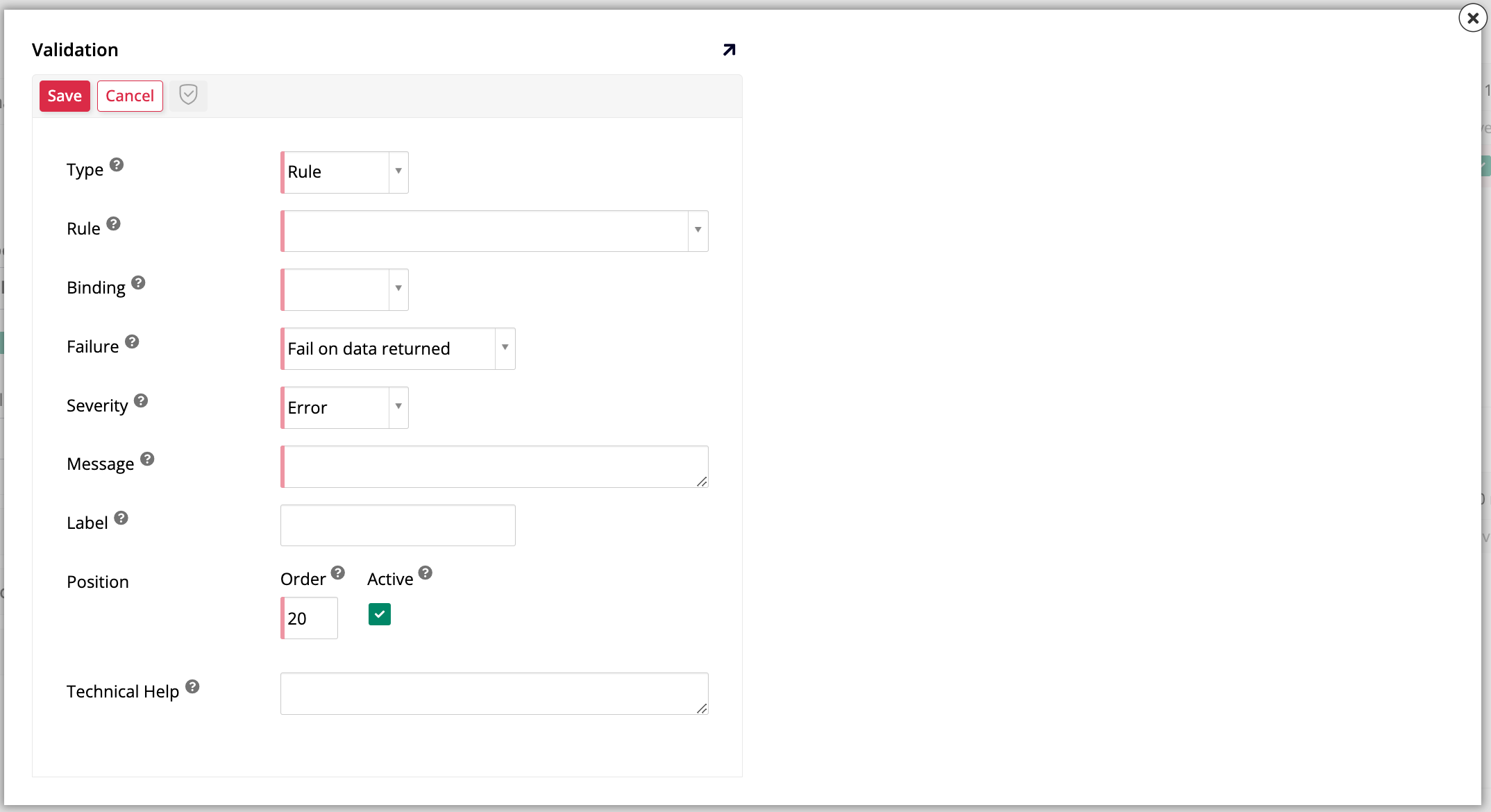
The Validation dialog includes the following fields:
-
Type: Select Rule to run a business rule as the validation, or Plugin to use a prebuilt validation plugin instead, such as the Regex Validation plugin.
-
Rule: Select the validation rule to run. Only shown when Type is set to Rule.
-
Binding: Select Implicit or Explicit. See Implicit and explicit binding to decide which one to use.
-
Failure: Select Fail on data returned if the rule is written to find bad data (the most common approach). Select Fail on no data returned if the rule is instead written to find good data, so that no returned data indicates a failure.
-
Severity: Select Error to block the save entirely, Warning to let the user choose whether to proceed, or Information to display a message without interrupting the workflow.
-
Message: Enter the message shown to the user when the validation triggers. This field supports dynamic substitution using
{{ ColumnName }}placeholders. Any substituted column must also be available in the business object the event is registered on. -
Label: (Optional) Enter a label to be shown in the event diagram. Uses the rule name if left blank.
-
Position: Set Order to control the sequence of execution among multiple validations, and Active to enable or disable the validation without deleting it.
-
Http Status Code: (App Builder 4.65 and later) (Optional) Enter the HTTP status code to return to the caller when this validation fails while it's invoked in the context of a webhook call. This field has no effect on validations invoked in the context of a REST API (SNAPI) call.
Note
If more than one validation in the same event chain fails with an Http Status Code configured, only the value from the first validation triggered in the chain is returned to the caller. If the field is left blank, a failed validation typically returns
400(Bad Request) by default; see Response body envelope for other default status codes. -
Technical Help: (Optional) Enter a description of the validation for other developers.
Best practices and recommendations
-
Use implicit binding for most validation rules, since it checks the data currently in memory on the user's screen before it's saved. Reserve explicit binding for cases where the validation needs to check data that's already saved in the database, such as an XP validation rule that validates data across a different data source. See Implicit and explicit binding for more information.
-
Choose the right target for the validation, depending on where you want it to run:
-
Target the table and register the validation on its Table Event Detail if you want it to run whenever any record is saved through any business object pointing to that table.
-
Target the business object and register the validation on its Rule Event Detail if you want it to run only when that specific business object is used.
See Where events get configured and Table vs. business object for more information.
-
-
When a validation rule uses implicit binding, the business object it's registered on must contain every column referenced in the rule. App Builder needs these columns present to successfully substitute their in-memory values. See the duplicate email validation example below for a sample configuration.
-
A validation's Warning severity only works when the validation is triggered directly by the panel or UI event. When a rule containing the validation instead runs as an action inside another event's execution (for example, from a parent rule further up an event chain), there's no interface available at that point to show the user a proceed-or-cancel prompt, so the validation's severity is escalated to Error.
-
Use dynamic substitution to make validation messages more useful to end users. Add the value to be substituted as a column on the business object the event is registered on, then reference it in the validation's Message field using
{{ ColumnName }}syntax. -
If you're building a validation rule that references a table, or several business objects built on the same table, more than once, such as a rule that checks whether a new record's email address duplicates one already saved in that table (like in the example below), add the target table to the rule a second time. Do this in the rule's Tables tab, while building out the rule in the rule builder. This ensures the new record actually gets validated, because App Builder's implicit binding automatically substitutes only the first instance of that table with the in-memory record being edited. Without a second instance left untouched, the rule would have no real saved data to compare the new record against, and the validation would never catch the duplicate it's meant to catch.
Note
The same risk shows up when a validation rule uses more than one business object that all target the same table as the panel or event triggering the validation. Unlike a table added twice, where only the first instance gets substituted, every one of those business objects is substituted with the in-memory record, since App Builder has no way to distinguish between them. If you need one of them to keep reflecting the real saved data, for example to run the same kind of duplicate check, target a table other than the one used by the panel or event instead; because it won't match, App Builder never substitutes it.
Example: Duplicate email validation rule
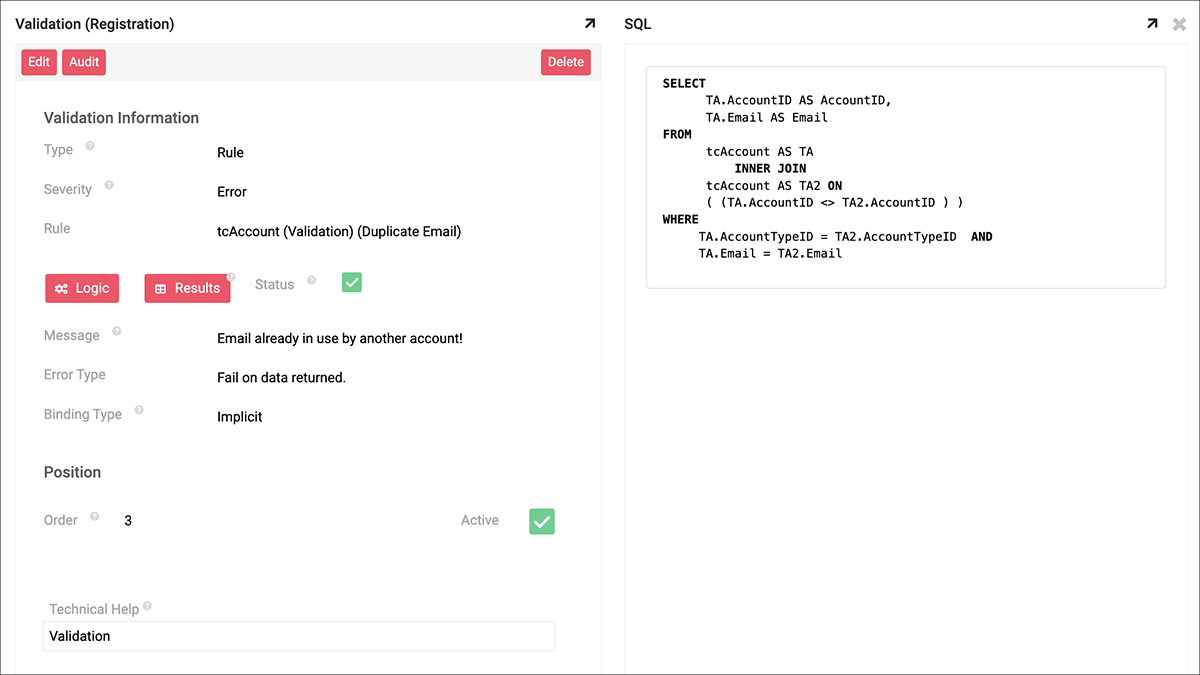
This example shows a validation rule that uses the "in-memory" approach described above, checking a user-entered email address against the values already saved in the table for other accounts. Because the rule uses implicit binding, all its referenced columns must exist in the business object it's registered on for App Builder to place the in-memory values into the rule's logic:
-
A validation rule called
tcAccount (Validation) (Duplicate Email)is created in the App Workbench's Rules tab. -
The validation rule targets the
tcAccounttable twice: once asTA(the in-memory record, which gets substituted) and once asTA2(the existing saved records to compare against).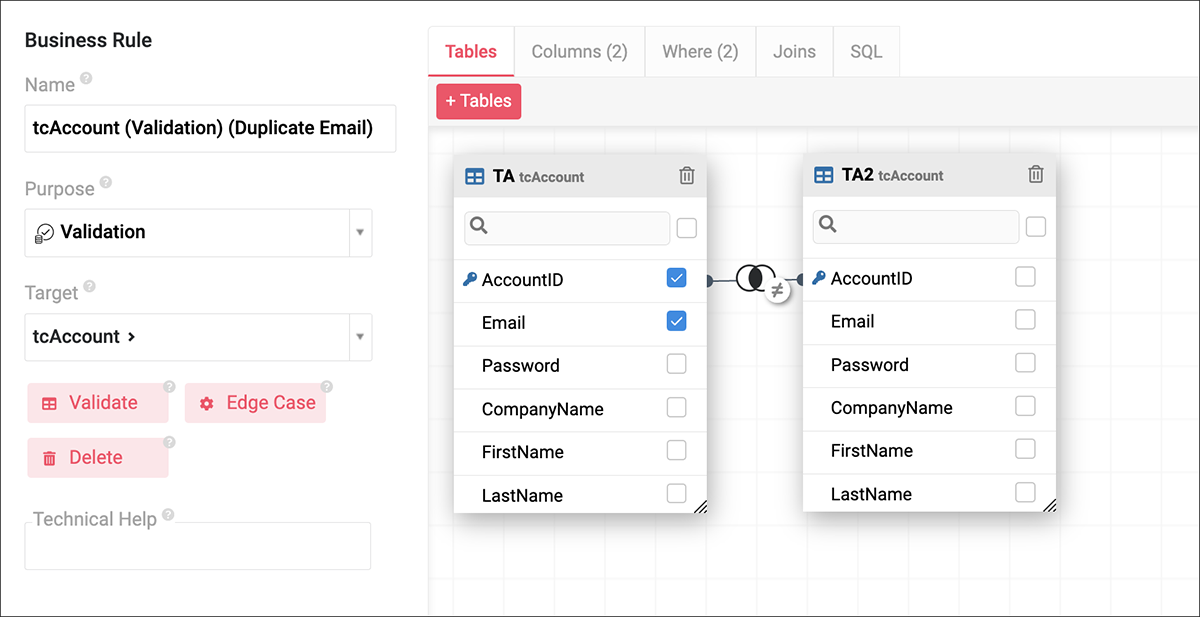
-
The
WHEREclause of the validation rule is configured to compare theEmailandAccountTypeIDcolumns between the two table instances to detect a duplicate.
-
In the rule's Joins tab, the two
tcAccountinstances are joined onAccountID, excluding matches between a record and itself.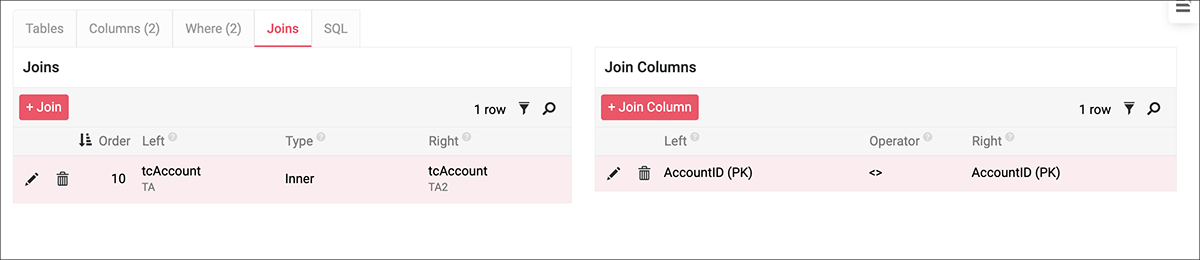
-
Finally, the rule is attached to an event using implicit binding, with the severity set to error.