User interface in Jitterbit Marketplace
Introduction
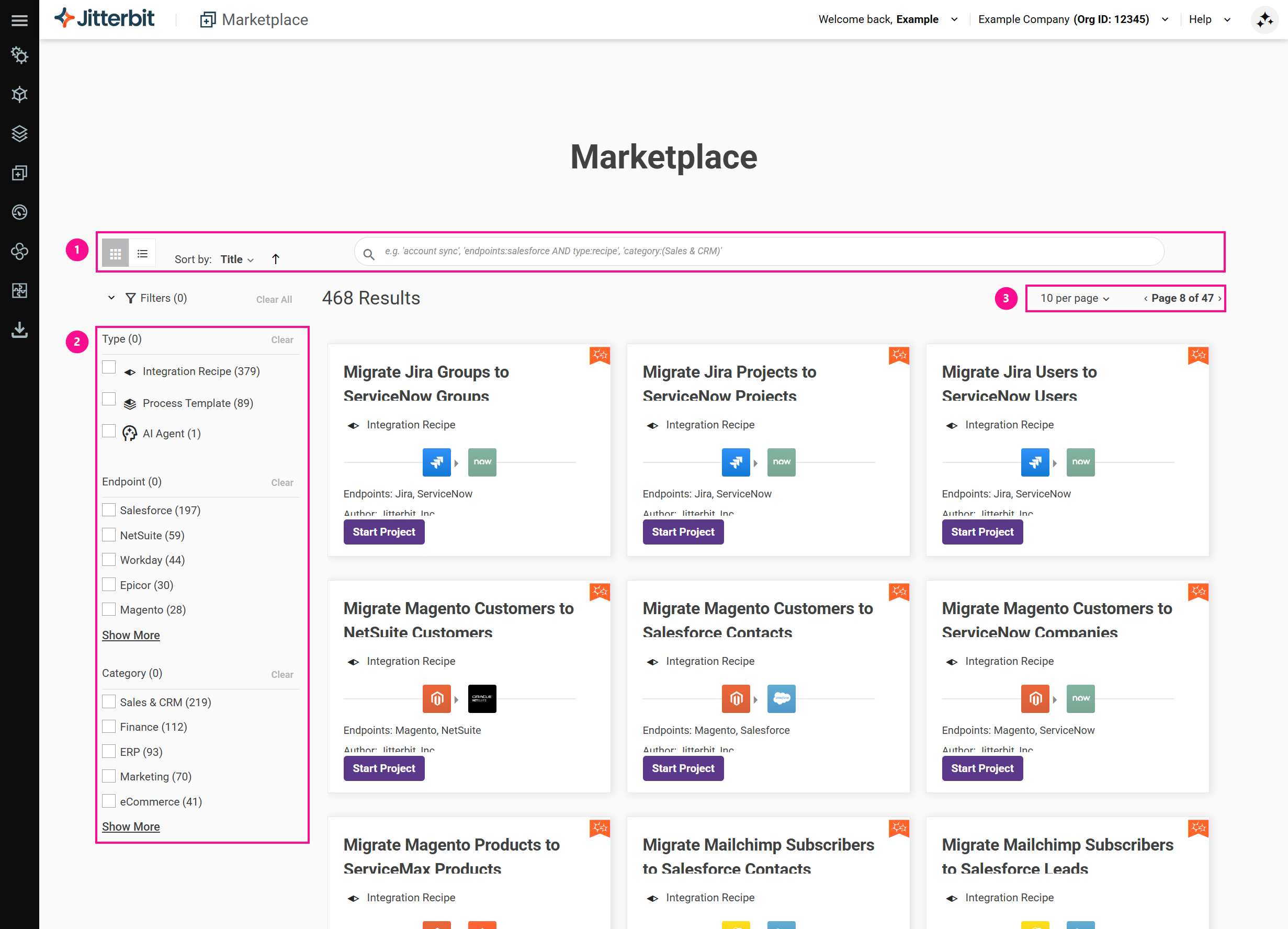
The Marketplace user interface is a single page where you browse and select integration recipes, process templates, AI agents, and apps. Recipes, templates, and agents are set up using configuration wizards; apps are downloaded and installed into your own App Builder instance. The page has controls (numbered in the image below) that let you do the following:
-
Filter the available templates.
-
Change the number of assets per page, and the page.
Views
To change the view of assets, click the Card or List icons.
In card view, assets appear as cards:
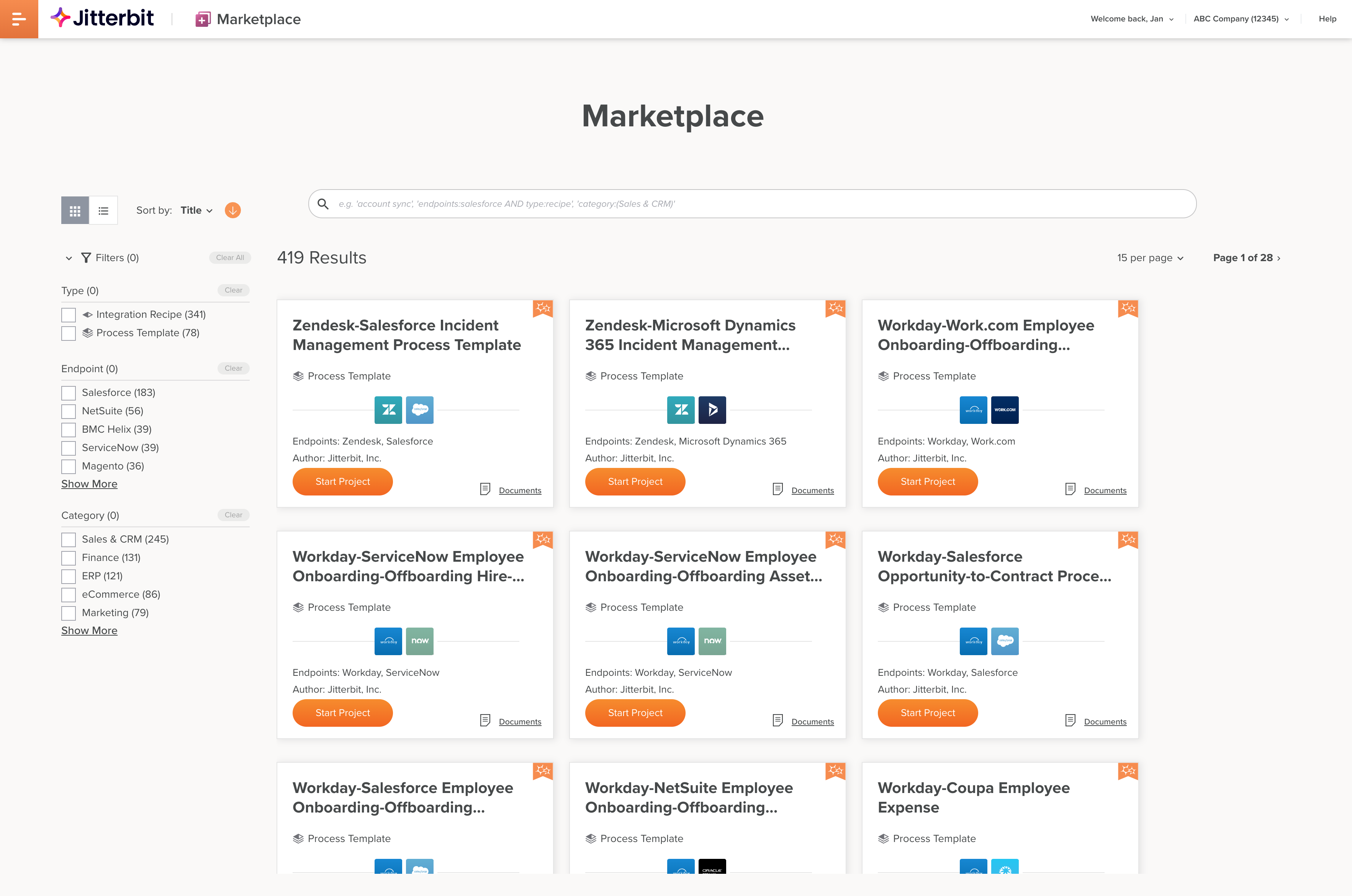
Each card shows the following information:
- The asset title.
- In the top right corner, if the asset is Jitterbit-certified, a Jitterbit icon.
- The endpoint vendor names (for integration recipes, process templates, and AI agents).
- Icons representing the endpoint vendors.
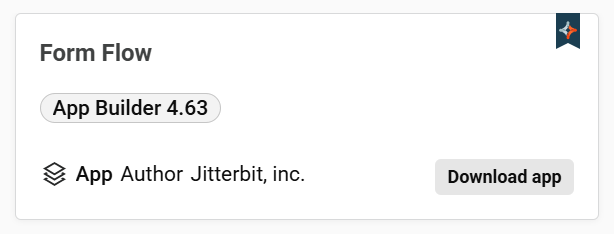
- For an app, an App Builder version badge showing the App Builder version the app is built for (for example, App Builder 4.63).
- The type of asset, either Integration Recipe, Process Template, AI Agent, or App.
- Author: The asset's author.
- A Start project button; a Get template or Get agent link; or, for an app, a Download app or Get app button, depending on the asset and your access. Next steps are described in Get started.
- If there is documentation, a Go to documentation link icon to open it.
An app card looks like this:
Click a card to open the Details panel on the right side of the page.
In list view, assets appear as rows:
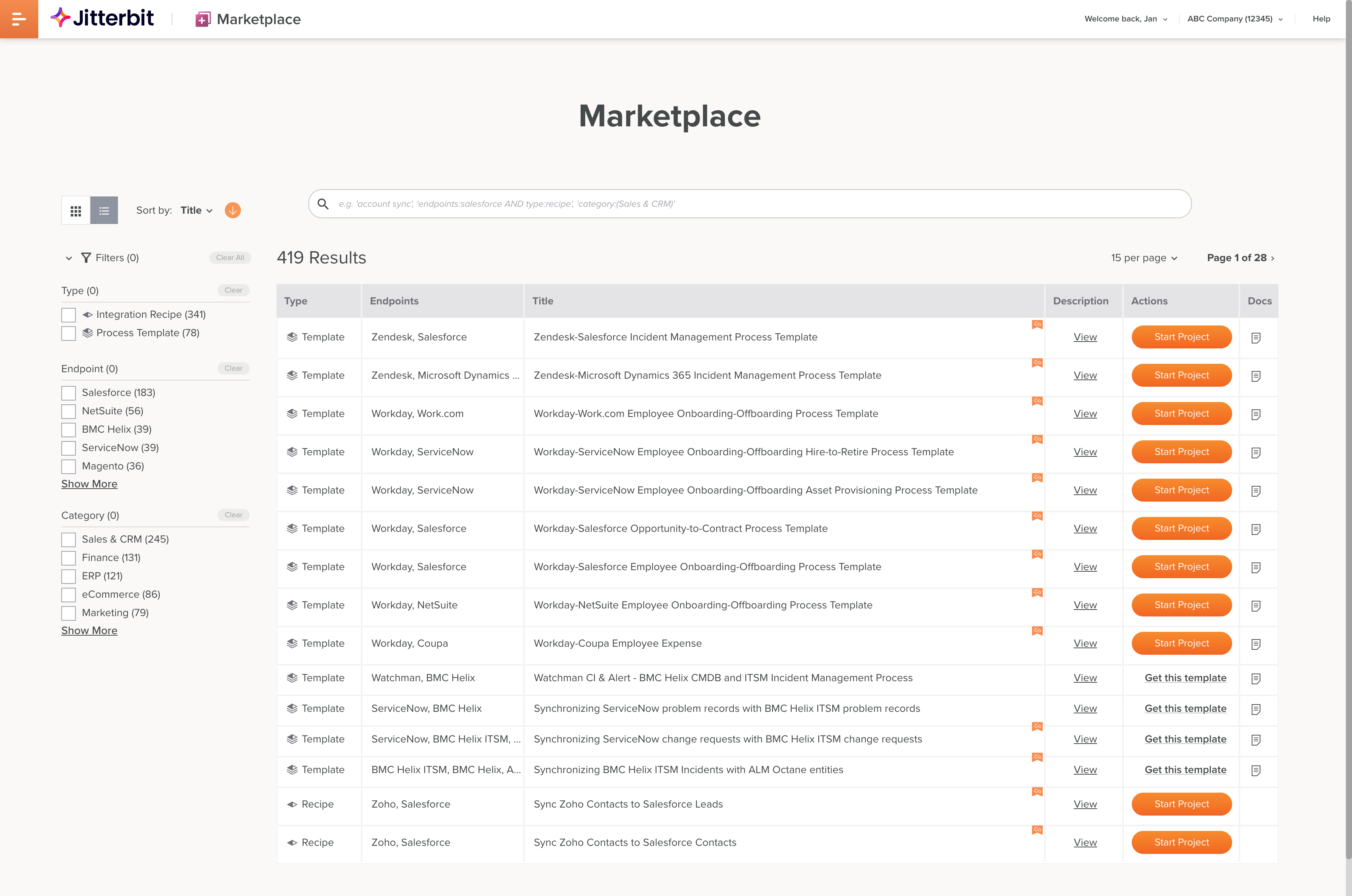
Each row shows the following information:
- Type: The type of asset, either Integration Recipe, Process Template, AI Agent, or App.
- Endpoints: The endpoint vendor names (for integration recipes, process templates, and AI agents).
- Title: The asset title. A Jitterbit icon indicates if the asset is Jitterbit-certified.
- Description: Hover on the View link to reveal a description for the asset.
- Author: The asset's author.
- Actions: A Start project button; a Get template or Get agent link; or, for an app, a Download app or Get app button, depending on the asset and your access. Next steps are described in Get started.
- Docs: Click to access documentation for the asset as either a PDF or a link to a Jitterbit Documentation page.
Details panel
In card view, click any asset card to open the Details panel on the right side of the page. The Details panel shows the following:
- The asset title.
- Icons representing the endpoint vendors.
- The type of asset, either Integration Recipe, Process Template, AI Agent, or App.
- Author: The asset's author.
- A description of the asset.
- A Start project button or a Get template or Get agent link, depending on the asset. Next steps are described in Get started.
- A Go to documentation link to open documentation for the asset.
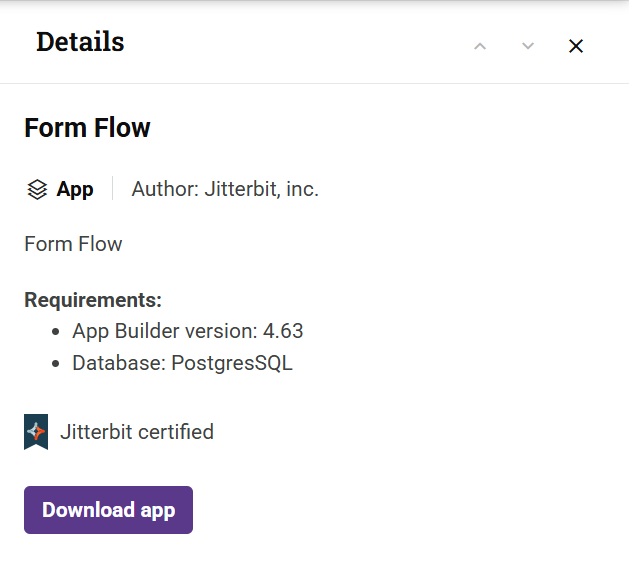
For an app, the Details panel also shows a Requirements list, with the App Builder version the app is built for and the Database it uses, and, if the app is certified, a Jitterbit certified indicator. An app shows one of the following, depending on whether you already have access to the app:
-
Download app: If your organization is licensed for App Builder, click to download the app's
.LPrelease package. -
Submit: If you do not yet have access to the app, click Submit to request it. If your organization is not licensed for App Builder, the panel shows the message "An App Builder license is required to use this app. Click Submit and a representative will contact you about getting App Builder."
See Download app and Get app for the download and request steps.
Sort
To sort assets by title, type, or endpoints, in ascending or descending order, use the following controls:
-
Click Sort By: and choose one of Title, Type, or Endpoints.
-
The Sort Order and Sort Order icons indicate the sort order. Click to switch between the two.
Filters
To filter assets by any combination of values for Type, Endpoint, or Category, use the filter pane:
- Type: Select any of the filter items Integration Recipe, Process Template, AI Agent, or App. When you select App, a Select App Builder version dropdown appears below it, which you can use to show only apps built for a specific App Builder version.
- Endpoint: Select any of the available endpoints. Selecting one will reduce the list to the remaining options for the remaining endpoint(s).
- Category: Select any of the endpoint categories. Assets may be in more than one category.
Selecting App under Type reveals the Select App Builder version dropdown:
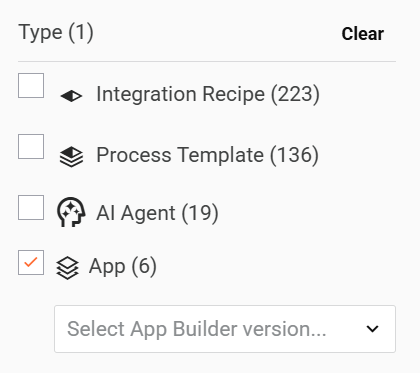
Click Clear to clear individual filters, or Clear All to clear them all.
The number of applied filters is shown in parentheses after the Filters label, and the number of available items matching each filter is shown in parentheses after the filter item.
Search
To view assets that match a search expression, enter one or more search terms, optionally separated by search operators, then press return.
Search terms are keywords or field-keyword pairs.
Use the operators AND, OR, and NOT between search terms to further refine your search results.
To reset the view, delete all search text, then press return.
Paging
To set how many templates appear on a page, and to move from one page to the next, use these controls:
- Click Items Per Page and select one of 5, 10, 15, or 25.
- Click the Next Page or Previous Page buttons to move to the next or previous page.