Default rules in Jitterbit App Builder
Default rules are a rule purpose used to automatically populate one or more fields with a value. For example, a Default rule can set a Date field to today's date, or set a Price field based on a value looked up from a related table.
A full example walkthrough using demo values to create a Default rule and then register it on a panel can be found in the Default rules section of Introduction to App Builder - Lesson 7: More about rules.
Create a Default rule
-
In App Workbench > Rules, click + Rule. The Rule Builder opens.
-
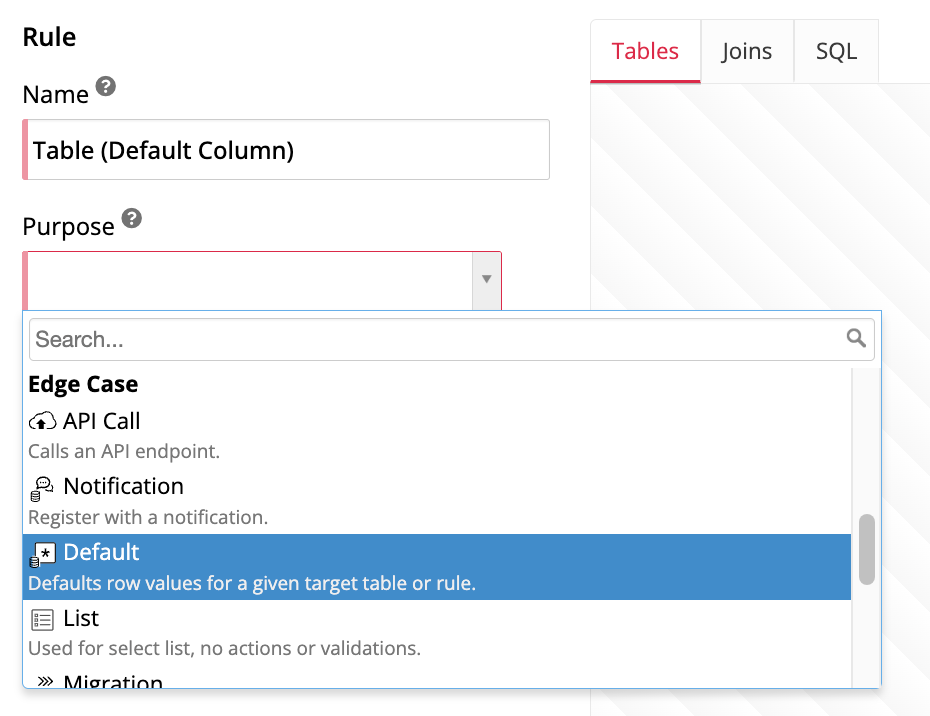
Following App Builder's naming conventions, enter a name for the rule, using the pattern
TableName (Default ColumnName). -
In the Purpose field, scroll to locate the Default option under Edge Case and select it.
-
In the Target field, select the table or business object the default values should apply to. See Target a table or a business object below to decide which one to use.
-
Click Create. App Builder will take a few moments to create the rule.
-
In the Columns tab, add the logic that determines the default value for each column you want to default. For instance, you might click + Column and enter the expression
Now()to default a date field to the current date and time using the Now() database function, or add a related table in the Tables tab and select one of its columns to look up a value from it. -
Click Results in the Rule panel to confirm the rule returns the value you expect.
Target a table or a business object
A Default rule must target either its base table or a business object built on that same table. This choice determines its behavior:
-
When the target is a table: A Default rule that targets a table can only default physical columns, not calculated columns, but it applies to every business object built on that table. For example, a Default rule targeting the
Ordertable could defaultQuantityto1andPriceto5. If a business object built onOrderhas a calculated column such asLineTotal(Quantity*Price), that column showsNULLuntil the record is saved, since the database only calculates it once the defaulted values are written. -
When the target is a business object: A Default rule that targets a business object, such as
Order (Source), can default both physical columns and in-memory calculated columns, and its calculated values recalculate live in the UI as the user changes related fields, even before the record is saved. For example, ifQuantitydefaults to1,Pricedefaults to5, and a calculatedLineTotalcolumn (Quantity*Price) is defaulted alongside them,LineTotalinitially shows5. ChangingQuantityto2before saving immediately recalculatesLineTotalto10. After saving, editingQuantityagain to3recalculatesLineTotalto15.
Note
A Default rule that targets a table can be registered on that table or on any business object built on it. A Default rule that targets a specific business object can only be registered on that same business object, not on the underlying table or on a different business object built on the same table. In every case, the rule's target and whatever you register it on must be related; for example, a Default rule for Order data can't be registered on the Customer table or on a Customer business object.
Register a Default rule
A Default rule has no effect until it's registered, either on the table it targets or on a panel built on the business object it targets.
On a table
Registering a Default rule on its table applies it to every business object built on that table:
-
In App Workbench > Tables, locate and select the table.
-
Click More > Defaults. The Defaults dialog opens.
-
Click Register. The Default dialog opens.
-
In the Type field, select Rule.
-
In the Rule field, select the Default rule you created.
-
In the Binding field, select a binding type. See Binding below for more information.
-
Click Save.
On a panel
Registering a Default rule on a panel applies it only within that panel:
-
Navigate to the panel where you want to register the rule, in one of two ways:
-
From the app preview, navigate to the page containing the panel and open the Live Designer by clicking the hamburger icon in the top right and selecting Live Designer.
-
From the App Workbench, open the Pages tab and select the page containing the panel.
-
-
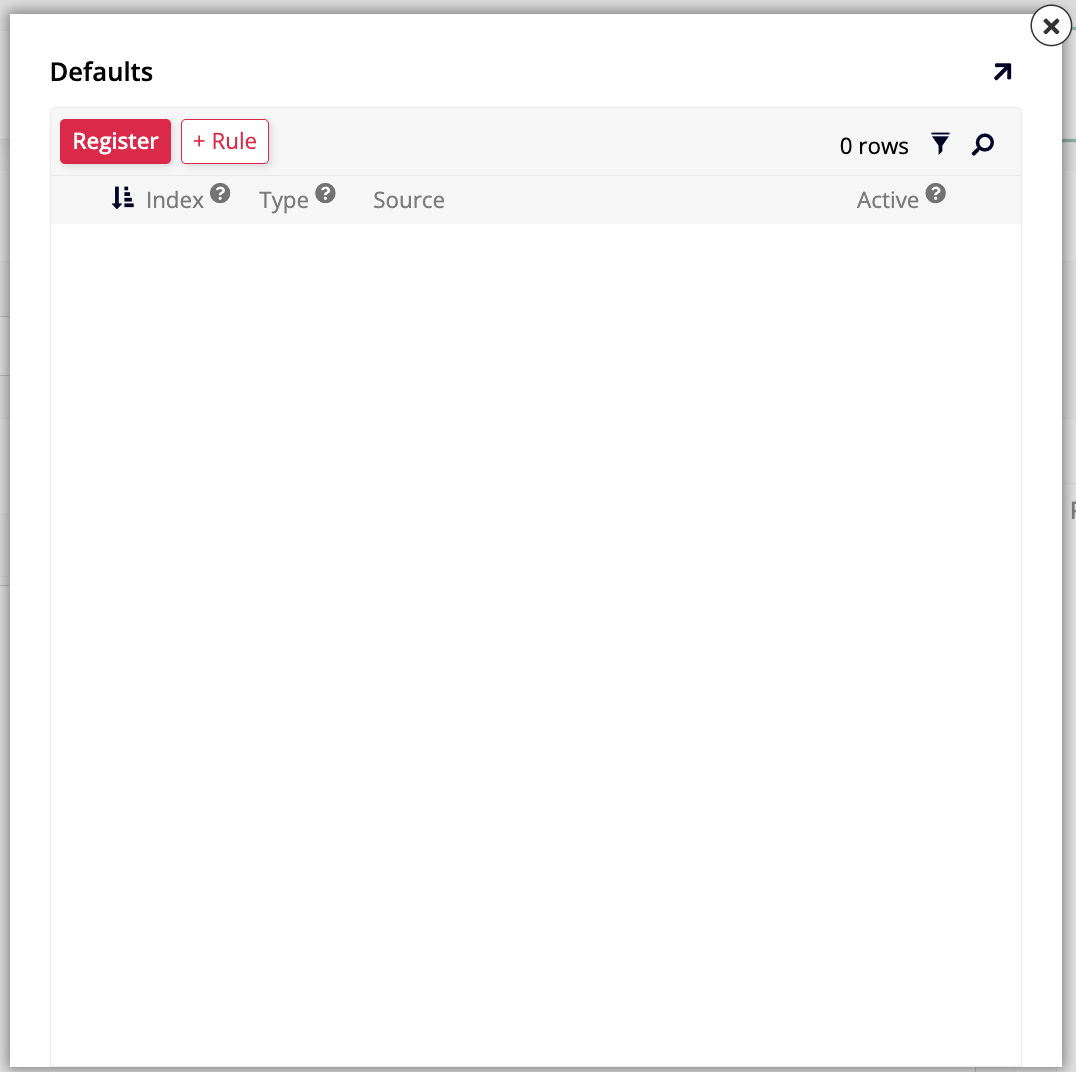
If you're in the Live Designer, select the panel in the preview to populate the designer with its options, then click More > Defaults. If you're in the App Workbench, select the panel in Page Panel Layout, then click More > Defaults. The Defaults dialog opens:
-
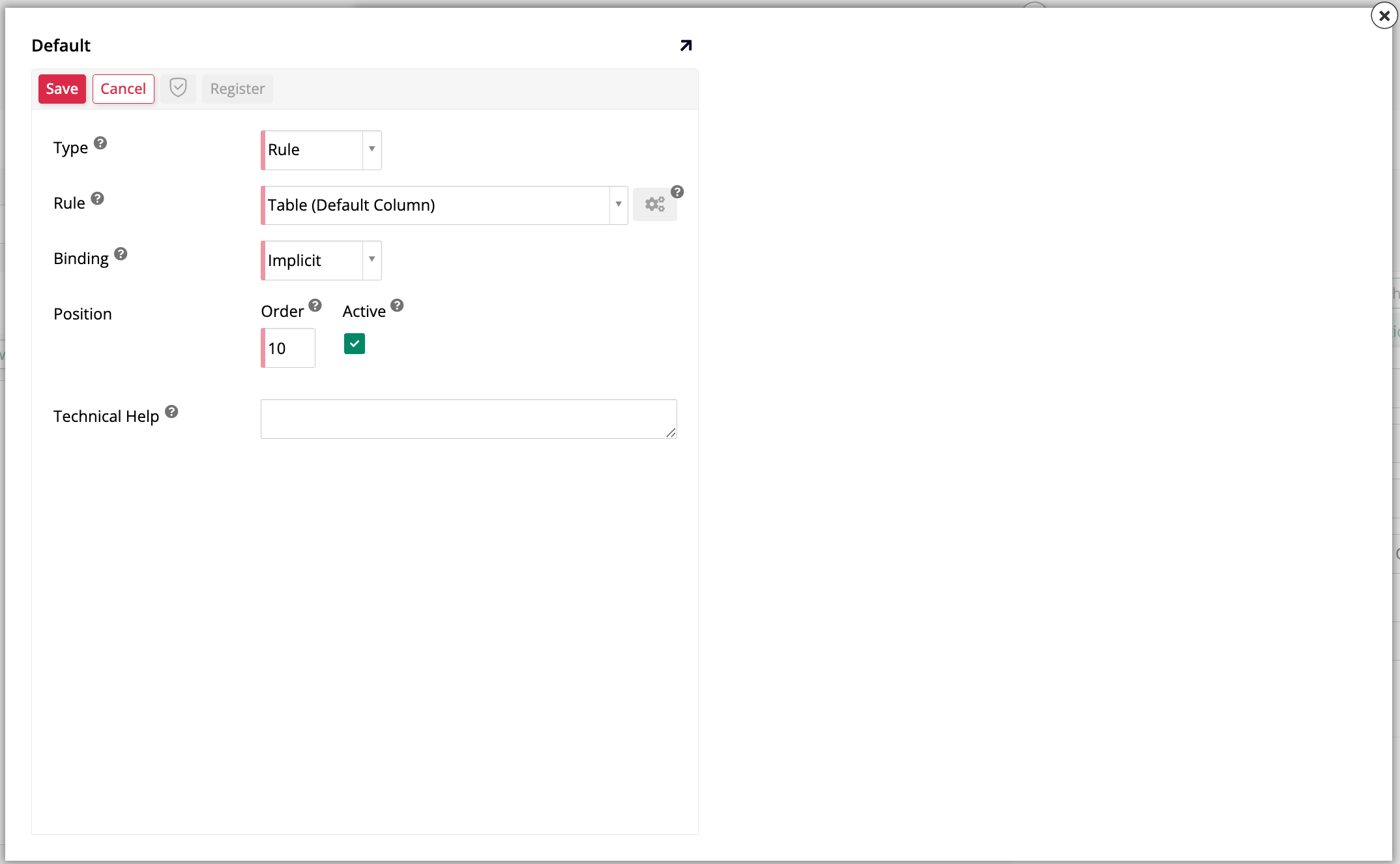
Click Register. The Default dialog opens:
-
In the Type field, select Rule.
-
In the Rule field, select the Default rule you created.
-
In the Binding field, select a binding type. See Binding below for more information.
-
(Optional) In the Order field, enter a number to determine in which order the rule will run, if the panel has more than one rule registered to it. If the panel only has one rule, the default value is
10. -
Leave the Active checkbox marked to enforce the rule. If you want to deactivate it without deleting it, deselect this checkbox.
-
Click Save.
Refresh the page. To test whether the Default rule is working, create a new record on that table or panel. The field should populate automatically.
Binding
A Default rule's binding determines which existing record's data is used to calculate the default value:
-
Implicit binding uses the in-memory record's primary key, so it always matches exactly one record.
-
Explicit binding matches on a column other than the primary key, such as a foreign key. For example, you could explicitly bind a
Freightdefault to the selectedShipperIDon anOrderpanel, soFreightdefaults based on whichever shipper the user selects.
Warning
An explicit binding must be configured so its rule returns exactly one record for a given set of binding criteria, or App Builder throws a "too many rows" error. If you hit this error, try adding a DISTINCT clause to the rule; if that doesn't reduce the results to one record, rework the rule's query so it does.
See Implicit and explicit binding for more information.
When Default rules run
-
On a New event (when a record is first created), App Builder runs the full default logic before inserting the record into the database, initializing physical columns for every Default rule and calculated columns for rules that target a business object.
-
On an Update event (when an existing record is edited), App Builder does not re-apply a Default rule's initial column values, so it won't overwrite a value the user has already changed. However, calculated columns from defaults that target a business object still recalculate whenever a field they depend on changes, both before and after the record is first saved. Explicitly-bound defaults behave the same way: they re-run whenever their bound field changes, regardless of whether the record has already been saved.