Panels in Jitterbit App Builder
Overview
Panels are the containers on an App Builder application's pages that house the information displayed on its UI, such as data, images, and controls. Every page in an App Builder application is made up of one or more panels; for example, a page might use a Grid panel to display multiple rows of data at once, or a Form panel to show a single record's details.
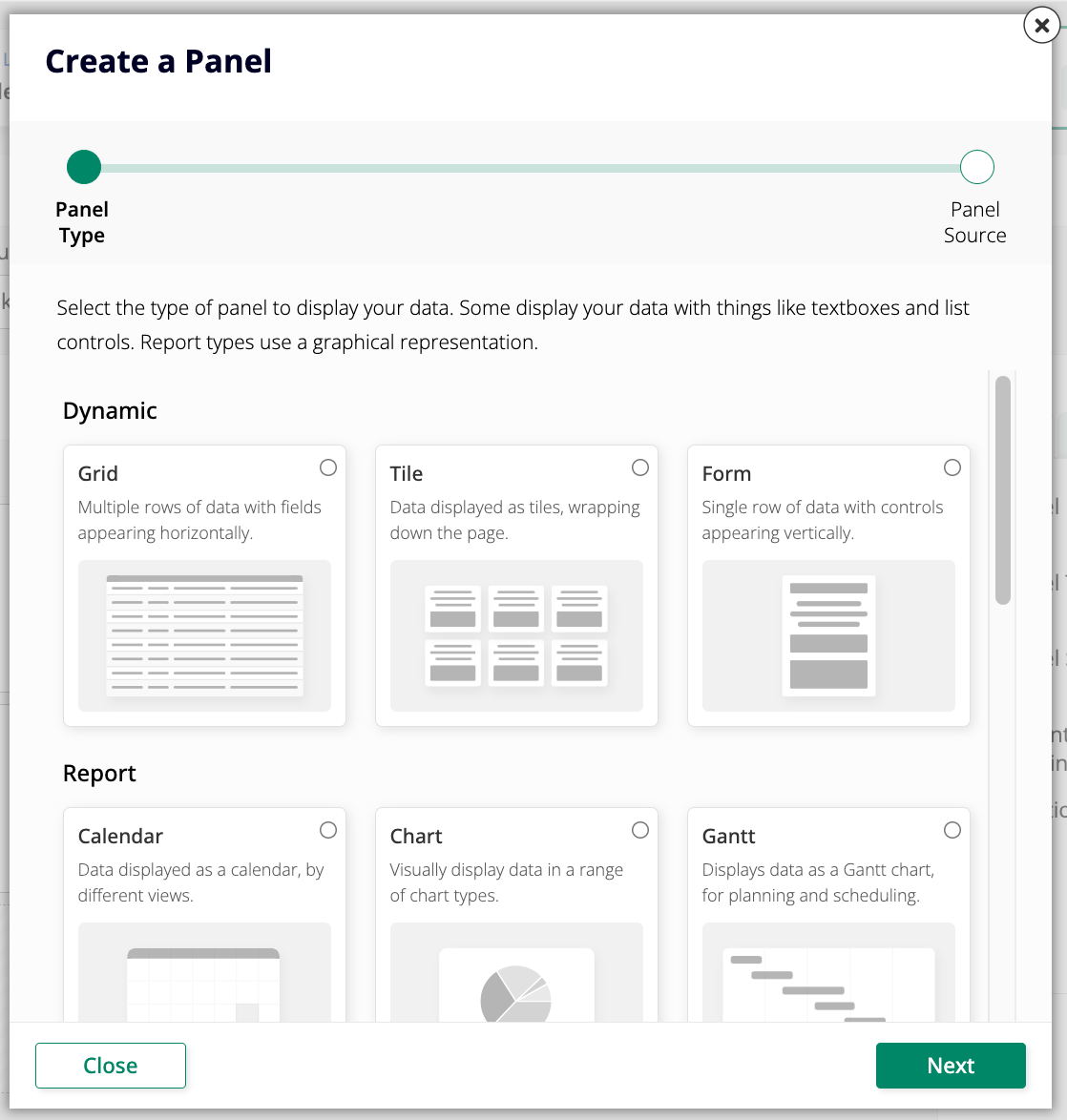
App Builder's Create a Panel dialog groups its panel types into three categories, each described in its own section below:
-
- Calendar: Data displayed as a calendar, by different views.
- Chart: Visually display data in a range of chart types.
- Gantt: Displays data as a Gantt chart, for planning and scheduling.
- Map: Display a map to visualize geographic relationships.
- Network Graph: Visually show relationships between connected items.
- Pivot: Displays data in a pivot table format.
-
- Agent Chat: A chat interface for interacting with your configured agents.
- Custom HTML: Allows you to display custom HTML.
- Event Diagram Panel: Display a visual workflow in a panel on your page.
- File Browser: Adds a file browser control to your panel.
- Frame: Reserve space on the page to load other content.
- Lane: Data displayed as tiles in a series of lanes.
Panel types
To add a panel to a page, go to the App Workbench, open the Pages tab, then select one of your application's pages or click to create a new one. This opens the page's edit screen, where the Page Panel Layout panel lets you configure all of the page's panels. Click + Add Panel to open the Create a Panel dialog:
Note
Not every panel type supports Link To Page and Link Target.
Dynamic
Grid
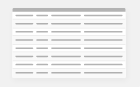
Grid panels display multiple rows of data at once, showing specific columns from the selected data source table or object. Click a column's title to sort its rows in ascending or descending order. The total number of rows appears in the upper right-hand corner, above the column titles; depending on the total record count, App Builder may load only a subset of the rows at a time. Click Load More Rows, at the bottom of the panel, to load additional rows.
Tile
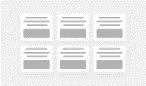
Tile panels combine Grid and Form panel behavior: like Grid panels, they display multiple sets of information at once, but arrange it in blocks from left to right instead of in columns. As with Form panels, controls are grouped with other controls in the same position in the data table.
Form

Form panels display a single line of data from the selected data source. This panel type is especially useful as a pop-up window or detail page in an application. When a Form panel is assigned multiple controls, each control is displayed individually.
Report
Calendar
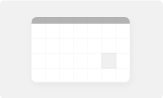
Calendar panels populate a calendar with information from the selected data source. Like Chart panels, Calendar panels can be linked to another panel to display greater detail about an event on the calendar.
Required control types
- Description: Designates what will appear on the calendar; typically an event's name.
- Event Start: Designates which day the event starts on; may include timestamps displayed alongside the event description.
- Event End: Designates which day the event ends on; may include timestamps displayed alongside the event description.
Optional control types
- Color: Color value used by the calendar to indicate events.
- Sort: Allows you to apply sorting to the selected value.
For additional information on Calendar panels, see Calendar panels.
Chart
Chart panels display data in a graphical representation. App Builder supports many chart types, including Bar, Column, Line, and Area. Charts can be linked to the underlying data so a user can click through and view the supporting data.
Required control types
- Category: Represents the X-axis (horizontal) on the chart.
- Value: Represents the Y-axis (vertical) on the chart.
Optional control types
- Color: Color value used by the chart.
- Sort: Allows you to apply sorting to the selected value.
- Flag: Used to mark an event or point of interest.
- JSON Options Object: JSON object which overrides chart options.
For additional information on Chart panels, see Chart.
Gantt

Gantt panels display Gantt charts, which are useful for planning and scheduling projects. They help assess how long a project should take, determine the resources needed, and plan the order in which tasks will be completed. Gantt charts are also a helpful tool for managing dependencies between tasks.
To use a Gantt chart on a Gantt panel, you need a business object that contains information for the required controls. Gantt charts can also represent task dependencies and task groups, provided that information is configured in the business object.
Required control types
- Task: Represents an individual project task being tracked.
- Start Date: Represents the task begin date.
- End Date: Represents the task end date.
Optional control types
- Color: Color value for the task on the chart.
- Dependency: Determines the relationship from the task to other tasks it depends on.
- Parent Task: Reference to another task from the business object, used for hierarchical arrangement.
- Sort: Allows you to apply sorting to the selected value.
- Task Group: Used for grouping or placing multiple tasks on the same row.
For additional information on Gantt panels, see Gantt chart.
Map
Map panels display a map where controls can be visualized via geographic location. Different maps provided through the Highmaps API can be chosen based on the data you wish to display.
Note
Names of map regions in your underlying business object must match identifiers from the Highmaps source maps. For example, if you have a business object with US county names, county names may not be unique, so you must have a column that matches the key from Highmaps.
Required control types
- Category: Country, state, etc.
- Value: Value associated with the category.
Optional control types
- JSON Options Object: JSON object which overrides chart options.
- Color: Color value for an event or task.
For additional information on Map panels, see Map panel. For information regarding source maps provided in the Map panel, see the Highmaps documentation.
Network Graph
Network Graph panels display interconnections between a set of entities. Each entity is represented by a node, and connections between nodes are represented through links.
Required control types
- From: From node for this link.
- Node: A Network Graph node.
- Node Label: A Network Graph node label. Required when using UUIDs for relationships.
Optional control types
- JSON Options Object: JSON object which overrides chart options.
- Link Color: The Network Graph link color.
- Color: Color value for an event or task.
For additional information on Network Graph panels, see Network Graph.
Pivot
Pivot panels display a pivot table with information from a data source.
Required control types
- Column: Populates the column headings.
- Row: Populates the row headings.
- Value: Displays the relevant data from the source.
For additional information on Pivot panels, see Pivot panels.
Edge Case
Agent Chat
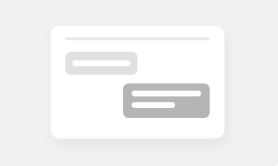
Agent Chat panels provide the interface through which you chat with your configured AI agents. In these panels, users can type messages and receive responses from the agent without leaving the application.
Custom HTML
Custom HTML panels use HTML/CSS templates to display data and images. They offer a high degree of control over the display output and closely resemble a standard web page.
Event Diagram Panel
Event Diagram Panel panels embed an interactive visual workflow in a page, displaying the events configured on a table or business object as a BPMN process flow diagram.
File Browser
File Browser panels are linked to a local or network file system and look similar to a file directory. They allow users to upload files to a server and download them to a device. Navigation within subdirectories is also possible, with subdirectories indicated by a folder icon.
Frame
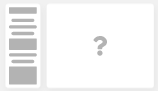
Frame panels reserve a space on the screen that all clicked page links will load into. The Frame panel type does not have content of its own — when a Frame panel exists on a screen, any page navigation is directed into the frame instead of replacing the entire screen. This panel type is most often used to keep a persistent side menu visible while the Frame panel's container renders the target page inside of it.
For additional information on Frame panels, see Frame panel.
Lane

Lane panels display grouped information. They are similar to Tile panels in that they display data grouped into Form panel format, but can be configured either vertically or horizontally.
For additional information on Lane panels, see Lane panel.