Developer silos in Jitterbit App Builder
Overview
In App Builder, a group grants privileges to all of its members at once, rather than to each user individually (see Groups for a full introduction to App Builder groups). A developer silo limits a developer's access to a defined set of applications and data sources, using App Builder's built-in Silo Developers group. This group grants the same build privileges as the Developers group, such as editing pages, tables, and rules, but restricts them to only the applications and data sources an administrator explicitly assigns, instead of every application and data source in the environment. Use a developer silo whenever a developer's access should be limited to specific applications, rather than granting them the Developers group's unrestricted build access.
Learn about developer silos in the sections below:
- Capabilities: See what a member of the Silo Developers group can and cannot do.
- Configuration: Add a user to the Silo Developers group, then map the applications and data sources they can access.
- Known issue: Review a known issue with developer silos.
Capabilities
Members of the Silo Developers group can build tables and pages within their authorized applications and data sources, but are prevented from accessing most administrative functions in App Builder.
Within their authorized applications and data sources, they can do the following:
- Add, edit, and delete pages.
- Edit most configuration for an application.
- Add, edit, and delete tables, business objects, rules, and other components.
- Edit most configuration for a data source.
- Edit collections attached to their applications.
- Build LP packages.
However, they cannot do the following:
- View or edit applications and data sources outside their silo.
- Add or delete data source servers.
- Add or delete data sources.
- Access security-related pages, such as Groups and User Management.
- Access App Builder configuration pages.
- Subscribe to or publish REST endpoints.
- Configure webhooks.
- Translate applications.
- Install LPs, using the Install Packages guided workflow.
The Silo Developers group is one of several default security groups shipped with App Builder. See Default groups for the complete list.
Configuration
Giving a developer siloed access is a two-part configuration process: the first step is to add the user to the Silo Developers group; next, you need to specify which applications and data sources they can access.
Step 1: Add the user to the Silo Developers group
Firstly, add the user to the Silo Developers group. This needs to be done by an administrator.
- Select IDE > User Management.
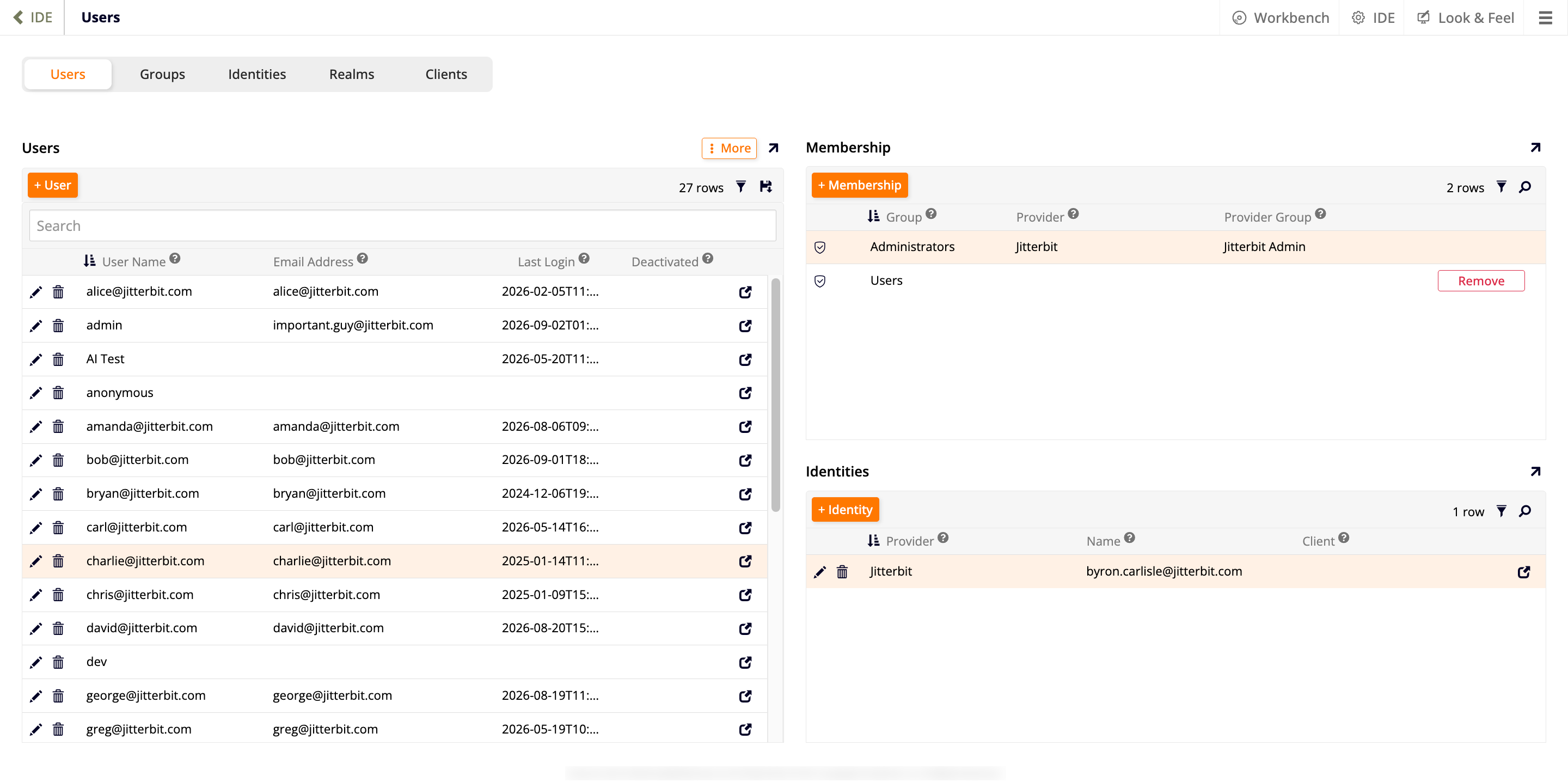
- Locate the user in the Users panel and select them to populate the other panels with their information.
-
Click + Membership in the Membership panel. This is the same panel described in Users.
-
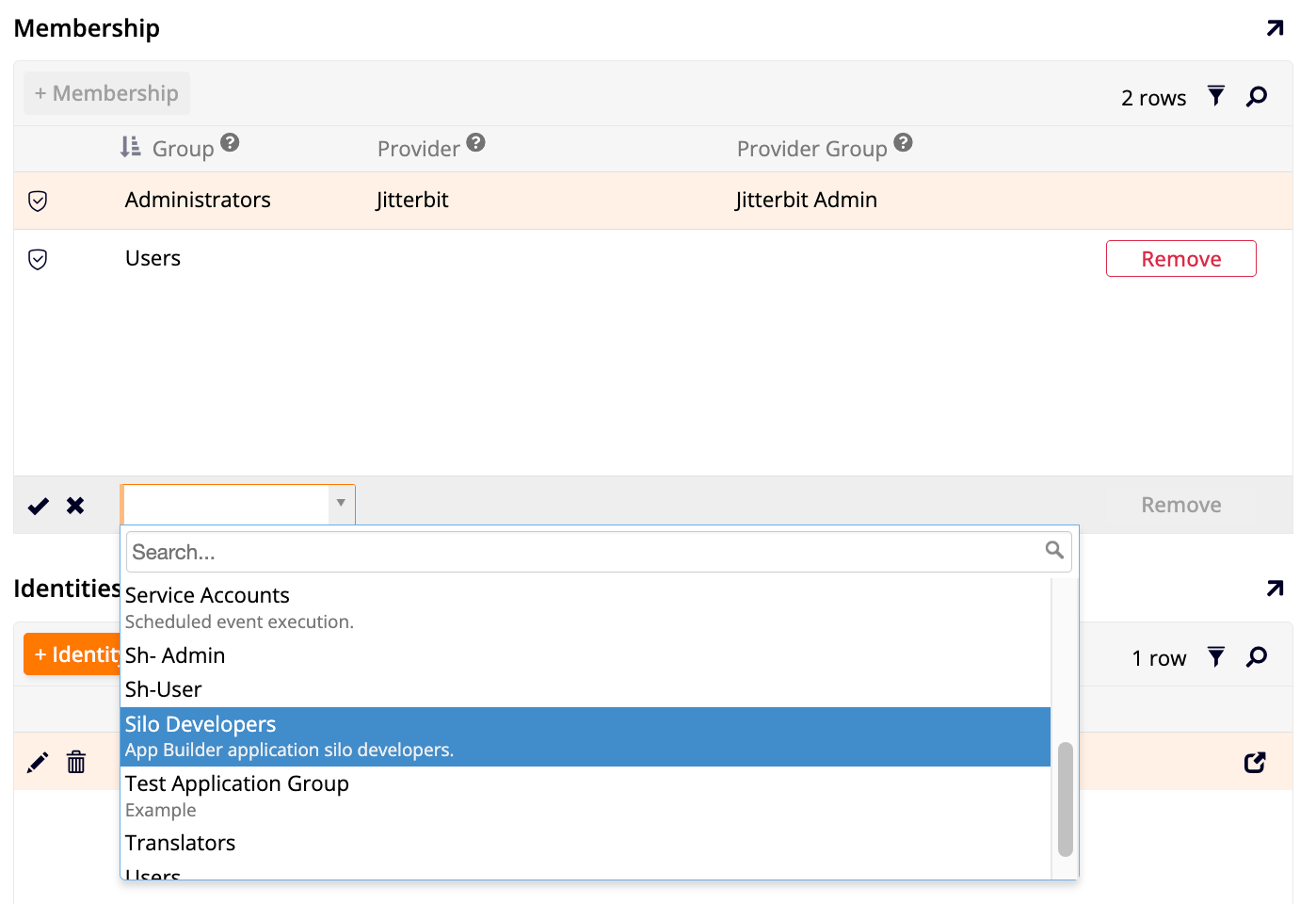
Select Silo Developers as the group. Doing so restricts the selected user's access to whichever applications and data sources you map in Step 2.
-
Click the checkmark icon to save.
Step 2: Configure access to applications and data sources
Now that the user is a member of the Silo Developers group, an administrator must grant that user access to the specific applications and data sources they'll need.
-
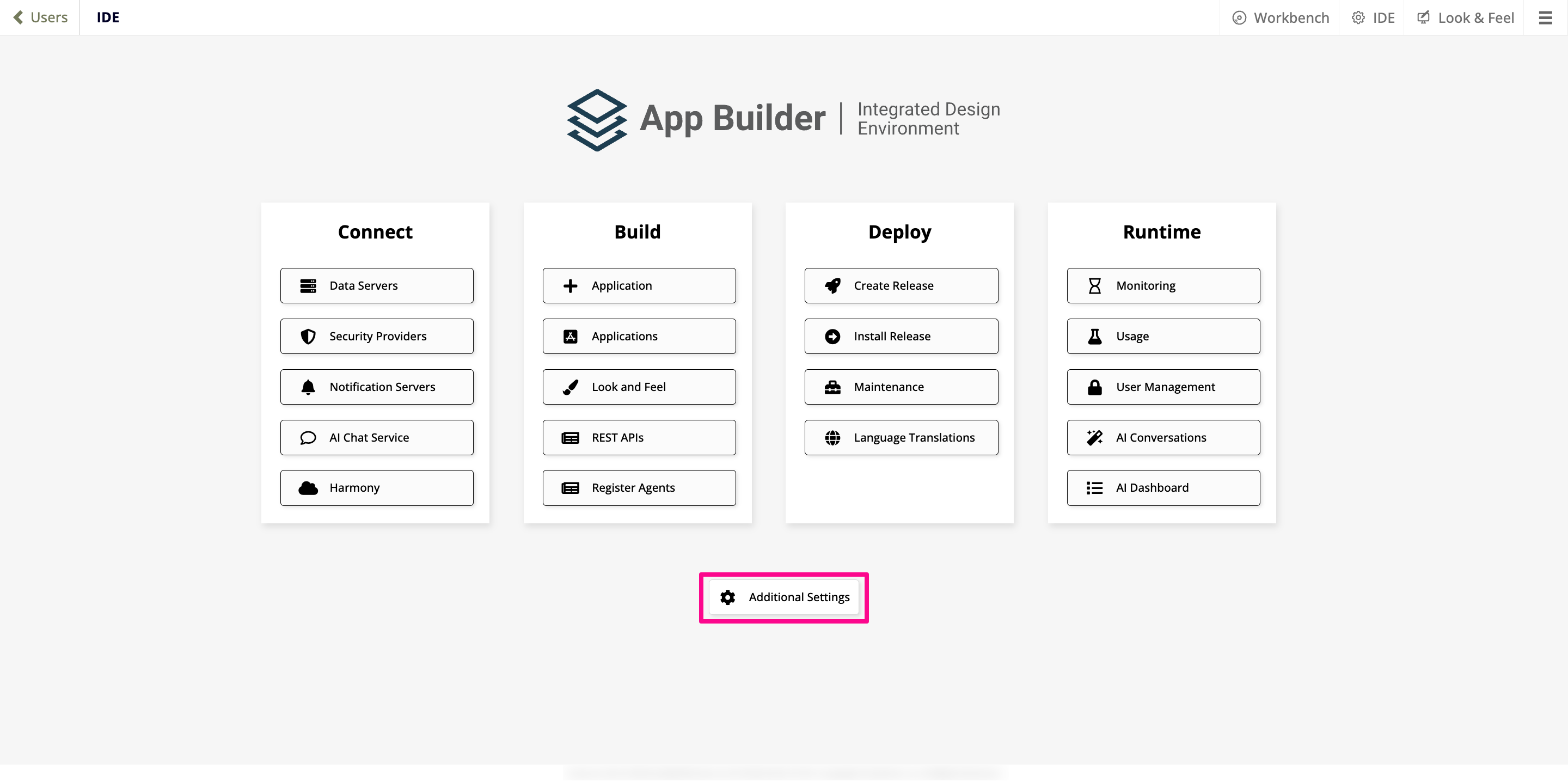
Select IDE > Additional Settings.
-
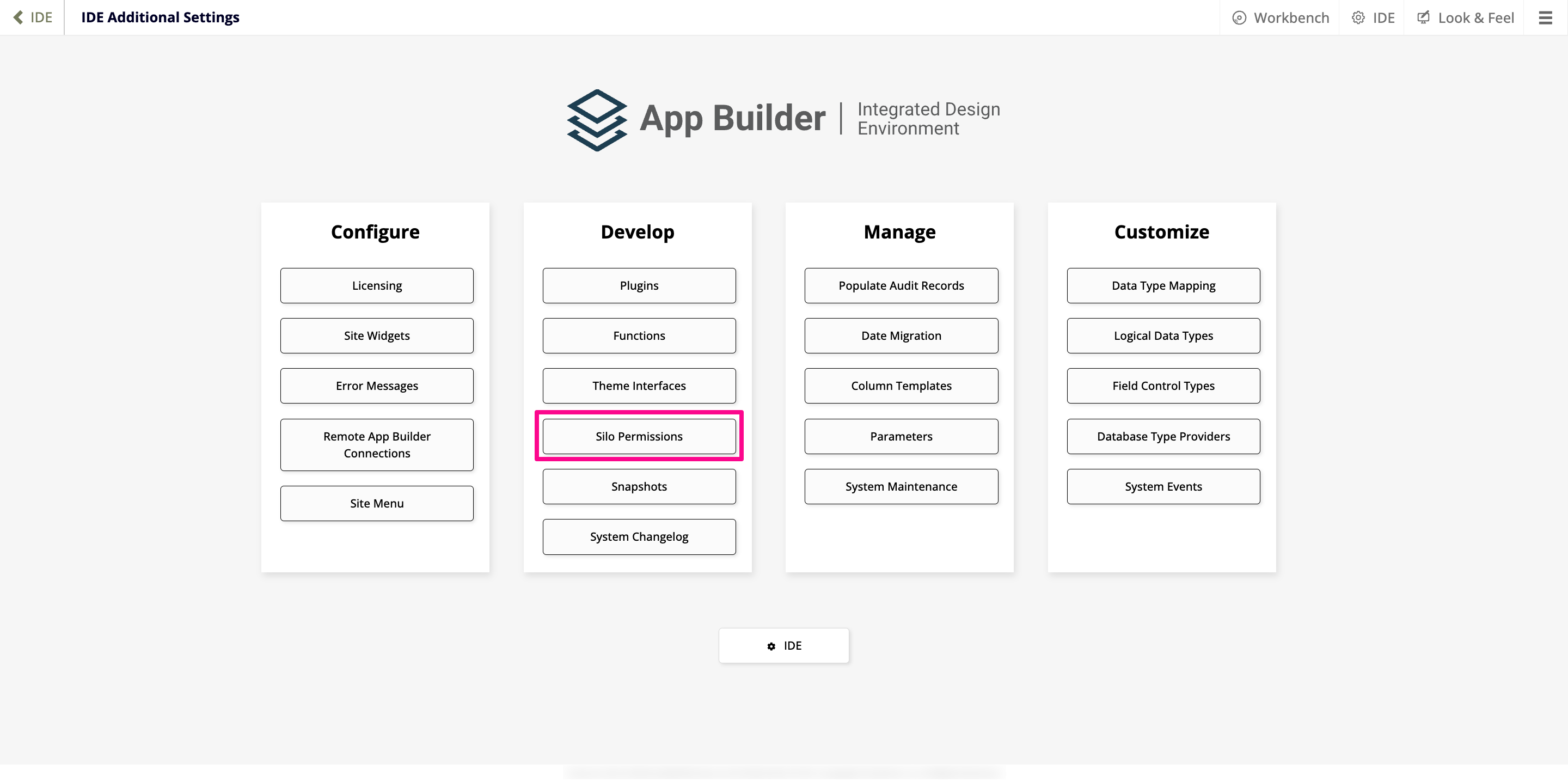
Click the Silo Permissions button in the Develop panel.
-
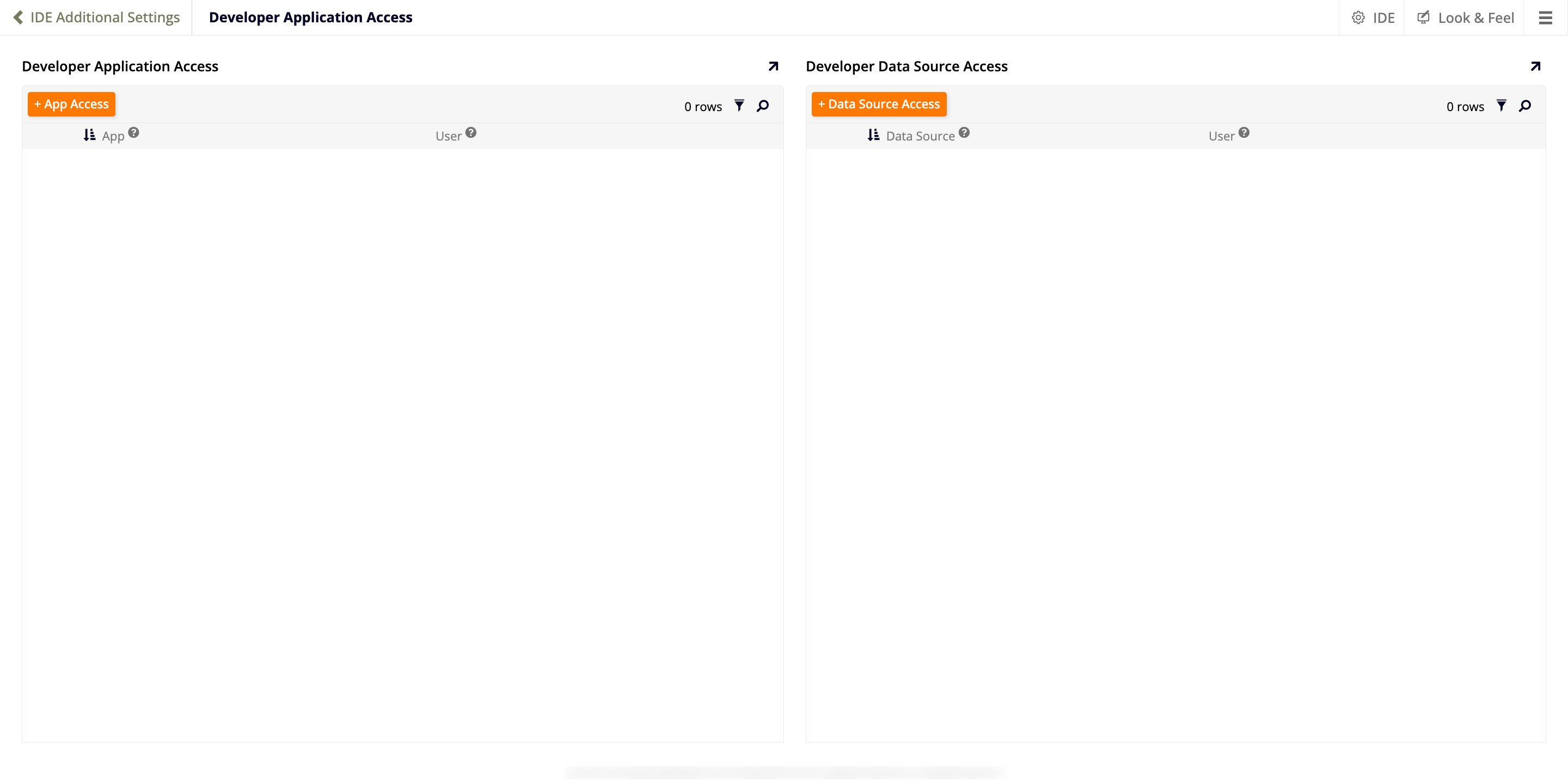
The Developer Application Access page opens, with Developer Application Access and Developer Data Source Access panels side by side:
-
In the Developer Application Access panel, click + App Access. In the new row, select the App the user should have access to, then select the User, then click the checkmark icon to save.
- In the Developer Data Source Access panel, click + Data Source Access. In the new row, select the Data Source the user should have access to, then select the User, then click the checkmark icon to save. A silo developer needs explicit access to a data source to work with it directly, separate from any access granted through an application.
- Repeat steps 4 and 5 for each additional application, data source, or user you need to map.
- Test the configured access to confirm the user can reach only their authorized applications and data sources.
Known issue
A user added to both the Silo Developers and Administrators groups doesn't have access to the administrative screens in App Builder. If administrative access is required for the user, remove them from the Silo Developers group.