Password (control type) in Jitterbit App Builder
A Password control masks a column's value as dots while a user enters or views it in the UI layer, instead of showing the characters directly. For example, an application might use a Password control on a column that stores a PIN or access code, so the value isn't visible on screen.
This masking is purely visual. A Password control stores its value as plain text, the same as a Text control would, unless the underlying column itself is configured for application-level column encryption.
For a column to be usable with the Password control type, its logical data type must be set to String. See String in Appendix A of the Introduction to App Builder tutorial series for how to set a column's logical data type.
Add a Password control
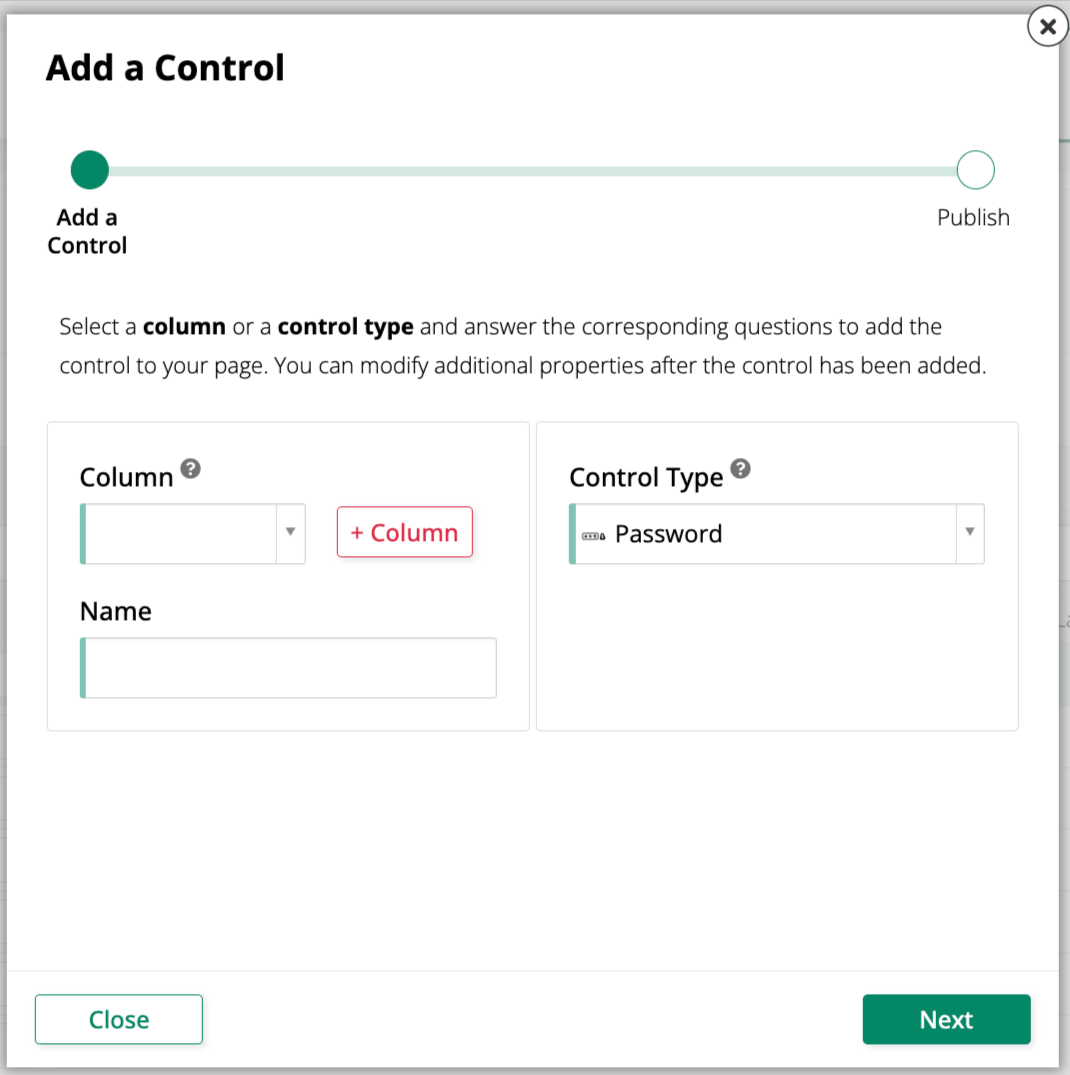
To add a new Password control to a panel, use the Add a Control dialog and select Password as the Control Type:
Convert an existing control to a Password control
To change an existing control to use the Password control type:
-
Navigate to the control, using either the Live Designer or the App Workbench:
-
From the app preview, open the page containing the control and select Action Drawer > Live Designer.
-
From the App Workbench, open the Pages tab, then in the Pages panel, locate the page containing the control and either double-click its row or click the Open record icon. In the Page Panel Layout panel, find the panel that houses the control and click Controls.
-
-
If you're in the Live Designer, click the control in the page view; this will populate the Live Designer with edit options for that control. If you're in the App Workbench, in the Controls panel, find the control and either double-click its row or click the Open record icon at the end of its row; App Builder opens a dialog similar to the Live Designer's.
-
In the Control Properties tab, set the Control Type field to Password.
-
Click Save.
Refresh the application view to confirm the update. The control now displays dots instead of the column's value, both when viewing and editing a record.