Project pane Resources tab in Jitterbit Studio
Introduction
The project pane's Resources tab is one of three tabs accessible in the project pane.
The Resources tab displays the custom APIs exposing operations for consumption in the current project:
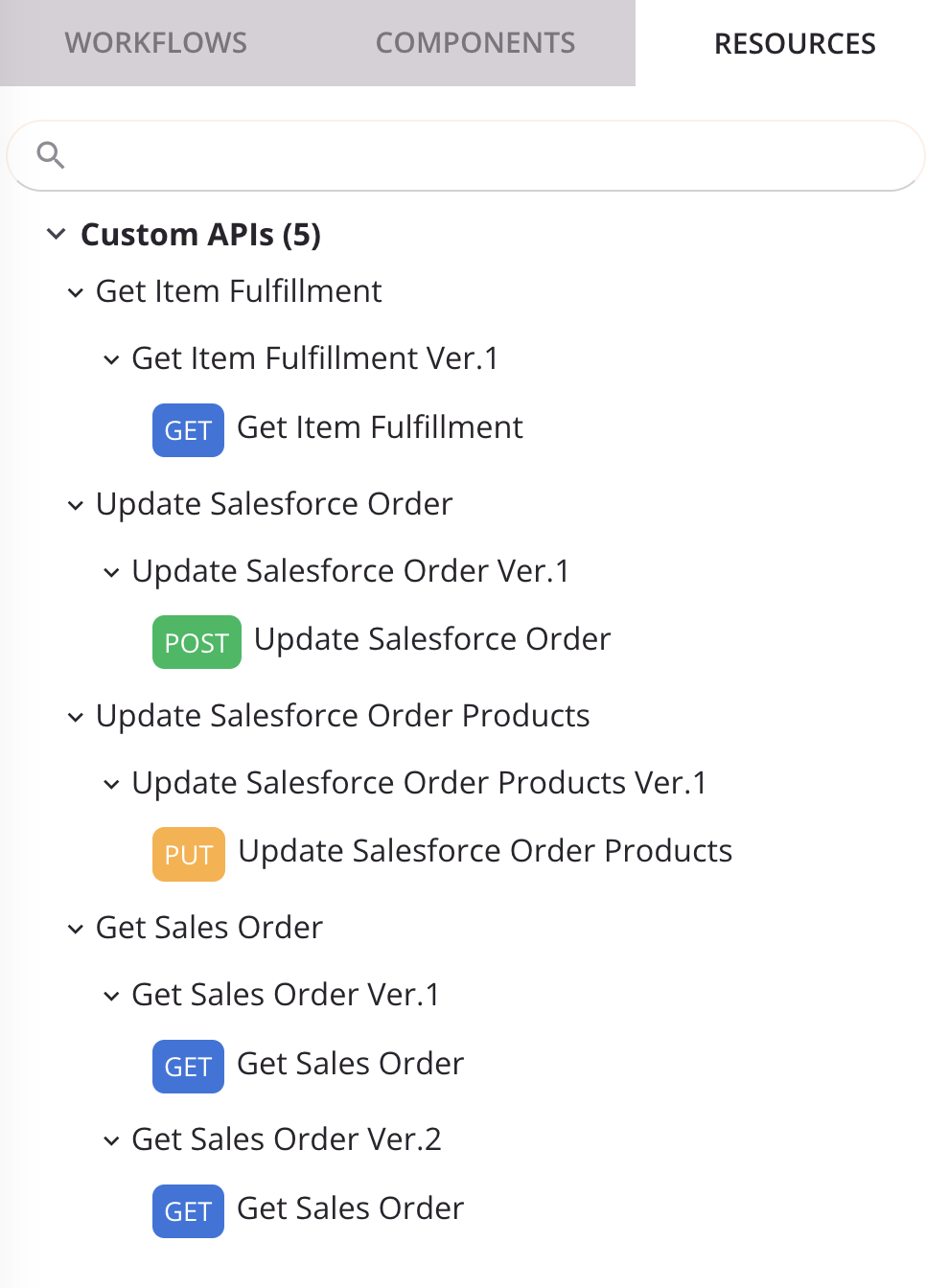
Custom APIs can be created and configured in the following ways:
- API Manager: Using the UI or the AI Assistant.
- Studio: Using the Publish as an API option in an operation's action menu.
View controls
Within the Resources tab, these view controls are available:
Search
To search within the Resources tab, use the search box to enter a single keyword string. Matches appear in bold purple text within the name of the API, operation, or API service:
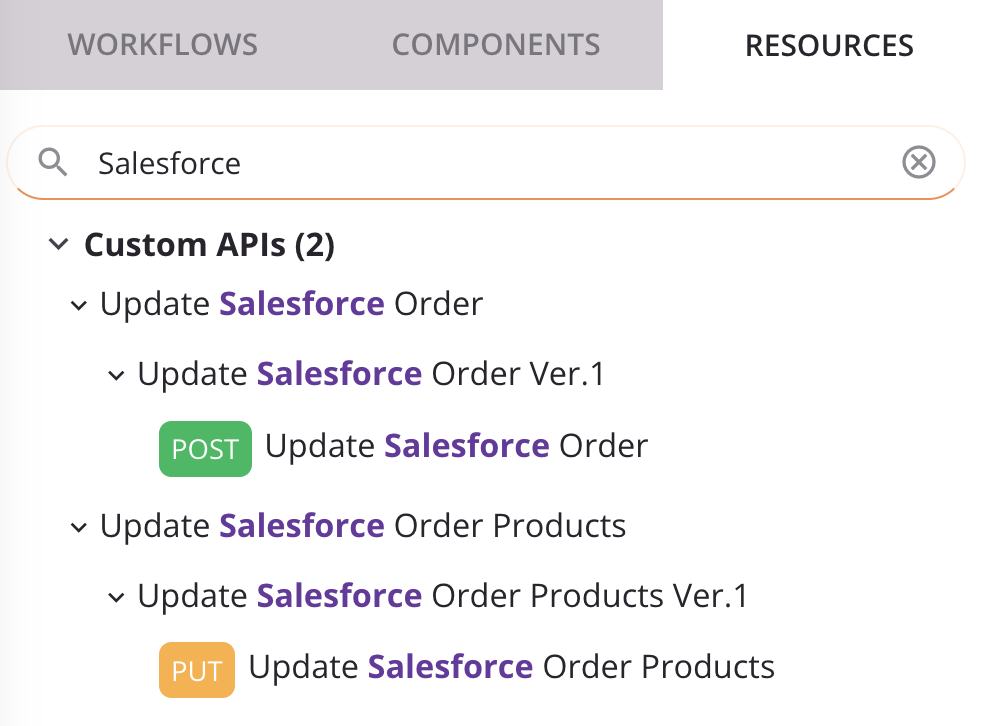
To clear the search, click the remove icon.
API groups
From the Resources tab actions menu, you can select whether to view APIs by API or by operation.
| Menu Item | Description |
|---|---|
 |
Group by API organizes APIs by placing the custom API at the highest hierarchical level, followed by the operation, and then by the API service being used:
|
 |
Group by Operation organizes APIs by placing the operation at the highest hierarchical level, followed by the custom API, and then by the API service being used:
|
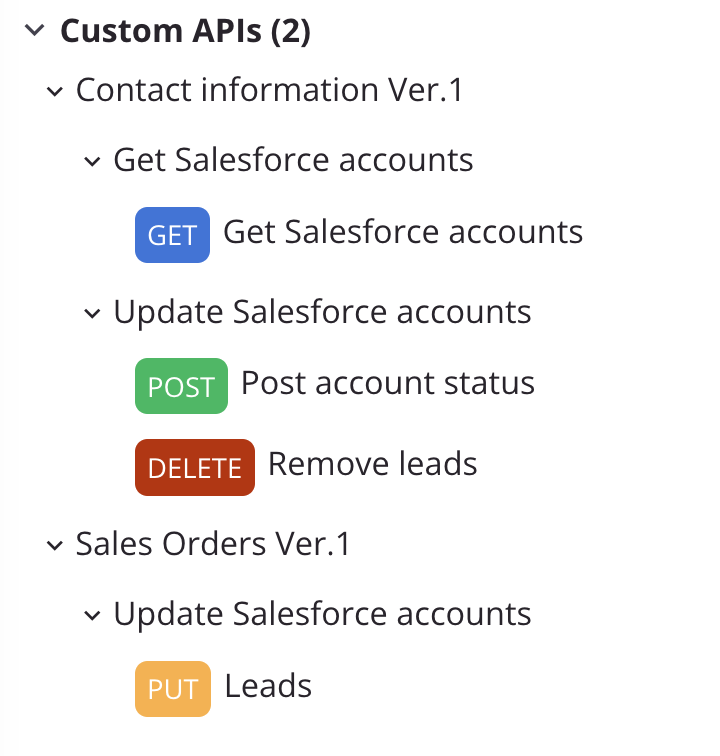
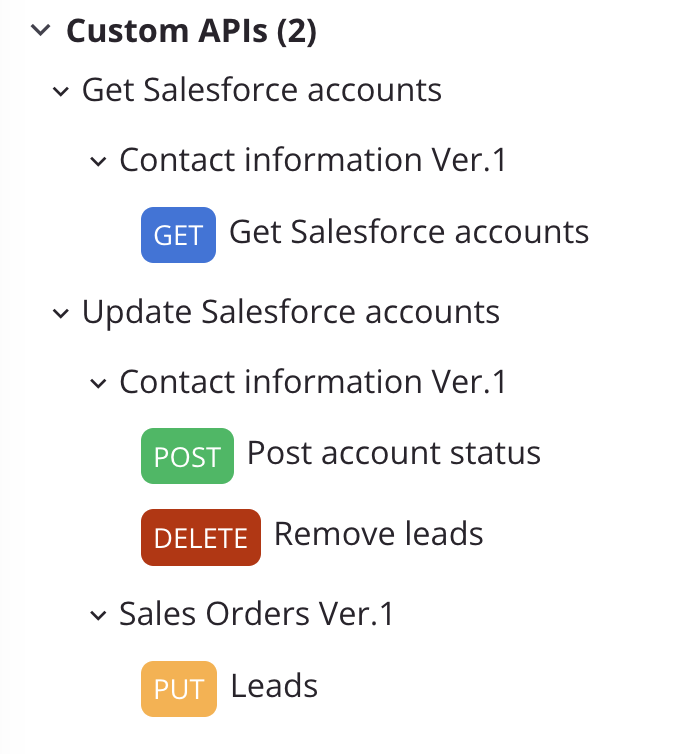
To expand or collapse items, click the carets next to the operation or API.
Studio remembers the display states for each user and project, including whether items in the project pane are expanded or collapsed.
Actions
When you hover over a custom API, the following actions and information are displayed:

-
Go to API: Opens the custom API's configuration in a new tab.
-
Service URL: The custom API's service URL. Click Copy service URL to copy the URL to your clipboard.