Create App Builder plugins using C# in Jitterbit App Builder
Plugins are extensions that expand the functionality of App Builder. A series of plugins are shipped with App Builder and available for usage immediately. However, developers can also create their own scripts to increase the range of possible utilities. This page describes how to do that.
Custom script details
Custom C# scripts are compiled with the Roslyn .NET compiler. Each script type defines a set of global members which provide access to objects and services.
Each C# script has a purpose, which determines how and where the plugin can be used. A plugin can also generate a report file. You select a purpose for your custom plugin while creating it. The purposes that a C# script can serve are listed in the How to create a C# plugin section.
Assemblies
App Builder plugins can reference external code through the use of assemblies. An assembly is a file (usually ending in .dll) that contains a library of pre-written code that your script can borrow to perform specific tasks, for instance, complex math or looking up a website's IP address.
As of App Builder 4.57, it is possible to upload a library archive (ZIP file) containing the specific versions of the assemblies your script needs. This ensures your script remains isolated and stable, even when the rest of the system is upgraded.
After uploading your assembly to App Builder, tell your scripts to use it by adding a reference directive at the very top of your code (see the How to create a C# plugin section).
How to create a C# plugin in App Builder
To create a C# plugin in App Builder, follow these steps:
-
On the server where you wish to use your script, navigate to IDE > Additional Settings.
-
Click Plugins.
-
The Assemblies panel lists the existing assemblies. If the assembly you need already exists, select it and move on to Step 4. If it doesn't, follow these steps to create it:
-
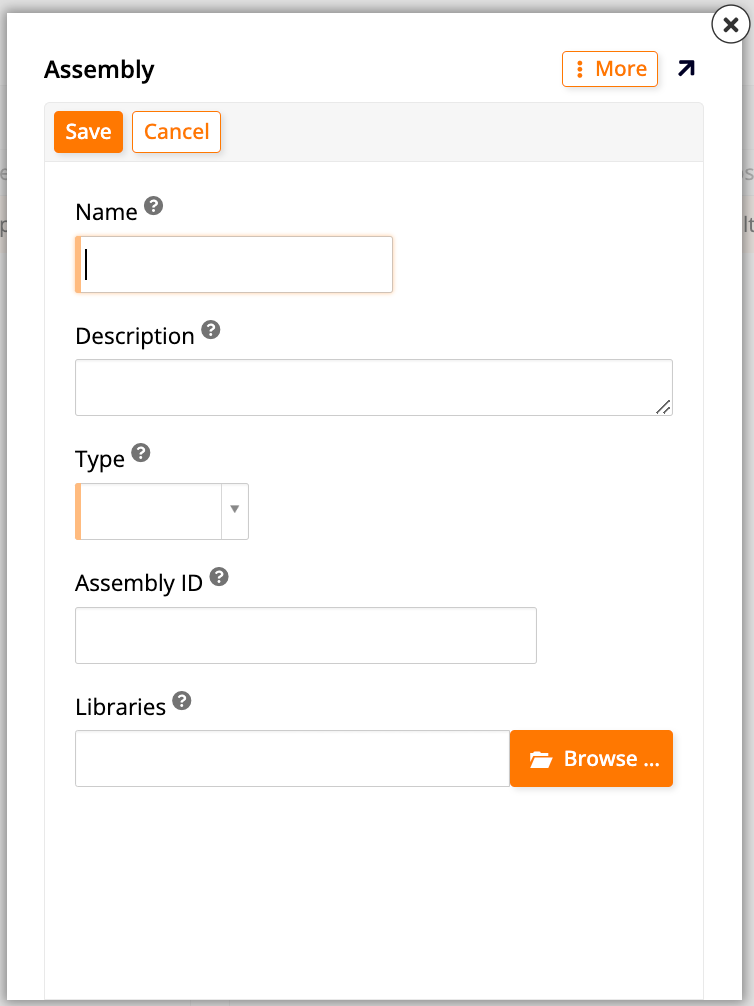
Click + Assembly. A dialog opens:
-
Set the following fields:
-
Name: Enter a name for the new assembly.
-
Description: (Optional) Enter a brief description of the assembly to aid other developers.
-
Type: Select one of the options:
-
Compiled: Plugins are compiled as part of a .NET assembly.
-
Scripts: Plugins are scripted.
-
-
Assembly ID: Unique assembly identifier. This field is automatically generated by App Builder.
-
Libraries: Locate and upload the ZIP file containing any assemblies or resources required by the scripts in this assembly. The archive will be extracted to disk before any plugins are executed. Any assemblies will be registered automatically and available to the scripts.
-
-
-
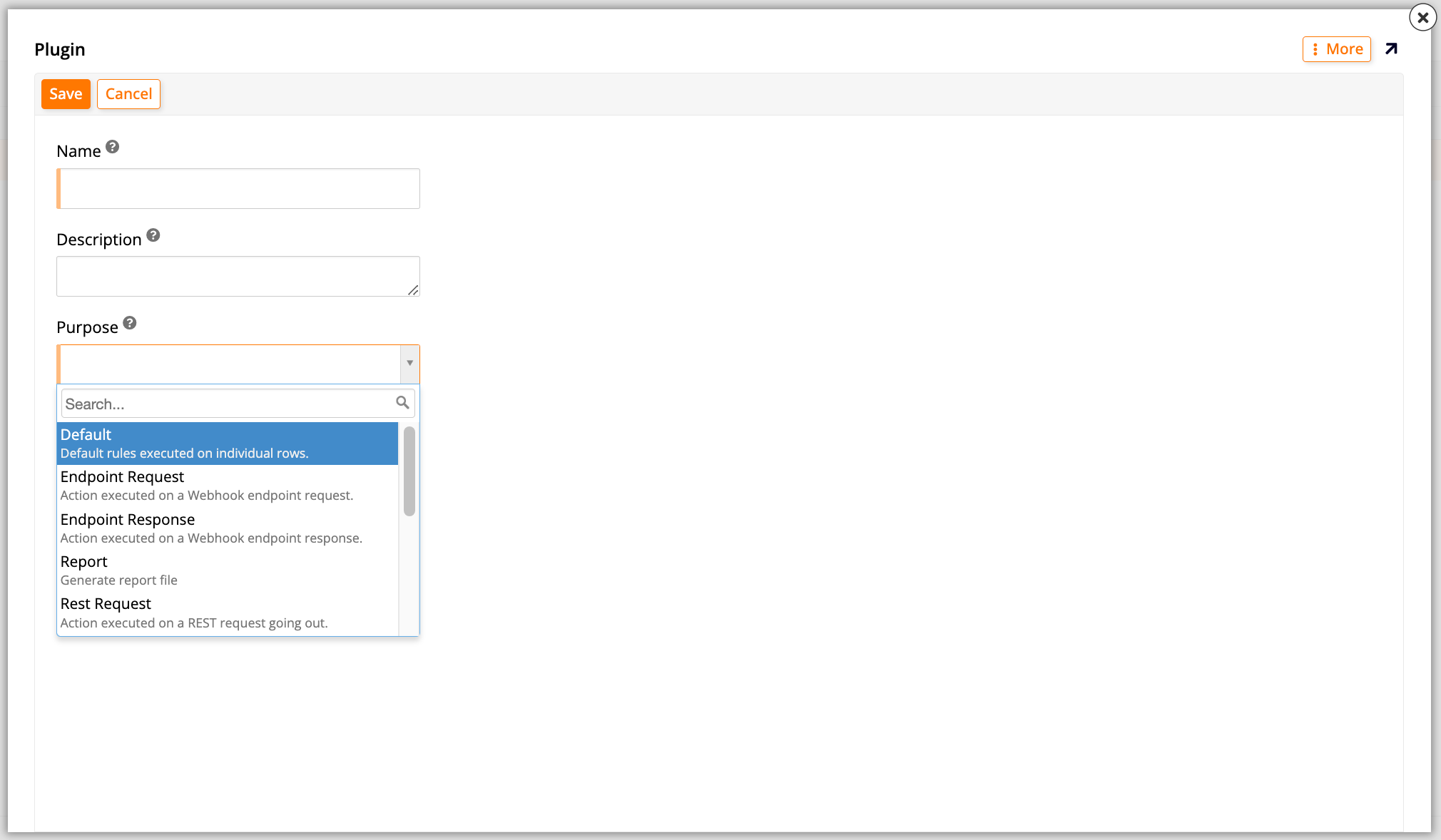
The Plugins panel lists the existing plugins. Click + Plugin to add a new one. A dialog opens:
-
Set the following fields:
-
Name: Enter a name for your plugin.
-
Description: (Optional) Enter a brief description of the plugin to aid other developers.
-
Purpose: Select one of the purposes:
-
Endpoint Request
-
Endpoint Response
-
Report
-
Plugin ID: Unique plugin identifier. This field is automatically generated by App Builder.
-
-
Click Save. App Builder will create the plugin and the Script panel will become an editable field where you can enter your C# code.
If you want to use an external library in your script, this is where you would reference it by using the
#r(which stands for "reference") directive at the top of your code. For example:#r "AssemblyName"
Note
See also Vinyl.SDK scripting classes and Plugin example library.