Wevo iPaaS tool: Transformation
Overview
The Transformation tool allows you to convert data from one format to another within a flow, enabling integrations between different systems.
Transformation configuration
The transformation tool can be placed between and connected to other tools and connector actions to facilitate data conversion between them:
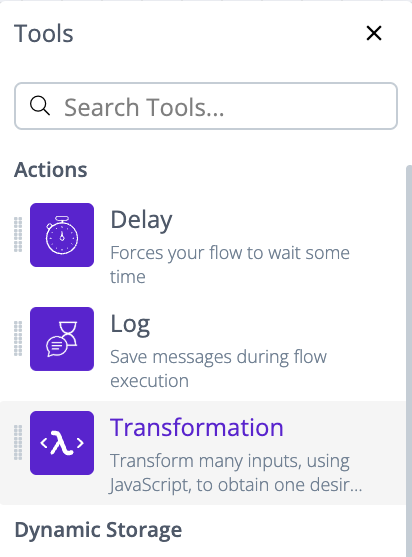
Click on a transformation to open the transformation configuration dialog:
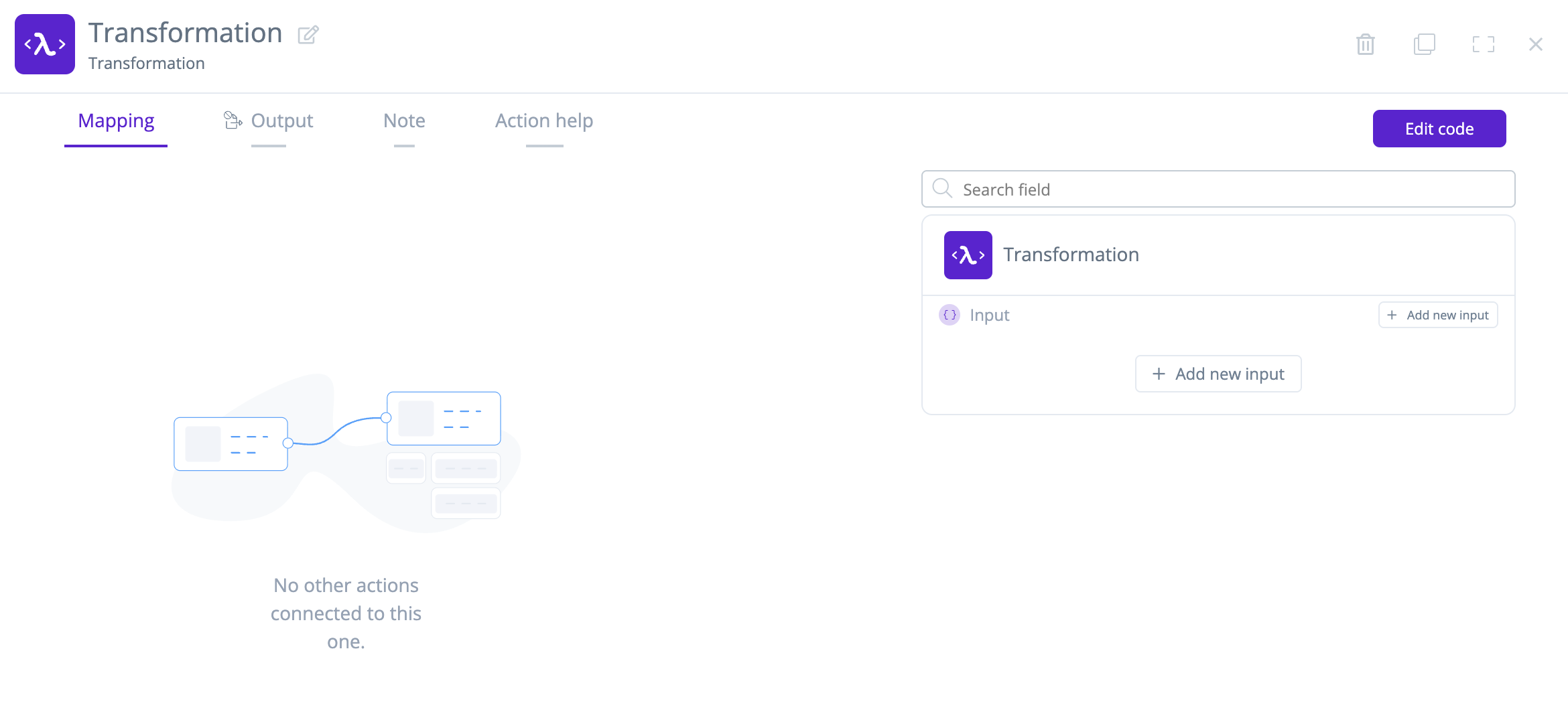
-
Rename: Rename the transformation.
-
Remove: Delete the transformation.
-
Mapping: Configure how tools and connector actions connected to the transformation are mapped using a visual interface. Connected tool and connector actions are shown on the left side and transformation inputs are shown on the right side. Mappings between the two are represented with connecting lines:
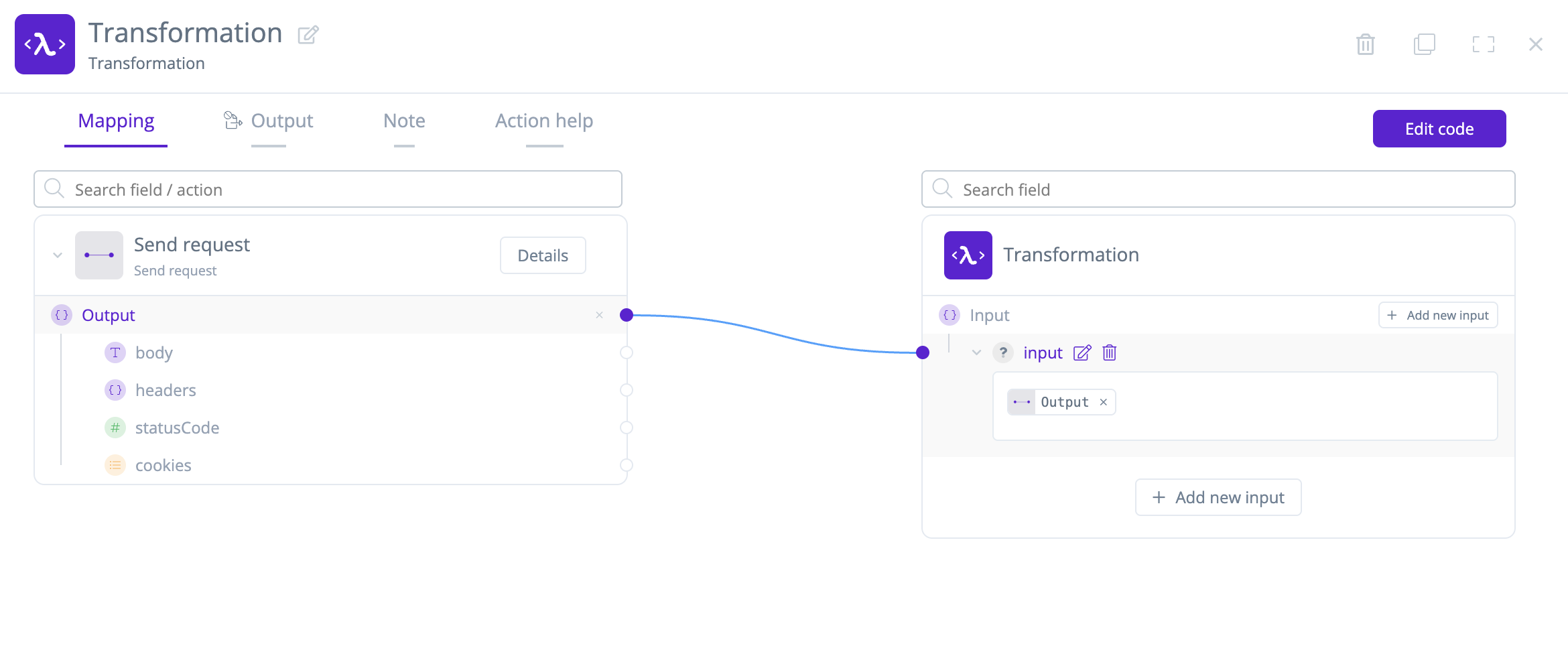
- Add new input: Click to create a transformation input to map against connected tool and connector actions. The resulting input entry can be renamed or removed as necessary. Define multiple transformation inputs to support complex use cases.
-
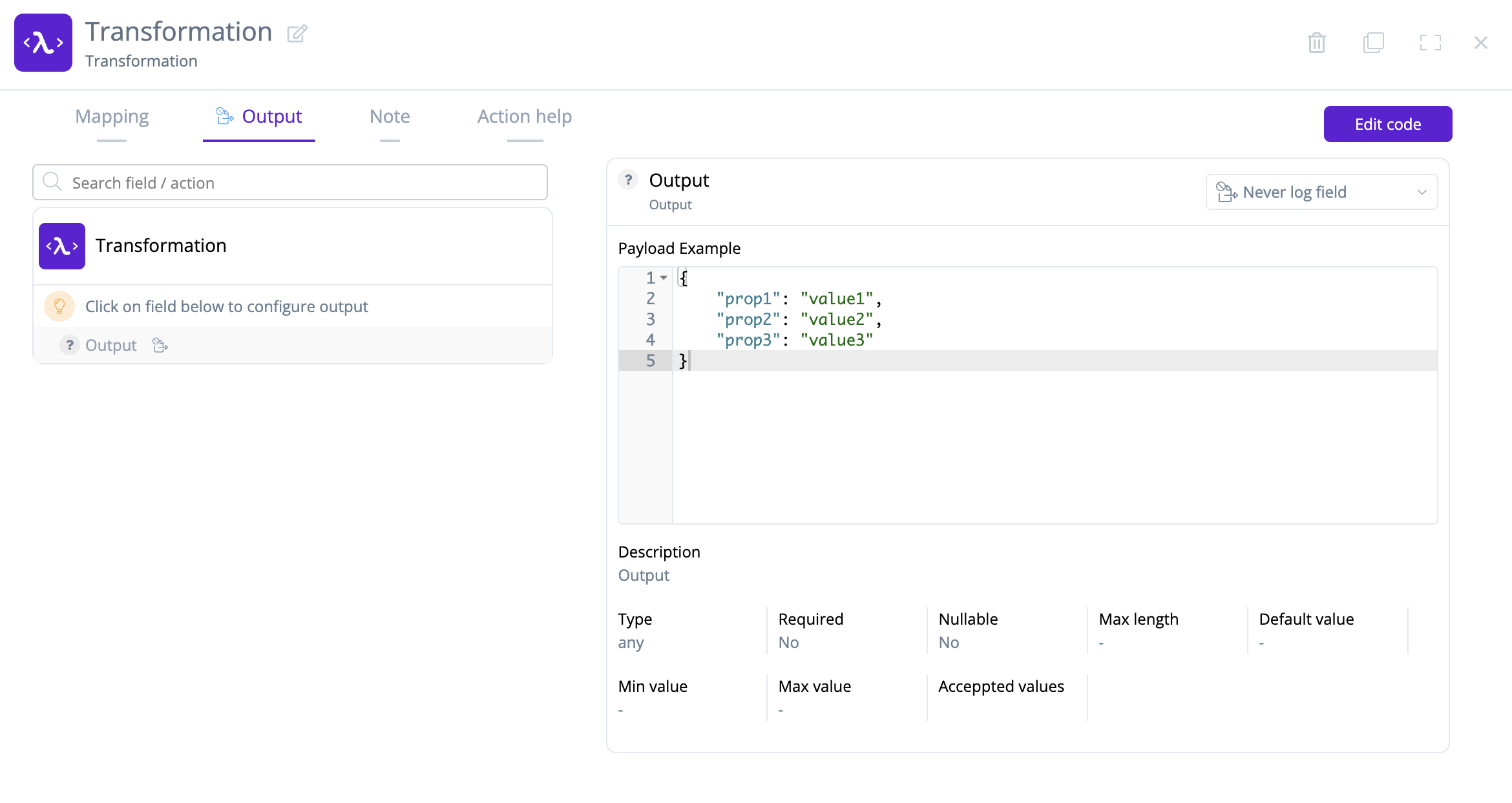
Output: Configure and preview transformation output payloads:
Note
You can encrypt output logs. See Log cryptography for more information.
-
Note: Enter contextual information for the transformation to keep track of its relevance to the flow.
-
Action help: Provides additional information about transformations and a link to additional support resources.
-
Edit code: Open the transformation code editor to manually edit and debug the transformation's programming.
Transformation code editor
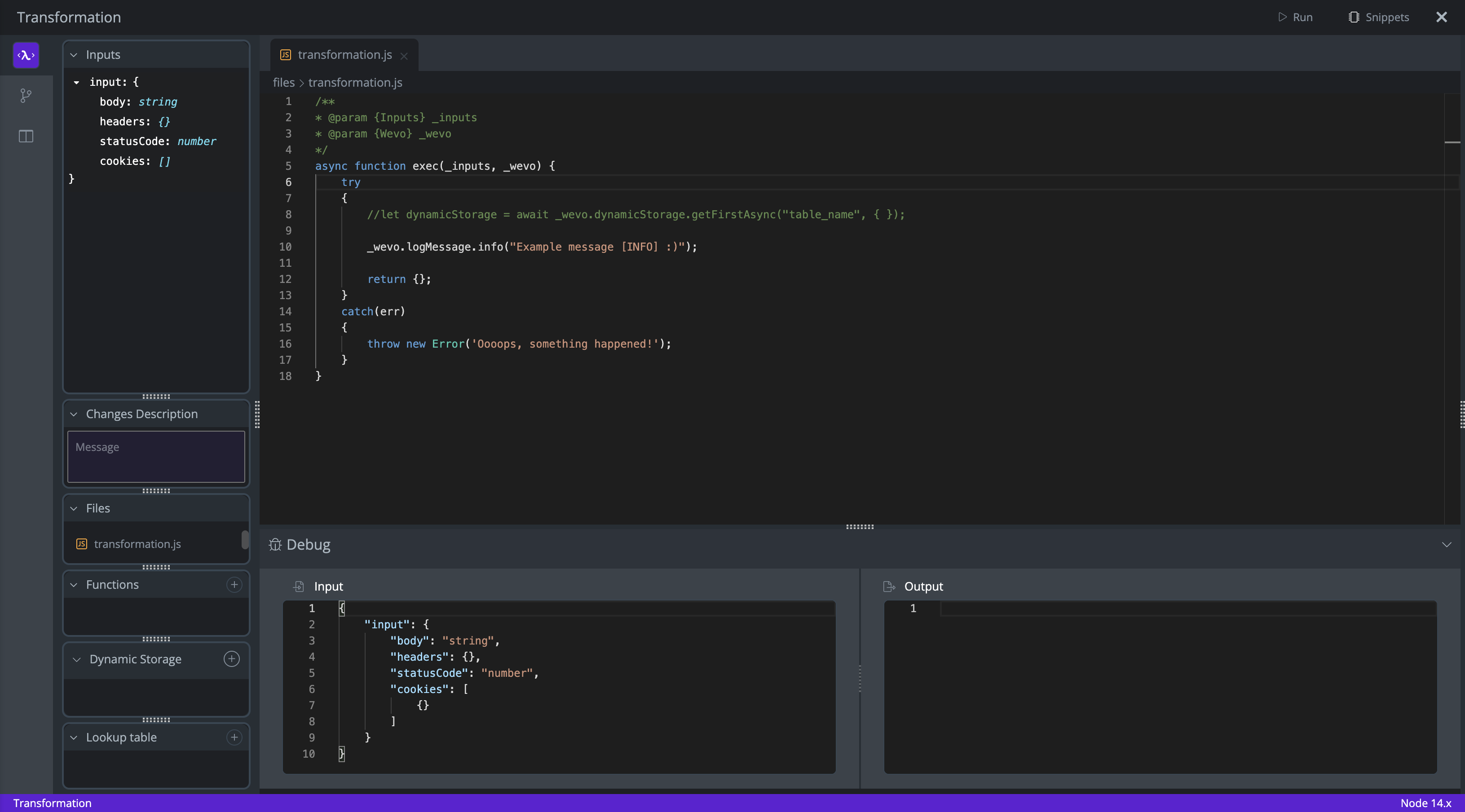
The transformation code editor can be used to manually edit and debug a transformation's programming:
Note
Mappings defined using the transformation configuration visual interface are reflected in the transformation code editor's input sections as shown.
Transformation debugging
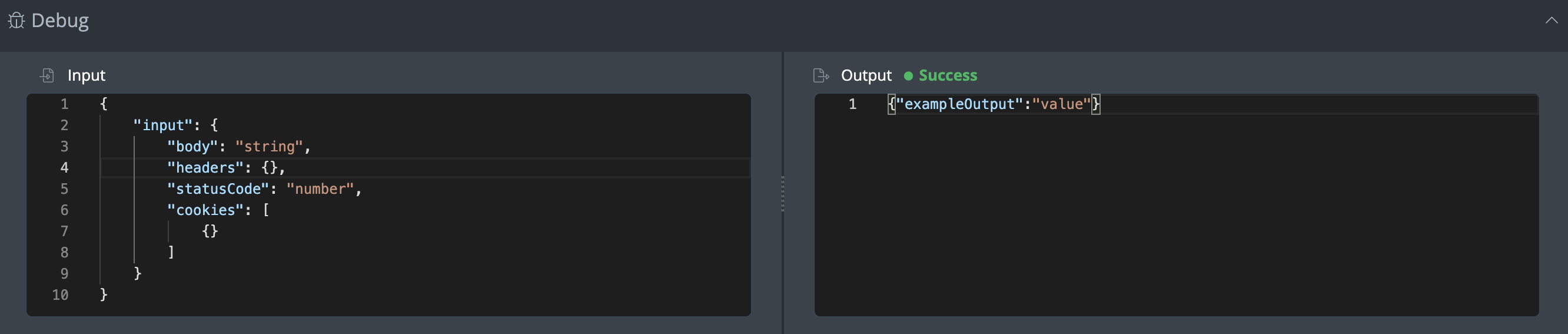
Click the Run button to test and debug the code in your transformation:

Code execution results are shown in the Debug section under Output:
Functions
Functions created with the Code Function tool can be used with transformations.
-
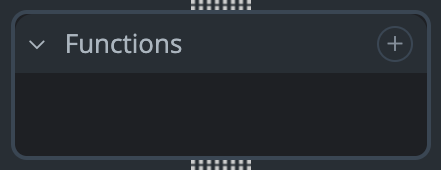
Click the Functions list addition icon:
-
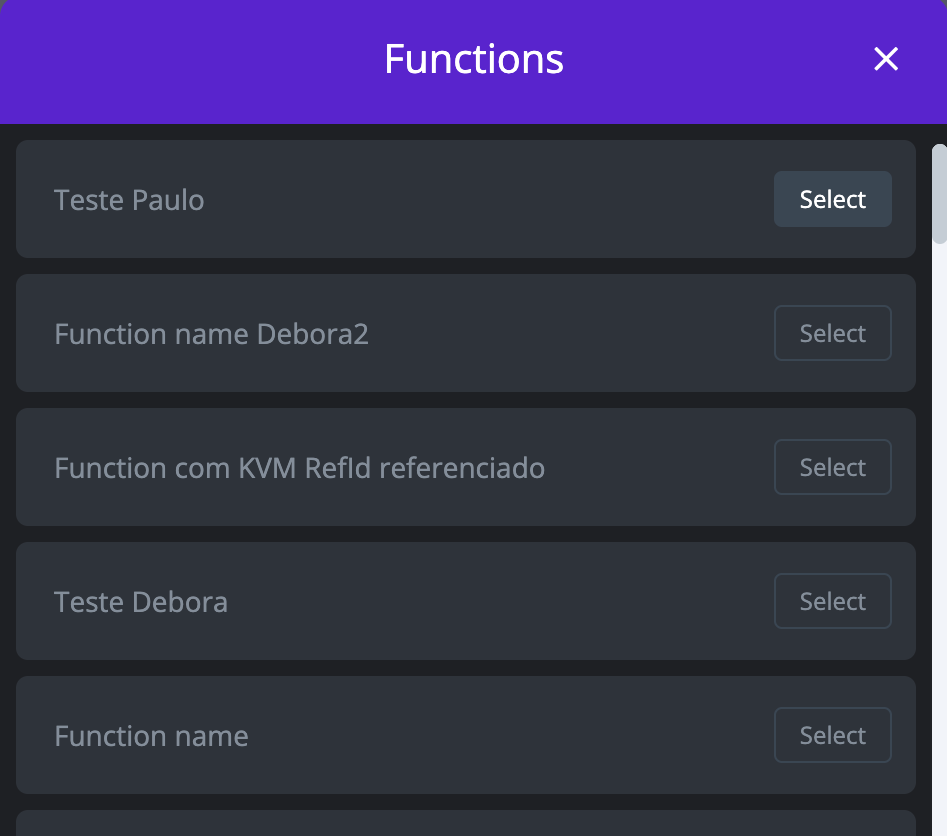
The Functions dialog is shown, populated with available functions:
-
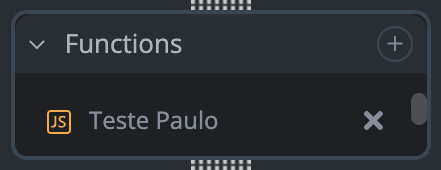
Click Select on a function to add it to the Functions list:
-
Click the function entry to copy its code to your clipboard for later use.
Dynamic storage
Dynamic storage tables created in Dynamic Storage can be used with transformations.
-
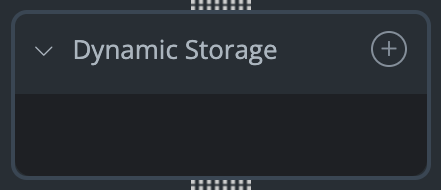
Click the Dynamic Storage list addition icon:
-
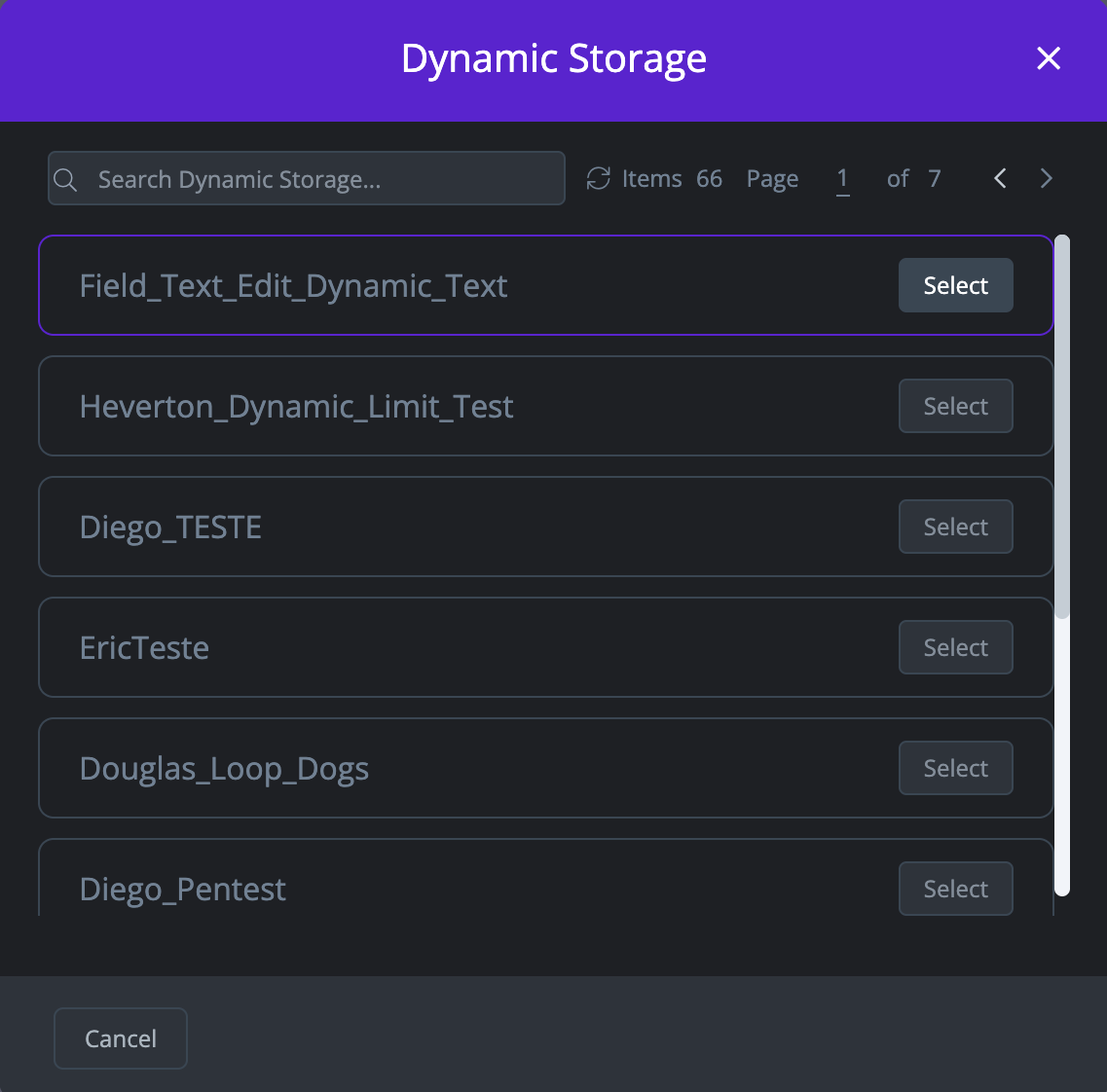
The Dynamic Storage dialog is shown, populated with available dynamic storage tables:
-
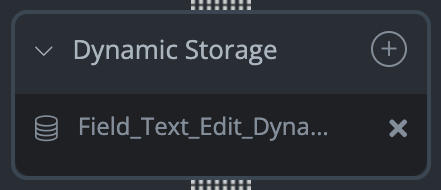
Click Select on a dynamic storage table to add it to the Dynamic Storage list:
-
Click the dynamic storage entry to copy its reference to your clipboard for later use.
Snippets
Snippets are lines of code that are ready to use, eliminating the need for rewriting code.
To use them, click the Snippets button to open the Snippets pane:
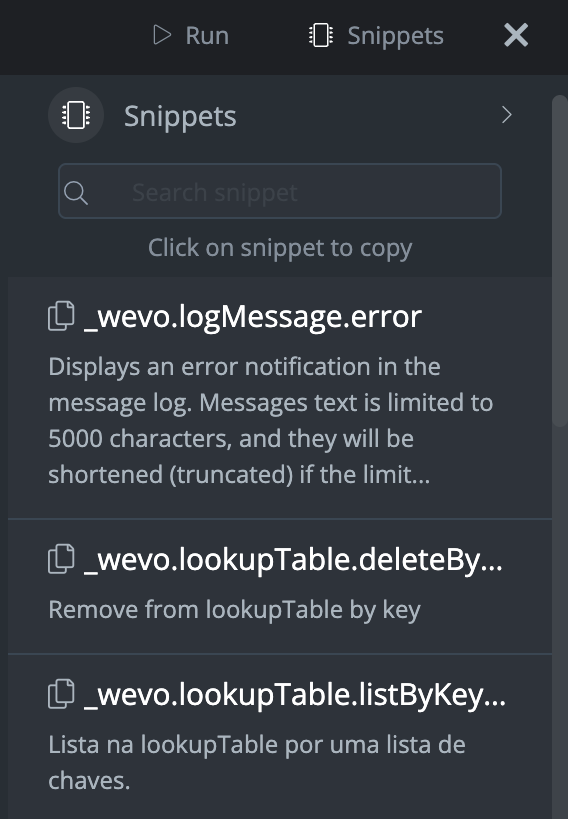
Search for and click the desired snippet to copy its code to your clipboard for later use.