Export a flow in Wevo iPaaS
Overview
The Wevo platform offers the ability to export a flow locally as a compressed file or directly as a new version of a target flow.
Local exports allow you to keep flow templates saved on your computer and the ability to replicate them in different environments. Exports with the export wizard act as a form of migration by leveraging flow versioning.
Export a flow
Follow these steps to export a flow:
-
Open the flow design screen for the flow you want to export.
-
In the flow options menu, click the Export flow icon:

-
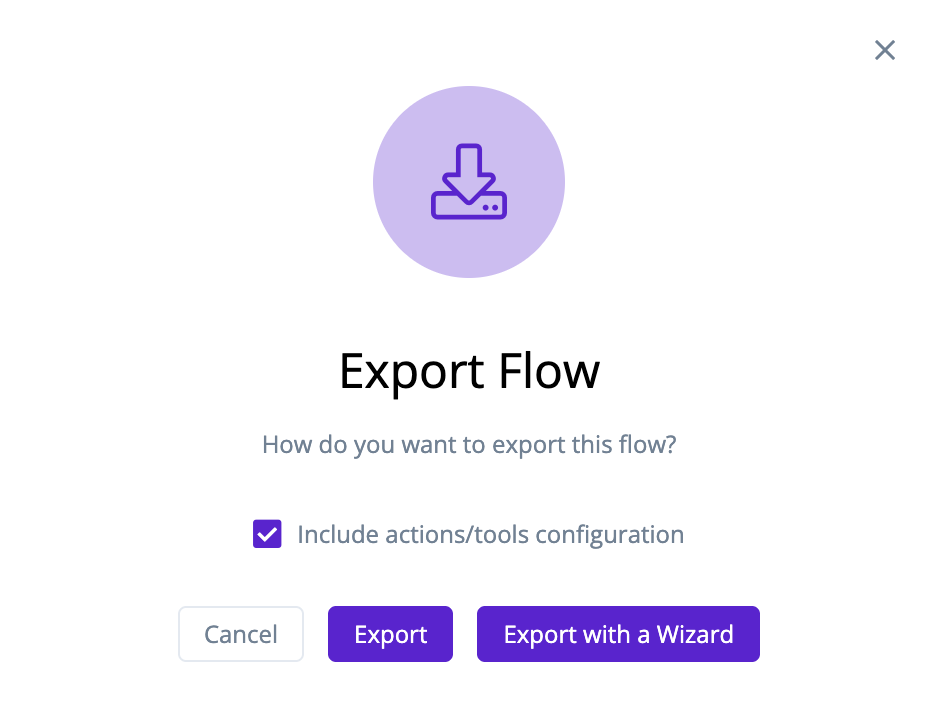
In the Export Flow dialog, configure your export and click either Export or Export with a Wizard:
-
Include actions/tools configuration: Select to include all action and tool configuration settings with the export.
-
Cancel: Click to close the Export Flow dialog if changes are required.
-
Export: Click to export the flow and download it locally as a compressed file. See Import a Flow to import flows exported this way.
-
Export with a Wizard: Click to export the currently open flow as a new version of a target flow with the export wizard.
-
Export wizard
The export wizard assists with exporting the currently open flow as a new version of a target flow.
-
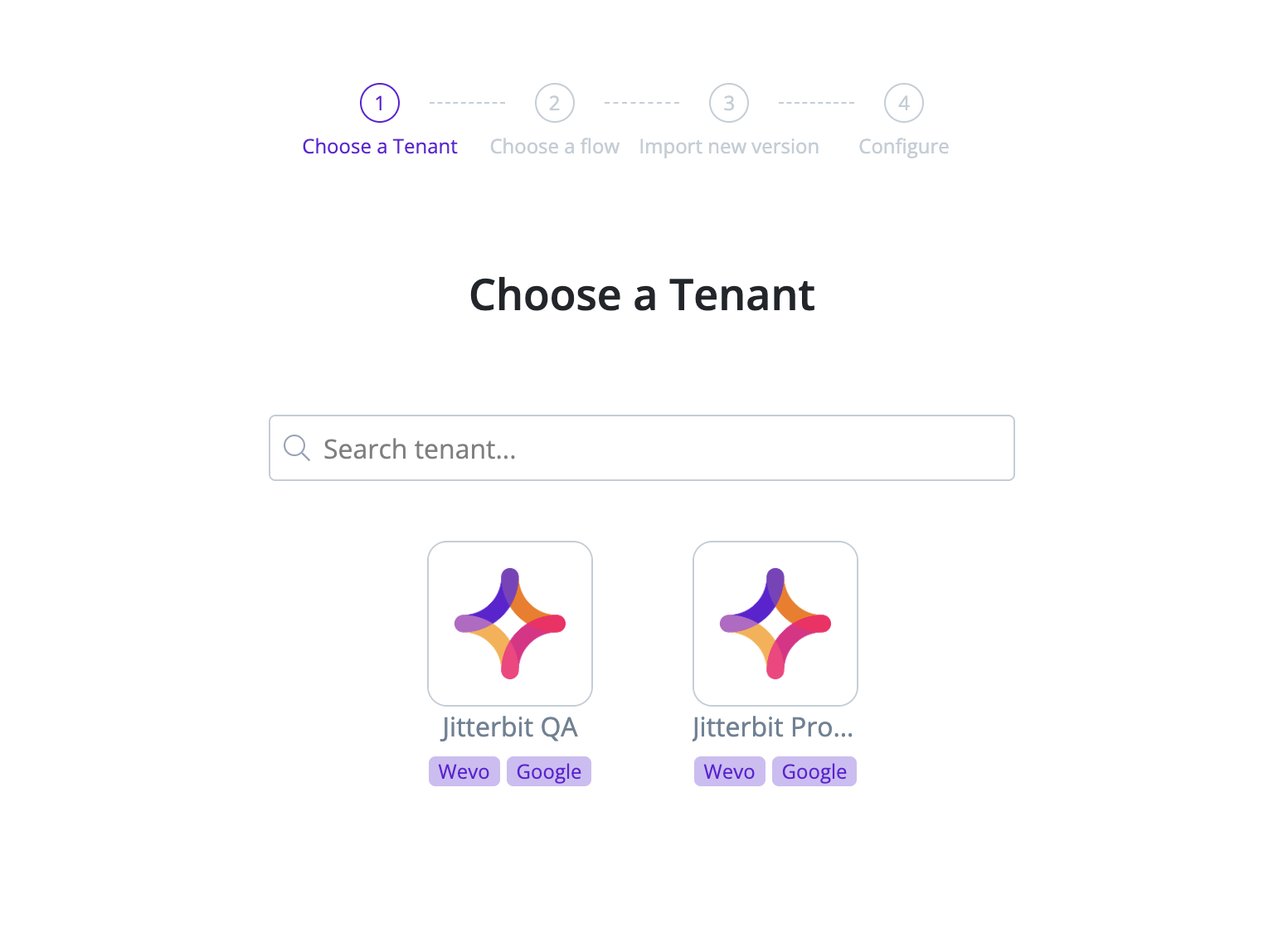
Choose a tenant: Select the tenant containing the target flow to export to.
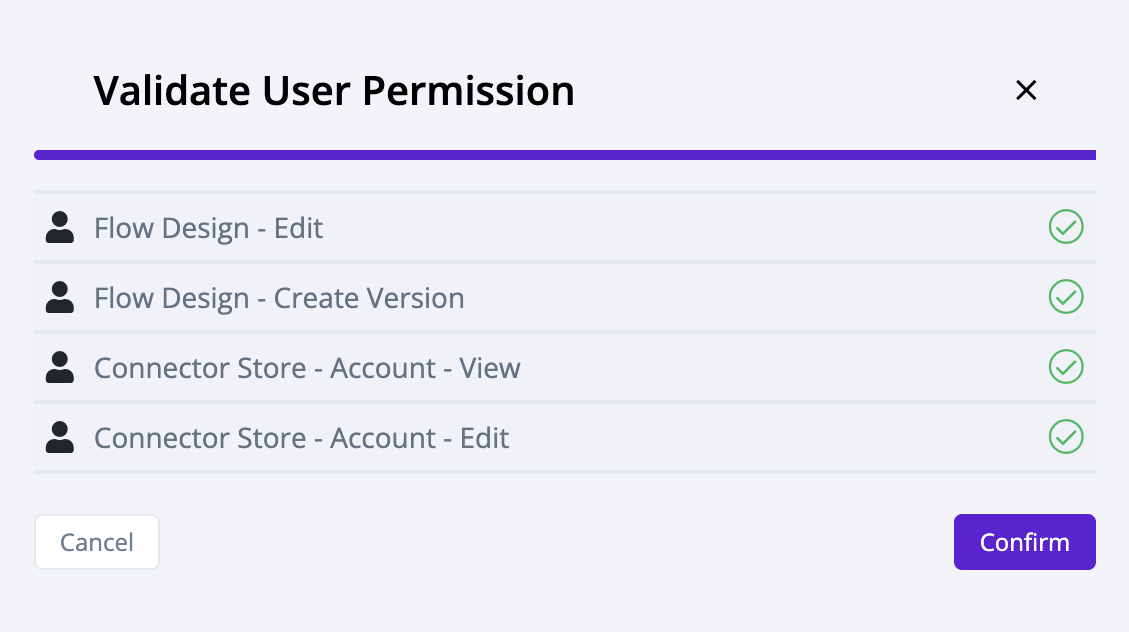
The export wizard validates your permissions before moving onto the next step. Click Confirm to continue:
-
Choose a flow: Select the target flow to export to:
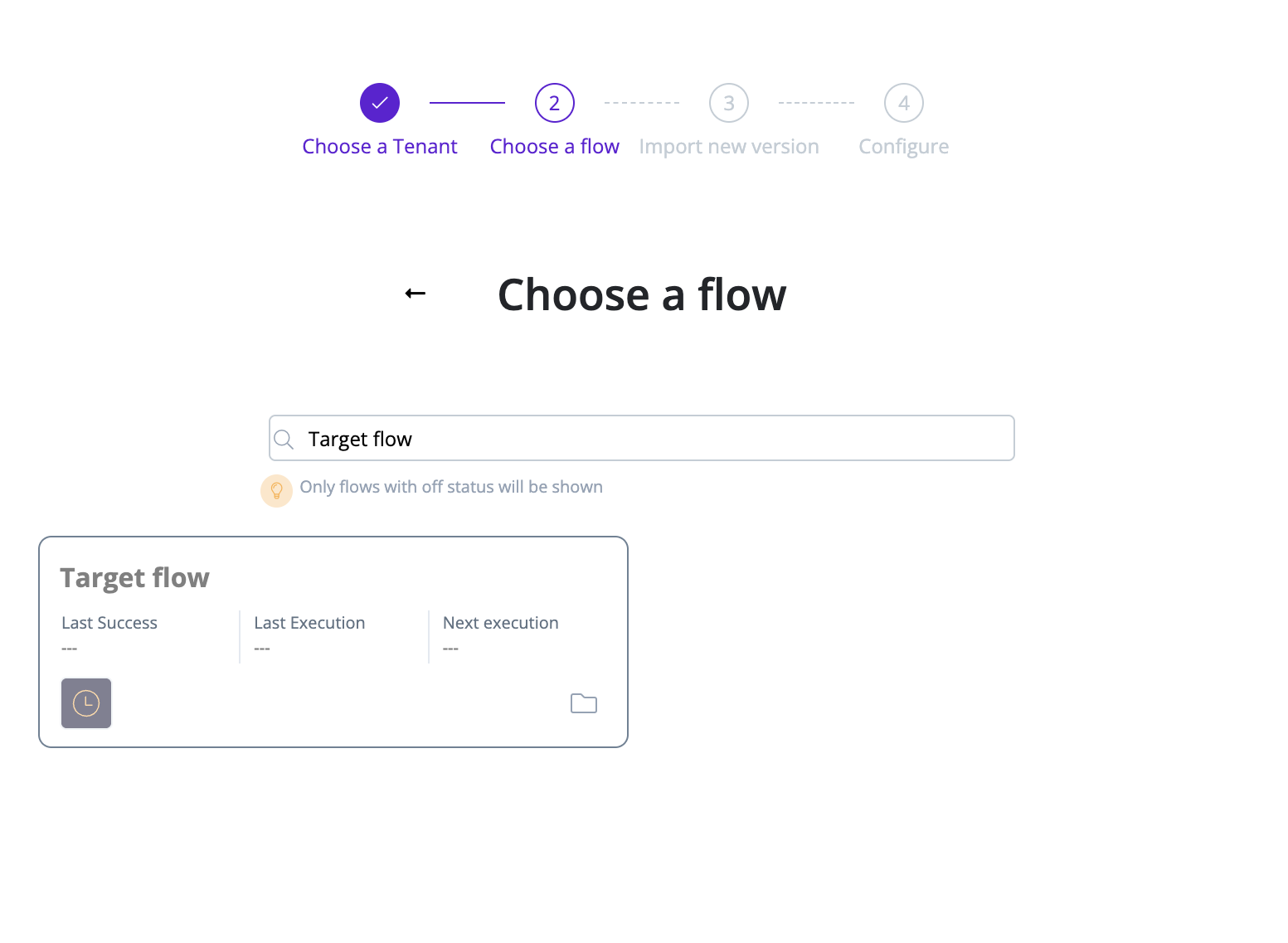
When using the export wizard, attempting an export to a different flow that already exists on same tenant as the source flow will result in an error:
Error
Flow name already exists in the selected tenant, please rename and try again.
-
Import new version: Enter a version name and description for the export. Click Continue and confirm the export:
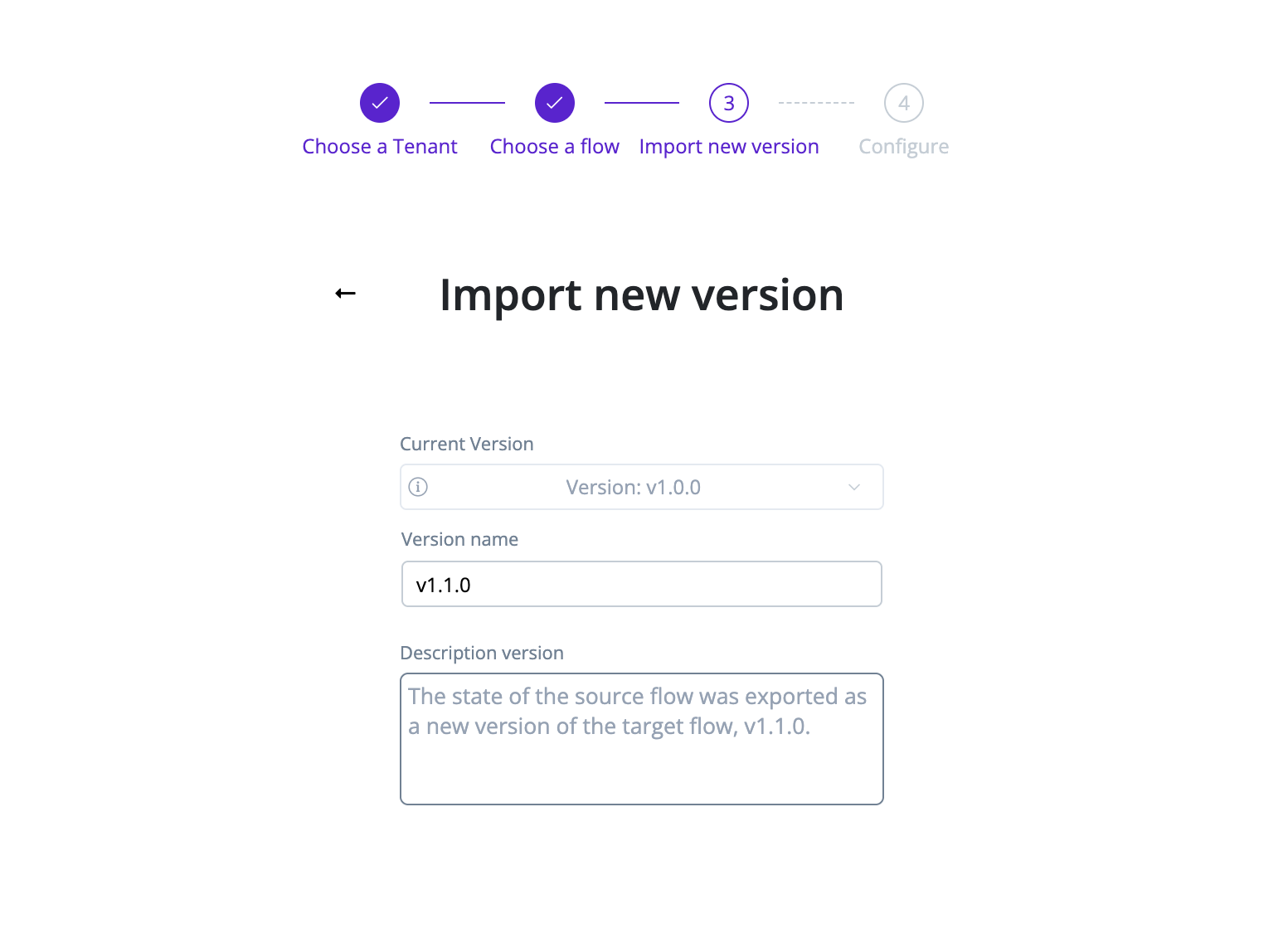
Entering a version name that already exists in the target flow will result in an error:
Error
Error exporting flow. Please, try again.
-
Configure: Confirm the state of the completed export. Any outstanding items can be configured at this step or directly in the target flow later.
-
Click Finish to finalize the export.
The export is now exposed as a new version of the target flow. The target flow's history prior to the export operation remains unchanged. The source flow is left unchanged throughout this process and can be used for additional exports.