One-click deployment in Jitterbit App Builder
Introduction
Since App Builder 4.52, you can set up a semi-automated process to deploy an app from one App Builder environment (the source) to another (the target). (Since App Builder 4.53, you can automatically deploy and install packages with a single click, by marking a target environment as the default.)
An overview of the steps is as follows:
-
On the target environment:
-
On the source environment:
Tip
A typical use case for this feature is to streamline the deployment of apps, from, for example, development to QA, or QA to production. In these examples, source and target would be as follows:
(Source)"] --> QA1["QA
(Target)"] QA2["QA
(Source)"] --> PROD["Production
(Target)"]
Prerequisites
The target environment's user (the one the API key is created for) must have the Deployment role.
The source environment's user (the one doing the deploying) needs either Administrator or Developer roles.
On the target
Set up an API key
To set up an API key on the target environment, follow these steps:
-
Select IDE > Security Providers.
-
Click the + User Authentication button.
-
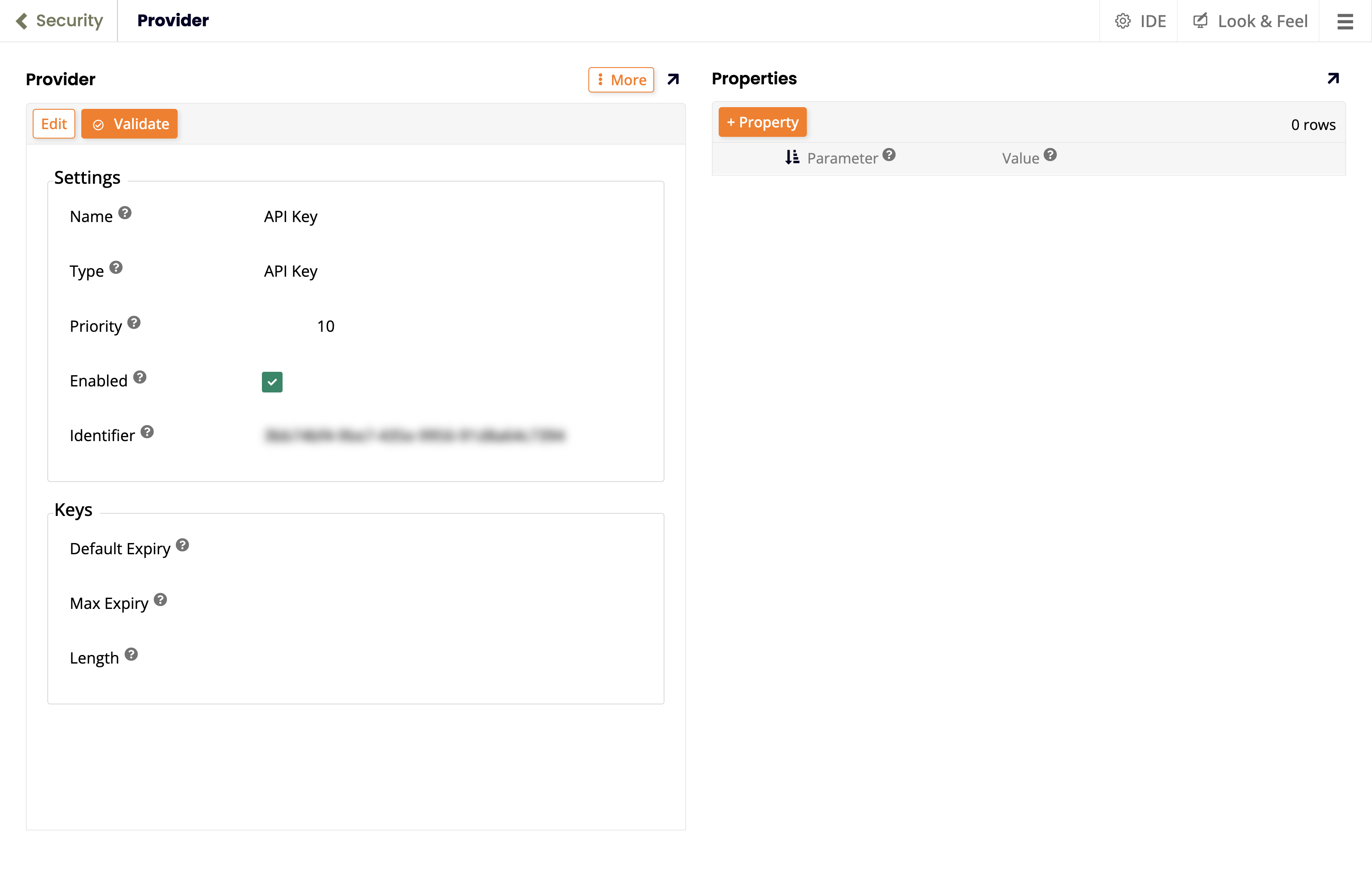
On the Provider page, configure, enable, and save a provider with type API Key:
Configure the target environment
To configure the target environment, follow these steps:
-
Select IDE > Create Release.
-
Select the Environments tab.
-
Under Current Environment, click the Configure button.
-
In the popup, set values for the following fields:
-
Name: A name for this target environment.
-
URL: This (target) environment's URL.
-
Authentication: Select the API key created in the previous section.
-
Enable Deployment: Selected.
-
Allow Install On Deploy: Selected.
-
-
Click the Save button:

On the source
Set up an HTTP security provider
To set up an HTTP security provider on the source environment, follow these steps:
-
Select IDE > Security Providers.
-
Click the + Data Source Authentication button.
-
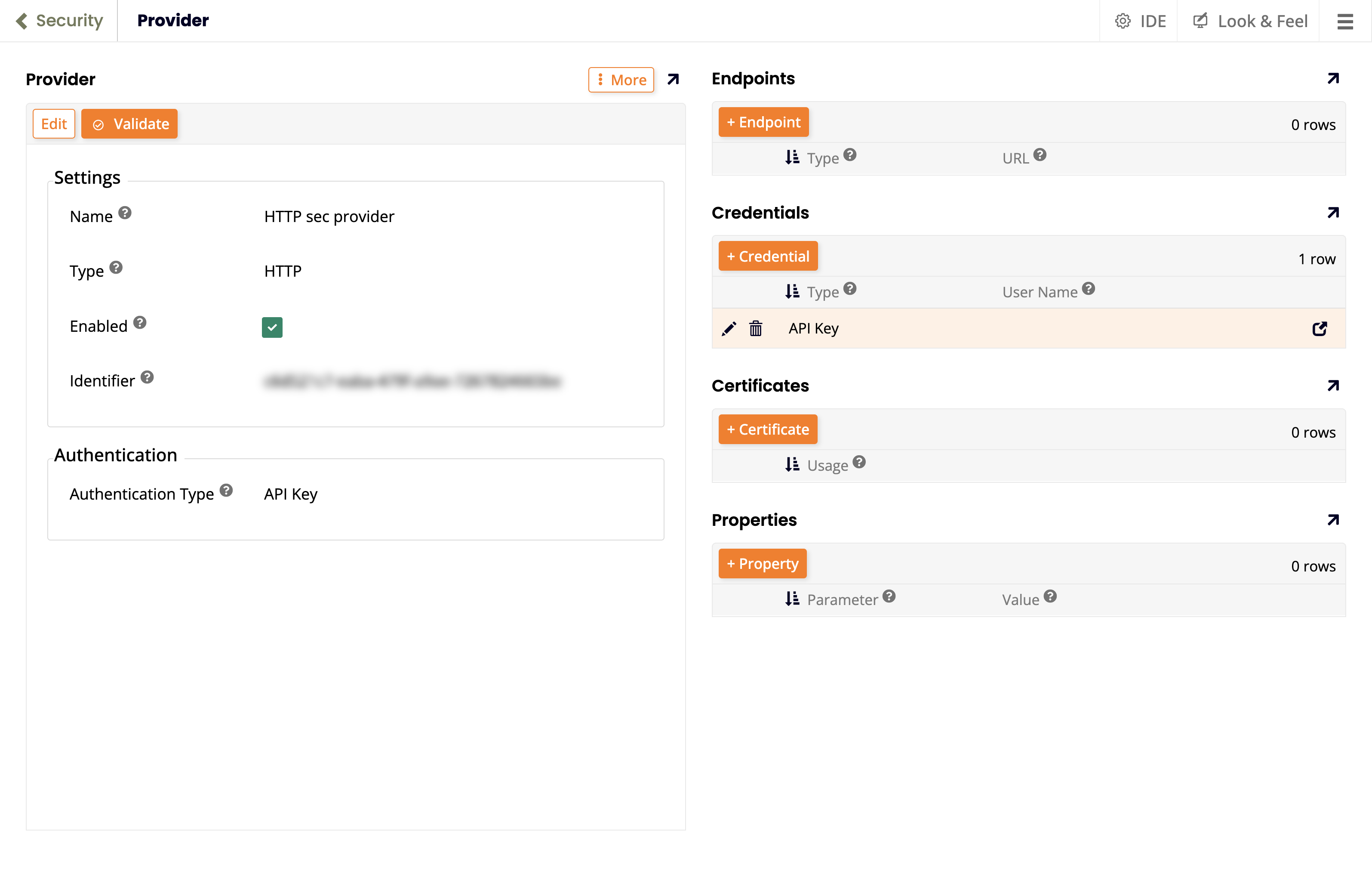
On the Provider page, configure, enable, and save a provider with type HTTP (listed under the Data Source Authentication section), and Authentication Type set to API Key.
-
Click the Save button. Additional panels appear.
-
Under Endpoints, click the + Credential button. The Credential popup opens.
-
Set the following fields:
-
Type: API Key
-
Password: Enter the target's API key.
-
-
Close the Credential popup.
Configure the source environment
To configure the source environment, follow these steps:
-
Set the current environment:
-
Select IDE > Create Release.
-
Select the Environments tab.
-
Under Current Environment, click the Configure button.
-
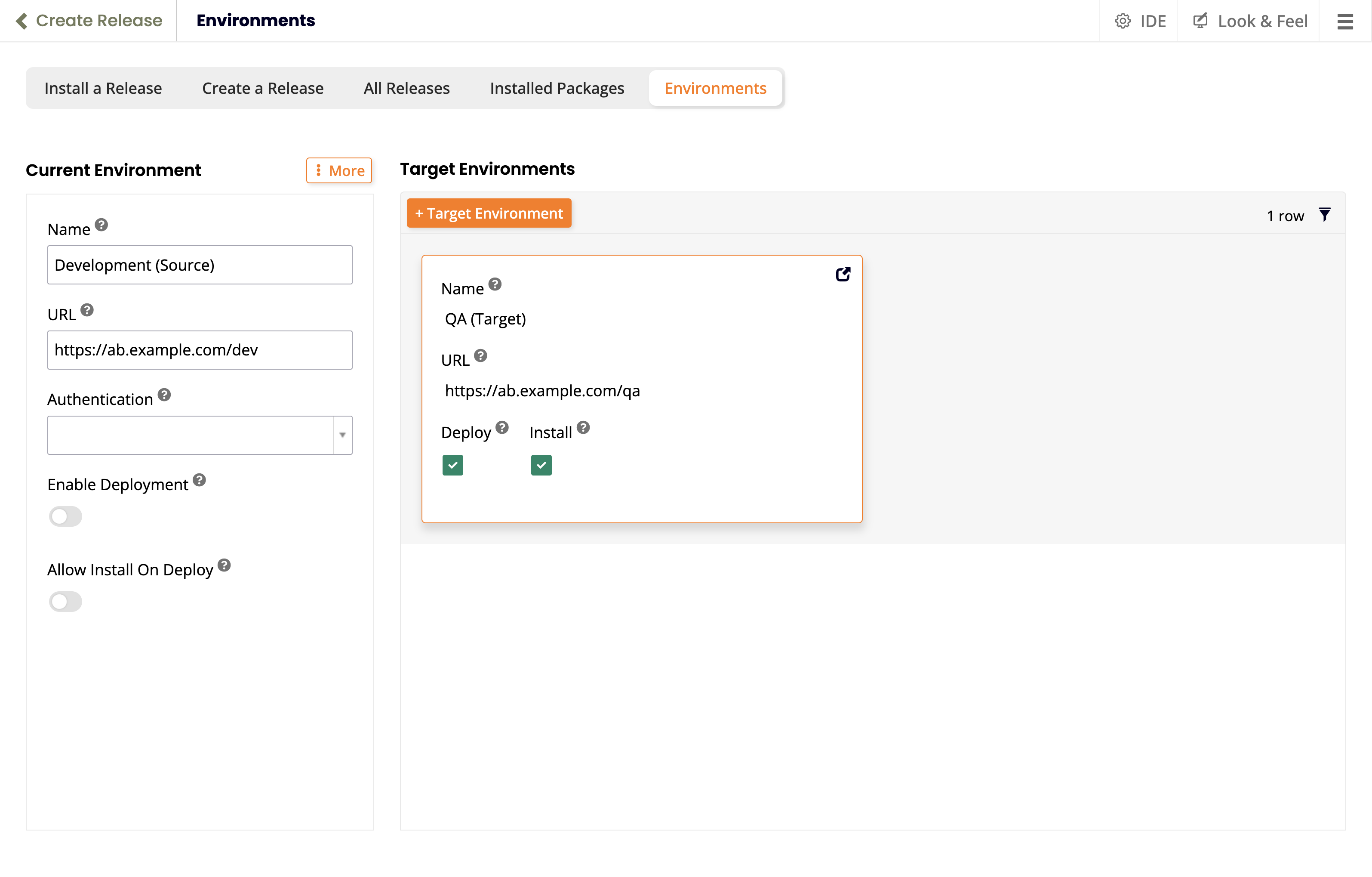
In the popup, set values for the following fields:
-
Name: A name for this source environment.
-
URL: This (source) environment's URL.
-
Enable Deployment: Leave unselected.
-
Allow Install On Deploy: Leave unselected.
-
-
Click the Save button.
-
-
Set the target environment:
-
Under Target Environments, click the + Target Environment button.
-
Set values for the following fields:
-
Name: Enter a name for the target environment.
-
URL: The target environment's access URL.
-
Authentication: Select the HTTP provider created in the previous section.
-
Supports Deployment: Selected.
- Default: (Optional, appears when Supports Deployment is selected.) Select to automatically deploy to this environment unless another is selected.
-
Supports Install On Deploy: Selected.
- Default: (Optional, appears when Supports Install on Deploy is selected.) Select to automatically install packages during deployment.
-
-
Click the Save button, then close the Environment popup.
-
Perform a one-click deployment
To use the one-click deploy feature, follow these steps:
-
Create a release:
-
Select IDE > Create Release.
-
Select the Create a Release tab.
-
Click the + Solution button.
-
Use the Solution wizard to define what to deploy.
-
-
Build the solution:
- Click the Build button for the new release template.
-
Deploy the release:
-
Wait for an App Builder notification that tells you the build is complete.
-
Do either of the following:
-
Click the notification's See Release button. The All Releases tab opens.
-
Dismiss the notification, then select the All Releases tab.
-
-
Click the Deploy button for the built solution.
-
If Default is checked for Supports Deployment and Supports Install On Deploy in the target environment, no further action is needed.
Otherwise, continue with the following steps:
-
In the Deploy Release popup, open the Environment menu, then select the target environment.
-
(Optional) Select the Install On Deploy checkbox.
-
Click the Deploy button.
-
-