MCP Service Tokens (Beta) page in Jitterbit MCP
Introduction
The MCP Service Tokens page lets administrators create and manage service tokens for private MCP deployment components. An MCP service token authenticates a private MCP gateway or private MCP runtime with the Jitterbit MCP control plane. There are two types:
-
Gateway service token: Authenticates a private MCP gateway with the MCP control plane. Create this token when your organization hosts a private MCP gateway.
-
Runtime service token: Authenticates a private MCP runtime with the MCP control plane. A private MCP runtime is a deployment you host and manage that runs MCP servers, similar to a private agent. Create this token when your organization uses a private MCP runtime.
Service tokens are required only for private MCP components that you host yourself. Cloud-hosted MCP components are managed by Jitterbit and do not require you to create or manage these tokens.
MCP service tokens differ from the MCP authentication tokens managed on the Auth Tokens tab of the Server details drawer:
-
MCP authentication tokens authenticate MCP clients, including AI assistants and agents, with an individual MCP server.
-
MCP service tokens authenticate a private MCP gateway or private MCP runtime with the MCP control plane.
To access the MCP Service Tokens page, use the Harmony portal menu to select MCP > Service Tokens.
Create a service token
Click New Token to add an editable token row, then configure these fields:
-
Token Name: A unique name for the token, up to the field's character limit. This field is required.
-
Token Description: An optional description of the token, up to the field's character limit.
-
Token Type: Select the private component that uses the token, either Runtime or Gateway (see Introduction for what each authenticates).
-
Environments: Use the dropdown to select the environments the token applies to.
-
Status: Set the token to Active or Inactive. New tokens are Active by default.
Click the save icon to create the token. The token value is generated when the token is created.
Warning
The complete token value is displayed only once, immediately after the token is created. Copy it and store it securely. After creation, the token value cannot be viewed, revealed, or copied.
Token list
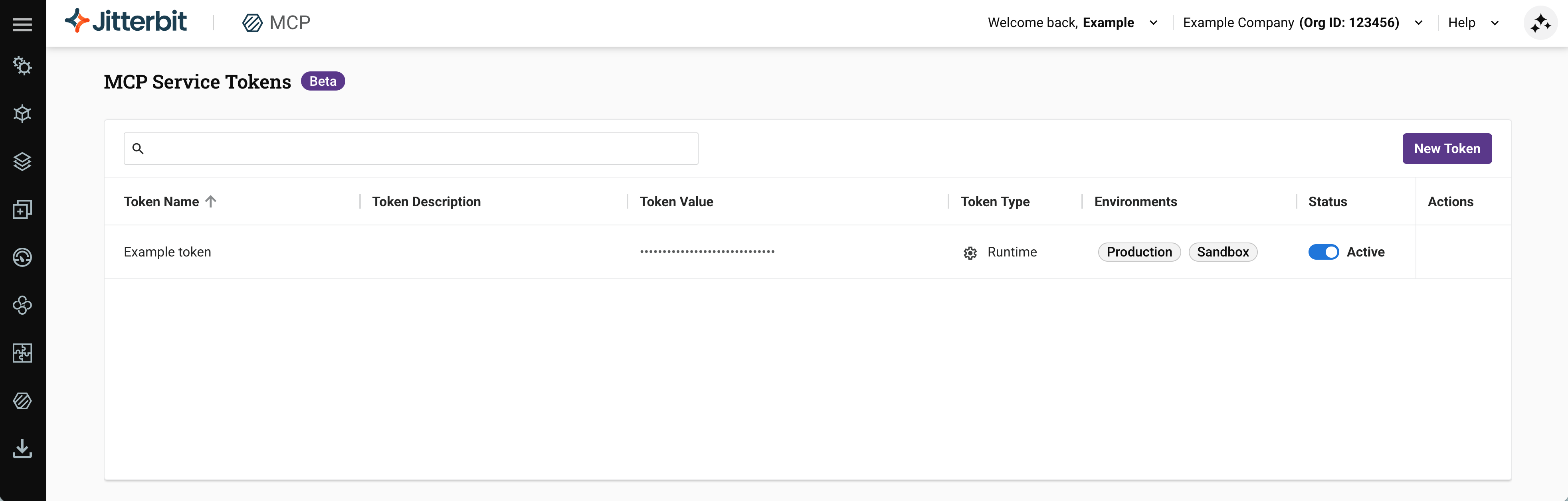
The MCP Service Tokens page displays tokens in a table with the following columns:
-
Token Name: The name of the token.
-
Token Description: The token's description, if one was provided.
-
Token Value: A masked representation of the token value. The complete value cannot be viewed or copied after the token is created.
-
Token Type: The private component that uses the token, either Runtime or Gateway (see Introduction for what each authenticates).
-
Environments: The environments the token applies to.
-
Status: The current status of the token, either Active or Inactive. An active token can be deactivated. After a token is deactivated, it cannot be reactivated.
-
Actions: Hover over a token row to reveal the Duplicate action, which opens the create form pre-filled with the duplicated token's values.
Click a sortable column heading to sort the table in ascending order. Click it again to reverse the sort order.
Note
MCP service tokens cannot be edited or deleted. To stop a token from being used, set its Status to Inactive. Deactivating a token is permanent: an inactive token cannot be reactivated.
Search
Enter any part of the Token Name, Token Description, Token Type, Environment, or Status into the search box to filter the list of service tokens. The search is not case-sensitive.