Jitterbit Northwinds App
Overview
Jitterbit provides Northwinds through Jitterbit Marketplace as a Jitterbit App Builder release package. Rather than a finished application, the package contains only the classic Northwinds sample database, pre-loaded with sample data, which installs as an App Builder data source.
Northwinds is meant to pair with the Introduction to App Builder tutorial series, which uses this database to build an order-fulfillment app step by step across the data, business, and UI layers. Install the package to load the sample data into your instance, then follow the tutorial to learn how an App Builder app is built.
You download Northwinds as an App Builder release package (an .LP file) from Marketplace and install it into your own App Builder instance.
This page describes how it works, its data model, the prerequisites, how to download and install it, how to use it to learn App Builder, and common troubleshooting steps.
How it works
Installing the package adds the Northwinds sample database to your App Builder instance as a data source, pre-loaded with sample data. The data source installs sealed. To build on it, you unseal it in a development environment, then follow the tutorial to construct an app on top of it:
package in App Builder"] --> B["Northwinds data source
added to your instance,
pre-loaded with sample data"] B --> C["Unseal the data source
in a development environment"] C --> D["Build an order-fulfillment app
by following the tutorial"]
Data model
The Northwinds sample database includes the standard Northwinds entities: customers, orders, order line items, products, categories, employees, and shippers. Each table installs pre-loaded with sample data.
Prerequisites
To use Northwinds, you need the following:
-
A Jitterbit Harmony license with access to App Builder. This enables the Marketplace download; if your organization is not licensed for App Builder, the Download app action is replaced by a Get app request action (see Download and install).
-
An App Builder instance and a supported database. Northwinds is provided as a separate package for each App Builder version and database: App Builder 4.46 through 4.58 for PostgreSQL, and 4.48 through 4.57 for Microsoft SQL Server. Each package installs only on the exact App Builder version it is built for, so download the one that matches your instance's version and database. If no listed package matches your version, contact Jitterbit support to request one.
Download and install
Download the app from Marketplace
-
Log in to the Harmony portal at https://login.jitterbit.com and open Marketplace.
-
Locate the app named Northwinds. You can use the search bar or, in the Filters pane under Type, select App to show only apps.
-
Click the app card to open the Details panel. Review the app's Requirements (the App Builder version and database it needs).
-
Click the app's Go to documentation link to open this documentation in a separate tab, and keep it open for reference.
-
Do one of the following, depending on whether your organization is licensed for App Builder:
-
Download app: If your organization is licensed for App Builder, click Download app, on either the app card or the Details panel. Your browser saves the
.LPfile to its download location, and an App Builder file downloaded successfully notification confirms the download. -
Get app: If your organization is not licensed for App Builder, the action is labeled Get app. The Details panel shows a message that an App Builder license is required, with a Submit button. Click Submit to send a request for a representative to contact you about App Builder; a Message successfully sent notification confirms it.
-
Install the app in App Builder
Install the downloaded .LP file into your App Builder instance:
-
Log in to App Builder and go to the IDE.
-
Under Deploy, click Install Release.
-
Click + Package, then Browse and select the
.LPfile you downloaded. -
Click Save. The Release panel displays the package information, then close the Package dialog.
-
Confirm the details are correct, then click Install.
Unseal the data source
The Northwinds data source installs sealed. If you deploy the package to a development environment and want to build on the sample data or extend its data model (for example, to follow the Introduction to App Builder tutorial series), unseal the data source. Leave it sealed in QA and production to preserve equivalence across environments.
-
Select IDE > Data Servers.
-
In the Data Servers panel, click View All Data Sources.
-
Select the installed Northwinds data source.
-
In the Data Source panel, click More > Unseal Data Source.
For more detail, see Seal or unseal a data source.
Learn App Builder with Northwinds
Northwinds is the database used throughout the Introduction to App Builder tutorial series, which builds an order-fulfillment app on it step by step across the data, business, and UI layers. If you are new to App Builder, install the sample database and follow the tutorial to see how each part is constructed.
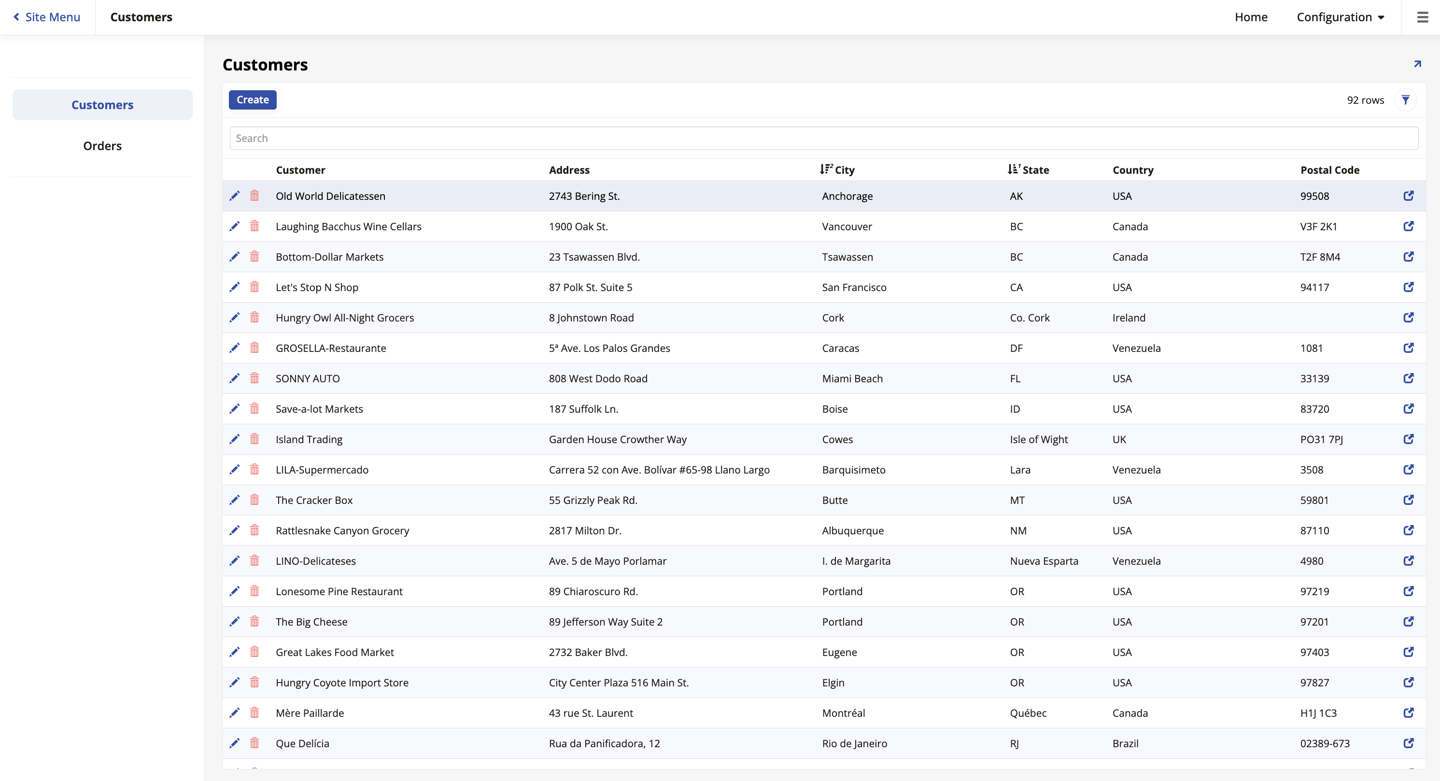
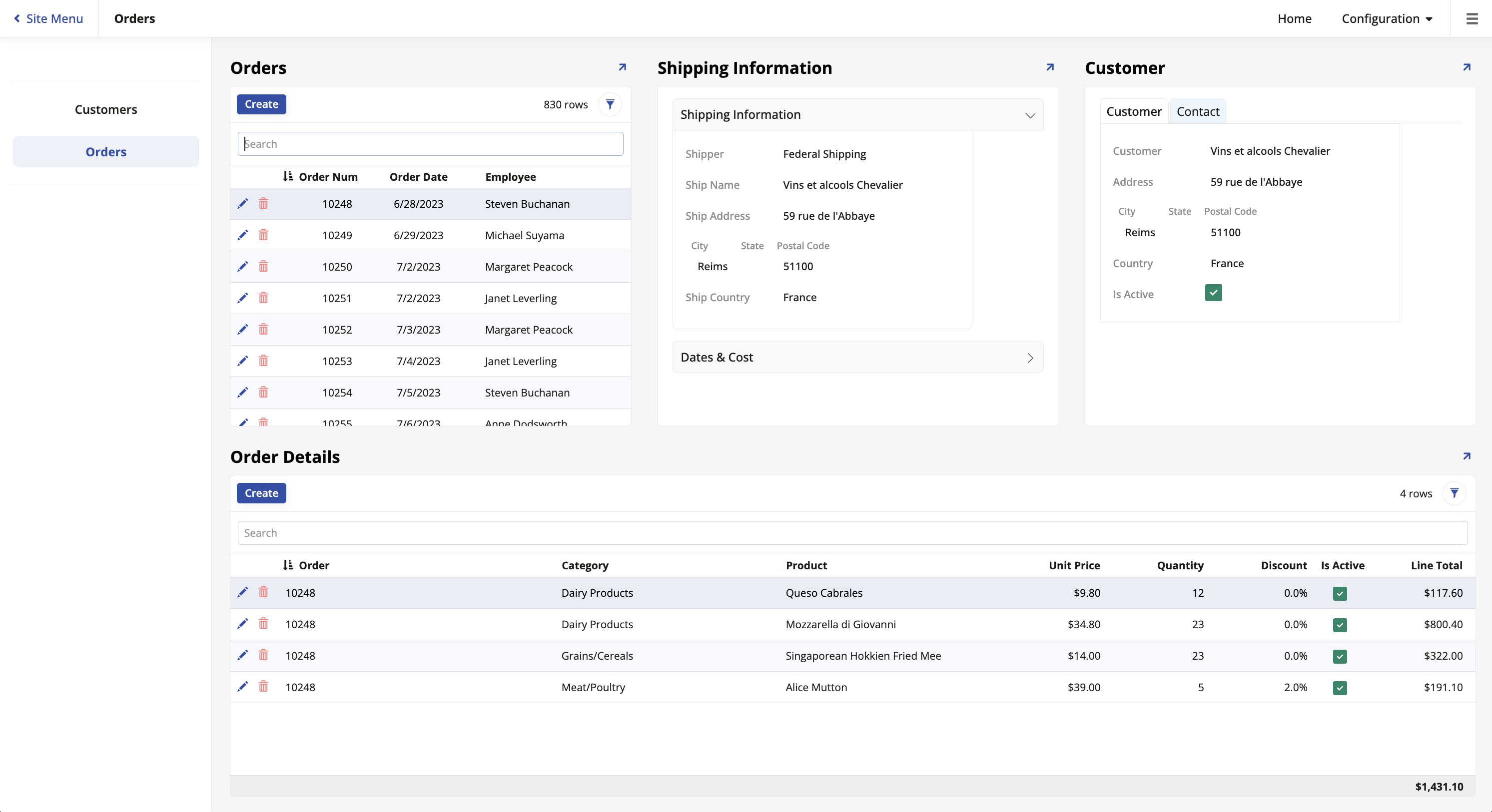
By the end of the tutorial, you will have built an app with a Customers page for browsing and managing customers, and an Orders page that shows each order together with its shipping information, customer, and line items:
Troubleshooting
For help with installation, the data source, or the sample data, review your App Builder logs and contact Jitterbit support.