Runtime page in Jitterbit Management Console
Overview
| Purpose | View runtime operation logs |
| Location | Harmony portal menu > Management Console > Runtime |
| Page access | Users with Read role permission |
| Environment access | Users with View Logs environment access levels |
Introduction
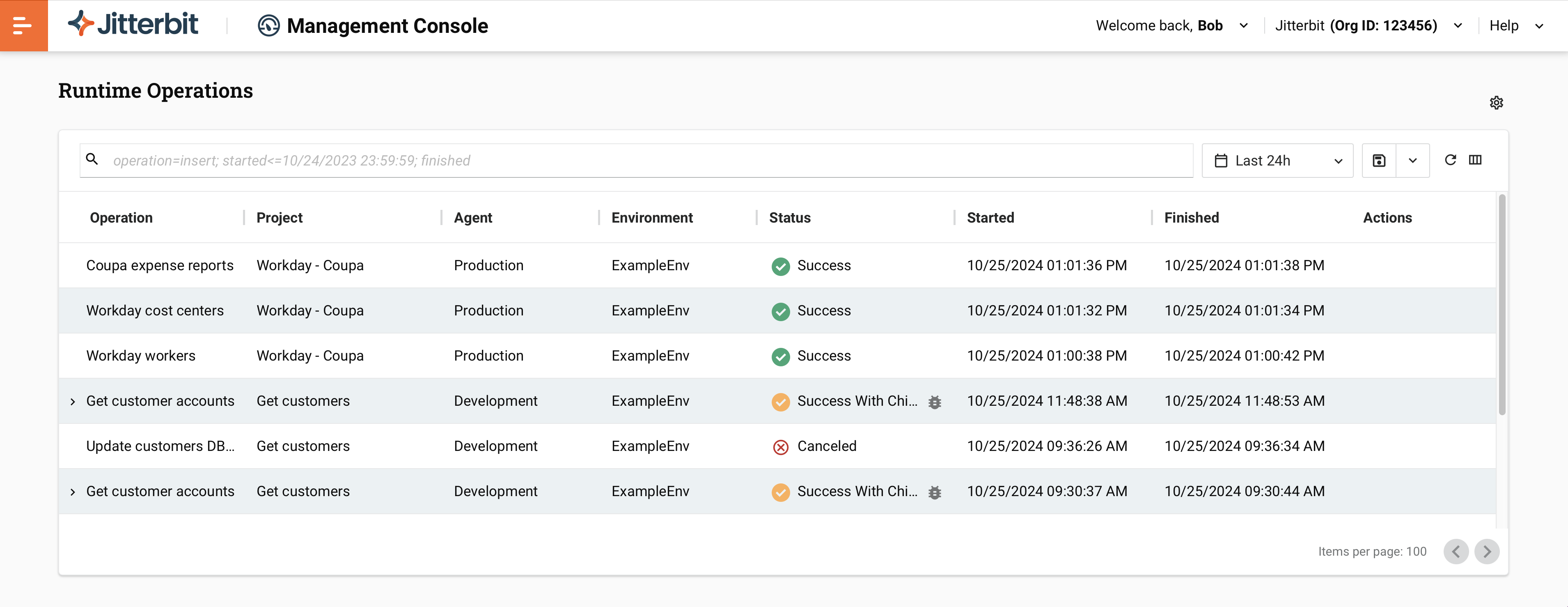
The Runtime page is a table of operation logs. When an operation is executed, an operation log is generated. An operation log contains information about when and where an operation ran, the operation status, the number of source and target records processed, and any log messages. Whether detailed log messages are displayed depends on permission and access levels and whether cloud logging is enabled.
Note
Harmony keeps operation logs for 30 days.
Important
Operations triggered by an API Manager custom API or OData API have additional logging that can be enabled. For details, see API request and response data.
Status values
For Custom API, Proxy API, and OData API log entries, status is shown as the HTTP status code (see w3.org status code definitions). For Operation log entries, status is one of the following:
| Icon | Status | Description | Notes |
|---|---|---|---|
| Submitted | An operation was submitted to the Harmony queue, but has not yet been accepted by an agent for execution. | Operations can be submitted by an operation schedule, manual execution, the RunOperation function, or any tool (including JitterbitUtils) that calls an API Manager API. |
|
| Received | An agent acknowledges receiving the request to run an operation. | — | |
| Pending | An operation is queued to run on an agent. | — | |
| Running | An agent is executing the operation. | — | |
| Cancel Requested | A request to cancel the operation has been made. Operations may show this status yet continue to run after canceling. | You can also request a cancellation from an operation's Design canvas, from Studio's operation log view, or using the GetOperationQueue and CancelOperation functions. |
|
| Canceled | The operation was canceled. | — | |
| Success | The operation completed successfully. | — | |
| Success with Info | The operation completed successfully with non-fatal issues. | — | |
| Success with Warning | The operation completed successfully with warnings as shown in the log messages. | An extra subelement warning in the log messages can generally be ignored. This warning indicates a connector's API payload returned more nodes or fields of data than those defined in the response data schema. |
|
| Success with Child Error | The operation completed successfully, but one or more child operations suffered fatal errors. | Applies to synchronous operations only. | |
| Error | The operation failed. | Possible causes include a fatal error writing to the target system, a fatal validation error in the transformation, or the transformation logic triggering the RaiseError function. |
|
| Soap Fault | The operation failed with a SOAP fault. | Applies to operations using Studio's SOAP, Salesforce, Salesforce Service Cloud, ServiceMax, or Workday connector, or Design Studio's web services or Salesforce endpoint. | |
| — | Delayed Status | Harmony was unable to fetch the operation log from the agent. | Harmony retries up to six times, with a 10-second timeout between attempts. Refresh or check again later. You cannot filter for this status, but delayed log entries may still appear in the results. |
Runtime page controls
The Runtime page toolbar includes controls for searching, filtering, downloading, and refreshing the log data.
Search bar
A query is one or more key/value terms. Multiple terms are separated by semicolons. A term has the form <key><operator><value>. For the operation, project, environment, agent, status, and apiServiceUrl keys, values can include a wildcard character (% or *) to match any string. Wildcard matching is anchored to the start of the value, so only starts-with (prefix) searches return results: use value% or value* to match values that start with the text. A leading wildcard does not broaden the match: %value% and *value* are both treated as value% (starts with), so searching for text that appears only in the middle or at the end of a value no longer returns results. A wildcard within the value (for example, abc%d or abc*d) continues to match.
Note
For accurate results when using the not-equal operator (!=), disable the Execution tree view toggle.
To use a query, enter a valid query specification in the search bar then press return:

When the Execution tree view toggle is enabled, a query returns results for the full execution chain of any matching entry: for an operation key query, results include the full hierarchy of parent and child operations linked to the operation, as well as the parent API log entry if the operation was triggered by an API call. The keyword string is highlighted in blue within the results. When the Execution tree view toggle is disabled, only the entries directly matching the query are returned.
The following table shows the available query term components:
| Key | Key column | Allowed Operators |
Value | Notes |
|---|---|---|---|---|
operation |
Operation | =, != |
Operation name | |
project |
Project | =, != |
Project name | |
environment |
Environment | =, != |
Environment name | |
agent |
Agent | =, != |
Agent name | |
status |
Status | =, != |
Status name or HTTP status code | For Operation log entries, the status name shown in the Status column of the operation details table. For Custom API, Proxy API, and OData API log entries, an HTTP status code from 100 to 599. A value that doesn't match either format returns a validation error. |
logType |
Log Type | =, != |
Log type name | One of Operation, Custom API, Proxy API, or OData API, matching the values shown in the Log Type column. |
started |
Started | <= |
Date/time | Date/time: month/day/year date format, with optional hour:minute:second time in AM/PM form. Date only: MM/DD/YYYY. Date and time (AM): MM/DD/YYYY HH:MM:SS AM. Date and time (PM): MM/DD/YYYY HH:MM:SS PM. |
>= |
||||
finished |
Finished | <= |
Date/time | |
>= |
||||
rootOperationInstanceGuid |
Root Operation Instance GUID | = |
Root operation's GUID | |
apiServiceUrl |
API Service URL | =, != |
API service URL | The full API service URL for entries triggered by an API call. Enter the complete URL, including the https:// scheme. |
Query examples
The following are example query terms:
| Query term | Description |
|---|---|
operation=New Delete; |
Show the "New Delete" operation. |
operation=New%; |
Show operation logs for operations with names that begin with "New". |
operation!=New%; |
Show operation logs for operations with names that do not begin with "New". |
project=SFDC-SAP; |
Show operation logs for operations in the "SFDC-SAP" project. |
project=SFDC%; |
Show operation logs for operations in any projects with names beginning with "SFDC". |
project!=SFDC-SAP; |
Show operation logs for operations not in the "SFDC-SAP" project. |
environment=DEnv; |
Show operation logs for operations deployed in the "DEnv" environment. |
environment=DE%; |
Show operation logs for operations deployed to environments with names beginning with "DE". |
environment!=DEnv; |
Show operation logs for operations not deployed in the "DEnv" environment. |
agent=Windows%; |
Show operation logs for operations running on agents with names beginning with "Windows". |
agent!=Windows%; |
Show operation logs for operations running on agents with names that do not begin with "Windows". |
status=success; |
Show operation logs for operations with status "SUCCESS". |
status!=success; |
Show operation logs for operations with a status other than "SUCCESS". |
status=200; |
Show API log entries with HTTP status code 200. |
status!=200; |
Show API log entries with an HTTP status code other than 200. |
logType=Operation; |
Show log entries with a log type of "Operation". |
logType!=Operation; |
Show log entries with a log type other than "Operation". |
started>=9/12/2024; |
Show operation logs for operations started on or after 9/12/2024. |
started>=9/12/2024 11:59:00 AM; |
Show operation logs for operations started on or after 11:59 on the morning of 9/12/2024. |
finished<=10/04/2024; |
Show operation logs for operations last active on or before 10/04/2024. |
finished>=10/04/2024 01:00:00 PM; |
Show operation logs for operations last active on or after 10/04/2024 at 1 PM. |
message=1201 alarm; |
Show operation logs for operations containing the message string "1201 alarm". |
rootOperationInstanceGuid=0f04b6f6-4129-45dd-8388-abd19fe6a4f7; |
Show operation logs for operations that are children of the root operation with the GUID shown. |
apiServiceUrl=https://acme2.jitterbit.net/defaultUrlPrefix%; |
Show log entries for API calls whose API service URL begins with "https://acme2.jitterbit.net/defaultUrlPrefix". |
apiServiceUrl=https://acme2.jitterbit.net/defaultUrlPrefix/v1/customers; |
Show log entries for the API call with the exact API service URL shown. |
Note
Dates are specified and displayed in your browser's time zone.
Saved queries
Queries can be saved and used, then edited or deleted, as follows:
-
To save a query, click Save query. The query form opens:
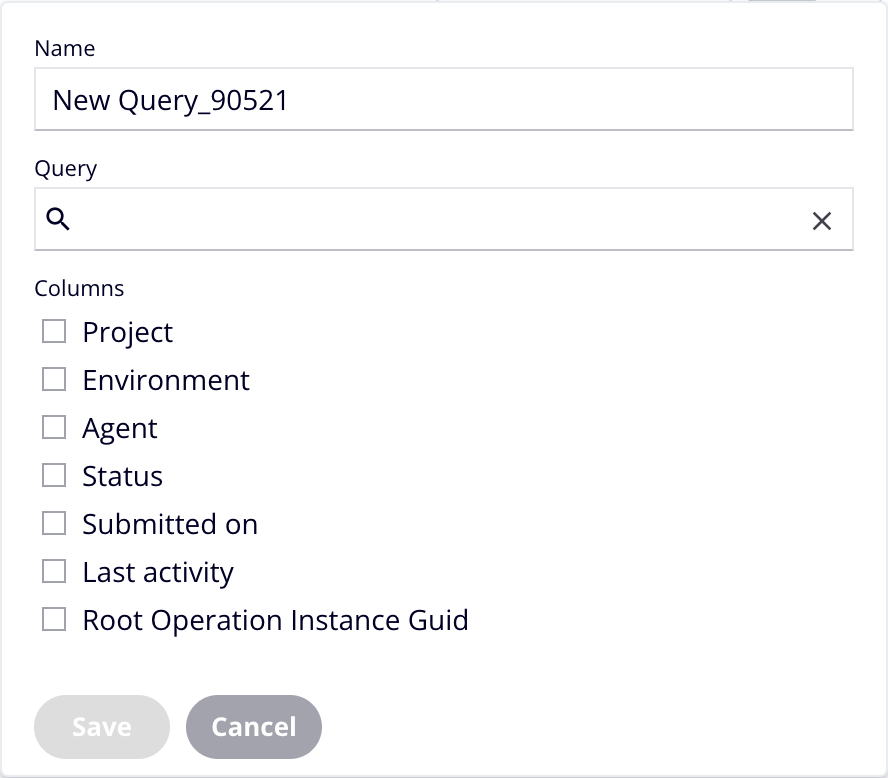
Enter or select values for the following fields, then click Save:
- Name: A name for the query.
- Query: One or more query terms using the same syntax as the search bar. You can add terms in the following ways:
- Click the field to show a list of available search terms. Select one to enter it into the query field, then add an operator and a value.
- Select one of the query suggestions.
- Enter a query term, followed by a semicolon.
-
Columns: Select the columns to display in the search results.
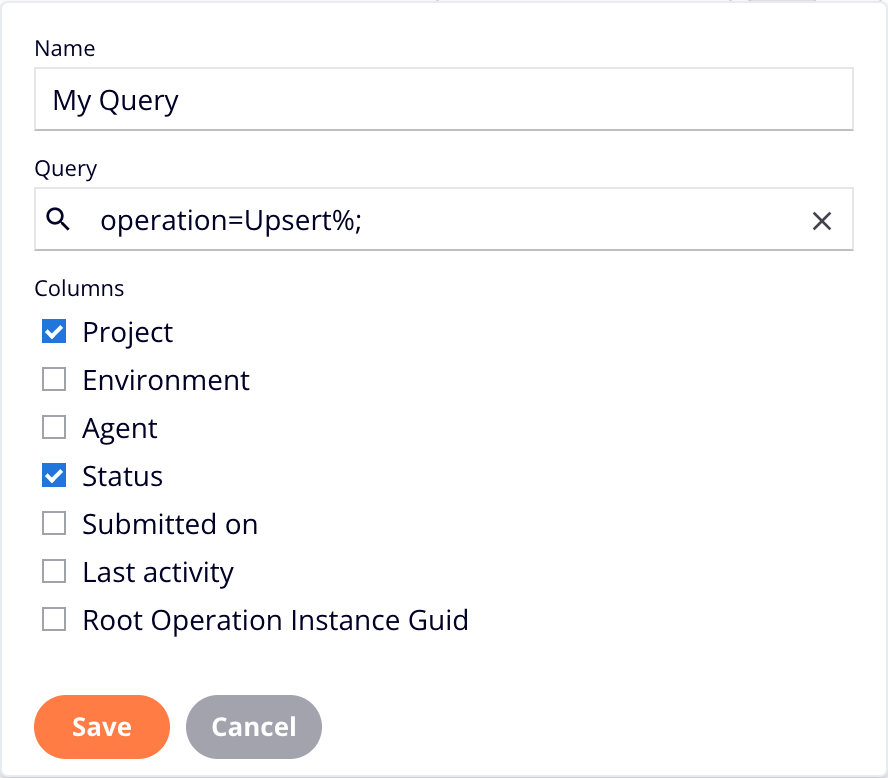
When saved, the Saved queries form opens:
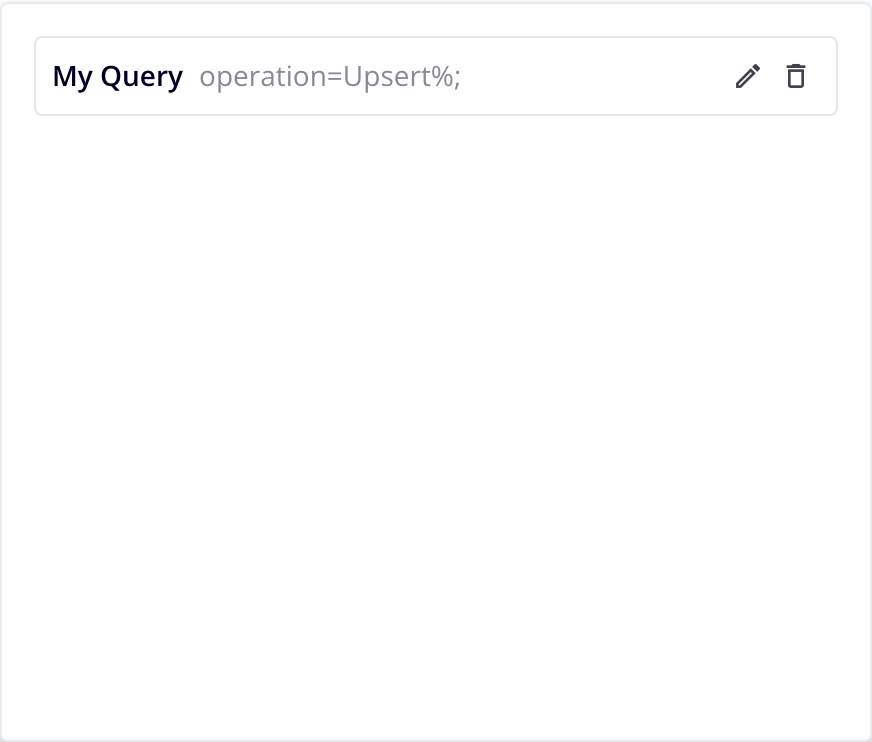
Click Saved queries to close it.
-
To use a saved query, click Saved queries, then click the query you want to run. The query terms are copied to the query bar, and the query runs automatically.
-
To edit a saved query, click Saved queries, click the Edit icon for query you want to edit. The query opens in the Edit query drawer:
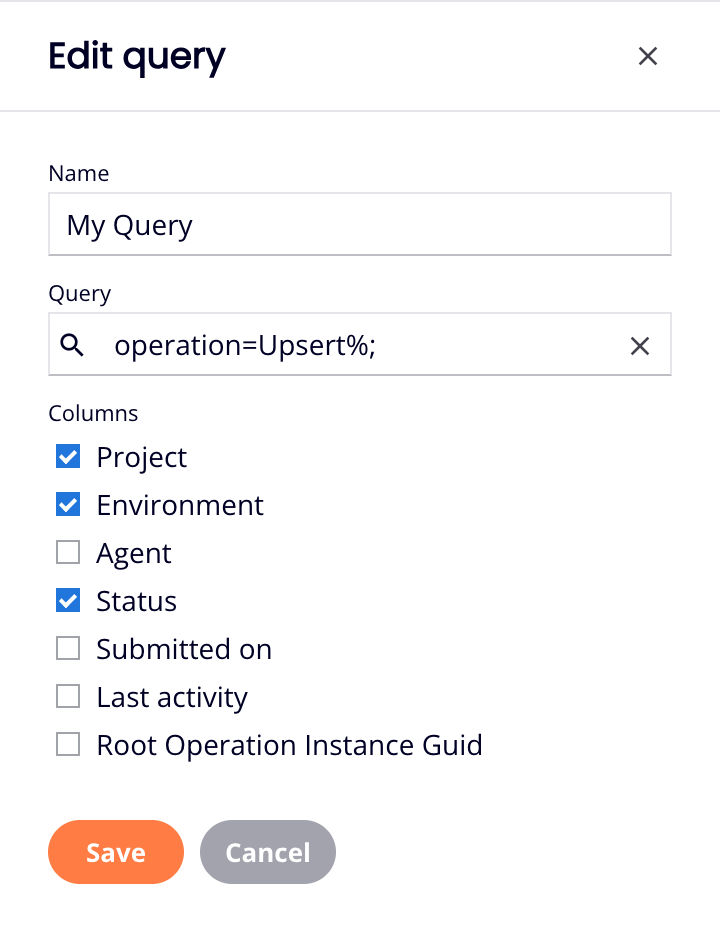
Edit the query, then click Save to save it, or Cancel to cancel.
-
To delete a saved query, click Saved queries, then click the Delete icon for the one you want to delete. A Delete Saved Query dialog asks you to confirm. Click Delete to continue, or Cancel to cancel.
Time period selector
The Runtime page returns records within the time period set in the time range field, which filters records by Started time:

Click the time range field to open a dialog with two tabs: Relative and Absolute.
Relative tab
The Relative tab provides preset time ranges and a custom relative time period selector:
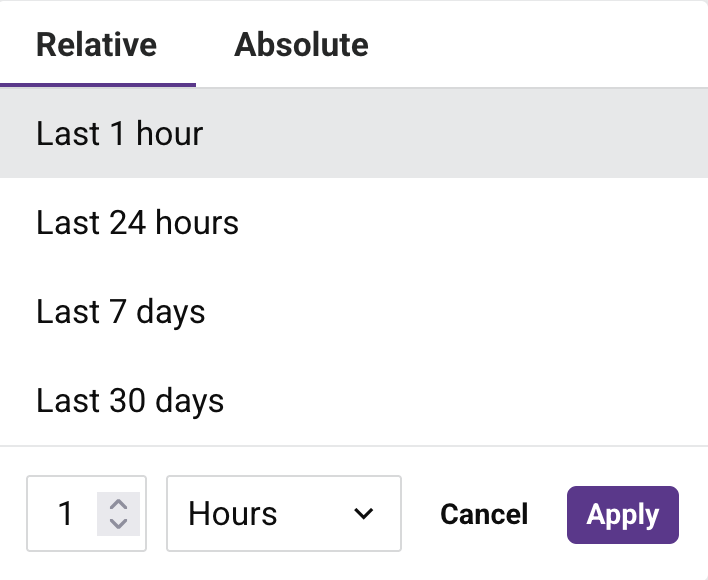
Select one of the preset time ranges:
-
Last 1 hour: Displays operation logs for the past hour.
-
Last 24 hours: (Default.) Displays operation logs for the past 24 hours.
-
Last 7 days: Displays operation logs for the past 7 days.
-
Last 30 days: Displays operation logs for the past 30 days.
To create a custom relative time period, use the controls at the bottom of the dialog:
-
Number field: Enter the number of time units (for example,
1,7,30). -
Unit dropdown: Select the time unit from Minutes, Hours, Days, Weeks, or Months.
-
Cancel: Close the dialog without applying changes.
-
Apply: Apply the selected time range and close the dialog.
Absolute tab
The Absolute tab allows you to select a specific date and time range within the past 30 days. Dates outside this range are not selectable:
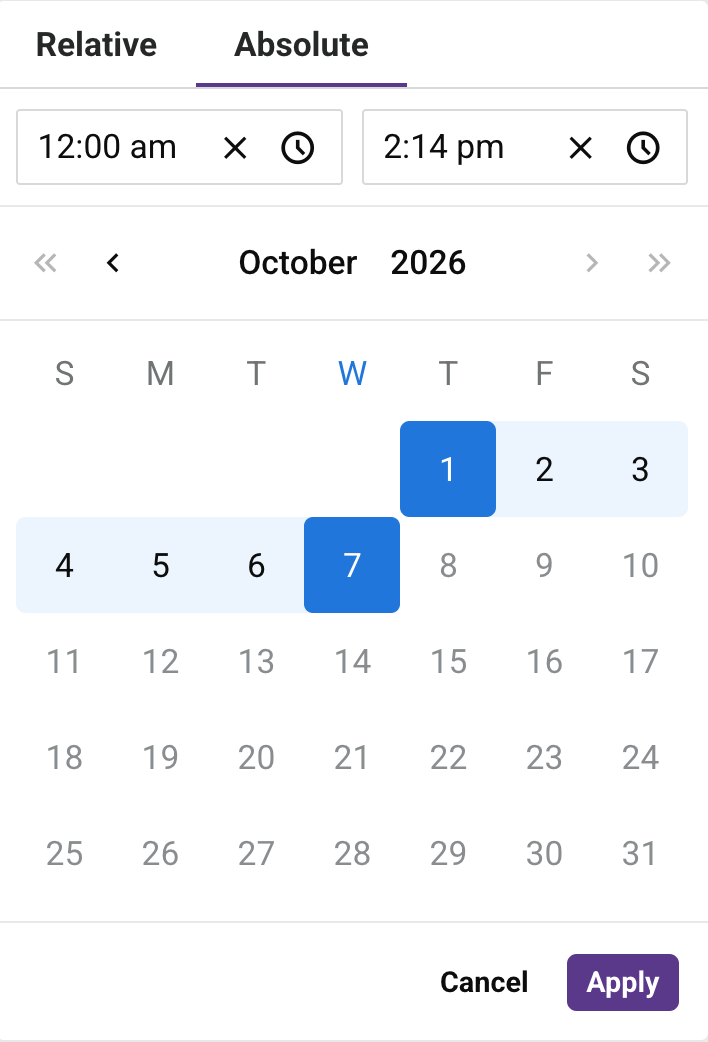
Configure the date and time range using the following controls:
-
Start time field: Displays the start time for the range. Click to clear, or click to adjust the time.
-
End time field: Displays the end time for the range. Click to clear, or click to adjust the time.
-
Calendar picker: Use the calendar to select start and end dates. Navigate between months using the single arrows, or between years using the double arrows.
-
Cancel: Close the dialog without applying changes.
-
Apply: Apply the selected date and time range and close the dialog.
Additional time period controls
Applying a time range sets a corresponding Started query term in the search bar (for example, started>=10/01/2026 12:00:00 AM;started<=10/06/2026 03:00:00 PM;). You can still filter by Finished time independently by entering a finished query term directly in the search bar.
-
Click next to the time range field to reset it to the default Last 24 hours. This does not remove the Started condition already applied in the search bar; to remove an applied time filter, click in the search bar.
-
Click the calendar icon next to the time range field to reopen the dialog.
The selected time range is retained when you switch between the table and card layouts for the results.
Download as CSV
Click Download as CSV to open the Download logs dialog. The export has the following characteristics:
- Scope: The export uses the applied search query, filters, and time range, reflecting all matching log entries. This is equivalent to the full result set shown across all pages of the table.
- Hierarchy: The export preserves the parent-child hierarchy of operation chains, keeping related entries contiguous.
- Order: Records are ordered by parent Started time (descending), with child records ordered by execution sequence (ascending).
- Time zone: The Started and Finished timestamps use your browser's local time zone.
- Packaging: When the export spans multiple files, all files are packaged in a single ZIP archive for download.
The dialog contains the following option:
- Include messages: Select to include full log messages in the export. This option is unselected by default. Including messages may significantly increase file size and generation time.
Click Download to start the export, or Cancel to dismiss.
Refresh
The table updates automatically. To change the automatic refresh interval, click Settings. The Settings drawer opens:
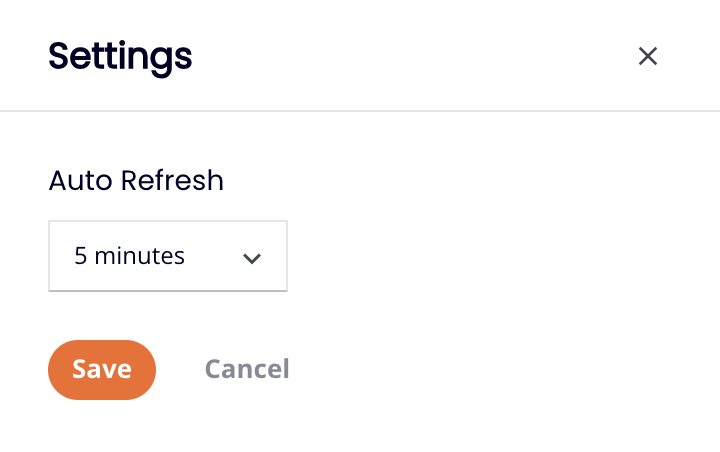
Select an auto refresh interval, one of Never (the default), 1 minute, 5 minutes, 15 minutes, or 30 minutes, then click the Save button.
To refresh the table at any time, click Refresh.
Filter columns
To change the arrangement and visibility of columns, click Filter Columns. The Columns drawer opens:
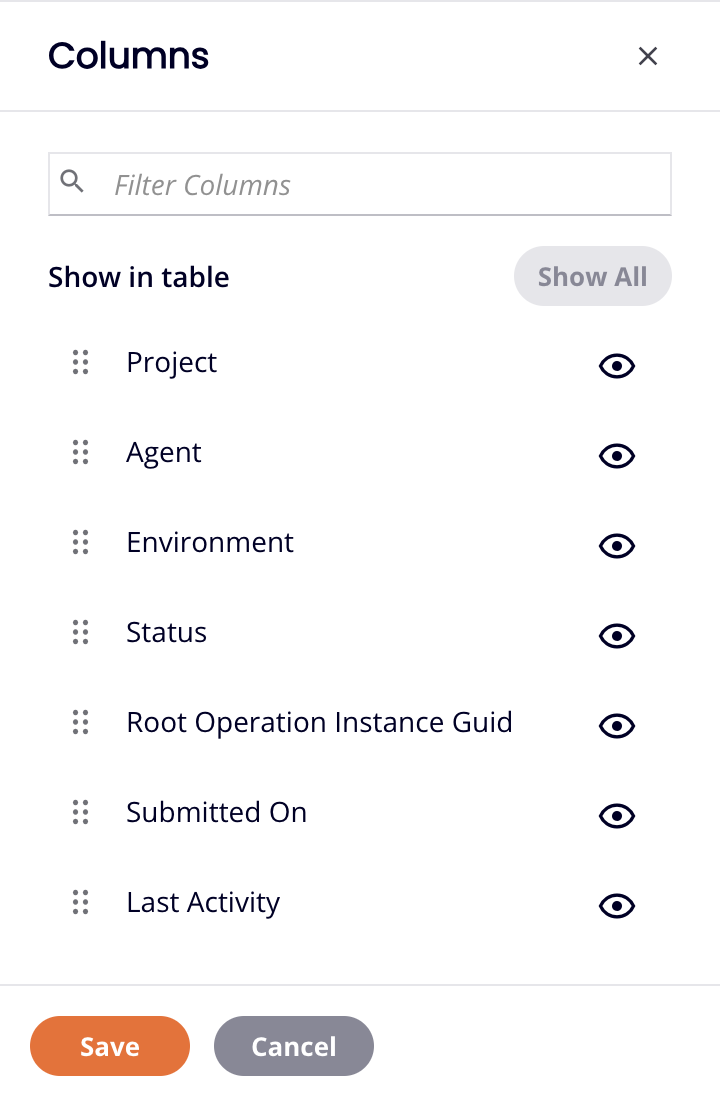
The drawer has the following controls:
- Show All: Make all columns visible.
- Move: Drag and drop to change the position of the column relative to others.
- Hide: The column is visible. Click to hide it.
- Show: The column is hidden. Click to show it.
- Save: Save the columns.
- Cancel: Close the columns drawer without saving changes.
Operation details table
To sort the table by a column, click the column heading; click again to reverse the order. The available columns are as follows:
-
Name: The name of the API or operation associated with the log entry. For operation entries with children, click the Expand icon to reveal the entire chain. Click the Minimize icon to collapse an operation and its children. (Applies to all log types.)
-
Log Type: The type of log entry: Custom API, Proxy API, or OData API for operations triggered by an API call, or Operation for operations run directly. (Applies to all log types.)
-
Environment: The name of the environment the operation was deployed to. (Applies to all log types.)
-
Status: The status of the log entry. See Status values.
-
Started: The time the operation run was requested. (Applies to all log types.)
-
Finished: The time the operation's status last changed. (Applies to all log types.)
-
Duration: The time elapsed between Started and Finished. (Applies to all log types.)
-
ID: The unique identifier for the log entry. (Applies to all log types.)
-
API Service URL: The complete URL for calling the API, including the base URL, service root, version, and any path parameters. This column is populated only for Custom API, Proxy API, and OData API log entries.
-
Agent: The agent name. This column is populated only for Operation log entries.
-
Project: The name of the project where the operation is running. This column is populated only for Operation log entries.
-
Root Operation Instance GUID: The globally unique identifier (GUID) of the operation's root (top-level) operation. This field is empty for root operations, and the column is hidden by default. This column is populated only for Operation log entries. To copy the value, hover on it, then click Copy content.
-
Operation ID: The operation's globally unique identifier (GUID). This column is populated only for Operation log entries. (This column is hidden by default.)
-
Actions: Hover on an operation to reveal available actions. Actions differ by log type:
For Custom API, Proxy API, and OData API log entries:
- View: Open the log details.
- Open API: Open the API in API Manager.
For Operation log entries:
- View: Open the log details.
-
Cancel operation: Enabled for operations that are in Submitted, Received, Pending, or Running status. Cancel operation sends a request to the agent to stop the operation. Once clicked, the Cancel Requested status is displayed next to the real-time operation status.
Note
Sending a cancellation request does not guarantee the operation will be canceled. Operations that have a Cancel Requested status may still run, depending on the current execution state of the agent.
-
Go to operation: Open the project in Studio, and select the operation. This action is available only for Studio operations, not Design Studio operations.
When there are more than 100 operations, they are split into pages of approximately 100 each. To keep linked operation chains intact, all child operations of the last parent shown on a page are included on that page, even if the total exceeds 100. You can move through pages using these navigation buttons at the bottom of the table:
- Previous Page: Go to the previous page.
- Next Page: Go to the next page.
Log entry details
To see a log entry's details, select one in the table. The Messages and Logs drawer opens at the bottom of the window with the following tabs, depending on the log type:
- Custom API, Proxy API, and OData API log entries: Messages and Debug Logging.
- Operation log entries: Messages, Activity Logs, Debug Files, and Debug Logging.
Messages tab
The Messages tab content differs depending on the log type of the selected entry.
API log entries
When a Custom API, Proxy API, or OData API log entry is selected, the Messages tab displays details about the API call in the following collapsible sections: API information, Call information, Call log, and API Payload (when enabled).
API information
The API information section displays the following details:
-
API: The name of the API that triggered the operation. Click to open the API configuration in a new tab in API Manager.
-
Version: The version number of the API.
-
API type: The type of the API, one of the following:
- CUSTOM_API: A custom API created in API Manager.
- ODATA: An OData API created in API Manager.
-
Request Method: The HTTP method used for the API call. Possible values include GET, POST, PUT, DELETE, PATCH, and MERGE.
-
API request ID: A unique identifier for the API request. You can use this ID to correlate logs across different systems and to search for specific requests. Click to copy the value.
-
Source IP: The IP address of the client application or server that made the API request.
-
API gateway: The API gateway that processed the request. This field shows the domain name of either the cloud API gateway or private API gateway that handled the API call.
-
API service URL: The complete URL for calling the API, including the base URL, service root, version, and any path parameters. This is the full API service URL as consumed by the client.
-
Source Application: The application or browser that made the API request.
Call information
The Call information section displays the HTTP request headers sent with the API call under a Request headers label. Each header is displayed as a key-value pair, such as accept, accept_encoding, content_length, fulluri, host, user_agent, and forwarding headers. Headers that carry credentials or session data are masked, as described in Masked headers.
Call log
The Call log section displays system-level log messages generated during processing of the API request. Click to copy the log to your clipboard.
API Payload
The API Payload section displays the request and response payload data for the API call. This section is visible when one or both of the following are enabled in the API's Settings tab: Enable debug mode until or Show Request & Response Payloads in Logs.
The section is split into two panels:
-
Request body: The payload sent with the API request.
-
Response body: The payload returned by the API. If the response payload exceeds the display limit, it is shown with a
(Truncated)label.
Each panel provides the following controls:
-
Search: Search the payload for a specific string.
-
Copy: Copy the payload to your clipboard.
-
Download: Download the payload as a file.
Operation log entries
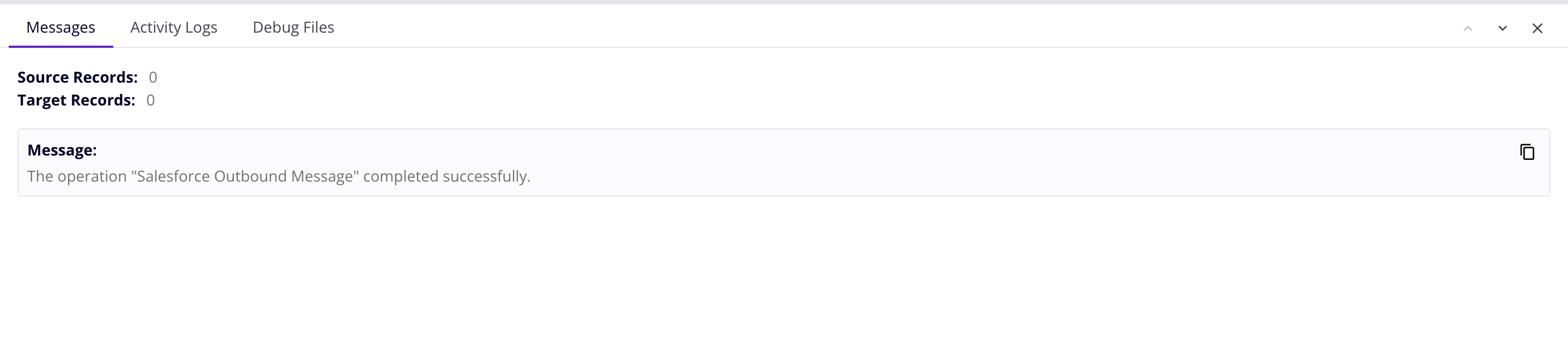
When an Operation log entry is selected, the Messages tab displays the following:
-
Source Records: When using an FTP or Database activity as a source, the count of records that have been read from the source system is displayed. For other connectors, the count reads
0regardless of the number of source records. -
Target Records: When using an FTP or Database activity as a target, the count of records that have been posted to the target system is displayed. For other connectors, the count reads
0regardless of the number of target records. -
Message: Log details including any of the following:
- System-generated messages indicating that the operation completed without error.
- Information and warning messages returned by either the source or target systems.
- Validation warnings returned by the Jitterbit transformation, validation, and scripting services.
- User-defined messages generated by the Invoke Operation tool (when Raise error if operation fails is enabled) or the
WriteToOperationLog()function.
Log messages are displayed as individual blocks labeled by message type (for example, Message, Error, or Fatal Error processing operation). Each block provides to copy or to download its content.
Note
- Dates and times in log messages appear in their original format from the source and aren't converted to local browser time.
- Log messages that exceed ~100 KB in size (~99,000 characters) are truncated, denoted with
message truncatedappearing at the end of the log.
-
Messages logged in pre-transformation scripts: Messages generated during pre-transformation script execution. Click to copy or to download.
To see an operation's log messages in the Messages tab, the following must be true:
- You must be a member of a role with a minimum of Read organization permission and View Logs environment access.
- Cloud logging is enabled on the private agent group. (Cloud logging is always enabled on cloud agent groups.) When disabled, and if your network configuration lets you connect directly to the agent host, log messages can be viewed securely by clicking the link View log messages from Agent.
Activity Logs tab
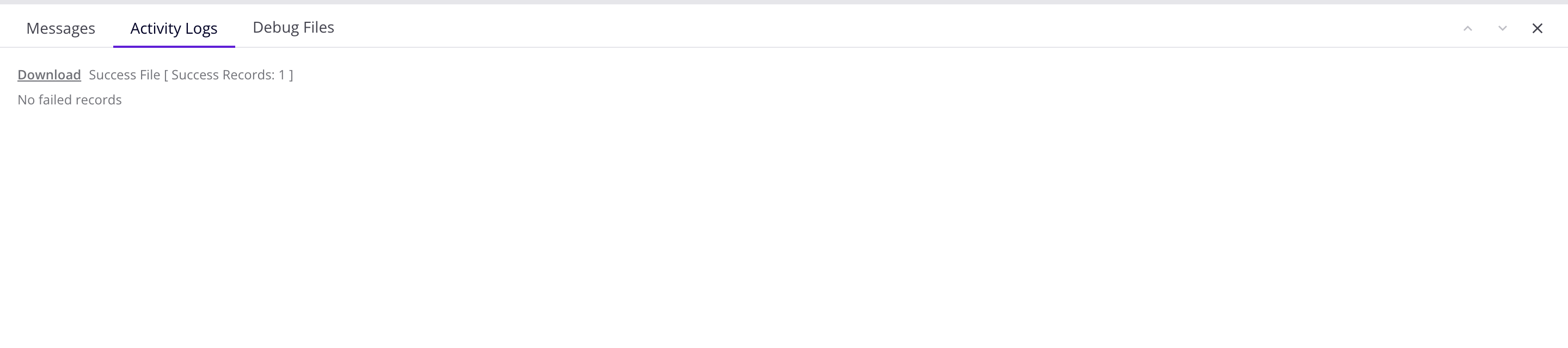
This tab contains links to success or failure files created by the Salesforce, Salesforce Service Cloud, or ServiceMax activities running on a private agent.
The files are in CSV format. To download one, click on its link.
Activity log files are automatically deleted after 14 days by the private agent's file cleanup service. You can change this behavior in the [ResultFiles] section of the private agent jitterbit.conf file, or by changing the file cleanup service rules.
Activity log downloads are disabled for cloud agents. You may see download links for cloud agent activity logs, but attempting to download logs generates an error message.
Debug Files tab

When debug logging is enabled for private agents, this tab contains a link to download operation debug log files. The debug files are removed after 1 day by default, or as configured in a private agent's cleanup rules.
Note
This tab is not shown for operations that run on cloud agents.
Debug Logging tab
When debug logging is enabled at the operation level (for cloud agents or for private agents) and the operation was run on a 10.48 or later agent, this tab shows the details of a Studio operation's full execution hierarchy. The operation log view displays a split view with operation logs in the left panel and detailed log information for the selected operation in the right panel. The view uses the selected table controls to filter results. If operations are chained with operation actions or the RunOperation function, those operations are listed under the parent operation.
When operation debug logging is enabled, this tab may also display component input and output data and API request and response data (when the operation is triggered by an API Manager API). Request and response payload is included only when Show Request & Response Payloads in Logs is also enabled in the API's Settings tab.
Parent operations (and any child operations beneath them) are sorted in ascending order by Started. The table can be sorted (for top-level operations only) by Name, Started, Finished, Duration, or Status by clicking the respective header row.
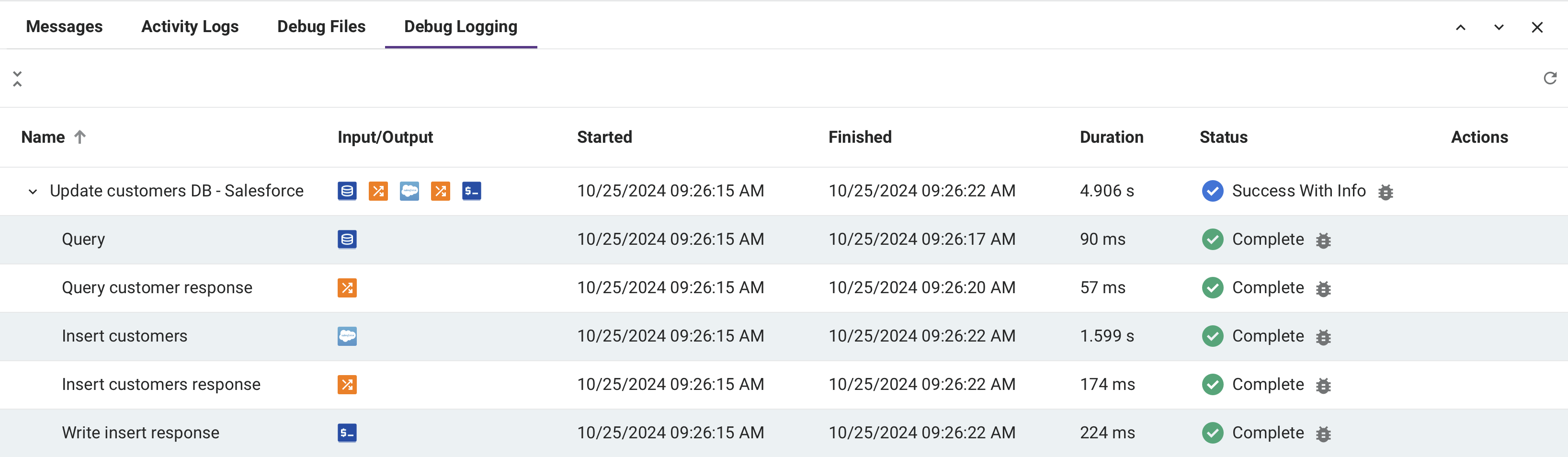
When you open the operation log view, the first operation log in the list is selected by default. The detailed log information for this operation appears in the right panel.
-
Name: The name of the operation or operation step. The carets, which can be used to expand or collapse additional rows, are shown on parent operations and on operations for which component input and output data are available:
- Parent operations: When a parent operation is expanded, additional rows for its child operations appear in the order in which they were executed. By default, all parent operations are expanded. Use the collapse list or expand list icons to collapse or expand all parent operations.
-
Started: The date and time the operation or operation step began running, displayed as the local browser time.
-
Finished: The date and time the operation or operation step stopped running, displayed as the local browser time.
-
Duration: The time elapsed between Started and Finished, reported in seconds for operations and in milliseconds for operation steps.
-
Status: The status of the operation or operation step. For a log entry, see Status values. For an operation step, this is one of the following:
- Complete: The operation step was executed and completed without any errors.
- Error: The operation step was executed but could not be completed due to an error.
- Incomplete: The operation step was not executed or completed. Possible reasons for this status include that the operation step is waiting to be executed or that there was an error in a previous operation step preventing the following step from executing.
-
Actions: These actions are not available for operation steps, and differ by row type:
-
API log entry rows: This action is available in rows for the API log entry that triggered the operation.
- Go to API: Open the corresponding API's details page in API Manager, with its drawer opened automatically.
-
Operation rows: These actions are available in rows for the operation itself, including any chained child operations.
-
Cancel operation: Enabled for operations that are in Submitted, Received, Pending, or Running status. Cancel operation sends a request to the agent to stop the operation. Once clicked, the Cancel Requested status is displayed next to the real-time operation status.
Note
Sending a cancellation request does not guarantee the operation will be canceled. Operations that have a Cancel Requested status may still run, depending on the current execution state of the agent.
-
Go to operation: Open the project in Studio, and select the operation.
-
-
-
Refresh: Click to refresh the list of operation logs.
-
Filter Columns: Click to open a drawer that allows you to reorder the columns or adjust their visibility in the operation list panel:
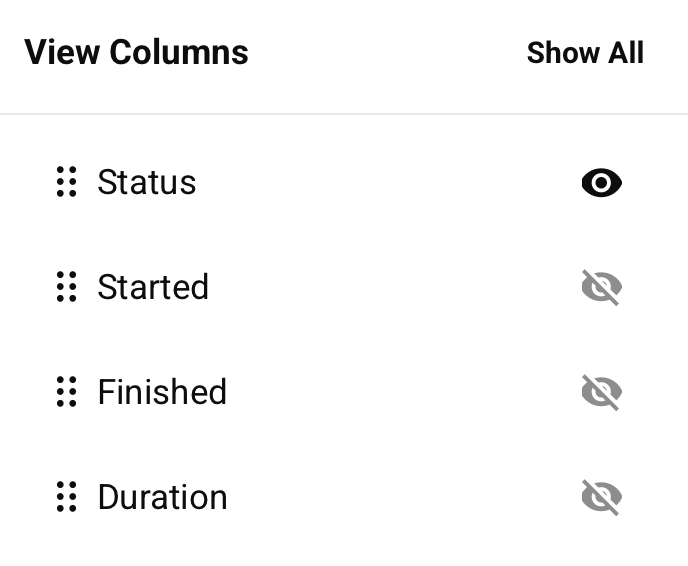
-
Show All: Make all columns visible.
-
Move: Drag and drop to change the position of the column relative to others.
-
Hide: The column is visible. Click to hide it.
-
Show: The column is hidden. Click to show it.
-
-
Resize columns: Drag a column's Resize bar to resize it.
-
Operation log: To show or hide a log for an individual operation, click an operation from the list.
-
Log messages: Log messages include the log details for the selected operation. Whether log messages are displayed depends on the current user's permissions and access levels and whether cloud logging is enabled. For more information, see Messages tab earlier on this page.
Note
Dates and times displayed within the log messages themselves are not converted to local browser time, but are reported in their original format from the source of the log message.
-
Copy: Copies the log data to your clipboard.
- Download: Downloads the log messages as a text file.
- Show / hide: Shows or hides the log messages.
-
Component input and output data
Component input and output data is generated when an operation has operation debug logging enabled at the operation level (for cloud agents or for private agents) and the operation was run on a 10.48 or later agent.
Note
The generation of component input and output data is unaffected by the agent group setting Cloud logging enabled. Component input and output data will be logged to the Harmony cloud even if cloud logging is disabled.
To disable generation of component input and output data in a private agent group, in the private agent configuration file under the [VerboseLogging] section, set verbose.logging.enable=false.
Warning
When component input and output data are generated, all request and response data for that operation are logged to the Harmony cloud and remain there for 30 days. Be aware that personally identifiable information (PII) and sensitive data such as credentials provided in a request payload will be visible in clear text in the input and output data within the Harmony cloud logs.
When component input and output data is present, a graphical representation of the operation or operation step is displayed in the operation list panel.
Icons for activities and transformations used as operation steps are displayed. You can click an operation step to show or hide the component input and output data for that individual operation step. Each input and output log entry is limited to 100 MB. If the data for an individual input or output log entry exceeds 100 MB, no data will be displayed.
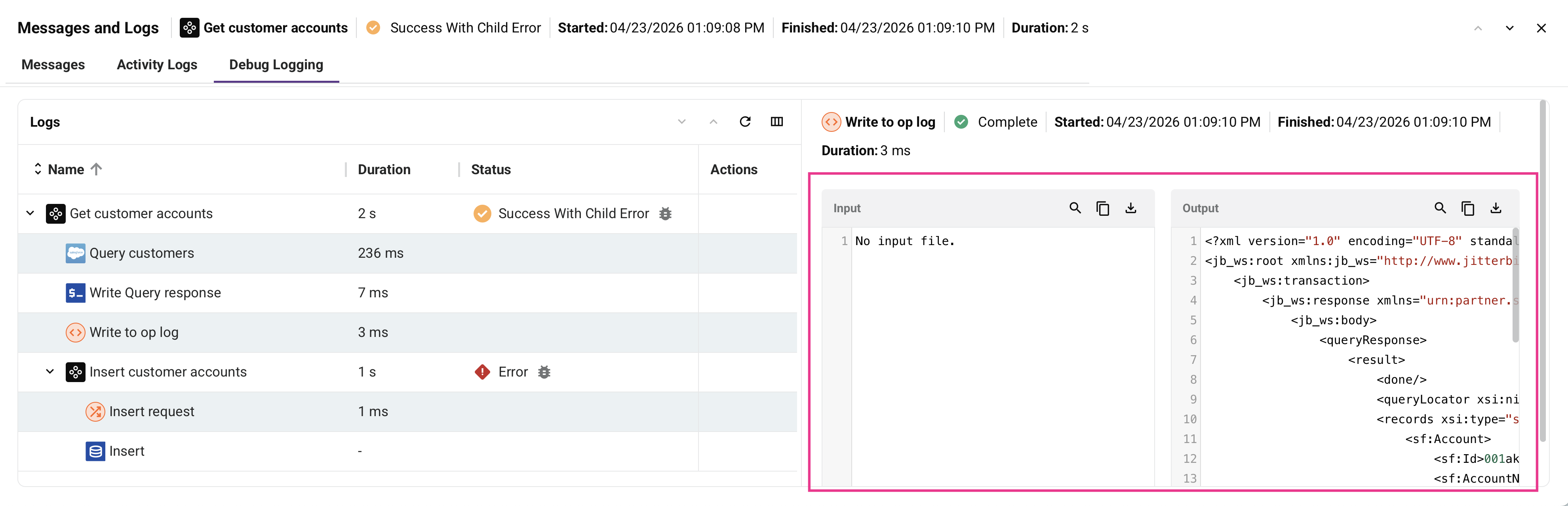
- Search: Search the data for the entered text.
- Copy: Copies the log data to your clipboard.
- Download: Downloads the input or output data as a file in the appropriate data format. The file is named with the operation step name followed by
_inputor_outputas appropriate.
API request and response data
New user interface required
The API request and response data feature is available only for organizations that have been upgraded to the new Analytics and API Logs interfaces. This upgrade is being rolled out gradually. If you're interested in early access, contact Jitterbit support.
When an operation is triggered by an API Manager custom API or OData API, the information displayed in operation logs depends on which settings are enabled. Unsuccessful operations are always logged. Successful runs appear in Studio operation logs only when Enable debug mode until (an API Manager setting) or Operation debug logging (an agent setting) is active. indicates the setting adds that capability; indicates it does not:
| Settings enabled | Successful runs in Studio operation logs | Raw request/response data in call log | Request/response payloads |
|---|---|---|---|
| None (default) | |||
| Verbose logging (custom API, OData API, or proxy API settings) | |||
| Enable debug mode until (custom API, OData API, or proxy API settings) | |||
| Operation debug logging (cloud agents or private agents) |
Note
To capture all three data types simultaneously, use Enable debug mode until, or combine Operation debug logging with both Show Request & Response Payloads in Logs and Verbose logging.
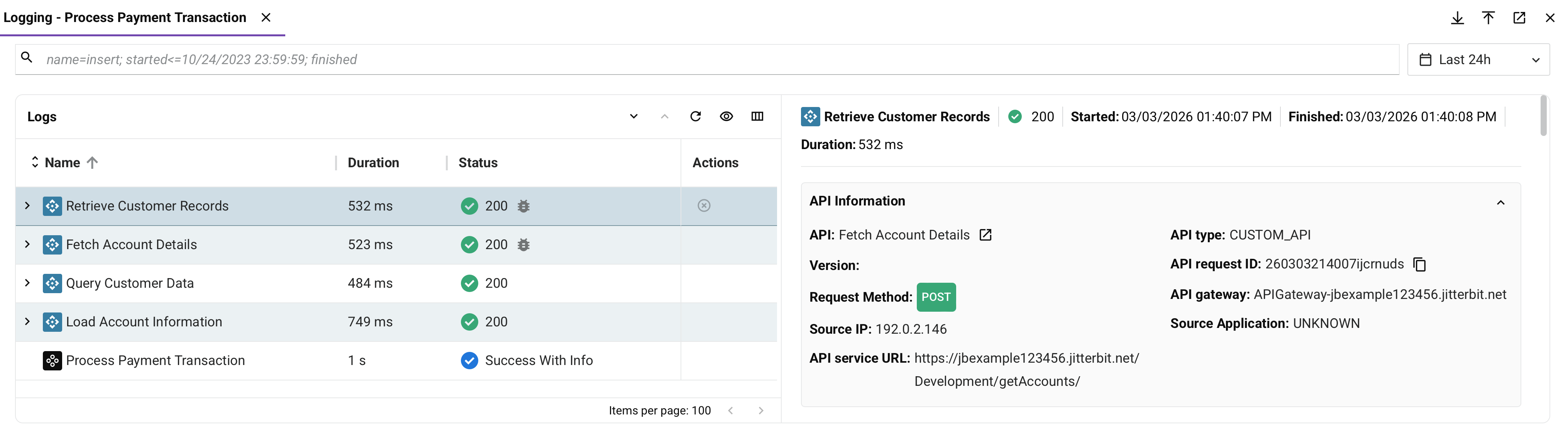
API information
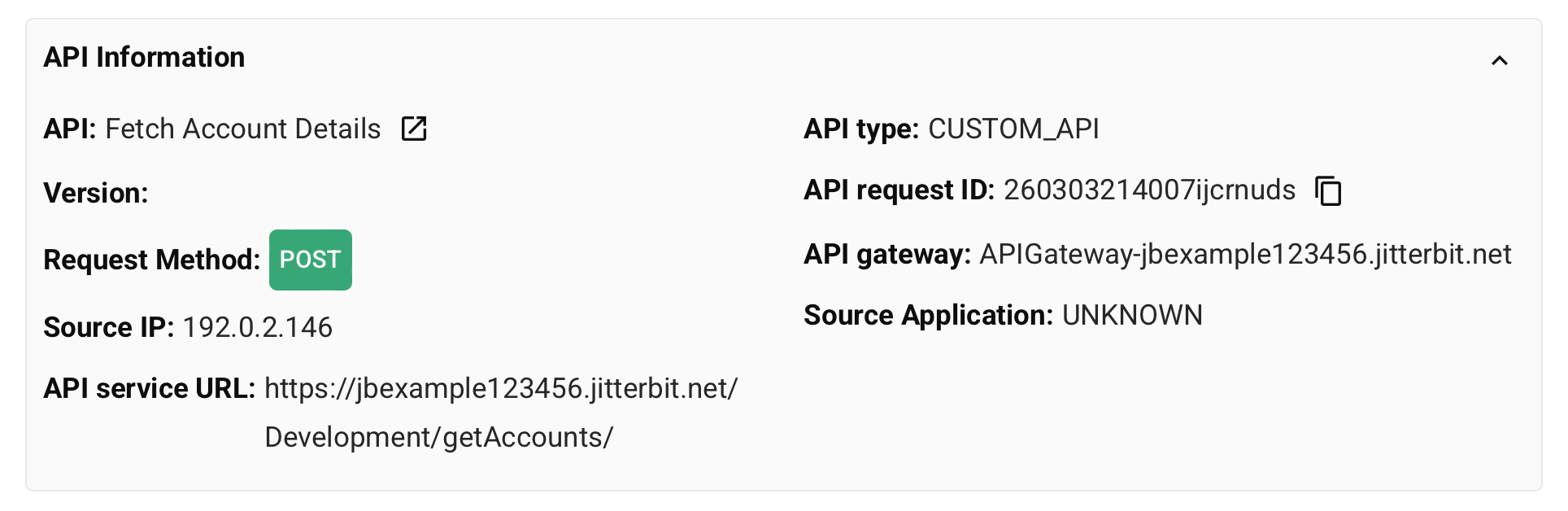
The operation log can display the following information for API calls:
-
API: The name of the API that triggered the operation.
- Open API in new tab: Click to open the API in a new tab in API Manager.
-
API type: This field can have one of the following types:
- CUSTOM_API: A custom API created in API Manager.
- ODATA: An OData API created in API Manager.
-
Request Method: The HTTP method used for the API call. Possible values include GET, POST, PUT, DELETE, PATCH, and MERGE.
-
API request ID: A unique identifier for the API request. You can use this ID to correlate logs across different systems and to search for specific requests. Click the copy icon to copy the value.
-
Source IP: The IP address of the client application or server that made the API request.
-
API gateway: The API gateway that processed the request. This field shows the domain name of either the cloud API gateway or private API gateway that handled the API call.
-
API service URL: The complete URL for calling the API, including the base URL, service root, version, and any path parameters. This is the full API service URL as consumed by the client.
-
Source Application: The application or browser that made the API request.
Call information
The operation log displays a Call information section with the HTTP request headers sent with the API call. Each header is displayed as a key-value pair, such as accept, accept_encoding, content_length, fulluri, host, user_agent, and forwarding headers. Headers that carry credentials or session data are masked, as described in Masked headers.
Call log
The operation log also displays a Call log section with detailed trace information about the API request processing. This information can be used for troubleshooting API gateway issues, timeout problems, or understanding the API's internal processing flow. The specific content of the call log varies depending on the API configuration, gateway settings, and whether any issues occurred during request processing.