Use the Jitterbit Console AI Assistant (Beta)
Introduction
The Console AI Assistant helps you monitor, troubleshoot, and manage your Harmony organization by interacting with the Management Console using written natural language. Instead of navigating between pages to check your organization's health or make a change, you can ask the assistant in plain language, and it retrieves the relevant data or performs the action for you.
Note
To use the Console AI Assistant, your Harmony license must include the Console AI Assistant option. Contact your Customer Success Manager (CSM) to add this option to your license.
Access the Console AI Assistant
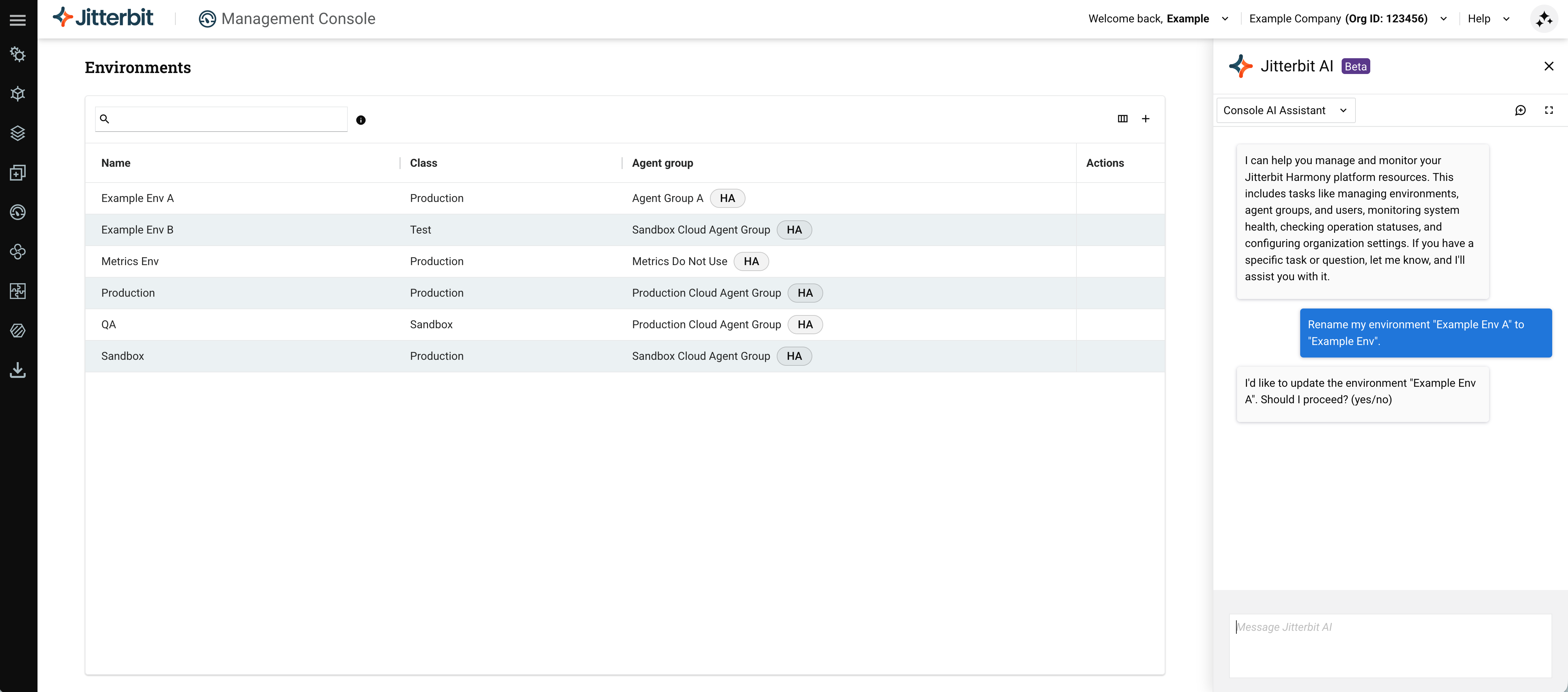
In the Harmony portal header on any Management Console page, use the Jitterbit AI icon. In the panel, use the AI Assistant dropdown to select Console AI Assistant.
Console AI Assistant controls
The Console AI Assistant panel includes these controls:
- New chat: Start a new chat.
- Expand: Expands the chat. Once expanded, click the Minimize icon to return to the previous view.
- Resize: Drag the left edge of the panel to adjust its width.
Supported interactions and capabilities
The assistant works within the organization that is currently selected in the Harmony portal, and it honors your assigned role permissions and environment access levels: it returns only resources and data you're authorized to access, and it can take only those actions you could otherwise take directly in the Management Console. For any create, edit, or delete request, the assistant asks for your explicit confirmation before applying the change.
The following interactions and capabilities are supported.
Dashboard and usage insights
- Organization summary: Get a combined overview of failed operations, long-running operations, agent health, and recent logins.
- Licensed vs Actual Use: View licensing usage of endpoints, private agents, agent grouping for high availability (HA), environments, API URLs, monthly API calls, EDI trading partners, Jitterbit MQ monthly messages, and Cloud Datastore storages.
- Organization details: View basic information about your organization, such as its name and Harmony organization ID, along with the organizations you belong to.
- Agent group health: View per-group health status (Healthy, Degraded, or Unhealthy) and the status of individual agents within a group.
Example user prompts
- What's happening in my org?
- How am I doing on my license limits?
- Show me my organization's details.
- Which agent groups are healthy?
- Show me recent failures.
Runtime and operations monitoring
- Runtime executions: List, search, and view execution details for any status, such as Success, Success With Warning, or Error.
- Failure explanations: Explain why a specific operation failed, using the operation's error message, error code, field-specific errors, and record counts.
- Saved queries: List, create, edit, and delete.
- Running operations: Cancel an operation that is in Submitted, Received, Pending, or Running status.
Example user prompts
- Show me operations with an Error status in the last 24 hours.
- Search my runtime executions for the "Order Sync" operation with a status of Success.
- Why did the "Order Sync" operation fail?
- Cancel the "Order Sync" operation.
- List all my saved queries for Runtime.
- Save a new query for Runtime with a status of Success for the "Order Sync" operation.
- Delete the query named "Order Sync Failures".
Projects
- Projects: List, search, and delete.
- Operations: Run an operation.
- Schedules: Create, edit, and delete schedules, apply a schedule to an operation or remove it from an operation, and enable or disable a schedule.
Example user prompts
- How many projects do I have?
- List my projects grouped by environment.
- Show me my deleted projects.
- Show me the details for the "Order Sync" project.
- Run the "Order Sync" operation.
- Create a schedule for the "Order Sync" operation to run daily at midnight.
- Disable the schedule on the "Order Sync" operation.
User and access management
- Harmony users: List, search, add, edit, and remove.
- External users: List, search, add, edit, and delete.
- Roles: List, search, add, edit, and remove, including a role's permissions. For a role's environment access, see Environment management.
- Role assignments: Assign a role to a user, or unassign it.
Example user prompts
- List all users in my org.
- What roles exist?
- Add a new role called "Integration Developer".
- Add user@example.com as a new user with the "Developer" role.
- Assign the Administrator role to user@example.com.
- Unassign the "Developer" role from user@example.com.
- Remove user@example.com from the organization.
- List all external users.
- Add an external user for partner@example.com.
Environment management
- Environments: List, add, edit, and delete. Deleting an environment permanently deletes all of its contents. The environment list includes each environment's ID and a count of its projects, operations, and connections.
- Environment access levels: View the access levels (View Logs, Read, Execute, or Write) a role has on an environment, and grant or revoke one or more access levels for a role on an environment in a single request. Access levels are updated for one role at a time.
Example user prompts
- List all my environments.
- Which environment has the most operations?
- How many projects are in each of my environments?
- Add an environment called "East Region" on the "East Region" agent group.
- Update the hit limit on my "Staging" environment to 100 per minute.
- What access levels does the Administrator role have on "Production"?
- Grant Read and Write access to the "Developer" role on "Staging".
Message queues
- Message queues: List, search, create, duplicate, purge, and delete message queues.
- Authentication tokens: List, search, create, and deactivate authentication tokens.
Example user prompts
- List all my message queues.
- Create a Classic queue called "Order Events" in "Production".
- Duplicate the "Order Events" queue as "Order Events Backup".
- Purge the "Order Events" queue.
- Delete the "Order Events" queue.
- Create an authentication token for "Production" described as "Order Events Token".
- Deactivate the authentication token described as "Order Events Token".
Agents
- Private agent groups: List, search, add, edit, and delete.
- Private agents: List, search, add, and delete.
- Agent group details: View agent group details, agent status, and environment associations.
- Cloud agent groups: List.
Example user prompts
- List all my private agent groups.
- Add a new agent to the "East Region" agent group.
- Show me the status of agents in the "East Region" group.
- Which environments are associated with this agent group?
- List my cloud agent groups.
Organizations
- Organizations: List, search, view, and edit.
- Organization policies: Manage the settings on the Agent Management, API Management, Connection Management, User Management, and Studio tabs of the Organization Policies pane. The Enable SSO and Enable whitelist IP range settings are read-only.
Example user prompts
- Show me the details for my organization.
- Update the API Management settings for my organization.
- What are the current User Management settings for my organization?
Audit logging
- Audit logging: Enable and disable.
- Audit logs: List and search, filtering by Username, Action, Activity info, Environment, Activity description, and time range. Audit logs are retained for 30 days, so a query for a longer range covers only the last 30 days.
Example user prompts
- Show me the most recent audit logs.
- Show all Delete actions in the last 24 hours.
- How many audit log entries were there in the last 90 days?
Alerts
- Alerts: List, search, add, edit, and delete.
- Alert events: Configure an alert for any of four events (Agent down, New agent version released, Password expiry warning, or SSO Status Changed).
Example user prompts
- What alerts are configured?
- Create an alert for when Agent-01 is down for 30 minutes.
- Change my Agent down alert for Agent-01 to trigger after 60 minutes instead.
- Add these email addresses as recipients to my alert.
- Delete my Agent down alert for Agent-01.
Page navigation
- Page navigation: Navigate directly to a supported Management Console page on request, or proactively suggest doing so when showing a large or filtered result set. Navigation opens the destination page as-is: search terms, filters, and date ranges aren't carried over. Supported for the Dashboard, Runtime, Projects, User Management, Environments, Message Queues, Agents, Organizations, Audit Logging, and Alerts pages.
Example user prompts
- Take me to Environments.
- Open the Runtime page.
Recommendations
You should interact with the Console AI Assistant as you would with any large language model (LLM) AI product. Follow these suggestions:
-
Write in English using whatever wording comes naturally to you, as if talking to a person with your own level of IT and business knowledge. Other languages may be used but have not been validated.
-
To get ideas of what interactions you can perform, ask the assistant in natural language what it can do, or type
help. -
Read the assistant's responses carefully before typing your reply. If there's something you don't understand, ask the assistant to clarify.
-
Once the assistant has performed an action, you can review and confirm what it did by browsing the configuration in the Management Console. If any settings are not as expected, you can ask the assistant to edit them or edit them directly.
-
Do not include secrets, passwords, or other sensitive credentials in your prompts. The assistant masks secrets and credentials in its responses, but providing them directly in a prompt unnecessarily exposes your sensitive data to the model.
-
Start a new chat for each session. The assistant doesn't retain chat history between sessions.
Limitations
The following interactions and capabilities are not supported:
- Projects: Importing projects, and managing the Backups, Project Variables, Deploy History, Listeners, Endpoints, and User roles tabs on the Projects page.
- Cloud Datastore: Managing Cloud Datastore resources directly.
- Message queue usage: Viewing message queue usage. The assistant can still report the Jitterbit MQ monthly messages count as part of licensing usage.
- Message queue settings: Changing the Auto Refresh or Environments Permission settings.
- Access Tokens: Managing access tokens.
- Endpoints Usage: Viewing endpoints usage or licensing detail for individual endpoints.
- Agents: Managing the Plugins, Jitterbit Configuration, or Database drivers tabs of the Agent group details drawer.
- Roles: Viewing or managing a role's project access or API access. Use the Project access and API access tabs of the Role Assignments drawer for these.
- Organizations: Changing the Enable SSO setting for Single Sign-On (SSO) or the Enable whitelist IP range setting. The assistant can report the current status of both.
- Alerts: Adding external recipients to alerts and configuring Cloud logging status changed alert events.
- App Registrations, Client Certificates, and Plugins: Managing App Registrations, Client Certificates, and Plugins resources directly.
- Log entry details: Viewing the contents of a log entry's Messages, Activity Logs, Debug Files, or Debug Logging tabs.
- File downloads: Downloading operation debug log files or audit log data.
- Root cause correlation: Correlating data across Management Console resources to identify an underlying root cause. The assistant reports status and counts, not causation.
- Chat history: Resuming a previous conversation. Each chat session starts fresh.
- Autonomous or predictive actions: The assistant only acts on your explicit request and asks for confirmation before applying any change.