PDF Utilities connector in Jitterbit Studio
Summary
The PDF Utilities connector provides access to PDF generation capabilities. All processing occurs on the agent with no external API and no outbound network calls. The PDF Utilities connector provides an interface for creating a PDF Utilities connection, the foundation used for generating instances of PDF Utilities activities.
The PDF Utilities connector is accessed from the design component palette's Project endpoints and connectors tab (see Design component palette).
Connector overview
This connector is used to first configure a PDF Utilities connection. Activity types associated with that connection are then used to create instances of activities that are intended to be used either as sources (to provide data in an operation) or as targets (to consume data in an operation).
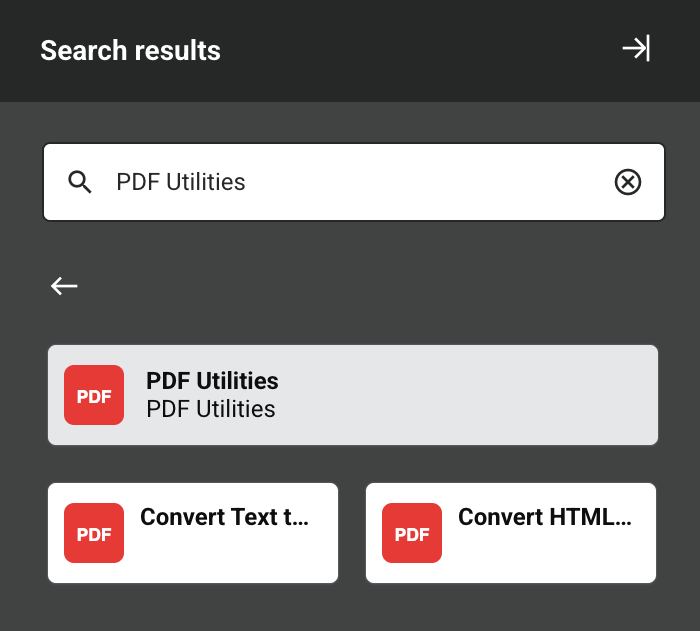
Together, a specific PDF Utilities connection and its activities are referred to as a PDF Utilities endpoint:
-
Convert Text to PDF: Converts plain text content into a PDF document and is intended to be used as a target in an operation.
-
Convert HTML to PDF: Converts HTML content into a PDF document and is intended to be used as a target in an operation.
Endpoints created with this connector are excluded from endpoint usage reporting and from your license count.
Prerequisites
The PDF Utilities connector is supported on cloud agents and on private agent version 12.3 or later. It is not supported on private agent version 11.x.
Agents automatically download the latest version of this connector when required. On private agents, you can suspend these updates with the Disable Auto Connector Update organization policy.
All processing occurs locally on the agent and no authentication or credentials are required to create a PDF Utilities connection.
Multibyte and Unicode text support
The connector supports multibyte Unicode rendering in all PDF generation activities. Text content is automatically scanned and the appropriate bundled font is selected to render it.
This table lists multibyte Unicode support by language and script:
| Language / script | Support | Mechanism |
|---|---|---|
| German (Latin Extended) | Full | Bundled Noto Sans font |
| Portuguese (Latin Extended) | Full | Bundled Noto Sans font |
| Russian (Cyrillic) | Full | Bundled Noto Sans font |
| Simplified Chinese (CJK) | Full | Bundled Noto Sans SC font, selected automatically |
| Traditional Chinese | Partial | Noto Sans SC font covers the shared CJK Unified Ideographs block |
| Arabic, Urdu, and Persian | Full | Bundled Noto Sans Arabic font with ICU4J BiDi and Arabic letter shaping |
| Hebrew | Full | Bundled Noto Sans Hebrew font with ICU4J BiDi |
| Japanese and Korean | Partial | Noto Sans SC font covers shared CJK ideographs |
| Devanagari, Tamil, and other Indic scripts | Partial | Glyphs render, but conjunct ligatures are incorrect without OpenType shaping support |
| Emoji | Not supported | Color font rendering is not supported |
Troubleshooting
If you experience issues with the PDF Utilities connector, these troubleshooting steps are recommended:
-
Click the Test button in the connection configuration to ensure the connection is successful and to ensure the latest version of the connector is downloaded to the agent (unless using the Disable Auto Connector Update organization policy).
-
Check the operation logs for any information written during execution of the operation.
-
Enable operation debug logging (for cloud agents or for private agents) to generate additional log files and data.
-
If using private agents, you can enable connector verbose logging for this connector by adding this logger configuration entry to your private agent's
logback.xmlfile:<logger name="org.jitterbit.connector.pdf.converter" level="DEBUG"/>For more information on connector verbose logging, see Verbose logging for connectors using Jitterbit private agents.
-
If using private agents, you can check the agent logs for more information.
-
For additional troubleshooting considerations, see Operation troubleshooting.