Ollama connector in Jitterbit Studio
Summary
The Ollama connector establishes access to Ollama, either through Ollama Cloud or through a self-hosted Ollama server.
The Ollama connector provides an interface for creating an Ollama connection, the foundation used for generating instances of Ollama activities. These activities, once configured, interact with Ollama through the connection.
The Ollama connector is accessed from the design component palette's Project endpoints and connectors tab (see Design component palette).
Connector overview
This connector is used to first configure an Ollama connection. Activity types associated with that connection are then used to create instances of activities that are intended to be used as sources (to provide data in an operation) or targets (to consume data in an operation).
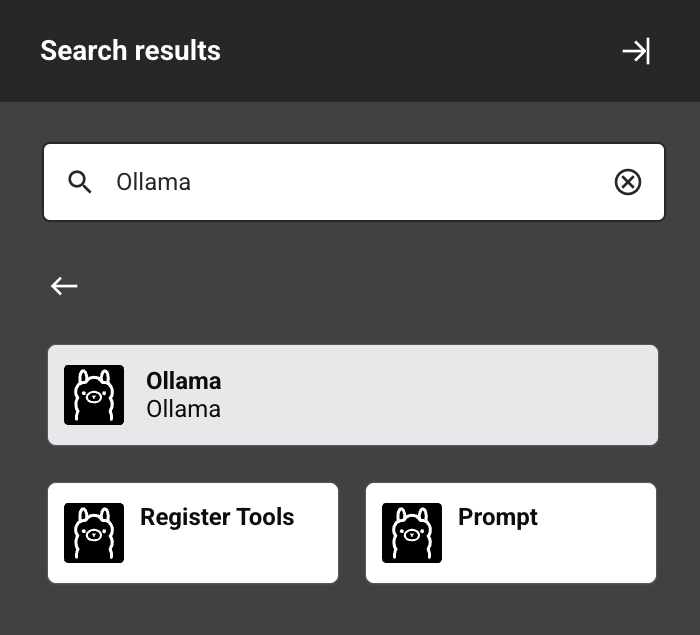
Together, a specific Ollama connection and its activities are referred to as an Ollama endpoint:
-
Register Tools: Registers tools with the specified Ollama model and is intended to be used as a source in an operation.
-
Prompt: Sends a prompt to the specified Ollama model and is intended to be used as a target in an operation.
Endpoints created with this connector are included in endpoint usage reporting and count toward your license.
Prerequisites and supported API versions
The activity type you use determines which agent type is required:
- The Prompt activity can be used with either cloud or private agents.
- The Register Tools activity can be used only with private agents.
Agents automatically download the latest version of this connector when required. On private agents, you can suspend these updates with the Disable Auto Connector Update organization policy.
The Ollama connector supports two connection types, each with its own requirements:
-
Ollama Cloud: Connects to models hosted by Ollama at
https://ollama.com. Requires an Ollama account and an Ollama API key, which you can create at ollama.com/settings/keys. Some cloud models require a paid Ollama plan. If the API key is valid but the account is not entitled to the selected model, Ollama returns an HTTP403error. For available models and plans, see Ollama Cloud. -
Self-Hosted: Connects to an Ollama server that you install and run. These requirements apply:
- Ollama must be installed and running (see the Ollama quickstart).
- The models you want to use must already be pulled to the server (for example,
ollama pull llama3.2). The connector lists only models that are installed on the server. - The server must be reachable from the agent that runs the operation. By default, Ollama listens only on
127.0.0.1:11434, so the default Base URL ofhttp://localhost:11434works only when the private agent runs on the same host as Ollama. To accept connections from other hosts, set theOLLAMA_HOSTenvironment variable on the Ollama server (see How can I expose Ollama on my network?). To use a self-hosted server with cloud agents, the server must be reachable from the internet. - The local Ollama API does not require authentication. If the server is behind an authenticating reverse proxy, provide the proxy's bearer token in the connection's optional API key field.
The connector uses the native Ollama API. Refer to the API documentation for information on the schema nodes and fields.
Troubleshooting
If you experience issues with the Ollama connector, these troubleshooting steps are recommended:
-
Click the Test button in the connection configuration to ensure the connection is successful and to ensure the latest version of the connector is downloaded to the agent (unless using the Disable Auto Connector Update organization policy).
-
Check the operation logs for any information written during execution of the operation.
-
Enable operation debug logging (for cloud agents or for private agents) to generate additional log files and data.
-
If using private agents, you can enable connector verbose logging for this connector by adding this logger configuration entry to your private agent's
logback.xmlfile:<logger name="org.jitterbit.connector.ollama" level="DEBUG"/>For more information on connector verbose logging, see Verbose logging for connectors using Jitterbit private agents.
-
If using private agents, you can check the agent logs for more information.
-
For additional troubleshooting considerations, see Operation troubleshooting.