Troubleshooting in Jitterbit Harmony
This guide covers common troubleshooting issues across Harmony's unified platform (integration, automation, API management, EDI, and app development), organized by capability so you can find and resolve problems wherever they surface. Expand the list below to scan every entry on this page, or use your browser's find function Control + F (Windows or Linux) or Command + F (macOS) to search for a specific error message or symptom.
All troubleshooting entries on this page
-
- Cannot log in to Harmony
- Account locked out after failed login attempts
- User cannot access an environment or its features
- Project variables not carried over during environment promotion
- Switching an environment's agent group fails with a minimum agent version error
- Design Studio: SSO users outside the organization's region cannot log in
- SSO configuration test locks out the identity provider account
- IP allowlist policy locks out an administrator
- Changing API subdomain breaks existing API integrations
- External user API Portal access expires at an unexpected time
- Environment changes not reflected in Harmony applications
- SSO configuration requires both WMC and Studio clients
- SSO Bypass list: Existing organization members cannot be added directly
- SSO cannot be enabled: User belongs to multiple organizations
- SSO login redirects in a loop with no error
- Cloud Datastore storage deletion fails with "cannot be excluded" error
- OAuth refresh token expiry causes connected operations to fail
- Audit Log API: Token retrieval fails when TFA is enabled
- Adding an external user fails with a
409 conflicterror - Organization region cannot be changed in place
-
- Operations stuck in Submitted or Running state
- Scheduled operations not executing
- Dictionary or global variable is empty after an operation runs asynchronously
- 504 Gateway Timeout (API-triggered operations)
- 507 Insufficient Storage
- 502 Bad Gateway
- Failed to create temporary directory
- Operation log messages truncated at approximately 100 KB
- Operation debug logging exposes PII and credentials in plaintext
- Private agent database connection failure
- Client certificate fails to load on Linux private agents
- Operation validation errors
- Component names must be unique after project import
- Private agent-only connector blocks import to a cloud agent environment
- Target loop node mapped to multiple source loop nodes
- Advanced Configurations Properties: Variables containing raw JSON must be escaped
- Unsupported XML elements (CDATA) embedded in JSON
- Transformation fails when a JSON string value exceeds the maximum length
- Special characters in connector-provided JSON schemas
- Multibyte characters are corrupted in a large connector response
- Mirrored schemas with substitution groups
- Importing a transformation mapping with duplicate nodes fails with "node cannot be created"
- Extra subelement warning in operation logs
- Script loop iteration limit exceeded
RunOperationstops running after 50 synchronous calls in aWhileloop- Comparing a string to a number gives unexpected results
- Mirrored XML schema reprocessing in projects created before version 10.25
- Transformation output converted to 0 for target fields with a
doubledata type - Blank mapped fields with flat source schemas
- File functions: Operation continues after
ArchiveFileorReadFilefailure ReadFile: Partial reads with binary file contentReadFilecontent with non-UTF-8 bytes fails when mapped into a UTF-8 XML or JSON payloadFlushFile/FlushAllFiles: Error when target file already existsDeleteFiles: Error when source path cannot be foundGetJSONString: Execution interrupted on invalid pathUnmapdoes not unmap a field when used together withRunScriptDBExecute: Error whenauto_commitandtransactionare bothtrueCallStoredProcedure:resultSetalways null with ODBC driversCallStoredProcedure: "Stored proc or function could not be found" with PostgreSQL JDBCDBLoad: Requires a JDBC database driverAESDecryptionfails with data encrypted under OpenSSL 3- Variable updates lost in chunked multi-threaded operations
- Transformation drops duplicate records when output is hierarchical
- Long numeric IDs are corrupted in transformation output
- JSON transformation output omits
nulland empty-string fields - Empty mapped fields become
xsi:nil="true"and invalidate an XML or SOAP request - Byte-order mark (BOM) in a source file is passed through to the first record's value
- Project variables return empty values during script and transformation tests
- A function fails when its endpoint connection field is set to a variable
IsNullreturns false for empty strings from JSON source data- Comparing a string variable to the number
0unexpectedly returnstrue - Decimal arithmetic produces unexpected floating-point results
- Date functions return midnight instead of a date-only value
- Cached value expires sooner than expected
RunXSLTfails with "XML version must be 1.0 or 1.1"SelectSingleNodereturns the wrong node when used with aSelectNodesarray elementHexToBinaryoutput appears unchanged when loggedSortArraysorts filenames lexicographically, not chronologicallyURLEncodedoes not encode certain "safe" or multibyte characters- JavaScript: "Call to Jitterbit Tomcat failed" error
- JavaScript: Global variable changes lost on script failure
- JavaScript:
GetVarreturns null for user-defined project variables - Uploading a schema file replaces it project-wide
- Marketplace process template deployment fails due to schema mismatch
- Studio becomes slow or unresponsive with very large projects
- Amazon Bedrock: "on-demand throughput isn't supported" model error
- Cloud Datastore: Query Items activity does not return all matching records when filtering on multiple values of the same field
- Cloud Datastore: Delete Items activity reports success but does not delete the record
- Coupa: API key authentication returns 403 Forbidden
- Database (JDBC):
DBLookuporDBExecutefails with a Base64 decoding error - Database (ODBC): Multibyte characters are not handled correctly
- Database: Connection blocked by security policy
- Database: Connection timeouts under load
- Database: Field length errors on Insert, Update, or Upsert
- Database: JDBC driver JAR overwritten on agent upgrades
- Database: Special characters in column names cause query failures
- Database: SQL statement exceeds 2,000-character limit
- IBM DB2 on iSeries: JDBC connection fails
- IBM DB2: JCC JDBC driver setup (deprecated JAR and license file)
- Kerberos: "Could not initialize class KerbAuthentication"
- Kerberos: JGSS or GSS errors during connection test
- Microsoft Excel: "Operation must use an updateable query"
- MySQL: Access denied despite correct credentials
- MySQL: Enable Batch does not improve Insert or Update performance
- MySQL: ODBC driver not listed in Studio dropdown
- PostgreSQL: Client encoding mismatch error
- PostgreSQL: Use the Jitterbit-provided driver on Linux
- SQL Server JDBC: Windows integrated authentication fails
- SQL Server Windows authentication: Insufficient privileges
- SQL Server: "Cannot insert explicit value for identity column" when inserting into an identity column
- SQL Server: Connection fails with a PKIX certificate path error
- Email: Send Email fails when the same address appears in multiple recipient fields
- Email: Gmail connection test fails with authentication error
- Email: S/MIME signing fails or is rejected by cloud email providers
- Email: Microsoft 365 (ROPC) authentication fails when MFA is enabled
- Epicor Prophet 21: Operation fails at runtime with multiple filter conditions
- FTP, File Share, and Local Storage: "No files match the file filter" on archive or follow-up steps
- FTP, File Share, and Local Storage: Error folder not written on connection failure
- FTP, File Share, and Local Storage: Filename keywords not resolved in success and error folder paths
- FTP, File Share, Local Storage, and Temporary Storage: Write Headers does not produce a header-only file when the source returns no records
- FTP: Operation fails after many rapid logins to the same server
- SFTP "Login denied. Authentication failure." when using SSH keys
- FTP Write: "Use FTP Rename" fails when writing to an SFTP server
- SFTP: Append to file not supported
- FTP: Filenames containing
#are not handled correctly - File Share: UNC paths with server names fail on cloud agents
- File Share: Files larger than 2 GB may fail to retrieve
- Local Storage: Not available on cloud agents
- Temporary Storage: Files missing when read by a later operation
- Temporary Storage: Restricted characters in file paths
- Temporary Storage: 50 GB file size limit on cloud agents
- HTTP v2: Spaces encoded as
+instead of%20 - HTTP v2: Response status code not available in Jitterbit variables
- HTTP v2: XML namespaces rewritten when using a custom request schema
- HTTP v2: Duplicate Authorization header causes 400 Bad Request
- HTTP v2: JSON value in a request-header project variable fails to parse
- HTTP and HTTP v2: URL contains multiple
?characters - HTTP v2: Double URL encoding when "Encode request URL" is enabled
- HTTP v2: Operation fails when Base URL redirects
- HTTP v2: Variables in the activity Path are not resolved
- HTTP: Sends
nullas the string"null" - LDAP Delete Entry fails when the target entry has child entries
- LDAP Search Entry: Filter expression is case-sensitive on some servers
- Microsoft SharePoint Online: SOAP schema connections failing after IDCRL retirement
- Microsoft Dynamics 365 Business Central v2: Type names incompatible with metadata
- Microsoft Entra ID: Extension attributes not selectable as query filter conditions
- Microsoft Entra ID Update activity: DateTime fields rejected with
Edm.Stringtype mismatch - Microsoft Entra ID Query: "Unsupported or invalid query filter clause" on filtered properties
- Microsoft Dynamics AX 2012 operations fail with "Logon failed"
- NetSuite: Data center URL error
- NetSuite:
INSUFFICIENT_PERMISSIONdespite successful connection test - NetSuite: Sandbox connection fails after sandbox refresh
- NetSuite: Custom fields not appearing in the activity schema
- NetSuite: Custom segments not appearing or unsupported in advanced searches
- NetSuite: Custom body fields not visible due to missing role permission
- NetSuite: Saved searches not appearing in the dropdown
- NetSuite: Expanded search Test Query button is disabled
- NetSuite: Saved search formula fields are missing from the activity output
- NetSuite: Test Query parse error when filter uses a project variable
- NetSuite: Saved search with result fields as output requires agent 11.49 or later
- NetSuite: Update activity returns
INVALID_KEY_OR_REFwhen source XML losesinternalId - NetSuite: Operations fail due to API record limits
- NetSuite: Concurrent request limit exceeded
- NetSuite: Operations fail after updating the WSDL URL
- NetSuite Create, Update, or Upsert fails with "is not a legal value for Country"
- OData v2 entity sets fail to load with "No entity sets found"
- OData: Microsoft Dynamics 365 returns only the default company's data
- Oracle EBS: "custom provider JAR file is not present" connection error
- Salesforce: Operations fail due to API record limits
- Salesforce, Service Cloud, and ServiceMax: Multi-factor authentication prevents basic-authentication connections
- Salesforce certificate: Subject Alternative Name (SAN) mismatch
- Salesforce connection, configuration, or operation intermittently fails with
SERVER_UNAVAILABLE - Salesforce: Data schema does not include recently added fields
- Salesforce: Automap does not map fields when a Salesforce activity is the target
- Salesforce Query activity: Parent-child query generates hierarchical schema
- Salesforce: Upsert fails for some records (duplicate external ID)
- Salesforce Insert or Update activity: Record ID field cannot be mapped
- Salesforce bulk write activities: First data record skipped when source has no header row
- Salesforce bulk activity operation steps show as "Incomplete" with no input or output data
- Salesforce Bulk activities fail when triggered by an API or SOAP request
- Salesforce Events: Events cannot be enabled after agent restart
- Salesforce Events: "The channel specified is not valid" when enabling a Change Data Capture listening activity
- Salesforce Events: Listening activity limitations
- Multiple SAP activities in one operation fail at runtime
- SAP RFC: "No RFC authorization for function module BAPI_TRANSACTION_COMMIT"
- SAP connection fails with "Invalid language key"
- ServiceNow: Initial operation runs are slow after agent restart or on cloud agents
- ServiceNow v2: An object is not listed by its ServiceNow connector name
- Shopify: Activity object selections may change after API version update
- Snowflake: Java heap space error when querying large datasets
- Snowflake: Operations fail on agent 12.x
- Snowflake: Password-based connections failing after authentication deprecation
- Snowflake: Developer instance is sleeping, metadata tables not populating
- Snowflake Query: Flat schema root node case mismatch causes
ProcessFlatStreamerror - Snowflake Merge:
stageNameandfileContentare missing from the request schema for external stages - Snowflake Insert or Merge: SQL syntax errors from special characters
- SOAP deployment error: "No WSDL with locator"
- SOAP WSDL: schemaLocation must use relative references
- SOAP connector rewrites XML namespace prefixes and structure
- SOAP: MTOM/XOP messages are not supported
- VTEX: Connection test fails with "You don't have permission to access this resource"
- Workday: WSDL v42.0 and v42.1 return errors for specific services
- Workday: Connection test fails with "The task submitted is not authorized"
- Chunking requires a native connector as the source
- Agent offline or unreachable
- Agent showing different versions or IP addresses
- Agent sync failure: Project changes not applying
- Error 1722 on Windows installation
- PostgreSQL service removed after failed upgrade on Windows
- Agent services fail to start after restarting Windows following an upgrade
- TFA prevents 64-bit Windows agent installation
- Linux non-root installation fails
- JDBC driver: "No suitable driver found"
- Java heap space:
OutOfMemoryError - Disk space and log accumulation
TranDbconnection failures- PostgreSQL: Administrative fast shutdown
- Certificate handshake failure (TLS)
- FTP: Data connection timed out
- IPv6 issue on Windows
- Azure VM: Lost connections and WebSocket/I/O errors
- Apache: No installed
ConfigArgs - Apache/Tomcat:
APPARENT DEADLOCK - Apache crashes unexpectedly under concurrent load
- Cleanup service cannot remove locked log files on Windows
- Agent fails to restart with authentication errors after deregistration
- Cloud logging change requires private agent restart
- Adding a second agent to a Standard agent group is not permitted
- Adding a private agent fails with a maximum agents limit error
- Private agent cannot be deleted
- Private agent group cannot be deleted
- Disable Auto Connector Update bypassed by agent actions
- Agent shows Unknown or Stopped after reusing an agent group across operating systems
- Operations delayed or queued after project deployment
- Agent showing as incapable
- Transformation fails: "Failed to find file in the local file store"
- Recover a failed Windows installation
- Connector not downloaded to agent
- Agent installation cannot register through a corporate proxy
- Agent service restart loop
- Operations timing out or ignoring timeout settings
- Agent throughput unchanged after increasing
max.concurrent.requests - XML transformation slowdown after upgrading to agent 11.45 or later
- JVM mini-dump files fill the agent's disk
- Bundled PostgreSQL on Linux uses MD5 instead of SCRAM-SHA-256
- Salesforce sandbox connection fails with certificate mismatch
- SSH: SFTP connection fails due to incorrect key file path
- SFTP SSH settings missing or in the wrong
jitterbit.confsection - SFTP authentication failure to a specific server (cURL cipher mismatch)
- HTTPS proxy: Basic authentication through proxy tunnel fails
- Private agents in restricted networks: Outbound-only connectivity
- Custom API returns 504 but the operation log shows success
- Native observability not showing data
- Agent metrics missing when the agent connects through an HTTP proxy
- Datadog agent fails to start after Docker installation
- Linux: Agent services fail to start after a reboot ("postmaster.pid does not exist")
- Linux: Antivirus removes PgBouncer, agent fails to authenticate to the bundled database
- Security scans flag
log4j-over-slf4j.jaras a Log4j 1.x vulnerability - Listening service "Cluster has not met the minimum required size"
- Listening service messages not delivered
- Custom API operation logs not appearing
- Operation debug logging stops before the selected end date
- Operation debug log files missing
.inputor.outputdata - Component input/output data not generated
- Jitterbit MQ: Quorum queue messages silently dropped after 20 NACK attempts
- Jitterbit MQ: Environment not enabled for messaging
- Jitterbit MQ: Message limit exceeded causes "Error sending message"
- Jitterbit MQ: NACKed messages block queue progress when requeued
- Design Studio login: SSL certificate or proxy filter error
- Design Studio flagged as malicious software on macOS Sequoia
- Design Studio: Blurry or small UI on Windows 10 high-density displays
- Design Studio: Long project load time when using a proxy
- Design Studio macOS: "Client Properties Do Not Exist" error on launch
- Design Studio: Transformation with a script fails with "/PRESCRIPT/ node" error
- Storing Design Studio projects on a network file share is not recommended
- Design Studio: Project download fails with
Invalid XML charactererror - Design Studio: Project components missing after download or import
- Design Studio: Duplicate operations or transformations appear in a downloaded project
- Design Studio: Salesforce project import fails with an incorrect version requirement
- Design Studio: SOAP fault fails to deploy when set to trigger an email directly
- Design Studio: File transfers repeat unexpectedly
- Design Studio: FTP passive mode and high-port firewall restrictions
- Design Studio: FTP success and error folder paths are on the agent, not the FTP server
- Design Studio: FTP directory listing cannot be parsed
- Design Studio: FTP target Use FTP Rename is not functional with SFTP archive operations
- Design Studio: FTP target Auto Create Directories is unreliable
- Design Studio: File share source individual files larger than 2 GB cannot be retrieved
- Design Studio: HTTP source connection test fails even when the endpoint is reachable
- Design Studio: NetSuite data center URL error, use account-specific WSDL URL
- Design Studio: NetSuite TFA users must not use SSO authentication type
- Design Studio: NetSuite TBA
INSUFFICIENT_PERMISSIONerror at runtime despite successful connection test - Design Studio: NetSuite saved search dropdown is empty when object has more than 1,000 saved searches
- Design Studio: NetSuite NULL or blank values cannot be passed to custom fields
- Design Studio: NetSuite custom segments not displayed in activity configuration
- Design Studio: Salesforce OAuth 2.0 connection edits may not persist before testing or deployment
- Design Studio: SAP IDocs not found when a scheduled operation runs on a different agent
- Design Studio: SAP bulk IDoc sends can exceed target endpoint connection limits
- Design Studio: SAP IDoc payload lost when target endpoint is unreachable
- Design Studio: SAP IDoc store-and-forward temporary files deleted after 24 hours
- Design Studio: SAP BAPI operation succeeds but transaction is not committed
- Design Studio: SAP Event Listener does not pick up iDocs on Windows
-
- Cannot publish an API: Subscription API limit reached
- Published API returns 404 Not Found
- HTTP 504 Gateway Timeout
- API Portal not reflecting project changes
- Microsoft Entra ID OAuth: Security profile name cannot contain spaces
- Microsoft Entra ID 2-legged OAuth:
OAUTH_INVALID_TOKEN_CODEerror - Azure AD Graph API has been retired
- Google or Salesforce identity provider: 2-legged OAuth is not supported
- Microsoft Copilot Studio: Basic authentication not supported
- "New API" button not visible despite correct organization role
- Basic auth: A cached credential from an earlier request affects a later API call
INVALID_TRIGGER_USERorTRIGGER_USER_TOO_LONGerror- 401 Unauthorized with a valid IP allowlist (stale cache)
- Salesforce on Hyperforce: Callouts to an API are rejected after Salesforce IP addresses change
- Service URL exceeds maximum length (HTTP 414)
- Proxy API: Service path parameters require an OpenAPI document
- Cannot delete an API in API Manager
- API environment cannot be changed after creation
- CORS enabled:
OPTIONSrequests run without authentication - Cloud proxy API: Target API must be publicly accessible
- Show Request & Response Payloads setting has no effect for proxy APIs
- Private gateway returns a 400 "verify Jitterbit Services" page with no API log entry
- Security profile changes take several minutes to take effect
- Deleting an API does not update the API Portal documentation
- Security profile cannot be deleted while still assigned to a published API
- 2-legged OAuth falls back to 3-legged on private gateway versions before 10.48
- Multi-gateway ALB: All containers must be on the same host
- Private gateway: Custom SSL configuration is overwritten by upgrades
- Private gateway returns HTTP 507 or "No such file or directory"
- Private gateway install or upgrade fails with missing dependencies
- Private gateway self-test returns "Failure, test call to API failed"
- OData $count or $inlinecount returns an error when no records match
- Proxy API: Request header hyphens replaced with underscores
- Operation logs are not visible for API-triggered operations when debug mode is off
- API payload available on agent for 2 days
- API Logs page retains previous filter selections
- Unpublished APIs do not appear in the Analytics APIs dropdown
- Error 429: Monthly API hit allowance exceeded
- Error 429: Consumer IP not in trusted IP range
- Platform-level rate limit: 200 requests per minute
- Zscaler or SSL-intercepting firewall blocks API access
-
- AS2 connection or certificate failure
- FTP or SFTP connection failure
- VAN connectivity issues
- Document rejected: Invalid or missing data
- EDI mapping or schema error
- Incorrect trading partner identifiers
- Acknowledgments not configured or not received
- AS2: Trading partner's firewall must allowlist Jitterbit IP addresses
- Duplicate transaction check does not apply to EDIXml or XCBL format
- EDI for Cloud v2 activity fails on a private agent behind a firewall or proxy
- EDI access token deactivated causes
INVALID_TOKENerror - Transformation error: Unrecognized field in EDI activity
- Repeating EDI segment or loop maps only the last iteration
- Adding nested hierarchical loop (HL) levels to an EDI transformation
- EDI ID override values not applied to outbound transactions
- Cannot delete an assigned communication connection
- FTP "Next Run Time" does not update without a page refresh
- EDI ID or Preferred ID addition fails: ID already in use
- Outbound documents pass local validation but fail trading partner testing
- Transaction archived earlier or later than expected
- Cannot access EDI features
- Cannot enable PII settings
-
- App Builder fails to start with a 500 error
- App Builder fails to start with an HTTP 500.30 error
- App Builder returns an HTTP 503 error
- App Builder starts but does not create databases
- An error occurs loading the database connection information
- App Builder loads with missing or broken styling
- License upload fails
- App Builder does not auto-start after a server restart
- Docker deployment: App Builder 4.x license cannot be uploaded in the UI
- High availability: All instances must use the same
appsettings.json - SSO login fails or redirects to the wrong URL
- The base URL does not redirect to the login page
- Local users cannot reset a forgotten password
- App Builder is slow or unresponsive
- Salesforce OAuth authentication fails or authenticates with the wrong instance
- Encrypted column values appear blank after data source reconfiguration
- Audit log baseline fails to populate
- SharePoint File System: OAuth authentication required as of April 2026
- SharePoint File System: Files not displayed or paths return errors
- App Builder Connector: Generated API key cannot be retrieved after leaving the screen
- App Builder Connector: 403 Forbidden error
- Webhook: HTTP Basic Auth requires the Authorization header in the payload
- Date migration times out on large datasets
- App Builder application server and database server must use the same time zone
- SMTP configuration errors
- Deep links stop working after an app or page is renamed
- An event fires multiple times on save, insert, update, or delete
- User cannot access expected pages or features
- Audit icon does not appear on a page
- Offline app: Local database is erased when the app is upgraded
- Offline app: Background schedules do not run when the app is closed
- Mobile app freezes, crashes, or has link issues
- Widget not activating or loading correctly
Diagnostic steps
Check the operation logs
In the Management Console, open the Runtime page and review the log entry for the affected operation. The status and any log messages are the primary indicator of the cause. The Runtime page lists all operations, including those run directly and those triggered by an API (shown in the Log Type column as Custom API, Proxy API, or OData API), so it is the place to start for most runtime issues.
Check the API logs
For API-specific detail, open the API Logs page in API Manager. It shows each API call's request and response data (HTTP status code, response time, request URI, source IP) and, when enabled, debug and verbose traces. Operation logs for API-triggered operations also appear here, alongside the Runtime page.
Check the agent logs
For environments running on private agents, review the agent log files for connectivity, resource, and synchronization errors. See agent logs for file locations.
Check the Harmony system status
If an issue appears to affect all operations or all APIs rather than a single workflow, check trust.jitterbit.com and the known issues page before investigating further.
Platform administration
This section covers Harmony platform-level issues: authentication, user and environment management, and project deployment.
Cannot log in to Harmony
- Symptom: Users are unable to log in to the Harmony portal.
- Resolution:
- Check trust.jitterbit.com for active platform outages.
- Clear your browser cache and cookies, then retry, or use an incognito or private window or a different browser. Stale cached session data can cause the portal to loop back to the login page or fail to load after sign-in.
- If SSO is configured, have an administrator verify the SSO configuration. See Harmony SSO.
- Confirm the user's account is active and has not been deactivated in the Management Console User Management page.
- If login still fails after these checks (for example, a password reset does not complete, or the account shows as inactive despite being active), contact Jitterbit support.
Account locked out after failed login attempts
- Symptom: A user cannot log in after entering incorrect credentials. Their status in the Management Console User Management page shows as Inactive.
- Possible cause: After 5 consecutive failed login attempts, the account is locked out for 30 minutes.
- Resolution:
- Wait 30 minutes, then retry with the correct credentials.
- Alternatively, use the I forgot my password link on the Harmony portal login page to reset the password and immediately clear the lockout.
User cannot access an environment or its features
- Symptom: A user can log in but cannot see an environment, cannot deploy to it, or is missing expected features.
- Possible cause: Environment access is controlled by the roles assigned to the user.
- Resolution: An administrator must grant the user's role the appropriate environment access in the Management Console. Verify the user's assigned roles and the permissions granted to those roles.
Project variables not carried over during environment promotion
- Symptom: After transferring a project to another environment, some project variable values are missing in the target or are not the values you expected.
- Possible cause: Whether a project variable's value is carried over depends on the transfer option used and its variable settings:
- In a full project transfer (the Migrate dialog), the first transfer defaults to Migrate all variable values, but later transfers default to Select variable values to migrate, which excludes any variable whose value has changed. A variable that is not included and does not yet exist in the target is transferred without a value.
- In a selective transfer, the Configure variables step controls which variables transfer, and the Include default value option determines whether the target value is replaced with the source project's default value.
- Resolution:
- In the Migrate dialog, choose Migrate all variable values, or select Select variable values to migrate and add the variables you want to carry over to Include.
- In a Selective Transfer, on the Configure variables step, select the variables to transfer and set Include default value as needed.
- Alternatively, set the correct variable values for the target environment in Studio after transferring. Make these changes in Studio rather than the Management Console Projects page so they are recorded in the project history.
Switching an environment's agent group fails with a minimum agent version error
-
Symptom: Changing the agent group associated with an environment in the Management Console fails with:
MIN_RQRD_AGENT_VERSION_NOT_MET_CODE -
Possible cause: One or more agents in the target agent group are running a version below the minimum agent version the environment requires, so the switch is rejected. The minimum version is set by the projects deployed to the environment: if any deployed project requires a newer agent version than the target group provides, the switch fails. This can occur with a private agent group, whose agent versions you manage, or with a cloud agent group, which Jitterbit upgrades on a staggered schedule (sandbox before production), so a target cloud agent group can briefly be a version behind during a release rollout.
-
Resolution:
- Private agent group: On the Management Console Agents page, identify every agent in the target group and upgrade each to a version that meets or exceeds the environment's minimum required version (see Rolling upgrade). Then retry switching the environment's agent group.
- Cloud agent group: Cloud agents are upgraded by Jitterbit and cannot be upgraded manually. Keep the environment on an agent group that already meets the required version, or retry the switch after the target cloud agent group has been upgraded.
Design Studio: SSO users outside the organization's region cannot log in
- Symptom: After Harmony single sign-on (SSO) is enabled for the organization, users whose Harmony region is different from the default region the Design Studio login dialog connects to cannot complete the SSO sign-in. Users in the default region log in without issue.
- Possible cause: Design Studio defaults to a single Harmony region URL at the login dialog. When SSO is enabled, the SSO redirect resolves only against the Harmony region that hosts the organization, so users must point Design Studio at that region's URL before signing in.
- Resolution:
- At the Design Studio login dialog, press Ctrl + Shift + U to open the URL field. Enter the URL for the organization's Harmony region (for example,
https://na-east.jitterbit.comfor NA orhttps://emea-west.jitterbit.comfor EMEA), then complete the SSO sign-in. - To make the change persistent, set the URL in the
client.propertiesconfiguration file:- Open
<Jitterbit Studio Home>\configuration\client.propertiesin a text editor (on macOS, the path is/Applications/Jitterbit Studio [version].app/Contents/Java/configuration/client.properties). - Uncomment the
cloud.urlparameter and set it to the regional URL. - Save the file and relaunch Design Studio.
- Open
- At the Design Studio login dialog, press Ctrl + Shift + U to open the URL field. Enter the URL for the organization's Harmony region (for example,
SSO configuration test locks out the identity provider account
- Symptom: An administrator is locked out of their identity provider account while testing an SSO configuration in the Management Console.
- Possible cause: Each click of Test Configuration opens the identity provider's login portal and counts as an authentication attempt against the IdP's lockout policy. Clicking the button repeatedly can trigger the IdP's account lockout.
- Resolution:
- Limit the number of test attempts in a single session.
- If locked out of the identity provider, follow the IdP's account recovery process before retrying the SSO configuration test. See Configure SSO for full configuration steps.
IP allowlist policy locks out an administrator
- Symptom: You lose access to the Harmony portal immediately after another administrator changes the ranges in Enable whitelist IP range.
- Possible cause: The Enable whitelist IP range policy requires each user's IP address to be included in the configured range. A validation message blocks an administrator from saving a range that excludes their own current IP, but does not check the IP addresses of other administrators. If another administrator's change excludes your IP, you are locked out immediately.
- Resolution:
- Have another administrator whose IP is within the allowlist update or disable the policy, or contact Jitterbit support.
Changing API subdomain breaks existing API integrations
- Symptom: After changing an organization's API subdomain in the Management Console organization details, calls to the organization's published APIs from existing clients and integrations start failing.
- Possible cause: The API subdomain forms the base API URL for every API in the organization, so changing it rewrites the URL of all the organization's API Manager APIs. Any client or integration still calling the previous URL fails.
- Resolution:
- In the organization details, note the updated base URL shown in the Base API URL preview field.
- Update all integrations, client applications, and webhook configurations that reference the previous base API URL.
- To avoid disruption, plan subdomain changes during a maintenance window and notify all API consumers in advance.
External user API Portal access expires at an unexpected time
- Symptom: An external user's access to the API Portal expires earlier or later than the administrator expected based on the configured date.
- Possible cause: External user access expires at 11:59 pm on the selected expiry date in the external user's local time zone. If the user and administrator are in different time zones, the effective expiry time differs from what the administrator sees on the configuration screen.
- Resolution:
- When setting an expiry date for an external user on the User Management page, account for the user's local time zone when choosing the date.
- To extend access, edit the user's Access Expires date before the current date elapses.
Environment changes not reflected in Harmony applications
- Symptom: After making changes to an environment in the Management Console, the changes do not appear in Studio or other Harmony applications.
- Resolution: Log out of the Harmony portal and log back in. Environment changes may not propagate to other Harmony applications until the session is refreshed.
SSO configuration requires both WMC and Studio clients
- Symptom: Harmony single sign-on (SSO) authentication fails or works only for some Harmony applications after configuring an SSO identity provider.
- Cause: Harmony SSO requires two separate client applications to be configured in the identity provider: WMC (for the Harmony portal and all web applications) and Studio (for Design Studio). Configuring only one client leaves the other application without SSO support.
- Resolution: Configure both the WMC and Studio client applications in the Configure SSO drawer, even if you do not use Design Studio. For BMC customers, only WMC is required.
SSO Bypass list: Existing organization members cannot be added directly
- Symptom: Adding a current member of an SSO-enabled organization to its Bypass SSO list fails, or the user still cannot bypass SSO after being added.
- Cause: A user must be added to the Bypass SSO list before they are added to the organization. A user who is already a member of the organization therefore cannot be added to its Bypass SSO list directly.
- Resolution:
- Remove the user's access to the organization.
- Add the user's email address to the Bypass SSO list.
- Re-add the user to the organization.
SSO cannot be enabled: User belongs to multiple organizations
-
Symptom: Enabling Harmony single sign-on (SSO) for a Harmony organization fails with:
SSO_CANNOT_BE_ENABLED_FOR_MEMBERS_ASSOCIATED_WITH_MULTIPLE_ORGS -
Possible cause: One or more users in the organization are also members of other Harmony organizations, such as trial organizations or Cloud Data Loader organizations.
-
Resolution:
-
Review the organization's user list in the Management Console to identify users who belong to more than one Harmony organization.
-
For each affected user, choose one of the following:
- Remove them from the other organizations they belong to (including Harmony trial or Cloud Data Loader organizations), or from this organization, so they belong to only one Harmony organization.
- To let the user remain in multiple organizations, add them to the Bypass SSO list, which excludes them from SSO so they sign in with their Harmony credentials. Because a current member cannot be added to the list directly, first remove their access to this organization, add them to the Bypass SSO list, then re-add them.
-
Re-attempt SSO configuration after all affected users have been cleared or added to the Bypass SSO list.
-
SSO login redirects in a loop with no error
- Symptom: A user attempting to log in to Harmony via single sign-on (SSO) (for example, with Azure) is continuously redirected back to the login page with no error message.
- Possible cause: Stale browser cache or cookies are interfering with the SSO authentication flow.
- Resolution:
- Clear the browser cache and all Jitterbit-related cookies, then retry.
- Try logging in from an incognito or private browsing window to bypass cached data.
- Try a different browser to rule out browser-specific compatibility issues.
Cloud Datastore storage deletion fails with "cannot be excluded" error
-
Symptom: Deleting a Cloud Datastore status storage or key storage fails with:
Failed to delete storage: <storage name> - Storage with ID <storage ID> cannot be excluded because it contains items. -
Resolution: Delete all data (such as registers) in the storage before deleting the storage itself, then retry the deletion.
OAuth refresh token expiry causes connected operations to fail
-
Symptom: Operations using a connector authenticated with 3-legged OAuth 2.0 (3LO) stop working after a period of time, with authentication errors such as
Connector could not retrieve the access token to be used in the HTTP callor a message from the identity provider that the refresh token has been invalidated or already exchanged. The connection often succeeds immediately after authentication and then fails on a later run. -
Possible causes:
- A Token policy on the Management Console App Registrations page has Enable refresh token expiration or Enable refresh token inactivity expiration configured, so all operations dependent on that connection fail at runtime when the token expires.
- The connection sat idle longer than the identity provider's refresh token lifetime. As described in the 3LO Important notes, refresh tokens are used only when an operation requires access to the endpoint: the connector renews the access token reactively when an operation runs, not through a background process or a standalone scheduled token refresh. If no operation accesses the endpoint within the refresh token's lifetime (which some providers set as short as 24 hours), the refresh token itself expires and the token chain breaks, even when Enable rotating refresh token is selected.
- The same app registration and user credentials are used for 3LO in more than one project or endpoint. With Enable rotating refresh token selected, each token refresh issues a new refresh token and invalidates the previous one. If the shared credentials are re-authenticated or refreshed in one place, the refresh token the other operations are holding is invalidated, so those operations fail.
-
Resolution:
- If a Token policy expiration setting is the cause, review the policy for the affected app registration, renew the refresh token using the connector's authentication flow, and enable Receive Expiration Notification in the connection settings to receive advance notice before the token expires again.
- If an idle period is the cause, make sure an operation that uses the connection runs within the refresh token's lifetime. Scheduling a standalone token refresh to keep a token alive or reset an inactivity clock is not supported (see the 3LO Important notes): the token is renewed only as a side effect of an operation that actually accesses the endpoint. To use this supported behavior, add a lightweight operation on a recurring operation schedule that calls a simple endpoint at an interval shorter than the refresh token's lifetime (for example, every two hours), using the same connector and app registration as your main operations. This operation makes a real request to the endpoint, so each run renews the tokens as part of normal use. Only one such operation is needed per app registration. If the identity provider allows it, you can also extend the refresh token's lifetime.
- If more than one project or endpoint shares the same app registration and user, give each its own app registration (or user) so their token chains do not invalidate each other, and avoid re-authenticating the shared connection while other operations depend on it.
Audit Log API: Token retrieval fails when TFA is enabled
- Symptom: A request to the User Service Controller API to retrieve an authentication token for the Audit Log Service API returns an error.
- Cause: When two-factor authentication (TFA) is enabled for the organization, a standard single-request token retrieval fails. TFA requires a two-step authentication flow.
- Resolution: Follow the TFA token retrieval procedure to obtain the authentication token using the two-request flow.
Adding an external user fails with a 409 conflict error
-
Symptom: Adding an external user on the Management Console User Management page fails with:
Failed to create new external user - 409 conflict error -
Possible cause: A user with that email address already exists in Jitterbit's user system, so the external user cannot be created again, even if the user is not visible in the target organization.
-
Resolution: Contact Jitterbit support with the email address. The existing account may need to be reconciled or reassigned at the platform level before the external user can be added.
Organization region cannot be changed in place
- Symptom: An organization needs to move to a different Harmony region (for example, from NA to EMEA) for data residency or compliance reasons, but there is no setting to change the region of an existing organization.
- Possible cause: An organization's region is fixed at creation. Harmony does not support in-place region changes.
- Resolution:
- Create a new Harmony organization in the target region.
- Export each integration project from the source organization and import it into the new organization.
- In the new organization, reconfigure environment-specific settings, connections, schedules, project variables, and security profiles.
- Update any external clients, integrations, or webhook configurations to point to the new region's API URLs.
- For a coordinated migration, contact Jitterbit support or Professional Services to plan timing and minimize operational downtime.
Integration and automation
This section covers issues with connecting to external systems, transforming and processing data, and running integration operations, along with the agents that execute them.
Operations stuck in Submitted or Running state
-
Symptom: An operation does not complete as expected. It remains in a Submitted or Running state and never progresses, or is canceled with the message:
Long running operation canceled by SystemThe cancellation can occur after the operation has run for a while or shortly after it starts, and does not necessarily reflect how long the operation actually ran.
-
Possible causes:
- A private agent lost its connection to the Harmony platform and could not report operation status. The platform continues to show the operation as Running and may cancel it as apparently hung, even when the operation completed on the agent. This can affect operations that normally finish in seconds.
- The operation completed, but its final status was not reported back to Harmony, so it continues to appear as Running until it times out.
- The agent group is under heavy load and is slow to pick up or update queued operations.
- The operation is stuck specifically in Submitted: the run message was queued but no agent in the group has accepted it, because the agents are offline, unhealthy, or have no free capacity to accept new operations (for example, every worker thread is occupied).
-
Resolution:
- For private agents, confirm the agent has a Running status on the Agents page in the Management Console, review the private agent logs for connection issues, and verify the network connection between the agent and the Harmony platform is stable.
- Review the operation logs to confirm what happened during the run. The cancellation message can appear even for operations that ran only briefly, so it does not necessarily indicate a genuinely long-running operation. The logs may also reveal a specific error to address, such as a
401 Unauthorized(verify credentials) or a429 Too Many Requests. A429from a target endpoint can be eased by reducing the request rate or adding retry logic; a429from the Jitterbit-managed cloud API gateway is its platform limit of 200 requests per minute, so distribute the calls over time or run the affected APIs on private agents. - Keep private agents on a current version. Later agent versions improve agent resilience and reduce premature cancellation of operations.
- Attempt to cancel the affected operations. Cancellation is available for operations in Submitted, Received, Pending, or Running status from the Management Console Runtime page, the operation log table, or an operation's runtime status on the design canvas.
- If the affected operation runs on a schedule and never starts, see Scheduled operations not executing.
- If the operations cannot be canceled, if the problem recurs, or if many operations are affected at once, contact Jitterbit support, as these cases may require server-side resolution.
Note
The MaxOperationRuntimeSeconds setting in the [ProcessEngine] section of the private agent jitterbit.conf file only limits how long an operation runs after an agent has started executing it, so it has no effect on operations still queued in the Submitted state. The Operation Time Out operation setting limits an operation's total run time, but it cannot be scoped to the Submitted state alone, so lowering it to force a quick cancellation would also cancel operations that are legitimately still running. To clear operations stuck in Submitted, restore agent capacity and health so the queued run messages are picked up, rather than adjusting a timeout.
Scheduled operations not executing
- Symptom: An operation configured with an operation schedule does not run at the scheduled time, or is dispatched but remains in a Pending or Received state.
- Possible causes:
- The schedule was assigned to the operation in Studio but the project has not been deployed. Schedules assigned in Studio do not take effect until the project is deployed.
- The schedule is disabled.
- A time zone misconfiguration exists in the schedule settings.
- For private agents, the scheduling service is not running.
- The agent associated with the environment is offline or unhealthy.
- Changes deployed to a project have not fully synchronized with the agent.
- The agent group is resource-saturated. A backlog of long-running operations or sustained high CPU or memory usage can prevent an agent group from picking up scheduled operations on time.
- Resolution:
- Confirm the project has been deployed since the schedule was assigned to the operation.
- Confirm the schedule is enabled. Schedules can be enabled or disabled only from the Management Console Projects page, on both the Operations and Schedules tabs.
- Review the schedule configuration, paying particular attention to the time zone setting. For details, see Operation time zones.
- For private agents, verify the agent is online and healthy on the Agents page in the Management Console, and confirm the scheduling service is running on the agent machine. On Windows, check that Jitterbit Scheduler and Jitterbit Scheduler Service are running in Task Manager. On Linux and Docker, use the
jitterbit statuscommand. - Re-deploy the project to force the schedule to re-sync with the agent.
- If operations are stuck in a Pending state, cancel them via the Management Console Runtime page and restart the agent service.
- If schedule misses correlate with load, reduce the number of concurrent long-running operations. On private agents, also review CPU and memory usage and balance scheduled operations against the agent's capacity (a private agent can run up to twice its CPU core count in concurrent operations).
- If a scheduled operation is dispatched but then stalls rather than never starting, see Operations stuck in Submitted or Running state.
Dictionary or global variable is empty after an operation runs asynchronously
- Symptom: A dictionary or global variable populated inside a child operation is empty, or keeps its earlier value, when the parent operation reads it after invoking the child asynchronously.
- Possible cause: When an operation is invoked asynchronously (the Invoke Operation tool's Run type set to Asynchronously, or
RunOperationcalled withrunSynchronouslyset tofalse), the child runs on a separate thread and the parent continues without waiting for it. Global variables and dictionaries are passed to the child by value rather than by reference and are not thread-safe, so changes made in the child are not reflected back in the parent. The parent may also read the value before the child finishes. For the equivalent behavior in chunked multi-threaded operations, see Variable updates lost in chunked multi-threaded operations. - Resolution:
- If the parent depends on values the child produces, invoke the child synchronously (the Invoke Operation tool's Run type set to Synchronously, or
RunOperationrun synchronously, which is the default) so the child completes and its global variable changes are inherited by the parent. - To share data across operations that must run independently, persist it with cache functions (
WriteCacheandReadCache) rather than relying on a dictionary or global variable across threads. By default, cache functions are limited to 100 combined calls per minute per organization. - Inserting a fixed delay (for example, with the
Sleepfunction) adds latency and does not guarantee the child has finished; run the operation synchronously instead.
- If the parent depends on values the child produces, invoke the child synchronously (the Invoke Operation tool's Run type set to Synchronously, or
504 Gateway Timeout (API-triggered operations)
- Symptom: API calls through the cloud or private API gateway return
504 Gateway Timeout, typically after the gateway's timeout window (30 to 180 seconds). - Cause and resolution: The backing operation is exceeding the API gateway's timeout, or the request cannot be assigned to an available agent. See HTTP 504 Gateway Timeout for the full causes and resolution.
507 Insufficient Storage
-
Symptom: An API call returns:
507 Insufficient Storage -
Possible causes:
- The agent or gateway host is out of disk space.
- On a private API gateway, the gateway cannot open its hosted payload or response file and returns a 507 even when ample disk space is available. This usually points to a private domain registration or gateway configuration issue.
-
Resolution:
- Confirm the agent or gateway host has sufficient free disk space.
- If disk space is sufficient and the API is served through a private API gateway, see Private gateway returns HTTP 507 or "No such file or directory" for the cause and resolution.
502 Bad Gateway
-
Symptom: An operation that uses Jitterbit Message Queue (JBMQ) fails with:
502 Bad GatewayThe server returned an invalid or incomplete response.
-
Possible cause: The JBMQ service did not return a complete response to the request, producing a 502. This error is typically transient and may not be reproducible.
- Resolution:
- Retry the operation.
- If the error persists, contact Jitterbit support.
Failed to create temporary directory
-
Symptom: An operation fails to create a temporary directory, with an error such as:
Failed to create the directory '/tmp/jitterbit/...'. Reason: boost::filesystem::create_directories: Permission deniedOn a cloud agent group, it may instead report
No space left on device. -
Possible causes:
- On a private agent, the Jitterbit Agent service account lacks OS-level permissions on the temporary files path, or the disk is full.
- On a cloud agent group, the cause is on the Jitterbit-managed agent side rather than in your project or configuration.
-
Resolution:
- For private agents, confirm the agent service account has sufficient permissions on the temporary files path (
/tmporTemporaryFiles), and verify the agent host has adequate free disk space. - For cloud agent groups, this indicates an agent-side issue that Jitterbit resolves. Contact Jitterbit support and include the error message and the time the failures occurred.
- For private agents, confirm the agent service account has sufficient permissions on the temporary files path (
Operation log messages truncated at approximately 100 KB
- Symptom: An operation log message appears cut off, ending with
message truncated. This can appear in the operation logs or when viewing an Operation log entry on the API Manager API Logs page. - Possible cause: Operation log messages that exceed approximately 100 KB (approximately 99,000 characters) are truncated. The truncation point is marked with
message truncatedat the end of the message. - Resolution: If you need the full log content, reduce the verbosity of the operation's logging or split the operation into smaller units that produce shorter log messages.
Operation debug logging exposes PII and credentials in plaintext
- Symptom: Sensitive data, credentials, or personally identifiable information (PII) appears in the Harmony cloud logs.
- Possible cause: When operation debug logging is enabled for an operation, all request and response data is stored in the Harmony cloud in clear text for 30 days.
- Resolution:
- Use operation debug logging only in controlled, non-production environments or for a limited diagnostic period.
- To disable component input and output data generation for a private agent group, set
verbose.logging.enable=falsein the[VerboseLogging]section of the agent configuration file.
Private agent database connection failure
-
Symptom: Operations fail with:
Failed to connect to back-end database 'TranDb'FATAL: query_wait_timeout -
Possible cause: The private agent's internal PostgreSQL database is unavailable or the connection pool is exhausted.
- Resolution: See
TranDbconnection failures for full resolution steps.
Client certificate fails to load on Linux private agents
-
Symptom: An operation that makes an outbound mutual-TLS (client certificate) web service call fails at runtime on a Linux private agent, with an error such as:
Problem with the local SSL certificate. Unable to set private key file: '<path>.key' type PEM.The certificate uploads to Studio successfully, but the operation fails when it runs. The same configuration may have worked previously on a Windows private agent.
-
Possible causes:
- The operating system user that runs the Jitterbit agent does not have read permission for the private key file or its parent directories.
- A Linux security module such as SELinux or AppArmor is blocking the agent's access to the private key file.
-
Resolution:
- Ensure the account that runs the Jitterbit agent has read access to the private key file and all parent directories.
- Check whether SELinux or AppArmor is restricting access to the key file, and adjust the policy or file context accordingly.
Operation validation errors
Operations must be valid before they can be deployed. For the full list of validation error messages and their resolutions, see Operation validation errors in the Operation troubleshooting guide.
Component names must be unique after project import
-
Symptom: After importing a project from a JSON export file, one or more components show as invalid and deployment fails with a message similar to:
[Operation / Connection / Activity / Transformation / Script / Tool / Email / Variable] names must be unique. -
Possible cause: The imported project contains multiple components of the same type with identical names. Studio prevents creating duplicate names when configuring components directly in the UI, but a full project import does not apply that check.
- Resolution:
- In the project pane, identify the invalid components, shown in red italics with an error icon.
- Click the error icon to view the specific duplicate name causing the conflict.
- Rename one of the duplicate components so each name is unique within its type.
- Redeploy the project after resolving all duplicate name errors.
- To bring only selected components into an existing project, use selective import, which flags conflicts with same-named components already in the target project and lets you replace them or keep both.
Private agent-only connector blocks import to a cloud agent environment
-
Symptom: Importing or migrating a project into an environment associated with a cloud agent group is blocked because the project uses a private agent-only connector. The message lists the private agent-only connectors responsible. A full project import displays:
The project you are importing uses private agent only connectors and cannot be imported into a cloud environment.A selective import displays a Component import not allowed dialog:
The components you are importing uses private agent only connectors and cannot be imported into a cloud environment. -
Possible cause: The project uses one or more connectors that are available only on private agents. The Agent availability column on the Connectors list shows which connectors are private agent-only. Cloud agents do not support these connectors, so Studio prevents the project from being imported or migrated into a cloud agent environment.
- Resolution:
- Import or migrate the project into an environment associated with a private agent group that has the required connector installed.
- If the project must run on cloud agents, replace the private agent-only connector activities with cloud-compatible connectors (such as HTTP v2 for REST APIs, or the Database connector with a cloud-accessible endpoint) before importing.
Target loop node mapped to multiple source loop nodes
-
Symptom: A transformation is invalid or fails to deploy with:
Mappings of a target loop node depend on more than one source loop node. -
Possible cause: A target loop node has field mappings that reference two or more different source loop nodes. Each target loop node can iterate over only a single source loop node.
- Resolution:
- Open the transformation and identify the target loop node flagged in the error.
- Review the mappings under that node to confirm all mapped fields derive from the same source loop node.
- If data from multiple source nodes is needed, pre-process or merge the additional source data in a script step before the transformation, so a single unified source node feeds the target loop.
- For more detail on valid mapping patterns, see Transformation mapping validity.
Advanced Configurations Properties: Variables containing raw JSON must be escaped
- Symptom: Many connectors include an Advanced Configurations Properties table for optional connection settings. Variables used in these fields that contain raw JSON must have the JSON escaped; passing unescaped raw JSON via a variable causes the field value to be malformed.
- Possible cause: Fields in the Advanced Configurations Properties table do not support variables that carry unescaped raw JSON objects.
- Resolution:
- Before passing JSON content via a variable into an Advanced Configurations Properties field, escape the JSON. For example,
{"success": "true"}must be escaped as{\"success\": \"true\"}before it is assigned to the variable. - If you are entering the JSON value directly into the field (not via a variable), escaping is not required.
- Variables in Advanced Configurations Properties fields are populated at runtime only on agent version 10.75 / 11.13 or later. If a variable value does not appear at runtime, confirm the agent meets this minimum version.
- Before passing JSON content via a variable into an Advanced Configurations Properties field, escape the JSON. For example,
Unsupported XML elements (CDATA) embedded in JSON
-
Symptom: Character data (CDATA) sections are not supported in XML embedded within JSON passed through a transformation. When present, the following error appears in the operation log:
Transformation failed. Error: The operation "Operation" failed. Error: Failed to convert XML file to JSON. org.jitterbit.integration.server.engine.EngineSessionException: org.xml.sax.SAXParseException ... -
Resolution: Use a Jitterbit script to
Replacethe&,<,>,', and"characters within the CDATA section, including the CDATA delimiters (<![CDATA[ ... ]]>), with their escaped equivalents (&,<,>,',"). If targeting only the CDATA section is not feasible, the entire XML string containing it can be replaced.The following example is considered invalid without these replacements:
{
  "name": "Jitterbit",
  "data": "<xml><content><![CDATA[<greeting>Hello, world!</greeting>]]></content></xml>"
}
Transformation fails when a JSON string value exceeds the maximum length
-
Symptom: A transformation that processes a large JSON string value fails with an error reporting that the string exceeds the maximum allowed length, for example:
Transformation failed. Error: Error Code: String value length (20054016) exceeds the maximum allowed (20000000, from StreamReadConstraints.getMaxStringLength())The stack trace references
StreamConstraintsExceptionand the agent's JSON parser. A common trigger is an HTTP v2 response with Get response content in base64 string enabled: Base64 encoding inflates binary content (such as an audio or media file), so the encoded string can exceed the limit even when the original file is smaller. -
Cause: The agent's JSON parser limits a single JSON string value to 20 MB (
20000000characters) by default. A response or mapped value larger than this fails while the agent parses it, before any downstream activity (such as an upload) runs. -
Resolution: On a private agent running version 12.5 or later, increase the limit with the
MaxStringLengthkey in the[JsonParser]section of thejitterbit.confconfiguration file (for example, set it to50000000for a 50 MB limit), then restart the agent. This key is available in agent version 12.5 and later, so upgrade the agent first if it is on an earlier version.
Special characters in connector-provided JSON schemas
-
Symptom: When a transformation uses a JSON schema inherited from an adjacent connector activity, any special characters in a schema field or node name are replaced by underscores (
_). When using legacy JSON processing (the default for projects created prior to the 11.48 Harmony release), this can cause the endpoint to return errors because the actual field names no longer match what it expects.For example, if the activity provides a field named
location_ids[], it is converted tolocation_ids__. If the endpoint still expects the original name, it may return an error such as:"error_message": "{location_ids:expected String to be a Array}" -
Resolution:
-
Confirm that a JSON schema is being used in the affected activity. Such schemas have a root node named
json: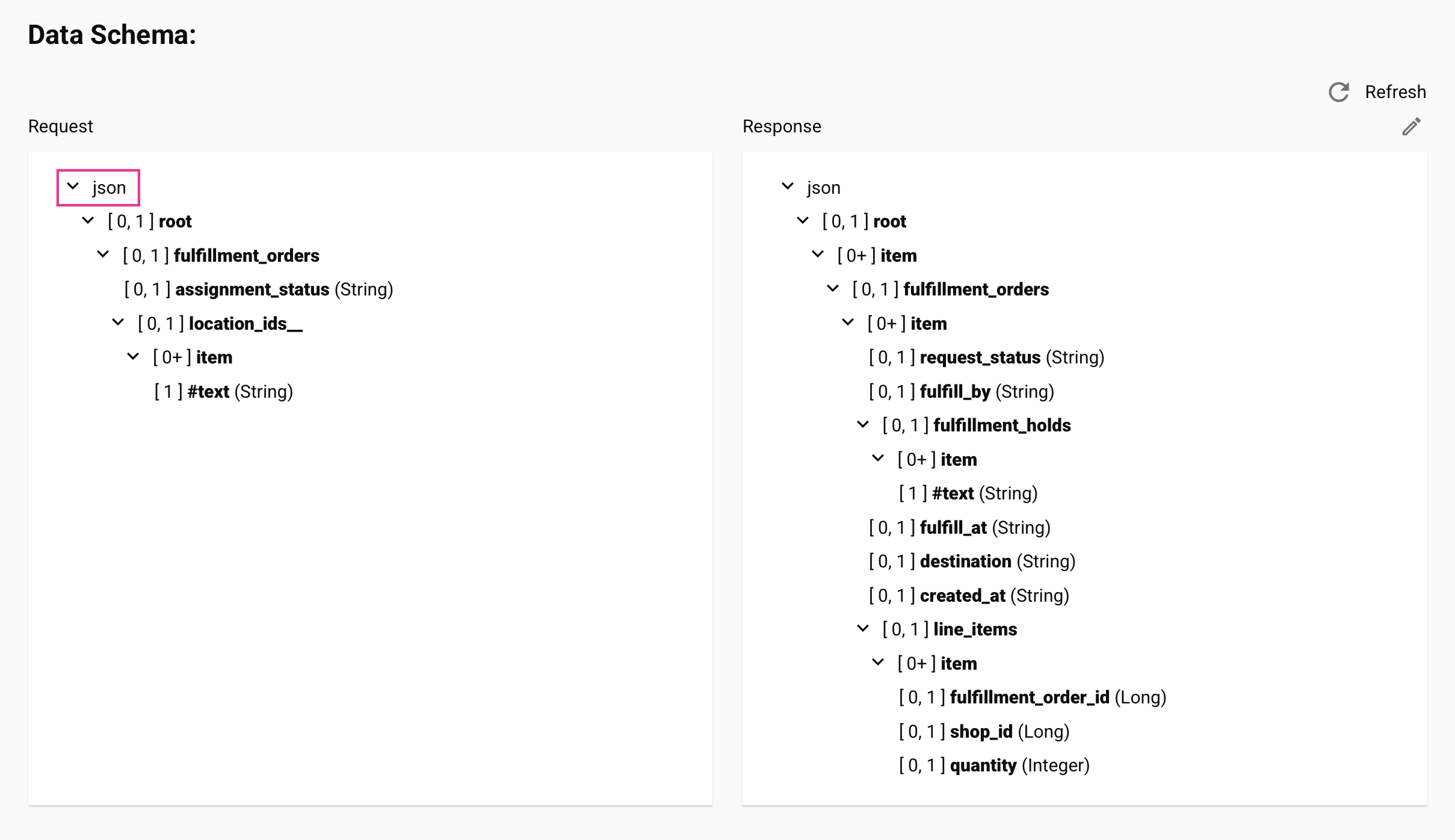
-
Enable the Preserve JSON names project setting (requires agent version 11.48 or later).
- Reconfigure, deploy, and run the operation.
Important
When Preserve JSON names is enabled on a project where it was previously disabled, the new processing method applies only to operations and schemas configured after the setting is enabled. Existing operations and schemas continue using legacy JSON processing. To avoid inconsistencies within a project, reconfigure all existing operations and schemas after enabling this setting.
To verify the field name being sent to the endpoint, check the
jsonPropertyNamevalue in the activity's input or output data with debug logging enabled: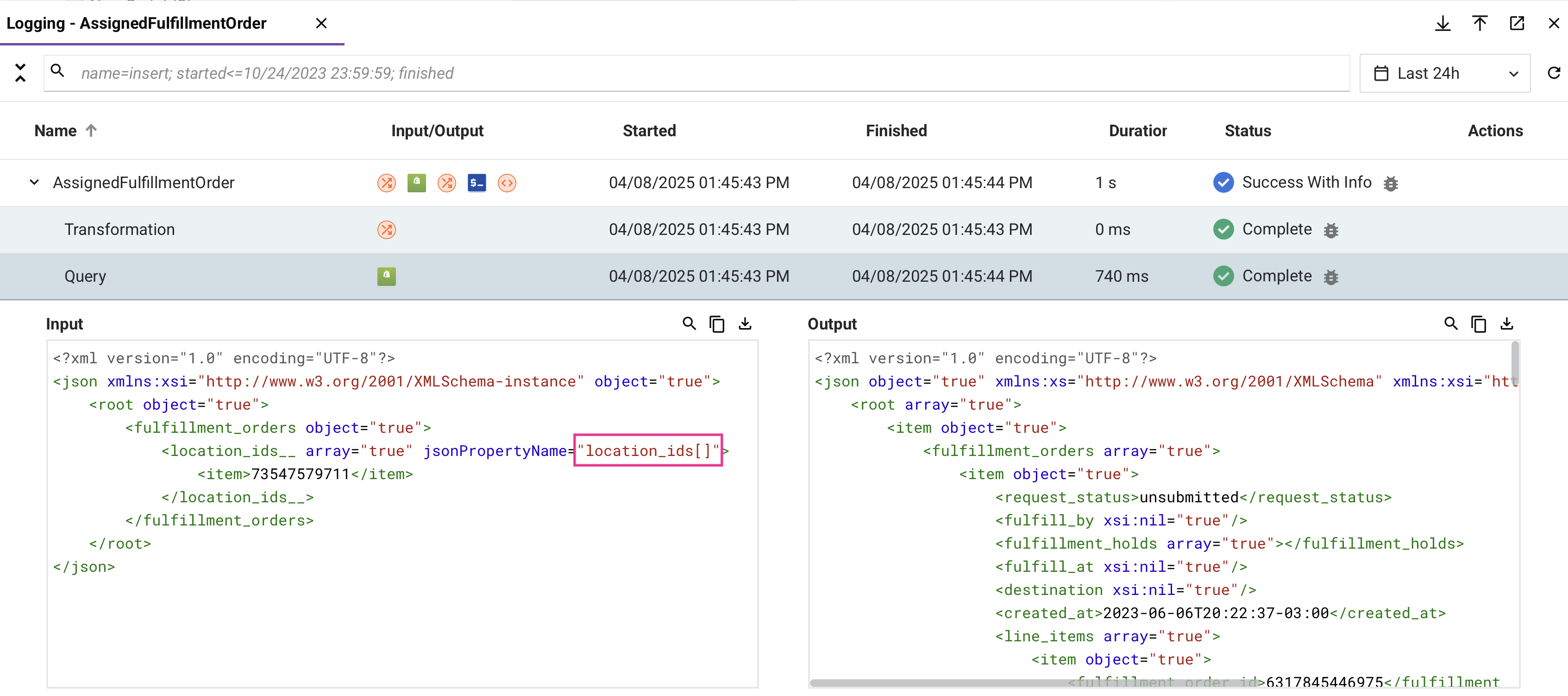
-
Multibyte characters are corrupted in a large connector response
- Symptom: A multibyte character in a JSON connector response is corrupted. The corrupted text shows the classic pattern of UTF-8 bytes decoded as Latin-1 (for example,
São Luísreturned asSão LuÃs). Typically, only a multibyte character that appears after roughly the first 8 KB of the response is affected; the same character appearing earlier in the response is unaffected. - Possible cause: On agent versions 12.8 and 12.9, character-encoding auto-detection samples only the beginning of the response to determine its encoding. If that sample contains only ASCII characters, the response is detected as Latin-1 (ISO-8859-1) instead of UTF-8, corrupting any multibyte character that appears beyond the sampled portion.
- Resolution: Upgrade to agent version 12.10 or later, which corrects the encoding detection.
Mirrored schemas with substitution groups
-
Symptom: Mirrored schemas that use XML substitution groups are not supported. Using one results in a runtime error:
Failed to initialize transformation "<transformation name>". Failed to expand the (source|target) tree for the path: <path to substitution head node>.This error can also occur for other reasons, such as importing a transformation mapping with duplicate nodes, and does not necessarily indicate a substitution group issue.
-
Resolution: If substitution groups are the confirmed cause, clear the mirrored schema and re-create it using a different method (uploading, creating a custom schema, etc.).
Importing a transformation mapping with duplicate nodes fails with "node cannot be created"
-
Symptom: A transformation whose mapping was imported from a file that references duplicate nodes fails at runtime with an error such as:
Failed to initialize transformation "<transformation name>". Failed to expand the target tree for the path: <path to node>. The node: <node name> cannot be created.The mapping can appear correct in the transformation designer even though the operation fails when run.
-
Possible cause: Importing a mapping file that added duplicate nodes to the target schema did not apply the corresponding change to the schema definition used when the operation runs, leaving the two out of sync. This has been fixed, but a transformation whose mapping was imported before the fix can still be affected.
-
Resolution: In the affected transformation, use Remove all mappings beneath this node on the root node to remove all mappings, then import the mapping file again. Reimporting resyncs the schema definition used at runtime with the mapping. If the error persists, reconfigure the activity that provides the schema, then refresh the schema in the transformation.
Extra subelement warning in operation logs
- Symptom: An
extra subelementmessage in the operation logs is a warning, not an error, and can generally be ignored. It indicates that a connector's API payload returned more nodes or fields than are defined in the response data schema. - Resolution: If you need to capture the additional data, update the schema to include the extra fields.
Script loop iteration limit exceeded
- Symptom: A script fails with an error indicating the maximum number of loop iterations has been reached. The default limit is 50,000 iterations.
- Possible causes:
- A loop in a Jitterbit script exceeds the platform's iteration limit.
- A JavaScript script contains multiple loops whose combined iteration counts exceed 50,000. In JavaScript, the limit applies per script (across all loops), not per individual loop.
- Resolution:
- Review the script logic to determine whether the loop can be optimized to reduce the number of iterations.
- For JavaScript scripts on private agents, the per-script limit can be increased by adding
JavaScriptMaxIterations=X(whereXis greater than50000) to the[Settings]section of the private agent configuration file. - For Jitterbit Script on private agents, increase the limit by setting
jitterbit.scripting.while.max_iterationsto a value greater than50000.
RunOperation stops running after 50 synchronous calls in a While loop
-
Symptom: Starting with the 12.11 release, a script that calls
RunOperation,RunOperationFromProject, orReRunOperationsynchronously from within aWhileloop processes fewer records than expected. When the limit is reached, the operation log records a message that begins:Maximum number of synchronous RunOperation() calls from within a While() loop has been exceeded. The currently configured maximum is 50.No operation-level error occurs unless the script itself checks the function's return value or calls
GetLastError. The message identifies the invoked operation by name (falling back to its GUID if the name cannot be resolved), andGetLastErrorreturns this same identifying information. -
Possible cause: Starting in agent version 12.11, an agent-level limit (
MaxSynchronousRunOperationCallsInLoopin thejitterbit.conffile's[OperationEngine]section,50by default) caps the number of synchronousRunOperation,RunOperationFromProject, andReRunOperationcalls made from within a singleWhileloop; all three share one cumulative count per loop. Once the limit is reached, each further call returnsfalsewithout raising an error, so a loop that does not check the return value continues iterating without noticing that later calls did nothing. -
Resolution:
- If the loop does not already check the return value, wrap the call so a limit trip surfaces as a script error, for example:
If(!RunOperation("<TAG>operation:MyOp</TAG>"), RaiseError(GetLastError()));. - To raise the limit for a specific operation, set the
jitterbit.operation.max_sync_runop_calls_in_loopJitterbit variable before the loop runs, provided per-operation overrides are allowed (MaxSynchronousRunOperationCallsInLoopOverrideAllowed). - To raise the agent-wide default, increase
MaxSynchronousRunOperationCallsInLoopin thejitterbit.conffile's[OperationEngine]section.
- If the loop does not already check the return value, wrap the call so a limit trip surfaces as a script error, for example:
Comparing a string to a number gives unexpected results
-
Symptom: A comparison between a string and a number returns an unexpected result. For example, comparing a non-numeric string to
0evaluates as equal, so the wrong branch runs:$value = "test"; If($value == 0, WriteToOperationLog("equal"), WriteToOperationLog("not equal")); // logs "equal", even though "test" is not 0 -
Cause: When the two operands are different types, Jitterbit Script converts both to numbers to compare them. A string that does not represent a number converts to
0, so"test" == 0becomes0 == 0, which istrue. This is expected behavior. -
Resolution: Compare values of the same type. To test a string against a specific value, compare it to a string literal (for example,
$value == "0"or$value == "") rather than a number. If a value can arrive as either type, convert both operands to the same type (for example, withString) before comparing.
Mirrored XML schema reprocessing in projects created before version 10.25
-
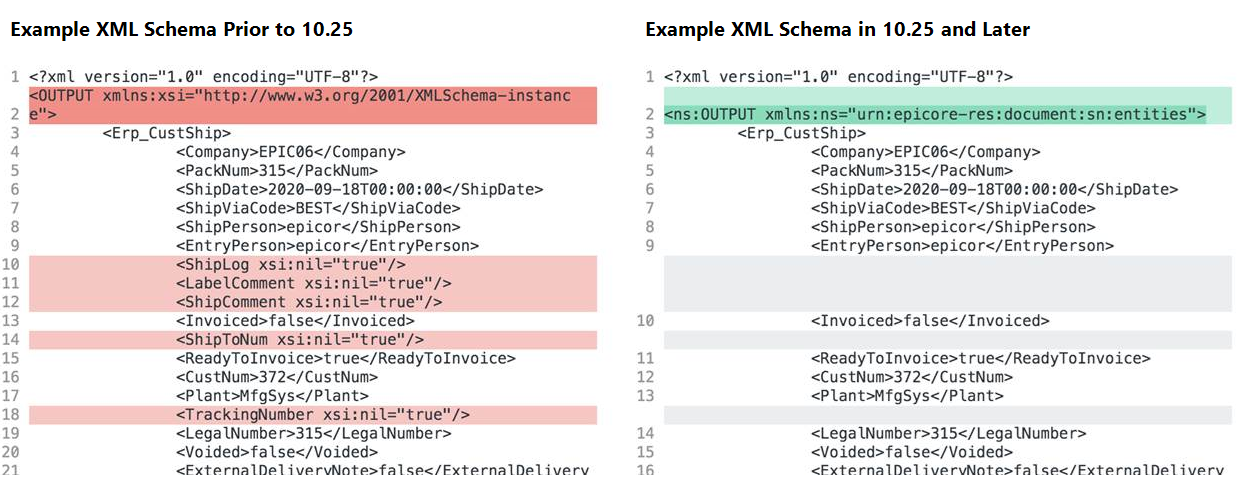
Symptom: Due to changes in Harmony versions 10.25 and 10.27, projects created before 10.25 that use mirrored XML schemas may behave differently than expected. Mappings that used XML functions involving namespaces (such as
SelectNodes) may now be invalid.The difference is in namespace prefix handling:
- Before 10.25: Mirrored XML schemas used the default namespace prefix
xsi. - 10.25 and later: Mirrored XML schemas use the qualified namespace prefix
ns. Unmapped fields are not displayed in the schema.
- Before 10.25: Mirrored XML schemas used the default namespace prefix
-
Resolution: As of version 10.27, importing a project whose mirrored XML schemas were created before 10.25 retains the original namespace prefix, so the schema is identical to when it was created. To force an update to the current namespace prefix, regenerate the schema by refreshing it or reconfiguring the activity that provides it. After regenerating, review all affected XML namespace function calls and update prefix references accordingly.
See the annotated XML schema comparison for an illustration of the difference between the two formats.
Transformation output converted to 0 for target fields with a double data type
- Symptom: A target field with a
doubledata type in the schema receives a value of0even though the mapping script returns a non-empty string value. - Possible cause: When the transformation processes a script output, it coerces the result to the target field's data type. If the string value starts with a non-digit character (for example,
"string1"), no numeric portion can be extracted and the field receives the default numeric value of0. By contrast, a value like"1string"would produce1, since the leading digit carries over. - Resolution:
- Check the schema definition for the affected target field and confirm whether its data type is
doubleor another numeric data type. - If the mapping script can return a non-numeric string, add explicit validation to ensure only numeric values are mapped to numeric target fields, or change the field's data type in the schema.
- Check the schema definition for the affected target field and confirm whether its data type is
Blank mapped fields with flat source schemas
- Symptom: Target fields appear blank in the operation output even though the source data contains values. This issue occurs specifically when using a flat source schema. It does not occur with mirrored schemas or JSON schemas.
- Possible cause: The default streaming transformation mode processes records incrementally, which can cause mapped fields to receive no values when used with flat source schemas.
-
Resolution:
-
Add a script step at the start of the operation that disables streaming transformations by setting
jitterbit.transformation.auto_streamingtofalse:$jitterbit.transformation.auto_streaming = false; -
Deploy and rerun the operation. For more context on streaming and transformation processing, see Transformation processing.
-
File functions: Operation continues after ArchiveFile or ReadFile failure
- Symptom: An operation completes with a success status, but files were not archived or data was not read as expected. No error appears in the operation result, only a warning in the operation log.
- Possible cause:
ArchiveFileandReadFilehave soft failure behavior: if either function fails, the current script aborts and a warning is added to the operation log, but the operation itself does not fail and subsequent steps continue. As of agent version 12.5, one case is an exception:ArchiveFilecalled withdeleteSourceset totruethrows a catchable error when the source file cannot be deleted, instead of failing silently. - Resolution:
- Check the operation logs for warning messages when an operation succeeds but expected file output is missing.
- If the script must stop on a file function failure, wrap the call in an
Evalfunction and callRaiseErrorexplicitly to promote the warning to an operation failure.
ReadFile: Partial reads with binary file content
- Symptom: A script using
ReadFileto read a binary file (such as a ZIP or PDF) returns incomplete or corrupted data. - Possible cause:
ReadFileis not reliable with binary file content and typically reads only a portion of such files. - Resolution: Use
Base64EncodeFileinstead ofReadFileto read the complete contents of a binary file as a Base64-encoded string.
ReadFile content with non-UTF-8 bytes fails when mapped into a UTF-8 XML or JSON payload
-
Symptom: A transformation that maps raw file content read with
ReadFile(for example, a raw EDI file) into a UTF-8 XML or JSON target field fails during the XML or JSON conversion. Replacing the mapped value with a hardcoded string lets the operation complete, which confirms the raw content is the trigger. Attempts to strip the offending character using its Unicode code point (for example,Replace($readFile, HexToString("2026"), "~")for the ellipsisU+2026) do not match, and callingStringToHexon the content with Unicode support enabled throws:not a UTF-8 string, byte not in range: 13 -
Cause: The file content contains a byte that is not valid UTF-8 (for example, the single byte
0x85, which some EDI files use as a segment terminator). This raw byte is not the same as the multi-byte UTF-8 encoding of a similar-looking Unicode character (the ellipsisU+2026encodes as three bytes), so a replacement targeting the Unicode code point never matches. Withjitterbit.scripting.hex.enable_unicode_supportset totrue, the hex functions interpret the content as UTF-8 and fail on the invalid byte. -
Resolution: Match and replace the raw byte with Unicode hex support disabled, so
HexToStringoperates on raw bytes rather than UTF-8 characters:$jitterbit.scripting.hex.enable_unicode_support = false; $badByte = HexToString("85"); $readFile = Replace($readFile, $badByte, "~");Adjust the hex value (
85) to the byte reported byStringToHex($readFile), and the replacement string (~) as needed, then map the sanitized value.
FlushFile / FlushAllFiles: Error when target file already exists
- Symptom: A script fails when attempting to write a file to a target that already contains a file with the same name.
- Possible cause:
FlushFileandFlushAllFiles(and by extensionArchiveFile) throw an error if a file with the target name already exists at the destination. - Resolution:
- Add a
DeleteFileorDeleteFilescall before the write operation to remove the existing file. - Alternatively, use a dynamic filename that includes a timestamp or unique identifier to avoid collisions.
- Add a
DeleteFiles: Error when source path cannot be found
- Symptom: A script using
DeleteFilesfails with an error when the specified source path or directory cannot be found. (A filter that matches no files returns0rather than an error.) - Possible cause: If the source path cannot be found,
DeleteFilesthrows an error rather than returning silently. This can cause unexpected operation failures when the file to be deleted does not exist. - Resolution: Wrap the
DeleteFilescall in anEvalfunction to catch the error and handle it without failing the operation.
GetJSONString: Execution interrupted on invalid path
- Symptom: A script calling
GetJSONStringfails when the supplied path does not resolve in the JSON (for example, the node is absent or an array is empty). The error is generic and does not identify the path as the cause; when the operation is invoked through an API, it can surface as a misleadingProxy Error [502]returned to the API caller. - Possible cause: If the
pathargument passed toGetJSONStringis invalid or matches no data, the function interrupts execution flow immediately and returns an error, which can cause the entire script to abort. - Resolution:
- Validate the JSON path before passing it to
GetJSONString, or (on agent version 11.59 / 12.3 or later) useGetJSONStringEx, which returns a customizable value instead of interrupting execution when the path is invalid or not found. - Log the JSON payload immediately before the
GetJSONStringcall to verify the actual structure and confirm the path.
- Validate the JSON path before passing it to
Unmap does not unmap a field when used together with RunScript
-
Symptom: A target field's mapping expression involves both
RunScriptandUnmap, but the field is not unmapped. For a JSON or XML target, the field appears in the output with anullvalue instead of being omitted. -
Possible causes:
RunScriptprecedesUnmapin the same mapping expression (for example,RunScript("<TAG>script:MyScript</TAG>"); Unmap();). On agent versions earlier than 12.9, this combination did not unmap the field.Unmapis called from inside the script invoked byRunScript, rather than directly in the target field's own mapping expression.RunScriptreturns the called script's result as a string rather than propagating an unmap signal back to the mapping, so callingUnmapfrom inside the called script has no effect, on any agent version, regardless of any conditional logic around the call. This is expected behavior.
-
Resolution:
- If
RunScriptandUnmapare both called directly in the target field's mapping expression, upgrade to agent version 12.9 or later. -
If
Unmapis called from inside the script invoked byRunScript, move theUnmapcall out of the called script and into the target field's own mapping expression instead, for example:RunScript("<TAG>script:MyScript</TAG>"); If(<condition>, Unmap(), <value>);
- If
DBExecute: Error when auto_commit and transaction are both true
- Symptom: An operation using
DBExecutefails with an error related to conflicting transaction settings. - Possible cause: Both
jitterbit.scripting.db.auto_commitandjitterbit.scripting.db.transactionare set totruein the script before theDBExecutecall. These two settings are mutually exclusive and combining them causes an error. - Resolution: Decide whether you need auto-commit behavior or explicit transaction control, then set only the appropriate variable:
- For auto-commit (each statement committed immediately): set
$jitterbit.scripting.db.auto_commit = trueand leavejitterbit.scripting.db.transactionunset orfalse. - For transaction control (commit at end of transformation): set
$jitterbit.scripting.db.transaction = trueandjitterbit.scripting.db.auto_commit = false.
- For auto-commit (each statement committed immediately): set
CallStoredProcedure: resultSet always null with ODBC drivers
- Symptom: A script using
CallStoredProcedurereturnsnullfor theresultSetparameter even though the stored procedure returns data. - Possible cause: The
resultSetparameter is only supported by JDBC database drivers. When the Database endpoint uses an ODBC driver,resultSetis alwaysnullregardless of what the stored procedure returns. - Resolution:
- If the stored procedure result set is required, switch the Database endpoint to use a JDBC driver instead of ODBC.
- If switching drivers is not possible, retrieve output data via output parameters rather than the
resultSetargument.
CallStoredProcedure: "Stored proc or function could not be found" with PostgreSQL JDBC
-
Symptom: A script using
CallStoredProcedureagainst a PostgreSQL database fails with:CallStoredProcedure failed to execute call "<function-name>". java.sql.SQLException: Stored proc or function could not be found: <function-name> -
Possible cause: The PostgreSQL JDBC driver distinguishes between functions and procedures.
CallStoredProcedurealways builds its call using a pattern the driver interprets as a search for a procedure. If the database object is a PostgreSQL function rather than a procedure, the driver cannot locate it and returns the "not found" error. - Resolution:
- Determine whether the database object being called is a PostgreSQL function (returns a value) or a procedure (no return value).
-
Replace
CallStoredProcedurewithDBExecuteand use the correct SQL syntax for the object type:-
Function: use
SELECT.$result = DBExecute("<TAG>Sources/My DB Connection</TAG>", "SELECT my_function(arg1, arg2)");DBExecutereturns a result set. Use aWhileloop withGetto read the returned values. -
Procedure: use
CALL.DBExecute("<TAG>Sources/My DB Connection</TAG>", "CALL my_procedure(arg1, arg2)");PostgreSQL procedures do not return a value; the return value of
DBExecutecan be discarded.
-
DBLoad: Requires a JDBC database driver
- Symptom: An operation using
DBLoadfails or produces no output when the Database endpoint uses an ODBC driver. - Possible cause:
DBLoadonly works with Database endpoints configured to use a JDBC driver. It is not supported with ODBC drivers. - Resolution: Confirm the Database endpoint associated with the target activity uses a JDBC driver. If it uses an ODBC driver, switch to JDBC.
AESDecryption fails with data encrypted under OpenSSL 3
- Symptom: An operation using
AESDecryptionfails or returns garbled output when decrypting data that was encrypted using OpenSSL 3. - Possible cause:
AESDecryptionuses a legacy AES algorithm by default that is not compatible with OpenSSL 3 encryption. When the encrypted data was produced with OpenSSL 3, decryption fails without additional configuration. - Resolution:
- For private agents version 11.42 or later, set
jitterbit.scripting.aes.defaulttotruein a script step upstream of theAESDecryptioncall to enable OpenSSL 3 compatibility. - Alternatively, replace
AESDecryptionwithAESDecryptionEx, which supports OpenSSL 3 by default on agent versions 11.42 or later.
- For private agents version 11.42 or later, set
Variable updates lost in chunked multi-threaded operations
- Symptom: When an operation runs with chunking enabled and Max Number of Threads set to more than 1, global or project variable updates made during the operation are not fully preserved after it completes. One possible case is populating a dictionary or array variable from each source record and finding it holds only part of the data afterward (for example, roughly half of the records when two threads run). This can surface with connectors whose default configuration uses more than one thread, such as Salesforce activities, which default to 2 threads.
- Possible cause: Each thread receives its own copy of the global and project variables at the start of processing. Thread-local changes are not merged back into the shared state. Only changes made by the first thread are preserved when the operation completes; changes from all other threads are discarded.
- Resolution:
- If correctness matters more than per-operation throughput, set Max Number of Threads to
1. Each chunk then processes sequentially, so variable updates are not split across threads. - If multi-threaded throughput is required, do not accumulate per-record state in a global or project variable. Instead, stage each thread's output to a unique Temporary Storage file or a staging database table, then consolidate the results in a subsequent single-threaded operation. For a worked example of the staging pattern, see Variable scoping with chunking.
- More generally, do not rely on global or project variable updates from chunked, multi-threaded operations in later scripts or operations. If variable state must be preserved, set those variables in a non-chunked operation step that runs before or after the chunked transformation. For details on chunking behavior with variables, see Use variables with chunking.
- If correctness matters more than per-operation throughput, set Max Number of Threads to
Transformation drops duplicate records when output is hierarchical
- Symptom: A transformation that reads a CSV source and maps to a hierarchical output format (such as JSON) silently drops duplicate records. Records with identical field values appear only once in the output regardless of how many times they occur in the source. The operation completes successfully but reports fewer target records than source records.
- Possible causes:
- When converting flat source data to a hierarchical output format, the transformation engine removes duplicate records during normalization. Records with identical values after parsing are treated as duplicates and only one copy is kept.
- This behavior is specific to hierarchical output. When the output schema is flat, normalization does not run and all records are written.
- The transformation engine also trims leading and trailing whitespace from CSV field values by default. Records that differ only by leading or trailing spaces become identical after trimming and are subject to the same deduplication.
- Resolution:
- Enable chunking in the operation options. Chunking processes records in batches, which bypasses normalization and preserves all records including duplicates.
- Use a flat output schema in the transformation instead of a hierarchical one. Normalization does not apply to flat output, so all records are preserved.
- Disable normalization by setting a Jitterbit variable in a script step upstream of the transformation. For flat-to-flat transformations, set
jitterbit.transformation.disable_normalizationtotrue. For flat-to-XML transformations, setjitterbit.transformation.flat_to_xml.disable_normalizationtotrue(requires agent 11.58 or later). Both variables can affect other transformations in the same operation, so test the change carefully. - If the duplicates are caused specifically by whitespace differences, set
jitterbit.source.preserve_char_whitespacetotruein a script step upstream of the transformation. This preserves whitespace during parsing so affected records remain distinct.
Long numeric IDs are corrupted in transformation output
- Symptom: A long numeric value (for example, a tracking number, account number, or external ID) is sent to the target with the wrong value. The number is too large to fit in the implicit numeric type used during mapping, so it overflows and produces an incorrect value at the target.
- Possible cause: The source or target field is implicitly typed as a numeric data type whose range cannot hold the full value, causing an overflow during conversion.
- Resolution:
- In the transformation, set the affected target field's data type to String rather than a numeric type. Long IDs that are not used in arithmetic should be treated as strings.
-
If the source field is also typed numerically, cast the value explicitly with
Stringbefore mapping it:String($source.numericId)
JSON transformation output omits null and empty-string fields
- Symptom: A JSON transformation drops fields whose value is
nullor an empty string ("") from the output payload, even though those fields are explicitly mapped. The target system receives a payload that does not include the omitted fields, which can cause downstream validation errors when the target requires the fields to be present. - Possible cause: The JSON output processor omits fields with
nullor empty-string values by default. - Resolution:
- In a script step upstream of the transformation, set
jitterbit.target.xml.include_nil_attributetotrue. On agent version 11.37 or later, this includesnullvalues and empty strings in JSON output, matching the input. (Despite thexmlin its name, this variable applies to JSON targets.) - If you need full control over which fields appear in the payload, build the JSON body in a script step using string concatenation and send it through an HTTP v2 connector with a no-schema request body.
- In a script step upstream of the transformation, set
Empty mapped fields become xsi:nil="true" and invalidate an XML or SOAP request
-
Symptom: In an XML or SOAP transformation, a mapped field with an empty value is emitted as a nil element, and the target endpoint rejects the request. For example, an empty phone-number mapping produces:
<ns1:Phone_Number xsi:nil="true"/>Some endpoints (for example, Workday SOAP services) treat this as invalid and return an error.
-
Cause: By default, when a mapping to a target node results in a null or empty value, the transformation includes the node but marks it nil (
xsi:nil="true"). This is controlled byjitterbit.target.xml.include_null_xml, whose default istrue. -
Resolution: In a script step upstream of the transformation, set
$jitterbit.target.xml.include_null_xml = falseto remove nodes with a null or empty value from the output entirely. If instead the node must be present as an empty element, use the related target Jitterbit variablesjitterbit.target.xml.include_empty_xmlandjitterbit.target.xml.include_nil_attribute, which control whether empty and null values are included in the output.
Byte-order mark (BOM) in a source file is passed through to the first record's value
- Symptom: When a source file (for example, a CSV file) begins with a UTF-8 byte-order mark (BOM), the first field of the first record in the transformation output contains an extra or unexpected character that isn't part of the source data, rather than the expected value. Files exported as UTF-8 CSV from Microsoft Excel commonly include this BOM.
- Possible cause: Studio reads a source file's content as-is and does not detect or strip a leading BOM. The BOM's raw bytes become part of the first field's value once the file is parsed into records.
- Resolution: Inspect the affected field's value to identify the exact characters produced by the BOM, then map the field using
Replaceto remove them. On agent version 12.6 or earlier, where UTF-8 isn't the default, you can also explicitly set the character encoding to UTF-8 before the source activity runs, for example$jitterbit.source.text.character_encoding = "utf-8";. Agent version 12.7 and later use UTF-8 by default.
Project variables return empty values during script and transformation tests
- Symptom: When testing a script step or transformation in Studio, a project variable referenced in the script or mapping returns an empty value instead of the configured value. The test may fail with an error unrelated to the variable itself (for example, a connection timeout caused by a blank server address).
- Possible cause: Project variable values are injected at runtime by the Harmony platform. During a design-time test, no runtime context exists to inject that value, so a project variable reference returns an empty value unless the variable has a Default value configured to use as a fallback. A function's own connection resolution is a separate case that does not use the Default value at all; see A function fails when its endpoint connection field is set to a variable.
- Resolution:
- Set a default value on the project variable: In the project variable configuration, enter the value to use during testing in the Default value field. This is the simplest fix for a static configured value. Note that the default is used whenever the variable has not been set at runtime (not only during design-time tests), so at runtime it also acts as a fallback when the variable is otherwise unset. See Project variables for configuration details.
- Use a global variable: Replace the project variable reference with a global variable and assign its value within the script itself, before the line that uses it. Because a global variable obtains its value from script execution rather than runtime injection, assigning it before use makes it available during a design-time test. Prefer this when the value is derived in a script, or when you do not want a runtime fallback value. See Global variables for details. If the global variable is referenced in a connector configuration field rather than directly in a script, you must also define a per-field default value for that field (see Define a default value, which covers both the variable-pill method and the inline-syntax method for fields that don't show a pill).
A function fails when its endpoint connection field is set to a variable
-
Symptom: Testing a script (using Run test) that calls a function such as
DBLookup,DBExecute, orSfLookupfails, for example with:No suitable driver found for [...]or an error indicating an unresolved variable placeholder in the endpoint address. The same script runs successfully when deployed and executed in an operation.
-
Possible cause: The connection used by the function has a field (such as Login, Password, Connection String, or a server address) set to a global or project variable. Testing a script runs only the tested script, so the variable has not yet been assigned its runtime value when the function resolves the connection. Unlike a variable referenced in an activity's own configured field, this is not covered by a variable's Default value; a function like these does not read the default value when resolving a connection. For a variable referenced directly in a script or mapping instead, where a Default value does resolve the issue, see Project variables return empty values during script and transformation tests.
-
Resolution: Before the function call, temporarily assign the same global or project variable its actual value directly within the tested script (for example,
$login = "value";for a variable namedlogin), then remove the assignment before deploying the operation.
IsNull returns false for empty strings from JSON source data
- Symptom:
IsNullreturnsfalsefor a field mapped from a JSON source, even when the field appears to have no value. Downstream logic that depends on the null check behaves unexpectedly or produces incorrect results. - Possible cause: JSON distinguishes between an absent or explicit
nullvalue and an empty string (""). A field set to""in JSON is an empty string, not null, soIsNullcorrectly returnsfalsefor it. Starting with agent 11.37, the agent preserves this distinction accurately. Scripts or transformations that previously relied onIsNullreturningtruefor empty strings depended on earlier behavior that is no longer correct. -
Resolution:
-
Use
IfEmptyto handle both null and empty strings: TheIfEmptyfunction returns a default value when the argument is null or an empty string, and is the recommended replacement for this scenario:// Returns "default" if the field is null or an empty string result = IfEmpty($myField, "default"); -
Use
Lengthto test for empty strings explicitly: If you only need to check whether a string is empty (not null), useLength($myField) == 0. - Fix the source data: If the JSON source should indicate no value, update it to send
"field": nullor omit the field entirely rather than"field": "".
-
Comparing a string variable to the number 0 unexpectedly returns true
- Symptom: A comparison such as
$myVar == 0returnstrueeven when$myVarholds a non-numeric string (for example,"test").Ifconditions and other logic that checks for zero produce unexpected results. - Possible cause: When Jitterbit Script compares values of different data types, it attempts to convert both operands to doubles as a final step. When applied to a non-numeric string, the conversion fails and returns
0as the default value. The comparison then evaluates as0 == 0, which istrue. -
Resolution:
-
Ensure both sides of the comparison use the same data type. If the intent is to check whether a string variable holds the value
"0", compare against the string literal"0"rather than the integer0:// Compares string to integer: non-numeric strings coerce to 0 and match unexpectedly If($myVar == 0, ...) // Compares string to string: behaves as expected If($myVar == "0", ...) -
If the variable is expected to hold a numeric value, ensure it is assigned as a number rather than a string before the comparison.
-
Decimal arithmetic produces unexpected floating-point results
- Symptom: An arithmetic expression involving decimal literals produces a result that is very slightly off from the expected value. For example,
Double(12.01) - Double(12.00)returns0.00999999999999979instead of0.01, and(4.9 * 100) - 490evaluates to5.6843418860808e-14instead of0. - Possible cause: Jitterbit Script stores numbers as floating-point values. Most decimal fractions cannot be represented exactly in binary floating point, so arithmetic on them can accumulate small rounding errors. Subtraction that cancels most of a value exposes this residual. Explicitly casting values as
Doubledoes not prevent this: it specifies the data type but does not change how the value is stored or computed. -
Resolution:
-
Apply
Roundto the result: UseRoundwith the number of decimal places required for the calculation:$a = Round(Double(12.01) - Double(12.00), 2); // returns 0.01 -
Cast decimal literals using
Float: Wrap the decimal literal inFloatbefore the calculation:$a = (Float(4.9) * 100) - 490; WriteToOperationLog($a);
-
Date functions return midnight instead of a date-only value
- Symptom: After upgrading to agent version 12.8 or later,
ConvertTimeZone,Date, orGeneralDatereturns a full date and time string (for example,2026-01-01 00:00:00) for an input of exactly midnight, instead of a date-only string (2026-01-01), which can break downstream logic that expects the shorter format.CVTDateis not affected. - Possible cause: With agents version 12.8 and later, these functions treat midnight (
00:00:00) as a valid time value and preserve it in the returned value, the same way as any other time. Previously, a value of exactly midnight was truncated to a date-only string, while any other time was preserved correctly. - Resolution: If downstream logic requires a date-only value, use
FormatDateto explicitly format the result rather than relying on the function's default output format.
Cached value expires sooner than expected
- Symptom: A value written to the cache with a long expiration (for example, 24 hours) disappears well before that time elapses, or expires after 30 minutes regardless of what was set in
WriteCache. - Possible cause: Each call to
ReadCacheresets the expiration of the cached item to 30 minutes (1800 seconds) unless theexpirationSecondsparameter is explicitly provided. TheWriteCacheexpiration only applies at the time of the write; subsequent reads without an explicit expiration silently shorten the remaining lifetime. -
Resolution:
-
Specify the expiration in
ReadCache: Pass the desired number of seconds as theexpirationSecondsparameter to preserve or extend the cached value's lifetime on each read:// Resets expiration to 24 hours on each read testVal = ReadCache("CacheTest", 86400, "env"); -
Pass
-1to preserve the write expiration: Passing a non-positive value causesReadCacheto retain the expiration set by the most recentWriteCachecall rather than applying a new one:testVal = ReadCache("CacheTest", -1, "env");
-
RunXSLT fails with "XML version must be 1.0 or 1.1"
-
Symptom:
RunXSLTfails with the error:Failed to execute xslt. XML version must be 1.0 or 1.1even though the input XML file contains a valid
<?xml version="1.0"?>declaration. -
Possible cause: The XSLT stylesheet is configured to produce HTML output (for example,
<xsl:output method="html"/>).RunXSLTonly supports XML as output. When the stylesheet produces HTML, the function generates an empty result, which triggers this error. The error message refers to the missing XML declaration on the (empty) output, not the input XML. -
Resolution:
-
Update the XSLT to produce XML output: Change the stylesheet's output declaration to
<xsl:output method="xml"/>, or remove thexsl:outputdeclaration entirely (XML is the default). This is the recommended approach and works on both cloud and private agents. -
Use the XSL Transform plugin (private agents only): For private agent groups, the deprecated XSL Transform plugin uses the Saxon XSLT processor and supports non-XML output formats including HTML. See Plugins available for installation details.
-
SelectSingleNode returns the wrong node when used with a SelectNodes array element
- Symptom:
SelectSingleNodereturns data from the wrong element (for example, always the first match in the document) when called on an element retrieved from aSelectNodesarray. - Possible cause: Using an absolute XPath expression (one starting with
//) as the path argument causesSelectSingleNodeto search from the root of the original XML document rather than relative to the current node. An expression like"//Item/ItemName"matches the firstItemNameanywhere in the document, regardless of whichItemelement was retrieved from the array. -
Resolution:
-
Use a relative path: Omit the leading
//and specify only the element name or a path relative to the current node. This scopes the search to the node passed as the first argument:$itemName = SelectSingleNode($item, "ItemName"); -
Alternative: wrap the node in
String: Converting the array element to a string before passing it toSelectSingleNodealso produces the correct result, though using a relative path is the preferred approach:$item = String($items[2]); $itemName = SelectSingleNode($item, "//Item/ItemName");
-
HexToBinary output appears unchanged when logged
- Symptom:
HexToBinaryappears to have no effect: the value written to the operation log looks identical to the hex input, suggesting the conversion did not occur. - Possible cause:
WriteToOperationLogcannot output raw binary data. When passed a binary value, it converts it back to hexadecimal for display. The same behavior applies in the script test window. The conversion is working correctly; only the display is affected. -
Resolution: To work with or verify the binary output, write it to a file using
WriteFile. For example:WriteFile("<TAG>activity:ftp/FTP Endpoint/ftp_write/Write</TAG>", HexToBinary("1A3F"));
SortArray sorts filenames lexicographically, not chronologically
- Symptom:
SortArrayreturns filenames in alphabetical order rather than the expected chronological order when filenames contain embedded date or time strings. - Possible cause:
SortArrayperforms a string (lexicographical) sort. For a filename likeordall_DDMMYYHHMMSS.txt, the day part precedes the year part in the string, so an alphabetical sort does not match a date-based sort. - Resolution:
- If you control the filename convention, switch to a format that sorts correctly when sorted alphabetically, such as
YYYY-MM-DD_HHMMSS_filename.txt. This is the simplest and most reliable fix. - If the filename format cannot change, parse the date portion of each filename into a sortable key (for example,
YYYYMMDDHHMMSS) and sort against the parsed key rather than the raw filename.
- If you control the filename convention, switch to a format that sorts correctly when sorted alphabetically, such as
URLEncode does not encode certain "safe" or multibyte characters
- Symptom: A value passed through
URLEncodeis sent to the target with some characters left unencoded, causing the receiving system to reject the request or misinterpret the value. This commonly affects credentials or query values that contain characters such as$,+, or!. - Possible causes:
URLEncodefollows RFC 1738 and treats these characters as "safe", so it never encodes them:$ - _ . + ! * ' ( ) ,. A target that expects these characters to be percent-encoded receives the raw character instead.- Multibyte character support in
URLEncoderequires agent version 12.4 or later. On earlier agents, multibyte characters may not encode as expected.
-
Resolution:
-
When "safe" characters must be encoded (for example, in an OAuth password or a value that contains
+), use the JavaScriptencodeURIComponentfunction in a JavaScript script step instead ofURLEncode:<javascript> $my_username = "$Example+User"; $loginValue = encodeURIComponent($my_username); </javascript>This returns
%24Example%2BUser. -
To encode multibyte characters with
URLEncode, confirm the agent is on version 12.4 or later.
-
JavaScript: "Call to Jitterbit Tomcat failed" error
-
Symptom: A complex or long-running JavaScript step fails with a generic error referencing Tomcat, even though both the Jitterbit Apache and Jitterbit Tomcat services on the agent are running. The script may succeed when its complexity is reduced (for example, by lowering iteration counts or recursion depth).
Call to Jitterbit Tomcat failed (null response). Make sure the Jitterbit Apache and Jitterbit Tomcat services are both running. Failed to execute script -
Possible cause: Deeply recursive JavaScript can exceed the recursion-depth limit of the agent's JavaScript engine, producing a stack overflow that surfaces as this generic Tomcat error. This recursion limit is intentional. The script typically completes once the recursion depth is reduced.
- Resolution:
- Reduce the recursion depth, or rewrite the recursive logic as an iterative loop.
- If the algorithm cannot avoid deep recursion, use an approach that does not rely on it.
- Note that the separate per-script loop iteration limit (
JavaScriptMaxIterations, see Script loop iteration limit exceeded) does not raise the recursion ceiling, which is not exposed as a configurable setting.
JavaScript: Global variable changes lost on script failure
- Symptom: A JavaScript script that modifies global variables runs without apparent error in some cases, but changes to those global variables are absent in subsequent scripts or operations.
- Possible causes:
- In JavaScript, changes to global variables are only committed when the script completes successfully. If the script fails at any point, all global variable changes made during that execution are discarded.
- Mixing
$variablesyntax withJitterbit.SetVar/Jitterbit.GetVarfor the same variable within a JavaScript script can cause unpredictable runtime behavior.
- Resolution:
- Structure JavaScript scripts so all global variable assignments occur after logic that might fail, or use error handling to prevent mid-script failures.
- For any given variable in a JavaScript script, use either
$variablesyntax orJitterbit.SetVar/Jitterbit.GetVar, never both. Choose one and use it consistently throughout the script. - To confirm which variables are being set, add
WriteToOperationLogcalls to log variable values at key points during execution.
JavaScript: GetVar returns null for user-defined project variables
- Symptom: Calling
Jitterbit.GetVaron a user-defined project variable in a JavaScript script step returnsnullinstead of the variable's value, with no error message. - Possible cause:
Jitterbit.GetVarandJitterbit.SetVarare intended for Jitterbit system variables (for example,jitterbit.operation.name) and for variable names that contain a period, which JavaScript's dot notation cannot reference directly. They do not read ordinary user-defined project variables whose names contain no period; passing such a name toGetVarreturnsnull. Reference those variables directly with$nameinstead. These functions also convert all values to strings, so they are not suitable for arrays or objects, and a value set withSetVarcan be read back withGetVarwithin that same script, but does not persist to later scripts. -
Resolution: Use the
$variableNamesyntax directly in JavaScript to access user-defined project and global variables whose names do not contain a period. ReserveGetVarandSetVarfor Jitterbit system variables and for variables whose names contain a period (for example,$hello.world), which JavaScript's dot notation cannot access directly. For a given variable, use either$-prefixing orGetVar/SetVar, not both. See also JavaScript: Global variable changes lost on script failure.// Correct: access a user-defined project variable directly var value = $myProjectVar; // Incorrect for user-defined variables without periods: var value = Jitterbit.GetVar("$myProjectVar"); // returns null
Uploading a schema file replaces it project-wide
- Symptom: After uploading a new schema file during transformation configuration, other transformations in the project that used the same schema now behave unexpectedly or produce errors.
- Possible cause: When you upload a file with the same name as an existing schema file already defined in the project, Studio prompts with an Overwrite file? dialog. If you click Continue, the existing file is replaced in every location where it is used. This replacement is project-wide, not scoped to the current transformation.
- Resolution:
- Before uploading a replacement schema file, confirm whether the existing schema is shared: open the schema for editing, and if it is referenced by more than one component, Studio displays a Schema used by multiple components dialog listing them (see Update transformation-defined schemas). Assess the impact across all listed components before proceeding.
- If only one transformation should use the updated schema, click Cancel at the Overwrite file? dialog (or rename the new file before uploading) so it does not overwrite the shared file.
Marketplace process template deployment fails due to schema mismatch
- Symptom: A project imported from a Marketplace process template fails to deploy or produces errors at runtime because fields are missing from a transformation or source and target activity validation fails.
- Possible cause: Process templates are developed against a specific endpoint instance. If your instance differs (for example, if your Salesforce or NetSuite org has different custom or standard fields), the schemas embedded in the template's transformations may not match your endpoint.
- Resolution:
- In the affected transformation, open the schema settings and click the refresh icon (or the word Refresh) to regenerate the schema from your connected endpoint.
- If the schema still does not match after refreshing, clear the existing schema and re-mirror it from a current sample file or directly from the endpoint.
- Remap any fields that were added or removed during schema regeneration.
- Redeploy the project and rerun the operation to confirm the issue is resolved.
Studio becomes slow or unresponsive with very large projects
- Symptom: Studio responds slowly when a single workflow contains a very large number of operations, or when saving a very large script.
- Possible cause: The design canvas renders all operations in the active workflow at once, so a workflow with a very large number of operations places high memory demands on the browser.
- Resolution:
- Break large workflows into smaller, linked sub-workflows. Studio renders only the active workflow canvas, so fewer operations per workflow improves responsiveness. Use operation actions to chain sub-workflows together.
- If slowness occurs specifically when saving a large script, split the script into smaller scripts and call them using
RunScript.
Amazon Bedrock: "on-demand throughput isn't supported" model error
-
Symptom: An Amazon Bedrock activity fails with:
Invocation of model ID <model-name> with on-demand throughput isn't supported. Retry your request with the ID or ARN of an inference profile that contains this model. -
Possible cause: Some models, including OpenAI's GPT-5.6 models, do not support on-demand throughput and require the ID of a cross-region inference profile instead of the model ID returned in the activity's Select a model list.
- Resolution:
- In the AWS Management Console, go to Amazon Bedrock > Inference profiles and locate the inference profile ID for the model. For example, the inference profile ID for
anthropic.claude-3-5-haiku-20241022-v1:0in the US isus.anthropic.claude-3-5-haiku-20241022-v1:0. For OpenAI's GPT-5.6 models, valid inference profile ID prefixes vary by model and region (for example,us.orglobal.), such asus.openai.gpt-5.6-terraorglobal.openai.gpt-5.6-terra. For the exact inference profile ID for your model and region, see AWS's model cards for GPT-5.6 Sol, GPT-5.6 Terra, and GPT-5.6 Luna. - Enter the inference profile ID using the Enter model identifier option in the activity configuration.
- In the AWS Management Console, go to Amazon Bedrock > Inference profiles and locate the inference profile ID for the model. For example, the inference profile ID for
Cloud Datastore: Query Items activity does not return all matching records when filtering on multiple values of the same field
- Symptom: A Query Items activity used to look up several specific records at once (for example, by a list of
Keyvalues) returns only one record, even though all the records exist in the storage and can be confirmed in the Management Console Cloud Datastore page. - Possible cause: The query's filter combines multiple conditions on the same field (for example, several different
Keyvalues in a single filter). Cloud Datastore filter conditions can be combined only when each condition specifies a different field; a filter cannot specify the same field more than once, and more than one condition or operator cannot be applied to the same field. - Resolution: Issue a separate Query Items call for each value instead of combining multiple values of the same field into one filter. For details on supported filter conditions, see Query Items activity.
Cloud Datastore: Delete Items activity reports success but does not delete the record
- Symptom: A Cloud Datastore Delete Items activity reports success in the operation log, but the target record still exists when queried afterward.
- Possible cause: Delete Items identifies records by the storage's Key (or Alternative Key) value, supplied in the request's
keysoridsarray. (Both arrays accept key or alternative key values.) If the record's internal ID is supplied instead of its key value, no item matches, and the activity reports success without deleting anything. - Resolution:
- In the transformation that prepares the Delete Items request, map the storage's Key (or Alternative Key) value, not the internal record ID.
- When chaining from a Query Items activity, map the
keyvalue from the query response into the delete request.
Coupa: API key authentication returns 403 Forbidden
- Symptom: A Coupa connector operation fails with a
Forbidden (403)error when using API key authentication. - Possible cause: As of Coupa release R35 (January 2023), Coupa API keys are deprecated and no longer supported for authentication. Connections configured to use API key authentication receive a 403 error.
- Resolution:
- In the Coupa connection configuration, switch from API key authentication to OAuth 2.0 authentication.
- In your Coupa instance, create an OAuth 2.0 client application and obtain the client credentials.
- Update the connection configuration with the OAuth 2.0 credentials, save, and retest.
Database (JDBC): DBLookup or DBExecute fails with a Base64 decoding error
-
Symptom: A
DBLookuporDBExecutefunction targeting a PostgreSQL or SQL Server database over a JDBC driver fails at runtime with:Base64 decoding failed. Reason: error:00000000:lib(0)::reason(0)This occurs whenever the returned value resembles Base64-encoded data, such as a JWT or other access token, even though the same query succeeds when run directly against the database.
-
Possible cause: Versions of the agent earlier than 12.9 may incorrectly attempt to Base64-decode a JDBC result value that matches a Base64-like pattern, regardless of whether the value is actual Base64-encoded data.
-
Resolution:
- For private agents, upgrade to version 12.9 or later. Cloud agents receive the update automatically.
- If you cannot upgrade immediately, avoid triggering the Base64 check by converting the affected value to hexadecimal in the SQL query, then decoding it in a script step using
HexToString. For example, in PostgreSQL:SELECT encode(<column>, 'hex'). Use the equivalent SQLdecode(...,'hex')withStringToHexwhen writing the value back to the database.
Database (ODBC): Multibyte characters are not handled correctly
- Symptom: When reading from or writing to a database through the Database connector using an ODBC driver, multibyte or non-ASCII characters (for example, accented or non-Latin characters) are not handled correctly.
- Possible cause: Multibyte character support for the Database connector over an ODBC driver is not enabled by default. The
jitterbit.scripting.db.multibyte.enableJitterbit variable must be set totrue. This support is available on agent version 12.6 and later, and is not required when using a JDBC driver. -
Resolution:
- Confirm the agent is version 12.6 or later.
-
Set the
jitterbit.scripting.db.multibyte.enablevariable totruebefore the database operation runs. For example, in a script step:$jitterbit.scripting.db.multibyte.enable = true;
Alternatively, use a JDBC driver for the database connection, which handles multibyte characters without this variable.
Database: Connection blocked by security policy
-
Symptom: A Database connector connection test fails with:
HttpErrorResponse: The database connection could not be established due to a security policy violation.with a details line naming either a loopback connection:
Details: java.lang.IllegalArgumentException - JDBC connections to loopback addresses are not permitted.or a specific connection string parameter:
Details: java.lang.IllegalArgumentException - JDBC connection parameter 'allowmultiqueries' cannot be enabled. -
Possible cause: Agent version 12.10 and later restricts certain database connections and connection string parameters by default, for security. This includes connections to
localhostor127.0.0.1, and specific connection string parameters for the MySQL, PostgreSQL, Oracle, and SQL Server drivers. A connection that worked before can fail after upgrading a private agent to version 12.10, because the restriction applies by default even though the[JdbcSecurity]section is not automatically added to an existingjitterbit.conffile. -
Resolution: On a private agent, configure the
[JdbcSecurity]section of the agent configuration file (jitterbit.conf) to allow the specific connection or parameter you need, then restart the agent.
Database: Connection timeouts under load
-
Symptom: Database source or target operations intermittently fail under heavy concurrent load, with an exception similar to:
java.sql.SQLException: Network error IOException: Connection timed out Caused by: java.net.ConnectException: Connection timed out -
Possible cause: Each database operation opens a new physical JDBC connection and closes it afterward, instead of reusing an existing one. Under concurrent load, this creates enough connection churn against the target database that some connection attempts time out.
-
Resolution: Agent version 12.11 and later can pool and reuse connections instead of opening and closing one for each operation, reducing this churn. On a private agent, set
jdbc.hikari.enabled=truein the[SourceTargetPooling]section of the agent configuration file (jitterbit.conf), then restart the agent.
Database: Field length errors on Insert, Update, or Upsert
-
Symptom: A Database Insert, Update, or Upsert activity fails with an Error operation status when a mapped source value is longer than the target column allows. The operation log contains one of:
One or more values were truncated when inserting and/or updating the fieldField value too long FieldName: m_site Length: 3 Length Allowed: 1 -
Possible cause: By default, if a mapped source value exceeds the target column's defined length, the activity rejects the row and reports an Error status rather than truncating the value.
- Resolution:
- In the Database Insert, Update, or Upsert activity configuration, enable Allow truncation of character fields to avoid field length errors. With this option enabled, values that exceed the target field length are truncated and the operation reports a Success with Info status instead of an Error status.
- If truncation is not acceptable, trim or transform the source field in the transformation mapping so values never exceed the target column length, or widen the target column on the database side.
- Redeploy and rerun the operation.
Database: JDBC driver JAR overwritten on agent upgrades
- Symptom: Custom JDBC driver JAR files installed for the Database connector are deleted or overwritten when the agent is upgraded.
- Possible cause: Only the
<JITTERBIT_HOME>/tomcat/drivers/lib/directory is preserved across agent upgrades. Custom driver JAR files placed elsewhere in the agent's directories are part of the managed deployment and can be removed or overwritten during an upgrade. - Resolution:
- Place custom JDBC driver JAR files in
<JITTERBIT_HOME>/tomcat/drivers/lib/instead. This directory is preserved during agent upgrades. - If drivers are currently in the wrong location, move them to the correct directory and restart the agent.
- Place custom JDBC driver JAR files in
Database: Special characters in column names cause query failures
- Symptom: Database queries or transformations fail when a source table has column names that contain special characters such as
@. - Possible cause: ODBC drivers cannot handle certain special characters in database column names.
- Resolution:
- Create a database view on the physical table that exposes the affected column under a name that does not contain special characters.
- Point the Database activity to the view rather than the original table.
Database: SQL statement exceeds 2,000-character limit
- Symptom: A Database Query activity fails or is truncated when the configured SQL statement is very long.
- Possible cause: The SQL statement field in a Database Query activity accepts a maximum of 2,000 characters.
- Resolution:
- Create a database view that encapsulates the complex query logic.
- Reference the view name in the Query activity instead of the full SQL statement.
IBM DB2 on iSeries: JDBC connection fails
- Symptom: A Database connection to IBM DB2 on iSeries (AS/400 or IBM i) using a JDBC driver fails to connect.
- Possible cause: Some connections to DB2 on iSeries using a JDBC driver encounter issues that do not occur with an ODBC driver.
- Resolution: Switch the connection to use an ODBC driver instead of JDBC. ODBC connections are supported on private agents only.
IBM DB2: JCC JDBC driver setup (deprecated JAR and license file)
- Symptom: A Database connection using the IBM DB2 JCC JDBC driver fails with an error referencing a missing license, or fails or produces compatibility errors with newer DB2 releases.
- Possible causes:
- The driver file
db2jcc.jarimplements the deprecated JDBC 3 specification. The currentdb2jcc4.jarimplements JDBC 4, which newer DB2 releases require. - The JCC driver requires a separate license JAR file. The driver JAR alone is not sufficient.
- The driver file
- Resolution:
- Use the
db2jcc4.jardriver, not the deprecateddb2jcc.jar. Install it in<JITTERBIT_HOME>/tomcat/drivers/lib/on the private agent. - Obtain the license JAR file from IBM (named
db2jcc_license_cisuz-XX.jar, whereXXis the version number) and copy it to<JITTERBIT_HOME>/tomcat/shared/lib/. - Alternatively, use the JTOpen open-source library (also known as the AS400 driver), which does not require the JCC driver or a license file.
- Use the
Kerberos: "Could not initialize class KerbAuthentication"
-
Symptom: A Database connection using Kerberos authentication fails with:
Could not initialize class com.microsoft.sqlserver.jdbc.KerbAuthentication -
Possible cause: The Kerberos configuration files on the agent host do not have the correct file permissions.
-
Resolution:
-
On the private agent host, set file permissions on the Kerberos configuration files (
jaas.conf,krb5.conf, and the Kerberos ticket cache file) to644:chmod 644 jaas.conf krb5.conf krb5cc_agent -
Restart the agent after applying permission changes.
-
Kerberos: JGSS or GSS errors during connection test
- Symptom: A Database connection using Kerberos authentication fails with errors referencing
jgssorgss. - Possible cause: The JVM is configured with
-Dsun.security.jgss.native=true, which directs it to use the OS native GSSAPI library. On some systems, this conflicts with the Kerberos configuration. - Resolution:
- Remove the
-Dsun.security.jgss.native=trueparameter from the agent's JVM arguments. - In
krb5.conf, addudp_preference_limit = 1under the[libdefaults]section to force TCP instead of UDP for Kerberos traffic. - Restart the agent.
- Remove the
Microsoft Excel: "Operation must use an updateable query"
-
Symptom: A Database Insert or Update activity targeting a Microsoft Excel file (via ODBC) fails with:
[Microsoft][ODBC Excel Driver] Operation must use an updateable query -
Possible cause: The ODBC Excel driver opens the Excel file in read-only mode by default unless the connection string explicitly sets read/write mode.
- Resolution: In the Database connection's Connection String field (entered under Optional Settings with Use Connection String selected), append
ReadOnly=0;to the end of the connection string to open the Excel file in read/write mode.
MySQL: Access denied despite correct credentials
-
Symptom: Connecting to a MySQL database using the Database connector fails with:
Access denied for user 'root'@'%' to database 'test'even when the username and password are correct.
-
Possible cause: MySQL can grant different permissions based on the client IP address. A user account may have the required privileges from specific IP addresses but not from the private agent's IP address.
-
Resolution:
-
In MySQL, verify that the user account has the necessary grants for connections from the private agent's IP address. The exact grant syntax varies by MySQL version (see the MySQL documentation or contact your MySQL administrator), but generally takes the form:
GRANT ALL ON database.* TO 'user'@'agent-ip'; -
Test connectivity using a MySQL client installed directly on the agent host to isolate whether the issue is network-based or Jitterbit-specific.
-
MySQL: Enable Batch does not improve Insert or Update performance
- Symptom: A Database Insert or Update activity using the MySQL JDBC driver shows little or no performance improvement after enabling Enable Batch, even with a large number of records.
- Possible cause: By default, the MySQL JDBC driver (Connector/J) sends one statement per row regardless of Enable Batch, rather than a true server-side batch.
- Resolution: In the connection's Additional Connection String Parameters field, add
rewriteBatchedStatements=true.
MySQL: ODBC driver not listed in Studio dropdown
- Symptom: When configuring a Database connection to MySQL using an ODBC driver on a private agent, the installed driver does not appear in the Driver dropdown in Studio.
- Possible cause: The ODBC manager on the private agent host is not showing the driver, usually because of a 32-bit vs. 64-bit mismatch or an incomplete driver installation.
- Resolution:
- On the private agent host (Windows), open Data Sources (ODBC) (under Administrative Tools) and confirm the MySQL ODBC driver is listed. For MySQL driver options, see Connect to MySQL.
- Confirm the agent is connecting to the correct machine: the ODBC driver must be installed on the agent host, not on the Studio user's machine.
PostgreSQL: Client encoding mismatch error
- Symptom: A Database connector connection test to PostgreSQL fails with a "client encoding mismatch" error.
- Possible cause: The encoding that the PostgreSQL server uses differs from the default encoding assumed by the PostgreSQL ODBC driver.
- Resolution:
- In the Database connection settings, add
ConnSettings=SET CLIENT_ENCODING to 'LATIN1'(substituting the server's actual encoding) to the Additional Connection String Parameters field. - On Windows, if the server uses a Cyrillic encoding such as WIN1251, also set the client encoding to
WIN1251in the ODBC driver settings.
- In the Database connection settings, add
PostgreSQL: Use the Jitterbit-provided driver on Linux
- Symptom: Operations using the Database connector to connect to PostgreSQL from a Linux private agent fail or produce errors, even when a driver appears to be installed.
- Possible cause: Many Linux distributions include a PostgreSQL ODBC driver packaged with
unixODBCthat does not work reliably with Harmony. - Resolution: Do not use the distribution-packaged PostgreSQL driver. Use the PostgreSQL ODBC driver bundled with the Jitterbit agent installation instead.
SQL Server JDBC: Windows integrated authentication fails
-
Symptom: For private agents, a Database connection to SQL Server using a JDBC driver and Windows integrated authentication fails with:
This driver is not configured for integrated authentication. ClientConnectionId:...With the SQL Server MS JDBC driver, the agent logs may also show:
java.lang.UnsatisfiedLinkError: no mssql-jdbc_auth-8.2.0.x64 in java.library.path -
Possible causes:
- Using the SQL Server jTDS driver: The
ntlmauth.dllfile required for Windows integrated authentication is missing from the JRE directory that the Jitterbit agent uses at runtime. - Using the SQL Server MS JDBC driver, or a newer Microsoft JDBC Driver for SQL Server: The
mssql-jdbc_authDLL required for Windows integrated authentication is missing from the JRE directories that the Jitterbit agent uses at runtime. Placing the DLL in the same directory as the JDBC JAR file is not sufficient. - The connection string does not include the required parameters for your driver.
- Using the SQL Server jTDS driver: The
-
Resolution: Choose the option that matches your JDBC driver:
- SQL Server jTDS:
- On the private agent host, copy
ntlmauth.dll(from thex64/SSOfolder of the jTDS project's download package) into<JITTERBIT_HOME>/jre/bin. - In the Database connection settings, add
integratedSecurity=trueto the Additional Connection String Parameters field. - Restart the Jitterbit agent service.
- On the private agent host, copy
- SQL Server MS JDBC, or a newer Microsoft JDBC Driver for SQL Server:
- On the private agent host, copy
mssql-jdbc_auth-x.x.x.x64.dll(from the JDBC driver distribution, using the version that matches the JDBC JAR file bundled with your agent) into both<JITTERBIT_HOME>/jre/binand<JITTERBIT_HOME>/jre/lib. Back up the file, as it may be removed during major agent upgrades. - In the Database connection settings, add
integratedSecurity=true;trustServerCertificate=trueto the Additional Connection String Parameters field. - Restart the Jitterbit agent service.
- On the private agent host, copy
- SQL Server jTDS:
SQL Server Windows authentication: Insufficient privileges
- Symptom: A Database connection using SQL Server Windows authentication fails even when the domain credentials appear correct.
- Possible cause: The Windows domain user running the Jitterbit agent service lacks the OS-level privileges required for Windows Integrated Security.
- Resolution:
- Grant the domain user the Log on as a service and Act as part of the operating system Windows privileges on the private agent host.
- Confirm the domain user has read and write permissions on the Jitterbit agent installation directory.
- Restart the Jitterbit agent service after applying privilege changes.
SQL Server: "Cannot insert explicit value for identity column" when inserting into an identity column
-
Symptom: A Database connector operation that writes to a SQL Server table with an identity column fails with:
Database Error: Cannot insert explicit value for identity column in table '<table>' when IDENTITY_INSERT is set to OFF. -
Possible cause: The identity column is included in the INSERT statement that the Database connector generates for the target. SQL Server rejects an INSERT that references an identity column in its column list (with an explicit value, or a null) while
IDENTITY_INSERTis set toOFF. Mapping the field to a null value does not exclude it: a target field is omitted from the INSERT only when it is mapped with theUnmapfunction. -
Resolution:
-
To let SQL Server assign the identity value automatically, exclude the column from the INSERT by mapping the identity target field with the
Unmapfunction. To exclude the column only when the source provides no value, use a conditional mapping:If($source.id != "", $source.id, Unmap())When the condition is false,
Unmapremoves the column from the INSERT and SQL Server assigns the next identity value. (Supplying an explicit value in the true branch still requiresIDENTITY_INSERTto beON; see the next option.) -
If you must insert explicit values into the identity column, set
IDENTITY_INSERTon the target table in pre- and post-SQL scripts within the activity:SET IDENTITY_INSERT <table> ON;SET IDENTITY_INSERT <table> OFF;Use this option only when you intentionally want to control identity values from outside the database. It allows explicit values to be inserted into the identity column.
-
SQL Server: Connection fails with a PKIX certificate path error
-
Symptom: A Database connection to SQL Server fails with:
"encrypt" property is set to "true" and "trustServerCertificate" property is set to "false" but the driver could not establish a secure connection to SQL Server by using Secure Sockets Layer (SSL) encryption: Error: (certificate_unknown) PKIX path building failed: sun.security.provider.certpath.SunCertPathBuilderException: unable to find valid certification path to requested target.A connection that worked previously can begin to fail after an agent upgrade to 12.8 or later.
-
Possible cause: Current versions of the SQL Server MS JDBC driver request an encrypted connection by default and validate the certificate that the database server presents. The connection fails when that certificate can't be traced to a certificate authority (CA) the agent already trusts, such as a self-signed certificate, an internally issued certificate, or the Amazon RDS CA certificate that an Amazon RDS for SQL Server instance presents. This is a failure of certificate trust rather than of encryption, so a database can have encryption enabled and a valid certificate installed and still fail. Agent version 12.8 updated the bundled driver to a version that requests encryption by default, so a connection configured before that upgrade can fail afterward.
-
Resolution: Enter
encrypt=false;in the Additional Connection String Parameters field under Optional Settings of the Database connection, or include it in a manual connection string. This works on cloud and private agents. For more information, see Connection encryption and server certificates.Caution
With
encrypt=false, data travels between the agent and the database unencrypted. Use this option only where that is acceptable for the data and the network path involved.
Email: Send Email fails when the same address appears in multiple recipient fields
- Symptom: An Email Send Email activity fails at runtime when the same email address is present in more than one of the To, CC, or BCC fields.
- Possible cause: The Email connector does not permit the same address to appear in multiple recipient fields in a single send request. This applies to addresses configured directly in the activity and to addresses supplied dynamically through a transformation mapping.
- Resolution:
- Review the To, CC, and BCC fields in the activity configuration and in any transformation mapping for the activity to confirm no address appears in more than one field.
- If recipient lists are assembled dynamically using variables or scripts, add a deduplication check before passing addresses to the activity.
Email: Gmail connection test fails with authentication error
- Symptom: A connection test to a Gmail account using Basic Auth fails with an authentication error, even when the correct Google account password is entered.
- Possible cause: Google requires an app password for accounts with 2-Step Verification enabled. The Google account password is not accepted by SMTP or IMAP when 2-Step Verification is active; only app passwords are.
- Resolution:
- In your Google account, generate an app password for the Jitterbit application (see Google's Sign in with app passwords page).
- In the Email connection configuration in Studio, enter the app password in the SMTP Password and/or IMAP Password field instead of the Google account password.
Email: S/MIME signing fails or is rejected by cloud email providers
- Symptom: Emails configured with S/MIME signing fail to send, are rejected by the recipient's server, or arrive unsigned when using a cloud email provider such as Microsoft 365 or Exchange Online.
- Possible causes:
- Cloud providers require an S/MIME certificate issued by a trusted certificate authority (CA). Self-signed certificates are not accepted by cloud providers such as Microsoft 365 (Exchange Online).
- S/MIME is functional only when using private agents. If the operation runs on a cloud agent, S/MIME signing does not apply regardless of the certificate type.
- Resolution:
- Obtain an S/MIME certificate from a trusted CA. Let's Encrypt provides free certificates accepted by major cloud providers.
- Replace the self-signed certificate in the Email Send Email activity with the CA-issued certificate (see Prerequisites for S/MIME encryption).
- For private agents, confirm that the certificate is correctly imported into the agent's default truststore. For cloud agents, S/MIME signing is not supported.
Email: Microsoft 365 (ROPC) authentication fails when MFA is enabled
- Symptom: A Microsoft 365 OAuth 2.0 connection that uses the Resource Owner Password Credentials (ROPC) grant fails to authenticate, even when the username, password, client ID, tenant ID, and client secret are all correct.
- Possible cause: ROPC authentication requires multi-factor authentication (MFA) to be disabled for the Microsoft 365 credentials used with the connector. The ROPC grant cannot satisfy an MFA challenge, so the token request fails when an MFA policy applies to the account.
- Resolution:
- Use a Microsoft 365 account whose credentials are not subject to an MFA policy. To maintain security, create a dedicated Microsoft Entra ID tenant or directory that does not enforce MFA, as described in Prerequisites for Microsoft 365.
- If MFA cannot be removed from the account, use a different supported authentication method for the connection rather than ROPC.
Epicor Prophet 21: Operation fails at runtime with multiple filter conditions
- Symptom: An Epicor Prophet 21 Query activity fails at runtime when the Filter String contains more than one filter condition, even though the activity appears valid in Studio.
- Possible cause: A limitation in the Epicor Prophet 21 Middleware API prevents multiple filter conditions from being processed. The operation appears valid in Studio but fails at runtime when more than one filter is present.
- Resolution:
- Reduce the Filter String to a single filter condition.
- If multiple filter conditions are needed, retrieve a broader result set using a single filter and apply the additional filtering in a transformation or script step after the activity.
FTP, File Share, and Local Storage: "No files match the file filter" on archive or follow-up steps
-
Symptom: An FTP, File Share, or Local Storage read activity fails because the file it expects to read is no longer at the source path:
Failed to read file from the source "Read". Reason: No files match the file filter "<filter>".The activity that previously processed the file succeeded; the failure is on a later step (often an archive or notification step) that tries to read the same file with the same filter.
-
Possible causes:
- The processing activity already moved or deleted the source file as part of its After Processing behavior, so the archive step has nothing left to match.
- A child operation is launched asynchronously and the parent operation attempts to read the child's output file before the child has finished writing it.
- An FTP Write activity with Use FTP Rename enabled (the default) writes the file under a temporary name and renames it to the final name on completion. A downstream read operation that fires before the rename completes will not find the file.
- Resolution:
- Confirm whether the prior step already handled archival via its built-in After Processing options (move, rename, delete). If so, a separate archive step is redundant and should be removed.
- If a separate archive step is required, redesign the chain so that processing and archival happen against the same in-memory file reference rather than re-reading from the source. For example, pass the read content through Temporary Storage to the archive step instead of re-reading the source path.
- If a follow-up step reads output produced by a child operation, run the child synchronously so its output exists before the read. Set the Invoke Operation tool's Run type to Synchronously, or, when calling the operation from a script, run
RunOperationsynchronously (the default). Inserting a fixed delay (for example, with theSleepfunction) adds latency and does not guarantee the file is ready. - If an FTP Write activity is writing to the same location, check whether Use FTP Rename is enabled on the FTP Write activity. If the downstream read is firing before the rename completes, disable Use FTP Rename on the write activity, or ensure the read operation does not run until the write operation has fully completed.
FTP, File Share, and Local Storage: Error folder not written on connection failure
- Symptom: After an FTP, File Share, or Local Storage activity fails, no file appears in the configured error folder.
- Possible cause: The error folder is designed to archive a copy of the source file after unsuccessful processing, so it captures files only when the activity runs and then fails (for example, a write permission error on the server). If the connection to the server cannot be established at all, the operation fails before the activity reads any file, so there is no file to write to the error folder.
- Resolution:
- If the error folder is empty after a failure, check the operation logs for a connection-level error (such as an authentication failure or host unreachable message).
- Use the Test button on the connection to confirm whether the issue is at the network or authentication level.
FTP, File Share, and Local Storage: Filename keywords not resolved in success and error folder paths
- Symptom: Operations move files to success or error folders after processing, but the destination path includes unexpanded keyword text rather than resolved values. The operation may fail or write files to unexpected locations.
- Possible causes:
- The success folder and error folder path fields in FTP, File Share, and Local Storage activities do not support filename keyword substitution. Variables are not expanded in these fields.
- These fields refer to directories on the private agent machine, not on the remote server. Relative paths are interpreted relative to the agent host's file system.
- Resolution:
- Use only literal paths (without filename keyword variables) for the success and error folder fields.
- If dynamic paths are required, add a script step after the activity to move or rename the processed file to the intended location using file functions.
FTP, File Share, Local Storage, and Temporary Storage: Write Headers does not produce a header-only file when the source returns no records
- Symptom: A file-based write activity with the Write Headers option enabled (FTP Write, File Share Write, Local Storage Write, or Temporary Storage Write) does not write headers when the source returns no records. Either an empty file is created or no file is created at all (if Do not create empty files is also selected).
- Cause: This is expected behavior. Headers are written as part of the transformation output, and the transformation runs only when the source returns at least one record. When the source returns no records, the transformation is skipped, so no output (including headers) is written, and Studio logs a warning that the source is empty. This is not specific to a particular source connector or flat file target.
FTP: Operation fails after many rapid logins to the same server
- Symptom: An operation using the FTP connector (over either the FTP or SFTP protocol) that authenticates to the same server many times in quick succession (for example, reading hundreds of small files inside a loop, or many operations running against the same server on a schedule) eventually fails with a login denial or connection error. The same operation succeeds under lighter load.
- Possible causes:
- The FTP connector opens and authenticates a new connection for each activity execution and closes it when the operation ends; a session is not reused across activities, across operation runs, or across projects. This is by design. When many operations run against the same server, for example several scheduled operations or multiple projects targeting the same host, each run authenticates independently.
- The remote server is configured with a maximum number of connections, authentications per minute, or concurrent sessions per user, and the combined Jitterbit login rate exceeds that limit.
- Resolution:
- Where possible, redesign the operation to make fewer connections. Replace a Read activity inside a loop with a single Read activity that uses a wildcard in the Get Files field (for example,
*.xmlordata_*.csv), then split the retrieved data into individual records inside a transformation. - If the operation must process files one at a time, ask the FTP server administrator to raise the per-user limit on concurrent connections or authentications per minute.
- Where possible, redesign the operation to make fewer connections. Replace a Read activity inside a loop with a single Read activity that uses a wildcard in the Get Files field (for example,
SFTP "Login denied. Authentication failure." when using SSH keys
-
Symptom: An SFTP operation using SSH private-key authentication fails with
Login denied. Authentication failure., even though the same keys authenticate successfully from an interactive SFTP client.Failed to get ftp directory list for url sftp://example.com:22/. Login denied. Authentication failure. -
Possible causes:
- The private key is protected by a passphrase, but the
PrivateKeyPassphrasesetting is missing from the agent's jitterbit.conf[SSH]section. - A password is configured in the FTP endpoint along with the private key. The presence of a password in the endpoint settings interferes with key-based authentication.
- The private key is protected by a passphrase, but the
-
Resolution:
- For private agents, confirm that the
[SSH]section ofjitterbit.confcontains the correctPrivateKeyFilepath and, if the key is passphrase-protected, the matchingPrivateKeyPassphrasevalue (see Connecting to SFTP with SSH keys). - In the FTP endpoint configuration, clear the Password field when authentication is by SSH key.
- Confirm the key is in a format the agent supports (OpenSSH). Convert the key with
ssh-keygenif it is in PuTTY (.ppk) or another non-OpenSSH format.
- For private agents, confirm that the
FTP Write: "Use FTP Rename" fails when writing to an SFTP server
-
Symptom: An FTP Write activity configured with the Use FTP Rename option fails when the target is an SFTP server, with an error similar to:
Failed to put ... to the url ...
Quote command returned error. Rename command failed: <reason>.
The
<reason>is typicallyNo such file or directory, orPermission deniedfor a file whose name contains multibyte characters. -
Possible causes:
-
On agents earlier than 11.56, the Use FTP Rename option did not reliably honor the rename step when writing to an SFTP server, particularly in archive pattern operations.
-
The file name contains multibyte characters and the SFTP server does not support renaming files whose names contain them. As of agent version 12.8, the FTP connector can read and write files with multibyte names; however, with Use FTP Rename the agent uploads the file under a temporary name (a
-jbuploadsuffix) and then renames it to the final name, and if the server cannot rename the multibyte name it returns a misleadingPermission denied. File names using only ASCII characters are unaffected. This is a limitation of the SFTP server, not of Jitterbit.
-
-
Resolution:
-
Ensure the agent is version 11.56 or later, where Use FTP Rename with SFTP works as expected. Cloud agents are updated automatically; upgrade private agents if needed.
-
Clear the Use FTP Rename checkbox in the activity configuration so the agent writes directly to the destination path instead of uploading to a temporary name and renaming. This avoids the rename step and resolves both causes.
-
For the multibyte case, alternatively use an SFTP server that supports renaming files whose names contain multibyte characters.
-
SFTP: Append to file not supported
- Symptom: An FTP Write activity configured with the Append To File option does not append to the existing file when the target is an SFTP server.
- Possible cause: The SFTP protocol does not support appending to existing files. This is a protocol-level limitation, not a Jitterbit configuration issue.
- Resolution:
- Use FTP or FTPS if the append behavior is required.
- If SFTP is required, implement append logic manually: read the existing file content, combine it with the new data, and write the complete result back as a full file.
FTP: Filenames containing # are not handled correctly
- Symptom: An FTP connector activity (over either the FTP or SFTP protocol) fails when the source or target filename contains a hash (
#) character. Reading the file returns an error such asNo File with that nameorError in SSH Layer, and writing the file produces a truncated filename. - Possible cause: The FTP connector treats the file path as a URL, in which the hash character is a reserved fragment delimiter. The connector parses the part of the path before the
#and discards the rest. - Resolution:
- Rename the files to remove or replace the
#character before Jitterbit reads or writes them. - To have the connector URL-encode names that contain special characters such as
#, setjitterbit.source.ftp.encode_urltotruein a transformation script for source file or folder names, andjitterbit.target.ftp.encode_urltotruefor files written to the target.
- Rename the files to remove or replace the
File Share: UNC paths with server names fail on cloud agents
- Symptom: File Share connections that use UNC paths (for example,
\\server\share) fail to connect when the operation runs on a cloud agent. - Possible cause: Cloud agents can resolve UNC paths using a public IP address but cannot resolve server hostnames in UNC paths.
- Resolution:
- Replace the server name in the UNC path with the server's public IP address (for example,
\\192.0.2.1\share). - If server-name resolution in UNC paths is required, use a private agent instead.
- Replace the server name in the UNC path with the server's public IP address (for example,
File Share: Files larger than 2 GB may fail to retrieve
- Symptom: A File Share Read activity may fail to retrieve individual files larger than 2 GB. Smaller files are retrieved without issue.
- Possible cause: The File Share connector has a known limitation with individual files larger than 2 GB.
- Resolution: No configuration option removes this limit. As a workaround, split the file into smaller segments at the source so that each file is under 2 GB before the File Share Read activity retrieves it.
Local Storage: Not available on cloud agents
- Symptom: An operation using a Local Storage connector fails when it runs on a cloud agent.
- Possible cause: Local Storage accesses the file system on the machine where the agent is installed. Cloud agents run in a hosted environment and do not expose a local file system for this purpose.
- Resolution:
- Use private agents for any operations that require the Local Storage connector. Local Storage is disabled on private agents by default, so also enable it in the private agent configuration file (see Enable local file location).
- For cloud agent workflows, replace Local Storage with Temporary Storage or an external storage connector (File Share, FTP, or Cloud Datastore).
Temporary Storage: Files missing when read by a later operation
- Symptom: Temporary Storage files written by one operation are missing when a later operation attempts to read them.
- Possible causes:
- Harmony's cleanup service deletes files from Temporary Storage after 24 hours by default.
- Each agent in an agent group has its own local Temporary Storage. Operations in the same operation chain are guaranteed to run on the same agent, but a later operation that is not in the same chain may be dispatched to a different agent and access a different Temporary Storage instance, so it does not find the file, regardless of the 24-hour window. See Important notes.
- Resolution:
- Link operations that must share Temporary Storage files into the same operation chain using operation actions, where Temporary Storage behavior is consistent and reliable.
- For private agents, the cleanup frequency can be adjusted in the
[FileCleanup]section ofjitterbit.conf. See[FileCleanup]. - If files cannot be consumed within the same chain or must persist longer than 24 hours, use a persistent storage connector accessible to all agents (such as File Share, FTP, or Cloud Datastore) instead of Temporary Storage.
Temporary Storage: Restricted characters in file paths
- Symptom: A Temporary Storage Read or Write activity fails when the file path contains certain special characters.
- Possible cause: The following characters are not supported in Temporary Storage file paths:
~,%,$,",<,>,:,? - Resolution:
- Remove or replace the unsupported characters in the file path. The following characters are supported:
!,@,#,^,&,*,(,),[,],',; - Both
/and\are accepted as path separators.
- Remove or replace the unsupported characters in the file path. The following characters are supported:
Temporary Storage: 50 GB file size limit on cloud agents
- Symptom: A Temporary Storage Write activity fails when writing large files through a cloud agent.
- Possible cause: Cloud agents impose a maximum file size of 50 GB per file for Temporary Storage.
- Resolution:
- Use a private agent for workflows that need to write individual files larger than 50 GB to Temporary Storage.
- If only cloud agents are available, split large data sets into multiple files smaller than 50 GB before writing to Temporary Storage.
HTTP v2: Spaces encoded as + instead of %20
- Symptom: REST API calls using the HTTP v2 connector fail at the target system because spaces in the URL are encoded as
+rather than%20, causing the target to return a resource not found error. - Resolution:
- In the HTTP v2 connection, enable the Encode request URL option. The connector then URL-encodes the request URL, encoding spaces as
%20. - Provide the request URL completely unencoded. Do not pre-encode characters or apply the
URLEncodefunction to the URL, because already-encoded characters become double-encoded when Encode request URL is enabled (for example,example+string%20valuebecomesexample%20string%2520value).
- In the HTTP v2 connection, enable the Encode request URL option. The connector then URL-encodes the request URL, encoding spaces as
HTTP v2: Response status code not available in Jitterbit variables
- Symptom: Scripts that read Jitterbit source or target variables to capture the HTTP response status code after an HTTP v2 activity runs receive no value. The same approach works with the HTTP connector but not with HTTP v2.
- Possible cause: The HTTP v2 connector does not populate Jitterbit source or target variables. Response data, including the HTTP status code, is returned through the activity's response schema instead.
- Resolution:
- To capture the status code using the default response schema, map the
statusCodefield, which is located under the response'sresponseItem/errornode and holds the HTTP status code (for example,200,403). For details on the response schema structure, see the activity configuration documentation for any HTTP v2 activity. - To capture the status code when using a custom response schema, enable Include Additional Properties from HTTP Response in the Schema in the activity configuration. This wraps the schema with a Jitterbit-defined structure that includes
__jitterbit_api_statuscode__(the status code) and__jitterbit_api_errorbody__(the response body for unsuccessful requests). - For the status code to be available when the API returns a non-successful response, enable Ignore operation error in case of non-successful status code in the activity's optional settings. Without this setting, the operation fails on non-successful responses before the response data can be mapped.
- To capture the status code using the default response schema, map the
HTTP v2: XML namespaces rewritten when using a custom request schema
- Symptom: An HTTP v2 operation that sends an XML payload to a SOAP or XML web service fails with a server error (such as
500 Internal Server Error) even though the same payload succeeds when sent from Postman or SoapUI. Inspecting the request body received by the target shows that XML namespace declarations have been consolidated onto the root element and the original namespace prefixes have been replaced with generic ones (for example,soapenv:EnvelopebecomesEnvelope xmlns="...", and element prefixes are renumbered asns,ns1,ns2). - Possible cause: When a custom request schema is used in HTTP v2 activity configuration, the transformation normalizes the XML by default, moving all namespace declarations to the root node and reassigning their prefixes. SOAP services and other XML endpoints that validate namespace prefix consistency reject the modified payload.
-
Resolution:
-
On agent version 12.8 or later, set
jitterbit.target.xml.preserve.namespace.prefixtotruein a script step upstream of the transformation, to keep the source XML's namespace prefixes instead of reassigning generic ones:$jitterbit.target.xml.preserve.namespace.prefix = true; -
If your private agents are earlier than 12.8, or the target also rejects the consolidation of namespace declarations onto the root element, use the default request schema instead of a custom one and map the complete XML payload as a string into the schema's
bodyfield. The payload is then treated as a string rather than parsed XML, so its namespace declarations are preserved. The response schema can still be a custom schema.
-
HTTP v2: Duplicate Authorization header causes 400 Bad Request
- Symptom: HTTP v2 connector operations fail with a 400 error when both connection-level authentication and a manually defined
Authorizationrequest header are configured on the same connection or activity. - Possible cause: When authentication is configured on an HTTP v2 connection (for example, Basic or OAuth), the connector automatically adds an
Authorizationheader to each request. Adding a secondAuthorizationheader manually results in two conflicting headers, which most servers reject with a 400 error. - Resolution:
- Remove any manually added
Authorizationheader from the request headers in the activity or connection configuration. - Use only the built-in authentication settings in the connection to handle authorization. Do not add a manual
Authorizationheader alongside configured authentication. - If you need to set the
Authorizationheader dynamically at the activity level, set the connection's authentication type to No Auth and configure the activity'sAuthorizationrequest header as needed.
- Remove any manually added
HTTP v2: JSON value in a request-header project variable fails to parse
-
Symptom: An HTTP v2 activity that reads a request header value from a project variable containing a JSON string fails with a parse error:
Expected a ',' or ']' at 139 [character 140 line 1]The same JSON works when pasted directly into the Value column of the Request Headers table.
-
Possible cause: When a request-header value is read from a project variable, the HTTP v2 connector does not escape the embedded quotes the way it does when you type the value directly into the Request Headers table. The unescaped quotes break the header string before it reaches the target.
- Resolution:
- When storing JSON in a project variable that will be used as a header value, escape each double quote with a backslash. For example, store the value as
{\"success\": \"true\"}rather than{"success": "true"}. - If the JSON content is static, paste it directly into the Value column of the Request Headers table instead of using a variable. The connector applies the necessary escaping in that path.
- When storing JSON in a project variable that will be used as a header value, escape each double quote with a backslash. For example, store the value as
HTTP and HTTP v2: URL contains multiple ? characters
- Symptom: An HTTP or HTTP v2 operation fails at the target system. The agent logs show that the request URL contains more than one
?between segments, for examplehttps://api.example.com/endpoint?param1=A?param2=B. - Possible cause: Query parameters were declared in two places: appended directly to the URL path and also added to the activity's Request Parameters table. The connector concatenates both sets, inserting a second
?instead of a&. - Resolution:
- Remove any query string segment from the URL path. The base URL should contain only the path itself (for example,
https://api.example.com/endpoint). - Define every query parameter in the activity's Request Parameters table. The connector inserts the
?and&characters automatically when constructing the final URL.
- Remove any query string segment from the URL path. The base URL should contain only the path itself (for example,
HTTP v2: Double URL encoding when "Encode request URL" is enabled
- Symptom: REST API calls made through the HTTP v2 connector fail at the target system because URL parameters appear double-encoded in the outbound request (for example, a
%20space becomes%2520). - Possible cause: When Encode request URL is enabled in the HTTP v2 connection settings, the connector encodes the entire URL before sending it. If URL parameters already contain percent-encoded characters, those characters are encoded a second time.
- Resolution:
- Disable Encode request URL in the HTTP v2 connection settings when the URL or parameters are already encoded or constructed using the
URLEncodefunction. - If Encode request URL must remain enabled, ensure that parameters passed into the URL are not pre-encoded before they reach the connection.
- Disable Encode request URL in the HTTP v2 connection settings when the URL or parameters are already encoded or constructed using the
HTTP v2: Operation fails when Base URL redirects
- Symptom: An HTTP v2 operation fails immediately when the configured Base URL returns a redirect response (3xx).
- Possible cause: Follow redirects is disabled in the HTTP v2 connection settings, so redirect responses are treated as failures rather than being followed automatically.
- Resolution: In the HTTP v2 connection settings, enable Follow redirects to allow the connector to automatically follow redirect responses to the final target URL.
HTTP v2: Variables in the activity Path are not resolved
- Symptom: An HTTP v2 activity uses a global, project, or Jitterbit variable in its Path field, but at runtime the variable is sent literally (unresolved) instead of being replaced with its value.
- Possible cause: A full URL (one that includes the protocol and host, such as
https://api.example.com/...) was entered in the Path field. Variables are not supported in full URLs. They are only resolved in a partial path that is appended to the connection's Base URL. - Resolution:
- In the HTTP v2 connection, set the Base URL to the protocol and host portion of the endpoint (for example,
https://api.example.com). - In the activity Path field, enter only the partial path that follows the base URL, and place the variable within that partial path (for example,
/records/[recordId]). The connector resolves the variable and appends the result to the Base URL at runtime.
- In the HTTP v2 connection, set the Base URL to the protocol and host portion of the endpoint (for example,
HTTP: Sends null as the string "null"
- Symptom: An HTTP POST or PUT activity sends fields mapped with the
Nullfunction as the string"null"(or omits them) rather than emitting a JSONnullliteral. This occurs when the request schema is defined on the activity. - Possible cause: When the request schema is defined on the HTTP activity, the connector does not serialize a mapped
Nullas a JSONnull. When the schema is defined in the transformation instead, with no request schema provided on the activity, the connector sends a mappedNullas a JSONnullcorrectly. - Resolution:
- Migrate the activity to the HTTP v2 connector, which serializes
Nullcorrectly. Jitterbit recommends converting existing HTTP connections and activities to HTTP v2. - If the activity must remain on HTTP, define the request schema in the transformation rather than on the activity, and leave the activity's request schema unset. With the schema defined in the transformation, the connector serializes a mapped
Nullto a JSONnullcorrectly.
- Migrate the activity to the HTTP v2 connector, which serializes
LDAP Delete Entry fails when the target entry has child entries
- Symptom: An LDAP Delete Entry activity fails with an error from the LDAP server (for example,
notAllowedOnNonLeafor a message indicating the entry is not a leaf node). - Possible cause: The LDAP protocol does not permit deleting an entry that has child entries (subordinates). The entry must be a leaf node with no children for deletion to succeed.
- Resolution:
- Before deleting the parent entry, delete all child entries first. Traverse the hierarchy from the deepest entries upward.
- If deleting an entire subtree is required, implement a script that identifies and deletes entries from the bottom of the tree upward, using
RunOperationwith the LDAP Delete Entry activity for each entry.
LDAP Search Entry: Filter expression is case-sensitive on some servers
- Symptom: An LDAP Search Entry activity returns no results or an error, even though the queried entries exist in the directory.
- Possible cause: Some LDAP servers require attribute names in filter expressions to match the exact case used by that server's schema. The filter expression pre-populated by Studio uses title case for the structural class (for example,
ObjectClass), but some servers require a different case (for example,objectClass). - Resolution:
- In the LDAP Search Entry activity configuration, review the pre-populated Filter Expression field.
- Adjust the case of attribute names to match what the target LDAP server expects. For example, change
ObjectClasstoobjectClassif the server requires lowercase. - Consult your LDAP server's documentation or schema definition for the required attribute naming conventions.
Microsoft SharePoint Online: SOAP schema connections failing after IDCRL retirement
- Symptom: Operations using a Microsoft SharePoint Server connector with the SOAP schema connection type have started failing or returning authentication errors when connecting to SharePoint Online.
- Possible cause: Microsoft retired the IDCRL (Identity Client Runtime Library) method used by SOAP schema connections to SharePoint Online. After May 1, 2026, operations using the SharePoint SOAP schema for SharePoint Online connections are expected to fail.
- Resolution:
- In Studio, open each affected SharePoint connection and change the Schema setting from SOAP to REST.
- Reconfigure any activities that used the SOAP schema to use equivalent REST operations.
- Test and redeploy the affected operations.
- For migration details, see the Microsoft SharePoint Server connector documentation.
Microsoft Dynamics 365 Business Central v2: Type names incompatible with metadata
- Symptom: Operations using the Microsoft Dynamics 365 Business Central v2 connector fail with errors indicating that type names in the payload are incompatible with the OData metadata.
- Possible cause: Certain Dynamics 365 Business Central OData API endpoints require OData type annotations on the request payload. By default the connector does not include these annotations, which causes type incompatibility errors for those endpoints.
- Resolution:
- Open the Microsoft Dynamics 365 Business Central v2 Update activity configuration.
- In Optional settings, enable Set OData type on payload.
- Save the activity and retest the affected operations.
Microsoft Entra ID: Extension attributes not selectable as query filter conditions
- Symptom: When configuring a Microsoft Entra ID Query activity, the
onPremisesExtensionAttributesfield and its child extension attribute fields (for example,extensionAttribute1throughextensionAttribute15) do not appear in the Object Fields picker in step 3 and cannot be selected as conditional clause filter conditions. - Possible cause:
onPremisesExtensionAttributesis a complex-type (nested) object. The step 3 Object Fields picker exposes only primitive data type fields; complex-type fields are excluded from the selection list. - Resolution: The
onPremisesExtensionAttributesfields do not need to be selected in step 3 to be returned. They appear in the activity's output schema in step 4 and are populated at runtime when the operation runs. To access extension attribute values, map fromonPremisesExtensionAttributesand its child fields in the transformation.
Microsoft Entra ID Update activity: DateTime fields rejected with Edm.String type mismatch
-
Symptom: A Microsoft Entra ID Update activity fails with:
A value was encountered that has a type name that is incompatible with the metadata. The value specified its type as 'Edm.String', but the type specified in the metadata is 'Edm.DateTimeOffset'. [HTTP/1.1 400 Bad Request] -
Possible cause: The connector sends DateTime field values (such as
employeeHireDate) without the@odata.typeannotation required by the Microsoft Graph API. Without the annotation, the value is interpreted asEdm.Stringinstead ofEdm.DateTimeOffset, causing a 400 error. - Resolution:
- Open the Microsoft Entra ID Update activity configuration.
- In step 1, expand Optional settings and enable Set OData type on payload.
- Save the activity, redeploy, and rerun the operation.
Microsoft Entra ID Query: "Unsupported or invalid query filter clause" on filtered properties
-
Symptom: A Microsoft Entra ID Query activity fails when a filter condition is applied in step 3:
(Request_UnsupportedQuery) Unsupported or invalid query filter clause specified for property '<property>' of resource '<object>'. [HTTP/1.1 400 Bad Request]The same query succeeds when no filter is applied.
-
Possible cause: Filtering on certain Microsoft Entra ID properties (such as
companyNameandcreatedDateTime) uses the Microsoft Graph API's advanced query capability, which requires$count=truein the query string. Without it, the API rejects the filter even when the syntax is otherwise correct. The connector automatically includes the requiredConsistencyLevel: eventualheader, but$count=truemust be added separately. - Resolution: Choose one of the following options depending on the tab used in step 3:
- Basic tab: Select the Include Count checkbox. This adds
$count=trueto the query automatically. -
Advanced tab: Append
&$count=trueto the filter string manually. For example:$filter=companyName eq 'Example Corp'&$count=true
- Basic tab: Select the Include Count checkbox. This adds
For the list of properties that require advanced query syntax, see Advanced query capabilities on Microsoft Entra ID objects in the Microsoft Graph documentation.
Microsoft Dynamics AX 2012 operations fail with "Logon failed"
-
Symptom: Operations using the Microsoft Dynamics AX connector against AX 2012 fail at runtime, even though the connection test passes in Studio. The Jitterbit Dynamics AX 2012 Connector REST Service log contains:
The server has rejected the client credentials.The logon attempt failed -
Cause: The Domain Name field in the AX 2012 connection is not set to the correct value. AX 2012 authentication requires the Domain Name to be the DNS domain name extension (for example,
yourcompany.com), not a short or NetBIOS domain name. An incorrect domain value causes AX to reject otherwise-valid credentials with a logon failure, even when the connection test succeeds. - Resolution:
- Open the Dynamics AX 2012 connection in Studio.
- Set the Domain Name field to your DNS domain name extension (for example,
yourcompany.com), not a short/NetBIOS domain name. - Confirm the Login is the AX service account username with the required privileges, and re-enter the Password to rule out a stale value.
- Test the connection, then re-run the operation.
NetSuite: Data center URL error
-
Symptom: A NetSuite connection that previously tested successfully now fails with this error:
Connector Error: Error getting the data center URL.
Caused by: org.jitterbit.integration.server.engine.connector.exception.NetSuiteWebServiceRuntimeException: FaultString:
In this account, you must use account-specific domains with this SOAP web services endpoint. You can use the SOAP getDataCenterUrls operation to obtain the correct domain. Or, go to Setup > Company > Company Information in the NetSuite UI. Your domains are listed on the Company URLs tab.
In some circumstances, this error may appear instead:
You are not requesting the correct data center for your company.
-
Cause: Due to changes made by NetSuite, some WSDL URL formats that were previously allowed are no longer accepted, including generic and data center-specific WSDL URLs. For example:
- Generic WSDL URL:
https://webservices.netsuite.com/wsdl/v2025_1_0/netsuite.wsdl - Data center-specific WSDL URL:
https://webservices.na3.netsuite.com/wsdl/v2025_1_0/netsuite.wsdl
- Generic WSDL URL:
-
Workaround: Change the WSDL URL to use an account-specific domain:
- Account-specific WSDL URL:
https://abcdef123456.suitetalk.api.netsuite.com/wsdl/v2025_1_0/netsuite.wsdl
For instructions on finding the NetSuite account-specific domain and using it in the WSDL URL, see Use a NetSuite account-specific WSDL URL.
- Account-specific WSDL URL:
NetSuite: INSUFFICIENT_PERMISSION despite successful connection test
- Symptom: Even if testing a NetSuite connection is successful, you may receive an
INSUFFICIENT_PERMISSIONerror when running operations containing activities using that connection. - Workaround: When generating access tokens, use either a Full Access or Administrator role, or ensure the appropriate permissions are allowed for the role being used. Detailed instructions are available in NetSuite's documentation Getting Started with Token-based Authentication.
NetSuite: Sandbox connection fails after sandbox refresh
- Symptom: A NetSuite connection configured for a NetSuite sandbox account fails with an authentication error after the sandbox environment has been refreshed.
- Cause: Each time a NetSuite sandbox is refreshed, all token-based authentication (TBA) tokens associated with that sandbox are invalidated. The connection continues to use the old tokens, which are no longer accepted by NetSuite.
- Resolution: After each sandbox refresh, generate new TBA tokens for the sandbox account and update the Token key and Token secret fields in the NetSuite connection. For instructions on obtaining new token values, see Gather values for using NetSuite TBA.
NetSuite: Custom fields not appearing in the activity schema
- Symptom: Custom fields for a NetSuite object are not present in the transformation schema on a private agent, even though those fields exist in NetSuite.
- Cause: The NetSuite connector exposes custom fields for many objects by default, but some objects require explicit configuration in the agent's NetSuite connector configuration file.
- Resolution: Add the object to the
netsuiteconfig.xmlconfiguration file on the private agent. See Expose custom fields in the NetSuite connector for full instructions, including how to handle objects with more than 1,000 custom fields.
NetSuite: Custom segments not appearing or unsupported in advanced searches
- Symptom: Custom segments are not visible in the activity schema, or custom segments of the List/Record type are unavailable in an advanced search.
- Cause: Custom segments require specific permissions on the NetSuite user account. Additionally, the List/Record segment type is not supported in advanced searches — only the Multiple Select type is.
- Resolution: See Custom segments on the NetSuite Search activity page for permission requirements and known limitations.
NetSuite: Custom body fields not visible due to missing role permission
- Symptom: Custom transaction body fields (for example, fields added to a Sales Order or other transaction record) do not appear in the NetSuite Search activity output schema, even though the fields exist in the NetSuite instance and the connection test succeeds.
- Possible cause: The NetSuite role used by the integration does not have View permission for Custom Body Fields. The NetSuite connector calls the
getListSOAP action to retrieve custom field definitions; a permission violation on that call causes the fields to be omitted from the schema entirely. - Resolution:
- In your NetSuite account, open the role assigned to the integration user and grant at least View access to the Custom Body Fields permission.
- Save the role and allow a few minutes for the permission change to take effect.
- In Studio, create a new NetSuite Search activity or import the project into a new project environment to clear the cached schema. The custom body fields should now appear in the output schema.
NetSuite: Saved searches not appearing in the dropdown
- Symptom: When configuring a NetSuite Search activity using a Saved Search search type, the Select a Saved Search dropdown appears empty or does not list all expected saved searches.
- Cause: The NetSuite API limits responses to 1,000 records per request. When an object has more than 1,000 saved searches, the dropdown cannot list all of them and may appear empty.
- Resolution: Use the Provide Saved Search Script ID option to bypass the dropdown:
- In the Select a Saved Search section of the activity configuration, select Provide Saved Search Script ID.
- Enter the script ID of the target saved search directly. The script ID can be found in the NetSuite UI on the saved search's detail page.
NetSuite: Expanded search Test Query button is disabled
- Symptom: When configuring an expanded search in the NetSuite Search activity, the Test Query button is grayed out and cannot be clicked.
- Cause: An expanded search requires a query condition on a related object. The Test Query button is disabled when no condition on a related object has been added.
- Resolution: Add at least one condition that filters on a related object. If the search requires filtering only on the current object's own fields, use a Basic search type instead of an expanded search.
NetSuite: Saved search formula fields are missing from the activity output
- Symptom: A NetSuite Search activity that uses a saved search returns the expected record count in Test Query, but formula-based or complex-join columns (for example,
customSearchJoinfields) are missing from the activity output and the transformation mapping, even though those columns appear in the saved search in the NetSuite UI. - Cause: Formula-based saved-search columns are computed at the NetSuite UI level and are not included in the SOAP response that the connector reads. As a result, those values do not surface in the activity output even though the search returns records.
- Resolution:
- Where possible, rebuild the saved search using stored (non-formula) fields, since formula-computed values may not be returned through the API.
- In Studio, open the NetSuite Search activity and, on the first configuration page, select the Saved Search (use reusable search definition previously saved in NetSuite) option.
- Select the saved search from the Select a Saved Search dropdown.
- Step through the remaining pages and run the operation to retrieve the full data.
NetSuite: Test Query parse error when filter uses a project variable
-
Symptom: When a NetSuite Search activity filter uses a project variable for a date or datetime value (such as
lastModifiedDate), clicking Test Query in the activity configuration returns a 500 error referencing an invalid date format. The same operation runs successfully at runtime.Connector Error: FaultString: java.text.ParseException: Invalid dateTime format: [lastModifiedDate] -
Cause: Test Query does not resolve project variables. It sends the literal variable reference (for example,
[lastModifiedDate]) as the filter value, which NetSuite rejects as an invalid date. At runtime, the agent substitutes the variable's actual value, so the operation itself succeeds. - Resolution: To test or save changes to the activity without removing the variable, add a temporary default value to the variable reference in the filter condition:
- In the filter, change the variable reference from
[my_date_variable]to[my_date_variable{2023-01-01T00:00:00.000Z}](using the appropriate ISO 8601 datetime as the default). - Click Test Query. The test now succeeds because a valid date is substituted in place of the unresolved variable.
- Save any other changes to the activity. The default value can be left in place; at runtime the agent always uses the current value of the project variable.
- In the filter, change the variable reference from
NetSuite: Saved search with result fields as output requires agent 11.49 or later
- Symptom: In the NetSuite Search activity, the Saved search with result fields as output option is visible in the activity UI but operations using it fail with a 500 error when run on an older private agent.
- Cause: The Saved search with result fields as output feature was introduced in agent version 11.49. Private agents on earlier versions render the option in the UI but do not have the runtime support to execute it.
- Resolution:
- Confirm the agent version on the Agents page in the Management Console.
- Upgrade private agents to version 11.49 or later to use this option. Cloud agents are kept current automatically.
- If upgrading the private agent is not possible, reconfigure the activity to use Saved Search instead. This mode is supported on earlier agent versions.
NetSuite: Update activity returns INVALID_KEY_OR_REF when source XML loses internalId
-
Symptom: A NetSuite Update activity completes without raising an exception, but no record is updated in NetSuite. The response payload contains the
INVALID_KEY_OR_REFSOAP status. The issue commonly appears when a transformation script usesGetXMLStringto build the update payload from a prior search response.<writeResponse> <platformCore:status isSuccess="false"> <platformCore:statusDetail type="ERROR"> <platformCore:code>INVALID_KEY_OR_REF</platformCore:code> <platformCore:message>The specified key is invalid.</platformCore:message> </platformCore:statusDetail> </platformCore:status> <baseRef> <platformCore:RecordRef type="invoice"></platformCore:RecordRef> </baseRef> </writeResponse> -
Cause:
GetXMLStringserializes an XML node but does not preserve attributes on the root element. When the source record'sinternalIdis held as an attribute on the root NetSuite record node (for example, on theInvoiceelement), it is stripped from the resulting string and the Update activity sees an empty record reference. -
Resolution: Capture the source record's
internalIdseparately, then add it back to the serialized XML before passing the payload to the Update activity:- In the transformation script, assign the source
internalIdto a variable. - Call
GetXMLStringto build the record XML. -
Use
Replaceto injectinternalId="..."onto the root element. For an Invoice record:<trans> $invoiceInternalId = searchResponse$searchResult$recordList$record.Invoice$internalId; $MyRecord = GetXMLString([searchResponse$searchResult$recordList$record.]); $MyRecord = Replace($MyRecord, "<Invoice>", '<Invoice internalId="' + $invoiceInternalId + '">'); </trans> -
Pass
MyRecordto the next step.
- In the transformation script, assign the source
NetSuite: Operations fail due to API record limits
- Symptom: An operation using the NetSuite connector fails or processes fewer records than expected because the source data exceeds the per-call record limit imposed by NetSuite's API.
- Cause: NetSuite's API enforces size limitations on the number of records per request. When more records are sent in a single call than the limit allows, NetSuite rejects the excess.
- Resolution:
- Enable chunking on the operation under Operation options. When the source is a NetSuite activity, chunking splits the data during transformation rather than at retrieval. Each chunk is written to a temporary file and the files are combined into the final target after all chunks are processed.
- When the target is a NetSuite activity, each source chunk produces one target chunk, with the transformation applied separately to each. The resulting target chunks are then combined.
- For instructions and best practices, see Enable Chunking.
- For deeper reference, see Detailed chunking information.
NetSuite: Concurrent request limit exceeded
- Symptom: High-volume NetSuite operations fail with one of the following errors:
- RESTlet requests:
HTTP error code: 400 Bad Request/SuiteScript error code: SSS_REQUEST_LIMIT_EXCEEDED - Web services requests:
ExceededConcurrentRequestLimitFaultorExceededRequestLimitFault
- RESTlet requests:
- Cause: NetSuite enforces concurrency governance per account, limiting the combined total of simultaneous web services and RESTlet requests. The limit depends on your service tier and the number of SuiteCloud Plus licenses. For example, Service Tier 1 with five SuiteCloud Plus licenses allows 65 concurrent requests (15 + (5 × 10)). Exceeding this limit causes NetSuite to reject the excess requests.
- Resolution:
- For private agents, set
MaxNumberOfOperationThreadsin the[OperationEngine]section ofjitterbit.confto a value that keeps the total concurrent NetSuite requests within your account's governance limit. - Design operations to serialize requests where possible, or implement retry logic that waits and retries when the
WS_CONCUR_SESSION_DISALLOWEDresponse is received. - Review your NetSuite client applications to confirm they handle the concurrency error codes gracefully.
- For further details on governance limits by tier, review the NetSuite 2017.2 release notes (pages 71–72).
- For private agents, set
NetSuite: Operations fail after updating the WSDL URL
- Symptom: After updating the WSDL download URL in a NetSuite connection to reference a newer WSDL version, all operations using that connection's activities fail at runtime.
- Cause: Changing the WSDL download URL updates the connection but does not update the data schemas used by existing transformations. The transformations still reference schema fields from the previous WSDL version, which are incompatible with the new version.
- Resolution: To update the WSDL version correctly, follow the steps in Change the WSDL version. This procedure updates both the connection URL and the data schemas used by all affected activities, preventing runtime failures caused by schema mismatches.
NetSuite Create, Update, or Upsert fails with "is not a legal value for Country"
-
Symptom: A NetSuite Create, Update, or Upsert activity fails when the source value for a country field does not match a NetSuite
Countryenum value:FaultString: org.xml.sax.SAXException: <country_value> is not a legal value for {urn:types.common_<version>.platform.webservices.netsuite.com}Country -
Possible cause: The NetSuite SuiteTalk API requires
Country(and other enumerated fields) to be one of the WSDL's predefined enum values (for example,_unitedStates). A country display name, an ISO country code, or any value that does not exactly match the WSDL enum is rejected. - Resolution:
- In the transformation that maps to the NetSuite target, translate the source country value to the matching NetSuite enum value before writing. A cross-reference dictionary, a
Casestatement, or a lookup table all work for this. - Build the cross-reference from the
Countryenum defined in the NetSuite SuiteTalk WSDL your connector is using. The valid values change between WSDL versions, so always check against the WSDL version currently configured on the connection. - Apply the same approach to any other field backed by a NetSuite enum (for example,
State,Currency) where source values do not already match the WSDL enum.
- In the transformation that maps to the NetSuite target, translate the source country value to the matching NetSuite enum value before writing. A cross-reference dictionary, a
OData v2 entity sets fail to load with "No entity sets found"
-
Symptom: Configuring an OData Query activity that points at an OData v2.0 service returns an error when fetching the object list, even though the connection test succeeds:
An error occurred while fetching the data: Error while generating for query activity object list. The Exception is No entity sets found for the address provided. -
Possible cause: Support for OData V2 services was added to the OData connector in agent version 11.59, through the OData version connection setting. On agents earlier than 11.59 the connector supports only OData V4, so a connection pointed at an OData V2 service cannot populate the object list. The same failure occurs on 11.59 or later if OData version is left at V4 for an OData V2 service.
- Resolution:
- For private agents, upgrade to version 11.59 or later. Cloud agents receive the update automatically.
- In the OData connection, set OData version to V2 (the default is V4). Save and retest the connection.
- Reopen the OData Query activity. The entity sets should now load.
OData: Microsoft Dynamics 365 returns only the default company's data
- Symptom: An OData connection to a Microsoft Dynamics 365 Finance and Operations endpoint returns data for only the user's default company, so records from other companies are missing from the results.
- Possible cause: By default, a Dynamics 365 Finance and Operations OData endpoint returns only the data that belongs to the user's default company. To give the connection a cross-company (expanded) scope, a cross-company filter clause must be appended to the connection's OData metadata URL (the
$metadataURL). On the metadata URL,?cross-company=trueon its own does not apply the expanded scope. -
Resolution: In the OData connection, append a
dataAreaIdfilter clause to the OData metadata URL, replacingusrtwith your data area identifier, then save and retest:?$filter=dataAreaId eq 'usrt'&cross-company=trueFor background on how Dynamics 365 scopes OData data by company, see Microsoft's cross-company behavior documentation.
Oracle EBS: "custom provider JAR file is not present" connection error
-
Symptom: Connecting to an Oracle E-Business Suite (EBS) instance fails with:
Error connecting to Oracle EBS instance. Error is: The custom provider JAR file is not present in the Jitterbit Private Agent or it is not in the right location ($JITTERBIT_HOME/Connectors/Providers) -
Possible cause: The Oracle EBS connector requires the Oracle JDBC driver (
ojdbc8.jar) to be placed on the private agent manually. This file is not bundled with the agent and must be added before the connection can succeed. - Resolution:
- Download
ojdbc8.jarfrom Oracle's website (an Oracle account is required). - Place
ojdbc8.jarin the$JITTERBIT_HOME/Connectors/Providers/directory on the private agent host. - Restart all agents in the agent group.
- Retest the Oracle EBS connection.
- Download
Salesforce: Operations fail due to API record limits
-
Symptom: A Salesforce standard activity (such as Upsert) fails or processes fewer records than expected because the source data exceeds the per-call record limit. The operation may fail with:
EXCEEDED_ID_LIMIT: record limit reached. cannot submit more than 200 records into this call -
Cause: Standard Salesforce activities accept a maximum of 200 records per call. When more records are sent in a single call, Salesforce rejects the excess. This can happen in two ways: chunking is not enabled, or chunking is enabled but the source cannot honor it. Chunking is honored only when the source is a native connector. With any other source, such as HTTP v2, all records are sent in a single call regardless of the configured chunk size. See Chunking requires a native connector as the source.
-
Resolution:
- Enable chunking on the operation and set the chunk size to 200 or fewer. For instructions, see Enable Chunking.
- Confirm the chunk size is actually applied to the source data. When the source is a large payload produced by another activity, verify that the operation splits it into calls of 200 records or fewer. If the limit is still exceeded despite a correct chunk size, contact Jitterbit support.
- For Salesforce bulk activities, increase the default chunk size of 200 to a larger value such as 10,000, as bulk activities are designed to handle high record volumes.
Chunking splits the data during transformation rather than at retrieval. When the source is a Salesforce activity, each chunk is written to a temporary file and the files are combined into the final target after all chunks are processed. When the target is a Salesforce activity, each source chunk produces one target chunk, with the transformation applied separately to each, and the resulting target chunks are then combined. For more detail, see Detailed chunking information.
Salesforce, Service Cloud, and ServiceMax: Multi-factor authentication prevents basic-authentication connections
- Symptom: A connection that uses Basic Auth with the Salesforce, Salesforce Service Cloud, or ServiceMax connector fails its connection test, or connects but fails operations with an authentication error.
- Cause: These connectors share the same code base and authenticate to a Salesforce org. Basic authentication requires a Salesforce account whose assigned permission set does not include the Multi-Factor Authentication for API Logins permission. When that permission is assigned (MFA active for the account), basic authentication connections fail.
- Resolution:
- In Salesforce, review the permission set assigned to the system integration login user and confirm that Multi-Factor Authentication for API Logins is not selected. System integration login types are exempt from Salesforce's MFA requirement. For details, see Salesforce's Multi-Factor Authentication FAQ.
- If MFA cannot be removed from the integration user, switch the connection to 2-legged OAuth 2.0 authentication.
Note
Using 2-legged OAuth 2.0 requires agent version 11.59 or later. On 12.x agents, it requires 12.3 or later for the Salesforce connector, and 12.4 or later for the Salesforce Service Cloud and ServiceMax connectors.
Salesforce certificate: Subject Alternative Name (SAN) mismatch
-
Symptom: A Salesforce connection to a sandbox or an org with Enhanced Domains enabled fails with:
Certificate for <url> doesn't match any of the subject alternative names -
Possible causes:
- The certificate does not include the Salesforce MyDomain or sandbox URL in its Subject Alternative Names.
- The Sandbox checkbox in the Salesforce connection settings is not correctly toggled.
-
Resolution:
- Inspect the certificate's SAN entries using OpenSSL:
openssl x509 -in cert.crt -text -noout. Confirm the Subject Alternative Name section includes your Salesforce MyDomain URL. - In the Salesforce connection settings in Studio, verify the Sandbox checkbox is correctly set for your target org.
- If the Salesforce URL is absent from the SANs, regenerate the certificate to include the specific domain.
- If the same connection succeeds on a cloud agent group but fails on a private agent, the cause may instead be a missing SNI extension in the agent's TLS handshake. See Salesforce sandbox connection fails with certificate mismatch.
- Inspect the certificate's SAN entries using OpenSSL:
Salesforce connection, configuration, or operation intermittently fails with SERVER_UNAVAILABLE
-
Symptom: A Salesforce connection test, activity configuration, or operation run intermittently fails with:
SERVER_UNAVAILABLE: server temporarily unavailableFor example, this can occur while selecting an object during activity configuration.
-
Possible cause: Salesforce returns this fault code when its own server is temporarily unable to process the request; the connector reports it with this generic message rather than passing through any more specific text from Salesforce.
- Resolution: Retry the connection test, configuration step, or operation, waiting longer between each attempt if it keeps failing. If the error persists or occurs frequently, check Salesforce Trust for a reported incident affecting your instance, or contact Salesforce Support. A related scenario is described in Salesforce's SERVER_UNAVAILABLE: Too Many Requests Waiting for Connections article.
Salesforce: Data schema does not include recently added fields
- Symptom: A field recently added to a Salesforce object does not appear in the transformation schema when configuring a Salesforce activity.
- Cause: The data schema is cached from when the activity was last configured and is not refreshed automatically.
- Resolution: Open the activity configuration and advance through each step. Make at least one minor change (such as adding and removing a character from the activity name) to force a schema reload. Click Finished to save the updated configuration.
Salesforce: Automap does not map fields when a Salesforce activity is the target
- Symptom: When a Salesforce activity (such as Insert or Upsert) is used as the target of a transformation, using Automap does not map any fields.
- Cause: The Salesforce activity schema includes an extra root node above the object fields when the schema is mirrored. This extra root node prevents automap from matching source fields to the correct target fields.
- Resolution:
- In the transformation canvas, locate the top-level object node on the target side (for example, Account).
- Drag the corresponding source node to align with it manually.
- With the nodes aligned, run Automap again. Fields under the node will be mapped automatically.
Salesforce Query activity: Parent-child query generates hierarchical schema
- Symptom: A Salesforce Query activity using a parent-child SOQL query generates a hierarchical response schema. When this schema is mirrored on the target side of a transformation, the output is hierarchical XML rather than a flat structure.
- Cause: The hierarchical schema reflects the parent-child relationship in the query. Mirroring the source schema on the transformation target preserves that hierarchy in the output.
- Resolution:
- To produce flat output, define a flat schema on the target side of the transformation rather than mirroring the source schema.
- If accessing query results in a script, the data is already available as a flat structure without any additional configuration.
Salesforce: Upsert fails for some records (duplicate external ID)
- Symptom: A Salesforce Upsert or Bulk Upsert operation completes but reports failures for some records.
- Cause: Multiple source records share the same external ID value. When the external ID is not unique, Salesforce returns an error and the upsert fails for those records.
- Resolution:
- Check the failure file in the Management Console Runtime page (Activity Logs tab) to identify which records failed.
- Ensure the field used as the external ID has a unique value for each record. See Create a Salesforce external ID for Jitterbit.
Salesforce Insert or Update activity: Record ID field cannot be mapped
- Symptom: A transformation includes a mapping to the Salesforce record ID field in an Insert or Update activity, but the operation does not use the mapped value.
- Cause: The Salesforce record ID field cannot contain a mapping in Insert and Update activities. Salesforce assigns the record ID automatically on insert; the Update activity identifies records by their existing Salesforce ID, which is not a mappable target field.
- Resolution: Remove the mapping to the record ID field from the transformation. If the goal is to update a specific record by its Salesforce ID, verify that the source data provides that ID and that the Update activity is configured to match records against it.
Salesforce bulk write activities: First data record skipped when source has no header row
- Symptom: A Salesforce bulk write activity (Bulk Insert, Bulk Upsert, Bulk Update, Bulk Delete, or Bulk Hard Delete) runs without error but fewer records than expected are written to Salesforce. When the source contains only one data record, no records are written at all.
- Cause: Salesforce bulk write activities always treat the first row of source data as the column header row. This behavior cannot be changed. If the source file does not include a dedicated header row, the first data record is consumed as the header and is not written to Salesforce.
- Resolution:
- Ensure the source data includes a header row as the first row. The header values must match the column names defined in the activity's field mapping.
- Verify that data rows begin on the second row, immediately after the header.
Salesforce bulk activity operation steps show as "Incomplete" with no input or output data
- Symptom: When viewing an operation log that includes a Salesforce bulk activity (Bulk Insert, Bulk Upsert, Bulk Update, Bulk Delete, or Bulk Hard Delete), the bulk activity's operation step entry shows a status of Incomplete and displays no input or output data, even when the operation completed successfully and records were processed.
- Cause: Salesforce bulk activities do not generate component input and output data in the operation log. The Incomplete status on the activity step and the absence of input and output data are expected behavior for all bulk activities, regardless of whether processing succeeded.
- Resolution:
- To determine whether records were processed and whether any errors occurred, check the text entries in the operation log for error messages or confirmation of successful processing.
- For private agents, you can also download detailed per-record results: in the Management Console, go to the Runtime page, select the execution, open the Activity Logs tab, and download the results file.
Salesforce Bulk activities fail when triggered by an API or SOAP request
-
Symptom: A Salesforce bulk activity (Bulk Query, Bulk Update, Bulk Insert, Bulk Upsert, Bulk Delete, or Bulk Hard Delete) fails immediately at initialization with:
Failed to initialize the operation: Failed to get the operation with OperationID = [ID].
A database exception occurred. The reported error was:
ERROR: null value in column "organization_id" of relation "bulkloadinstancetab" violates not-null constraint
The same bulk activity runs without issue when triggered independently or through other means.
-
Possible cause: Operations triggered via an API or SOAP request (such as a Salesforce outbound message flow) do not support Salesforce bulk activities. In this context, the organization ID is not available to the bulk load subsystem, causing the database constraint failure at initialization.
- Resolution: Replace the bulk activity with the equivalent standard Salesforce activity in operations that are part of an API- or SOAP-triggered chain. For example, replace a Bulk Query with a standard Query activity, or a Bulk Update with a standard Update activity. Standard activities work correctly in this context.
Salesforce Events: Events cannot be enabled after agent restart
- Symptom: After a private agent is restarted or reinstalled, Salesforce Events connector events fail to enable, even when the connection credentials are correct.
- Possible cause: After a restart, the connector JAR file may not yet be present on the agent. Enabling an event requires the connector to be downloaded to the agent first.
- Resolution:
- Open the Salesforce Events connection configuration in Studio.
- Click Test to test the connection. This forces the connector JAR to be downloaded to the agent.
- After the connection test succeeds, attempt to enable the event again.
Salesforce Events: "The channel specified is not valid" when enabling a Change Data Capture listening activity
-
Symptom: Enabling an operation that contains a Salesforce Events Change Data Capture (CDC) listening activity fails with an error similar to:
Unable to subscribe to [/data/<ObjectName>ChangeEvent:-1] [...]: 400::The channel specified is not valid {/data/<ObjectName>ChangeEvent} -
Possible cause: The object is not selected for Change Data Capture in Salesforce.
-
Resolution: In Salesforce, go to Setup > Platform Tools > Integrations > Change Data Capture, add the object to Selected Entities, and then enable the operation again. For the full steps, see Select the entities that generate events.
Salesforce Events: Listening activity limitations
The following behaviors of Salesforce Events listening activities (Subscribe Event and the Subscribe Insert, Update, and Delete CDC Event activities) are expected and do not indicate a connector defect:
- Events cannot be enabled because the maximum number of subscribers is reached. The Salesforce instance limits the number of concurrent clients (subscribers). When that limit is reached, no further events can be enabled. Reduce the number of active subscribers connected to the instance.
- Measurement symbols such as
$and%are missing from the response. These symbols are not returned, by design of the Salesforce API. - Unmodified fields are returned as null in Change Data Capture (CDC) responses. For CDC activities, only changed fields are populated; unmodified fields are returned as null, by design of the Salesforce API.
Multiple SAP activities in one operation fail at runtime
- Symptom: An operation that contains more than one SAP activity, or that combines an SAP activity with a NetSuite, Salesforce, Salesforce Service Cloud, ServiceMax, or SOAP activity, deploys without any validation error but fails when run.
- Possible cause: Operations mixing these activity types appear valid in Studio and can be deployed successfully, but these combinations are not supported at runtime. The operation validation rules do not flag this pattern as an error at design time. This is a documented Studio known issue.
- Resolution:
- Design each operation to contain only a single SAP activity, with no other SAP, NetSuite, Salesforce, Salesforce Service Cloud, ServiceMax, or SOAP activities in the same operation.
- If data from multiple systems is needed in a single workflow, split the logic across separate operations and chain them using operation actions.
SAP RFC: "No RFC authorization for function module BAPI_TRANSACTION_COMMIT"
-
Symptom: An SAP RFC activity fails at runtime with:
JCoException occurred No RFC authorization for function module BAPI_TRANSACTION_COMMIT -
Possible causes:
- The SAP user account in the connection does not have S_RFC authorization for
BAPI_TRANSACTION_COMMITor its related function groups. - The
BAPI_TRANSACTION_COMMITfunction module is not configured as remote-enabled in the SAP system. - The request transformation preceding the activity does not set the commit control field.
- The SAP user account in the connection does not have S_RFC authorization for
-
Resolution:
- In the SAP system, confirm that the
BAPI_TRANSACTION_COMMITfunction module is remote-enabled. - In the request transformation that precedes the SAP RFC activity, set the
BAPI_COMMITfield totrue. - Verify that the SAP user account referenced in the connection has S_RFC authorization for
BAPI_TRANSACTION_COMMITand all related function groups. - If the issue persists, contact your SAP BASIS administrator to review the user's authorization object assignments.
- In the SAP system, confirm that the
SAP connection fails with "Invalid language key"
-
Symptom: An SAP connection fails during initialization with an error about the language key:
Connector Error: AdapterResourceException: Error while creating Destination. 00024Invalid language key when configuring the text environment. -
Possible cause: The Language code configured in the SAP endpoint is not valid for the target SAP system: the code is not installed or supported on that system, or it is mistyped or incorrectly cased (for example,
eninstead ofEN). SAP rejects the invalid key when initializing the destination's text environment. - Resolution:
- Edit the SAP endpoint in Studio and set the Language field to a supported two-letter language code (for example,
ENfor English). - Verify the value matches a language installed and active on the target SAP system. If unsure, confirm the integration user's default language in the SAP user profile and use that.
- Test the connection from Studio to confirm initialization succeeds before redeploying the operation.
- Edit the SAP endpoint in Studio and set the Language field to a supported two-letter language code (for example,
ServiceNow: Initial operation runs are slow after agent restart or on cloud agents
-
Symptom: Operations using the ServiceNow connector run slowly in two scenarios:
- On private agents, the first operation after the agent restarts can take several minutes; subsequent runs are fast.
- On cloud agents, runs are intermittently slow, taking minutes whenever the connector's metadata cache refreshes.
This can cause downstream API timeouts.
-
Possible cause: The connector caches ServiceNow metadata aggressively. After an agent restart on a private agent (or on every run for a cloud agent that did not preserve the cache), the first operation must rebuild the cache, which takes several minutes.
- Resolution:
- On a private agent, mitigate the post-restart slowness by adding
getcolumnsmetadata=onUseto the ServiceNow endpoint's Advanced Options. This setting is only effective on private agents. - For consistent performance on cloud agents, call the ServiceNow REST API through the HTTP v2 connector instead of using the ServiceNow connector. The HTTP v2 connector does not cache metadata and avoids the rebuild delay.
- On a private agent, mitigate the post-restart slowness by adding
ServiceNow v2: An object is not listed by its ServiceNow connector name
- Symptom: An object that is selectable by a familiar name in the ServiceNow connector cannot be found by that same name in the ServiceNow v2 connector.
- Cause: The ServiceNow v2 connector's use of the ServiceNow REST API exposes objects using ServiceNow's actual backend table name, which can differ from the name used for the same object in the ServiceNow connector. For example, the object named
Systemin the ServiceNow connector corresponds toSysin the ServiceNow v2 connector. - Resolution: In ServiceNow, look up the object's actual table name under System Definition > Tables, then search for that name in the ServiceNow v2 connector's activity configuration.
Shopify: Activity object selections may change after API version update
- Symptom: After changing the API version on a Shopify connection, one or more Shopify activities return errors or behave unexpectedly, and a configured object or sub-object appears to have changed.
- Possible cause: Shopify releases new API versions quarterly and deprecates older versions after 12 months. When you change to a different API version, objects or sub-objects that are not available in the new version may no longer be selectable, causing the activity's configured selection to change when the configuration is refreshed.
- Resolution:
- After changing the Shopify API version in the connection, open each affected Shopify activity configuration.
- Click Refresh to reload the available objects for the new API version.
- Review the object and sub-object selections to confirm they reflect your intent under the new version.
- Update any selections that changed to the correct replacement objects.
- Redeploy and retest the affected operations.
- For information about Shopify API version deprecation timelines, see Shopify's change log.
Snowflake: Java heap space error when querying large datasets
-
Symptom: A Snowflake Query activity fails with the following error when the query returns a large number of rows:
Error executing query activity. Exception is Java heap spaceThe connector reports the error in this form because it wraps the underlying Java error, which appears further down in the stack trace:
Caused by: java.lang.OutOfMemoryError: Java heap spaceIf this error occurs on queries that return few rows, or the same agent also fails with heap errors through other connectors, the cause is more likely the agent's overall heap allocation than the size of the result set. See Java heap space:
OutOfMemoryError. -
Possible cause: The Snowflake connector loads the entire query result set into JVM memory before passing it to the transformation. With very large result sets, this exhausts the Tomcat JVM heap on the private agent.
-
Resolution: For large query volumes, use the Database connector with a Snowflake JDBC driver instead of the Snowflake connector. The Database connector does not buffer the full result set in memory, so it can handle much larger query volumes. Install the Snowflake JDBC driver on the private agent, then configure a Database connection that uses it. On agent 12.x and later, that Database connection also needs
enableArrowResultFormat=false&jdbc_query_result_format=jsonin its connection string; see Snowflake: Operations fail on agent 12.x.If you need to stay on the Snowflake connector, either of the following can reduce memory pressure, though neither is guaranteed to be sufficient for datasets in the millions of rows:
- Split the query into batches using SQL
LIMITandOFFSETclauses, running the operation repeatedly with incrementing offsets until all rows are processed. - Increase the Tomcat JVM heap size on the private agent (see Tomcat heap memory).
- Split the query into batches using SQL
Snowflake: Operations fail on agent 12.x
-
Symptom: On a private agent running version 12.x, operations that query Snowflake through a Snowflake JDBC driver (a Database connection or a
DBExecutescript) fail at runtime, even though the connection test succeeds. The error references the driver's Arrow memory layer, for example:JDBC driver internal error: exception creating result java.lang.ExceptionInInitializerError at net.snowflake.client.jdbc.internal.apache.arrow.memory.unsafe.UnsafeAllocationManageror:
JDBC driver internal error: exception creating result java.lang.NoClassDefFoundError: Could not initialize class net.snowflake.client.jdbc.internal.apache.arrow.memory.RootAllocator -
Possible cause: By default, the Snowflake JDBC driver returns query results in the Apache Arrow format, which is not compatible with agent version 12.x and later. See Snowflake's troubleshooting article on this Java module error for more detail. The connection test returns no result set, so it still passes while queries fail. Upgrading the JDBC driver version does not resolve it.
-
Resolution: Set
enableArrowResultFormattofalseandjdbc_query_result_format(orJDBC_QUERY_RESULT_FORMAT) tojsonso the driver returns results in JSON instead of Arrow:- Database connector: Add
enableArrowResultFormat=false&jdbc_query_result_format=jsonto the Snowflake connection string, in the Additional Connection String Parameters field (or the Connection String field, if Use Connection String is selected). - Snowflake connector: Under Optional settings > Connection Custom Properties, add
enableArrowResultFormatwith a value offalse. AJDBC_QUERY_RESULT_FORMATrow with a value ofJSONis already present there by default.
Then save, retest the connection, and rerun the operation.
On a private agent, you can instead apply the fix at the JVM level so it doesn't need to be repeated per connection, by adding
--add-opens=java.base/java.nio=ALL-UNNAMEDtoCATALINA_OPTS:Add the following line to
/opt/jitterbit/tomcat/bin/setenv.sh:export CATALINA_OPTS="$CATALINA_OPTS --add-opens=java.base/java.nio=ALL-UNNAMED"Then restart the agent.
-
Open the Registry Editor and find the following key:
HKEY_LOCAL_MACHINE\SOFTWARE\WOW6432Node\Apache Software Foundation\Procrun 2.0\Jitterbit Tomcat Server\Parameters\Java -
Open the Options subkey.
- In the Value data field, add
--add-opens=java.base/java.nio=ALL-UNNAMEDto the existing Java options. - Click Ok.
- Restart the agent.
Use one of the following strategies to apply the setting:
-
Update the Dockerfile and rebuild the Docker image:
docker build -t my-agent . -
Include it in the Docker
runcommand:docker run -e CATALINA_OPTS="--add-opens=java.base/java.nio=ALL-UNNAMED" my-agent -
Include it in
docker-compose.ymland restart the container:environment: - CATALINA_OPTS=--add-opens=java.base/java.nio=ALL-UNNAMED
- Database connector: Add
Snowflake: Password-based connections failing after authentication deprecation
-
Symptom: Operations connecting to Snowflake using the Password (Deprecated) authentication type have started failing after working previously, for example with:
HttpErrorResponse: Error opening connection. Exception is Failed to authenticate: MFA authentication is required, but none of your current MFA methods are supported for programmatic authentication. -
Possible cause: Snowflake is phasing out single-factor (password-only) authentication, including for the
LEGACY_SERVICE-type accounts required for this authentication type. Snowflake migratesLEGACY_SERVICEaccounts toTYPE=SERVICEon a rolling, per-account basis, which blocks password-based authentication entirely; some accounts also have multi-factor authentication (MFA) enabled, which is incompatible with this fully automated, programmatic connection since MFA requires a human in the loop. See Password (Deprecated) for the deprecation timeline. - Resolution: Update the Snowflake connector connection in Studio to use OAuth or Key-Pair authentication, and configure the Snowflake user account to match, ensuring it is not enrolled in MFA.
Snowflake: Developer instance is sleeping, metadata tables not populating
- Symptom: When configuring a Snowflake activity, the available objects list does not populate or appears empty, even though the connection test succeeds.
- Possible cause: Snowflake Developer Instances enter a sleep state when they have not been accessed recently. While the connection test may succeed against a sleeping instance, the instance may not return table and object metadata.
- Resolution:
- Log in to the Snowflake web UI to wake the instance.
- Reopen the Snowflake connection in Studio and click Test to retest the credentials.
- Reopen the activity configuration to refresh the available objects list.
Snowflake Query: Flat schema root node case mismatch causes ProcessFlatStream error
-
Symptom: A Snowflake Query activity using a flat schema fails at runtime with:
StartElement() error, starting element does not match with the root.
qName= "<table_name_lowercase>", root name="<TABLE_NAME_UPPERCASE>"

ProcessFlatStream error
This error occurs when the query includes a WHERE clause, a LIMIT clause, or a variable reference in a WHERE clause.
-
Possible cause: The Snowflake connector returns the table name as lowercase in the XML response. When Studio generates a flat schema from the query, the root node name is created in uppercase. The case mismatch between the schema root node (uppercase) and the XML response root node (lowercase) causes the flat stream processing to fail.
- Resolution: Choose one of the following options:
- In the flat schema, change the root node name to lowercase to match the connector output. For example, rename
SALES_ORDERStosales_orders. - Use the mirror schema with default mapping instead of a manually constructed flat schema. The mirror schema derives its structure directly from the connector response and does not have this case mismatch.
- In the flat schema, change the root node name to lowercase to match the connector output. For example, rename
Snowflake Merge: stageName and fileContent are missing from the request schema for external stages
- Symptom: A Snowflake Merge activity configured against an external stage shows a request schema without the
stageNameandfileContentfields. The same activity configured against an internal stage exposes both fields. - Possible cause: External stages are read-only references to files that already exist in external cloud storage (S3, GCS, or Azure Blob). The Merge activity cannot upload file content into an external stage, so the schema omits the fields that drive that upload.
- Resolution:
- When the activity targets an external stage, ensure the data files are already present in the cloud storage location that the stage references. The Merge activity reads from those files directly; no
fileContentfield is needed. - When you do need to push file content from the operation, configure the Merge activity to use an internal stage. The schema then exposes
stageNameandfileContent.
- When the activity targets an external stage, ensure the data files are already present in the cloud storage location that the stage references. The Merge activity reads from those files directly; no
Snowflake Insert or Merge: SQL syntax errors from special characters
-
Symptom: A Snowflake Insert or Merge activity fails with a SQL compilation error such as:
SQL compilation error:
syntax error line 1 at position <n> unexpected '<token>'.
Column values may also appear mis-mapped, with data from one field appearing in the wrong column.
-
Possible causes:
- Field values containing single quotes (for example, a value such as
corner's) are not escaped before being included in the SQL payload. The unescaped quote terminates the string prematurely, causing the remainder of the value to be interpreted as SQL syntax rather than data. - A target column name contains a special character, such as a hyphen (for example,
Zip-Code). Snowflake requires an identifier containing a special character to be quoted; unquoted, it produces a syntax error at the hyphen.
- Field values containing single quotes (for example, a value such as
-
Resolution:
- For values containing single quotes: In the Snowflake connection Optional settings, enable Escape special characters. This automatically escapes single quotes in Insert and Invoke Stored Procedure activity payloads. For Merge activities, or as an alternative for Insert, use
SQLEscapein the transformation mapping to escape single quotes in affected field values before they reach the activity. - For column names containing special characters: Confirm Use quote for Snowflake identifiers is enabled on the connection (enabled by default).
- For values containing single quotes: In the Snowflake connection Optional settings, enable Escape special characters. This automatically escapes single quotes in Insert and Invoke Stored Procedure activity payloads. For Merge activities, or as an alternative for Insert, use
SOAP deployment error: "No WSDL with locator"
-
Symptom: Deploying a project that includes a SOAP connection, or an API SOAP Request or SOAP Response activity, fails with:
Failed to deploy - Internal Error: No WSDL with locator -
Possible causes:
-
The WSDL was removed, re-imported, or its internal reference was broken, so the project references a WSDL identifier that no longer exists.
-
The project was deployed, or transferred to another environment, before the Harmony 12.9 release, when deploying a project could delete WSDL files that were still in use. The 12.9 release prevents the deletion, but a WSDL deleted before then must still be re-uploaded.
-
-
Resolution:
-
Re-upload the WSDL for the affected component:
- For a SOAP connection, open the connection and select Upload URL or Upload file (not Select existing), re-upload the WSDL, review the Port and Select methods settings, then click Save Changes.
- For an API SOAP Request or SOAP Response activity, open the activity and re-upload the WSDL on step 1 of its configuration.
-
Review any transformations that inherit schemas from the re-uploaded WSDL and regenerate them if needed.
-
Redeploy the project.
-
If the project has multiple WSDLs and it is not clear which one is affected, see SOAP connection troubleshooting to identify it from a JSON export.
-
SOAP WSDL: schemaLocation must use relative references
- Symptom: A SOAP connection that references a WSDL with imported XSD schema files fails to load or produces schema resolution errors at design time.
- Possible cause: The WSDL uses absolute URLs in its
schemaLocationattributes for imported XSD files (for example,http://example.com/schema.xsd). The agent cannot fetch schemas from absolute remote URLs when loading a locally imported WSDL. - Resolution:
- Edit the WSDL so that all
schemaLocationreferences use relative paths (for example,schema.xsdrather thanhttp://example.com/schema.xsd). - Place all referenced XSD files in the same directory as the WSDL and re-import the WSDL in the SOAP connection.
- Edit the WSDL so that all
SOAP connector rewrites XML namespace prefixes and structure
- Symptom: The XML envelope produced by a SOAP activity does not match the literal namespace prefixes or structure of the source WSDL (for example, the connector substitutes
xmlns:ns1forxmlns:glob). Strict SOAP services that compare the exact prefix text reject the request. - Possible cause: The transformation engine processes SOAP messages as structured XML, not as literal text. It produces a semantically equivalent payload that may use different namespace prefixes than the source WSDL.
- Resolution: For SOAP services that require a literal XML structure, bypass the SOAP connector and build the request payload as a string:
- Create an HTTP v2 connection pointing to the SOAP service URL.
- In a transformation, build the SOAP envelope as a string, concatenating string literals and mapped values with the
+operator. Alternatively, read a template from a file and substitute dynamic values withReplace. - In the HTTP v2 POST activity, use the default request schema (do not upload a custom request schema) and map the constructed SOAP envelope string to the
bodyfield of that schema. The connector sends thebodyvalue as-is, preserving the literal XML. - Set the Content-Type header to
text/xmlorapplication/soap+xml, and set theSOAPActionheader if the service requires it. - Read the service's response from the
responseContentfield of the activity's default response schema.
SOAP: MTOM/XOP messages are not supported
- Symptom: The SOAP connector does not support SOAP MTOM/XOP (Message Transmission Optimization Mechanism) messages.
- Resolution: Use the workaround in Support SOAP MTOM/XOP messages using Jitterbit Studio, which builds the MTOM request outside the SOAP connector.
VTEX: Connection test fails with "You don't have permission to access this resource"
-
Symptom: A VTEX connection test fails with a permission error in Studio even though the same credentials work in external tools such as Postman.
You don't have permission to access this resource -
Possible cause: The VTEX user or application key associated with the connection is missing one or more permissions that the connector uses to validate the connection. These permissions are stricter than those needed for basic data access.
- Resolution:
- In the VTEX admin portal, open the access profile assigned to the user or application key Jitterbit is using.
- Confirm the access profile includes the License Manager feature with access to the Get account by identifier resource.
- Save the profile and retest the VTEX connection in Studio.
Workday: WSDL v42.0 and v42.1 return errors for specific services
- Symptom: Operations using the Workday connector configured with WSDL version 42.0 or 42.1 fail when accessing the Human_Resources or Resource_Management web services.
- Possible cause: WSDL v42.0 is known to return errors for the Human_Resources (v42.0) and Resource_Management (v42.0) services. WSDL v42.1 is known to return errors for the Human_Resources (v42.1) service. These are known issues specific to those WSDL versions.
- Resolution:
- In the Workday connection configuration, change the WSDL version to 41.x or 43.0 or later for operations that use the Human_Resources or Resource_Management services.
- Test the connection and rerun the affected operations to confirm the issue is resolved.
Workday: Connection test fails with "The task submitted is not authorized"
-
Symptom: A Workday connection test fails with:
Error occurred while opening connection. The Exception is Processing error occurred. The task submitted is not authorized.This error can occur with both Basic Auth and JWT Bearer authentication types. Note that operations may run successfully at runtime even when the connection test returns this error, because the test calls a specific Workday service (
Get_Message_Template_Translation_Request) that requires a permission the ISU may not have, while the actual integration operations call different services. -
Possible causes:
- The Integration System User (ISU) has not been assigned to the Setup Administrator security group in Workday. The connector's test connection call is rejected if the ISU lacks this security group membership.
- The Workday Host field contains an incorrect value. An incorrect host causes the connection to fail before authentication is attempted.
-
Resolution:
- Verify that the Workday Host value in the connection configuration is correct. The host should be the base URL of your Workday tenant (for example,
https://wd5-impl-services1.workday.com/). You can confirm the correct value from the Workday View API Client page. - In the Workday instance, open the Assign Users to User-based Security Group task, select Setup Administrator, and confirm the ISU is listed under System Users. If not, add the ISU. For full steps, see Prerequisites.
- Confirm that the Configure Web Service Security task has also been completed for the ISU, as described in the Prerequisites page.
- Retest the connection.
- Verify that the Workday Host value in the connection configuration is correct. The host should be the base URL of your Workday tenant (for example,
Chunking requires a native connector as the source
- Symptom: An operation with chunking enabled sends all records to the target in a single batch instead of honoring the configured chunk size. Errors from the target indicate the batch limit was exceeded (for example, Salesforce returns
EXCEEDED_ID_LIMIT: record limit reached. cannot submit more than 200 records into this call). - Possible cause: Chunking is honored only when the source is a native connector. Operations using native sources such as HTTP, Database, Variable, and Local Storage honor chunking normally.
- Resolution:
- If chunking is not required, disable it in the operation options.
- If chunking is required, split the operation into two:
- In the first operation, read from the original source and write to a Variable Write activity.
- In the second operation, read from a Variable Read activity and write to the original target with chunking enabled. Because the Variable connector is native, chunking works correctly in this operation. For the chunking setup steps, see Configure operation chunking.
Agent offline or unreachable
- Symptom: The Private tab of the Management Console Agents page shows the agent as Unknown or Stopped, or Studio displays an
Agent Not Running or Unreachableerror. -
Possible causes:
- The Jitterbit services are not running.
- The services are running but the agent host cannot reach the Harmony cloud.
- A corporate proxy is preventing the agent from connecting.
-
Resolution:
-
If the Jitterbit services are not running, start them:
- Windows: See Start a Windows agent.
- Linux: See Start a Linux agent.
If the service fails to start, check the following for error messages:
- Windows:
C:\Program Files (x86)\Jitterbit Agent\logand the Windows Event Viewer Application log. - Linux:
/opt/jitterbit/log.
The account running Jitterbit services requires local administrator rights on Windows and full access to the Jitterbit installation directory.
-
If the services are running but cannot reach the Harmony cloud, verify the following:
- Internet connectivity from the agent host is working.
- The agent log (
jitterbit-agent.log) does not contain error messages about cloud connectivity. - The agent can reach the Harmony portal on port 443.
-
If the agent connects through a corporate proxy, verify the proxy is configured correctly for the agent, including the NTLM domain if the proxy uses NTLM authentication. See Proxy server for Jitterbit private agents. The proxy server's denied log is useful for diagnosing what the proxy is blocking.
-
If the agent's services are healthy on the host (
jitterbit statusshows all services running) but the agent repeatedly flips to Unknown, or cycles between Running, Unknown, and Stopped, the agent's connection or process is likely being interrupted between heartbeats. Check the following possible causes:- A network device (firewall, NAT gateway, or cloud-VM idle timeout) may be closing the agent's outbound connection between heartbeats. Try reducing the agent's heartbeat interval (
agent.heart.beat.interval). For cloud-hosted agents, see Azure VM: Lost connections and WebSocket/I/O errors, which also applies to other restricted networks such as AWS. - The agent may have crashed under memory pressure. Check for
OutOfMemoryErrororhs_err_pidcrash dump files. See Java heap space:OutOfMemoryError. - If the agents were recently migrated to a new operating system while reusing an agent group that previously hosted agents on the old OS, the reused group may be the cause. See Agent shows Unknown or Stopped after reusing an agent group across operating systems.
- A network device (firewall, NAT gateway, or cloud-VM idle timeout) may be closing the agent's outbound connection between heartbeats. Try reducing the agent's heartbeat interval (
-
Agent showing different versions or IP addresses
- Symptom: The Private tab of the Management Console Agents page displays different versions or IP addresses for a private agent, or the values cycle back and forth after restarting services.
- Possible cause: The agent's host machine may have been duplicated at the infrastructure level (for example, a VM clone, disk image, machine template, or snapshot created after the agent was installed and registered). The duplicate host carries the same agent
credentials.txt, so both hosts authenticate to Harmony as the same agent and run in parallel, colliding. Two agents cannot run simultaneously under the same credentials. - Resolution:
- Confirm a duplicate is running. Stop the agent on the host you intend to keep, wait 10 minutes, then refresh the Private tab of the Management Console Agents page. If the agent switches from Stopped back to Running, another host is reporting under the same identity.
- Identify and shut down the duplicate host.
- If the duplicate cannot be shut down, uninstall the agent, create a new agent with a different name, and reinstall it on the host you want to keep.
- Verify the new agent is listed as Running on the Private tab of the Management Console Agents page.
- Delete the old agent entry using Actions > Remove.
Agent sync failure: Project changes not applying
- Symptom: After deploying changes in Studio, the agent continues running the previous version of the project, or an operation fails because a newly added connection is not found on the agent.
-
Possible causes:
- The deployment used Configurable Deploy, which deploys only the selected workflows and operations. Any part of the project outside that selection remains at its previously deployed version on the agent.
- The component is not used in the logical flow of a deployed workflow. Unused components are not deployed, so a connection that no deployed operation references is not sent to the agent.
- A network timeout or authorization error occurred during the sync.
- Low disk space on the agent host prevented the synchronized project files from being written.
-
Resolution:
- Re-deploy the full project: in Studio, use Deploy, which deploys all of the project's operations, rather than a Configurable Deploy of only selected workflows or operations.
- Restart the agent services to force a fresh synchronization of all deployed projects.
- Review the agent logs for sync-related network timeouts or authorization errors.
- Check available disk space on the agent host. A full or nearly full disk can prevent the agent from writing synchronized project files. See Disk space and log accumulation.
Error 1722 on Windows installation
-
Symptom: The Windows private agent installation fails partway through, with either of these Windows Installer errors:
Error 1722. There is a problem with this Windows Installer package. A program run as part of the setup did not finish as expected. Contact your support personnel or package vendor. ...Error 1720. There is a problem with this Windows Installer package. A script required for this install to complete could not be run.Both errors mean that a step in the installer (a custom action, named in the Error 1722 message) did not complete. Most often the failing step is the installer's bundled-PostgreSQL setup, in which case the installer log may also show a
KoGetDbServiceorKoInstallPostgreSQLNewscript error, or[Microsoft][ODBC Driver Manager] Data source name not found and no default driver specified, and the bundled PostgreSQL database andjitterbitpostgresWindows service may not be fully created. The message can instead name a different action, such asInstallVerboseLogShipper. -
Possible causes:
- A missing or conflicting Microsoft Visual C++ Redistributable (the bundled PostgreSQL requires it).
- Forbidden characters in the PostgreSQL password.
- On a reinstall, leftover PostgreSQL components from a previous agent. The agent uninstaller does not remove PostgreSQL, the
jitterbitpostgresWindows user, or its registry entries by design, and these leftovers can prevent the new PostgreSQL setup from completing (for example, thejitterbitpostgresservice account cannot be recreated). - On a reinstall or upgrade, leftover verbose log shipper components from a previous agent. As with PostgreSQL, a standard uninstall does not remove the verbose log shipper service or its files, and these leftovers can cause the installer's
InstallVerboseLogShipperaction to fail. - On an upgrade from a prior advanced installation where PostgreSQL was configured to run under a Windows service account other than
jitterbitpostgres(for example,NT AUTHORITY\NetworkService), the upgrade could fail with Error 1720 on agent versions earlier than 12.10.
-
Resolution:
- Install the 64-bit Microsoft Visual C++ Redistributable for Visual Studio using
vc_redist.x64.exe(covers Visual Studio 2015, 2017, and 2019) before installing the agent, and keep it installed, because removing it during a cleanup also breaks the install. -
If the PostgreSQL password contains forbidden characters, change the password to a valid one before retrying the installation.
Note
In private agents 12.8 and later, the installer validates the PostgreSQL service account (
jitterbitpostgres) password against character restrictions at input time and prompts you to correct it before PostgreSQL is installed. -
If you are reinstalling after a previous agent, completely remove the leftover PostgreSQL first: follow Uninstall a Windows private agent, then confirm the
jitterbitpostgresWindows user, the PostgreSQL program and data directories, and the PostgreSQL registry keys are gone. - If the Error 1722 message names the
InstallVerboseLogShipperaction, remove the leftover verbose log shipper service and its files from the previous agent, then uninstall the agent again and reinstall. -
If the prior installation is an advanced installation with PostgreSQL running under a service account other than
jitterbitpostgres, upgrade to agent version 12.10 or later, which resolves this. On an earlier agent version, reconfigure the existing PostgreSQL service to run under thejitterbitpostgresWindows service account before upgrading.If the install still fails after a thorough cleanup, contact Jitterbit support.
- Install the 64-bit Microsoft Visual C++ Redistributable for Visual Studio using
PostgreSQL service removed after failed upgrade on Windows
-
Symptom: After a failed private agent upgrade on Windows, the PostgreSQL service (
postgresql-x64-<VERSION>) no longer appears in Windows Services, and the Jitterbit agent services fail to start due to a missing dependency. -
Cause: This occurs with private agent versions prior to 11.59 / 12.3 when an incorrect password is entered during the upgrade and the installer fails to roll back correctly. This issue is resolved in private agent 11.59 / 12.3 and later, where an incorrect password blocks the upgrade on the same dialog and allows re-entry or cancellation without affecting the existing installation.
-
Resolution:
- Open a command prompt as administrator.
-
Re-register the PostgreSQL service:
"C:\Program Files\PostgreSQL\<VERSION>\bin\pg_ctl.exe" register -N "postgresql-x64-<VERSION>" -D "C:\Program Files\PostgreSQL\<VERSION>\data"Replace
<VERSION>with your PostgreSQL version number. To find it, see PostgreSQL version bundled with the private agent. -
Start the PostgreSQL and PgBouncer services:
net start postgresql-x64-<VERSION> net start JitterbitPgbouncer -
Start all Jitterbit agent services:
"C:\Program Files\Jitterbit Agent\StartServices.bat" -
Once the agent is running, reset the PostgreSQL admin and service account passwords before re-attempting the upgrade.
Agent services fail to start after restarting Windows following an upgrade
-
Symptom: A Windows private agent upgrade from an 11.x agent to a 12.x agent earlier than 12.10 completes successfully, but the Jitterbit Agent services fail to start the next time the host system is restarted.
-
Possible cause: The upgrade leaves the previous PostgreSQL Windows service (
postgresql-x64-<VERSION>, where<VERSION>is the version installed by the prior agent) with its startup type still set to Automatic. On restart, this older service starts before the PostgreSQL service installed by the upgrade and occupies the same port, preventing the new PostgreSQL service, and therefore the agent, from starting. -
Resolution:
- Upgrade to agent version 12.10 or later, which removes the previous PostgreSQL service during the upgrade.
- On an earlier agent version, after upgrading, open Windows Services, identify the older
postgresql-x64-<VERSION>service (the one that predates the upgrade), and set its startup type to Manual or Disabled, or uninstall it, before restarting the host system. To check which version is currently bundled with the agent, run the command in Same version as bundled.
TFA prevents 64-bit Windows agent installation
- Symptom: Installing a 64-bit Windows private agent fails when two-factor authentication (TFA) is enabled on the organization.
- Resolution: Temporarily disable TFA, install the agent, then re-enable TFA. The Require Two-factor authentication (TFA) setting is on the User Management tab of an organization's policies, accessed from the Management Console Organizations page.
Linux non-root installation fails
- Symptom: The Linux Redhat Non-Root (x64) installer fails.
-
Resolution: Verify the following:
- The non-root user has
sudoprivileges. A system administrator must add the user to thewheelgroup. To check current group membership, rungroups. -
When logged in as the
jitterbituser, theJITTERBIT_HOMEenvironment variable is set to the installation location:echo $JITTERBIT_HOMEThe result should be
/opt/jitterbit. This is set by$HOME/.bashrc.d/jitterbitwhen the installation instructions are followed. To set it manually, run:. /opt/jitterbit/scripts/set.env -
If the installer instead fails with an
OPENSSL_3.4.0error, this is a known issue on RHEL 9.7 and later. See RHEL 9.7 and later non-root private agent installation shows an OpenSSL error in the private agent known issues for a workaround.
- The non-root user has
JDBC driver: "No suitable driver found"
- Symptom: A database connection fails because the required JDBC driver is not installed on the agent, with an error such as
No suitable driver found for jdbc:<subprotocol>://.... - Cause: Jitterbit does not ship with all JDBC drivers. The required driver must be installed manually.
- Resolution: Install the required driver manually: register it in
JdbcDrivers.confand copy the driver.jartoJITTERBIT_HOME/tomcat/drivers/lib/, then restart the agent. For the full steps, see Install a JDBC driver.
Java heap space: OutOfMemoryError
-
Symptom: Operations processing large files or running many operations concurrently fail with:
java.lang.OutOfMemoryError: Java heap space -
Cause: The private agent's maximum Java heap size (
-Xmx) is too small for the workload (large files or high job concurrency). - Resolution:
- Increase the private agent's maximum Java heap. See Tomcat heap memory for how to change the
-Xmxvalue (for example, from-Xmx1024mto-Xmx4096m). - Restart the agent services after making the change.
- For operations that process large files, configure chunking to reduce per-job memory usage. Studio applies streaming transformations automatically where they qualify.
- If native observability is enabled, use the System Resource Capability chart on the Metrics tab of the Management Console Agents page to monitor memory usage over time and right-size the heap for the workload.
- Increase the private agent's maximum Java heap. See Tomcat heap memory for how to change the
Disk space and log accumulation
- Symptom: The private agent host runs out of disk space, which can cause PostgreSQL to shut down or operations to fail with permissions errors. Log and temporary files accumulate in the agent directories, especially on agents that process high volumes.
- Resolution:
- Check available disk space on the agent host.
- Identify large files. Agent logs and temporary files are under
JITTERBIT_HOME/log,JITTERBIT_HOME/tomcat/logs(catalina.out), andJITTERBIT_HOME/DataInterchange/Temp. See Log files for the full list. A single log file can grow to many gigabytes when a component logs excessively (for example, a verbose connector floodingcatalina.out) or when an error repeats (for example, a failed database connection repeating inProcessEngine.log). Clear oversized files if space is critically low; clearing the file and restarting the agent can also stop the underlying error. - Confirm the cleanup service is running and its retention is honored. In the
[FileCleanup]section ofjitterbit.conf, verifyAutoStartistrueand reviewFrequencyInHours. Per-directory retention is set inCleanupRules.xmlusingNumDaysorNumOfHours. - If the cleanup service cannot delete active log files (Tomcat keeps its
stdoutandstderrlogs open on Windows), raise theFileAgefor that directory inCleanupRules.xmlto at least one day so cleanup does not target files that are still being written. - If large
.dmpcrash-dump files are consuming the disk, see JVM mini-dump files fill the agent's disk.
TranDb connection failures
-
Symptom: Operations fail with errors referencing the private agent's internal PostgreSQL database, or internal agent services fail to start because its connection limit has been reached. Repeated failures can also flood
ProcessEngine.log, growing it to many GB:Failed to connect to back-end database 'TranDb'FATAL: query_wait_timeoutFATAL: remaining connection slots are reserved for non-replication superuser connections -
Possible causes:
- The internal PostgreSQL
max_connectionslimit, or the PgBouncermax_db_connectionslimit, is too low for the agent's workload. - Operations are backing up under heavy load or a network or endpoint slowdown, holding database connections until the PgBouncer pool is exhausted (
query_wait_timeout). - On a Windows agent, IP Helper is interfering with the agent's local database connections.
- The internal PostgreSQL
-
Resolution:
- Recent agent versions ship with higher PostgreSQL and PgBouncer connection limits by default, so first confirm the agent is on a current version. If a current agent still exhausts its connection limit, contact Jitterbit support to raise it under support guidance. The bundled PostgreSQL and PgBouncer instances should be changed only under support guidance.
- If the limits are already adequate, investigate what is holding connections open: review agent-host load and any upstream network or endpoint slowness that is backing operations up.
- On a Windows agent, disable IP Helper. See IPv6 issue on Windows.
PostgreSQL: Administrative fast shutdown
-
Symptom: All operations fail because the agent's database is unavailable (operations may stall in a Pending status), and the PostgreSQL log records a fast shutdown:
received fast shutdown requestConnecting operations may also report
FATAL: terminating connection due to administrator command. -
Possible causes:
- An external or system action stopped or restarted PostgreSQL: an OS reboot, a Windows update or scheduled task, or a monitoring or backup tool that restarts services.
- The agent host ran low on CPU or memory, crashing Tomcat and taking PostgreSQL down with it.
-
Resolution:
- Restart the PostgreSQL and Jitterbit agent services (or restart the agent host) to recover. If operations remain stuck in a Pending or Running state after PostgreSQL is back, contact Jitterbit support, as the agent's database connection pool may not have recovered.
- Identify what stopped PostgreSQL: check the OS event log (on Windows, Event Viewer) around the time of the failure for reboots, updates, scheduled tasks, service crashes, or backup and monitoring tools that restart services. Prevent or reschedule whatever is stopping it, and set the PostgreSQL service to restart automatically on failure.
- Check agent-host CPU and memory. If the Jitterbit services are crashing under load, see Agent service restart loop and Java heap space:
OutOfMemoryError.
Certificate handshake failure (TLS)
-
Symptom: Operations connecting to secure endpoints fail during the TLS handshake, with errors such as:
error:0A000152:SSL routines::unsafe legacy renegotiation disabledSSLHandshakeException: Received fatal alert: protocol_versionPKIX path building failed: unable to find valid certification path to requested target -
Possible causes:
- The endpoint uses TLS legacy renegotiation, which the agent blocks by default.
- The agent and the endpoint cannot negotiate a common TLS version or cipher. Version 11.x and version 12.x agents ship different security libraries, so an endpoint that fails to connect on an 11.x agent may succeed on a 12.x agent.
- The endpoint's certificate (or one of its intermediates) is not trusted by the agent because its issuing CA is not in the agent JRE's
cacertstrust store.
-
Resolution: From the agent host, run the following to confirm which TLS version the endpoint negotiates and whether the handshake succeeds at the network level:
openssl s_client -connect hostname:portThen apply the fix that matches the error:
- If the error is
unsafe legacy renegotiation disabled, setAllowUnsafeLegacyRenegotiation=truein the[Settings]section ofjitterbit.confand restart the agent. This setting requires agent version 11.39 or later. - If the error is
PKIX path building failed: unable to find valid certification path to requested target, the endpoint's certificate (or one of its intermediates) is not in the agent JRE'scacertstrust store. Usekeytool -importon the agent JRE'scacerts(default passwordchangeit) to import the missing certificate(s), then restart the agent services. For a SQL Server database reached through a Database connection, you can also resolve this in the connection's driver settings instead of the trust store, on both cloud and private agents. See SQL Server: Connection fails with a PKIX certificate path error. - If a TLS negotiation or handshake failure persists, particularly on an 11.x agent, upgrade to a current 12.x agent, which includes updated security libraries and an updated certificate trust store.
- If the error is
FTP: Data connection timed out
- Symptom: FTP login succeeds but file listing or file transfer hangs and times out.
-
Possible causes:
- The FTP connection mode (active vs. passive) is incompatible with the network or firewall configuration.
- The passive port range defined on the FTP server is not open in the corporate firewall.
-
Resolution:
- In the FTP connection settings, toggle the Passive Mode checkbox. Passive mode is generally preferred for agents behind a firewall.
- Confirm with your network team that the passive port range configured on the FTP server is open in the firewall between the agent and the FTP server.
- To capture detailed connection-level logs, enable curl debug logging by setting
CurlDebugDirin the[Settings]section ofjitterbit.conf. See Curl logs.
IPv6 issue on Windows
- Symptom: Some agents experience connectivity issues when IPv6 is enabled on the Windows host. This can manifest, for example, as operations stuck in a Pending state with a rapidly growing
ProcessEngine.log, when the IP Helper service crashes and the agent loses its connection to the internal database. -
Resolution: Disable both IPv6 and IP Helper on the Windows host.
Disable IPv6 as follows:
- Open Control Panel > Network and Internet > Network Connections.
- Open the Properties of the network connection.
-
Clear the checkbox for Internet Protocol Version 6 (TCP/IPv6):
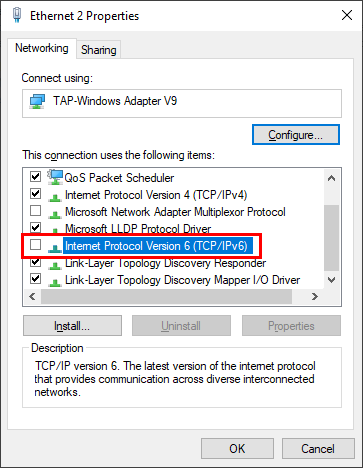
Disable IP Helper as follows:
- Open Services.
- Locate IP Helper, right-click it, and select Properties.
-
Click Stop, then set Startup type to Disabled:
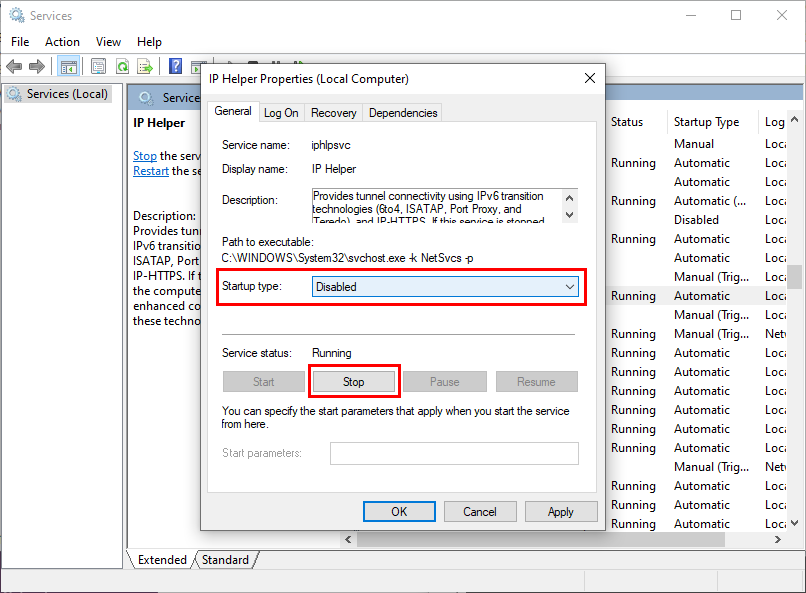
Azure VM: Lost connections and WebSocket/I/O errors
- Symptom: Private agents installed on Azure VMs experience connection drops or WebSocket/I/O errors.
- Resolution: Reduce the agent's heartbeat interval and raise the Azure VM's idle and flow timeouts. See Azure VM: Lost connections and WebSocket/I/O errors in the agent troubleshooting guide for the full steps.
Apache: No installed ConfigArgs
-
Symptom: The agent returns:
No Installed ConfigArgs for the Service "Jitterbit Apache Server" -
Cause: The account running the Jitterbit Apache server does not have full access to the Jitterbit installation directory.
- Resolution: Grant the service account full access to the Jitterbit installation folder and restart the services.
Apache/Tomcat: APPARENT DEADLOCK
-
Symptom: Under sustained load, the agent stops processing operations and may show as stopping in the Management Console. The agent log contains:
ThreadPoolAsynchronousRunner: APPARENT DEADLOCKThe log may also show
An existing connection was forcibly closed by the remote hostfor the agent's PostgreSQL database. Restarting the agent restores normal operation temporarily, after which the deadlock recurs under load. -
Possible causes:
- The agent's database connection pool deadlocks when the internal PostgreSQL database runs out of available connections under heavy load.
- The agent's Java database connection pool (shown as
c3p0in the log) cannot recover after a database connection is briefly lost, for example during a transient network interruption, even though PostgreSQL itself remains healthy and responsive with default timeouts. - Stale Jitterbit processes are holding threads and database connections. This can occur when an agent is upgraded while operations are still running, or when the services are stopped without all Jitterbit processes ending cleanly.
- The agent host is overloaded by peak activity, or its CPU is being throttled. For example, a burstable cloud instance (such as an AWS
t3type) throttles its CPU once its burst credits are exhausted, which can starve the internal PostgreSQL under load.
-
Resolution:
- Stop all Jitterbit services, end any Jitterbit processes that are still running, then start the services again to clear the deadlock.
- If the deadlock is in the Java (
c3p0) connection pool and PostgreSQL itself is healthy, switch the agent to its internal C++ connection pool by settingUseInternalPooling=truein the[DbInfo]section ofjitterbit.conf, then restart the agent. The internal pool recovers from dropped or stale connections more reliably. On fresh installations of Windows private agents version 12.5 and later, this is already enabled by default. - Reduce the load on the agent: schedule operations to avoid peak-activity spikes, add agents to the agent group for load balancing, and confirm the host meets the system requirements. For cloud hosts, use an instance type with sustained (non-burstable) CPU performance.
- Before upgrading an agent, drain stop it and let running operations finish, so that no processes are left holding database connections during the upgrade. In busy environments, allow extra time for the drain stop to complete.
Apache crashes unexpectedly under concurrent load
- Symptom: Under concurrent load, the agent's Apache process crashes and restarts unexpectedly, and the agent may briefly show as stopping or restarting in the Management Console. Operations that were running at the time can fail or be left in an incomplete state.
- Possible causes:
- A script uses nested
RunOperationcalls to run a child operation synchronously (the default) from a parent operation, and both operations read or write the same global variable at the same time. - A transformation is configured with chunking and multiple threads, and one thread finishes running before another thread that started at the same time.
- Multiple operations with component input and output data generation enabled run at the same time.
- A script uses nested
- Resolution: Upgrade the private agent to version 12.10 or later, which resolves these issues. No workaround exists on earlier versions.
Cleanup service cannot remove locked log files on Windows
-
Symptom: Log files on a Windows private agent grow indefinitely, and the cleanup service does not remove them. The cleanup service log reports an error such as:
Failed to remove file, retries (10) exhausted: '...\jitterbit tomcat server-stdout.<date>.log'. Reason: The process cannot access the file because it is being used by another process. -
Possible causes:
- An agent process is holding the file open. On Windows, the cleanup service cannot remove a file that is in use, and Tomcat keeps its
stdoutandstderrlog files open while it runs. - Third-party software (antivirus or a monitoring agent) is holding a lock on files in the agent's log directory.
- An agent process is holding the file open. On Windows, the cleanup service cannot remove a file that is in use, and Tomcat keeps its
-
Resolution:
- Edit
CleanupRules.xmlto shorten the retention (FileAge) for the affected log directories, so files are removed promptly once they are no longer in use. Restart the agent after editing the file. - Exclude the continuously written Tomcat
stdoutandstderrlogs from the cleanup rules, so the service does not repeatedly retry files that stay locked while the agent runs. - If third-party software is involved, add the Jitterbit installation and log directories to its exclusion list.
- If logs keep growing even with valid cleanup rules, contact Jitterbit support.
- Edit
Agent fails to restart with authentication errors after deregistration
-
Symptom: An agent configured with
deregisterAgentOnDrainstop=true(or theAUTO_REGISTER_DEREGISTER_ON_DRAINSTOPenvironment variable) fails to restart after being stopped. This applies to Docker agents that use a persistent volume for/opt/jitterbit/Resources, and to non-containerized Linux agents. -
Cause: When the agent stops with
deregisterAgentOnDrainstop=true, it deregisters from Harmony but the now-invalidcredentials.txtfile remains on disk. On restart, the agent attempts to use the stale credentials and fails to authenticate.Note
As of Docker agent version 12.4, restarting the container when
deregisterAgentOnDrainstop=trueis enabled automatically deregisters the existing agent and registers a new one. The steps below apply to Docker agents on earlier versions, and to Linux agents on any version. -
Resolution: Remove the stale
credentials.txtfile, then restart the agent to trigger a new registration.On a non-containerized Linux agent, remove the file directly:
rm /opt/jitterbit/Resources/credentials.txtOn a Docker agent, remove the file from the mounted volume:
docker run -i --rm -v VOLUME_NAME:/opt/jitterbit/Resources jitterbit/agent rm -i /opt/jitterbit/Resources/credentials.txtReplace
VOLUME_NAMEwith the Docker volume name under which/opt/jitterbit/Resourcesis mounted.
Cloud logging change requires private agent restart
- Symptom: After toggling Cloud logging on or off for a private agent group, log behavior in the Management Console Runtime page does not change.
- Resolution: After changing the Cloud logging setting on the Agents page, restart all private agents in the group for the change to take effect.
Adding a second agent to a Standard agent group is not permitted
- Symptom: Attempting to add a second private agent to an existing group fails, or the group shows a warning after the addition.
- Possible cause: A Standard agent group allows a maximum of one agent. Running more than one agent in a group requires the High Availability class, which requires an Agent grouping for HA license.
- Resolution:
- On the Agents page, edit the agent group and change the Agent group class to High Availability.
- Confirm your organization has an Agent grouping for HA license. Licensing details are available on the Management Console Dashboard page.
- If you need to add a license, contact your Jitterbit representative.
Adding a private agent fails with a maximum agents limit error
-
Symptom: In an agent group's Agent group details drawer, the Create icon is available, but saving the new private agent fails with a maximum agents error. Two separate limits produce this failure, each with its own error text.
-
Possible causes:
-
The agent group is full. The group has reached its maximum number of agents, which is 10 by default:
You have reached the maximum agents limit allowed for your organization. Contact your Jitterbit representative to increase the limit.This limit applies to groups with the High Availability agent group class. A Standard group allows only one agent, as described in Adding a second agent to a Standard agent group is not permitted.
-
The organization's private agent limit is reached. All of the private agents allowed by your organization's subscription plan have been added:
HttpErrorResponse: You've reached the maximum number of agent(s) configured for your Jitterbit organization. Please directly contact the Jitterbit Customer Success Manager assigned to you or send an email to success@jitterbit.com to review your needs and configure your organization appropriately.This limit applies regardless of which agent group you add the agent to, and an agent counts toward it once it is added, even if it is never registered.
-
-
Resolution:
- To confirm which limit applies, compare the agent group's agent count against its maximum on the Agents page, and your organization's added private agents against its licensed total on the Management Console Dashboard page.
- If the agent group is full, add the agent to a different agent group, or delete an agent that is no longer in use from the group.
- To raise either limit, contact your Jitterbit representative or Customer Success Manager.
Private agent cannot be deleted
- Symptom: Attempting to delete a private agent fails.
- Cause: An agent can only be deleted when its status is one of Starting, Stopped, Unregistered, or Unknown. Agents in the Running or Stopping state cannot be deleted.
- Resolution:
- On the Agents page, verify the agent's current status.
- Stop the agent and wait for its status to change before retrying the deletion.
Private agent group cannot be deleted
- Symptom: Attempting to delete a private agent group fails.
- Cause: A private agent group cannot be deleted while it is associated with an environment.
- Resolution:
- On the Agents page, edit the agent group and remove all environment associations.
- Retry the deletion.
Disable Auto Connector Update bypassed by agent actions
- Symptom: Connectors are updated on private agents even though Disable Auto Connector Update is enabled in organization policies.
- Cause: The Disable Auto Connector Update organization policy stops private agents from automatically updating already-installed connectors to newer versions (for example, a connection's Test button no longer downloads the latest connector version). It does not hold connectors at a fixed version in every situation. Connectors are still downloaded or updated, regardless of the policy, when any of the following occur:
- Action > Update connectors is selected for the agent group on the Management Console Agents page. This action explicitly overrides the policy.
- A private agent is newly installed, or its PostgreSQL database is reset (including by an upgrade that upgrades the bundled PostgreSQL database, such as upgrading from an 11.x agent to a 12.x agent). The agent then has no stored record of previously installed connector versions, so it downloads the current connectors from the cloud.
- A private agent is upgraded from version 11.48 or earlier to version 11.49 or later, which includes a one-time required connector update. You are notified during the upgrade that connectors will be updated. See the upgrade notes for Windows and Linux.
- Resolution: No action is required. The Disable Auto Connector Update policy prevents automatic connector updates during normal operation but does not apply to the actions and events above.
Agent shows Unknown or Stopped after reusing an agent group across operating systems
- Symptom: After migrating private agents to a different operating system (for example, Windows to Linux) while reusing the same agent group, the migrated agents intermittently show as Unknown or Stopped on the Private tab of the Management Console Agents page, even though
jitterbit statusshows the services running and operations run normally. - Possible cause: Reusing an agent group from the previous operating system can leave behind metadata that interferes with status reporting for the new agents. The effect is typically cosmetic: services and operations keep running normally.
- Resolution: Create a new, clean agent group for the migrated agents instead of reusing the group from the previous operating system, then register the agents there.
Operations delayed or queued after project deployment
- Symptom: After deploying a project in Studio, triggered operations do not start immediately, or a brief backlog of queued operations appears.
- Cause: The environment is locked while the agent synchronizes the deployed project. No operations can execute during this window.
- Resolution:
- To measure how long sync locks are lasting, scan
jitterbit-agent.logforenvironment-deploy. Each log entry includes the environment ID and the sync duration in milliseconds. - Consistently long sync times indicate a large project or slow connectivity to Harmony. To reduce sync times, see environment sync performance tuning.
- If sync durations are consistently excessive (more than a few minutes), contact Jitterbit support.
- To measure how long sync locks are lasting, scan
Agent showing as incapable
-
Symptom: Operations submitted to the agent group are retried or delayed rather than running immediately.
ProcessEngine.logcontains repeated messages such as:Agent (Id: ...) is incapable to process this message. Message will be auto-retried.Capability status changed from true to false -
Possible causes:
- Every worker thread in the agent's process engine is already in use, so the agent cannot accept another operation until a thread frees up. The pool size is set by
MaxNumberOfWorkerThreadsin the[ProcessEngine]section ofjitterbit.conf. - An optional capability metric is enabled and has reached its threshold. CPU usage, memory usage, and Apache thread usage can each contribute to capability status, but all three are disabled by default and apply only when turned on in the
[AgentCapability]section ofjitterbit.conf. Memory usage is collected on Windows agents only, so it does not contribute to capability status on a Linux agent even when the memory settings are enabled. Apache serves API requests only, so Apache thread usage is relevant only on an agent that handles APIs. - A single agent in the group is handling more load than it can sustain while other agents in the group are idle or under-utilized.
- Every worker thread in the agent's process engine is already in use, so the agent cannot accept another operation until a thread frees up. The pool size is set by
-
Resolution: Review
ProcessEngine.logfor long sequences of capability status changes to confirm the agent is cycling in and out of incapable states, then investigate the following:- If many operations consistently run at once, review
MaxNumberOfWorkerThreadsin the[ProcessEngine]section ofjitterbit.conf. Increasing this value allows more concurrent operations but also increases CPU and memory demand, so set it conservatively. - Determine which capability metrics are enabled in the
[AgentCapability]section. If none are enabled, CPU and memory load are not what changed the agent's capability status, and thread availability is the more likely trigger. If CPU or memory usage is enabled, check it before the thread metrics: either one crossing its threshold makes the agent incapable regardless of thread availability. On a Linux agent, CPU usage is the only system resource metric that applies. - Check CPU and memory usage on the agent host at the time of the issue. If native observability is enabled, review the System Resource Capability, Apache Threads, and Tomcat Threads charts on the Metrics tab of the Management Console Agents page. When reviewing charts for a multi-agent group, use peak or maximum values rather than averages, as averages can mask a single overloaded agent while the rest of the group appears healthy.
- If the agent group contains multiple agents, check
ProcessEngine.logon all agents in the group to determine whether all agents were incapable simultaneously when the operation errored. If only one agent was incapable, the operation should have routed to a capable agent. Verify that load balancing is configured correctly for the group. - If resource limits are consistently reached, add agents to the group to distribute the load.
- If memory pressure is the trigger, see Java heap space:
OutOfMemoryError.
- If many operations consistently run at once, review
Transformation fails: "Failed to find file in the local file store"
-
Symptom: An operation fails during a transformation with an error indicating a file is missing from the agent's local file store:
Failed to find file in the local file store. Will attempt a re-sync the files in the environment the next time the operation runs. There is no file in the local file store. File_ID = ... Failed to find file in the local file store. TransformID: ..., FileID: ..., Error: There is no file in the local file store. File_ID = ... [CODE:10808] -
Possible cause: A file's deployment metadata did not fully synchronize from the Harmony cloud to the agent, so the agent cannot locate the file at runtime. This is usually transient (for example, a brief sync interruption), but it can also follow exporting and re-importing a project between environments.
- Resolution:
- Re-run the operation. On agent version 11.38 and later, the agent self-heals this condition: the error occurs at most once per file ID on a given agent, and the agent restores the missing metadata on the next environment sync (the next operation run or deployment). In most cases, running the operation again clears it.
- If the same file keeps failing across multiple runs on a current agent, a deeper issue is likely, such as an environment that has reached its deployment-record limit or a version-specific regression. Contact Jitterbit support with the failing operation name and the
TransformIDandFile_IDfrom the error.
Recover a failed Windows installation
- Symptom: Installation or upgrade of a Windows private agent fails or leaves the agent in a broken state.
- Resolution: Completely uninstall the agent, then reinstall the agent software.
Connector not downloaded to agent
-
Symptom: Operations fail with errors indicating a connector is unavailable or not found on the agent, typically after a new connector version is released or after deploying a project that uses a connector the agent has not yet downloaded:
This connector was not found on the Jitterbit Agent. Please be patient with us while the connector is downloaded across the agents. This may take up to several minutes -
Possible causes:
- The connector version required by the project has not yet been downloaded from the cloud to the agent. This is often transient and resolves within a few minutes.
- For private agents: the agent cannot reach the Harmony cloud to download the connector.
-
Resolution:
- In Studio, open the affected connection and click Test. This triggers the agent to download the latest connector version from the cloud.
- If the connector still does not download, check whether the Disable Auto Connector Update organization policy is enabled. When it is, the Test button does not download connector versions. See Agent Management.
- To download the connector without changing the policy, go to the Management Console Agents page, select the agent group, and choose Action > Update connectors. This forces a connector update across the group and is not affected by the Disable Auto Connector Update policy.
- For private agents, verify the agent host can reach the Harmony cloud. See Agent offline or unreachable.
Agent installation cannot register through a corporate proxy
-
Symptom: A private agent installation on a host behind a corporate proxy fails during the initial registration step, and the installer reports that it could not reach the Harmony cloud:
Could not connect to Jitterbit Harmony cloud -
Possible causes:
- The proxy is blocking the agent's connection to the Harmony cloud during registration.
- The proxy requires authentication that the agent's proxy configuration does not supply. Private agents support proxy authentication, including an NTLM domain. See Proxy server for Jitterbit private agents.
-
Resolution:
- Configure the proxy during agent setup so the installer can reach the Harmony cloud through it, supplying the proxy credentials (and NTLM domain, if the proxy requires it). See Configure a proxy during agent setup.
- If registration still fails through the proxy, have your network team allow the Jitterbit domains and IP addresses through the proxy, or bypass the proxy for them. The region-specific Harmony URLs are documented in Allowlist information.
- Re-run the installer once the proxy is configured or the host can reach the Harmony cloud.
Agent service restart loop
- Symptom: The agent's services repeatedly crash and restart. Tomcat or the Process Engine stops and starts in a loop without staying online, and operations fail with errors such as
Tomcat service is not running. Ifjitterbit statusshows all services healthy on the host but the displayed status only flaps between Running, Unknown, and Stopped, that is a connectivity problem rather than a crash loop. See Agent offline or unreachable. -
Possible causes:
- An orphaned Jitterbit process from a previous run (a Tomcat, Process Engine, or scheduler process) is still holding the service port, so each restart fails with
java.net.BindException: Address already in useand the agent cycles. - The host runs out of memory and the operating system terminates the process. This can happen when the host has too little memory for the workload, or when a container's memory limit is set too low.
- The agent host is low on disk space, or the internal PostgreSQL database has grown large enough to fail on startup.
- The Process Engine is crashing repeatedly under sustained load.
- An orphaned Jitterbit process from a previous run (a Tomcat, Process Engine, or scheduler process) is still holding the service port, so each restart fails with
-
Resolution:
- Confirm this is a true crash loop. Check the Tomcat logs in
JITTERBIT_HOME/tomcat/logs/andProcessEngine.logfor the exception logged at each restart. Ajava.net.BindException: Address already in useindicates that an orphaned process is holding the port. - Stop the agent and end any leftover Jitterbit processes before restarting it. With the agent stopped, check for stray processes: on Linux, run
ps aux | grep -E 'tomcat|jitterbit'andkillany remaining process IDs; on Windows, end any stray Jitterbit or Tomcat processes in Task Manager. Start the agent again once none remain. - Check for out-of-memory events. On Windows, review the Application and System logs in Event Viewer; on Linux, run
journalctl -u jitterbitor check/var/log/syslogfor OOM killer events. If the host is running out of memory, increase the available memory (or the container's memory limit). See Java heap space:OutOfMemoryError. - Check disk space and the internal database. A full disk or a bloated PostgreSQL database can crash the services on each restart. See Disk space and log accumulation.
- If the logs show the Process Engine crashing on a specific operation, contact Jitterbit support with the operation details and the agent logs.
- If native observability is enabled, open the Metrics tab of the Management Console Agents page and review the Tomcat and Process Engine service charts to identify when the services began failing.
- Confirm this is a true crash loop. Check the Tomcat logs in
Operations timing out or ignoring timeout settings
- Symptom: Operations run indefinitely or longer than expected. For API-triggered operations, timeout settings configured in Studio appear to have no effect, and operations can remain stuck in a Running status.
-
Possible causes:
- By default, operations triggered by API Manager APIs ignore Studio operation timeout settings. The
EnableAPITimeoutsetting injitterbit.confmust be explicitly enabled for API operations to respect timeout values. - No maximum operation runtime is set, so operations run without a hard time limit.
- By default, operations triggered by API Manager APIs ignore Studio operation timeout settings. The
-
Resolution:
- To enforce operation timeout settings for API-triggered operations, set
EnableAPITimeout=truein the[Settings]section ofjitterbit.conf. - To cap the total runtime of any operation, set
MaxOperationRuntimeSecondsin the[ProcessEngine]section ofjitterbit.conf. This requiresRunOperationsInSeparateProcessto betrue(the default). - Restart the agent services after making changes to
jitterbit.conf.
- To enforce operation timeout settings for API-triggered operations, set
Agent throughput unchanged after increasing max.concurrent.requests
- Symptom: After raising
max.concurrent.requestsinjitterbit-agent-config.properties, the agent's throughput does not improve. -
Possible causes:
- Only
max.concurrent.requestswas changed. Agent throughput also depends on the Tomcat and Apache thread pools and the HTTP connection pools, so raising this one setting without scaling the others in tandem produces no gain. - The agent host does not have enough CPU or memory for the added concurrency, or the agent is cycling into an incapable state under load.
- Only
-
Resolution:
- Follow the full tuning procedure rather than changing
max.concurrent.requestsalone, scaling the related thread pool and connection pool settings together. See Agent performance and tuning. - Confirm the agent host has adequate CPU and memory headroom for the higher concurrency. If the agent crashes or cycles into an incapable state under load, see Agent service restart loop and Java heap space:
OutOfMemoryError.
- Follow the full tuning procedure rather than changing
XML transformation slowdown after upgrading to agent 11.45 or later
- Symptom: After upgrading a private agent to version 11.45 or later, a transformation that iterates over a large array takes longer to run than it did on version 11.44. The slowdown is specific to mapping paths that use the
#notation to iterate over every element of a large array (roughly several hundred to a few thousand records). Transformations that do not iterate over large arrays are not affected. - Possible cause: The XML parsing library used by the agent was updated in version 11.45, and the updated version parses large XML data more slowly. This affects transformations that iterate over a large array, because the mapping repeatedly traverses the parsed data.
- Resolution:
- Review the transformation's mapping paths for the
#notation. If a path uses#to iterate over an array but only the first element is needed, remove the#and redeploy. Removing#maps only the first element, so apply this only where iterating over the full array is not required. - If the mapping must iterate over the full array, process fewer records per run by splitting a large dataset into smaller batches, so that each transformation traverses a smaller array.
- Review the transformation's mapping paths for the
JVM mini-dump files fill the agent's disk
- Symptom: The agent continuously generates large JVM crash files (
.dmpand.mdmpmini-dumps, andhs_err_pid*.logfiles) under<JITTERBIT_HOME>/Tomcat/temp(or, on older builds, theTomcatfolder directly), consuming the agent host's disk space. This affects Windows private agents on versions prior to 11.49. -
Possible causes:
- The agent's
AgentStatsdisk statistics collector crashes the JVM while gathering disk metrics. This affects agents on versions prior to 11.49. - On agents running 11.47 or 11.48, a separate crash in the Process Engine can produce the same crash files.
- The agent's
-
Resolution: Upgrade the private agent to version 11.49 or later, which resolves both causes.
If an immediate upgrade is not possible and the crash files come from disk statistics collection, you can disable that collection as a workaround (the
DiskStatsEnabledflag is available on agent 11.44.1 and later):-
In
jitterbit.conf, add:[AgentStats] DiskStatsEnabled=false -
Restart the agent services. Existing crash files can then be deleted safely to reclaim disk space.
- If you are on 11.47 or 11.48 and the crash files continue, upgrade to 11.49 or contact Jitterbit support for a workaround.
-
Bundled PostgreSQL on Linux uses MD5 instead of SCRAM-SHA-256
- Symptom: You want to change the bundled PostgreSQL authentication method on a Linux private agent from MD5 to SCRAM-SHA-256, but the agent continues to use MD5.
-
Possible causes:
- MD5 is the default password encryption for the bundled PostgreSQL on Linux private agents. SCRAM-SHA-256 was the default only in versions 12.6 and 12.7; version 12.8 reverted the default to MD5. When you upgrade a Linux agent from 12.6 or 12.7, the installer prompts you to reset encryption to MD5 or keep SCRAM-SHA-256; see Upgrade a Linux agent.
- Editing
pg_hba.confandpostgresql.confalone does not complete the switch. PgBouncer must also be reconfigured with the SCRAM verifier hash, or the agent fails to start.
-
Resolution: To switch a Linux private agent to SCRAM-SHA-256, follow the SCRAM on PostgreSQL guide. SCRAM-SHA-256 is a stronger authentication method, while MD5 is more performant, so the switch is a deliberate, multi-step change: the guide reconfigures the bundled PostgreSQL, updates the user passwords, and reconfigures PgBouncer with the new hash. Reconfiguring the bundled instance is the supported way to enable SCRAM. Do not replace the bundled instance with your own PostgreSQL server to obtain SCRAM: agents using a PostgreSQL instance other than the bundled one are not supported.
Salesforce sandbox connection fails with certificate mismatch
-
Symptom: A private agent connection to an endpoint that requires Server Name Indication (SNI) fails with a certificate mismatch, while the same connection succeeds from a cloud agent group or from a direct
opensslorcurltest on the agent host. The most common case is a Salesforce sandbox URL ending in.sandbox.my.salesforce.com:Certificate for <your-domain.sandbox.my.salesforce.com> doesn't match any of the subject alternative names: ...Other affected endpoints include hosts that share a single IP behind virtual hosting.
-
Cause: The TLS handshake is not including the SNI extension, so the server returns a default certificate instead of the one for the requested host. For a Salesforce sandbox, the load balancer returns the production certificate, whose names do not cover
*.sandbox.my.salesforce.com. SNI is sent by default, so when it is missing, something is suppressing or stripping it. -
Resolution:
-
Confirm SNI is the cause. From the agent host, compare the certificate returned with and without SNI:
openssl s_client -connect HOST:443 -servername HOST   # certificate when SNI is sent
openssl s_client -connect HOST:443                    # certificate when SNI is omitted
If the first returns the correct certificate and the second returns the mismatched one, SNI is the cause.
-
Check whether SNI is explicitly disabled in the agent's Java options, and remove it if so. On Windows, open the Registry Editor at
HKEY_LOCAL_MACHINE\SOFTWARE\WOW6432Node\Apache Software Foundation\Procrun 2.0\Jitterbit Tomcat Server\Parameters\Javaand edit theOptionsvalue; on Linux, checkJAVA_OPTSin/etc/sysconfig/jitterbit. Remove-Djsse.enableSNIExtension=falseif present (this setting suppresses SNI). Restart the agent services. - If SNI is still missing after that, a network device, proxy, or VM network stack between the agent and the endpoint is stripping it. Your network team must allow the SNI extension through.
If the connection also fails from a cloud agent group, SNI is not the cause. The server's certificate may not list the host in its Subject Alternative Names. For Salesforce, add the sandbox MyDomain URL to the Salesforce certificate, or see Certificate Subject Alternative Name (SAN) mismatch.
-
SSH: SFTP connection fails due to incorrect key file path
- Symptom: SFTP operations fail on a Windows agent even though the SSH key files are correctly installed.
- Cause: The
PrivateKeyFileandPublicKeyFilepath values in the[SSH]section ofjitterbit.confuse Windows backslash separators (\), which are not supported. - Resolution: Use forward slashes in all SSH key file paths in
jitterbit.conf, even on Windows (for example,C:/jitterbit/keys/id_rsa). See[SSH].
SFTP SSH settings missing or in the wrong jitterbit.conf section
-
Symptom: SFTP operations that use a private key for authentication fail with an empty private key file error after an agent upgrade or restart. SSH key settings added to the local
jitterbit.confmay also stop taking effect after the agent restarts.CURL_DEBUG_TEXT: Using SSH private key file '' CURL_DEBUG_TEXT: SSH public key authentication failed: Unable to extract public key from private key file -
Possible causes:
- Remote agent configuration is enabled (it is on by default), so settings managed through the Management Console Jitterbit Configuration tab take precedence. SSH key settings added only to the local
jitterbit.confmay then not take effect, or may not be retained after the agent restarts. - The SSH key settings (
PrivateKeyFile,PrivateKeyPassphrase,PublicKeyFile) are in the wrong section. Newer agent versions parse strictly and ignore SSH settings placed outside the[SSH]section (for example, under[SSL]).
- Remote agent configuration is enabled (it is on by default), so settings managed through the Management Console Jitterbit Configuration tab take precedence. SSH key settings added only to the local
-
Resolution:
- If remote configuration is enabled, add the SSH key settings there: open the Agent group details drawer for the agent group, select the Jitterbit Configuration tab, and add them under the
SSHsection. See Jitterbit configuration. - If the local
jitterbit.confis the configuration source, confirm the SSH key settings are placed under[SSH](not[SSL]). - Restart the agent services.
- For additional SFTP key-authentication troubleshooting (password fields, passphrase, key format), see SFTP "Login denied. Authentication failure." when using SSH keys.
- If remote configuration is enabled, add the SSH key settings there: open the Agent group details drawer for the agent group, select the Jitterbit Configuration tab, and add them under the
SFTP authentication failure to a specific server (cURL cipher mismatch)
-
Symptom: An SFTP connection using SSH key authentication fails on a private agent with
Login denied. Authentication failure., but other SFTP connections from the same agent (using the same key) succeed, and connecting to the failing server from the OS command line also succeeds.Failed to get ftp directory list for url sftp://... Login denied. Authentication failure. -
Cause: The SFTP server requires newer SSH ciphers, key-exchange, or host-key algorithms that the cURL library shipped in older agent versions does not support. Servers that still accept the older algorithms continue to work, which is why the same key succeeds against other hosts and from the OS command line.
- Resolution: Upgrade the private agent to version 11.37 or later, which includes an updated cURL library with support for current SSH ciphers, key-exchange, and host-key algorithms.
HTTPS proxy: Basic authentication through proxy tunnel fails
- Symptom: When the agent connects through an HTTPS proxy that requires basic authentication, connections through the proxy tunnel fail with an authentication error.
- Cause: Modern JDK versions disable basic authentication during HTTPS proxy tunneling by default. The JVM property
jdk.http.auth.tunneling.disabledSchemesblocks basic auth unless explicitly cleared. - Resolution: Add
-Djdk.http.auth.tunneling.disabledSchemes=""toCATALINA_OPTSbefore starting Tomcat. For step-by-step instructions for Windows, Linux, and Docker, see Allow basic authentication during HTTPS proxy tunneling.
Private agents in restricted networks: Outbound-only connectivity
- Symptom: When deploying private agents behind a strict corporate firewall or in a restricted environment (for example, OpenShift) alongside a private API gateway, network teams sometimes ask which inbound ports must be opened on the agent for Harmony or the gateway to reach it.
-
Cause: Private agents do not require any inbound ports to be opened, because of how agent connectivity works:
- Private agents do not accept inbound connections from Harmony or from a private API gateway. The agent establishes an outbound WebSocket connection to Harmony over HTTPS (port 443). All traffic from Harmony and from the gateway to the agent is routed back over this pre-established connection.
- A private API gateway sends API requests to Harmony, and Harmony routes the request to the appropriate agent over the existing outbound WebSocket. The agent routes the API response payload back to the private API gateway, so the agent must also be able to reach the gateway (directly, or through its load balancer in a multi-gateway deployment).
-
Resolution:
- Open outbound HTTPS (port 443) from the agent host to the Harmony region URLs. The connection upgrades to WSS (secure WebSocket) for ongoing bi-directional communication. No inbound ports need to be opened on the agent host for Harmony or for the gateway.
- When configuring the firewall, allowlist the region-specific Jitterbit services listed under Outbound communication, the section that applies to a private agent behind a firewall.
- If the agent has been configured to use non-default (custom) ports, allow those through the corporate firewall as well. See Network ports.
- If a private API gateway is deployed, also allow outbound connectivity from each agent host to the gateway (directly, or through its load balancer in a multi-gateway deployment). The agent connects to the gateway to return the API response payload. For the full request flow, see Private API gateway system architecture.
Custom API returns 504 but the operation log shows success
- Symptom: A custom API returns a 504 gateway timeout, but the operation log on the Management Console Runtime page shows the operation completed successfully.
- Cause: When a request or response payload (headers plus body, compressed) exceeds approximately 1 KB, the Jitterbit cloud API gateway stages the payload, and the private agent makes an outbound connection to the
jitterbitsysservicehost for its region to download the request payload (or upload the response payload) before completing the operation. If the agent's host cannot reach that host, the transfer times out and the API returns a 504 even though the operation itself ran. The standard agent connection check does not verify connectivity to thejitterbitsysservicehost, so the agent can appear fully connected while this host remains blocked. - Resolution:
- Add the
jitterbitsysservicehost for your region (for example,jitterbitsysservice.jitterbit.net) and its static IP addresses to the outbound allowlist on the firewall for the private agent's host. See Jitterbit allowlist information for the region-specific URLs and IPs. - Verify connectivity by running an HTTP test from the agent host to the
jitterbitsysserviceURL for your region, then confirm the API no longer times out.
- Add the
Native observability not showing data
- Symptom: After enabling native observability, the Metrics tab of the Management Console Agents page shows no data, shows incomplete data, or charts remain empty after waiting several minutes.
-
Possible causes:
- The
[AgentMetrics]section injitterbit.confdoes not haveEnabled=true, preventing the metrics service from running. - Not all required settings in the
[AgentCapability]section are set totrue. - The agent services were not restarted after making configuration changes.
- The agent host cannot reach the Harmony cloud, preventing metrics from being submitted.
- Before agent version 12.10, upgrading a Windows private agent whose PgBouncer port was already
6434(see PgBouncer ports) did not update the metrics service's connection to match, so it remained on the old6432port and the PGBouncer metric could report incorrectly. - Before agent version 12.9, installing a private agent as a non-root user on Linux did not provision PgBouncer, so the service never started and its status always shows as unhealthy.
- The
-
Resolution:
- Verify that
jitterbit.confcontains all required settings from both the[AgentMetrics]and[AgentCapability]sections. See the complete configuration example in native observability setup. - Check
metrics.logandmetrics_service.login the agent log directory for errors. These logs record the status of the metrics service and indicate whether metrics are being collected and submitted. - Restart the agent services if any configuration changes were made.
- Verify the agent host can reach the Harmony cloud. See Agent offline or unreachable. If the agent connects through a proxy, see Agent metrics missing when the agent connects through an HTTP proxy.
- For an agent affected by the port mismatch, upgrade to agent version 12.10 or later, which corrects the metrics service's PgBouncer connection port automatically. If the mismatch persists after upgrading, contact Jitterbit support to verify the port.
- For a new non-root Linux private agent, use version 12.9 or later, where PgBouncer is correctly provisioned during installation. Upgrading an existing non-root Linux agent to 12.9 or later does not provision PgBouncer retroactively; the agent must be freshly installed.
- Verify that
Agent metrics missing when the agent connects through an HTTP proxy
- Symptom: The private agent connects to Harmony successfully through a configured HTTP proxy, but the Metrics tab of the Management Console Agents page shows no data. The
metrics.logfile may contain entries such asClient.Timeout exceeded while awaiting headers. - Cause: The agent submits metrics over HTTPS using a separate connection that does not inherit the agent's proxy configuration. If the proxy supports only HTTP, or is not configured for the agent's metrics traffic, metrics cannot reach Harmony even though the agent itself connects successfully.
- Resolution:
- Confirm the proxy supports HTTPS. Agent metrics are submitted over HTTPS, so a proxy that handles only HTTP traffic blocks them. Enabling HTTPS on the proxy resolves the issue.
- If you cannot enable HTTPS on the proxy, or metrics are still missing after you enable it, the agent's metrics traffic needs its own proxy configuration, separate from the agent's. Contact Jitterbit support to set it up.
Datadog agent fails to start after Docker installation
- Symptom: After installing the Datadog agent inside a Docker container as part of the Datadog observability setup, the Datadog agent fails to start.
- Cause: A known Datadog issue causes the agent to fail on startup when the security agent configuration file does not exist.
-
Resolution: Copy the example security agent configuration file:
cp /etc/datadog-agent/security-agent.yaml.example /etc/datadog-agent/security-agent.yamlThen start the Datadog agent. Note that on Docker, the Datadog agent does not start automatically with the container and must be started manually after each container start:
sudo datadog-agent run
Linux: Agent services fail to start after a reboot ("postmaster.pid does not exist")
-
Symptom: After rebooting a Linux private agent host, the agent services fail to start. Running
sudo jitterbit statusshows scheduler and other services not running, and the agent logs (or console) include errors such as:postmaster.pid does not existreindexdb: could not connect to database template1: could not connect to server: No such file or directory -
Cause: File permissions on the bundled PostgreSQL data directory are too permissive. PostgreSQL requires the data directory to be
700(owner-only). If permissions are looser (for example,755or777), PostgreSQL refuses to start, which prevents the rest of the agent from starting. -
Resolution:
-
Confirm
/opt/jitterbitand its subdirectories are owned by thejitterbituser and group:sudo chown -R jitterbit:jitterbit /opt/jitterbit -
Set the PostgreSQL data directory to
700:sudo chmod 700 /opt/jitterbit/DataInterchange/pgsql/data -
Start the agent services:
sudo /etc/init.d/jitterbit start
-
Linux: Antivirus removes PgBouncer, agent fails to authenticate to the bundled database
-
Symptom: After migrating a Linux private agent to a new host (or performing a clean install), the agent services fail to start. The
postgresql.logshows:[FATAL] password authentication failed for user "jitterbit"The agent log shows it cannot connect to the database. The failure persists across complete uninstall and reinstall.
-
Cause: A host-based antivirus or endpoint protection product detects the bundled PgBouncer binary as suspicious and removes or quarantines it. Without PgBouncer, the agent cannot authenticate to its internal PostgreSQL database.
-
Resolution:
- Temporarily disable the antivirus or endpoint protection product on the agent host.
- Add the Jitterbit installation directory (typically
/opt/jitterbit) to the antivirus exclusion list. -
Reinstall the agent. On RHEL/CentOS:
sudo dnf reinstall jitterbit-agent -
Start the agent services and confirm normal operation, then re-enable the antivirus with the exclusion in place.
Security scans flag log4j-over-slf4j.jar as a Log4j 1.x vulnerability
- Symptom: A security scan of a private agent installation flags files such as
log4j-over-slf4j-1.7.21.jaras an end-of-life Log4j 1.x vulnerability. - Resolution: No action is required.
log4j-over-slf4j.jaris not Log4j 1.x. It is part of the SLF4J logging framework and acts as a bridge that redirects calls from third-party libraries written against the Log4j 1.x API to the agent's current, supported logging framework. The file does not contain the vulnerable Log4j 1.x code. Its presence is the agent's mitigation against Log4j 1.x exposure, not an instance of the vulnerability.
Listening service "Cluster has not met the minimum required size"
-
Symptom: Operations using the Listening service fail with:
Failed to enable events for operation. Cluster has not met the minimum required size. -
Possible causes:
- Too few of the agents in the agent group are running and joined to the cluster. For a group of \(N\) agents, counted regardless of whether each agent is running, \((N / 2) + 1\) agents (rounded down) must be running and part of the cluster.
- One or more agents lost their connection to the cluster and could not rejoin, dropping the number of running, joined agents below the required \((N / 2) + 1\).
- A network interruption split the agent group into multiple smaller clusters. For example, in a group of 4 agents, a network split can produce two clusters of 2 agents each; neither meets the required \((N / 2) + 1\) of 3, so both report the error even though every agent is running.
-
Resolution:
- Confirm that \((N / 2) + 1\) of the agents in the group are running and part of the cluster, where \(N\) is the number of agents registered in the agent group, whether or not each one is running. For example, a group of 4 agents requires 3, and a group of 5 agents also requires 3. To see which agents have joined, use the Listening service REST API to show the cluster status.
- Verify that TCP ports 5701 and 5801 are open between all agent hosts and are not blocked by antivirus or firewall rules.
- If the cluster is down and messages remain unprocessed with persistence enabled, restore the cluster manually. See Cluster restore after agent failure.
Note
An odd number of agents in the agent group is recommended but not required. With an even number, a network interruption can leave the group split into two halves, neither of which is large enough to keep the cluster running.
Listening service messages not delivered
- Symptom: The cluster's retry mechanism silently drops undelivered messages after a configured period, causing dependent operations to not execute.
- Resolution: To extend the retention window or prevent deletion, edit
JITTERBIT_HOME/Resources/jitterbit-agent-config.propertiesand setagent.sdk_framework.retry.deleteRetryableMessageAfterto a higher value (in minutes). To retain all messages indefinitely, set the value to-1. Restart the agent after making changes.
Custom API operation logs not appearing
- Symptom: An operation triggered by a custom API runs without errors, but no log entry appears in Studio or on the Management Console Runtime page.
- Cause: When a custom API triggers an operation, operation logs are generated only when the operation is unsuccessful. Successful custom API operations produce no log entry by default.
- Resolution: To capture logs for successful custom API operations, enable operation debug logging for the operation. Note that API Manager has its own separate logging view for API requests.
Operation debug logging stops before the selected end date
- Symptom: Operation debug logging was enabled with a future end date, but logs stop being generated before that date is reached.
- Cause: On cloud agent groups, the end date of the operation debug logging setting is unreliable. Logs may stop being generated before the configured time period ends.
- Resolution: Re-enable operation debug logging as needed.
Operation debug log files missing .input or .output data
- Symptom: On a private agent, an operation has operation debug logging enabled with component input and output data turned on. The debug log folder in
DataInterchange/Temp/Debugcontains the.jtrfiles for each step, but the corresponding.inputand.outputdata files are missing. -
Possible causes:
- The agent's cleanup service is deleting
.inputand.outputfiles before they can be reviewed. - The agent restarted while the operation was still running, so the files were never written to completion. See Component input/output data not generated for that scenario.
- The agent's cleanup service is deleting
-
Resolution:
- On the agent host, open
CleanupRules.xmlin the agent installation directory. -
Find the cleanup rule for the
DataInterchange/Temp/Debugdirectory and increase the<FileAge NumDays = "2"...>value to a longer retention window (for example, 7).<CleanupRule> <DirectoryPath SearchSubDirectory = "YES" >DataInterchange/Temp/Debug</DirectoryPath> <Pattern>*</Pattern> <FileAge NumDays = "7" Comparator = "GE"/> <FileSize Size = "0" Comparator = "GE"/> </CleanupRule> -
Restart the agent services.
- On the agent host, open
Component input/output data not generated
- Symptom: Operation debug logging is enabled with component input and output data generation turned on, but no input/output data files appear for private agent operations.
-
Resolution: Check the Verbose Log Shipper service log on the agent:
<JITTERBIT_HOME>/VerboseLogShipper/verbose-log-shipper.out.logIf the log shows errors, restart the Verbose Log Shipper service. On Linux, this can be done without a full agent restart:
jitterbit stop verboselogshipper
jitterbit start verboselogshipper
On Windows and Linux, restarting all Jitterbit agent services also restarts the Verbose Log Shipper service.
Jitterbit MQ: Quorum queue messages silently dropped after 20 NACK attempts
- Symptom: Messages in a quorum-type message queue disappear without an error even though they are being repeatedly requeued via the NACK activity.
- Possible cause: Quorum queues enforce a delivery limit of 20 attempts per message. After a message is negatively acknowledged 20 times without a successful acknowledgment, it is permanently removed from the queue without generating an error.
- Resolution:
- Configure a Dead Letter Queue to capture messages that exceed the delivery limit and prevent silent data loss.
- If repeated reprocessing beyond 20 attempts is required, use a Classic queue type instead of Quorum when creating the queue on the Message Queues page.
Jitterbit MQ: Environment not enabled for messaging
- Symptom: Operations using the Jitterbit MQ connector fail to connect or send messages even though the queue exists in the Management Console.
- Possible cause: All environments are disabled for messaging by default. A message queue can be created in an environment that has not yet been enabled for messaging.
- Resolution:
- In the Management Console, go to the Message Queues page and click the settings icon .
- In the Environments Permission section, enable messaging for the affected environment, then click Save.
Jitterbit MQ: Message limit exceeded causes "Error sending message"
-
Symptom: Operations using the Jitterbit MQ connector fail with:
"statuscode":500,"Error":"Error sending message." -
Possible cause: The number of messages in the queue has reached its configured limit. When the limit is exceeded, the service rejects new messages with a 500 error.
- Resolution:
- Acknowledge or process existing messages in the queue to bring the count below the limit.
- Alternatively, on the Management Console Message Queues page, open the affected queue, expand Advanced Options, and increase the Message Limit value.
Jitterbit MQ: NACKed messages block queue progress when requeued
- Symptom: When using a NACK activity with Requeue Messages After NACK selected, messages return to the front of the queue rather than the end. If messages fail repeatedly and are requeued, the same failing messages are re-delivered on every subsequent retrieval, preventing other messages in the queue from being processed.
- Cause: The underlying message broker places a requeued message at the head of the queue for immediate redelivery. This behavior cannot be changed through the connector.
- Resolution: To prevent failing messages from blocking queue progress, use one of the following approaches:
- Dead Letter Queue: Configure the NACK activity to use Reject Messages After NACK and set up a Dead Letter Queue to capture rejected messages. Process the Dead Letter Queue separately, with a delay if needed, to retry the failed messages without blocking the main queue.
- Manual re-publish: Configure the NACK activity to use Reject Messages After NACK, then use a Send activity to re-publish the message to the original queue. A re-published message is placed at the end of the queue, allowing other messages to be processed first.
Design Studio login: SSL certificate or proxy filter error
- Symptom: Design Studio displays an SSL certificate or proxy filter error when attempting to log in.
- Possible causes:
- A signed SSL or CA certificate used by your network (for example, from a web filter, proxy, or VPN) is not present in the Jitterbit Java KeyStore.
- The IP allowlist for your network proxy or web filter does not include the required Jitterbit addresses. See Allowlist information.
- Resolution: For full resolution steps, including how to add certificates to the Jitterbit Java KeyStore, see SSL certificate or proxy filter setting error.
Design Studio flagged as malicious software on macOS Sequoia
- Symptom: On macOS 15 (Sequoia), macOS displays a warning that Design Studio is malicious software and prevents it from opening.
- Possible cause: macOS Gatekeeper warns about applications that are not notarized by Apple and are distributed outside the Mac App Store. Because Design Studio is distributed from the Harmony portal Downloads page, macOS reports that it cannot check it for malicious software. This is standard macOS behavior, not an actual problem with the installer.
- Resolution:
- Confirm Design Studio was downloaded from the official Harmony portal Downloads page.
- If you see the malicious software warning for an installation downloaded from the portal, the warning can be dismissed: it does not indicate an actual security risk with the Jitterbit installer.
Design Studio: Blurry or small UI on Windows 10 high-density displays
- Symptom: Design Studio elements appear blurry or too small when running on Windows 10 with a high-DPI display such as a 4K monitor.
- Possible cause: A default Windows 10 DPI scaling setting that is not compatible with Design Studio.
- Resolution: For resolution steps, see Windows 10 high-density display scaling error.
Design Studio: Long project load time when using a proxy
-
Symptom: Opening a Design Studio project takes more than several minutes when connecting through a proxy. This may be accompanied by an error such as:
Message: Unable to load image icon at this address: https://citizen.jitterbit.eu/v1/endpoints/s3images/financialforce.png Details: Can't get input stream from URL! -
Possible cause: The delay is typically caused by Design Studio attempting to fetch Citizen Integrator recipe icons through a proxy that cannot reach the external image server.
- Resolution: For resolution steps, see Long load times when using a proxy.
Design Studio macOS: "Client Properties Do Not Exist" error on launch
- Symptom: Design Studio fails to launch on macOS with an error indicating that client properties do not exist.
- Possible cause: Design Studio was launched directly from the disk image (
.dmg) rather than from the Applications folder. The application must be copied to the Applications folder before it can locate its configuration files. - Resolution:
- Quit Design Studio if it is running.
- Open the
.dmginstaller file. - Drag the Jitterbit Studio icon into the Applications folder shortcut in the installer window.
- Launch Design Studio from the Applications folder (or from Spotlight/Launchpad), not from the disk image.
Design Studio: Transformation with a script fails with "/PRESCRIPT/ node" error
-
Symptom: A transformation that uses a script fails at runtime with:
Can not find target node (/PRESCRIPT/). The structure may have changed so try to open the transformation 'example' and refresh the structure trees. -
Possible cause: The internal XML structure of the transformation has become inconsistent with the current target schema, typically after a schema change.
- Resolution:
- Open the failing transformation in Design Studio.
- On the Target side, click the refresh button at the top of the structure tree. This rereads the schema and rebuilds the transformation's internal structure.
- Save and deploy the transformation.
Storing Design Studio projects on a network file share is not recommended
- Symptom: A Design Studio project stored on a network file share (rather than locally or in Harmony cloud storage) exhibits data loss, where UI changes do not persist after reopening the project, or performance is noticeably slower than expected.
- Possible cause: Jitterbit does not recommend storing Design Studio project workspaces on a network file share. Network file share storage lacks the file locking mechanisms Design Studio requires, leading to inconsistent saves and potential data loss.
- Resolution: Move the project workspace to local storage or use Harmony cloud storage instead of a network file share.
Design Studio: Project download fails with Invalid XML character error
-
Symptom: Downloading a project to Design Studio fails with an error indicating that an invalid XML character was found in the element content, for example:
An invalid XML character (Unicode: 0x15) was found in the element content of the documentor:
org.xml.sax.SAXParseException; lineNumber: 17499; columnNumber: 21; An invalid XML character (Unicode: 0x5) was found in the element content of the document. -
Possible cause: The project metadata contains a control character (such as
0x05or0x15) that is not valid in XML. This can result from a corrupted endpoint URL or from unusual characters pasted into scripts, notes, or other text fields. - Resolution:
- Open the project in Design Studio (or use a recent local backup) to inspect the metadata.
- Review endpoint URLs, scripts, and notes for invisible or unusual characters and remove or replace them. The line number in the error message can help locate the affected area in the exported XML.
- Save and deploy the corrected project, then retry the download from Design Studio.
- If the offending content cannot be identified, contact Jitterbit support with the full error message and project ID for possible metadata repair on the backend.
Design Studio: Project components missing after download or import
- Symptom: Opening or importing a project shows operations in the list but no components (transformations, scripts, schemas) appear, or a project export
.jsonfile fails to import. The cause is usually a single corrupted component in the project export that breaks parsing of the entire file. - Possible cause: A component within the project export has malformed JSON, such as an empty body or unusual characters that invalidate the file.
- Resolution:
- Export the project from the Harmony portal to produce a
.jsonfile. - Open the
.jsonfile in a text editor and inspect thecomponentsarray for entries that appear empty, malformed, or contain unusual characters. - Remove the suspect component's full JSON object from the
componentsarray. - Save the file and import it back into Harmony.
- If the corruption is not identifiable, send the project export to Jitterbit support for analysis.
- Export the project from the Harmony portal to produce a
Design Studio: Duplicate operations or transformations appear in a downloaded project
- Symptom: Some users downloading the same project see duplicated operations or transformations with identical names and schemas, and those duplicates are flagged as invalid (red-marked) in Design Studio. Other users see a clean version of the same project.
- Possible cause: The project was migrated at the operation level (rather than at the project level), and the migration added duplicate copies of dependencies (such as transformations) into the original project.
- Resolution:
- Make a backup of the project before making any changes.
- Identify the duplicate operations or transformations. Delete the duplicates while retaining the originals.
- Deploy the cleaned project. All users who re-download the project will receive the cleaned version.
- To prevent this in the future, avoid using operation-level migration into a project that already contains the source components. Use project-level migration or selectively migrate only the dependencies that are not already present.
Design Studio: Salesforce project import fails with an incorrect version requirement
-
Symptom: Importing or opening a project with a Salesforce endpoint fails with an error such as:
The Jitterpak requires version 12.7.0.0 or higher. The Studio is currently running version [your Design Studio version]. This means that the Jitterpak cannot be opened by this Studio.This can occur even on a current, supported Design Studio version, because Design Studio has never had a 12.x release.
-
Possible cause: The project was exported from Design Studio 11.63 or 11.64. These versions stamp a project containing a Salesforce endpoint with an incorrect required version (
12.7.0.0) instead of the correct minimum version. Design Studio 11.64.1 and later export the correct required version. -
Resolution:
-
If the project was exported to a local
.jpkfile:- Rename the
.jpkfile to.zip, then extract it. - In
environment.properties, change therequires-versionvalue to match your installed Design Studio version, for example:requires-version=11.63.0.0. - In
jitterpak.properties, change therequired_versionvalue to the corresponding encoded value. For Design Studio 11.63.0.0, userequired_version=110630000000000. For any other version, export a new, empty project from your installed Design Studio and copy therequired_versionandrequires-versionvalues from that project's files instead. - Compress the extracted files back into a
.ziparchive, rename it to.jpk, then import it.
These steps correct only the
.jpkfile you edit. Re-exporting the project from Design Studio 11.63 or 11.64 writes the incorrect version requirement again, so upgrade to Design Studio 11.64.1 or later to prevent this. - Rename the
-
If the error occurs when downloading or opening a project deployed to the Harmony cloud rather than when importing a local
.jpkfile:- Upgrade to Design Studio 11.64.1 or later.
- Contact Jitterbit support to request the backend correction to the project's stored version requirement, which isn't available in the Design Studio UI. Request the correction only after upgrading: opening or re-exporting the project with an older, affected version afterward can write the incorrect version requirement back to the project.
-
Design Studio: SOAP fault fails to deploy when set to trigger an email directly
- Symptom: Configuring a SOAP fault to directly trigger an email notification fails to deploy or does not work as expected.
- Possible cause: Deploying an operation in which a SOAP fault directly triggers an email message can produce an error.
- Resolution:
- Configure the SOAP fault to trigger an operation instead.
- In that operation, use the
SendEmailMessagefunction in a script to send the notification email.
Design Studio: File transfers repeat unexpectedly
- Symptom: An operation re-transfers a source file that was already processed in a previous run.
- Possible cause: Design Studio tracks three criteria to determine whether a file has already been transferred: file name, modification date, and operation ID. If any of these values has changed since the last transfer, Design Studio treats the file as new and transfers it again.
- Resolution: To prevent a specific file from being re-transferred, delete its entry from the transfer history list: select the checkbox next to the entry in the lower pane and click Delete.
Design Studio: FTP passive mode and high-port firewall restrictions
- Symptom: An FTP source connects successfully from a workstation but fails when the operation runs on the private agent, or file transfers time out despite the agent being able to reach the FTP server.
- Possible cause: FTP passive mode uses dynamically assigned high-numbered ports for data transfers. Firewalls that restrict outbound connections to well-known ports block these data channel connections, even when the control channel (port 21) is open.
- Resolution:
- Confirm that Passive Mode is enabled in the FTP source configuration (it is enabled by default).
- Work with your network administrator to open the high-numbered port range used by your FTP server for passive data connections on the firewall between the private agent host and the FTP server.
Design Studio: FTP success and error folder paths are on the agent, not the FTP server
- Symptom: Files are not appearing in the configured success or error folder after an FTP operation runs, or the paths appear to resolve to unexpected locations.
- Possible causes:
- The success folder and error folder path fields in an FTP source refer to directories on the private agent machine, not on the remote FTP server. Relative paths are interpreted relative to the agent host's file system.
- Filename keyword variables are not resolved in these fields.
- Resolution:
- Enter absolute paths on the private agent host for the success and error folder fields (for example,
C:\Jitterbit\processed\on Windows or/var/jitterbit/processed/on Linux). - Do not use filename keywords or special characters such as
*in these path fields. - Confirm the agent service account has write permissions on the configured directories.
- Enter absolute paths on the private agent host for the success and error folder fields (for example,
Design Studio: FTP directory listing cannot be parsed
- Symptom: An FTP source fails to list files, or known files are missing from the source even though they exist on the FTP server.
- Possible cause: Some FTP servers return directory listings in a non-standard format that Design Studio cannot parse using its default parser.
- Resolution:
- In the FTP source configuration, enable List only filenames. This causes the source to use the NLST command, which returns only filenames rather than a full directory listing and is more widely supported across FTP servers.
- Alternatively, set the Jitterbit variable
jitterbit.source.ftp.enable_regex_parsertotrueupstream of the FTP read step to enable a more flexible listing parser.
Design Studio: FTP target Use FTP Rename is not functional with SFTP archive operations
- Symptom: Files written to an SFTP server using an FTP target with Use FTP Rename enabled fail or are not written correctly when the operation type is archive.
- Possible cause: The Use FTP Rename option is not functional when writing to an SFTP server in an archive operation.
- Resolution: In the FTP target configuration, clear the Use FTP Rename checkbox when the target server is an SFTP server and the operation writes an archive file.
Design Studio: FTP target Auto Create Directories is unreliable
- Symptom: An FTP target operation fails because a target directory does not exist, even though Auto Create Directories is enabled.
- Possible cause: It is a known issue that the Auto Create Directories option works inconsistently. Depending on the particular FTP server, the directory may not be created.
- Resolution:
- Manually create the required directories on the FTP server before running the operation.
- If you use Auto Create Directories, confirm the directory has been created before relying on it in production.
Design Studio: File share source individual files larger than 2 GB cannot be retrieved
- Symptom: Retrieving a large file from a File Share source fails, even though the file exists and the source connection is configured correctly.
- Possible cause: File Share sources have a known limitation where individual files larger than 2 GB may not be retrievable.
- Resolution: Split files larger than 2 GB into smaller segments before placing them in the file share for retrieval.
Design Studio: HTTP source connection test fails even when the endpoint is reachable
- Symptom: Testing an HTTP source connection fails with a connection or authorization error, but the endpoint is confirmed reachable and returns data when accessed directly in a browser or API client.
- Possible cause: The Test Connection button in the HTTP source configuration sends an HTTP HEAD request. Some servers do not support the HEAD method and return a 405 or similar error, even though GET and POST requests succeed.
- Resolution:
- If the endpoint is confirmed reachable in a browser or via a direct GET/POST request, the failed connection test can be disregarded. Proceed with deploying and running the operation to verify actual connectivity.
- If the operation also fails at runtime, investigate further using the operation logs.
Design Studio: NetSuite data center URL error, use account-specific WSDL URL
-
Symptom: A NetSuite endpoint that previously connected successfully now fails with:
Connector Error: Error getting the data center URL.
...
In this account, you must use account-specific domains with this SOAP web services endpoint.
or:
You are not requesting the correct data center for your company. -
Possible cause: NetSuite no longer accepts generic WSDL URLs (for example,
https://webservices.netsuite.com/...) or data center-specific WSDL URLs (for example,https://webservices.na3.netsuite.com/...). The endpoint must use an account-specific WSDL URL. - Resolution:
- In NetSuite, go to Setup > Company > Company Information and open the Company URLs tab to find the account-specific domain.
- Construct the account-specific WSDL URL in the format
https://<account-id>.suitetalk.api.netsuite.com/wsdl/v2025_1_0/netsuite.wsdl. - Update the WSDL Download URL field in the NetSuite endpoint configuration with the account-specific URL.
- For full instructions, see NetSuite account-specific WSDL URL.
Design Studio: NetSuite TFA users must not use SSO authentication type
- Symptom: A NetSuite endpoint configured with single sign-on (SSO) authentication fails or behaves unexpectedly for a user with two-factor authentication (TFA or 2FA) enabled on their NetSuite account.
- Possible cause: NetSuite users with TFA enabled should not use the SSO authentication type when configuring a NetSuite endpoint. This combination can cause the endpoint to fail. The SSO authentication type is also being phased out by NetSuite.
- Resolution:
- Enable token-based authentication (TBA) on the NetSuite account.
- Reconfigure the NetSuite endpoint to use TBA instead of SSO.
Design Studio: NetSuite TBA INSUFFICIENT_PERMISSION error at runtime despite successful connection test
-
Symptom: A NetSuite endpoint configured with token-based authentication (TBA) tests the connection successfully, but operations fail at runtime with:
INSUFFICIENT_PERMISSION -
Possible cause: The role used to generate the TBA access tokens does not have sufficient permissions for the operations being run. The connection test succeeds even with an under-permissioned role, but runtime permission checks fail.
- Resolution:
- In NetSuite, switch to a Full Access or Administrator role when generating the access tokens, or add the required permissions to the current role.
- Regenerate the access tokens using the updated role and reconfigure the NetSuite endpoint.
Design Studio: NetSuite saved search dropdown is empty when object has more than 1,000 saved searches
- Symptom: The saved search dropdown in the NetSuite activity configuration does not populate with any options, even though saved searches exist for the object in NetSuite.
- Possible cause: NetSuite imposes a 1,000-record limit on API requests. If an object has more than 1,000 saved searches, the API request to retrieve them exceeds this limit and returns no results, leaving the dropdown empty.
- Resolution: In NetSuite, delete or archive saved searches that are no longer in use to reduce the total count below 1,000 for the affected object. The dropdown will populate once the count is reduced. For more details, see NetSuite saved search limitations.
Design Studio: NetSuite NULL or blank values cannot be passed to custom fields
- Symptom: Mapping a NULL or blank (empty string) value to a NetSuite custom field does not clear the field in NetSuite.
- Possible cause: The NetSuite API does not accept NULL or blank values for custom fields through the standard field mapping approach.
- Resolution: To pass NULL or blank values to a custom field, map the source field to both the
externalIdandnamechild fields of the custom field target node in the transformation. For more details, see Passing null values to custom fields.
Design Studio: NetSuite custom segments not displayed in activity configuration
- Symptom: Custom segments do not appear in the NetSuite activity configuration screen when they are expected to be available for mapping.
- Possible cause: The NetSuite user account configured in the endpoint does not have sufficient permissions to access the custom segment or the object it is associated with.
- Resolution:
- In NetSuite, verify that the user account configured in the NetSuite endpoint has the appropriate permissions to interact with the custom segment and its associated object.
- If the permissions are insufficient, update the user role in NetSuite to include the required custom segment access.
Design Studio: Salesforce OAuth 2.0 connection edits may not persist before testing or deployment
- Symptom: Editing the Instance URL, Client ID, or Client secret field of a Salesforce Org configured with OAuth 2.0 client authentication may not be saved before the connection is tested or the project is deployed. This can produce a misleading Test Salesforce Login result, and a deployed operation can continue running against the previous field values instead of the ones just entered.
- Possible cause: Prior to Design Studio 11.67, an edit to one of these fields was not always committed to the Salesforce Org's saved configuration unless focus moved out of the field before the connection was tested or saved.
- Resolution: Upgrade to Design Studio 11.67 or later. If using a private agent, also upgrade to version 12.11 or later; cloud agent groups receive this fix automatically.
Design Studio: SAP IDocs not found when a scheduled operation runs on a different agent
- Symptom: In a multi-agent group using store-and-forward IDoc processing, the scheduled operation that scans for stored IDoc files finds no files to process on some runs, and IDoc processing is delayed or occurs out of order.
- Possible cause: In store-and-forward processing, the SAP Event Listener stores each received IDoc on the local file system of the agent that received it. A separate operation on a fast schedule then scans for and processes those files, but Harmony can dispatch that scheduled operation to any agent in the group. Each agent processes only the files stored on itself, so files stored on one agent are not processed until the schedule next selects that agent.
- Resolution: Each agent processes its own stored files the next time the scheduled operation runs on it, so the files are eventually processed. If IDocs must be processed in a guaranteed order, or without waiting for the storing agent's next scheduled run, write the IDoc files to a shared resource that all agents can access, such as an FTP site, a shared file system, or a database. Note that an external data store adds a point of failure; agent clusters are otherwise used for failover and load balancing.
Design Studio: SAP bulk IDoc sends can exceed target endpoint connection limits
- Symptom: After a large SAP bulk operation sends thousands of IDocs, operations against a downstream target system (such as Salesforce) fail intermittently with connection or login limit errors.
- Possible cause: IDocs are sent asynchronously. When thousands of IDocs are generated by a bulk update, all of them attempt to trigger their downstream operations simultaneously. Systems such as Salesforce enforce concurrent API connection limits, and a sudden flood of IDoc-triggered operations can exceed those limits.
- Resolution:
- Use a store-and-forward pattern: configure the IDoc listener to write incoming IDocs to temporary files, then use a scheduled operation to process them in controlled batches at a predictable rate.
- Review the target endpoint's concurrent connection and API call limits and configure the Design Studio operation to stay within those limits by throttling the number of simultaneous operations.
Design Studio: SAP IDoc payload lost when target endpoint is unreachable
- Symptom: An IDoc is received by the SAP Event Listener but the data does not arrive at the target endpoint and cannot be recovered.
- Possible cause: In straight-through processing, if the target endpoint is unreachable when the IDoc is processed, the payload is not delivered and is permanently lost. There is no automatic retry mechanism in straight-through processing.
- Resolution: Use store-and-forward processing instead: configure the first operation to write the incoming IDoc to a temporary file, then use a scheduled operation to process the file. If the target is unreachable, the file is retained and reprocessed on the next scheduled run. For guidance on implementing store-and-forward processing, see Best practices for SAP.
Design Studio: SAP IDoc store-and-forward temporary files deleted after 24 hours
- Symptom: In a store-and-forward IDoc workflow, temporary files that have not been processed are missing from the storage directory before the processing operation has run.
- Possible cause: By default, temporary IDoc files in store-and-forward processing are automatically deleted after 24 hours. If the scheduled processing operation does not run within that window (for example, due to agent downtime), the files are removed before they can be processed.
- Resolution:
- Ensure the scheduled processing operation runs at least once every 24 hours to process files before they expire.
- Alternatively, increase the retention period if a longer window is required. For details, see Best practices for SAP.
Design Studio: SAP BAPI operation succeeds but transaction is not committed
- Symptom: Running a BAPI appears to execute without error, but the expected transaction does not appear in SAP.
- Possible cause: The SAP Connector issues a BAPI transaction commit only when the BAPI returns a response type of
S(Success). If the BAPI returns a response type ofI(Information),E(Error), orW(Warning), no commit is issued and the transaction is not saved to SAP. - Resolution:
- Check the
RETURNnode's TYPE field in the BAPI response to confirm the response type that is being returned. - If you are using a customized BAPI, update it to return a response type of
Swhen the transaction should be committed. For more details, see Troubleshooting BAPI commits.
- Check the
Design Studio: SAP Event Listener does not pick up iDocs on Windows
-
Symptom: The SAP Event Listener service is running, the SAP system reports outbound IDocs as successfully sent, but no operations are triggered. Agent logs show connection errors for the RFC program ID, such as:
serverException occured on [Program ID] connection null -
Possible cause: The Windows services file on the agent host does not contain an entry for the SAP gateway service. Without this entry, the RFC program ID listener cannot resolve the SAP gateway hostname and port, preventing iDocs from being delivered to Design Studio.
-
Resolution:
- On the Windows host running the private agent, open
%WINDIR%\System32\drivers\etc\servicesas an administrator. -
Add the following lines:
sapgw00 3300/tcp sapgw00 3300/udp -
Save the file, restart the SAP Event Listener service and the agent, and retest by sending an IDoc from SAP.
- On the Windows host running the private agent, open
The service name sapgw00 and port 3300 correspond to the default SAP gateway service for system number 00. If your SAP system uses a different system number, adjust the entries accordingly (for example, sapgw01 3301/tcp and sapgw01 3301/udp for system number 01).
API management
This section covers issues with Harmony's API management capability: creating, publishing, and securing APIs.
Cannot publish an API: Subscription API limit reached
-
Symptom: Creating or publishing an API fails with an error such as:
You have reached Maximum no of API Service configured for your Jitterbit organization -
Cause: The organization has reached the maximum number of published API URLs allowed by its subscription. Each published custom API, OData service, or proxy API (and each of their published clones) uses one API URL; draft APIs do not count.
- Resolution: On the API Manager APIs page, check the Custom API URLs used and Proxy API URLs used counts, shown at the top of the page, against the totals allowed by your subscription. Unpublish or delete APIs that are no longer needed to free API URLs (draft APIs do not count against the limit). To raise the limit, contact your Customer Success Manager.
Published API returns 404 Not Found
- Symptom: Calling a published API returns a 404 error.
- Possible causes:
- The Hits per minute limit in the assigned security profile is set to zero, blocking all requests. A change to the organization's subscription level can reset this limit, so an API that previously worked can start returning 404s.
- The API's configuration, base URL, or visibility settings are incorrect.
- A private API gateway is not recognizing the API after deployment.
- The API has not been fully published or its metadata is incomplete.
- Resolution:
- Open the security profile assigned to the API and confirm the Hits per minute value is set to a non-zero number. If the limit was recently reset (for example, after a subscription change), restore it to the intended value.
- On the APIs page, verify the API has been successfully published and that its URL and visibility settings are correct.
- If the API is served through a private API gateway, check the gateway installation and connectivity for any errors or misconfigurations.
HTTP 504 Gateway Timeout
-
Symptom: API calls return:
504 Gateway TimeoutThis typically occurs after the gateway's timeout window (30 to 180 seconds, depending on the API's Timeout setting).
-
Possible causes:
- The API URL is malformed, or path parameters are not being handled correctly, causing the gateway to fail when routing the request.
- The backend operation or external service is too slow to respond within the gateway's timeout window, for example because of large payloads or complex transformation logic.
- The request cannot be assigned to an available agent, for example because the agent group is at full concurrency or under heavy load, so it times out at the gateway before the operation runs. A sign of this case is that the failed request has no corresponding entry in the operation logs.
-
Resolution:
- Verify the API URL is correctly formed. If the API uses path parameters, consider adding a script to the operation that explicitly parses the URL and captures the parameter values.
- If the timeout is caused by a slow backend, review the operation and its transformation logic for performance bottlenecks, particularly large data payloads or slow external calls, and reduce the slow step.
- If the operation genuinely requires more time than the current setting allows, increase the timeout on the API settings tab. The API timeout (default 30 seconds, maximum 180 seconds) is independent of the Studio operation timeout; the operation timeout is used only on private agents when the
EnableAPITimeoutsetting is enabled in the agent configuration. - If the operation cannot complete within the maximum timeout, or a real-time response is not required, redesign the API's operation to start the long-running work asynchronously (for example, by calling it with
RunOperationin asynchronous mode) so the API can return a response without waiting for it to finish. See Manage asynchronous operations. - For intermittent timeouts, add retries so a transient failure is re-attempted: use the HTTP v2 connection's built-in retry settings for outbound calls, or a scripted
RunOperationretry loop with a delay between attempts. - If timeouts correlate with agent load, review agent capacity: run API-serving operations on agents separate from heavy ETL workloads, and add agents to the group if it is saturated. See Optimize and improve the performance of Jitterbit private agents.
API Portal not reflecting project changes
- Symptom: The API Portal shows outdated project names or attributes after a project is renamed or updated.
- Possible cause: The API Portal did not automatically synchronize after the project was changed.
- Resolution:
- To refresh all custom and proxy APIs in the environment, open the Portal Manager and click Regenerate Docs. To update a single API, open its Documentation tab on the APIs page and click Save & Publish.
- Verify the updated information is correctly reflected on the API Portal.
Microsoft Entra ID OAuth: Security profile name cannot contain spaces
-
Symptom: API calls using a Microsoft Entra ID (Azure AD) three-legged OAuth 2.0 security profile fail with an error from Microsoft indicating a reply URL mismatch:
The reply URL specified in the request does not match the reply URLs configured for the application. -
Possible cause: The security profile name contains spaces. Spaces in the profile name cause the OAuth redirect URI to be constructed incorrectly, which does not match any of the reply URLs registered in the Azure app registration.
- Resolution:
- Open the security profile in API Manager and rename it to remove any spaces (for example, change
My ProfiletoMyProfileormy-profile). - In the Azure app registration, verify that the reply URLs registered there match the redirect URI that API Manager generates for the renamed profile.
- Open the security profile in API Manager and rename it to remove any spaces (for example, change
Microsoft Entra ID 2-legged OAuth: OAUTH_INVALID_TOKEN_CODE error
-
Symptom: API calls protected by a Microsoft Entra ID 2-legged OAuth 2.0 security profile fail with:
Failed to validate authentication token - HttpErrorResponse: OAUTH_INVALID_TOKEN_CODE -
Possible cause: The
audclaim in the JWT issued by Entra ID does not match the audience configured in the API Manager security profile. This usually indicates the Application ID URI in the Azure app registration is misconfigured, or the OAuth scope the client is requesting does not match the registered URI. - Resolution:
- In the Azure portal, open the app registration assigned to this security profile and go to Expose an API.
- Confirm the Application ID URI is set to a valid URI in the format
api://<Application (client) ID>. - In the security profile, confirm the OAuth Scope is set to
api://<Application (client) ID>/.default. - Update the client application to request a token using this exact scope.
- If validation still fails after the audience and scope are correct, open the app registration's manifest and confirm
requestedAccessTokenVersionis set to2. A missing or different value can also cause token validation to fail.
Azure AD Graph API has been retired
- Symptom: API calls that previously worked with a Microsoft Entra ID (Azure AD) security profile fail with authentication errors.
- Possible cause: The security profile's app registration is still configured to use the Azure AD Graph API, which Microsoft retired on June 30, 2025. App registrations that were not migrated to Microsoft Graph fail when making requests.
- Resolution:
- In the Azure portal, migrate the app registration to Microsoft Graph.
- After migrating, update the app manifest by following the API permissions steps in the Microsoft Entra ID 2-legged OAuth security profile configuration.
Google or Salesforce identity provider: 2-legged OAuth is not supported
- Symptom: An API security profile configured with Google or Salesforce as the OAuth 2.0 identity provider fails when configured for 2-legged OAuth.
- Possible cause: Google and Salesforce OAuth 2.0 API security profiles do not support 2-legged OAuth.
- Resolution: Use a 3-legged OAuth 2.0 security profile for APIs that authenticate with Google or Salesforce as the identity provider.
Microsoft Copilot Studio: Basic authentication not supported
- Symptom: Connecting a Jitterbit custom API to Microsoft Copilot Studio (as a REST API tool) fails when the API's security profile uses basic authentication.
- Possible cause: Microsoft Copilot Studio does not support basic authentication. A Jitterbit custom API whose security profile uses basic authentication cannot be called from Copilot Studio.
- Resolution:
- In API Manager, open the security profile assigned to the API.
- Change the authentication type to API Key or OAuth 2.0, or remove the security profile from the API if the endpoint does not require authentication.
- Republish the API, then reconnect it in Microsoft Copilot Studio. See Connect a Jitterbit AI agent to Microsoft Copilot Studio.
"New API" button not visible despite correct organization role
- Symptom: The New API button does not appear in API Manager for a user who has an organization-level role but is not an organization administrator. Granting the user the Admin permission at the organization level makes the button appear, but also exposes all environments to the user.
- Possible cause: An organization-level role alone is not sufficient to create APIs. The role must also have Write access granted at the environment level for the specific environment where they need to create APIs.
- Resolution:
- In the Management Console, go to Environments and open the environment where the user needs to create APIs.
- For the user's role in that environment, confirm that Write access is enabled. If not, enable it and save.
- The New API button should now be visible for that environment.
Basic auth: A cached credential from an earlier request affects a later API call
-
Symptom: A cached basic authentication credential from an earlier request can affect a later API call in either of these ways:
- An API with two or more Basic auth security profiles assigned shows unexpected usernames in the API logs, including usernames that do not belong to either profile. Some requests fail with a 401 Unauthorized error.
- A proxy API or OData service assigned a Basic auth security profile returns a successful response without prompting for credentials.
-
Possible cause: The browser or API client (such as Postman) has cached basic auth credentials from a previous session as a cookie. When the API is called again, the client sends the cached cookie first. If the cached credentials don't match any assigned security profile, the request is rejected and the unexpected username appears in the logs before authentication succeeds with the correct credentials. If they match, the request succeeds without a new prompt.
-
Resolution:
- Clear the browser's cookies and cache, or switch to an incognito or private browsing window, before retesting the API.
- Confirm the behavior is not present when a fresh request is made with no prior session cookies. If the behavior disappears, it is client-side credential caching and not a configuration problem.
Note that any HTTP client that stores cookies (including browser-based tools and API testing utilities) can exhibit the same behavior.
INVALID_TRIGGER_USER or TRIGGER_USER_TOO_LONG error
- Symptom: An API call using a security profile with Basic authentication or a Custom Logging setting fails with an
INVALID_TRIGGER_USERorTRIGGER_USER_TOO_LONGerror, even though the same credentials or header value worked previously. -
Possible cause: The value used to identify the caller of the request violates a validation rule: it contains a disallowed character (
INVALID_TRIGGER_USER) or exceeds 256 characters (TRIGGER_USER_TOO_LONG).- For Basic authentication with the default Logging setting, this value is the security profile's User name field.
- For a Custom Logging setting, it's the value the calling application sends in the configured header.
Character validation was added in the 12.10 Harmony release, and the length limit was added in the 12.11 Harmony release. A private API gateway running an earlier version does not enforce the corresponding validation, so either error can appear for the first time after the gateway is upgraded, even though the security profile's configuration has not changed.
Starting with the 12.12 Harmony release, the security profile's User name field rejects the disallowed characters, so you can no longer save a security profile that contains them. For Basic authentication with the default Logging setting,
INVALID_TRIGGER_USERtherefore applies only to security profiles saved before that release. -
Resolution:
- For Basic authentication with the default Logging setting, edit the security profile's User name field to remove the disallowed characters or shorten it to 256 characters or fewer, as applicable, then update the credentials in any calling application that references the previous username.
- For a Custom Logging setting, update the calling application to send a header value that doesn't contain the disallowed characters and is 256 characters or fewer.
401 Unauthorized with a valid IP allowlist (stale cache)
- Symptom: API calls return
401 Unauthorizedeven though the client IP is correctly listed in the security profile's trusted IP groups. - Possible cause: A stale cache of legacy IP range entries on the security profile is overriding the active trusted IP groups.
- Resolution: Migrate the security profile from legacy IP ranges to the Trusted IP Groups model, the current allowlist mechanism: define the IPs as a trusted IP group and assign it to the profile. Disabling the Trust requests only from the following IP ranges setting on a profile that still uses legacy IP ranges permanently removes those ranges (a confirmation prompt warns of this), so migrate the IPs to a trusted IP group rather than toggling the setting off to clear the cache.
Salesforce on Hyperforce: Callouts to an API are rejected after Salesforce IP addresses change
-
Symptom: Callouts from Salesforce to an API (outbound messages, Apex callouts, Salesforce Connect, or invocable actions) are rejected after the Salesforce org migrates to Hyperforce, Salesforce's public cloud infrastructure. The API's security profile has Trust requests only from the following IP ranges enabled with a trusted IP group that lists Salesforce IP addresses.
-
Possible cause: Trusted IP groups match a request's source IP address, and the addresses a Salesforce org on Hyperforce uses for outbound callouts change over time. A group listing a fixed set of Salesforce addresses stops matching.
-
Resolution: Salesforce recommends authenticating callouts into your network rather than allowlisting their source IP addresses:
-
Open the security profile assigned to the API and set its Auth type to API Key. Configure the Salesforce callout to send the key in a request header, not a query parameter, so it isn't recorded in request URLs. OAuth 2.0 is also available, though with Salesforce as the identity provider the only flow is 3-legged, which requires manual interaction.
-
After the callout authenticates successfully, unassign the trusted IP group that lists the Salesforce addresses, so later address changes no longer affect the API. Unassign the group rather than turning off Trust requests only from the following IP ranges, which permanently removes any legacy IP ranges still held on the profile.
If your organization requires IP allowlisting, Salesforce publishes its Hyperforce ranges as a dynamic list at ip-ranges.salesforce.com/ip-ranges.json, announcing additions in advance. That list changes each time Salesforce changes its addresses, so keeping an allowlist current means tracking the file and updating the trusted IP group to match it. Callouts from an address added since the group was last updated are rejected. These addresses are also shared across Salesforce orgs, so allowlisting them confirms where a request came from, not that it came from your org. For Salesforce's full guidance, including two-way SSL (mTLS), Auth Providers, and connected apps, see Retain uninterrupted access to Salesforce services on Hyperforce.
-
Service URL exceeds maximum length (HTTP 414)
-
Symptom: The API gateway returns:
414 URI Too Large -
Possible cause: The constructed service URL (including base URL, service path, and any path or query parameters) exceeds 8,000 characters.
- Resolution:
- Reduce the length of the service URL by shortening the service path or breaking the API into multiple endpoints.
- For proxy APIs, confirm that the combination of the base URL and all defined service paths stays within the 8,000-character limit.
Proxy API: Service path parameters require an OpenAPI document
- Symptom: Configuring a proxy API service path with path parameters (for example,
/resource/{id}) fails when entered manually, because the field does not accept curly bracket characters. - Possible cause: Manually defined service paths in proxy APIs do not support the
{and}characters used to define path parameters. - Resolution: To use path parameters in a proxy API service path, provide an OpenAPI document that defines the paths and their parameters. API Manager auto-discovers the paths and their parameters from the OpenAPI specification rather than requiring them to be entered manually.
Cannot delete an API in API Manager
- Symptom: Deleting an API in API Manager fails: the interface shows a generic error and the API is not removed. The failure occurs in the browser before any delete request reaches the server, and appears as a JavaScript
TypeErrorin the browser developer console. - Possible cause: The user's role does not have the Admin permission. Deleting an API first checks which API Groups the API is associated with, and viewing the API Groups page requires the Admin permission: a role with only Write environment access can open the page but cannot read its contents. When the role cannot read the API groups, that check receives a value the interface cannot process, and the deletion does not complete.
- Resolution: Have a user whose role has the Admin role permission perform the deletion. Granting the affected role the Admin permission also works, but that is a broad organization-level elevation, so prefer having an existing administrator delete the API.
API environment cannot be changed after creation
- Symptom: An API was created in the wrong environment and needs to be moved, but the environment field is not editable.
- Possible cause: The environment is set at API creation time and cannot be changed afterward.
- Resolution:
- To move a custom or proxy API to a different environment, clone the API from the APIs page and select the correct environment during cloning.
- Alternatively, export the API from its current environment and import it into the target environment.
CORS enabled: OPTIONS requests run without authentication
- Symptom: After enabling CORS on a custom or proxy API, the
OPTIONSHTTP method processes requests without authentication. - Possible cause: Enabling CORS causes operations using the
OPTIONSmethod to run without authentication. This is required to support browser preflight requests, but it means anyOPTIONSrequest reaches the operation without passing through the security profile. - Resolution:
- If the API does not use
OPTIONSfor sensitive operations, no action is required. This is expected behavior when CORS is enabled. - If authenticated handling of
OPTIONSis required, disable CORS on the API or restructure the operation to detect and handle unauthenticated preflight requests explicitly.
- If the API does not use
Cloud proxy API: Target API must be publicly accessible
- Symptom: A proxy API using the Jitterbit-hosted cloud API gateway returns errors or cannot reach the target API.
- Possible cause: When using the cloud API gateway, the API being proxied must be accessible from the public internet. APIs behind a firewall or on a private network cannot be reached by the cloud gateway.
- Resolution:
- Confirm the target API is reachable from the public internet, even if it is secured.
- If the target API must remain behind a firewall, deploy a private API gateway on the same private network instead of using the cloud API gateway.
- To allowlist the cloud gateway IP addresses so the gateway can access the proxied API, see Allowlist information.
Show Request & Response Payloads setting has no effect for proxy APIs
- Symptom: The Show Request & Response Payloads in Logs toggle appears in a proxy API's settings but enabling it has no effect on log output.
- Possible cause: Request and response payload logging is not supported for proxy APIs. The toggle is visible in the configuration interface but does not function for this API type.
- Resolution: To capture request and response payloads, use a custom API that calls the same endpoint, where the Show Request & Response Payloads in Logs setting is supported.
Private gateway returns a 400 "verify Jitterbit Services" page with no API log entry
-
Symptom: Requests through a private API gateway intermittently fail with an HTTP 400 response. Instead of a normal API response, the caller receives an HTML error page similar to:
Error connecting to Jitterbit Services. Please verify that all Jitterbit Services are running on your Jitterbit Agent machine - including the Apache server and Process Engine.No entry appears in the API logs for the failed request, because the request never reached an operation.
-
Possible cause: The private agent group is overloaded and has no available Apache worker threads to accept jobs from the private API gateway. When no worker thread is free, the gateway-to-agent handoff fails with a connection reset before the request can be logged or executed.
- Resolution:
- Add more agents to the agent group to distribute load, and confirm the agent hosts have sufficient CPU and memory.
- Monitor the agents' Apache worker thread usage. If native observability is enabled, review the Apache Thread Capability, Apache idle workers, and Apache busy workers charts (see Dashboards) to confirm whether threads are being exhausted during the failures.
- If the agents consistently run out of Apache worker threads even after scaling, contact Jitterbit support to review the agents' Apache worker thread capacity (the
MaxRequestWorkerssetting). Do not change the Jitterbit Apache configuration files unless directed by Jitterbit support. See Apache configuration files.
Security profile changes take several minutes to take effect
- Symptom: An API continues behaving as if an old security profile configuration is active even after the profile has been updated and saved.
- Possible cause: Security profiles are cached on the API gateway. Changes to an active security profile do not take effect immediately.
- Resolution:
- Wait several minutes after saving a security profile change before testing the affected API.
- If the issue persists after 10 minutes, confirm the change was saved correctly by reopening the security profile.
Deleting an API does not update the API Portal documentation
- Symptom: After deleting an API, its OpenAPI documentation remains visible on the API Portal.
- Possible cause: The API Portal documentation is not automatically updated when an API is deleted from API Manager.
- Resolution:
- After deleting an API, open the Portal Manager and manually remove or update the API's documentation entry there.
- Alternatively, use the Documentation tab for the API before deleting it to remove the Portal entry first.
Security profile cannot be deleted while still assigned to a published API
- Symptom: Attempting to delete a security profile fails or the delete option is unavailable, even after unassigning the profile from an API.
- Possible cause: After removing a security profile from an API's configuration, the API must be saved and republished before the profile is considered fully unassigned. Until the API is republished, API Manager still treats the profile as in use.
- Resolution:
- After unassigning the security profile from the API, click Save and then Publish the API.
- Once the API has been republished with the updated configuration, the security profile will no longer show as in use and can be deleted.
2-legged OAuth falls back to 3-legged on private gateway versions before 10.48
- Symptom: A security profile configured for 2-legged OAuth uses 3-legged OAuth instead when served through a private API gateway.
- Possible cause: Private API gateways earlier than version 10.48 do not support 2-legged OAuth. If the gateway version is below 10.48, the security profile falls back to 3-legged OAuth even when 2-legged OAuth is configured.
- Resolution:
- Check the version of the private API gateway serving the API.
- Upgrade the gateway to version 10.48 or later to enable 2-legged OAuth support.
Multi-gateway ALB: All containers must be on the same host
- Symptom: In a containerized multi-gateway environment behind an application load balancer (ALB), API calls intermittently fail or payloads cannot be retrieved even though individual gateways appear healthy.
- Possible cause: When using a containerized private API gateway with an ALB, all gateway containers must run on the same host machine. Containers deployed across different hosts cannot coordinate payload retrieval, causing intermittent failures.
- Resolution:
- Confirm all private API gateway containers in the group are running on the same physical or virtual host.
- If containers are spread across multiple hosts, consolidate them onto a single host.
- For multi-host deployments, review the ALB configuration in the gateway installation guide for additional configuration requirements.
Private gateway: Custom SSL configuration is overwritten by upgrades
- Symptom: After upgrading a private API gateway, custom SSL protocol or cipher settings are no longer applied and the gateway reverts to default TLS behavior.
- Possible cause: The private API gateway upgrade process overwrites the on-premise configuration file (
/usr/local/openresty/nginx/conf/onpremise.conf). Any manual changes to this file, including custom SSL protocol restrictions or cipher lists, are lost during the upgrade. - Resolution:
- Before upgrading the private API gateway, back up the on-premise configuration file.
- After the upgrade completes, reapply your custom SSL settings to the new configuration file.
Private gateway returns HTTP 507 or "No such file or directory"
-
Symptom: Private API gateway endpoints return
507 Insufficient Storage. Gateway logs show:could not open payload file: No such file or directoryeven when there is ample disk space on the gateway hosts.
-
Possible cause: Here,
507means the gateway could not open the hosted payload or response file for the request; it does not necessarily mean the host is out of storage. In a multi-node private API gateway behind a load balancer, this can happen when the node serving a request cannot access a hosted file that another node created, because those files are local to each node. -
Resolution:
- Confirm the gateway hosts are not genuinely out of storage by checking disk and inode usage (
df -handdf -i). Free space and retest only if they are actually full. - If the gateway runs as multiple nodes behind a load balancer, confirm the load balancer routes each request and its response consistently to the same node, because hosted payload and response files are local to the node that created them. For containerized gateways, see Multi-gateway ALB: All containers must be on the same host.
- If the error persists, enable trace logging on the gateway (set
traceLogsEnabledtotruein the gateway configuration) and contact Jitterbit support with the resulting trace logs, the gateway logs (/opt/jitterbit/var/log/api-gateway), the NGINX or OpenResty logs, andls -lRoutput for thehosted-filesdirectories on each node. Support can check server-side conditions that are not customer-configurable, such as the host-to-environment mapping, stale private-domain entries, and file permissions.
- Confirm the gateway hosts are not genuinely out of storage by checking disk and inode usage (
Private gateway install or upgrade fails with missing dependencies
-
Symptom: Running
yum installto install or upgrade a Linux (RPM) private API gateway to version 10.62 or later fails with missing-dependency errors:Nothing provides geoip-devel needed by jitterbit-api-gateway-11.x.x-x.x86_64 Nothing provides libGeoIP.so.1()(64bit) needed by jitterbit-api-gateway-11.x.x-x.x86_64 -
Possible cause: Private API gateway version 10.62 and later require the
geoip-develandlibGeoIPpackages, which are provided by the EPEL repository. The documented install enables EPEL before installing the gateway. The error occurs when that step is skipped, or when the gateway host has no internet access and cannot reach EPEL to download the packages. -
Resolution:
- On a gateway host with internet access, enable the EPEL repository before installing the gateway, as described in Install a private API gateway: run
yum install https://dl.fedoraproject.org/pub/epel/epel-release-latest-8.noarch.rpm, then re-run the gateway install. - On an air-gapped host with no internet access, installing the
epel-releasepackage alone only adds the repository definition; it does not download thegeoip-develandlibGeoIPpackages. On a machine with internet access, download those packages and their transitive dependencies, transfer them to the gateway host, and install them in dependency order withyum install <package.rpm>before re-running the gateway install.
- On a gateway host with internet access, enable the EPEL repository before installing the gateway, as described in Install a private API gateway: run
Private gateway self-test returns "Failure, test call to API failed"
-
Symptom: The private API gateway command-line self-test utility returns:
Failure, test call to API failed -
Possible cause: On private API gateway versions 11.30 and earlier, the self-test utility creates a test API that is missing required fields (Service Name and Path), causing the test call to fail.
- Resolution:
- Upgrade the private API gateway to version 11.31 or later, which resolves this automatically.
- If upgrading immediately is not possible: open the API configuration for the API named
ApiGatewayTest, populate the Service Name field with any value (for example,service), set Path to/, save and publish, then re-run the self-test utility.
OData $count or $inlinecount returns an error when no records match
- Symptom: An OData service query using the
$countor$inlinecountsystem query options returns an error rather than0when no records match the filter. - Possible cause: By default, an OData service returns an error rather than
0when a$countor$inlinecountquery matches no records. - Resolution: On private agents running version 11.32 or later, set the
$noErrorOnZeroCountOData parameter totruein the OData service configuration. This causes$countqueries to return0instead of an error when no records match.
Proxy API: Request header hyphens replaced with underscores
- Symptom: A proxy API operation receives request headers with hyphens replaced by underscores (for example,
X-Custom-Headerarrives asX_Custom_Header), causing header lookups to fail. - Possible cause: Proxy APIs have a
disable-hyphen-replacementsetting that controls whether hyphens in request header names are replaced with underscores. For new proxy APIs, this setting defaults totrue(replacement disabled). Older proxy APIs may have it set tofalse, causing the replacement. - Resolution:
- In the proxy API configuration, verify the
disable-hyphen-replacementheader setting. To preserve hyphens in header names, ensure the setting istrue. - If the proxy API was created before this default was introduced and replacement is occurring unexpectedly, update the setting to
trueand republish the API.
- In the proxy API configuration, verify the
Operation logs are not visible for API-triggered operations when debug mode is off
- Symptom: After calling an API, the API log shows the call ran successfully, but no operation log appears in the Runtime page for the operation the API triggered. Calls to
WriteToOperationLogfrom within the operation also produce no visible log entries. - Possible cause: When an operation is triggered through a published API, successful runs do not appear in the operation logs by default. Unsuccessful operations are always logged; only successful operation logs, and any
WriteToOperationLogoutput from successful runs, are hidden. Successful runs appear only when Enable debug mode until (an API Manager setting) or Operation debug logging (an agent setting) is active. - Resolution:
- To see successful operation logs and
WriteToOperationLogoutput, turn on Enable debug mode until for the API on the API settings tab, or enable Operation debug logging on the agent. - To also capture the raw request and response data and payloads, either turn on Enable debug mode until (as in step 1), or combine Operation debug logging with both Show Request & Response Payloads in Logs and Verbose logging. Which data each setting captures depends on the combination enabled; for the full breakdown, see API request and response data.
- Disable debug mode after collecting the logs you need, since leaving it on increases log volume.
- To see successful operation logs and
API payload available on agent for 2 days
- Symptom: A workflow that retrieves an API request payload from the agent more than 2 days after the API was called cannot find the payload.
- Possible cause: API request payloads for custom APIs and OData services are stored on the agent for a maximum of 2 days. After that period, the payload is available only if the operation already wrote it to a persistent storage connector (such as Temporary Storage, File Share, or a database).
- Resolution:
- Design operations that consume API request payloads to process the data immediately when the API is called rather than deferring payload retrieval.
- If the payload must be retained for longer processing, write it to a persistent storage location in the initial API-triggered operation.
API Logs page retains previous filter selections
- Symptom: The API Logs page is not showing expected log entries even though the API is running successfully.
- Possible cause: The API Logs page remembers filter selections from the previous session. A previously applied filter may be hiding expected results.
- Resolution: On the API Logs page, review all active filters and clear any that may be excluding the expected entries.
Unpublished APIs do not appear in the Analytics APIs dropdown
- Symptom: An API does not appear in the APIs dropdown on the Analytics page, so analytics data for that API cannot be filtered.
- Possible cause: Only currently published APIs appear in the APIs dropdown. APIs that have been unpublished are excluded from the dropdown even if API logs for those APIs exist.
- Resolution:
- Confirm the API has been published. To view analytics data, the API must be in a published state.
- To view log entries for an unpublished API, use the API Logs page instead. Log data remains available there but cannot be filtered by API name.
Error 429: Monthly API hit allowance exceeded
- Symptom: All APIs in the organization suddenly return HTTP 429 errors.
- Possible cause: The organization has exhausted its monthly API hit allowance as defined by its license. When the allowance is exceeded, all API calls are rejected with a 429 response for the remainder of the month.
- Resolution:
- Check the current hit count against your monthly allowance on the APIs page. The allowance resets on the first day of the following month.
- To avoid reaching the limit, configure rate limits at the environment or security profile level using the Hits per minute setting to spread load and enforce consumption limits per consumer.
- To increase your organization's monthly allowance, contact your Customer Success Manager.
Error 429: Consumer IP not in trusted IP range
- Symptom: A specific consumer or application receives HTTP 429 errors when calling an API, while other consumers can call the same API successfully.
- Possible cause: The security profile assigned to the API has trusted IP groups configured. Requests from IP addresses outside the allowed ranges are rejected with a 429 response.
- Resolution:
- Open the security profile assigned to the API and review its trusted IP group configuration.
- Add the consumer's IP address or address range to an existing trusted IP group, or create a new trusted IP group that includes the required addresses.
Platform-level rate limit: 200 requests per minute
- Symptom: APIs hosted on the Jitterbit-managed cloud API gateway are throttled or rejected with a
429 Too Many Requestsresponse under high traffic, even when security profile rate limits have not been reached. - Possible cause: The Jitterbit-managed cloud API gateway enforces a platform-level limit of 200 API requests per minute per organization, shared across all API types (custom, proxy, and OData). This limit does not apply to private API gateways.
- Resolution:
- Review your API traffic patterns and distribute calls over time if possible to stay within the 200 requests per minute limit.
- If your use case requires sustained throughput above this limit, deploy a private API gateway where throughput is determined by the capacity of the host server rather than a platform-level cap.
Zscaler or SSL-intercepting firewall blocks API access
- Symptom: API calls fail with certificate errors, or backend endpoints cannot reach APIs secured with TLS when routed through a Zscaler-managed or similar SSL-inspecting network.
- Possible causes:
- Zscaler and similar security proxies perform SSL/TLS inspection by intercepting HTTPS traffic and re-signing it with their own CA certificate. Client systems that do not trust the Zscaler root CA reject the connection.
- Manually importing the Jitterbit certificate into the trust store is not a reliable workaround: when Jitterbit renews its certificate, the manually imported copy becomes stale and breaks the connection again.
- Resolution:
- Install the Zscaler root CA certificate in the OS or browser trust store on the systems making the API calls, so that Zscaler-re-signed certificates are trusted.
- For tools such as
curl,wget, oropenssl, configure them to use the HTTP proxy defined in the Zscaler environment. - Request a Zscaler policy exception for the Jitterbit API gateway hostnames to bypass SSL inspection for those specific destinations.
- Review the organization's PAC (proxy auto-configuration) file rules to confirm Jitterbit endpoints are handled correctly.
- Do not manually import the Jitterbit leaf certificate into a trust store as a workaround: use the Zscaler root CA instead to avoid breakage when Jitterbit renews its certificate.
EDI
This section covers issues with Harmony's EDI capability: communicating with trading partners and processing EDI documents.
AS2 connection or certificate failure
- Symptom: Outbound AS2 transmissions fail or trading partner acknowledgments are not received.
- Possible causes:
- The AS2 certificate has expired or is no longer trusted by the trading partner.
- The certificate algorithm does not match what the trading partner requires (for example, SHA-1 vs. SHA-256).
- The AS2 endpoint URL, partner ID, or other connection parameters are incorrect.
- A firewall or network restriction is blocking outbound AS2 traffic on port 443 or the configured AS2 port.
- Resolution:
- Review the AS2 communication settings for the affected trading partner and confirm the endpoint URL, partner IDs, and certificate settings are correct.
- Check the certificate expiry date and renew it if it has expired. Re-exchange the updated certificate with the trading partner.
- Confirm the certificate algorithm matches the trading partner's requirements. Update the algorithm in the AS2 settings if needed.
- Verify that outbound traffic to the trading partner's AS2 endpoint is permitted by your network firewall.
FTP or SFTP connection failure
- Symptom: FTP or SFTP transmissions to or from a trading partner fail, or file transfers hang and time out.
- Possible causes:
- The server address, port, credentials, or authentication method (password vs. SSH key) are incorrect or outdated.
- A firewall or network restriction is blocking the required port between Jitterbit EDI and the FTP/SFTP server.
- The target directory does not exist or the service account lacks read/write permissions on it.
- The host key has changed on the SFTP server, causing a mismatch.
- Resolution:
- Review the FTP communication settings for the affected trading partner and verify all connection parameters.
- Confirm that connectivity to the FTP/SFTP server address and port is permitted through the relevant firewalls.
- Verify that the service account has the required permissions on the target directory.
- If using SSH key authentication, confirm the key is current and accepted by the server. If the host key has changed, update the known hosts entry.
VAN connectivity issues
- Symptom: EDI documents are not being delivered or received through a Value Added Network (VAN).
- Possible cause: A VAN connection is a managed connection that Jitterbit sets up; you cannot create or configure it yourself. Delivery failures typically involve the VAN interconnect, mailbox routing, or partner setup on the provider's side rather than a self-service setting in Jitterbit EDI.
- Resolution:
- Confirm the correct VAN connection is assigned to the affected trading partner.
- Because the VAN connection cannot be configured from Jitterbit EDI directly, contact Jitterbit support or your Customer Success Manager to verify the VAN interconnect and document routing.
- Coordinate with the VAN provider to confirm the trading partner's mailbox identifiers and routing are correct on the VAN side.
Document rejected: Invalid or missing data
- Symptom: An outbound EDI document is rejected by the trading partner or fails validation, or an inbound document produces a negative acknowledgment.
- Possible causes:
- A required segment or data element is missing from the document.
- A field value exceeds the allowed length, uses an incorrect data type, or contains invalid characters.
- The interchange usage indicator (
ISA15) is set toT(test) instead ofP(production), so the trading partner rejects the document. - The document does not conform to the trading partner's implementation guide.
- Resolution: Review the rejected transaction on the Transactions page for the specific segment or element cited in the error, then:
- For a document you sent, compare it against the trading partner's implementation guide to identify missing or non-compliant fields, then update the EDI mapping and settings for the affected document type to produce compliant output.
- For an inbound document sent by the trading partner, share the validation error with them so they can correct their outgoing format.
EDI mapping or schema error
- Symptom: EDI documents are generated with incorrect content, missing fields, or an unexpected structure, or inbound documents fail to process correctly.
- Possible causes:
- The EDI map or schema is outdated and does not reflect the current implementation guide or trading partner requirements.
- Source data fields are mapped incorrectly, producing wrong values in the output document.
- Data type mismatches, special characters, or encoding issues in the source data cause transformation failures.
- Resolution:
- Review the EDI settings for the affected trading partner under EDI settings and verify that the map accurately reflects the current implementation guide.
- Validate that source data fields are mapped to the correct EDI segments and elements.
- Check source data for special characters, encoding issues, or unexpected values that may be causing transformation failures and add data cleaning steps if necessary.
- Test with a representative sample document and use the archive to compare the generated output against the expected structure.
Incorrect trading partner identifiers
- Symptom: Documents are routed incorrectly, rejected at the envelope level, or not recognized by the trading partner.
- Possible causes:
- The sender or receiver EDI ID, qualifier code, or other envelope-level identifiers do not match what the trading partner expects.
- The trading partner's configuration was recently updated but the change was not applied in Jitterbit EDI.
- Resolution:
- Review the trading partner's configuration and confirm the EDI ID and qualifier codes match the values specified in the trading partner's setup documentation.
- Compare the envelope identifiers in a rejected document (visible in the archive) against the expected values.
- Update the trading partner settings if any identifiers are incorrect, then reprocess or resend the affected documents.
Acknowledgments not configured or not received
- Symptom: Expected 997 (X12) or CONTRL (EDIFACT) functional acknowledgments are not being sent or received, or acknowledgment processing is not functioning as expected.
- Possible causes:
- Acknowledgment generation or processing is disabled in the trading partner's EDI settings.
- The acknowledgment document type is not included in the trading partner's workflow configuration.
- The trading partner is not sending acknowledgments, or their acknowledgments are being routed incorrectly.
- Resolution:
- In the trading partner's EDI settings, confirm that acknowledgment generation and processing are enabled for the relevant document types.
- Review the manage workflows configuration to confirm the acknowledgment document type is included in the workflow.
- Check the archive to determine whether acknowledgments from the trading partner are being received but not processed, or are not arriving at all.
- If acknowledgments are not arriving, coordinate with the trading partner to confirm they are sending them to the correct endpoint.
AS2: Trading partner's firewall must allowlist Jitterbit IP addresses
- Symptom: A trading partner reports that they cannot receive your AS2 transmissions, or their AS2 acknowledgments never arrive, even though your outbound AS2 settings appear correct.
- Possible cause: The trading partner's firewall requires an explicit allowlist for inbound traffic and has not added the Jitterbit EDI IP addresses.
-
Resolution:
-
Provide the following Jitterbit EDI IP addresses to your trading partner and request they allowlist them for inbound and outbound AS2 traffic:
- North America:
40.71.22.62 - EMEA and APAC:
20.166.31.85
- North America:
-
For your inbound AS2 receiving URL and the corresponding IP address to give to trading partners, see the AS2 communication settings page for your region.
-
Duplicate transaction check does not apply to EDIXml or XCBL format
- Symptom: Duplicate inbound documents are being processed multiple times even though the Duplicate Transaction Check setting is enabled on the trading partner's AS2 connection.
- Possible cause: The Duplicate Transaction Check applies only to EDI-format documents. It does not filter duplicates for EDIXml or XCBL interchange formats.
- Resolution: If duplicate filtering is required for EDIXml or XCBL workflows, implement deduplication logic in the Studio operation that processes the inbound documents (for example, checking a transaction ID against a database or Cloud Datastore record before processing).
EDI for Cloud v2 activity fails on a private agent behind a firewall or proxy
- Symptom: On a private agent, an EDI for Cloud v2 activity such as Get Document fails to retrieve data (for example, with an "Unable to fetch data" error), even though the connection test succeeds and the same project works on a cloud agent group.
- Possible cause: The private agent is behind a firewall or proxy that blocks outbound access to the Jitterbit eiCloud EDI service at
eicloudservice.com. The EDI for Cloud v2 connector calls this service (for example, at*.transactionapi.eicloudservice.com) to retrieve data, so blocking it causes the activity to fail. Cloud agents are not affected. - Resolution:
- Allowlist
eicloudservice.comand its subdomains for outbound access on the private agent's network, firewall, and proxy. For the other Jitterbit domains and IP addresses a private agent needs for outbound access, see Allowlist information. - If a proxy is in use, confirm it is configured correctly on the private agent and is not interfering with the connection.
- Allowlist
EDI access token deactivated causes INVALID_TOKEN error
-
Symptom: Operations using the EDI for Cloud v2 connector fail with:
Error opening connection. Exception is: Error code: INVALID_TOKEN -
Possible cause: The access token used by the EDI for Cloud v2 connection has been set to Inactive on the Management Console Access Tokens page.
- Resolution: On the Access Tokens page, locate the token and set its Status to Active.
Transformation error: Unrecognized field in EDI activity
-
Symptom: A transformation using an EDI for Cloud v2 activity (such as List Transactions) fails with a JSON parsing error referencing an unrecognized field name, for example:
Unrecognized field "user_defined_field_1" -
Possible cause: The version of the EDI for Cloud v2 connector installed on the agent is out of date. The backend EDI service returns a field (such as
user_defined_field_1) that the older connector version does not recognize, so the connector cannot parse the response. -
Resolution: Update the EDI for Cloud v2 connector on the agent to the latest version, following Confirm connector availability and keep it current in the connector troubleshooting guide. Clicking Test Connection on the EDI for Cloud v2 connection downloads the latest connector version to the agent; if the Disable Auto Connector Update organization policy is enabled, instead update the connector for the agent group from the Management Console Agents page.
Repeating EDI segment or loop maps only the last iteration
- Symptom: In a Studio transformation, a repeating segment or loop in an EDI document handled through the EDI for Cloud v2 connector maps only its last occurrence (earlier iterations are dropped), because the node's cardinality in the connector's activity schema is single-occurrence (for example,
(0,1)) instead of repeating ((1,many)). This affects both X12 (for example, anN9segment nested within anLXloop in a 945) and EDIFACT (for example, a repeatingCNIgroup in an IFCSUM). - Possible cause: The auto-generated schema provided by the EDI for Cloud v2 connector does not reflect the correct cardinality for the affected segment or loop. The raw document in the EDI Transactions store contains all iterations, and a schema built manually from that raw XML maps them correctly, which confirms the connector's response schema (not the data) as the cause.
- Resolution:
- Open the EDI for Cloud v2 connection in Studio and refresh the metadata to check whether a schema correction has been released.
- If the cardinality is still incorrect after refreshing, export the schema, manually update the
maxOccursattribute on the affected segment in an external XML editor, and re-import it as a custom XSD.
Adding nested hierarchical loop (HL) levels to an EDI transformation
- Symptom: When building a Studio transformation for an EDI transaction set that uses hierarchical loops (for example, X12 870 4010VICS, which is structured much like the 856), the schema from the EDI for Cloud v2 connector's Send Document activity shows a single HL level, but the document you need to produce requires nested HL levels (for example, an HL-O order level with a child HL-I item level).
- Possible cause: Hierarchical documents can nest HL levels to varying depths, so the connector's schema exposes a single HL level that you replicate in the transformation to build the additional levels your document requires.
- Resolution:
- In the target schema tree of the transformation, right-click the existing HL node and select Duplicate node to add the nested HL level (for example, a child HL-I level under HL-O).
- Map the duplicated node to your source data. Add a condition on the duplicated node if it should be created in the output only under specific circumstances.
EDI ID override values not applied to outbound transactions
- Symptom: Outbound transactions use the default sender or receiver EDI IDs from the trading partner configuration rather than the preferred override IDs configured in the EDI ID settings.
- Possible cause: EDI ID overrides are not applied automatically. The preferred IDs must be explicitly mapped in the request transformation of the Studio operation that sends the outbound document using the EDI for Cloud v2 connector.
- Resolution: In that request transformation, map values to these fields to apply the preferred IDs (refer to the EDI ID settings page for the exact values to use):
ISA05_ID_Qualifier: sender ID qualifierISA06_Sender_ID: sender EDI IDISA07_ID_Qualifier: receiver ID qualifierISA08_Receiver_ID: receiver EDI ID
Cannot delete an assigned communication connection
- Symptom: Attempting to delete an AS2 or FTP connection in the Communication settings fails or the delete option is unavailable.
- Possible cause: Assigned connections cannot be deleted. A connection that is currently assigned to a trading partner must be unassigned before it can be removed.
- Resolution:
- In Communication settings, select the trading partner that uses the connection and assign a different connection to that partner.
- Once no partners are using the connection, the delete option becomes available.
FTP "Next Run Time" does not update without a page refresh
- Symptom: The Next Run Time displayed in a trading partner's FTP communication settings remains stale after the scheduled FTP job has run, even though the schedule is working correctly.
- Possible cause: The UI refreshes scheduled-job status only when the page is loaded or when a manual action triggers a data reload. It does not poll the engine in real time.
- Resolution:
- Refresh the browser page to update the Next Run Time display.
- Alternatively, navigate away from the FTP settings and back to force a reload.
EDI ID or Preferred ID addition fails: ID already in use
-
Symptom: Adding an EDI ID or a Preferred ID to a trading partner fails, even when the ID doesn't appear to be in use in the current environment. One of the following messages is displayed:
Cannot add EDI ID [ID] as it is currently in use; please confirm and provide a unique ID.Cannot add Preferred ID [ID] as it is currently in use; please confirm and provide a unique ID. -
Possible causes:
- Each EDI ID must be unique across all Harmony environments where Jitterbit EDI is enabled. If the same ID is already assigned to a trading partner in a different environment, the addition fails.
- A Preferred ID must be unique within the environment. It's rejected if it's already assigned to the same trading partner or to another trading partner in the same environment.
-
Resolution:
- For a duplicate EDI ID, check all other Harmony environments where EDI is enabled to confirm whether the ID is already assigned there. Work with your trading partner to establish a unique EDI ID for each environment where you exchange documents, and use a distinct ID for non-production environments that differs from your production EDI ID.
- For a duplicate Preferred ID, check the Preferred ID (ISA ID's) list for the current trading partner and for other trading partners in the same environment, then choose a unique ID.
Outbound documents pass local validation but fail trading partner testing
- Symptom: Outbound EDI documents pass the local validation check in Jitterbit EDI but are rejected during trading partner testing or certification, often with errors about missing or non-compliant elements.
- Possible causes:
- Outbound validation is disabled in the workflow configuration. Jitterbit EDI allows documents to be generated without validation, but without it, documents may lack elements required by the trading partner's implementation guide.
- The EDI settings cover the essential elements of the standard, but the trading partner's implementation guide may require additional mandatory elements not enforced by default settings.
- Resolution:
- In the manage workflows configuration, enable validation for the outbound workflow.
- Review the trading partner's implementation guide for any mandatory elements beyond the standard EDI settings and add them to the mapping.
- Unless you have a thorough understanding of the specific EDI transaction and trading partner requirements, always enable validation before testing with a trading partner.
Transaction archived earlier or later than expected
- Symptom: A transaction is archived before the expected retention period ends, or it remains available longer than expected.
- Possible cause: Transactions are archived based on the later of two dates: the transaction date and the document date. If the document date is more recent than the transaction date, archival is calculated from the document date, which can extend the retention period.
- Resolution:
- When investigating unexpected archival timing, check both the transaction date and the document date for the affected transaction.
- Review the retention period settings to confirm the configured number of days (30, 60, or 90).
Cannot access EDI features
- Symptom: A user cannot view or interact with EDI pages, or certain EDI actions are unavailable.
- Possible causes:
- EDI access requires both an EDI-specific role permission (Admin, EDI User, or EDI Viewer) and a Write-level environment access role. Missing either one prevents access.
- The EDI User and EDI Viewer roles differ in what they allow. EDI Viewer can reprocess transactions, resend acknowledgments, and read pages, but cannot create or update configurations or upload files. Creating or updating configurations and uploading files for processing require the EDI User role. Administrative actions, such as archiving transactions, enabling PII, and changing purge settings, require the Admin role.
- Resolution:
- In the Management Console, verify the user has a role that includes the Admin, EDI User, or EDI Viewer permission.
- Confirm the user's environment access level includes Write access for the environment where EDI is configured.
- If the user needs to perform write operations (such as creating trading partners or uploading documents), assign the EDI User role rather than EDI Viewer. See EDI permissions for the full permission matrix.
Cannot enable PII settings
- Symptom: The option to enable PII (personally identifiable information) settings for a trading partner is unavailable or greyed out.
- Possible cause: Enabling PII settings requires the Admin permission. Neither the EDI User nor the EDI Viewer role can enable PII settings.
- Resolution:
- Confirm the user's role includes the Admin permission, not just EDI User or EDI Viewer.
- If the user needs to manage PII settings regularly, update their role assignment accordingly.
App development
This section covers issues with Harmony's app development capability: building, deploying, and running applications in App Builder.
App Builder fails to start with a 500 error
- Symptom: App Builder fails to start on IIS and returns an HTTP 500 error.
- Possible cause: The ASP.NET Core Runtime Hosting Bundle that App Builder requires is not installed on the Windows server, so IIS cannot start the application.
- Resolution:
- Install the ASP.NET Core Runtime Hosting Bundle required by App Builder, as listed in the System requirements.
- Restart IIS and verify that App Builder loads correctly.
App Builder fails to start with an HTTP 500.30 error
-
Symptom: App Builder fails to start and returns:
HTTP Error 500.30 - ASP.NET Core app failed to start -
Possible cause: The IIS application pool identity does not have full access to the App Builder root folder, so the application cannot start.
-
Resolution:
- Grant the App Builder application pool identity (by default,
IIS AppPool\Vinyl) Full control of the App Builder root folder. See Set permissions. - Restart the application pool, then reload App Builder.
- Grant the App Builder application pool identity (by default,
App Builder returns an HTTP 503 error
-
Symptom: Opening App Builder returns:
HTTP Error 503. The service is unavailable. -
Possible cause: The IIS application pool for App Builder is stopped.
-
Resolution:
- Open IIS Manager and select Application Pools.
- Select the App Builder application pool (by default,
Vinyl), then select Start.
Note
If the application pool stops again immediately after starting, App Builder is likely failing on startup. Review the application logs and the Windows Event Viewer for the underlying error.
App Builder starts but does not create databases
- Symptom: App Builder starts successfully but no databases are created on the SQL Server.
- Possible cause: The connection file has an incorrect extension (for example,
.txtinstead of.xml). - Resolution: Locate the App Builder connection file and confirm it uses the
.xmlextension. Rename the file if the extension is incorrect, then restart App Builder. If App Builder starts but returns a connection error rather than silently creating no databases, see An error occurs loading the database connection information.
An error occurs loading the database connection information
-
Symptom: App Builder returns the following error:
An error occurred while attempting to load the database connection information. -
Possible cause: The
Connection.xmlfile is missing or contains incorrect connection data. -
Resolution:
- Replace or update
Connection.xmlwith the correct connection data, then restart App Builder. See Create a connection file. - If App Builder starts without an error but creates no databases, see App Builder starts but does not create databases.
- Replace or update
App Builder loads with missing or broken styling
- Symptom: App Builder starts, but pages render with missing or broken styling (CSS).
- Possible cause: The installation ZIP was not unblocked before it was extracted. Windows flags files downloaded from another computer as blocked (the "mark of the web"), and extracting a still-blocked archive propagates that mark to the extracted files, which can prevent App Builder's style assets from loading correctly.
- Resolution:
- Delete the extracted files.
- Unblock the original ZIP file: right-click it, select Properties, open the Security tab, and select Unblock. See Get and unpack the software.
- Extract the ZIP again, then restart the installation or upgrade.
License upload fails
-
Symptom: Uploading a license file fails with one of the following errors:
An unknown error occurred.405 POST Method not allowedFailed to deserialize license (d3fc6d4e835e) -
Possible cause: WebDAV is installed or enabled on IIS and can interfere with the POST request used to upload the license.
- Resolution:
- Uninstall or disable the WebDAV module in IIS.
- Retry the license upload.
- If WebDAV is required for other applications on the server, contact Jitterbit support for guidance on configuring both services to coexist.
App Builder does not auto-start after a server restart
- Symptom: App Builder does not automatically become available after the Windows server restarts, requiring a manual first request to initialize the application.
- Resolution: For resolution steps, see Troubleshoot auto start behavior.
Docker deployment: App Builder 4.x license cannot be uploaded in the UI
- Symptom: After upgrading from Vinyl 3.3 to App Builder 4.x on Docker, uploading the App Builder license through the App Builder UI fails or the option is unavailable.
- Possible cause: App Builder 4.x Docker deployments do not support license upload through the UI.
- Resolution: Provide the license through one of the following methods:
- In the
docker-compose.ymlfile, set theLicense__LicenseKeyenvironment variable to the base64-encoded App Builder 4.x license key. - Add the license key to the
appsettings.jsonfile in thedatasubdirectory of the Docker compose directory.
- In the
High availability: All instances must use the same appsettings.json
- Symptom: In a high availability deployment, some App Builder nodes behave differently from others (for example, authentication works on some nodes but not others, or data encryption keys are inconsistent across nodes).
- Possible cause: Every instance of App Builder in a high availability deployment must use an identical
appsettings.jsonconfiguration file. If the files differ between instances, behavior will be inconsistent across nodes. - Resolution:
- Confirm all App Builder instances in the HA deployment have identical
appsettings.jsonfiles. - After changing configuration on one instance, apply the same change to all other instances and restart each one.
- Confirm all App Builder instances in the HA deployment have identical
SSO login fails or redirects to the wrong URL
- Symptom: Users attempting to log in via single sign-on (SSO) encounter a redirect error or are sent to an unexpected URL.
- Possible causes:
- The Redirect URI configured in the Identity Provider (IdP) does not match the URL App Builder is using.
- A reverse proxy or load balancer in front of App Builder (for example, IIS behind an F5) terminates TLS, so App Builder sees
httpwhile the public URL useshttps. The Redirect URI then uses the wrong protocol and does not match the value registered in the IdP. - The SSO integration URL in App Builder references an outdated or incorrect address.
- The OpenID Connect security provider in App Builder is misconfigured.
- Resolution:
- In the IdP (for example, Okta or Azure AD), confirm the Redirect URI matches the App Builder application URL exactly, including the protocol (
https://) and any path. - In App Builder, review the security provider configuration in IDE > Security Providers and verify the OpenID Connect settings match the IdP's expected values.
- If the App Builder URL has changed (for example, after a migration or domain update), update the Redirect URI in both App Builder and the IdP.
- In the IdP (for example, Okta or Azure AD), confirm the Redirect URI matches the App Builder application URL exactly, including the protocol (
The base URL does not redirect to the login page
- Symptom: Opening the base URL of an App Builder environment (for example,
https://example.com/) does not redirect to the login page. Unauthenticated visitors are taken directly to an app instead. - Possible cause: The built-in
anonymoususer has access to an app's home page. App Builder automatically redirects each user to a home page they can access, so when theanonymoususer can reach an app's home page, all unauthenticated visitors are redirected there instead of to the login page. - Resolution: Remove the
anonymoususer's access to the app's home page so that unauthenticated visitors are directed to the login page.
Local users cannot reset a forgotten password
- Symptom: Local users are unable to reset a forgotten password. The Forgot Password link on the login screen is missing or does not complete the reset.
- Possible cause: The Anonymous Users group has not been granted access to the password reset application, so unauthenticated users cannot reach the password reset workflow.
- Resolution: Grant the Anonymous Users group access to the App Builder - Password Reset application and add it to the Password Reset role. See Password reset for the full configuration steps, including the required SMTP setup.
App Builder is slow or unresponsive
- Symptom: App Builder responds slowly to user interactions, or page loads and queries time out.
- Possible causes:
- The App Builder server has insufficient CPU or memory resources for the current load.
- A network issue between the user and the App Builder server, such as limited bandwidth, packet loss, or a firewall, is slowing data transmission.
- Unoptimized queries or application logic are producing slow pages, or a background service is consuming excessive resources.
- The IIS worker process has entered an unhealthy state.
- A long-running operation exceeded the timeout of a proxy, load balancer, or other network device between the browser and App Builder, which then disconnected the browser. The browser reports an error such as
504 Gateway Timeout, but the operation continues to run on the server and can still succeed or fail after the browser is disconnected.
- Resolution:
- Review server resource utilization (CPU, memory, disk I/O) to identify any resource saturation.
- To rule out a network issue, connect from a different network (for example, another Wi-Fi network, or a mobile device on a cellular connection) and run an internet speed test. If performance improves on another network, the cause is likely limited bandwidth, an ISP issue, or a firewall rather than App Builder itself.
- Check the application logs for recurring errors, timeouts, or warnings that may indicate the cause.
- If the browser reported a gateway timeout, use the event history to determine whether the operation finished on the server before you retry it. Because the operation keeps running after the browser is disconnected, retrying it can duplicate the work.
- Review active background services and event history for any long-running or stuck jobs. To identify slow SQL queries specifically, see Capture and analyze slow queries.
- For slow pages caused by unoptimized queries or application logic, see App Builder performance tuning for query optimization, indexing, and application design guidance.
- If the server appears healthy but App Builder remains unresponsive, recycle the IIS application pool for App Builder.
- If the issue is intermittent and difficult to diagnose, retrieve a process dump for further analysis. See Retrieve a dump file.
Salesforce OAuth authentication fails or authenticates with the wrong instance
- Symptom: Users logging in with Salesforce SSO are unexpectedly authenticated with the wrong Salesforce instance, or Salesforce tokens stop working and users are prompted to re-authenticate repeatedly.
- Possible causes:
- Multiple App Builder instances share the same Salesforce Connected App. Salesforce retains only the four most recent refresh tokens per Connected App. When a fifth token is issued, the oldest is invalidated, causing the instance holding that token to lose authentication.
- Multiple Salesforce instances are configured in App Builder, and the user's browser already has an active session with one Salesforce instance. When the user attempts to log into a second instance, Salesforce re-uses the existing session and logs the user into the first instance instead.
- Resolution:
- Assign a separate Salesforce Connected App to each App Builder instance to prevent refresh token conflicts. See the Salesforce security provider documentation for configuration details.
- If a user is being authenticated with the wrong Salesforce instance, have the user sign out of all active Salesforce sessions in their browser before attempting to log in again.
Encrypted column values appear blank after data source reconfiguration
- Symptom: Values stored in an encrypted column appear blank (null) in the application after a data source, table, or column was deleted and recreated, or after upgrading or migrating the App Builder environment.
- Possible causes:
- App Builder derives each column's encryption key from the
DataSourceId,TableId, andColumnIdvalues in its logical model. If any of these identifiers change (for example, after deleting and recreating a data source, table, or column), existing encrypted values can no longer be decrypted. No error is displayed: the value silently appears as null. - During an upgrade or migration, the
keysfolder from the previous installation was not copied to the new installation folder, so App Builder cannot access the key material needed to decrypt existing values.
- App Builder derives each column's encryption key from the
- Resolution:
- If encrypted values appear blank after an upgrade or migration, confirm that the contents of the
keysfolder were copied from the previous installation folder to the new one. See step 5 of Restore settings. - To prevent data loss from identifier changes, avoid deleting and recreating data sources, tables, or encrypted columns that contain data. For a complete list of encryption limitations, see Application-level column encryption.
- Before making structural changes, export or back up any encrypted column values.
- If the identifiers have already changed and the data cannot be recovered from a backup, contact Jitterbit support with details of the original configuration.
- If encrypted values appear blank after an upgrade or migration, confirm that the contents of the
Audit log baseline fails to populate
- Symptom: Populating the Full Audit baseline throws an error and the baseline is not created.
- Possible cause: The table does not have a single-part UUID primary key. Full Audit requires a unique UUID for each record, so tables with a composite (multi-part) primary key are not audited by default. To audit such a table, you must first add a UUID audit column.
- Resolution:
- Add a UUID column to the table and set its column usage type to Audit, then populate it for existing records. For the full procedure, see Other primary key configurations.
- Navigate to Action Drawer > IDE > Additional Settings and click the Populate Audit Records button.
- Locate the app's data source, click Populate All (or Populate on individual tables), then click Proceed to retry.
Note
Full Audit does not fail on large or binary columns. String values longer than 700 characters are audited but truncated beyond 700 characters, and binary columns are audited by file size rather than by content.
SharePoint File System: OAuth authentication required as of April 2026
- Symptom: SharePoint File System connections fail to authenticate or cannot be created.
- Possible cause: As of April 30, 2026, SharePoint File System connections require OAuth authentication. Connections using legacy authentication no longer work.
- Resolution:
- Upgrade to App Builder 4.61 or later.
- Follow the Microsoft SharePoint OAuth connection guide to configure an OAuth security provider before creating or updating the data server.
SharePoint File System: Files not displayed or paths return errors
- Symptom: A SharePoint File System data source is connected successfully but files are not displayed, content does not render, or a directory path causes an error.
- Possible causes:
- App Builder can only access files stored in the Documents directory. Files in other SharePoint directories are not accessible.
- File names are case-sensitive when binding between data sources. A casing mismatch between the SharePoint file name and the name used in another data source prevents content from rendering.
- Using a forward slash (
/) in a directory path in a business object causes an error.
- Resolution:
- Confirm the files are stored under the Documents directory in SharePoint.
- Verify that file names used in business objects and data source bindings exactly match the casing of the SharePoint file names.
- When specifying a directory path in a business object, use backslashes (
\\) instead of forward slashes (/). For example, use\documents\employeesinstead of/documents/employees.
App Builder Connector: Generated API key cannot be retrieved after leaving the screen
- Symptom: A connector user has set up the App Builder Connector but the API key value is no longer available after navigating away from the key generation screen.
- Possible cause: The generated API key is displayed only once on the Generate Key screen. Once you leave the screen, the value cannot be retrieved.
- Resolution:
- Copy the key value to the clipboard immediately after it is generated, before navigating away.
- If the key was not copied, generate a new key.
App Builder Connector: 403 Forbidden error
- Symptom: Connecting to a remote App Builder environment using the App Builder Connector returns a 403 Forbidden error.
- Possible cause: The user account configured for the connector has not been granted the App Builder Remote Connector role in the source App Builder environment.
- Resolution:
- In the source App Builder environment, open the user account used by the connector.
- Assign the App Builder Remote Connector role to that user.
Webhook: HTTP Basic Auth requires the Authorization header in the payload
- Symptom: A webhook configured to use HTTP Basic Auth does not process incoming payloads correctly.
- Possible cause: The HTTP Basic Auth method requires the
Authorizationheader to be present in the received payload. Third-party systems that omit this header do not authenticate correctly. - Resolution: Use the API Key authentication method for the webhook security provider instead of HTTP Basic Auth. The API Key method does not require the
Authorizationheader and is more broadly compatible with external webhook senders.
Date migration times out on large datasets
- Symptom: A date migration operation does not complete and fails with a timeout error.
- Possible cause: Date migrations run as a single database transaction during an app or data source upgrade. With large datasets, the transaction may exceed the database's default command timeout.
- Resolution: In the App Builder
Connection.xmlfile, increase theCommandTimeOutvalue to allow more time for the migration transaction to complete.
App Builder application server and database server must use the same time zone
- Symptom: DateTime values in the application are shifted by unexpected offsets, or times displayed in App Builder differ from what is shown in the database.
- Possible cause: The App Builder application server and the database server are configured with different time zones. These servers must be in sync for DateTime values to render correctly.
- Resolution:
- Confirm the App Builder application server and all database servers are set to the same time zone.
- In App Builder, set the Default Data Source Time Zone on each data source server and the Time Zone on each data source to match the database server's time zone. See Time zones for configuration steps.
SMTP configuration errors
-
Symptom: App Builder cannot send email notifications, and the application logs or the Test Email output shows one of the following errors:
Argument passed in is not serializable. Parameter name: valueValue cannot be null. ParameterName: From AddressUnknown URI scheme. Parameter name: uriAuthentication required -
Possible causes:
- The SMTP notification server's From Address field is empty, null, or uses an invalid email address (produces the first two errors above).
- The URI field uses an invalid format or unsupported scheme (produces the "Unknown URI scheme" error). The URI must use the
smtp://orsmtps://scheme, for examplesmtp://mail.example.com:587. - The UserName or Password fields contain incorrect credentials (produces the "Authentication required" error).
-
Resolution: In the IDE, from the Connect options open Notification Servers, then open the SMTP server record and check the field that matches the error you received:
- Verify the From Address is a valid email address permitted to send mail through the configured SMTP host.
- Verify the URI uses the format
smtp://<hostname>:<port>orsmtps://<hostname>:<port>. See Configure SMTP for supported protocols and format. - Verify the UserName and Password match the SMTP server credentials.
- After making a change, use the Test Email feature in the notification server popup to confirm the settings before deploying them to a workflow.
Deep links stop working after an app or page is renamed
- Symptom: A deep link that previously directed users to a specific application or page no longer works.
- Possible cause: Renaming an application or page in App Builder changes the URL path used in deep links. Any existing link containing the old application or page name is no longer valid.
- Resolution:
- Update any external systems, emails, portals, or bookmarks that contain the old deep link URL to use the new application or page name.
- Construct the new deep link by navigating to the target page in App Builder and copying the URL from the browser address bar, then removing the query string (everything from
?onward) to get the canonical URL. - To avoid this issue in the future, use the Label field for display names and keep the Name field (which determines the URL path) short and stable.
An event fires multiple times on save, insert, update, or delete
- Symptom: An event that should fire once triggers multiple times on the same user action, resulting in duplicate records, duplicate notifications, or other repeated side effects.
- Possible causes:
- The event's action or validation is registered in both the data layer and the business logic layer simultaneously. App Builder allows this configuration, but fires the event once per layer registration.
- The action's binding is unbound, or is bound to more than one record. The action fires once for each record in scope.
- Resolution: Open the App Workbench, locate the event's configuration, then address the cause that applies:
- Determine whether the logic belongs on the data layer (for table-wide behavior) or the business logic layer (for page-specific behavior). See Configure events for guidance, and remove the duplicate registration from whichever layer it does not belong on.
- Review the action's binding. If it is unbound or bound to more than one record, scope it to the single intended record. See Implicit and explicit binding.
User cannot access expected pages or features
- Symptom: An HTML icon control on a page does not respect a user's role permissions. For example, an icon that should be disabled for users without permission remains active.
- Possible cause: HTML icons behave like buttons. Without an event attached, role-based permissions do not apply to the icon, so it stays visible and active regardless of the user's role.
- Resolution:
- Attach an empty event to the HTML icon control so that role-based visibility applies.
- Specify the appropriate access (for example, Update) in the role for the users who should see the icon.
Audit icon does not appear on a page
- Symptom: The Audit button or icon used to view Full Audit logs is not visible on a Form or Grid panel.
- Possible causes:
- The user does not belong to the App Builder - Administrators role or the App Builder - Audit role.
- The page panel does not have Show Audit enabled, or the panel is not a Form or Grid panel.
- Resolution:
- Confirm the user belongs to the App Builder - Administrators role or the App Builder - Audit role. See Security.
- On a Form or Grid panel, enable Show Audit for the page panel. See Enable full audit on a page.
Offline app: Local database is erased when the app is upgraded
- Symptom: After an offline app is upgraded, all locally stored data on the mobile device is gone.
- Possible cause: An offline app's local database is erased whenever the app is upgraded. This is a known limitation of offline apps.
- Resolution:
- Ensure that all locally collected data is fully synchronized to the server before an app upgrade is deployed.
- Inform users of planned upgrades in advance so they can sync before the upgrade takes effect.
Offline app: Background schedules do not run when the app is closed
- Symptom: Scheduled tasks or background processes in an offline app are not executing on a mobile device when expected.
- Possible cause: Background schedules do not run when the App Builder app is closed on the mobile device. Schedules only execute while the app is open.
- Resolution:
- Inform users that scheduled background processing requires the app to remain open.
- Redesign workflows that depend on background schedules to trigger on user interaction, or move the scheduled processing to the server side.
Mobile app freezes, crashes, or has link issues
For issues with the App Builder mobile app, see Mobile app troubleshooting.
Widget not activating or loading correctly
For widget configuration and zip file issues, see Widget troubleshooting.