FTP communications in Jitterbit EDI
Introduction
FTP (File Transfer Protocol) is a standard network protocol used to transfer computer files between a client and server on a computer network.
If your partner runs an FTP server, you can use it to send and receive documents by configuring an FTP connection and assigning it to them. This page shows you how to do this.
Create an FTP connection
To create an FTP connection, follow these steps:
-
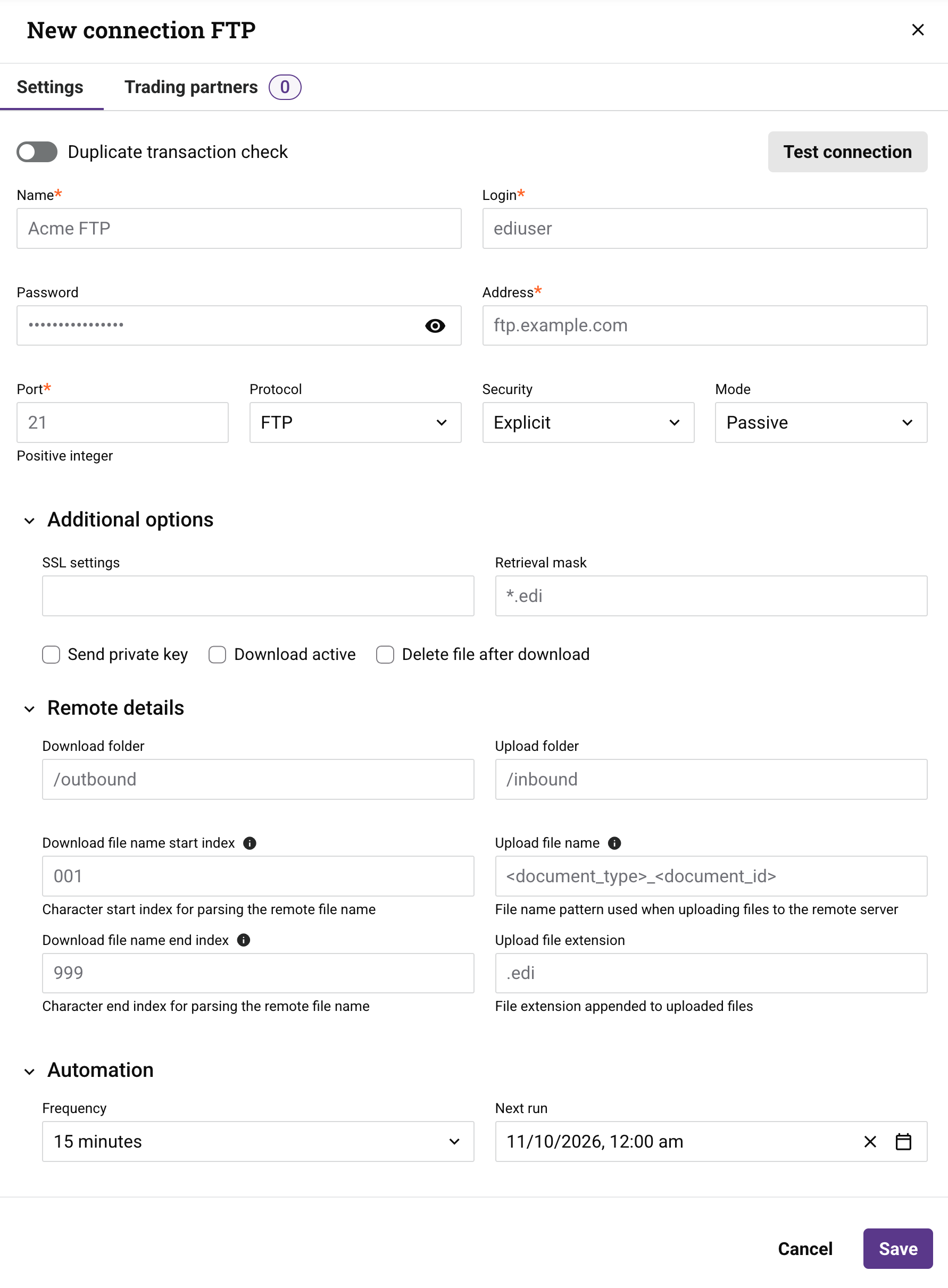
On the Communications page, click New > FTP connection. The New connection FTP drawer opens with the Settings tab selected:
-
Set the following toggle:
-
Duplicate transaction check: Turn on to check for duplicate transactions transmitted via this connection.
Note
This applies only to EDI and not to EDIXml or XCBL documents.
-
-
Set values for the following fields. Fields marked with an asterisk are required.
-
Name: A name for the connection.
-
Login: The username for the FTP server.
-
Password: (Optional.) The password for the FTP server. Leave blank if no password has been set. Click the icon to show or hide the password.
-
Address: The IP address or host name of the FTP server.
-
Port: The port number as a positive integer. (Your firewall must allow traffic on the port.)
-
Protocol: FTP or SFTP.
-
Security: The security type, one of Explicit, Implicit, or None.
-
Mode: The FTP mode, Active or Passive.
-
-
(Optional) In the Additional options section, set values for the following fields and checkboxes:
-
SSL settings: Additional SSL settings.
-
Retrieval mask: A filename mask, which can contain the following wildcard characters:
-
?: Any single character. -
*: Any two or more consecutive characters.
-
-
Send private key: Select to authenticate a client when it connects to an SFTP server.
-
Download active: Select to use active FTP mode. Clear to use passive FTP mode.
-
Delete file after download: Select to delete the file from the FTP server after it has been downloaded.
-
-
In the Remote details section, set values for the following fields:
-
Download folder: The folder on the remote server where files are downloaded from.
-
Upload folder: The folder on the remote server where files are uploaded to.
-
Download file name start index: The character start index for parsing the remote file name.
001is recommended. -
Download file name end index: The character end index for parsing the remote file name.
999is recommended. -
Upload file name: The file name pattern used when uploading files to the remote server. You can also include any of the supported filename parameters to generate the filename you want.
-
Upload file extension: The filename extension appended to uploaded files, either
.edior.xml.
-
-
(Optional) To test the connection, click the Test connection button at the top right of the Settings tab, next to the Duplicate transaction check toggle. This button becomes active when all required fields are filled.
-
To set how often and when to run an FTP connection, set values for the following fields in the Automation section:
-
Frequency: How often to run the FTP service. Select one of 15 minutes, 1 hour, 12 hours, Daily, or Weekly.
-
Next run: When to next run the service. Select any of the date-time fields and enter a numeric value, or click the calendar icon to pick a date and time.
-
-
Click the Save button. To discard your changes, click Cancel. The new connection is now ready for you to assign it to a trading partner.
New connections are active when you save them. To turn a connection off or on, use its toggle in the Active column of the Communications page.
Troubleshooting
For related troubleshooting, see the following in the EDI troubleshooting guide: