AS2 communications in Jitterbit EDI
Introduction
AS2 (Applicability Statement 2) is a protocol for securely and reliably exchanging data over the internet, and a popular way for businesses to exchange EDI documents with their trading partners.
If your partner offers an AS2 endpoint, you can use it to send and receive documents by configuring an AS2 connection and assigning it to them. This page shows you how to do this.
AS2 connections accept both binary and base64 values for the Content-Transfer-Encoding header on incoming messages, so they work with trading partners regardless of which encoding their AS2 endpoint uses.
Create an AS2 connection
Important
To enable AS2 communication, your partner must configure their firewall (add to their allowlist) the IP address 40.71.22.62 (for Harmony accounts in North America) or 20.166.31.85 (for EMEA and APAC) for both inbound and outbound communications.
To create an AS2 connection, follow these steps:
-
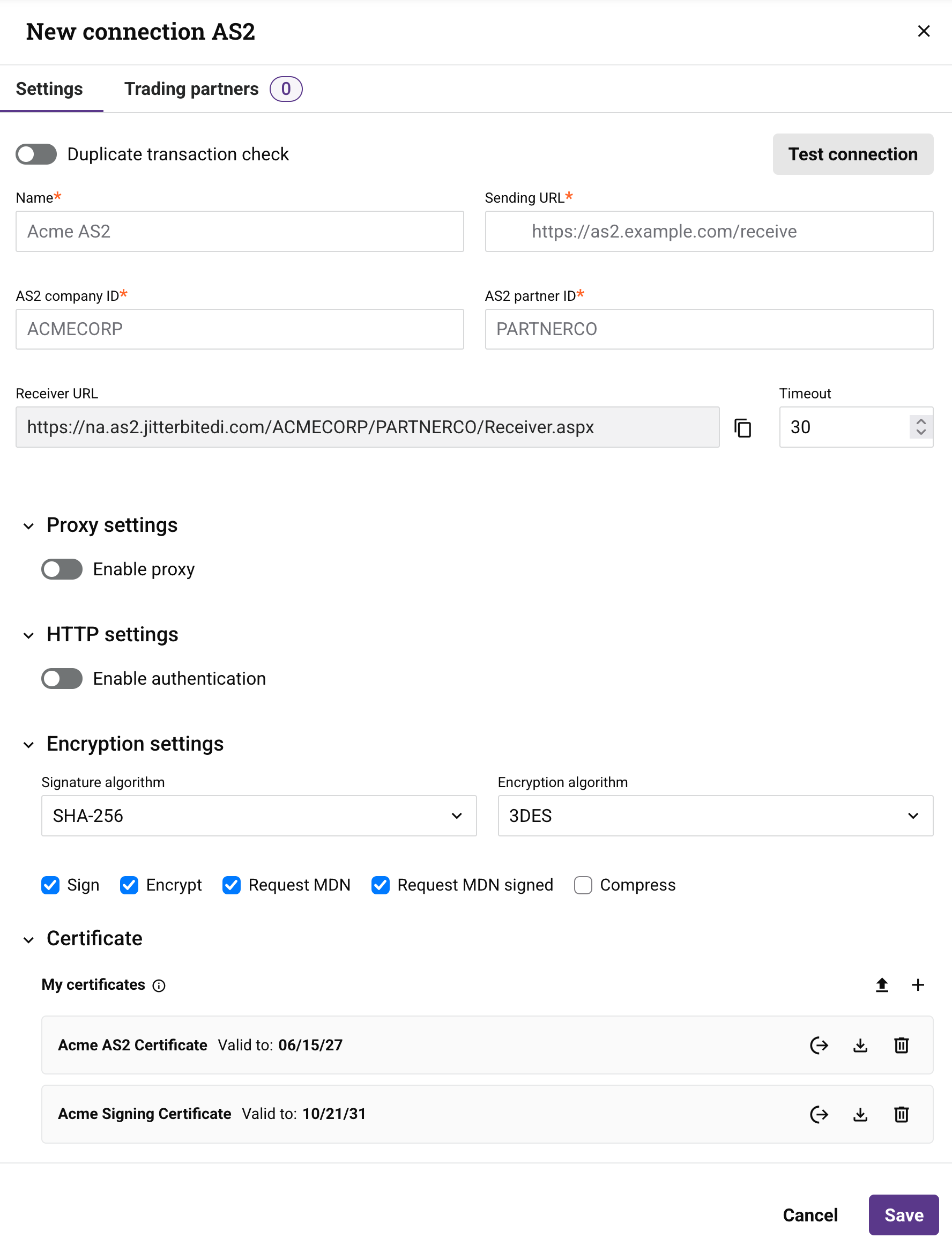
On the Communications page, click New > AS2 connection. The New connection AS2 drawer opens with the Settings tab selected:
-
Set the following toggle:
-
Duplicate transaction check: Turn on to check for duplicate transactions transmitted via this connection.
Note
This applies only to EDI and not to EDIXml or XCBL documents.
-
-
Set values for the following fields. Fields marked with an asterisk are required.
-
Name: The connection name.
-
Sending URL: The URL provided by the trading partner for sending documents through the AS2 connection. It must be included as part of the AS2 configuration.
Receiving URLs with IP addresses for firewall allowlists
Ensure the IP address corresponding to your Harmony account's region is in your trading partner's firewall allowlist for both inbound and outbound communications:
Region Receiving URL IP address North America https://na.as2.jitterbitedi.com/CompanyAS2/PartnerAS2/Receiver.aspx40.71.22.62 EMEA https://emea.as2.jitterbitedi.com/CompanyAS2/PartnerAS2/Receiver.aspx20.166.31.85 APAC https://emea.as2.jitterbitedi.com/CompanyAS2/PartnerAS2/Receiver.aspx(APAC uses EMEA's URL.)20.166.31.85 -
Receiver URL: The partner-specific receiving URL for this connection, generated from your account's region and the configured AS2 company ID and AS2 partner ID values. This field is read-only and updates dynamically as you enter values in the AS2 company ID and AS2 partner ID fields. Click the adjacent Copy receiver URL icon to copy the URL and share it with your trading partner.
-
Timeout: The initial connection timeout. Maximum 3 characters.
-
AS2 company ID: The AS2 company identifier.
-
AS2 partner ID: The AS2 partner identifier.
-
-
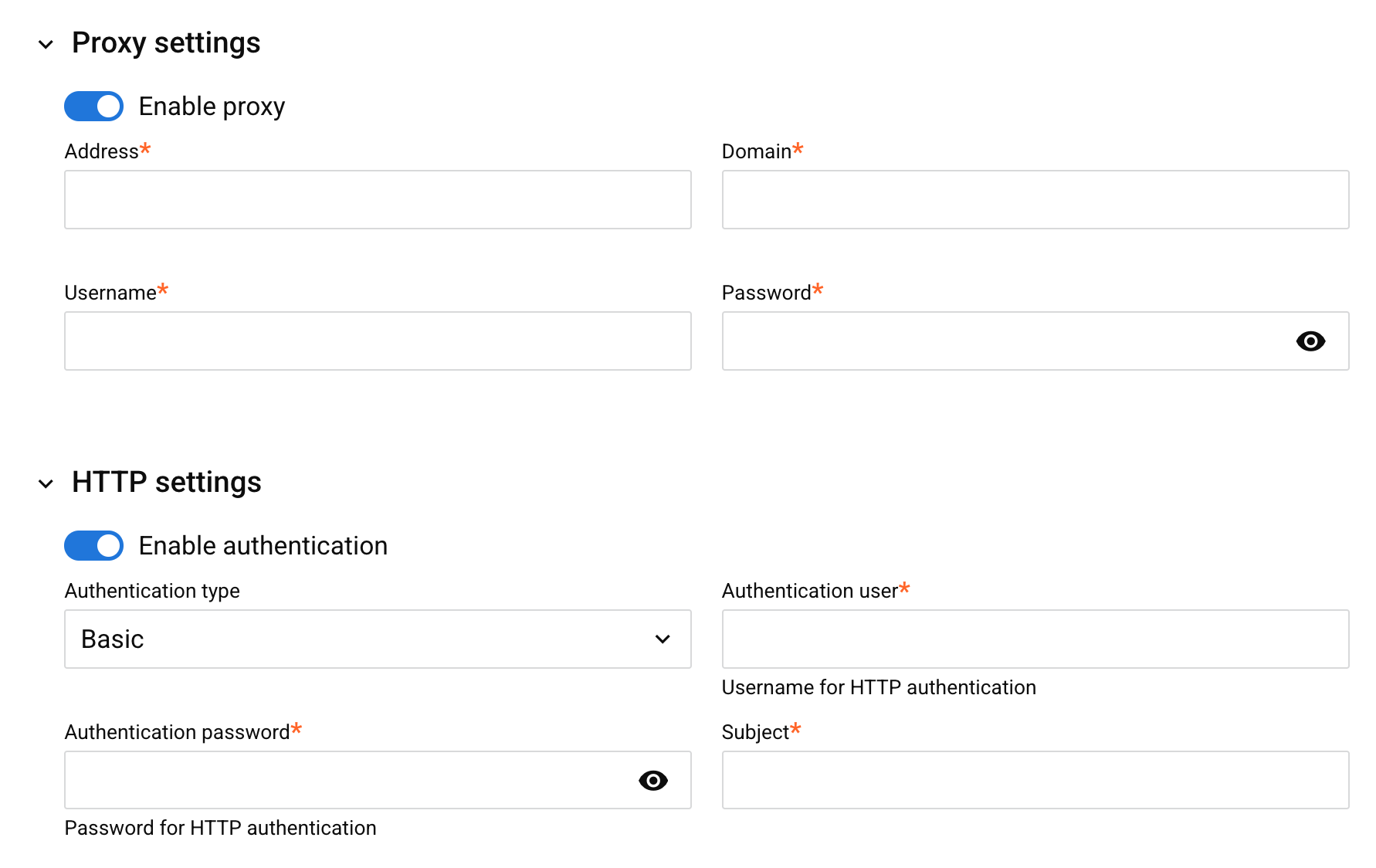
(Optional) In the Proxy settings section, turn on the Enable proxy toggle, then set values for the following required fields:
-
Address: The proxy server address.
-
Domain: The proxy server domain.
-
Username: The proxy server username.
-
Password: The proxy server password.
-
-
(Optional) In the HTTP settings section, turn on the Enable authentication toggle, then set values for the following fields. Authentication user, Authentication password, and Subject are required.
-
Authentication type: The HTTP authentication type. Select one of the following:
-
Authentication user: The username for HTTP authentication.
-
Authentication password: The password for HTTP authentication. Click the icon to show or hide the password.
-
Subject: The subject describing the purpose of the endpoint.
-
-
(Optional) In the Encryption settings section, set values for the following fields and checkboxes:
-
Signature algorithm: The algorithm used to sign messages. Select one of the following:
- MD5
- SHA1
- SHA-224
- SHA-256 (default)
- SHA-384
- SHA-512
- SHA-512/224
- SHA-512/256
-
Encryption algorithm: The algorithm used to encrypt messages. Select one of the following:
- 3DES (default)
- AES-128
- AES-192
- AES-256
- RC2
-
Sign: (Selected by default.) Select to reject unsigned incoming messages.
-
Encrypt: (Selected by default.) Select to reject unencrypted incoming messages.
-
Request MDN: (Selected by default.) Request an MDN (message disposition notification).
-
Request MDN signed: (Selected by default.) Request a signed MDN.
-
Compress: Select to use ZLIB compression.
-
-
(Optional) Configure certificates in the Certificate section. The section has two regions:
-
My certificates: Certificates for your organization. These are private certificates, which must be in
pfxformat, and contain only private keys. -
Partner certificates: Certificates for the trading partner. These are public certificates, which must be in
.cerformat, and contain only public keys.
Uploaded or created certificates appear as a row, showing the name, the Valid to expiry date, and the following icons:
-
Assign: Assign the certificate to the connection.
-
Download: Download the certificate as a
.cerfile. (Available for My certificates only.) -
Delete: Delete the certificate. To confirm the action, enter the word DELETE in the dialog's text field, then click the Delete button.
To upload a certificate, follow these steps:
-
Click the Upload icon for either party.
-
In the Upload certificate form that opens, click the Upload file button, then select the certificate file. (Accepted file types are
.cerand.pfx.)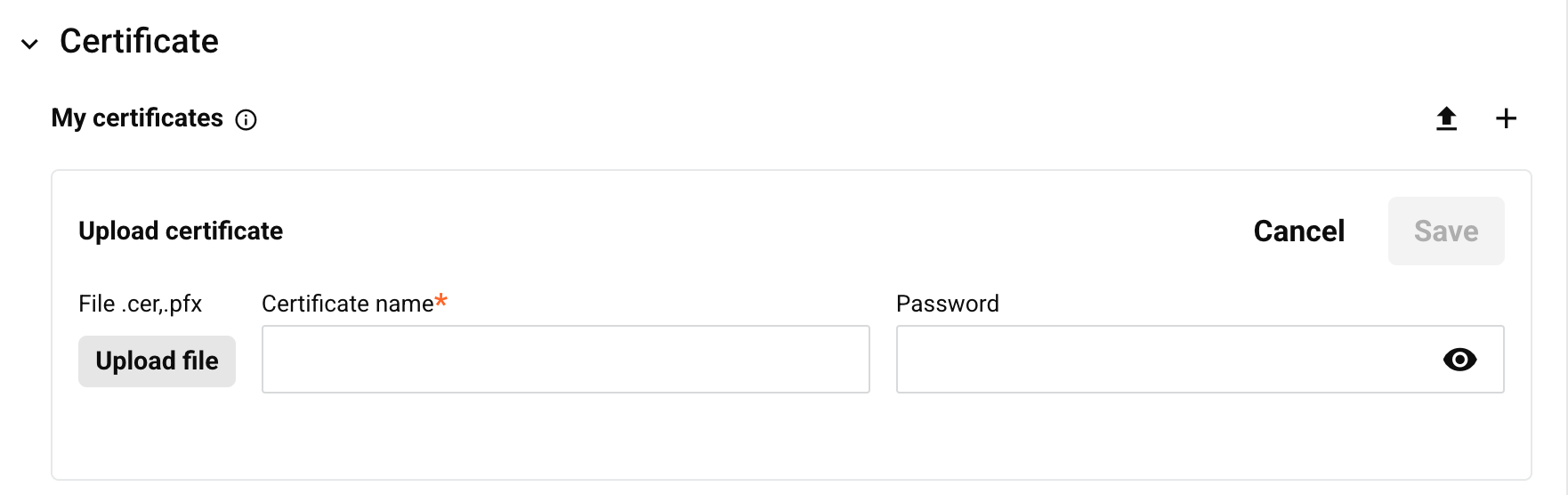
-
Enter a value for Certificate name. (Optional) Enter a Password for the certificate file.
-
In the Upload certificate form, click the Save button. To discard your changes, click Cancel.
To create a certificate for your organization, follow these steps:
-
Click the Create icon.
-
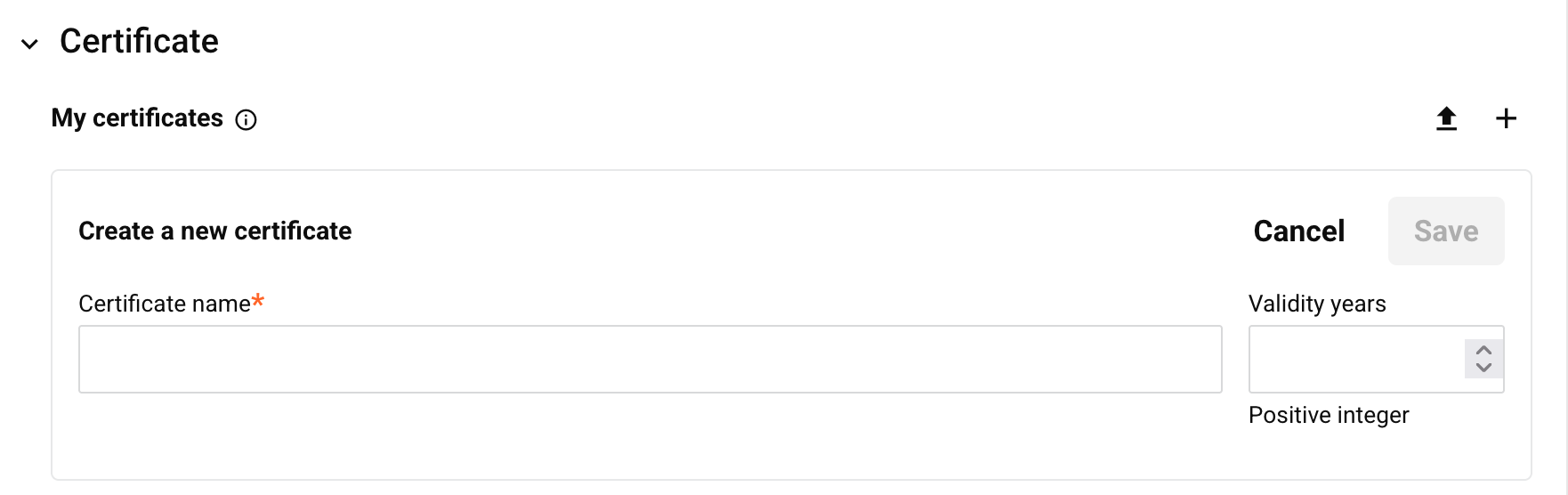
In the Create a new certificate form that opens, enter a value for Certificate name and, optionally, Validity years as a positive integer.
-
In the Create a new certificate form, click the Save button. To discard your changes, click Cancel.
-
-
(Optional) Click the Test connection button at the top right of the Settings tab, next to the Duplicate transaction check toggle, to confirm a partner's AS2 connectivity, certificate presence, and successful message transfer with MDN receipt.
-
Click the Save button. To discard your changes, click Cancel. The new connection is now ready for you to assign it to a trading partner.
New connections are active when you save them. To turn a connection off or on, use its toggle in the Active column of the Communications page.
Certificate expiration notifications
When a document is sent or received through an AS2 connection, the expiry dates of the certificates in use are checked. If a certificate is within 30 days of expiring, or has already expired, the following occurs:
-
An error message is logged once per day for each expiring or expired certificate. It is visible on the Messaging page, and reads as follows, where
[TP Name]is the trading partner's name and[Expiry Date]is the certificate's expiry date:AS2 certificate for [TP Name] is set to expire on [Expiry Date]. To ensure that your communications are not interrupted, please update the certificate. -
A banner notification is displayed on every EDI page until you dismiss it. It reappears the next time you log in, as long as a certificate is still expiring or expired. The banner includes a link to the Communications page, where you can open the connection to replace the certificate.
To prevent an interruption to communications with your trading partner, upload or create a replacement certificate before the expiry date (see the Certificate section in Create an AS2 connection, where each certificate's row shows its expiry date).
Troubleshooting
For related troubleshooting, see the following in the EDI troubleshooting guide: