Communications in Jitterbit EDI
Introduction
To exchange documents with partners, you can use Jitterbit's managed VAN connection, or the AS2 or FTP communications protocols. You configure these on the Communications page, which you open from the EDI menu in the Harmony portal:
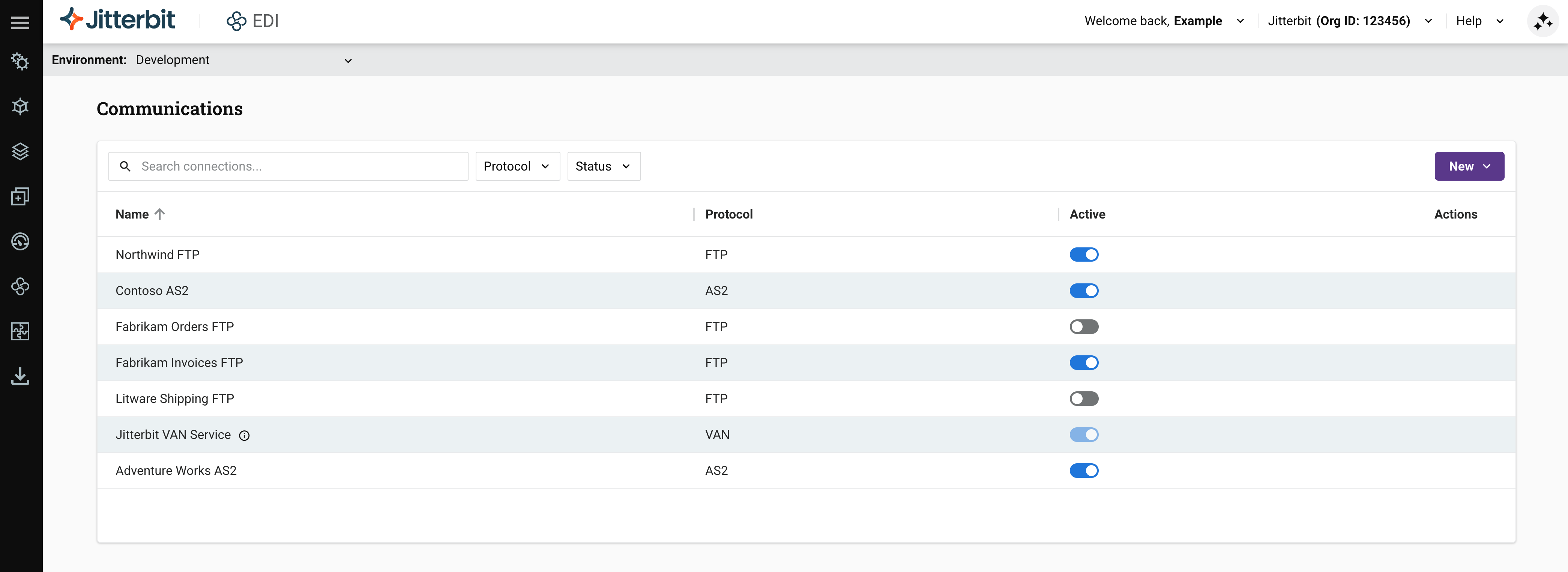
The page lists your connections with the following columns:
-
Name: The connection name.
-
Protocol: The connection type: AS2, FTP, or VAN.
-
Active: A toggle showing whether the connection is active. New connections are active when you save them. Use the toggle to turn a connection off or on.
-
Actions: These actions are available in the Actions column:
-
Edit: Click to open the connection's drawer. On the Settings tab, edit the connection's details, then click Save. Selecting the connection's row opens the same drawer.
-
Delete: Click to delete the connection. To confirm the action, enter the word DELETE in the dialog's text field, then click the Delete button.
Note
Assigned connections cannot be deleted. To delete an assigned connection, first assign each of its trading partners to a different connection.
-
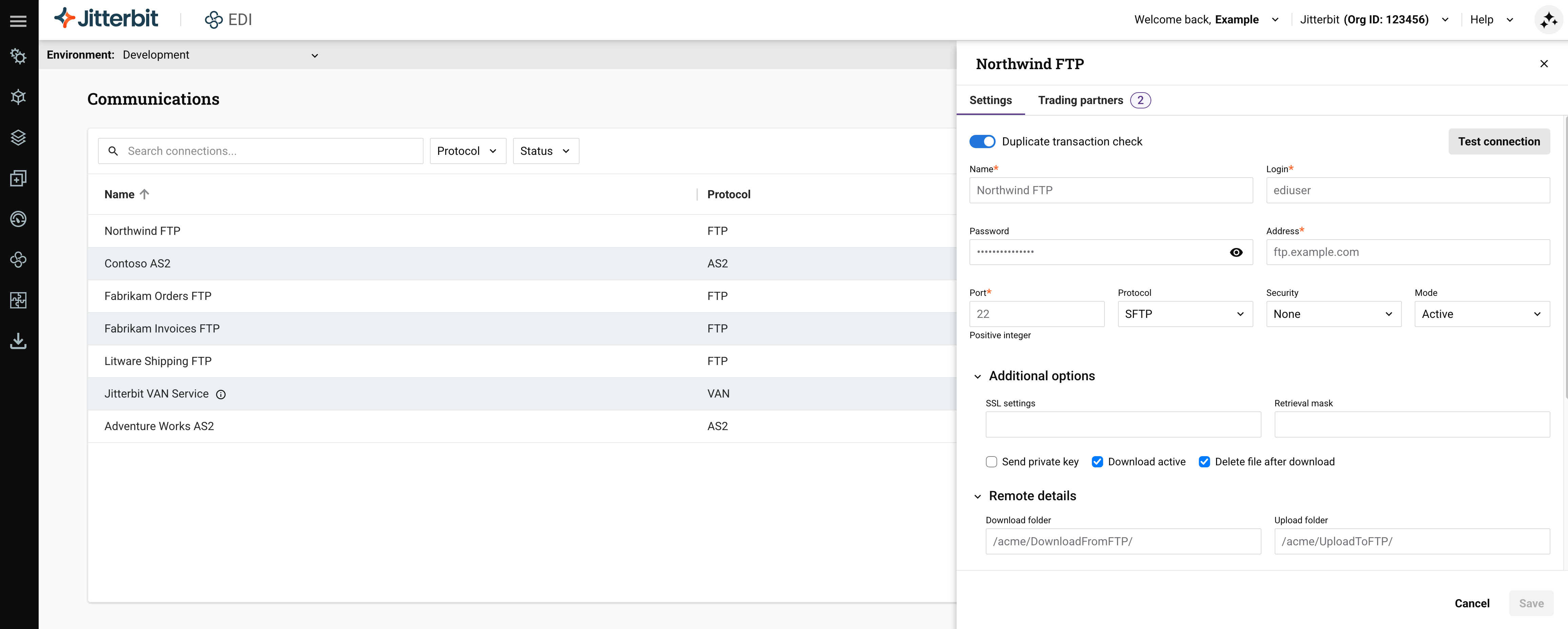
The drawer that opens beside the list has a Settings tab for the connection's fields and a Trading partners tab for assigning trading partners.
The VAN connection differs from AS2 and FTP connections. Its Active toggle is locked, its row has only the Edit icon (no Delete icon), and an info icon next to its name shows that the service is configured and can be assigned. For details, see VAN.
If another user deletes a connection while you have the Communications page open, the connection list refreshes and a notification tells you The connection is no longer available. If you had unsaved changes in the connection's drawer, this also tells you they weren't saved.
Configure partner communications
To set up a communications channel with a partner, follow these steps:
-
Set up the connection:
-
For VAN connections, contact Jitterbit support or your Customer Success Manager (CSM).
-
For AS2 or FTP connections, get the connection details from your partner's EDI implementation guide, then follow the steps for the connection type:
Alternatively, click New > Build with AI to open the EDI AI Assistant and create an FTP or AS2 connection using natural language prompts.
Note
The Build with AI option is visible to all users. If your Harmony license doesn't include the EDI AI Assistant option, selecting Build with AI opens a dialog where you can submit a contact form to request that it be added to your license.
-
-
Assign the connection to one or more trading partners. When you delete partners, their connections are preserved.
Filter connections
Use the toolbar above the list to find connections:
-
Search connections: Enter text to search for a connection.
-
Protocol: Open the menu, then select one or more of the following options:
-
AS2: AS2 connections.
-
FTP: FTP connections.
-
Van service: VAN service connections.
-
-
Status: Open the menu, then select one or more of the following options:
-
Active: Active connections.
-
Inactive: Inactive connections.
-
Manage connections
To create a connection, click New, then select FTP connection or AS2 connection. Select Build with AI to create a connection with the EDI AI Assistant.
Assign trading partners
You assign connections to trading partners from the connection's drawer. To assign trading partners to a connection, follow these steps:
-
On the Communications page, select the connection. The connection's drawer opens with a Settings tab, which contains the connection's fields, and a Trading partners tab. (VAN connections show only the Trading partners tab.) Select the Trading partners tab. The number next to the tab name is the number of trading partners assigned to the connection.
-
(Optional) To find a trading partner, enter text in the Search trading partners field. To filter the list, open the menu next to the search field and select one of the following options:
-
All: All trading partners.
-
Assigned: Trading partners assigned to this connection.
-
Not assigned: Trading partners not assigned to this connection.
-
-
In the Assign column, turn on the toggle for each trading partner to assign to the connection.
In a connection's drawer, the toggle is locked for a trading partner already assigned to that connection. To remove a trading partner from a connection, assign it to a different connection: open the other connection's drawer, turn on the toggle for the trading partner, and click Save.
-
Click Save. To discard your changes, click Cancel.
Note
Many partners can use the same connection, but a partner can have only one assigned connection at a time.