Jitterbit EDI AI Assistant
Introduction
The EDI AI Assistant streamlines the management and configuration of Jitterbit EDI by interacting with it using written natural language.
Note
To use the EDI AI Assistant, your Harmony license must include the EDI AI Assistant option. Contact your Customer Success Manager (CSM) to add this option to your license.
Access the EDI AI Assistant
In the Harmony portal header on any Jitterbit EDI page, use the Jitterbit AI icon. In the panel, use the dropdown to select EDI AI Assistant.
EDI AI Assistant controls
The EDI AI Assistant panel includes these controls:
- New chat: Start a new chat.
Supported interactions and capabilities
The following interactions and capabilities are supported.
Trading partner
The EDI AI Assistant can help you with managing your trading partners:
-
Communication: Create and edit new AS2 and FTP communication connections, and modify and view connection details such as name, address, port, login, frequency, and active status.
Warning
Do not include FTP or AS2 certificate passwords in your prompts. Providing them will not work and unnecessarily exposes your sensitive data to the model.
-
Workflows: Create and edit EDI XML workflows, and view EDI XML workflow details such as map processing, direction, EDI standard, document type, and version, and ACK and debug settings.
-
Trading partners: Create and update trading partners, supporting both mandatory fields and optional configurations like archive settings.
-
Settings: Retrieve and query EDI configuration settings for IDs (including preferred partner ID and your preferred ID), and the connection type, name, and frequency.
Example user prompts
- What are my ISA IDs for Walmart US?
- Change the schedule for 84 Lumber to run every 1 hour.
- Update the frequency of my 84 Lumber connection.
Transactions
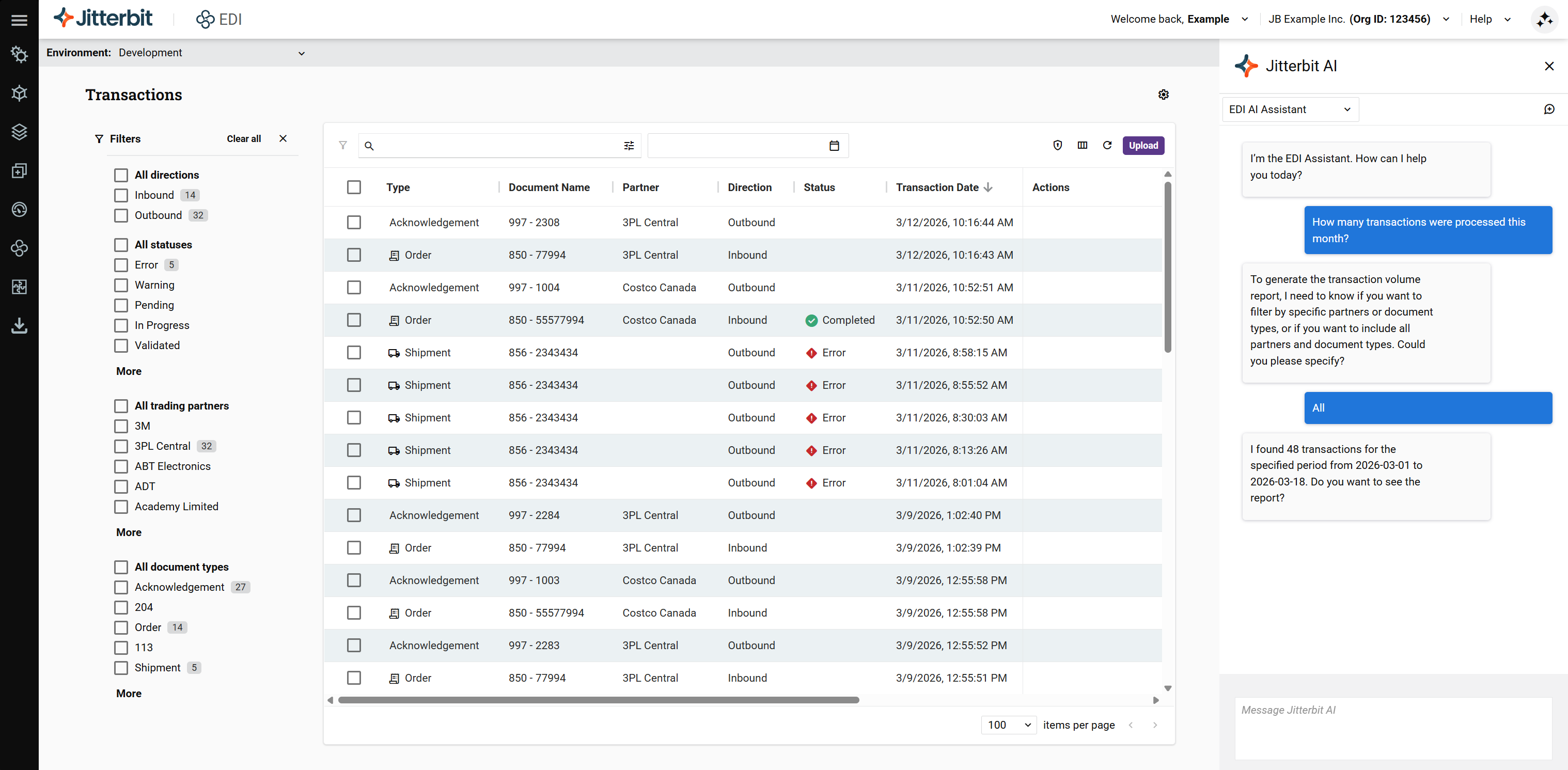
The EDI AI Assistant supports querying and filtering of transactions:
- Filters: Query and retrieve data using various combinations of direction, status, trading partner, document type, date range, and document ID.
Example user prompts
- How many orders did Walmart US send today?
- List all my invoices.
- Show all POs from Lowe's.
- Show any errors from Lowe's.
- Filter by order and Walmart for the last month.
- Are there any errors this morning?
- Show me any of my orders that didn't download.
Messages
The EDI AI Assistant allows for filtering and advanced queries of messages:
-
Filters: Filter messages based on error, trading partner, date range, or keyword.
-
Advanced queries: Perform more advanced queries, allowing the large language model (LLM) to determine results based on the query.
Example user prompts
- Show me any failed FTP messages.
Analytics
The EDI AI Assistant provides search capabilities for analytics:
-
Search capability: Perform searches based on date, trading partner, or document type.
-
Total/sum queries: Navigate to the Transaction volume report when you request totals or sums.
Example user prompts
- How many orders did Walmart send within the past week?
- How many orders from all my trading partners were sent within the last 48 hours?
Recommendations
You should interact with the EDI AI Assistant as you would with any large language model (LLM) AI product. Follow these suggestions:
-
Write in English using whatever wording comes naturally to you, as if talking to a person with your own level of IT and business knowledge. Other languages may be used but have not been validated.
-
To get ideas of what interactions you can perform, ask the assistant in natural language what it can do, or type
help. -
Read the assistant's responses carefully before typing your reply. If there's something you don't understand, ask the assistant to clarify.
-
Once the assistant has performed an action, you can review and confirm what it did by browsing the configuration in the UI. If any settings are not as expected, you can ask the assistant to edit them or edit them directly.
Limitations
The following interactions are not yet supported:
-
Trading partner
-
Delete, import, or export trading partners.
-
Add or assign a company ID.
-
Delete workflows.
-
Delete or assign communication settings.
-
View, create, or update FTP or AS2 certificate passwords.
-
Edit, add, or remove labels.
-
Manage transactions.
-
-
Transactions
-
Direct query of transaction details. The assistant can navigate to specific transaction tables (for example:
Show me Walmart orders), but it cannot extract specific data points within those transactions, such as PO numbers or received times. -
Query personally identifiable information (PII).
-
Change the order or viewing of columns or sort columns.
-
Refresh the screen.
-
Upload an EDI file.
-
Reprocess, resend, or archive a transaction.
-
Print, copy, or save a transaction from the raw view.
-
-
Archive
- Query archived transactions.
-
Analytics
- Export reports upon request.