2-legged OAuth 2.0 prerequisites for Jitterbit Connect Salesforce wizards in Design Studio
Introduction
These are the prerequisites for using 2-legged OAuth 2.0 with Jitterbit Connect Salesforce wizards. You need your Salesforce instance URL, a client ID, and a client secret for a successful connection using 2-legged OAuth 2.0 authentication.
Note
Design Studio version 11.59 and agent version 11.59 / 12.3 or later are required to use 2-legged OAuth 2.0 with the Jitterbit Connect Salesforce wizards.
Basic authentication no longer supported by Salesforce
Starting with Salesforce API version 65, Salesforce no longer supports SOAP API login (basic authentication). To ensure continued operability in Design Studio Salesforce Orgs configured to use basic authentication, do not accept the prompt to upgrade your existing Design Studio projects to Salesforce API version 65. Before upgrading projects to Salesforce API version 65, you must reconfigure your Salesforce endpoints with the new Select OAuth 2.0 Client Credentials configuration option or your operations will fail.
Instance URL
Your Salesforce instance URL depends on your organization's My Domain setting:
- If My Domain is enabled (default), your instance URL is
https://exampleDomain.my.salesforce.com. - If My Domain is disabled, your instance URL is
https://exampleInstance.salesforce.com.
External client app
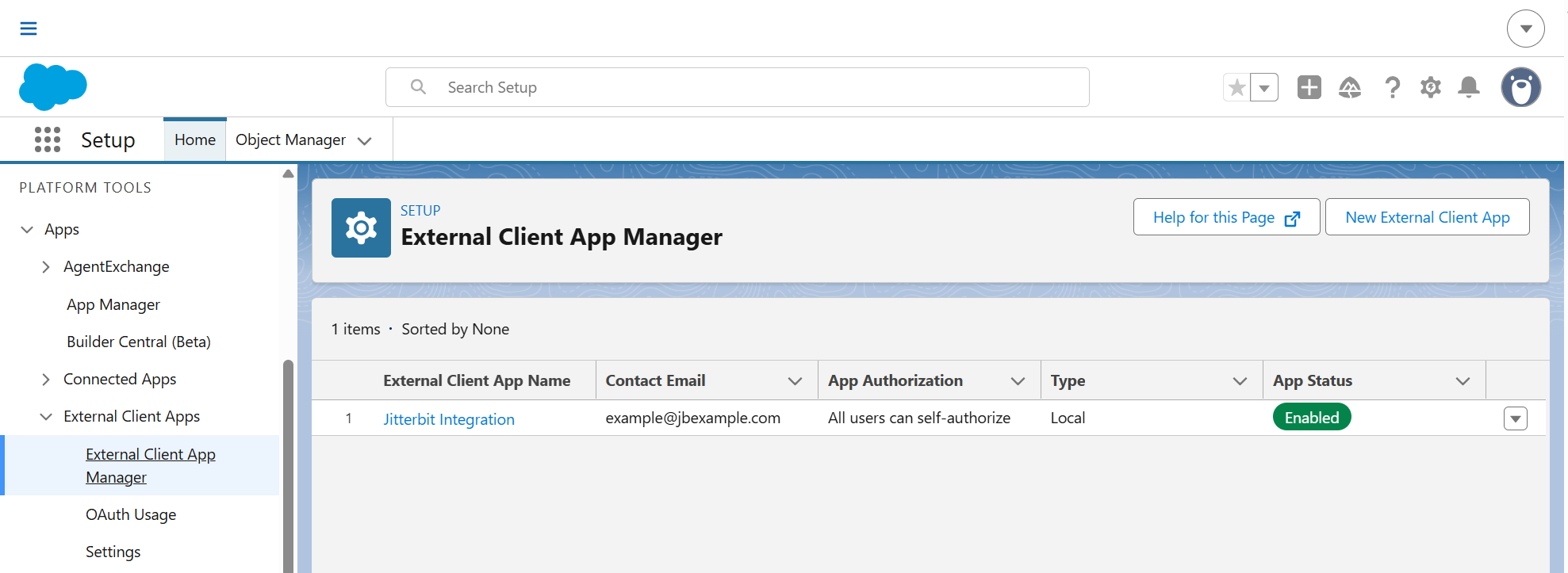
Use an external client app unless you already have an existing Salesforce connected app configured for this purpose. To create and configure a Salesforce external client app to obtain the required client credentials, follow these steps:
-
Create an external client app.
-
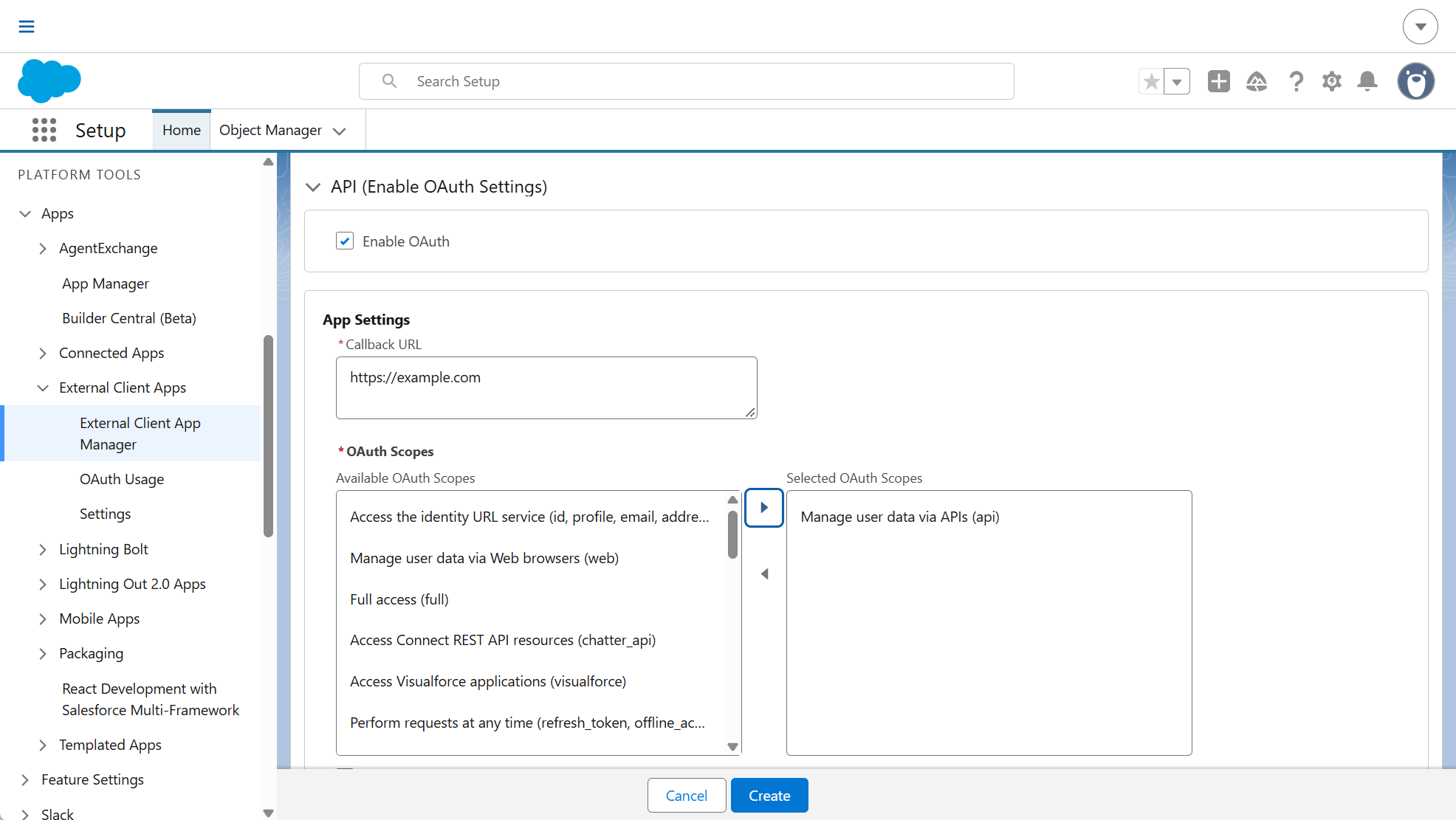
Configure the external client app's OAuth settings
-
Set the Callback URL to one of the following URLs (depending on your organization's region):
Region URL APAC https://apps.apac-southeast.jitterbit.com/design-studio/api/v1/oauth/authcodeEMEA https://apps.emea-west.jitterbit.com/design-studio/api/v1/oauth/authcodeNA https://apps.na-east.jitterbit.com/design-studio/api/v1/oauth/authcode -
Under OAuth Scopes, select Manage user data via APIs (api). Consider additional OAuth scopes your implementation may require. For example, Access the identity URL service (id, profile, email, address, phone).
-
Select Enable Client Credentials Flow.
-
-
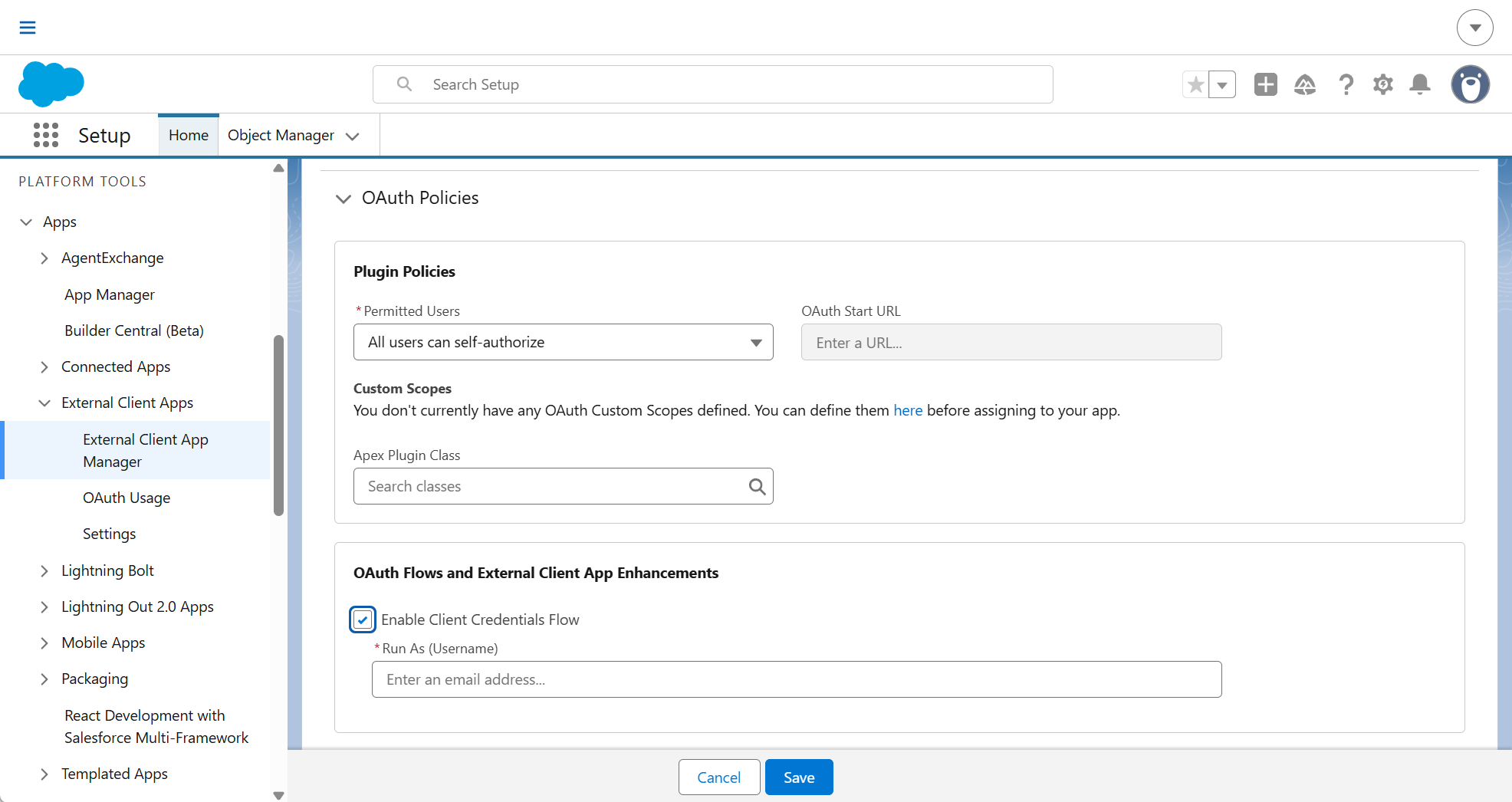
Configure the external client app's Client Credentials Flow policies
-
Open the app and select the Policies tab, then click Edit.
-
Select Enable Client Credentials Flow.
-
Enter the username of the Salesforce user the connection runs as (the execution user). Anyone with the consumer key and consumer secret can access your org on behalf of this user. This user's Salesforce permissions determine what the connection can access, so the user must have the permissions required for the activities used in your project. A broad OAuth scope does not expand this: access is always limited to what the execution user is permitted to do in Salesforce.
-
Click Save.
-
-
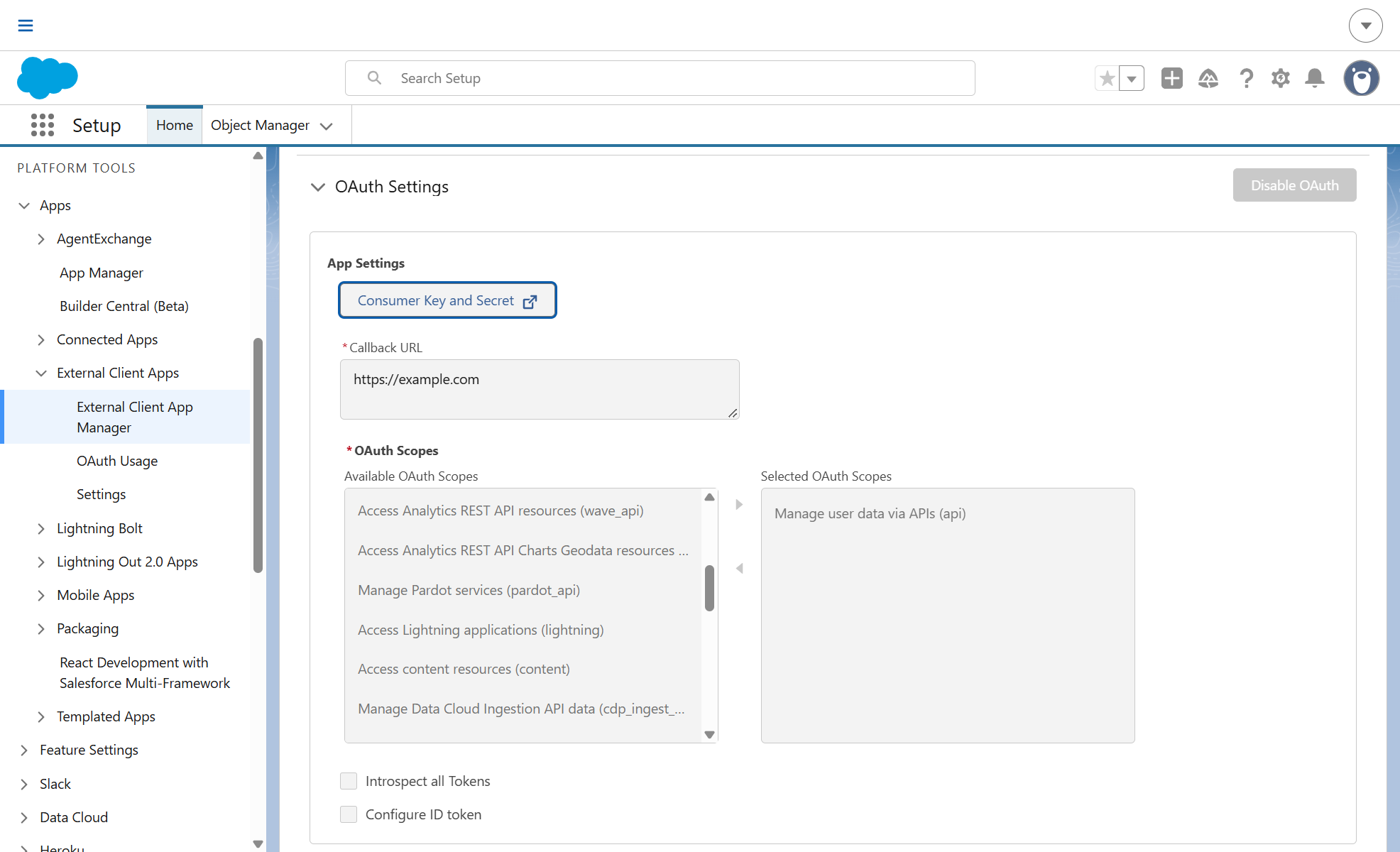
Open the app, select the Settings tab, expand OAuth Settings, and click Consumer Key and Secret. Retain the Consumer Key and Consumer Secret values to enter for the client ID and client secret during Salesforce Org wizard configuration.
See this configured in Salesforce
Connected app
Important
As of Spring 2026, Salesforce restricted the creation of connected apps. Use this section only if you already have an existing connected app; otherwise, follow the external client app steps above.
If you have a previously configured Salesforce connected app, confirm it is configured for the OAuth 2.0 client credentials flow:
-
Under the connected app's OAuth settings, confirm Enable Client Credentials Flow is selected.
-
From the connected app's detail page, click Manage, then Edit Policies. Under Client Credentials Flow, confirm a user is assigned to Run As (for Enterprise Edition orgs, Salesforce recommends a user with the API Only User permission). This user's Salesforce permissions determine what the connection can access, so the user must have the permissions required for the activities used in your project. Permitted Users policies (for example, Admin approved users are pre-authorized) do not apply to this user.
For more information, see Salesforce's Configure a Connected App for the OAuth 2.0 Client Credentials Flow.
Navigate to the app and click Manage Consumer Details. Retain the Consumer Key and Consumer Secret values to enter for the client ID and client secret during Salesforce Org wizard configuration.
Next steps
Use the instance URL, client ID, and client secret with the Salesforce Org wizard to use 2-legged OAuth 2.0 authentication.