Change to OAuth 2.0 for the Salesforce connector in Design Studio
Introduction
Salesforce is retiring the SOAP API login() authentication method (username, password, and security token). Any Salesforce org configured with basic authentication uses this method, and must be changed to 2-legged OAuth 2.0 client authentication to keep working.
| When | What happens |
|---|---|
| Now, on Salesforce API version 65.0 and later | SOAP API login() is unavailable, so a Salesforce org using basic authentication fails on those API versions. API versions 31.0 through 64.0 still work for now. |
| Salesforce Summer '27 release (mid-2027) | SOAP API login() will be retired in API versions 31.0 through 64.0, so any Salesforce org still using basic authentication will fail once your org is upgraded. |
Salesforce is not retiring the SOAP API as a whole. Only the login step changes, from a SOAP-based login() call to an OAuth 2.0 token request, so your existing wizards, transformations, and operations keep working as they are.
This guide covers the end-to-end change for a single Salesforce org: what to configure in Salesforce, what to change in Design Studio, and how to validate the result before migrating the project.
Do not accept the Salesforce API version upgrade prompt first
When you open a project that uses an earlier Salesforce API version, Design Studio prompts you to upgrade in the Upgrade Salesforce Version? dialog. Accepting that prompt (Yes) while the Salesforce org still uses basic authentication moves the project to an API version where login() is unavailable, and operations fail. Complete the change to OAuth 2.0 described on this page before you accept an upgrade to Salesforce API version 65 or later; select No to keep the project on its current version for now. To see the version a project currently uses without changing it, go to Actions > Upgrade Salesforce Version (see Actions menu in Main menus). The Upgrade project? dialog reports the current version. Close the dialog without upgrading.
This guide walks through five steps:
- Confirm your Design Studio and agent versions and identify every Salesforce org that needs to change.
- Collect an instance URL, client ID, and client secret from a Salesforce external client app or connected app.
- Change the Salesforce org to use 2-legged OAuth 2.0 client authentication and enter the new credentials.
- Verify the change by deploying and running the operations that use the org.
- Migrate the validated change to production.
What changes and what doesn't
Authentication is a property of the Salesforce org, so a single change covers every wizard and script that uses that org:
with user name, password,
and security token"| C["Salesforce session"] B -->|"After: OAuth 2.0 token request
with client ID
and client secret"| C C --> D["Salesforce SOAP API call
Query, Insert, Update,
Upsert, or Delete"] D --> E["Records read or written"]
| Component | Action needed |
|---|---|
| Salesforce org | Select the Select OAuth 2.0 Client Credentials checkbox, and complete the Instance URL, Client ID, and Client secret fields in place of User name, Password, and Security Token. |
| Jitterbit Connect Salesforce wizards | No action needed. The Query, Insert, Update, Upsert, Delete, and Bulk Process wizards keep their existing object selections and schemas. |
| Transformations and mappings | No action needed. |
| Operations and schedules | No action needed. |
| Scripts that use Salesforce functions | No action needed. Functions such as SalesforceLogin reference the Salesforce org. |
| Salesforce permissions | Verify the Run As user has equivalent access to the account previously used for basic authentication. See the caution in Collect the values you need from Salesforce. |
Before you begin
Basic authentication may already be blocked in your Salesforce org
Salesforce disables SOAP API login() by default in orgs created from Winter '26 onward, and where it is enabled, the authenticating user needs the Use Any API Auth permission. If a Salesforce org using basic authentication already fails to authenticate, check both of these before troubleshooting further. Changing to 2-legged OAuth 2.0 client authentication removes the dependency on either.
Confirm the Design Studio and agent versions
2-legged OAuth 2.0 with the Jitterbit Connect Salesforce wizards requires Design Studio version 11.59 or later. It also requires either cloud agents or a private agent version 11.59 (for 11.x agents) or 12.3 or later (for 12.x agents).
Check the agent group for each affected environment. The Salesforce API version available to the project also depends on these versions, as listed in Supported API versions and prerequisites.
Identify the projects and orgs to change
Build an inventory before you start, so that each change is deliberate rather than reactive:
-
Find the projects that use Salesforce. The Management Console Endpoints Usage page lists every Salesforce endpoint in the organization, and its endpoint details drawer shows the Project and Environment where each endpoint is used. This page requires the Admin role permission.
-
In Design Studio, open every Salesforce org in those projects and check whether the Select OAuth 2.0 Client Credentials checkbox is selected. An org without it selected uses basic authentication and needs the change. A project can contain multiple Salesforce orgs using different credentials, and each one needs its own change.
Endpoints that have not run recently
The Endpoints Usage page reports endpoints used by an operation that ran at least once in the past 12 months on an agent version 11.49 or later. To catch orgs configured in projects that have not run in that window, open those projects in Design Studio and check each Salesforce org directly.
Scripts that reference a Salesforce org through Salesforce functions don't need editing, but include the operations that run them when you validate.
Collect the values you need from Salesforce
2-legged OAuth 2.0 authenticates with an instance URL, a client ID, and a client secret, which come from a Salesforce external client app or connected app. For the full procedure, see 2-legged OAuth 2.0 prerequisites.
-
Instance URL: Your Salesforce instance URL, which depends on your organization's My Domain setting. With My Domain enabled (the default), it takes the form
https://exampleDomain.my.salesforce.com. -
Client ID and client secret: The Consumer Key and Consumer Secret of your Salesforce app.
Important
As of Spring 2026, Salesforce restricted the creation of connected apps. Create an external client app unless you already have an existing connected app.
Whichever app type you use, confirm these settings in Salesforce:
- Enable Client Credentials Flow is selected in the app's OAuth settings and in its Client Credentials Flow policies.
- Under OAuth Scopes, Manage user data via APIs (api) is selected, along with any other scopes your integration requires.
- For an external client app, the Callback URL is set to the URL for your organization's region.
- A Salesforce user is assigned as the app's Run As (or execution) user.
Verify the Run As user's permissions
The Run As user determines what the connection can access, replacing the permissions of the Salesforce account previously used for basic authentication. If this user has narrower permissions, operations may fail or return incomplete data rather than fail outright. Before you deploy, confirm the Run As user has access to every object and field used by existing wizards. For Enterprise Edition orgs, Salesforce recommends a user with the API Only User permission. Use a dedicated integration account rather than a named individual's account, so the connection doesn't break if that person's access changes.
Change the Salesforce org to OAuth 2.0
Make the change in a non-production environment first, then migrate the validated project.
-
Note the Salesforce org's existing User name and Security Token values. Keeping these allows you to restore basic authentication if you need to roll back before validation is complete.
-
In Design Studio, open the existing Salesforce org.
-
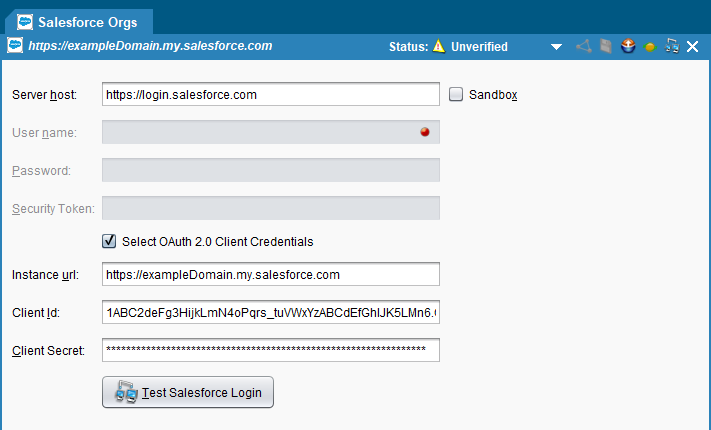
Select the Select OAuth 2.0 Client Credentials checkbox to enable the OAuth 2.0 client credential fields.
-
Enter the Instance URL, Client ID, and Client secret you collected from Salesforce. Each of these fields supports project variables, which lets the same project use different credentials in each environment.
-
Click Test Salesforce Login and confirm you receive a success message. If the login fails, the message includes information to help resolve the problem.
See this configured in Design Studio
Verify the change
A successful login test confirms only that the credentials are valid. Run the operations to confirm the Run As user's permissions are sufficient.
-
Use Actions > Deploy (see Actions menu in Main menus) to deploy the project to a non-production environment.
-
Run each operation that uses the Salesforce org, including any operations that run scripts referencing it. See Test an operation.
-
Review the operation log and confirm each operation succeeded, checking the record counts against a run from before the change. A success with fewer records than expected usually indicates the Run As user lacks read access to some records, objects, or fields. See Review an operation log.
-
Spot-check written records in Salesforce to confirm field values were populated as expected.
-
(Optional) Confirm nothing still uses SOAP API
login(). Salesforce provides a test run that blocks alllogin()calls to an org and returns the same response as the retirement. In Salesforce Setup, under Release Updates, open the SOAP API login() Retirement update, select View Update, then select Enable Test Run. Select Disable Test Run to restorelogin().Caution
A test run applies to the whole Salesforce org, so any integration that still uses
login()fails while it is enabled. Run it in a sandbox after you have changed every Design Studio project that authenticates to that org. -
(Optional, private agents only) To confirm the exact Salesforce API version a request used, check the agent's
tomcat/logs/catalina.outlog right after clicking Test Salesforce Login or running an operation. It logs the request URL, for exampleService request URL: https://login.salesforce.com/services/Soap/u/64.0, where the number after/u/is the API version invoked.
Migrate the change to production
-
Once validated, use File > Migrate Project (see File menu in Main menus) to migrate the project to your production environment.
-
If the production environment uses separate Salesforce app credentials, repeat the steps in Change the Salesforce org to OAuth 2.0 for that environment's Salesforce org.
-
Use Actions > Deploy to deploy the project to the production environment, then confirm the first scheduled or triggered runs complete successfully.
-
Once every environment is validated, you can accept the prompt to upgrade the project to a later Salesforce API version, and retire the Salesforce account previously used for basic authentication according to your organization's practices.
Need help?
For a coordinated change or assistance planning it, contact Jitterbit support or Jitterbit Professional Services.