Inline Menu (control type) in Jitterbit App Builder
An Inline Menu control displays one of your application's existing menus directly inside a panel. Inline Menu is available only on Form panels. For example, you might add an Inline Menu control to a Form panel used as a detail view, so the application's navigation stays visible alongside the record.
A menu must already exist before you can select it; see How to create a menu for those steps.
Add an Inline Menu control
To add a new Inline Menu control to a Form panel, use the Add a Control dialog and select Inline Menu as the Control Type. This reveals a Control Subtype field; choose one of the following button sizes for the menu:
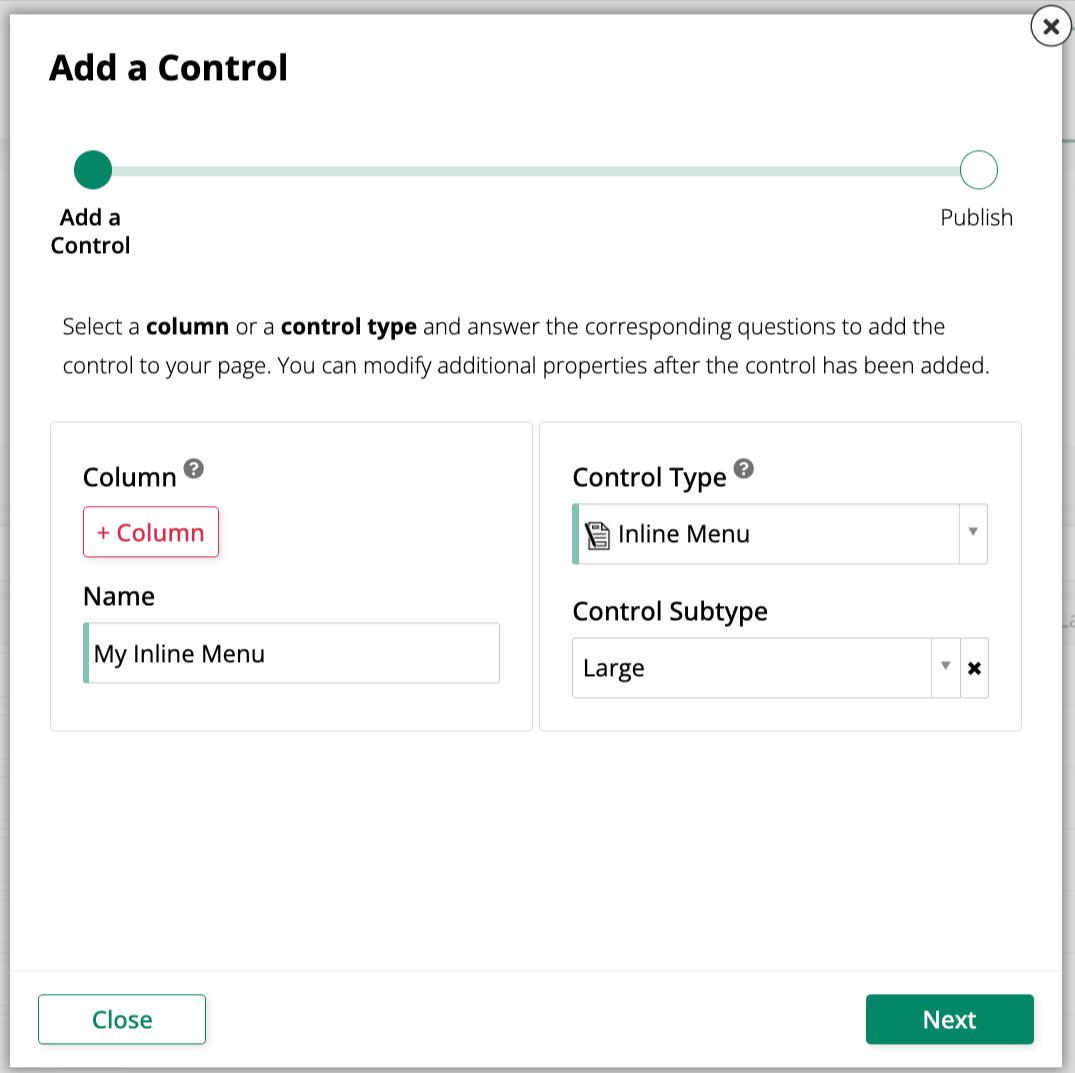
- Large: Displays large buttons in the menu.
- Normal: Displays normal-sized buttons in the menu.
After adding the control, in the Controls panel of the App Workbench, find the new Inline Menu control and either double-click its row or click the Open record icon at the end of its row; App Builder opens its properties dialog. Select the Menu tab and choose which menu to display from the Nested Menu field.
Convert an existing control to an Inline Menu control
To change an existing control on a Form panel to use the Inline Menu control type:
-
Navigate to the control, using either the Live Designer or the App Workbench:
-
From the app preview, open the page containing the control and select Action Drawer > Live Designer.
-
From the App Workbench, open the Pages tab, then in the Pages panel, locate the page containing the control and either double-click its row or click the Open record icon. In the Page Panel Layout panel, find the panel that houses the control and click Controls.
-
-
If you're in the Live Designer, click the control in the page view; this will populate the Live Designer with edit options for that control. If you're in the App Workbench, in the Controls panel, find the control and either double-click its row or click the Open record icon at the end of its row; App Builder opens a dialog similar to the Live Designer's.
-
In the Control Properties tab, set the Control Type field to Inline Menu. A Control Subtype field becomes available; select Large or Normal to set the size of the menu's buttons.
-
Select the Menu tab and choose which menu to display from the Nested Menu field.
-
Click Save.
Refresh the application view to confirm the update. The control now displays the selected menu inline on the panel.
Known limitations
- Menus with their own nested menus aren't supported. If the menu you select in the Nested Menu field itself contains a nested menu (a sub-menu item), App Builder blocks the save with the error: "The selected menu contains nested menus, which are not supported. Remove the nested menus and try again."