Self-service in Jitterbit App Builder
App Builder ships with a hidden application that allows authenticated users to manage their individual accounts. This allows administrators to delegate account management tasks to users.
The self-service application
The self-service application consists of two pages:
User profile
The User Profile page allows users to change the following account attributes:
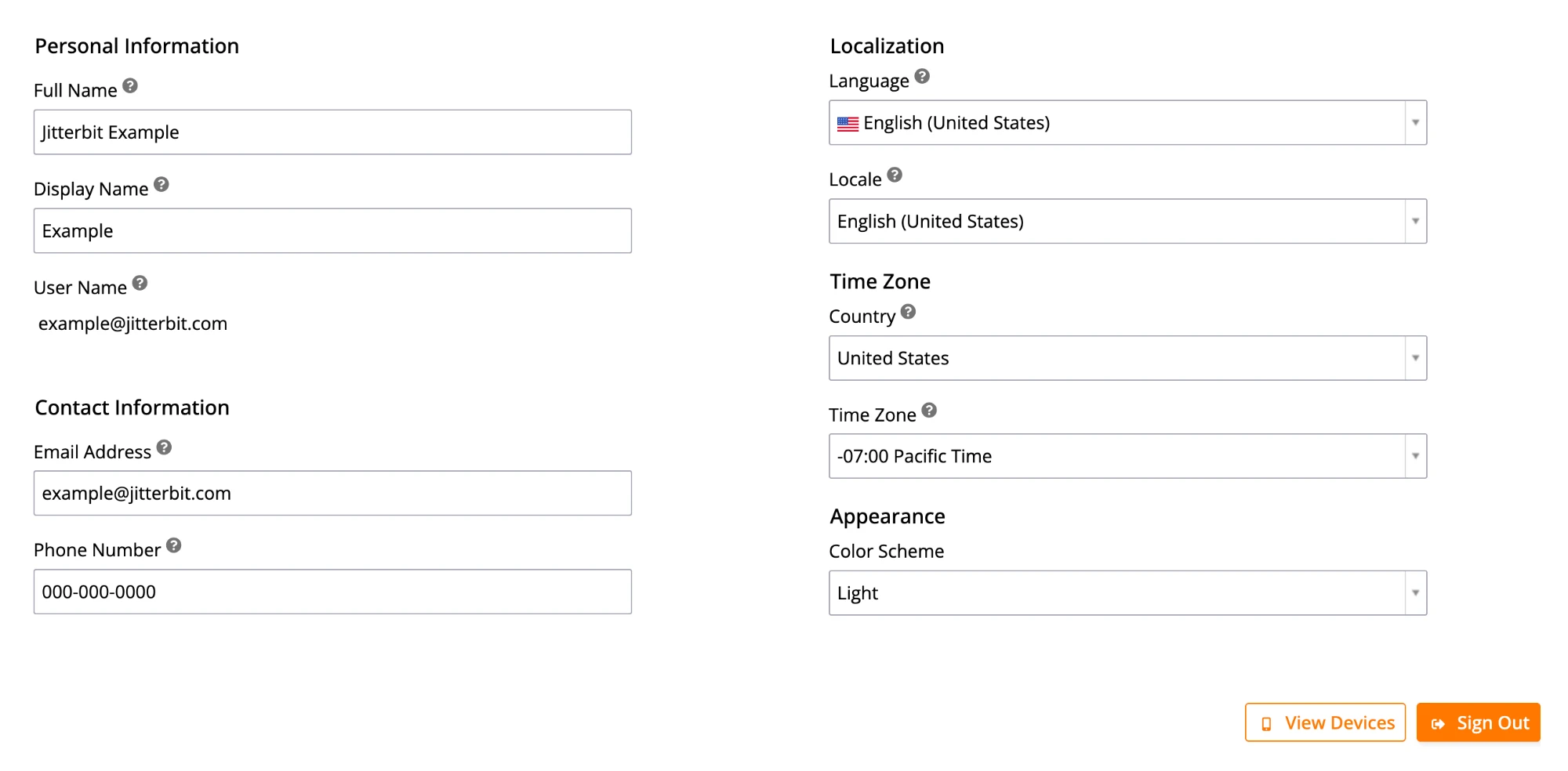
- Personal Information: The user's Full Name and Display Name.
- Contact Information: The user's Email Address and Phone Number.
- Localization: The user's preferred Language and Locale, which determines how dates and numeric values are formatted.
- Time Zone: The user's Country and Time Zone.
- Appearance: The user's preferred color scheme, one of Dark, Light (Default.), or System. See Dark mode for more information on light and dark theme color schemes.
Important
Users cannot change their account User Name.
View devices
Click View Devices to reveal the Devices dialog, which allows users to see a list of devices registered to them. Each device has Type, Model, Last Seen, and Notifications fields populated with relevant information.
Click Sign Out to end the current session.
Change password
The Change Password page allows users to change their local user account password. This page is only available if the user has authenticated using the Local user security provider. It will not be available if the user has authenticated with an external authentication provider such as Salesforce, regardless of whether or not the account allows local authentication. This ensures that the user has provided his or her current password.
Enabling the self-service application
Only administrators have access to the self-service application by default. Security administrators can grant access to the application through standard group privileges.
The following instructions demonstrate how to grant the Users group, which typically includes all authenticated users, privilege to the self-service application:
- Log into App Builder as an administrator.
- Navigate to the IDE.
- Click on User Management.
- Click the Groups menu item.
- Locate the Users group and click the Manage Privileges button.
- In the Privileges panel, click the Create button.
-
Provide the following:
- Type: Application
- Application: App Builder - User
-
Click the Save button.