Allowed URLs page in Jitterbit App Builder
Introduction
The Allowed URLs page manages a list of URL patterns that control which links are clickable in specific App Builder features. This allowlist adds a layer of protection for features that display content from untrusted sources, such as chat responses generated by a large language model (LLM). It is available in App Builder versions 4.64 and later.
By default, the allowlist is empty. Until you add entries, all non-relative URLs are removed from clickable links, and only the surrounding text remains; relative URLs (such as /app/Vinyl/Home) are always allowed regardless of the list's contents. To allow specific URLs (or disable filtering entirely with *), see Add URLs manually.
Scope
This allowlist is enforced for the following features:
-
The AI Assistant.
-
Conversational AI, including the chat panel.
-
The Markdown Renderer widget, unless its Sanitize parameter is disabled.
Access the Allowed URLs page
To access the Allowed URLs page, follow these steps:
-
Go to IDE > Security Providers.
-
In the Configuration panel, click More and select Allowed URLs.
Page details
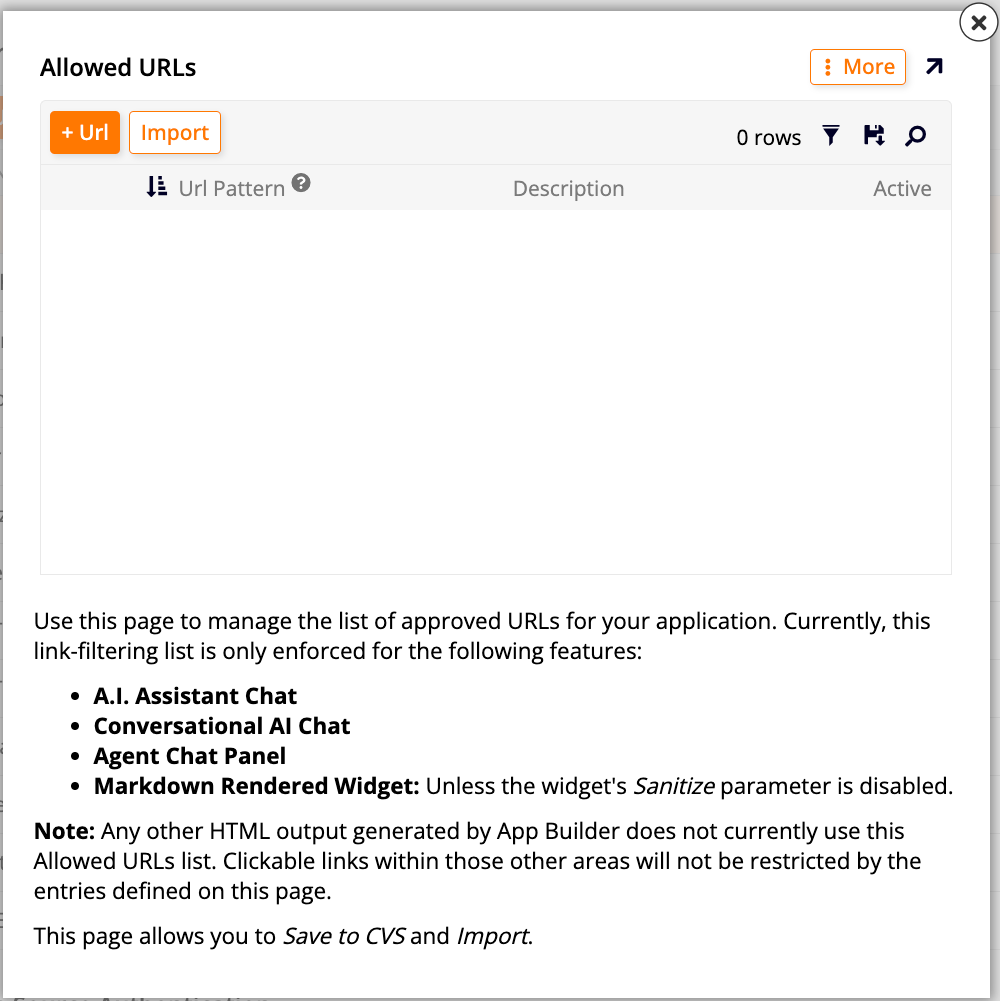
Click + Url to add a URL manually, or click Import to import them automatically.
The Allowed URLs page displays a table with the following columns:
-
Url Pattern: The pattern used to match a URL. See Add URLs manually below.
-
Description: An optional description for the entry.
-
Active: Indicates whether the entry is currently enforced.
Each row includes and icons to edit or delete the entry. Use the filter and search tools to narrow down the list. Click the icon to export the list as a CSV file.
Add URLs manually
To add a URL manually:
-
Click + Url.
-
Enter a Url Pattern. The following formats are accepted:
Pattern Matches example.comThe exact domain. *.example.comAny subdomain. example.com/apiAny URL with this path prefix. example.com/docs/*URLs with this required subpath. ftp://files.example.comA specific protocol. *://example.comAny protocol. *All URLs. Use this to disable URL filtering entirely. If a pattern doesn't specify a protocol, both
http:andhttps:are allowed. Thejavascript:,data:, andvbscript:protocols are always blocked, regardless of the entries in this list. -
Optionally, enter a Description.
-
Click the icon to save your entry.
Import URLs
To import a list of URLs from a CSV file:
-
Click Import.
-
Drag and drop a file, or click Browse to select one.
-
Optionally, enable Truncate before import? to clear the existing list before importing.
-
Click Import to confirm.
Clear the list
To remove all entries from the list, click More and select Truncate.