Security providers in Jitterbit App Builder
Introduction
A security provider is a configurable module that verifies identity in App Builder. Depending on its type, a security provider can authenticate the users who sign in to your applications, the connections App Builder makes to external data sources and mail servers, or requests to reporting services. App Builder includes provider types for common authentication methods, such as local user accounts, SAML, OAuth, OpenID Connect, and API keys, so you can match the methods your organization already uses.
This page describes the Security page, where you add and manage security providers. It covers the Security Providers panel that lists your providers, the Provider page where you configure each one, and the Configuration panel that holds settings applying to all security providers.
Access security providers
To open the Security page, follow these steps:
-
Open the IDE.
-
In the Connect panel, click Security Providers.
-
The Security page opens:
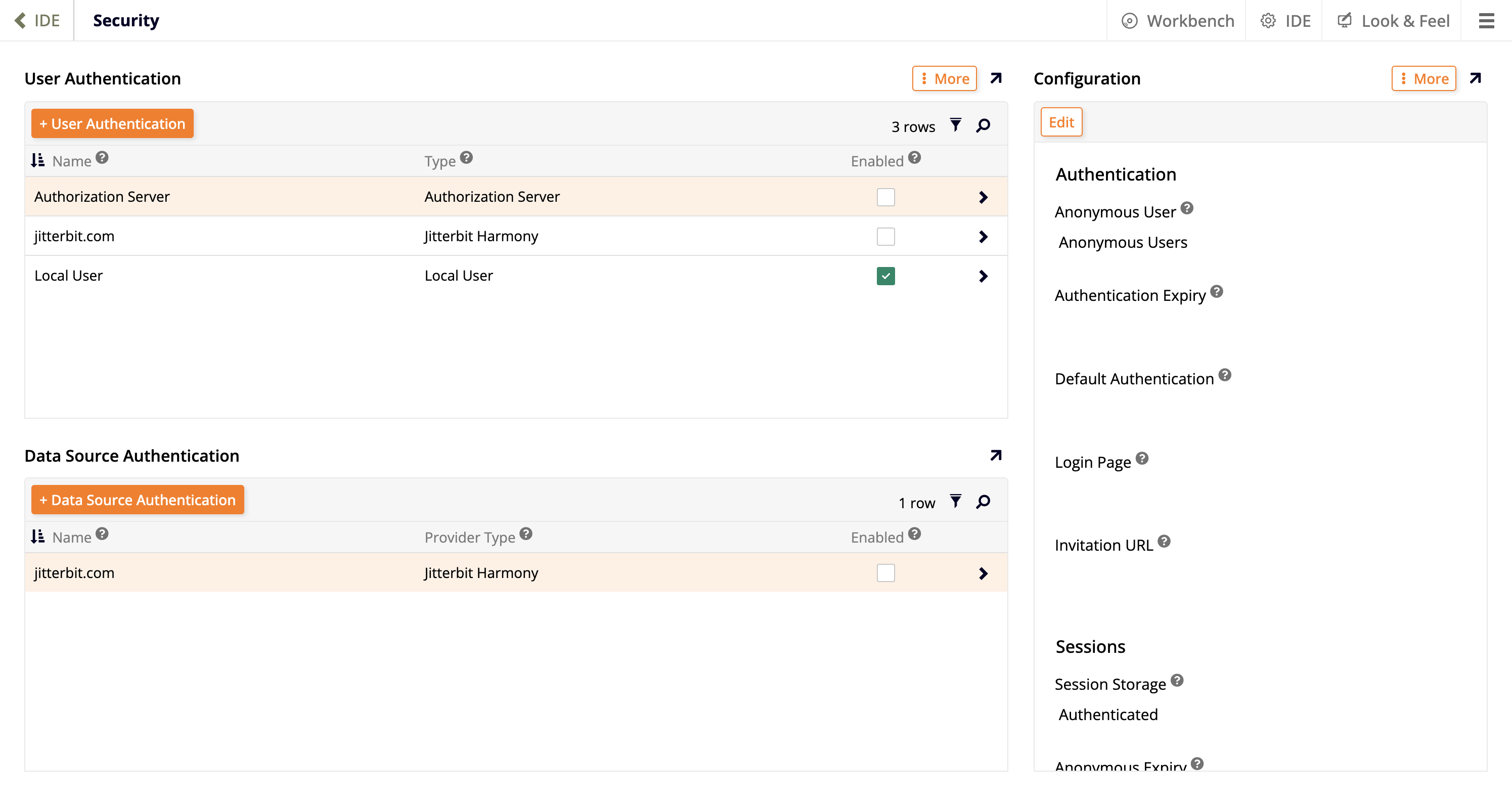
The Security page has two panels:
-
Security Providers: Lists every configured security provider on the right. See Security Providers panel.
-
Configuration: Contains settings that apply to all security providers on the left. See Configuration panel.
Security Providers panel
The Security Providers panel lists every security provider configured in App Builder. The list includes filter and search tools. To add a security provider, see Add a new security provider. To maximize the panel to the full width of the page, click the maximize icon at its top right. Click the restore icon to restore the Configuration panel.
Each row in the list shows the following:
-
Name: The name that identifies the security provider.
-
Scheme: A unique, URL-safe name that identifies the security provider. See Settings.
-
Type: The classification type of the security provider, such as SAML Identity Provider, HTTP, or OAuth. See Provider types.
-
Authentication: Icons showing the types of authentication that the security provider supports. See Authentication column icons.
-
Enabled: A checkbox that shows a green checkmark when the security provider is enabled in the App Builder environment.
To open a security provider's Provider page, click the chevron icon at the end of its row. See Edit a security provider.
Authentication column icons
The Authentication column shows an icon for each type of authentication that a security provider supports. Hover over the Authentication column header to see a legend for the icons.
| Icon | Authentication type | Description |
|---|---|---|
| User authentication | Authenticates the users who sign in to App Builder applications. | |
| Data source authentication | Authenticates App Builder's connections to external data sources. | |
| Mail server authentication | Authenticates App Builder's connections to mail servers. | |
| Report authentication | Authenticates requests to a reporting service, such as Adobe PDF Services. |
A single security provider can have more than one icon. For example, a Salesforce / OpenID Connect security provider can authenticate both users and data sources.
Security Providers panel menu
Click More at the top of the Security Providers panel to open a menu with the following options:
-
Login Form: Configures which authentication providers appear on the login form. -
Applications: Configures application authentication settings, including the default authentication provider and login page, and which authentication providers can authenticate web service requests. -
Remote Connector: Configures which providers can authenticate remote connector requests. -
Reporting Services: Configures the security providers responsible for authenticating reporting service requests.
-
Request Pipeline: Configures and sequences the security providers that interact with HTTP requests. -
Import Provider: Creates a security provider by uploading a JSON configuration file.
Add a new security provider
To add a security provider, click the + Security Provider button above the list in the Security Providers panel. The Provider page opens, with its fields organized into the sections described in the following headings:
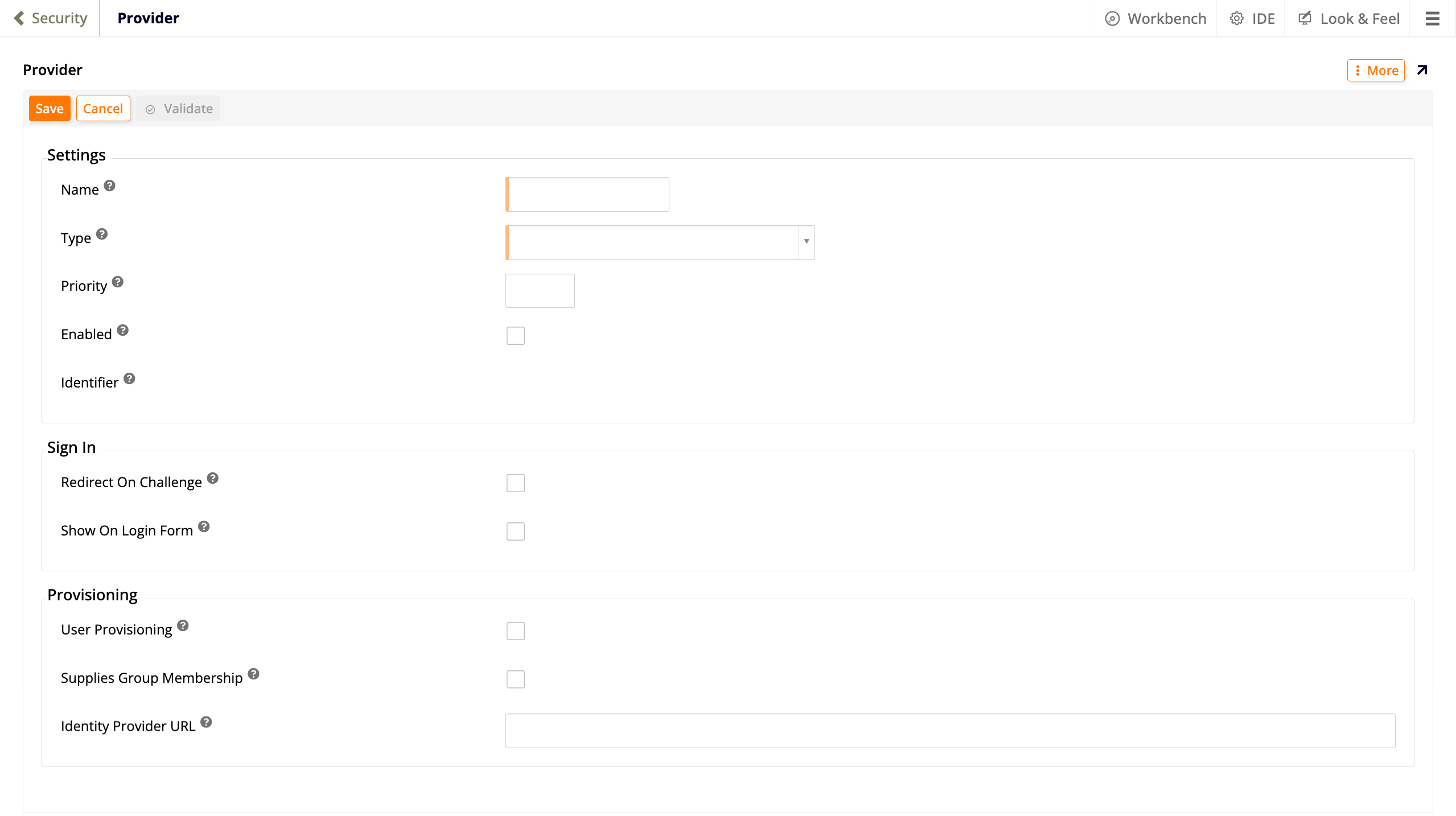
The fields that appear vary by the Type you select. For example, OAuth adds Authentication and Tokens sections, and JWT SSO adds a Tokens section with different fields. See the documentation for your provider type for its additional settings. After you complete the fields, click Save. The panels the provider type needs then appear on the right side of the page. See Provider page panels.
Settings
-
Name: Enter a name to identify the security provider. The name appears throughout the IDE. In the case of user authentication providers, the name also appears on the login form. You can rename a security provider at any time without affecting URLs built from its Scheme.
-
Type: Use the dropdown list to select the security provider type. Types typically correspond to a protocol, an authentication standard, or a vendor-specific scheme. The type cannot be changed later. See Provider types.
-
Priority: An integer that sets the order that security providers appear on the login form and execute in the request pipeline.
-
Enabled: Check to enable the security provider. A disabled security provider does not appear on the login form and cannot be used to authenticate users.
-
Scheme: (App Builder 4.67 and later) A unique, URL-friendly identifier for the security provider. The scheme appears in URLs and JSON documents, so use only ASCII letters, numbers, periods, underscores, and dashes, and prefer all lowercase characters. It's used to build callback URLs and other machine-facing identifiers (for example,
https://example.com/Vinyl/signin-Scheme). For security providers created before App Builder 4.67, the scheme defaults to the provider's name as-is. For security providers created in App Builder 4.67 or later, App Builder generates a URL-friendly scheme from the name. Administrators can edit the scheme, though doing so may break links from third-party Single Sign-On (SSO) providers. -
Identifier: A unique identifier for the security provider. This field is automatically generated.
Sign In
-
Redirect On Challenge: Check to bypass the login form and redirect the user to the Identity Provider (IdP).
-
Show On Login Form: Check to show this security provider on the login form.
-
Default Page: The page the user is redirected to after authenticating. The page must be marked public.
-
Sign Out Page: The page the user is redirected to after signing out. The page must be marked public.
Provisioning
-
User Provisioning: Check to have App Builder create user accounts based on the identity supplied by the IdP. User attributes are mapped using claims. See User and group provisioning.
-
Match Existing User: Check to have App Builder map existing user accounts based on the identity supplied by the IdP. Use this option only with a fully trusted IdP, because an untrusted IdP could use it to access any account. For example, if the IdP has a user named
Admin, that user would have access to the default local administrator shipped with App Builder. A company employee directory is an example of a fully trusted IdP. A social SSO provider such as Google or Facebook is not fully trusted. -
Supplies Group Membership: Check to indicate that the IdP includes group membership claims in the security token. App Builder registers the claims as provider groups, which you can map to user groups. See Provider groups.
-
Name Format: A custom name format string. Supports dynamic substitution, for example
Example\Example JWT SSO. -
Name Identifier Format: A custom name identifier format string. Supports dynamic substitution, for example
Example\Example JWT SSO. -
Identity Provider URL: The IdP address that allows administrators to manage users.
Provider page panels
After you save a security provider, the right side of the Provider page shows panels where you add the details that the provider type needs. The panels shown vary by provider type, and can include Endpoints, Credentials, Certificates, Properties, and Claims. Click the + button at the top of a panel to add a row. See the documentation for your provider type for the values to enter. The following example shows the Provider page for an OAuth security provider:
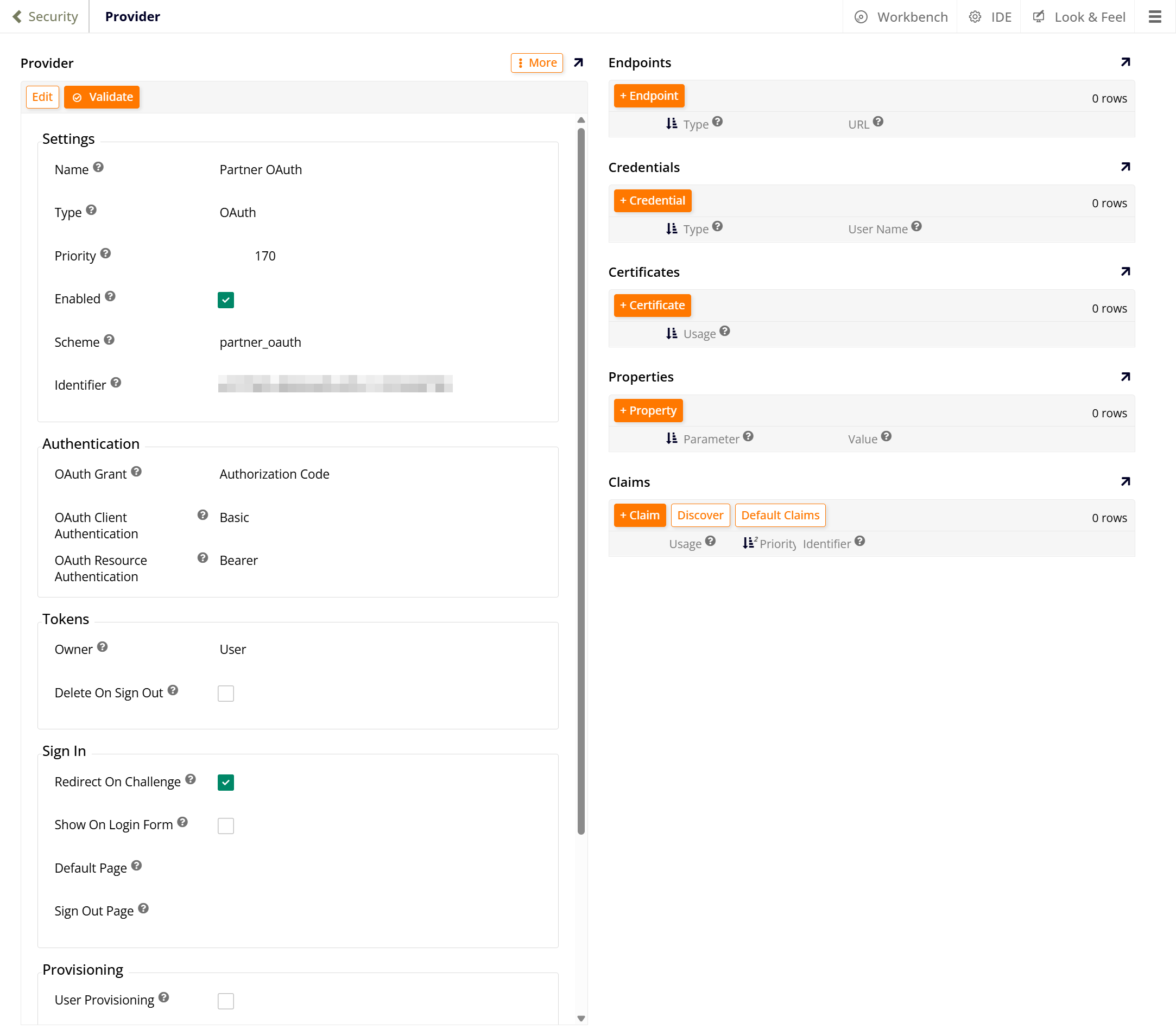
The panels have the following columns:
-
Endpoints:
-
Type: Indicates how the endpoint is used.
-
URL: The endpoint address. Must be an absolute URL.
-
-
Credentials:
-
Type: Describes how the credential is used within the authentication scheme.
-
User Name: The credential user name or identifier.
-
-
Certificates:
- Usage: Indicates whether the certificate is used to sign tokens, validate token signatures, or encrypt message payloads.
-
Properties:
-
Parameter: Identifies a named, configurable property. Each security provider supports different parameters.
-
Value: Supplies the value for the named parameter. Allowed values vary by parameter.
-
-
Claims:
-
Usage: Indicates how claims of this type are mapped to internal user account attributes.
-
Priority: If the security token contains two claims with the same usage, the claim with the higher priority (lower value) is used.
-
Identifier: The claim identifier, typically a URI or other well-known string such as a JSON key.
-
The Claims panel also has the following buttons:
-
Discover: Opens the Provider Claim Types dialog. Select Store Claims to have App Builder log all claims extracted from the security token during the authentication process, which can be useful for troubleshooting. The logged claims appear under Stored Claims. To remove them, click More and select Delete Stored Claims.
-
Default Claims: Opens the Default Claim Types dialog, which lists the default claim types. The Identifier, Usage, and Priority columns are the same as in the preceding list. The other columns are as follows:
-
Source: Indicates where the default claim type is defined.
-
Name: A friendly name for the claim.
-
Ignore: Indicates that the claim should be ignored. You can use this to override the default claim types or to exclude claims that change every time the user signs in, such as a timestamp.
-
Provider types
The Type dropdown list groups the security provider types as follows. Select a type's name to learn more about it.
-
Active Authentication:
-
Integrated Windows Authentication: Authenticates users using Integrated Windows Authentication (IWA).
-
Web Access Management: Authenticates users identified by a Web Access Management (WAM) system.
-
-
Data Source Authentication:
-
HTTP: Authenticates HTTP client web requests.
-
SAP OData Services: SAP OData Services authentication types.
-
SuccessFactors OData: SuccessFactors OData API authentication.
-
-
External Authentication:
-
App Builder / OpenID Connect: Sign in via an App Builder OpenID Connect authorization server.
-
Application Authentication: Allows an application to authenticate users.
-
Google Accounts / OpenID Connect: Sign in via Google Accounts using OpenID Connect.
-
JWT SSO: JWT single sign-on (SSO) authentication.
-
Microsoft / OpenID Connect: Microsoft OpenID Connect (OIDC) Identity Providers (IdPs) including Azure, Microsoft 365, and Outlook.com.
-
OAuth: OAuth authorization grants.
-
OpenID Connect: OpenID Connect SSO.
-
Salesforce: Salesforce authentication and authorization.
-
Salesforce / OpenID Connect: Sign in via Salesforce using OpenID Connect.
-
SAML: SAML SSO authentication.
-
WS-Federation: Web Services Federation integration with Microsoft Azure Active Directory.
-
-
Forms-based Authentication:
-
Active Directory: Active Directory forms-based authentication provider.
-
Jitterbit Harmony: Jitterbit Harmony authentication provider.
-
Local User: Local user store.
-
SuccessFactors Password: Authenticates user-supplied credentials using the SuccessFactors SOAP API.
-
-
Identity Provider:
-
Authorization Server: OpenID Connect authorization server.
-
SAML Identity Provider: SAML SSO identity provider.
-
-
Mail Server Authentication:
- SMTP Client: (Since App Builder 4.57.) Authenticates SMTP mail clients.
-
Passive Authentication:
-
API Key: Authenticates API requests with a user key.
-
HTTP Basic Authentication: Authenticates API requests with HTTP Basic authentication.
-
-
Provisioning:
- User Provisioning: Defines a default configuration when creating new users.
-
Report:
- Adobe PDF Services: Authenticates requests for Adobe PDF REST API.
-
URL Rewriting:
- Rewrite URL: Rewrites HTTP request URLs to match web client URLs.
Edit a security provider
To edit a security provider, follow these steps:
-
In the Security Providers panel, click the chevron icon at the end of the security provider's row. The Provider page opens.
-
Click Edit. The Save, Cancel, and Validate buttons replace Edit, and the fields become editable. The Type cannot be changed.
-
Update the fields, then click Save. To discard your changes, click Cancel.
To check a security provider's configuration, click Validate at the top of the Provider page. If App Builder detects issues, it lists them at the top of the page, for example, a required endpoint or client identifier that is missing.
Provider page menu
Click More at the top right of the Provider page to open a menu with the following options:
-
Invalidate Tokens: Revokes access tokens issued by the security provider.
-
Export Provider: Displays the serialized security provider configuration.
-
Manage Groups: Opens the Provider Groups dialog, where you create the security provider's groups and map them to App Builder security groups. See Provider groups.
-
Changelog: Lists the changes made to the security provider.
-
Delete Provider: Deletes the security provider.
Configuration panel
The Configuration panel is on the left side of the Security page. It contains settings that apply to all security providers. To change the settings, click Edit at the top of the panel. The Save and Cancel buttons replace Edit, and the settings become editable, except Anonymous User. Update the settings, then click Save. To discard your changes, click Cancel.
Authentication settings
-
Anonymous User: The group specified to handle anonymous authentication to the App Builder environment, for example,
Anonymous Users. -
Authentication Expiry: The security token lifetime, measured in minutes.
-
Default Authentication: Specifies the authentication provider to use by default for the App Builder environment.
-
Login Page Theme: Overrides the login page default theme. All login page themes must extend the Login Base Theme. See How to customize the login page for details.
-
Login Page: Overrides the default login page with a custom login page. The anonymous user must have access to the custom login page.
-
Invitation URL: A link to a page that allows users to send an invitation to create an account.
Session settings
-
Session Storage: Determines when sessions are stored.
-
Anonymous Expiry: Determines how long anonymous sessions are stored.
-
Max Concurrent: Limits the maximum number of concurrent sessions per user account.
Configuration panel menu
Click More at the top of the Configuration panel to open a menu with the following options:
-
Sites: Manages site URLs and redirects.
-
Allowed URLs: Manages the list of approved URLs.
-
Inspect Request: Displays information from the current browser session, including the URL scheme, host, and port, and the HTTP headers.
-
Invalidate Tokens: Invalidates all session authentication tokens.
Differences in App Builder 4.68 and earlier
In App Builder 4.68 and earlier, the Security page has separate User Authentication, Data Source Authentication, and Mail Server Authentication panels, each with its own + button for adding a provider. In App Builder 4.69 and later, these panels are combined into the Security Providers panel, where each provider appears once.
To follow instructions in the documentation that refer to + Security Provider, click the + User Authentication, + Data Source Authentication, or + Mail Server Authentication button that matches the provider you are creating, then select its Type.
Some More menu options were also renamed or moved in 4.69:
-
Manage Applications is now Applications.
-
Manage Sites is now Sites.
-
Import Provider and Request Pipeline are now in the Security Providers panel's More menu instead of the Configuration panel's.