Change password on logon in Jitterbit App Builder
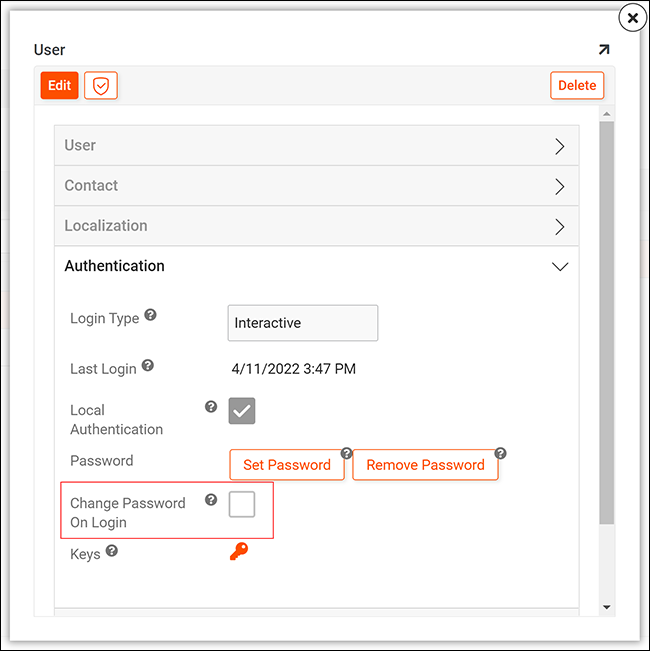
The Change Password On Logon option is a user-level setting. When enabled, the user will be forced to change their password the next time they sign into App Builder. The Change Password On Logon option will be disabled automatically once the user has successfully changed their password.
Note
Note that the Change Password On Logon option only applies to the Local User authentication scheme.
Setup requirements
To use the Change Password On Logon feature, the user must have:
- Privilege to the App Builder - Password Expiration application.
- Membership in the App Builder data source's Password Expiration role.
By default, the Admin account has the necessary privileges. To use the Change Password On Logon option with all authenticated user accounts, grant the Users group the necessary privileges.
How to configure
Configure via the user interface
To enable the Change Password On Logon option for a specific user, sign in to App Builder as an administrator and follow these steps:
-
Access the IDE.
-
In the Runtime panel, click User Management.
-
In the Users panel, locate the user and click the details icon. A popup opens.
-
In the Authentication field group, toggle the Change Password On Logon checkbox.
-
Click Save.
Configure via public data objects
The Change Password On Logon option can also be set programmatically using the
ChangePasswordOnLogin attribute available in the following public data objects:
-
User_SetPassword
Use this when setting a user's password and requiring a password change in the same operation. -
User_LocalAuthentication
Use this to force a password change alongside other local authentication settings, such as enabling or disabling local authentication.
Set ChangePasswordOnLogin to True to force the user to change their password on next login, or False to clear the requirement.