Display help text in Jitterbit App Builder
Overview
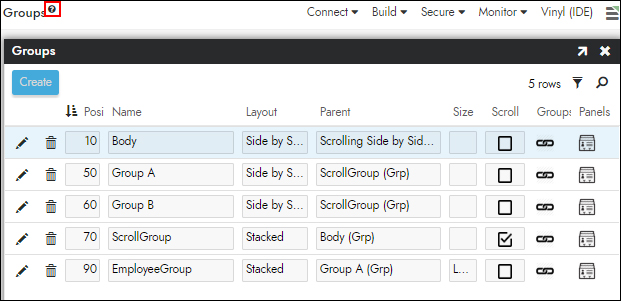
Help text is explanatory content that you add to a page, panel, control, or column so that users can see guidance in context while they work in an application. Wherever help text has been added, App Builder displays a question mark icon in that region to show that help text is available. Help text can be edited at any time after it has been added.
As an application developer, you can use help text to assist the people who use your applications. The App Builder IDE itself also uses help text in areas that warrant it, displayed with the same icon next to field and section labels.
The steps are similar for each region where help text is supported: pages, panels, controls, and columns.
Video example
Configure on a page
Page-level help text appears for the page as a whole, so users can read about the page's purpose or how to use it. You add or edit it from the page's design view.
To configure or edit help text on a page
-
Navigate to the page you want to add or edit help text on.
-
Select Action Drawer > Design: {page} to open the page for editing.
-
In the Page Settings panel, click Add Help. If the page already has help text, the button is labeled Edit Help instead.
-
In the Content (HTML) field, enter the content you want to display.
-
Click Save.
Configure on a panel
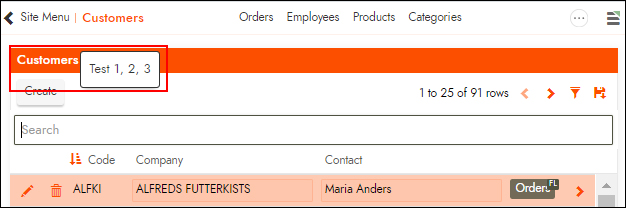
Panel-level help text appears for an individual panel, so users can read about the data or actions that panel provides. You add or edit it using Live Designer.
To configure or edit help text on a panel
-
Navigate to the page that contains the panel you want to add or edit help text on.
-
Select Action Drawer > Live Designer.
-
Locate the panel and click More.
-
Click Add Help. If the panel already has help text, the option is labeled Edit Help instead.
-
In the Content (HTML) field, enter the content you want to display.
-
Click Save.
Configure on a control
When a control has help text, a help icon appears next to the control's label. In a grid, the icon appears in the column header. This includes controls that are field groups.
To configure or edit help text on a control
-
Navigate to the page that contains the control you want to add or edit help text on.
-
Select Action Drawer > Design: {page} to open the page for editing.
-
In the Page Panel Layout panel, click the Controls button for the panel that contains the control.
-
In the control list, click the Details icon (popup) at the far right of the control's row.
-
Click More > Help Text. The Help dialog opens.
-
On the HTML tab, enter or edit the information you want to display.
-
Click Save.
Configure on a column (table or business object)
You can also configure help text on a column in a table or a business object. When you do, App Builder displays the help text at the control level wherever that column is used in an application, so you configure it once rather than on every control.
Note
When help text is configured in more than one place, a business object column's help text takes precedence over a storage table column's help text, which in turn takes precedence over the help text on a control.
To configure or edit help text on a business object column
-
Navigate to the business logic layer, and open the business object you want to configure help text for.
-
Click the SQL cog icon to modify the business object.
-
In the Columns panel, locate the column and click the corresponding pop-up icon.
-
In the Column window, click Add Help. If the column already has help text, the button is labeled Edit Help instead.
-
In the Content (HTML) field, enter the content you want to display.
-
Click Save.
To configure or edit help text on a table column
-
Navigate to the data storage layer, and drill into the Tables icon for the data source you want to configure help text for.
-
Open the record for the table that contains the column.
-
In the Columns panel, locate the column and click the corresponding pop-up icon.
-
In the Column window, click Add Help. If the column already has help text, the button is labeled Edit Help instead.
-
In the Content (HTML) field, enter the content you want to display.
-
Click Save.