IDE Language Translations page in Jitterbit App Builder
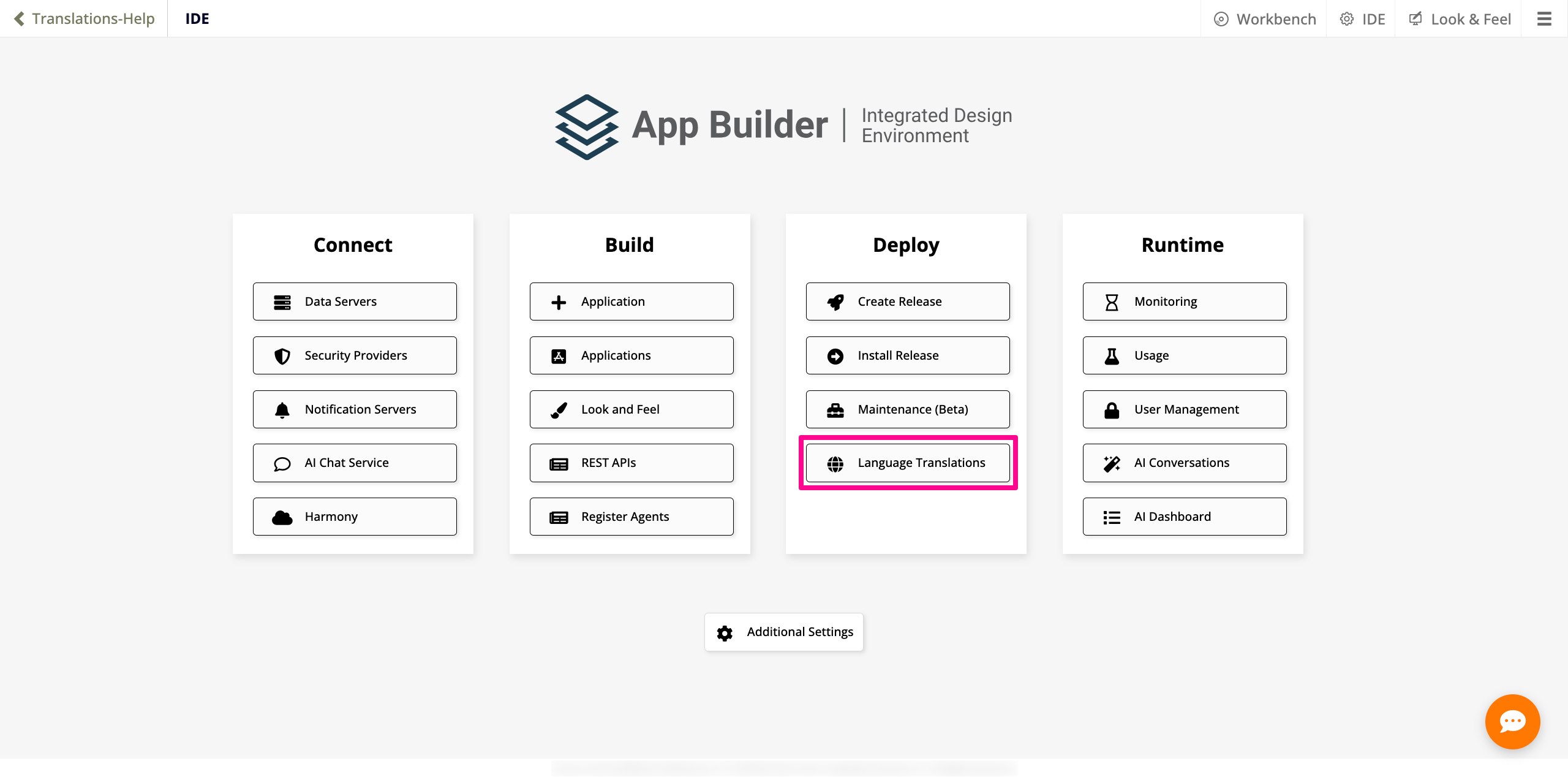
The Language Translations page is where you manage all aspects of translation support for your applications. To access it, go to the IDE. In the Deploy section, click Language Translations.
It is divided into eight tabs, described in detail below:
Supported Languages tab
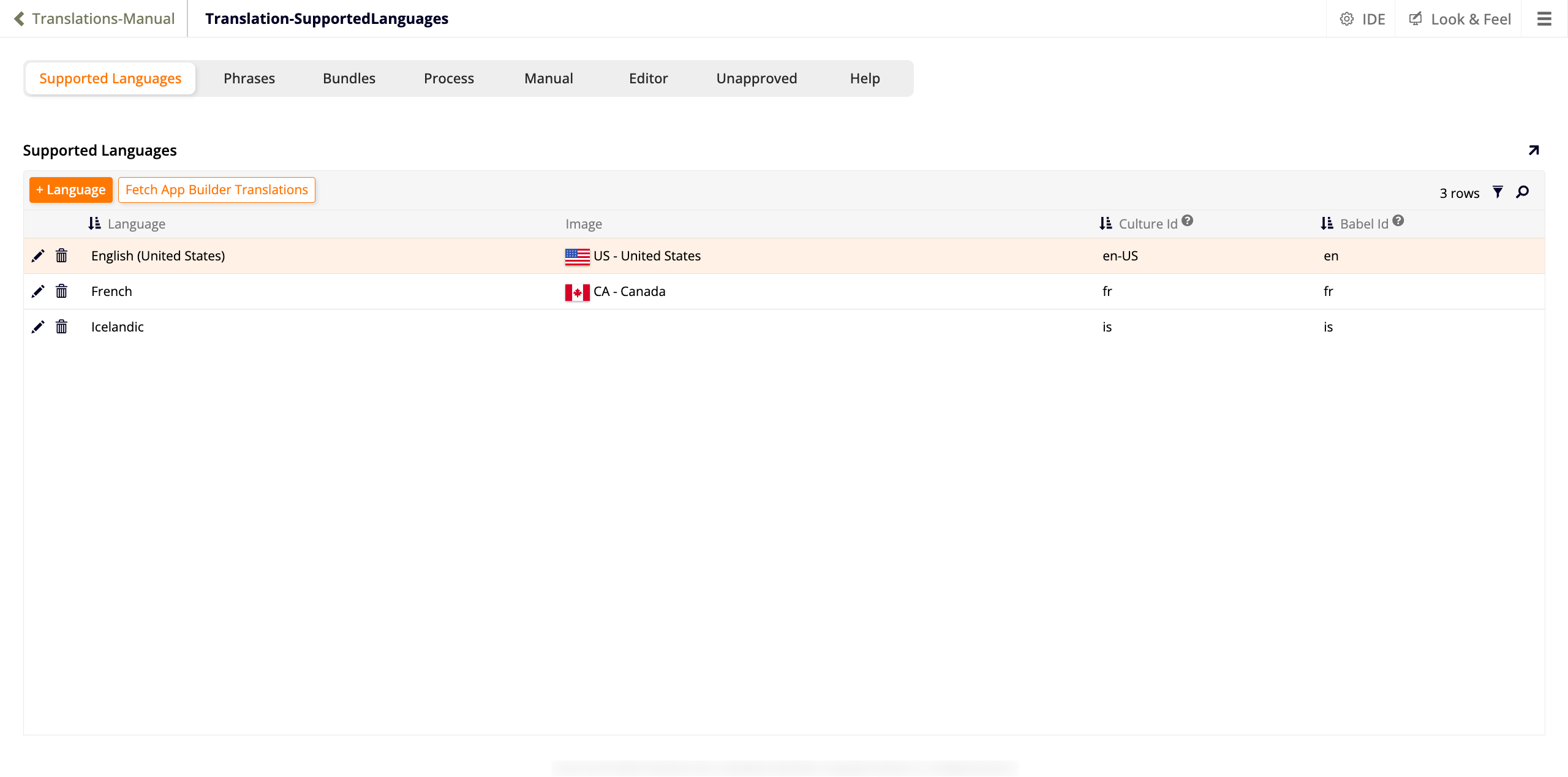
The Supported Languages tab contains a single panel, also called Supported Languages, which lists all languages currently enabled for translation. The language list is extensive and includes commonly used languages such as English, Spanish, French, German, Portuguese, Japanese, and Mandarin, among many others. Two actions are available at the top of the panel:
-
+ Language: Add a new language. Clicking this button reveals a new row with dropdown menus for Language and Image. Both menus offer a large selection of languages and flag images. Click to save or to discard.
-
Fetch App Builder Translations: Fetch translations from the Babel service for the selected rows. A confirmation banner appears showing the number of affected rows, with Cancel and Proceed options. This starts a background job that may take a few minutes to complete. You can monitor its progress by searching for
Gb_TranslationBabelJobin the App Builder Logs.
The panel displays a table of languages. Click the filter icon to filter the items in the list, or click the magnifying glass icon to search for a specific value. The total row count is shown in the top-right corner of the panel. All rows have edit and delete icons, plus the following columns:
- Language: The name of the language.
- Image: The flag image associated with the language.
- Culture Id: The culture identifier for this language, formatted as an IETF language tag (for example,
en-US). App Builder uses this value to determine which language and regional formatting to apply for the user. - Babel Id: The identifier used to fetch translations from the Babel service.
Phrases tab
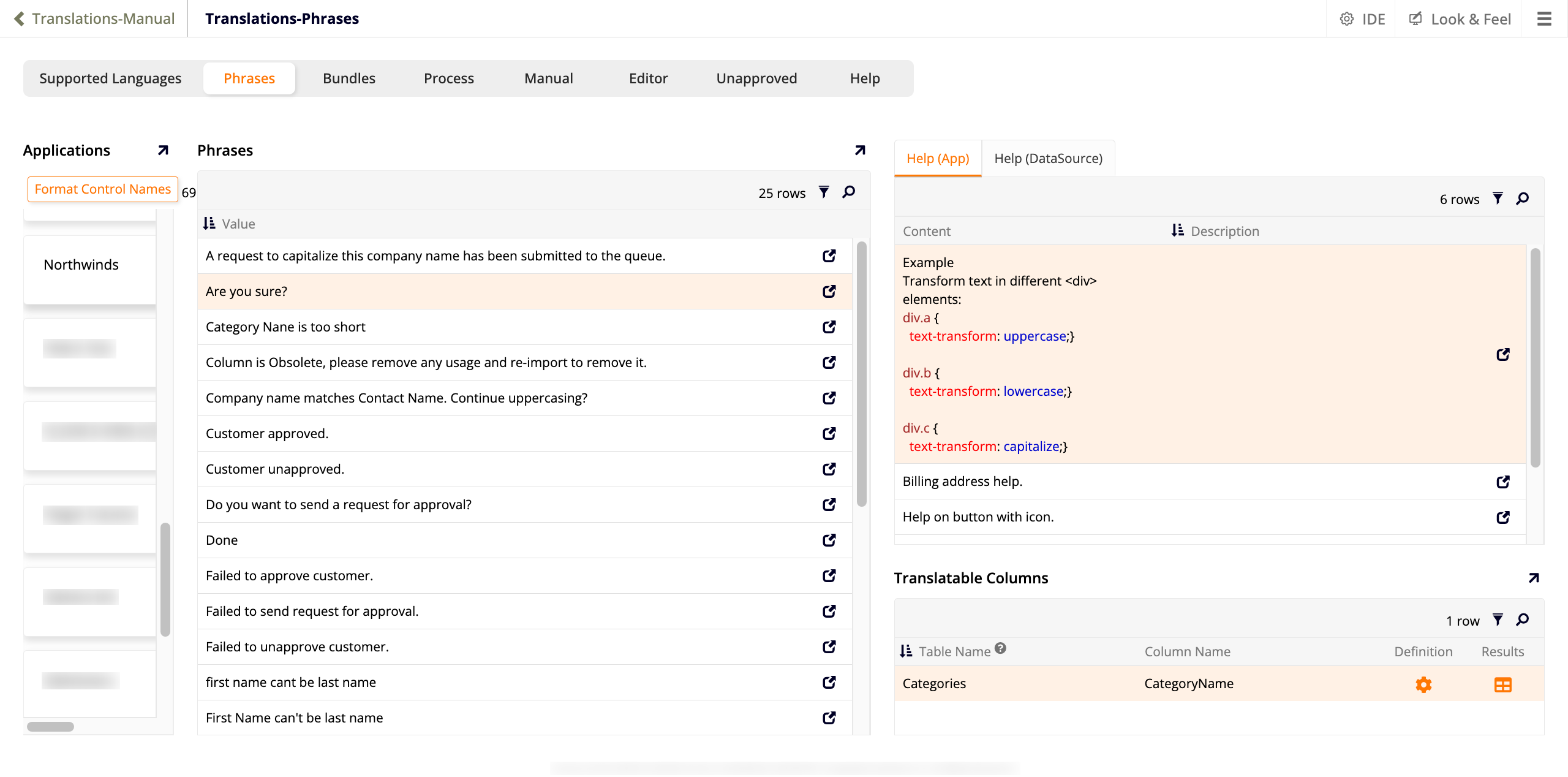
The Phrases tab allows you to review and edit the translation keys used across your applications. All panels in this tab include filter () and search () tools in their toolbar, as well as a row count indicator.
It contains four panels.
Applications
Lists all applications available in this environment. Select an application to populate the remaining panels with data for that application.
The Format Control Names button runs a plugin that adds spaces to control names and labels to improve readability; for example, CustomerDetail becomes Customer Detail and OWAck becomes OW Ack. App Builder applies this formatting automatically when building pages from tables; this button lets you trigger it manually for an existing application. Clicking it opens a confirmation banner showing the number of affected rows, with Cancel and Proceed options.
Phrases
Lists the translation keys for the selected application. Modifying a value here directly updates the corresponding control name, label, event message, or validation message in the app.
Click the icon on any row to open a dialog with two panels:
- Phrase: Displays the current phrase value.
-
A second panel, whose name reflects the type of phrase selected (for example, Event Failure Messages, Event Pre Messages, or Validation Messages). This panel lists the locations in the app where the phrase is used, with the following columns:
- Message: The message text.
- Data Source: The data source associated with the message.
- Table: The table associated with the message.
- Event: The event associated with the message.
Each row includes a edit icon and a navigation icon that opens the related event () or validation () for editing.
Help (App) and Help (DataSource)
These two tabs display the help text associated with the selected application: the content shown in help icons () next to labels in the app. Help (App) shows help text defined in the application itself, attached to pages, panels, or controls. Help (DataSource) shows help text defined on columns in the application's data sources; to add help text to a data source column, go to App Workbench > Tables, drill down into a column, and click Add Help in the toolbar of the Column dialog. Both tabs contain a table with the following columns:
- Content: The help text.
- Description: A description of where or how the help text is used.
Click the icon on any row to open the Help dialog, where you can edit the text using the HTML or Text tab. The dialog also includes Edit, Delete, and Audit buttons.
Translatable Columns
Lists the database columns that have been marked as translatable for the selected application, with the following columns:
- Table Name: The name of the table or rule that contains the column.
- Column Name: The name of the column.
- Definition: Click to open the table definition for editing.
- Results: Click to preview the table results.
Bundles tab
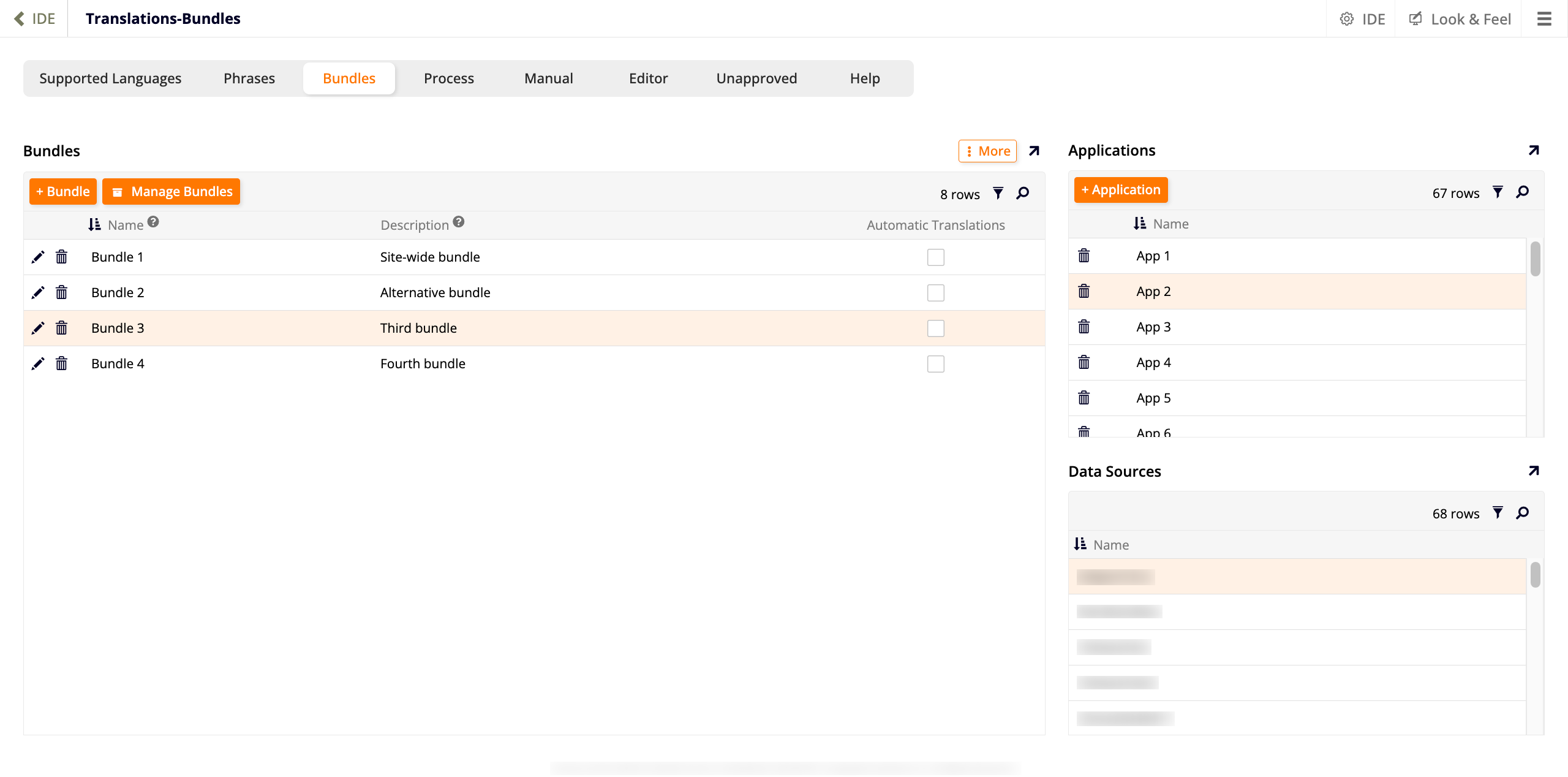
The Bundles tab is where you create and manage translation bundles and link them to applications and data sources. All panels in this tab include filter () and search () tools in their toolbar, as well as a row count indicator.
It contains three panels.
Bundles
This panel lists all available translation bundles. The following actions are available at the top of the panel:
-
+ Bundle: Add a new bundle. A new row appears with fields for Name and Description, and an Automatic Translations checkbox (selected by default). Click to save or to discard.
-
Manage Bundles: Open the Manage Bundles dialog, which contains two panels:
- Bundles: Lists all available bundles with Name and Sealed columns. Sealed bundles are marked with a icon. A sealed bundle cannot be modified by developers.
- Bundle: Shows the details of the selected bundle (Name, Description, and Automatic Translations). If the bundle is sealed, these fields are read-only. A audit button is also shown at the top of this panel. Click More to access the following options:
- Unseal Bundle: Allow developers to modify the bundle. Unsealing is not recommended in production environments. See Seal and unseal bundles for more information.
- Delete Bundle: Permanently delete the bundle.
Click More in the top-right corner of the panel to access the following options:
- Snapshot: Take a snapshot of the bundle. The bundle can later be restored from this snapshot.
- Changelog: View a list of changes made to the bundle.
Each row of the table includes edit and delete icons and contains the following columns:
- Name: The bundle's friendly name.
- Description: A developer-supplied description of the bundle.
- Automatic Translations: When selected, the bundle automatically fetches translations from the Babel service.
Applications
Lists the applications linked to the selected bundle. Click + Application to link an application to the bundle. A new row appears with a dropdown menu to select from the available applications. Click to save or to discard. Each row also includes a delete () icon.
Note
An application can only belong to one bundle at a time. By default, App Builder includes a Site bundle, and all new applications are added to it automatically. To move an application to a different bundle, remove it from its current bundle first. For environments where translations need to be promoted across server stacks, creating a dedicated bundle per application is recommended.
Data Sources
Lists the data sources linked to the selected bundle. Data sources are added automatically when an application is linked to the bundle.
Process tab
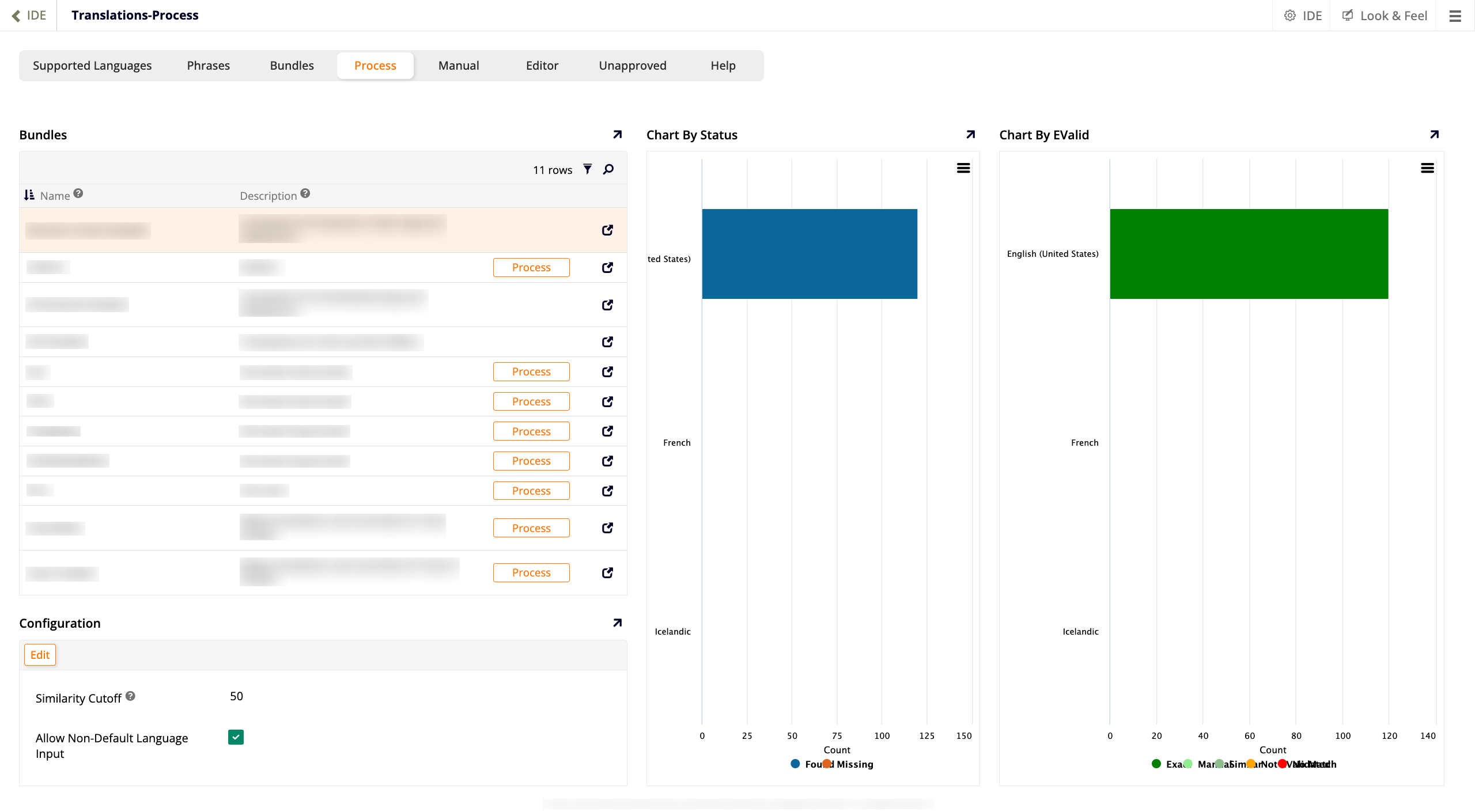
The Process tab is where you trigger and monitor the fetching of translations from the Babel service. It contains four panels.
Bundles
Lists all available translation bundles, with Name and Description columns. The panel includes filter () and search () tools and a row count indicator. Unsealed bundles display a Process button. Clicking Process opens a confirmation banner asking whether to start a background job to fetch missing translations from the Babel service, with Cancel and Proceed options.
Note
Some translation jobs run in the background and may take a few minutes to complete. You can monitor them by searching for Gb_TranslationBabelJob in the App Builder Logs.
Each row also includes an icon that opens the Bundle Detail dialog. This dialog shows the bundle's name and description, and provides the following actions:
-
Languages: Opens the Translation dialog, which displays a table of translations for the bundle.
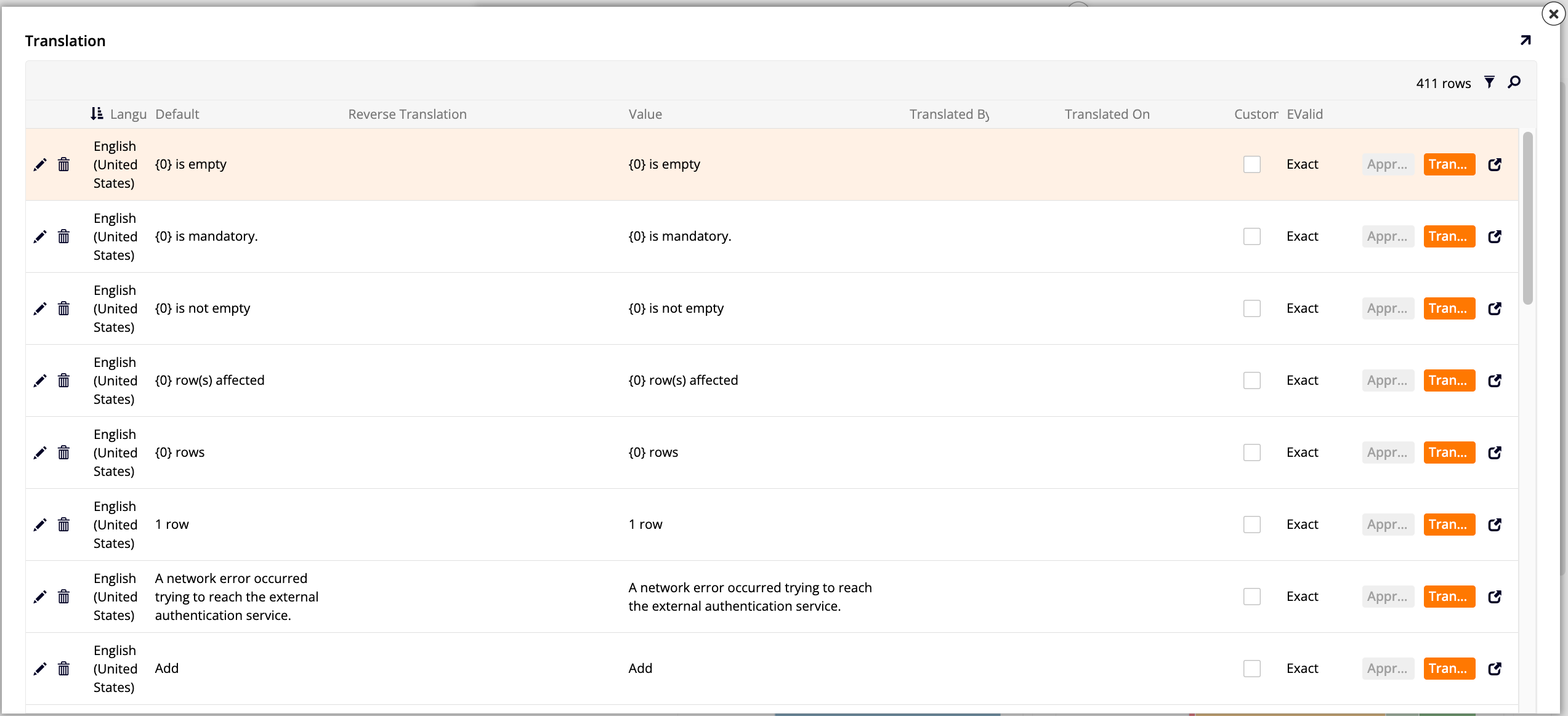
The table contains the following columns:
- Language: The language this translation applies to.
- Default: The default text in the base language.
- Reverse Translation: The back-translation of the translated value into the base language, used to verify translation accuracy.
- Value: The translated text.
- Translated By: The service or user that provided the translation.
- Translated On: The date the translation was created or last updated.
- Custom: Indicates whether the translation has been manually customized.
- EValid: An indicator of how reliable the translation is.
Each row includes edit and delete icons, as well as the following actions:
- Approve: Mark the translation as manually approved. Translations with an exact reverse-translation match are approved automatically. When a translation is a partial match, not evaluated, or has no match, a user with the Translator role must review it and click Approve to mark it as Manual, indicating it has been reviewed.
- Translate: Start a background translation job for that entry.
-
: Open the Translation Details dialog, which shows the full details of that translation entry across two sections:
- Translation Details: Language, Default, Translation, Reverse Translation, and Translation Format.
- Status: Bundle, Substitution, Translated By, Translated On, Custom (checkbox), EValid (an indicator of how reliable the translation is), and Similarity.
The dialog also includes Approve and Translate buttons.
-
Reset: Delete all translations in the bundle. A confirmation banner appears with Cancel and Proceed options.
-
Reset EValid: Reset the EValid status for all translations in the bundle. A confirmation banner appears with Cancel and Proceed options.
Configuration
Displays the configuration settings for the translation process. Click Edit to modify them.
-
Similarity Cutoff: The minimum similarity score a translated phrase must have to be considered a similar match to its reverse translation. Lower values allow more loosely matched translations to be counted as similar (for example,
50). -
Allow Non-Default Language Input: When this option is selected, users can enter data in a language other than the default. The entered value is stored as the translation for that language. For example, if the default language is English and a user with Italian selected enters
buonanotteinto a translatable column, a user with English selected seesGood Night. When this option is cleared, translatable columns are read-only for users whose language is not the default.
Chart By Status
Displays a bar chart showing, for each supported language, the number of translations that have been found versus those that are still missing.
Chart By EValid
Displays a bar chart showing, for each supported language, the number of translations broken down by their EValid status — that is, by how reliable each translation is considered to be.
Manual tab
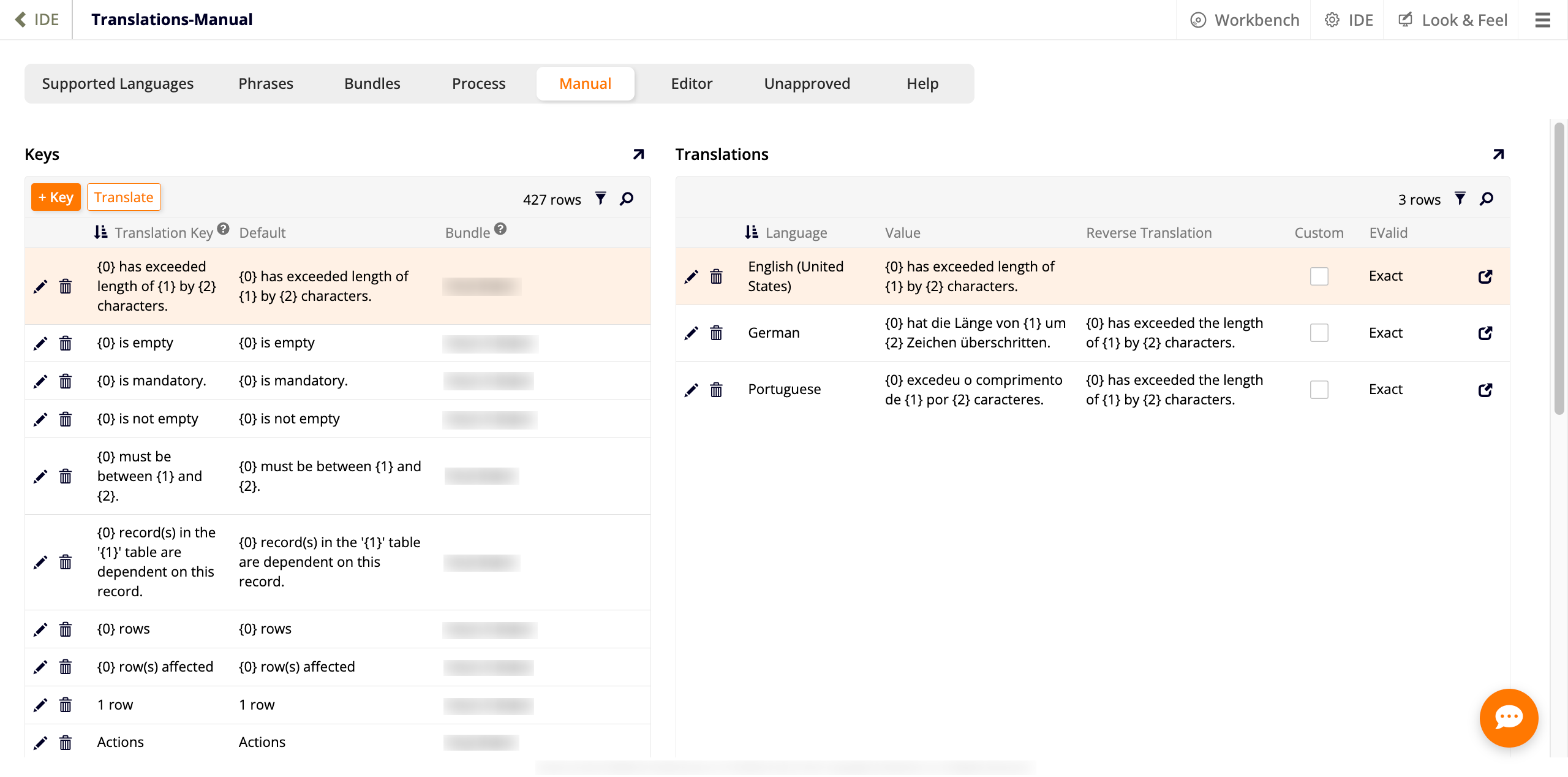
The Manual tab allows you to manually add and manage translation keys and their translations. It contains two panels, both with filter () and search () tools and a row count indicator.
Keys
Lists all translation keys across all bundles. Above the table, two actions are available:
-
+ Key: Add a new translation key. A new row appears with a text field for Translation Key and a dropdown to select a Bundle. Click to save or to discard.
-
Translate: Fetch translations from the Babel service for the selected keys.
The table contains the following columns:
- Translation Key: The text that appears within the App Builder IDE for the app.
- Default: The default text in the base language.
- Bundle: The bundle this key belongs to.
Each row also includes edit and delete icons.
Translations
Displays the translations for the selected key, one row per supported language. The table contains the following columns:
- Language: The language this translation applies to.
- Value: The translated text.
- Reverse Translation: The back-translation of the translated value into the base language, used to verify translation accuracy.
- Custom: Indicates whether the translation has been manually customized.
- EValid: An indicator of how reliable the translation is.
Each row also includes edit and delete icons. Click to open the Translation Details dialog for that entry. This is the same dialog described in the Process tab section.
Editor tab
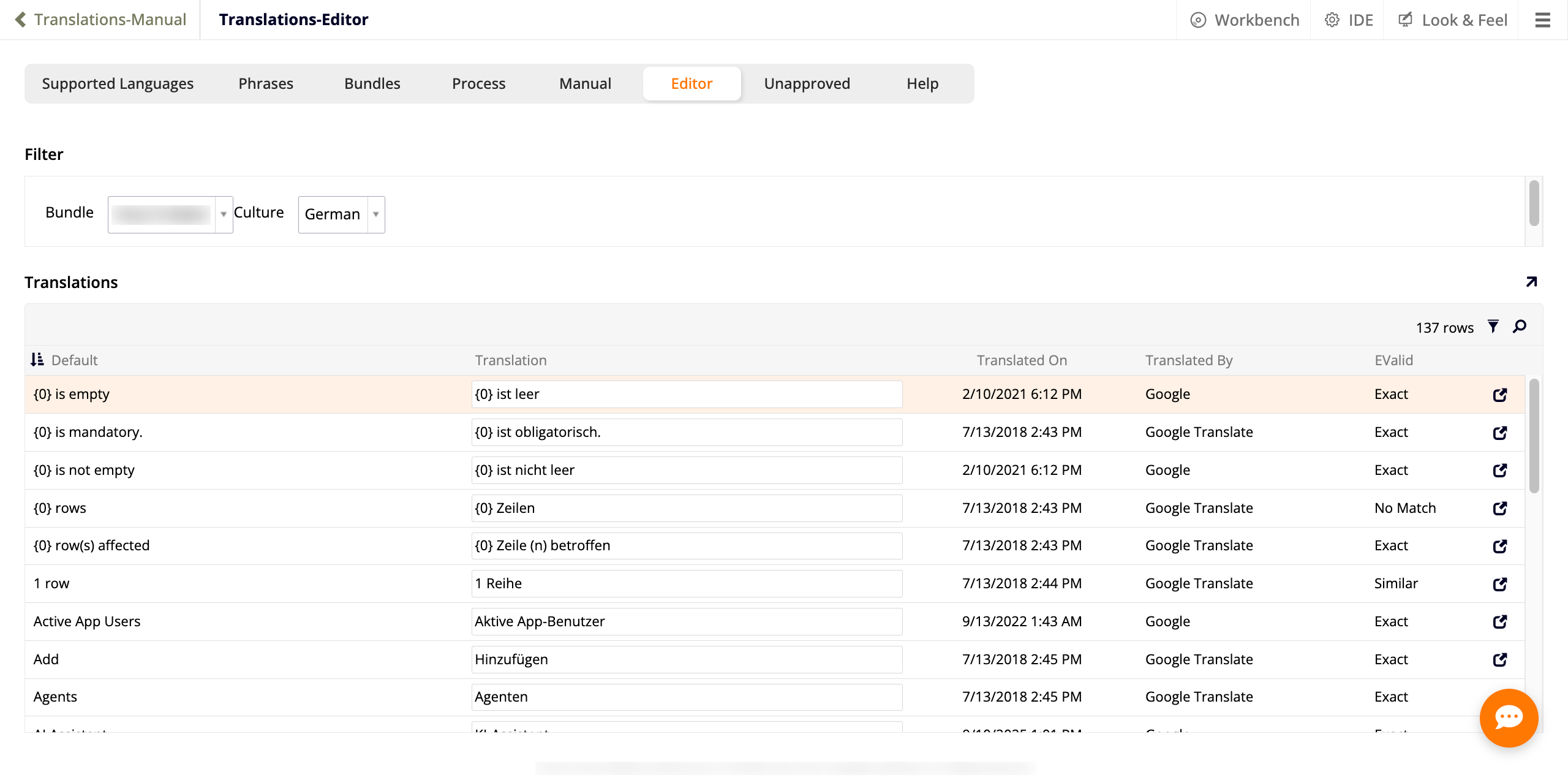
The Editor tab allows you to view and edit translations for a specific bundle and language. It contains two panels.
Filter
Contains two dropdown menus that control which translations are shown in the Translations panel:
- Bundle: Select the bundle to filter by.
- Culture: Select the language to filter by.
Translations
Displays the translations that match the selected bundle and culture. The panel includes filter () and search () tools and a row count indicator. The table contains the following columns:
- Default: The default text in the base language.
- Translation: The translated text for the selected language.
- Translated On: The date the translation was created or last updated.
- Translated By: The service or user that provided the translation.
- EValid: An indicator of how reliable the translation is.
Click on any row to open the Translation Details dialog for that entry. This is the same dialog described in the Process tab section.
Unapproved tab
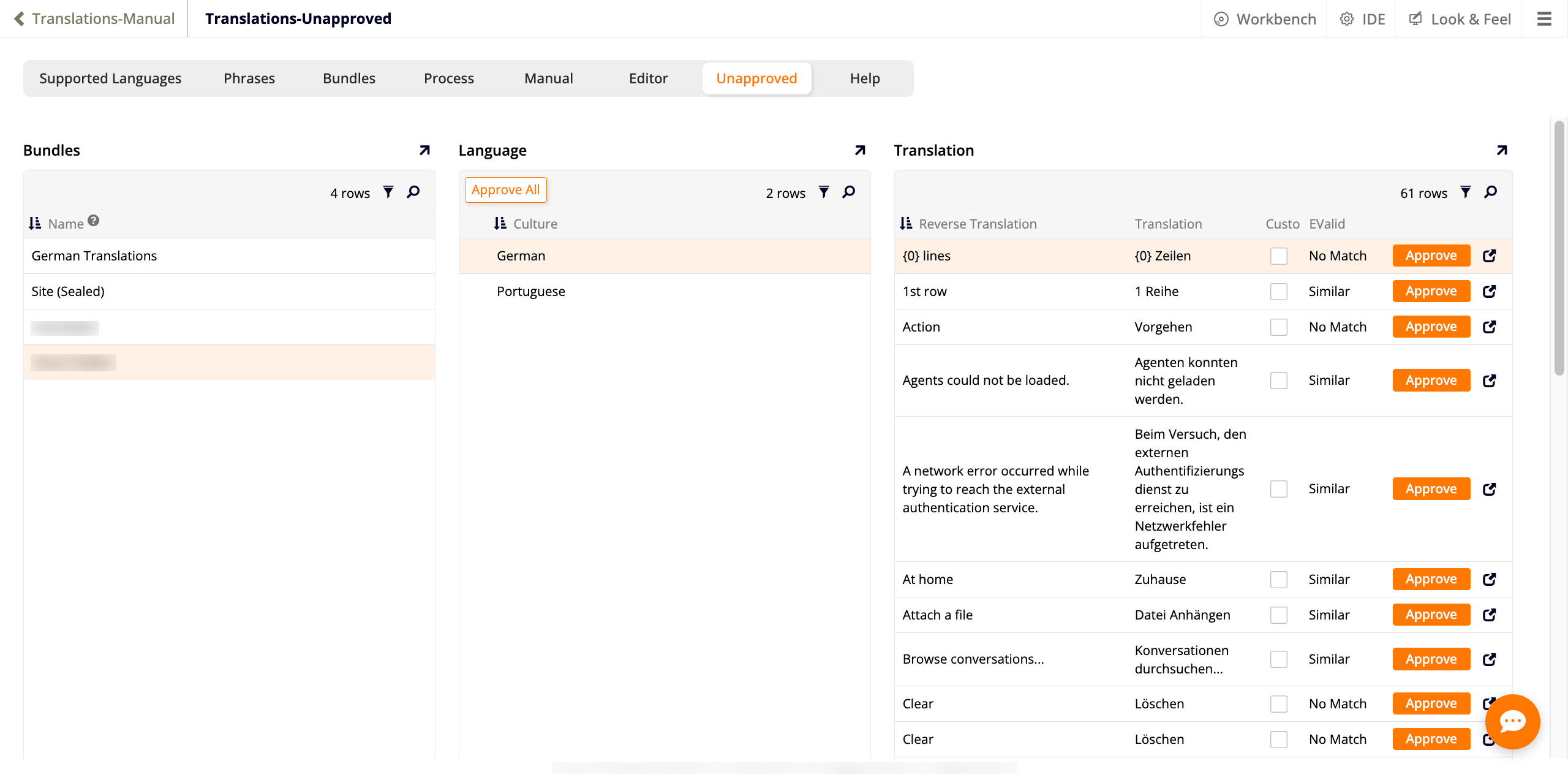
The Unapproved tab lists translations that have not yet been approved, organized by bundle and language. It contains three panels, all with filter () and search () tools and a row count indicator.
Bundles
Lists all available bundles by name. Select a bundle to populate the Language panel.
Language
Lists the languages that have unapproved translations for the selected bundle. The Approve All button approves all unapproved translations for the selected language at once. Select a language to populate the Translation panel with its unapproved entries.
Translation
Lists the unapproved translations for the selected bundle and language. The table contains the following columns:
- Reverse Translation: The back-translation of the translated value into the base language, used to verify translation accuracy.
- Translation: The translated text.
- Custom: Indicates whether the translation has been manually customized.
- EValid: An indicator of how reliable the translation is.
Each row includes an Approve button and an icon. Click to open the Translation Details dialog for that entry. This is the same dialog described in the Process tab section.
Help tab
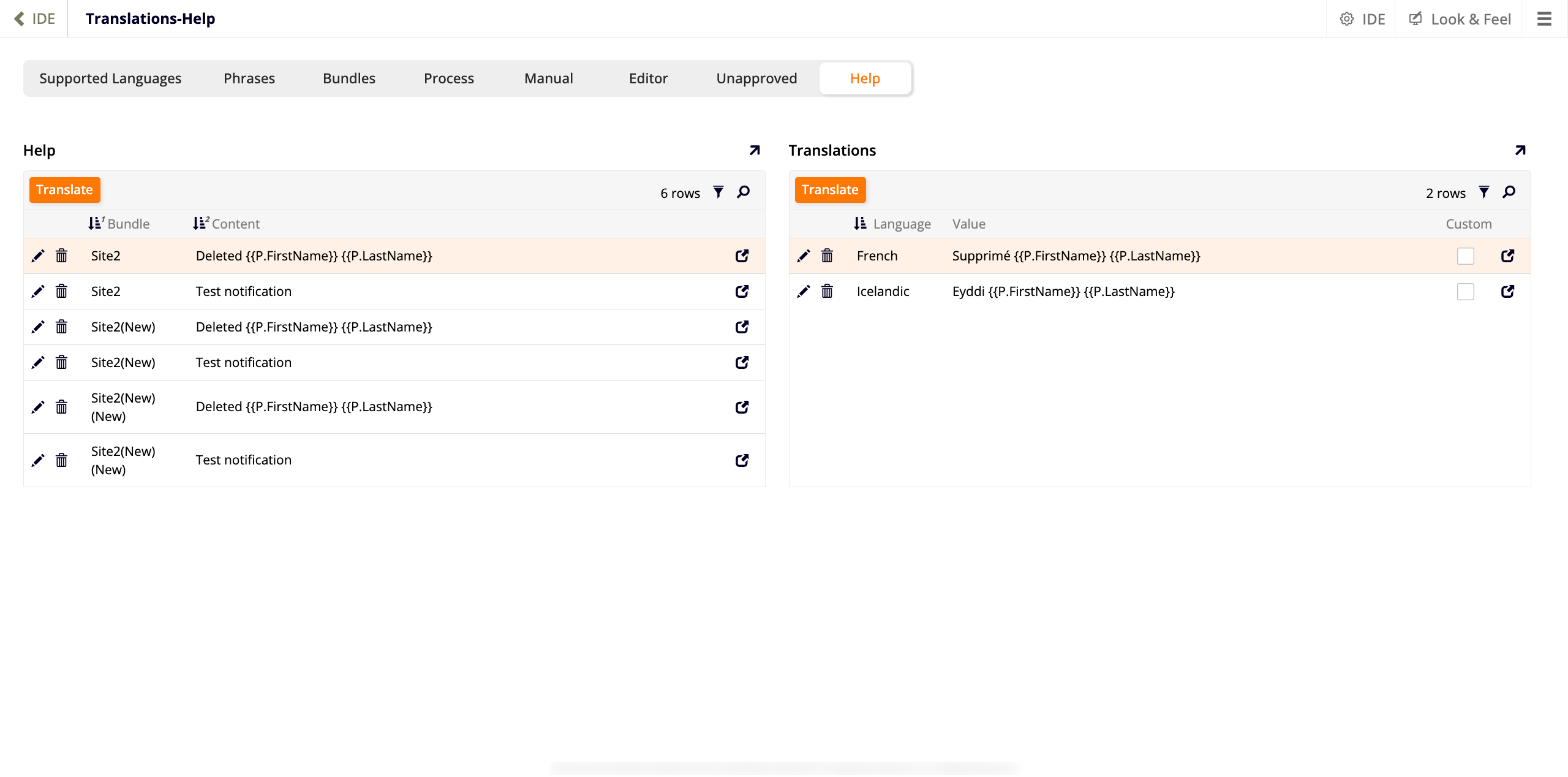
The Help tab allows you to manage and translate help text content, that is, strings such as notification messages that appear in your applications. It contains two panels.
Help
Lists all help text entries across bundles. The panel includes filter () and search () tools and a row count indicator. A Translate button at the top of the panel fetches translations from the Babel service for the selected entries.
The table contains the following columns:
- Bundle: The bundle this entry belongs to.
- Content: The help text content, which may include parameter placeholders.
Each row also includes edit, delete, and icons. Click to open the Help dialog, where you can edit the help text using the HTML or Text tab. The dialog also includes Edit, Delete, and Audit buttons.
Note
The Help dialog may not load correctly for entries that use dynamic substitution placeholders.
Translations
Displays the translations for the selected help text entry, one row per supported language. The panel also includes a Translate button, filter () and search () tools, and a row count indicator. The table contains the following columns:
- Language: The language this translation applies to.
- Value: The translated text.
- Custom: Indicates whether the translation has been manually customized.
Each row also includes edit, delete, and icons. Click to open the Translation Details dialog for that entry. This is the same dialog described in the Process tab section.