Add and delete controls in Jitterbit App Builder
See Controls for what a control is and how it fits into a panel and page. This page teaches how to add controls to a panel and how to delete them.
Add controls to a panel
Follow these steps to add one or more controls to a panel.
-
Navigate to the panel, using either the Live Designer or the App Workbench:
-
From the app preview, open the page containing the panel, select Action Drawer > Live Designer, then select the panel in the page view.
-
From the App Workbench, open the Pages tab, then in the Pages panel, locate the page containing the panel and either double-click its row or click the Open record icon. In the Page Panel Layout panel, find the panel and click Controls.
-
-
If you're in the Live Designer, click the All Controls tab. If you're in the App Workbench, you're already looking at the panel's list of controls.
-
Choose how many controls to add:
-
To add a single control, click + Control. In the Add a Control dialog, select a Column, or a Control Type directly if the control doesn't map to a column:
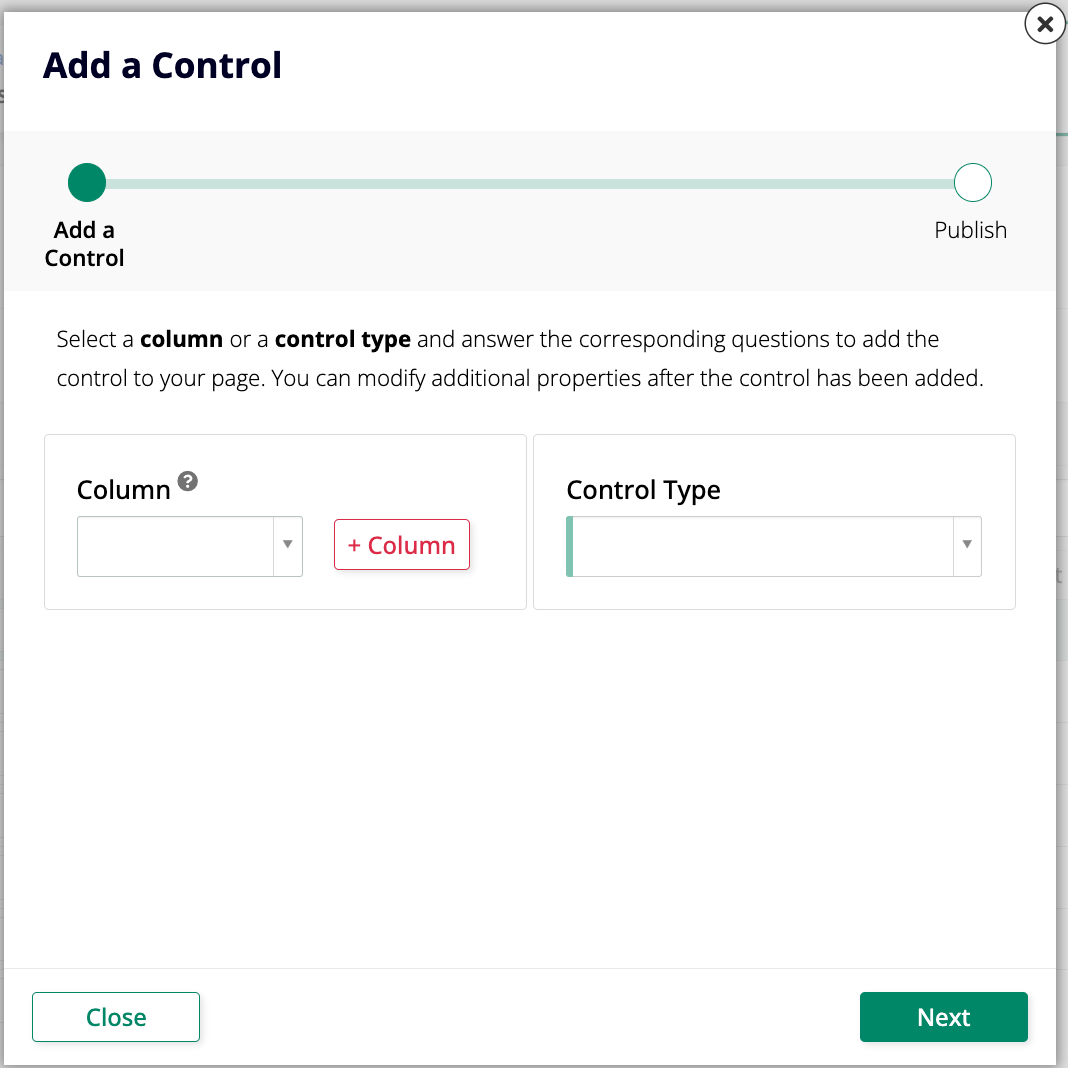
Click Next, review the proposed change, and click Finish.
-
To add several controls at once, click + Controls. The Add Controls dialog lists the panel's remaining business object columns that don't already have a control, each with a suggested Control Type:
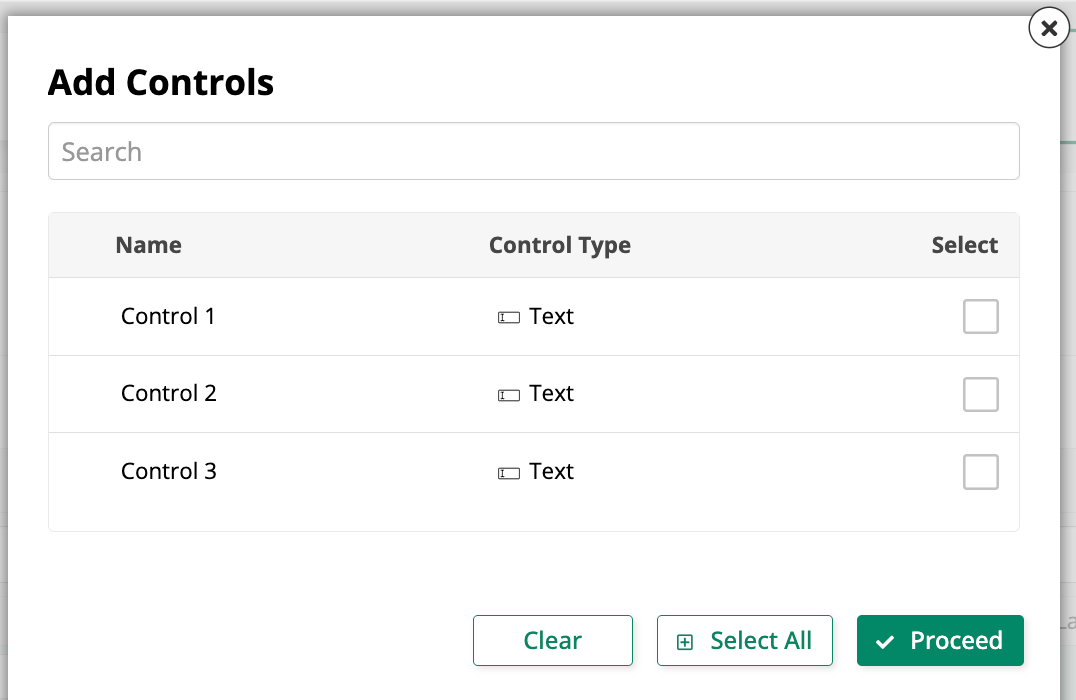
Select the ones you want, or click Select All, then click Proceed.
-
Tip
If a panel ends up with many controls, consider organizing them into control groups for a cleaner layout.
To configure a control further after adding it, such as giving it a navigation link, double-click its row in this same list to open its settings. See Configure a control as a navigation link for an example.
Delete a control
To delete a control from a panel, follow these steps:
-
Locate the panel that currently houses the control. Repeat Steps 1 and 2 of the instructions to add a control.
-
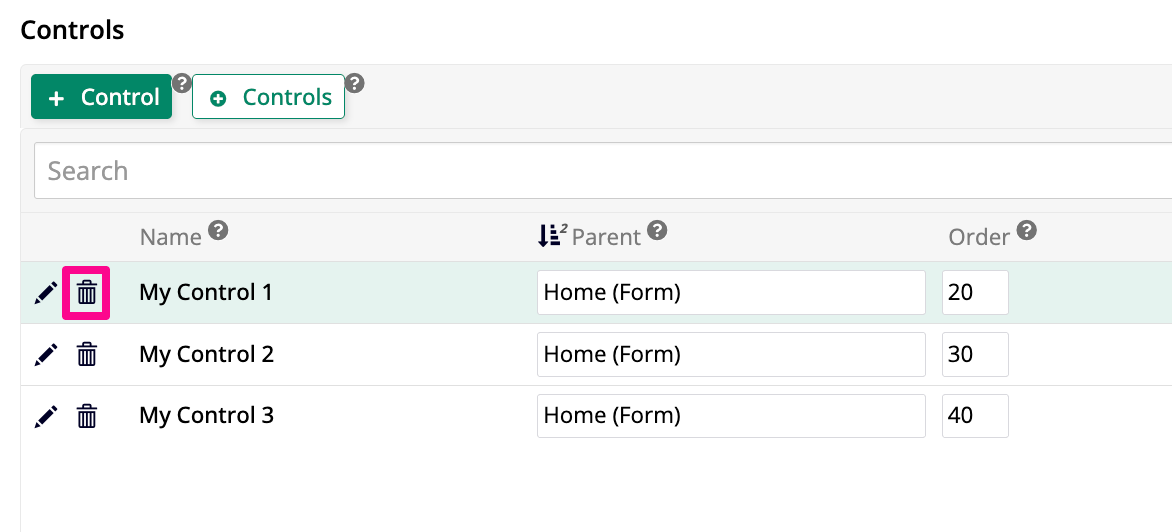
Find the control you want to delete on the list of controls and click the trash icon.
-
App Builder will ask for confirmation. Click Proceed.