Visibility rules in Jitterbit App Builder
Visibility rules provide a way to dynamically control whether specific data or UI elements are accessible to a user. Visibility rules are the preferred approach for most modern applications, where previously static visibility columns were used. They offer significantly more flexibility by allowing the system to evaluate conditions at runtime rather than relying on a fixed configuration.
Visibility rules are typically used in conjunction with Business Objects to manage how data is presented or restricted across different panels and pages.
Visibility rule types
There are the following ways to implement a visibility rule, depending on the complexity of the logic required:
-
Static:
Static visibility is the most straightforward type. It is used when a control or column should always be visible or hidden regardless of the data context or user role. While simple, it lacks the dynamic capabilities of the other two types and is generally used for basic UI layout management. -
Rule:
The Rule type is the most common implementation. It allows you to link visibility to a business rule. The system evaluates the SQL logic within the rule to determine if a condition is met. For example, you might create a rule that only displays a Manager Notes column if the logged-in user belongs to a specific security group or if a record’s status is set to Review Pending. -
Plugin:
For highly complex scenarios that cannot be handled by standard SQL logic, the Plugin type allows you to trigger external logic or advanced programmatic checks. This is ideal for integrations where visibility might depend on an external API response or a complex calculation performed outside of the standard App Builder environment.
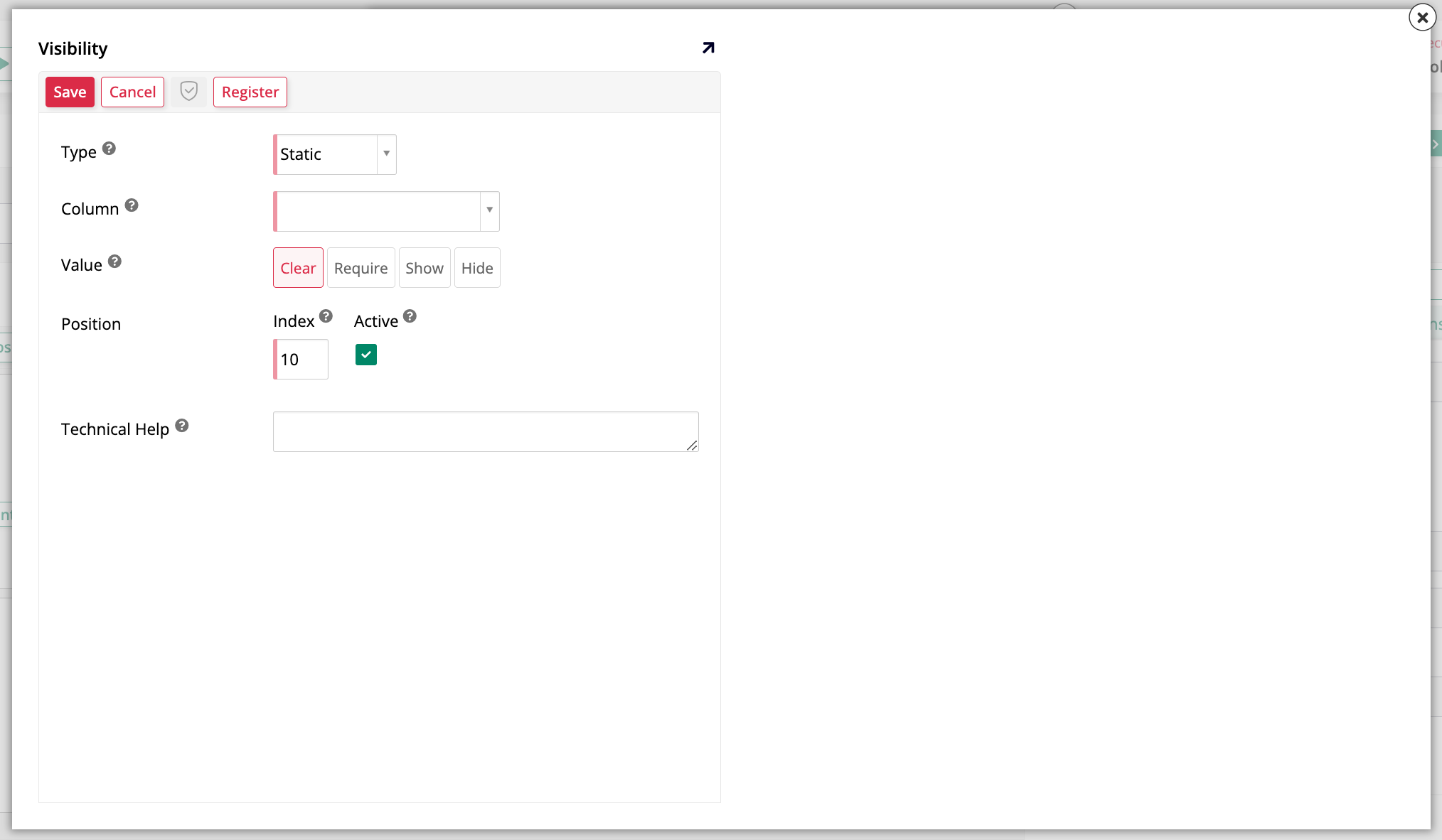
The screenshot below shows how the dialog where visibility rules can be set up. In App Workbench > Pages, select the page you want to work on. Next, select the panel with the elements whose visibility you want to control. In the Page Panel Layout panel, click More > Visibilities. The Visibilities popup opens, showing all the existing visibility rules, if there are any. Click Register to create a new one. The following dialog opens:
When and how to use visibility rules
While capability bindings specifically target intrinsic events like Insert or Update (for instance, hiding a Create button), visibility rules are generally used to control the presence of the data itself or the visibility of specific columns within a panel.
Because visibility rules are evaluated at runtime, it is best practice to ensure the underlying business rules are optimized for performance. If you find that a page is loading slowly, verify that your visibility rules are not performing unnecessarily complex joins or subqueries.