Implicit and explicit binding in Jitterbit App Builder
Binding is how App Builder connects rules to specific data contexts; it determines how a rule interacts with underlying data objects. There is explicit and implicit binding:
-
Explicit binding: This happens when a developer manually maps source columns to target columns within the user interface. This direct mapping is required when registering rules for notifications, migration, and CRUD. For instance, when configuring an event, you must explicitly define these bindings to ensure the associated action or validation targets the correct data.
-
Implicit binding: This is an automated process where App Builder assumes the context of the "current" row being processed. In these scenarios, the system automatically substitutes the first instance of a target table in the rule with the active record the user is interacting with. This is primarily used for default rules and many validation rules, where the logic is inherently tied to the record currently being viewed or edited.
Rule purposes and binding methods
The following table outlines how different rule purposes interact with binding. The "Purpose" column reflects the labels found in the current App Builder UI.
| Purpose | Binding Type | Target Columns | Comments |
|---|---|---|---|
| Notification | Explicit | Used for alerting users. Target fields ending in () can have multiple columns target them. |
|
| Control | Implicit | Metadata | Controls UI behavior (0 = hidden, 1 = required, 2 = optional). Primary keys are generally not targeted. |
| CRUD | Explicit | Data | CRUD rules are bound explicitly via action bindings. Creating, updating, or deleting records requires direct mapping to ensure data integrity. |
| Default | Implicit | Data | Automatically populates fields. If a rule returns too many rows, verify that the storage table is correctly referenced in the FROM clause. |
| Visibility | Variable | UI State | Visibility can be configured via three types: Static, Rule, or Plugin. Most modern implementations utilize visibility rules rather than the older static column method. |
| Validation | Both | While explicit mapping can be used, most validation rules utilize implicit binding to check the state of the current row. |
Application and UI context
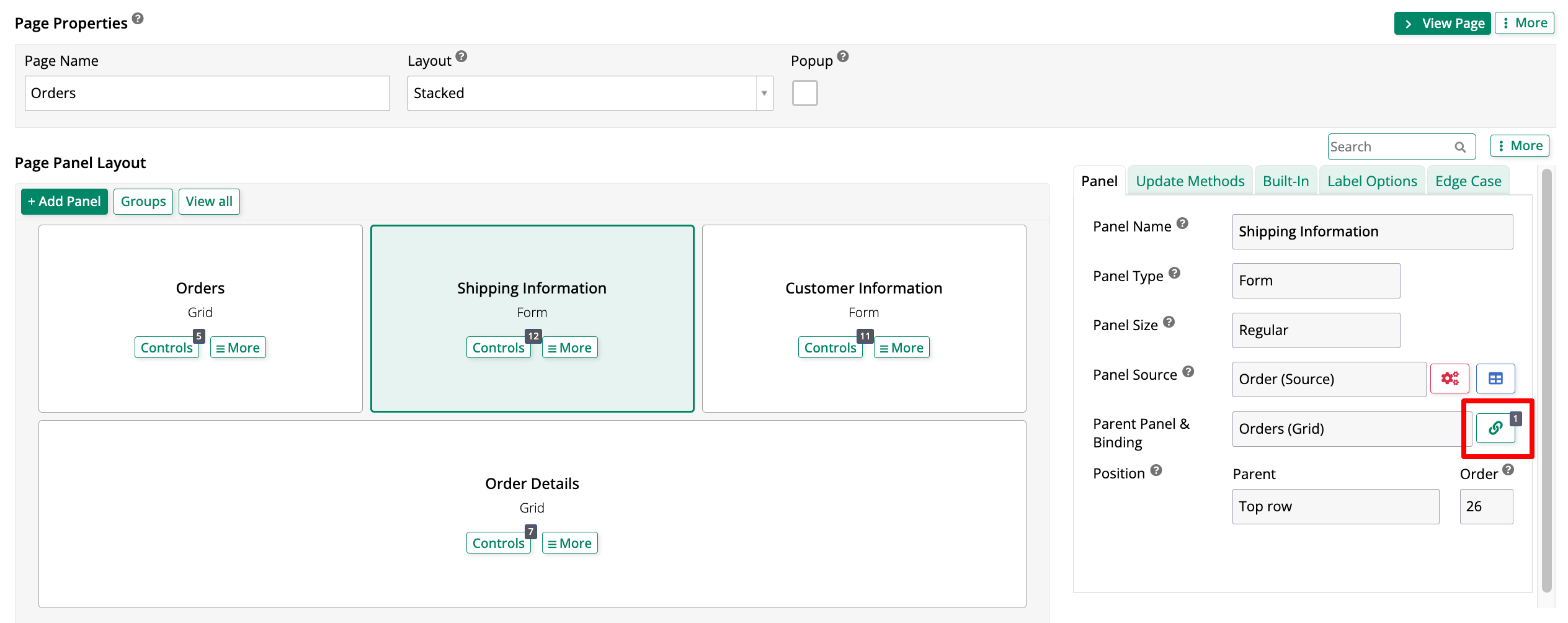
When setting up events or action bindings, explicit binding is typically applied through through a page's edit screen, in the UI layer. In this screenshot, a page containing four panels is being edited. Notice how the selected panel, called Shipping Information, is bound to another panel on the same page, Orders. The binding can be controlled via the highlighted button with the chain icon.
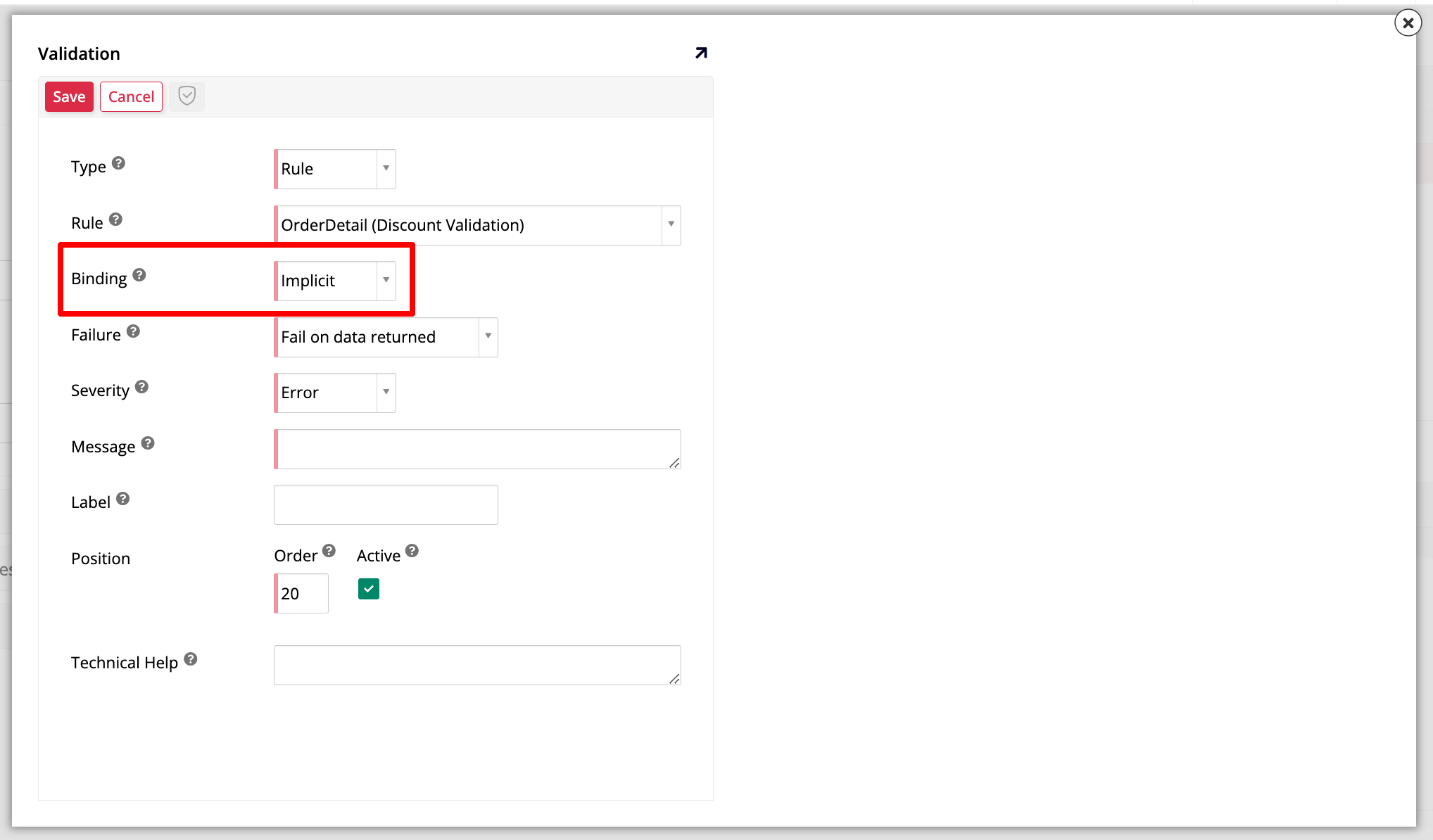
In contrast, registering default or visibility rules requires navigating to the Business Logic layer. The screenshot below shows a validation rule being registered on a business object. Note the highlighted Binding field.
Important
The registration location for defaults has changed in recent versions, and these settings are no longer managed in the same area as older releases.
How implicit binding works
When building a rule with implicit binding, the first instance of the target table or data object in the rule is substituted with the active row. For this to function as intended, the FROM clause in your rule should be the actual storage table.
For example, if you are defaulting an OrderDetails.UnitPrice based on a Product price, the system will replace the OrderDetails reference in your SQL with the specific ID of the record currently being handled. This allows the rule to dynamically fetch the correct price for that specific order without manual mapping for every field.