HubSpot connection guide for Jitterbit App Builder
Overview
This guide describes the system requirements and instructions for connecting App Builder to a HubSpot database server.
System requirements
Database server
HubSpot Database Server
Client web browser
-
Chrome TM 60 or newer
-
Firefox ® 55 or newer
-
Safari ® 11.0.2 or newer
Connection instructions
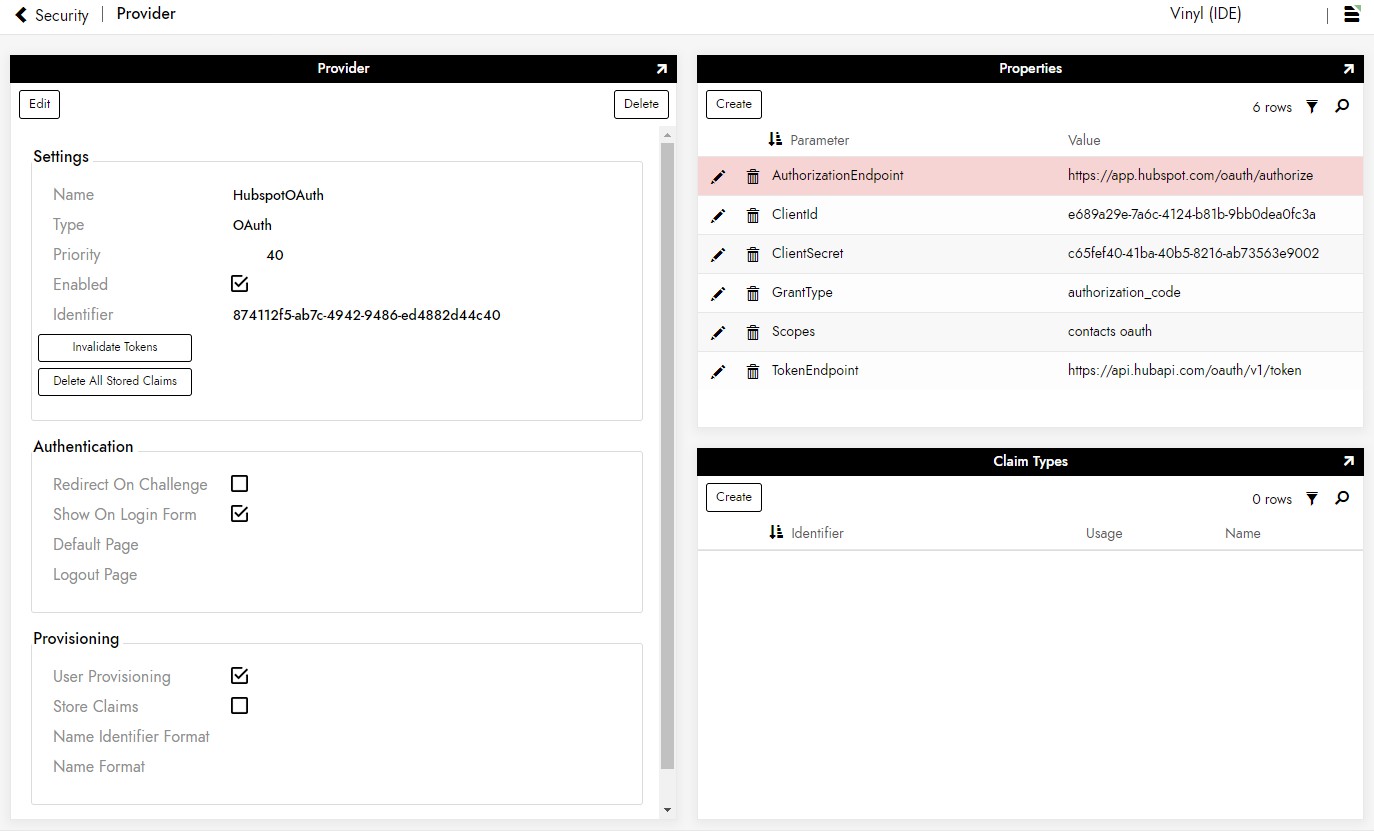
Adding a OAuth security provider
-
Navigate to the App Builder IDE
-
From the Connect menu, click on the Connect to your enterprise link
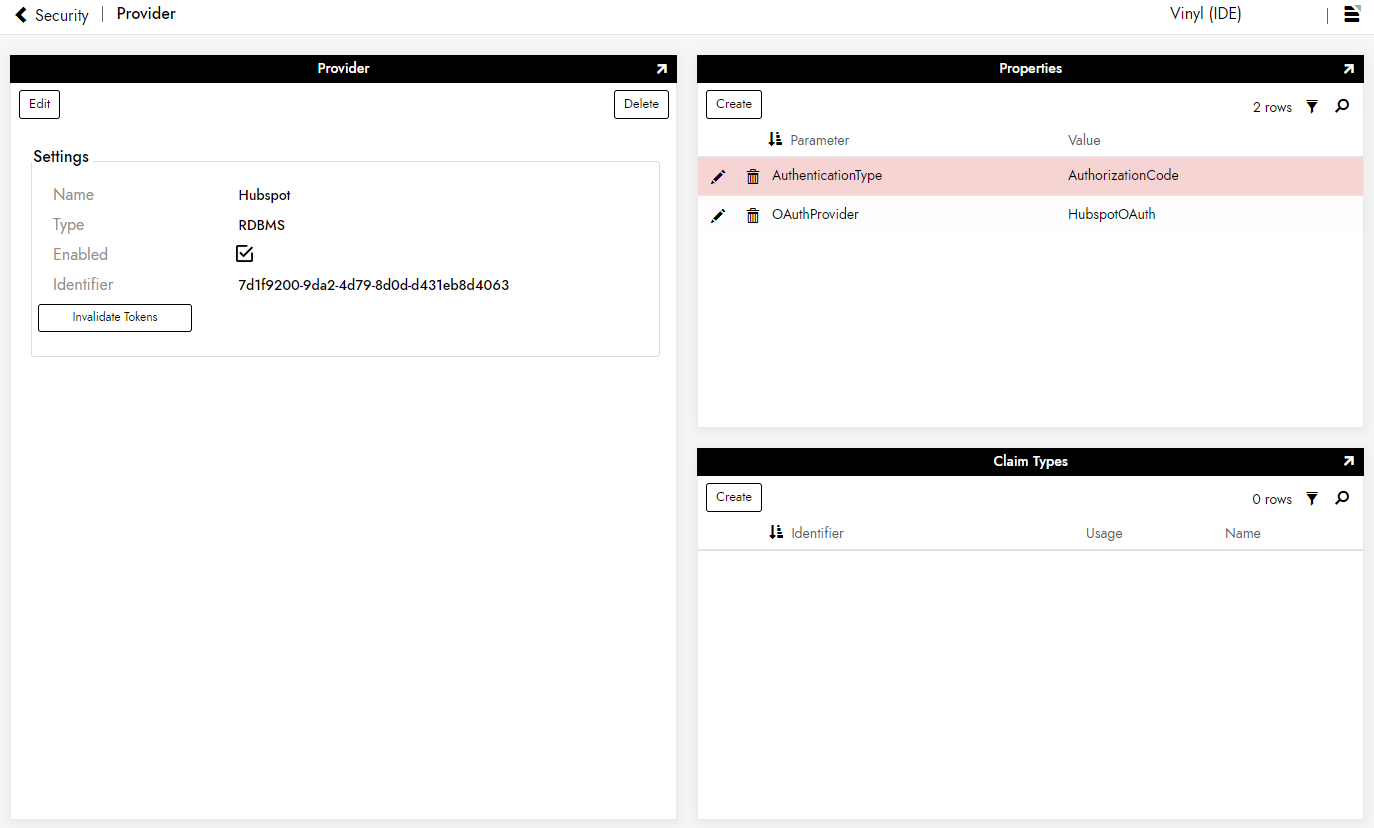
Adding a RDBMS security provider
-
Navigate to the App Builder IDE
-
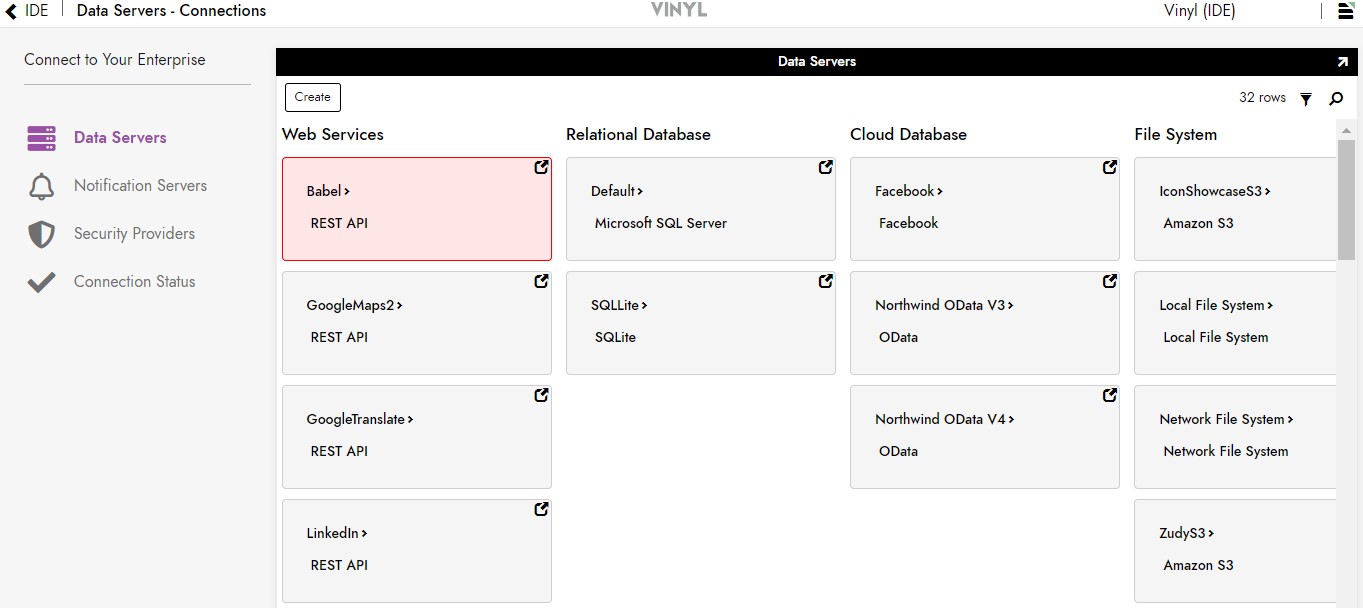
From the Connect menu, click on the Connect to your enterprise link
-
Click the Create button on the top left of the Data Servers panel. This will bring up the Add Server page.
Filling in credentials
-
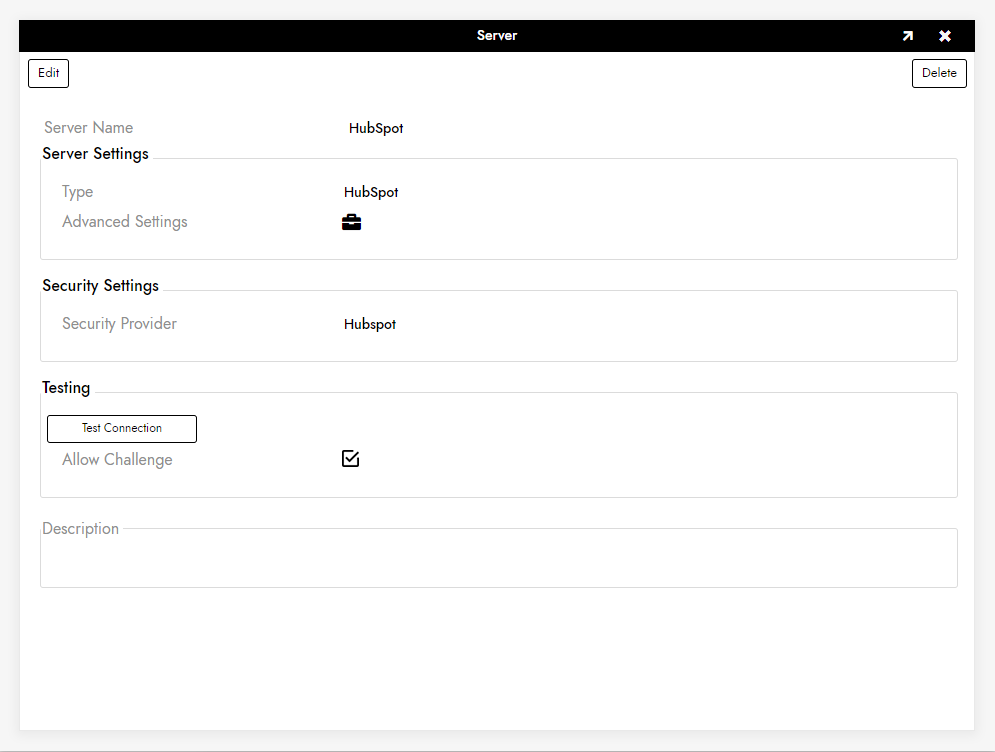
To connect to an HubSpot server, provide the following information:
-
Name: An identifiable and unique server name
-
Type: Select HubSpot from the dropdown menu
-
Security Provider: The login method for the server
-
Allow Challenge: Clicking this checkbox allows App Builder to redirect the browser when it gets an OAuth challenge
-
After filling in all necessary credentials, click the Save button to save the settings.
Testing the connection
-
Click the Test Connection button beneath the server information to make sure the server is properly connected.
-
Upon successful connection, click the App Builder IDE menu heading at the top of the page to return to the App Builder IDE.
-
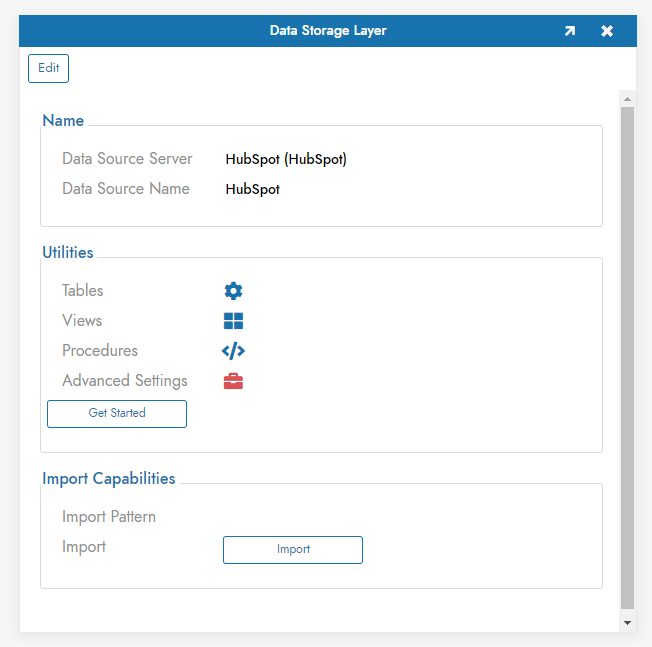
Click Save to update the data source settings.
-
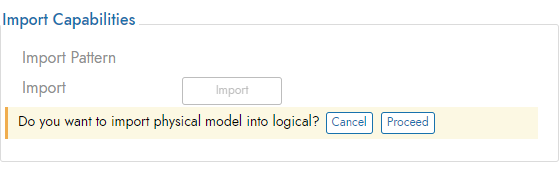
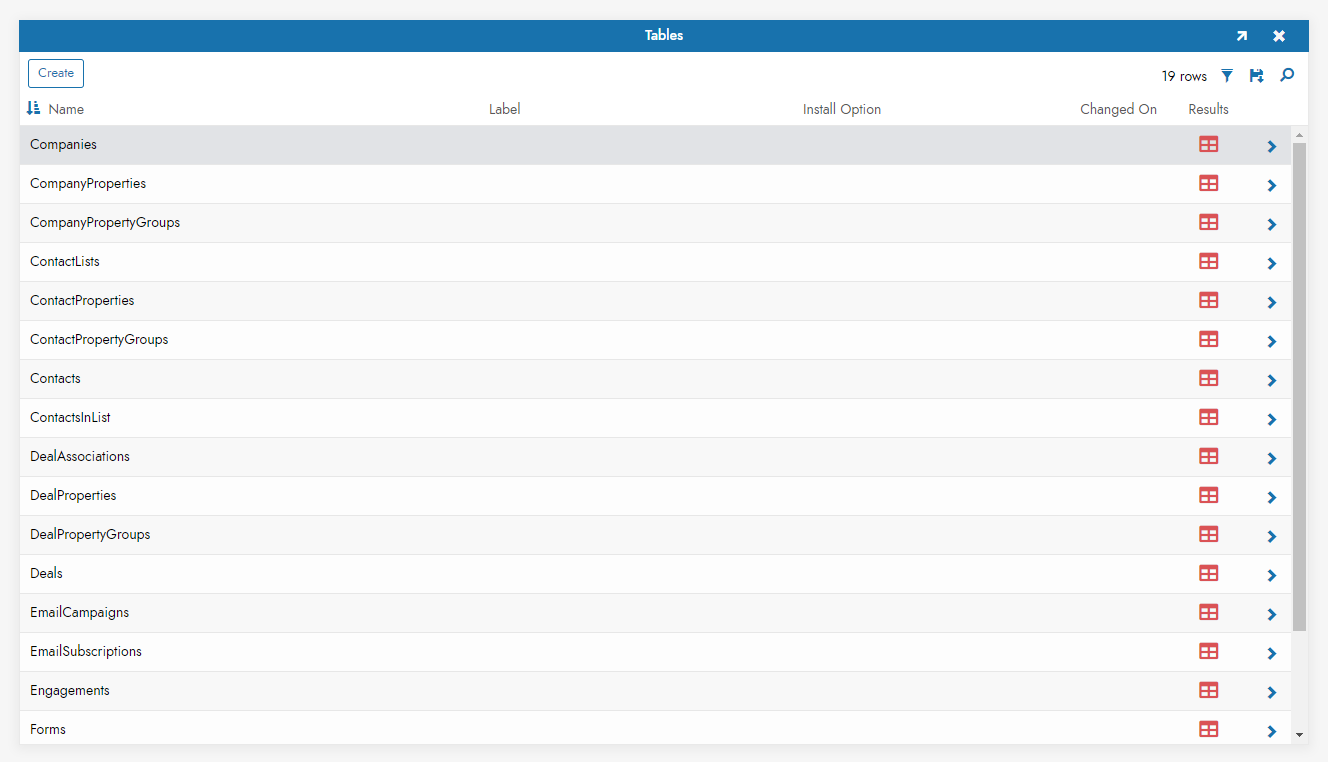
Once the page refreshes, click the Import button that appears below the source credentials. When prompted, click Proceed. The import will be scheduled to run in the background.
Troubleshooting
If you experience issues with the Hubspot server, these troubleshooting steps are recommended:
-
Enable data logging to generate log files and data, which you can download and inspect.
-
Refer to the CData ADO.NET Provider for HubSpot documentation for detailed information.