Google Cloud Storage connection guide for Jitterbit App Builder
Overview
This guide describes the system requirements and instructions for connecting App Builder to Google Cloud Storage (GCS). GCS is Google's object storage service for the cloud.
This guide assumes you have created or have access to an active Google Cloud Storage bucket.
System requirements
Database server
Google Cloud Storage
Client web browser
-
Chrome: 84+
-
Firefox: 73+
-
Safari: 13.0.1+
-
Edge: 84+
Connection instructions
Configure a data server in App Builder
-
Navigate to the App Builder IDE.
-
In the Connect panel, click Data Servers.
-
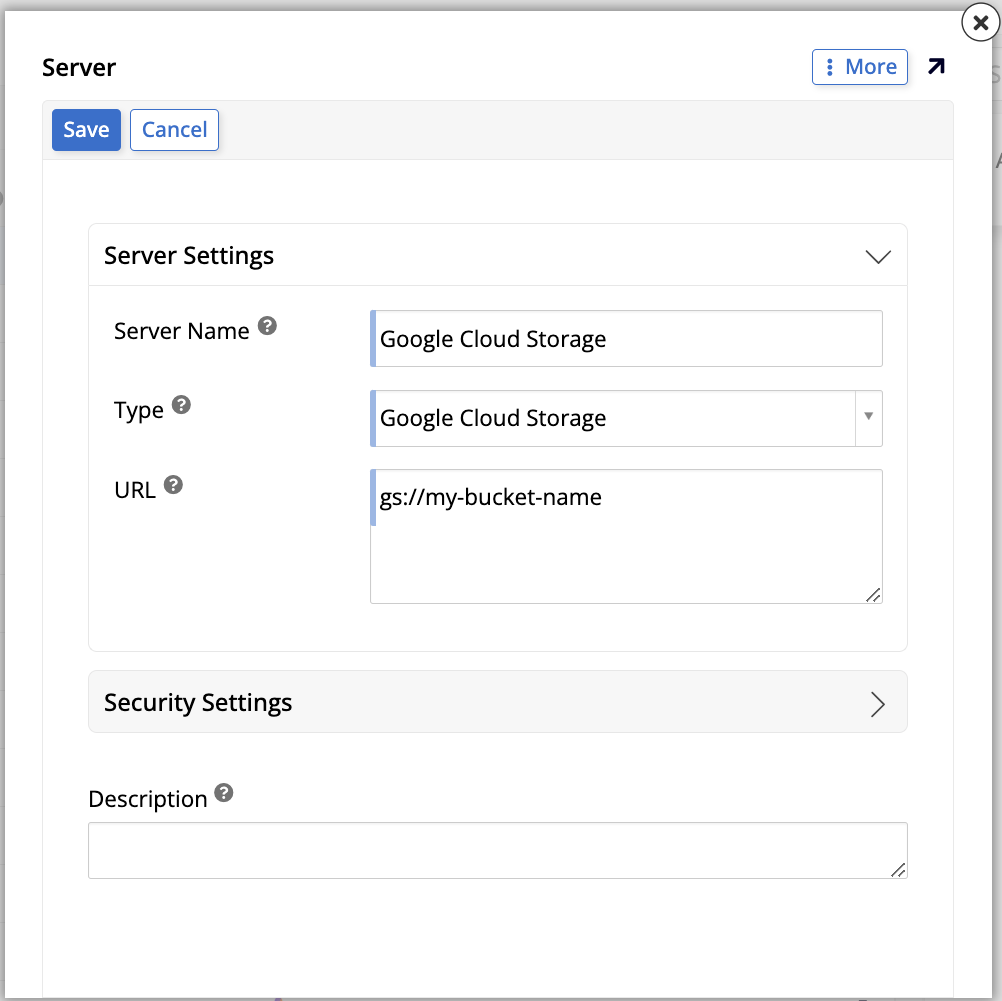
Click the + Server button. The Server dialog opens. Enter the following:
-
Server Name: Provide a name. For example: Google Cloud Storage.
-
Type: Select Google Cloud Storage from the dropdown menu, in the File System section.
-
URL: Enter the GCS bucket URL in
gs://format. For example:gs://my-bucket-name. -
Click Security Settings to expand the section:
- User Name: Leave blank for anonymous access, or enter
<application-default>to authenticate using Google Application Default Credentials (ADC).
- User Name: Leave blank for anonymous access, or enter
-
Description: Optionally provide a description.
-
-
Click Save to complete the server connection. The new server is now listed in the Data Servers panel.
Authentication methods
App Builder supports two authentication methods for Google Cloud Storage:
-
Anonymous: Leave the User Name field blank. Use this method for publicly accessible buckets that do not require authentication.
-
Google Application Default Credentials (ADC): Enter
<application-default>as the User Name. ADC automatically uses the credentials configured in the environment where App Builder is running. For more information, see Google's Application Default Credentials documentation.