Copy an application in Jitterbit App Builder
Introduction
When a large number of similar applications needs to be built, for example to provide each team, client, or environment with its own copy of a certain data model and UI, developers may have to spend a lot of time doing repetitive work. App Builder addresses this need with two application copying tools. Both of them are accessible from the App Settings tab of the App Workbench and are described in this page.
You can copy an App Builder application in the following ways:
-
Use Copy Application to copy an application's UI layer to a new application in the same environment. The new application will share the original's other layers, including data sources, tables, rules, notifications, and roles. Any subsequent changes made to these objects will affect both applications.
-
Use Full Copy Application (Beta) (App Builder 4.65 and later) to make a complete, independent copy of an application, including its data sources, business logic and, optionally, its physical database structure.
Which application copy method should you choose?
The right method depends on how independent the new application needs to be from the original. Use Copy Application when multiple applications need to share the same data sources, tables, and rules, so any updates to those shared objects only need to be made once. Use Full Copy Application (Beta) when you need an independent copy of an application that can diverge from the original over time, instead of continuing to share its data sources, tables, and rules. The following table summarizes how each method treats an application's data, business logic, and UI layer, and how later edits affect the original and copied applications:
| Aspect | Copy Application | Full Copy Application (Beta) |
|---|---|---|
| Primary use case | Multiple applications need to share underlying data and rules to satisfy different aspects of a use case. | You need an independent copy of an application that can diverge from the original over time. |
| Data sources and tables | Shared. Updates in one application immediately affect the other. | Independent after the copy is complete. The new application gets its own separate copies. |
| Rules and roles | Shared. Changes apply to both applications. | Independent after the copy is complete. Changes don't affect the original application. |
| UI layer (pages, menus, app settings) | Independent after the copy is complete. Can diverge immediately between applications. | Independent after the copy is complete. Can diverge immediately between applications. |
| Editing data or rules (for example, adding a table column) | Affects both applications. | Affects only the application where the edit was made. |
| Editing the UI (for example, adding or modifying a page) | Affects only the application where the edit was made. | Affects only the application where the edit was made. |
Copy Application
To copy an application's UI layer, follow these steps:
-
Go to App Workbench > App Settings.
-
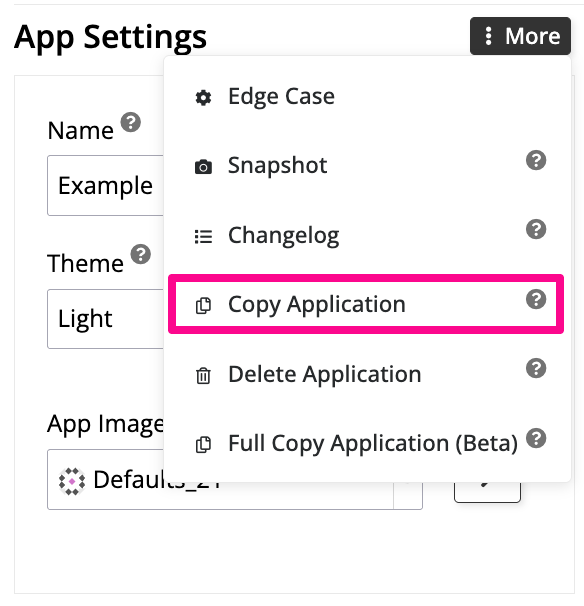
In the App Settings panel, click More > Copy Application.
-
A banner appears, asking you to confirm the copy. Click Proceed to start the copy, and the banner updates to show that the copy is running in the background.
-
When the copy finishes, a notification appears in the top-right corner of the screen. Click the button in the notification to go directly to the new application's App Workbench.
-
The new application is also available in the Site Menu, named after the original application with
(New)appended.
Full Copy Application (Beta)
To copy an application together with one or more of its data sources, use Full Copy Application (Beta), available in App Builder 4.65 and later, by following these steps:
-
Go to App Workbench > App Settings.
-
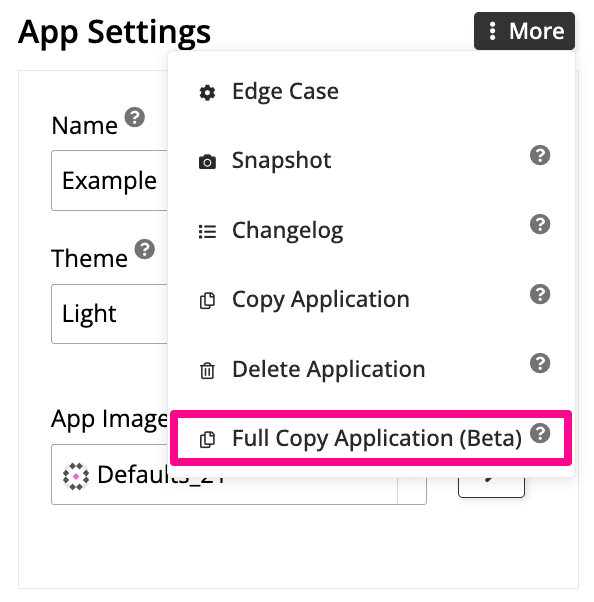
In the App Settings panel, click More > Full Copy Application (Beta).
-
The Full Copy Application dialog opens, listing the application's data sources. For each data source you want to copy, select:
-
Copy Data Source: Select to copy the data source's logical model. All business rules are copied to the new data source, and the new application references them.
-
Copy Physical Database: Select to copy the physical database's tables and constraints. Copied tables are empty. For an RDBMS data source, Jitterbit recommends selecting this option along with Copy Data Source. Clearing this option opens a confirmation dialog warning that copying only the logical layer isn't recommended, where you can Cancel or Proceed.
-
Data Source Name: Enter a name for the new data source. If you also select Copy Physical Database, this name is also used for the new database. This field defaults to the current application's name followed by
(New).
-
-
Click Full Copy Application to start copying.
-
When the copy finishes, App Builder redirects you to the Site Menu, where the new application is available with the same name as the original, followed by
(New).
Note
Copying a physical database creates new, empty tables using the same structure as the original. Moving existing data into the new tables is a manual step outside of App Builder.