Set up a Conversational UI agent in Jitterbit App Builder
Overview
This guide shows how to configure the chat interface in App Builder using the Agents page in the IDE. This is the second step in setting up the Conversational UI feature.
After completing this step, a chat bubble appears in the bottom-right corner of your application, allowing users to interact with your AI agent.
Prerequisites
Before configuring agents, you must have connected your AI agent to App Builder as a REST API data source. See Connect an AI agent for instructions.
Add an agent
-
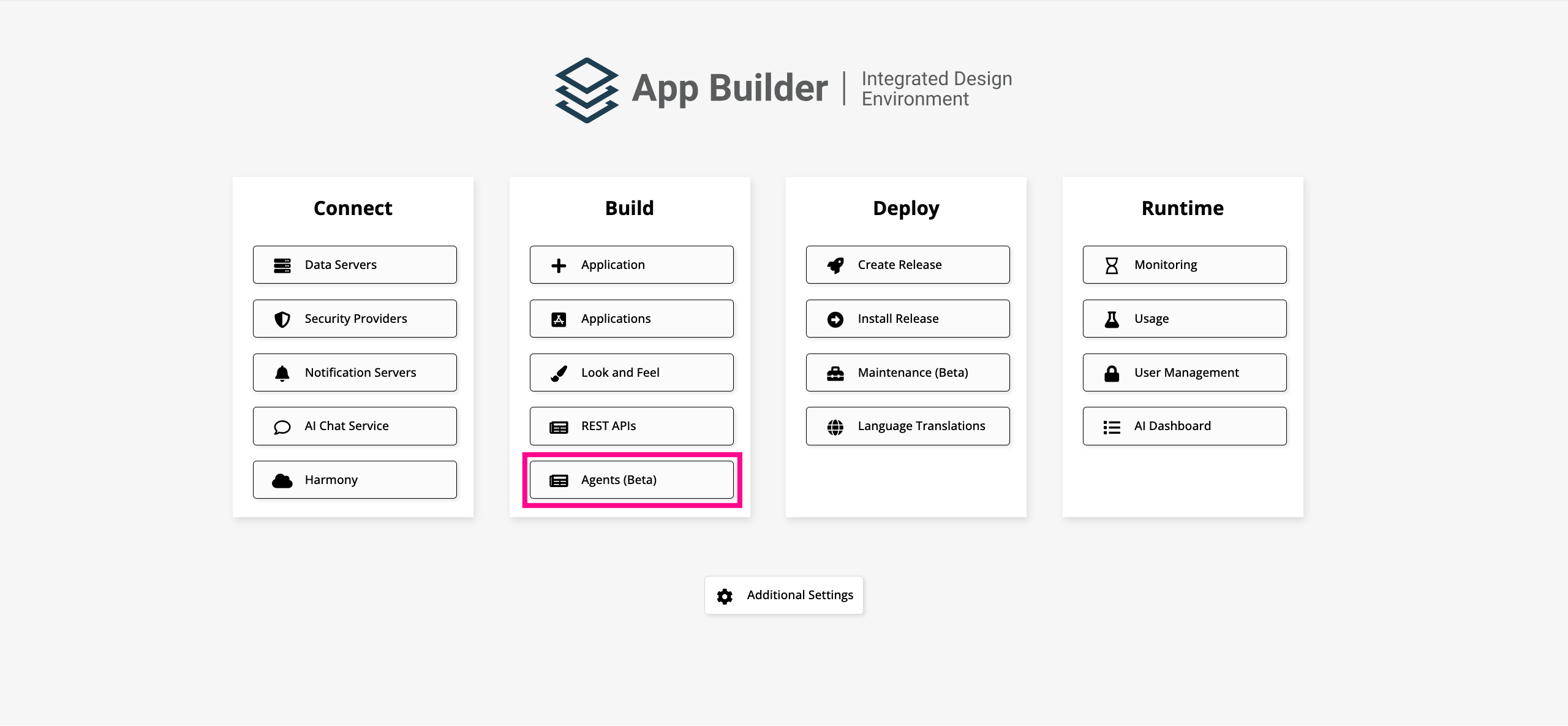
Access the IDE.
-
Under Build, click Agents (Beta).
-
Click Create. The agent configuration dialog opens.
-
Configure the agent:
-
Name: Enter a name for the agent.
-
Data Source: Select the REST API data source you configured in the previous step.
-
Target: Select the endpoint to use for the agent interaction.
-
Description: (Optional) Enter a description of the agent.
-
Welcome Message: (Optional) Enter a message to display to users when they open the chat interface.
-
Include All Messages: (Optional) Enable this option to include the full conversation history in each request sent to the agent. If disabled (the default), only the latest message is sent.
-
Is Default: Enable this option to make this the default agent for the application. The default agent is the one that opens when a user clicks the chat bubble.
-
Is Active: Enable this option to make the agent available to users.
-
Icon File: (Optional) Select an image to use as the agent's avatar in the chat interface. Click Browse to locate the file and upload it. If no icon is provided, the chat interface displays a default icon using the first two letters of the agent's name.
-
Icon Preview: If you've selected an avatar for the agent in the Icon File field, a preview of the selected icon is displayed.
-
-
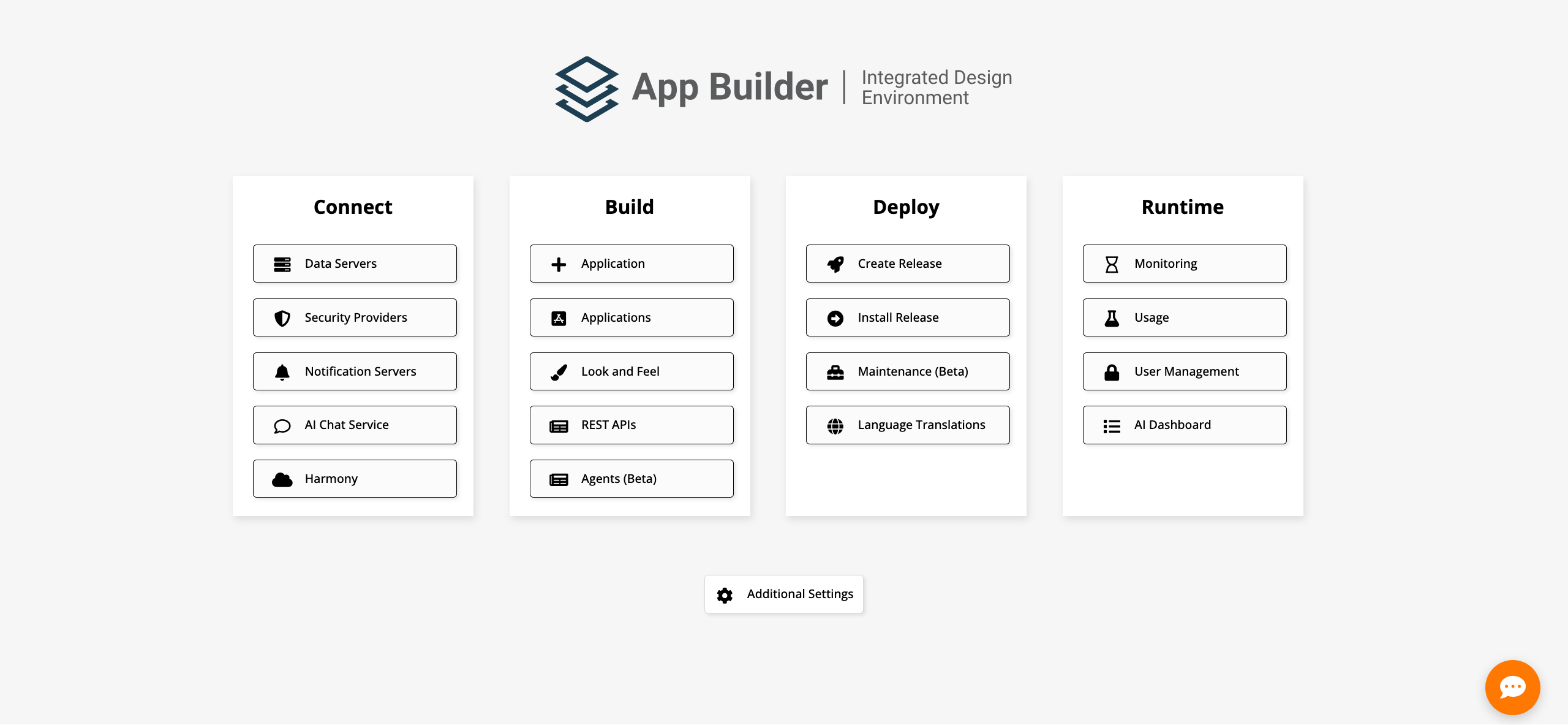
Click Save. The chat bubble appears in the bottom-right corner.
Important
The chat bubble is visible only to users belonging to a group that has access to the data source that the AI agent connects to. Users without access will not see the chat bubble.
Chat bubble
After saving the agent, a chat bubble appears in the bottom-right corner. You can drag and drop it to reposition it on the screen. Clicking the chat bubble opens a chat window as a side panel, sliding the page content to the left:
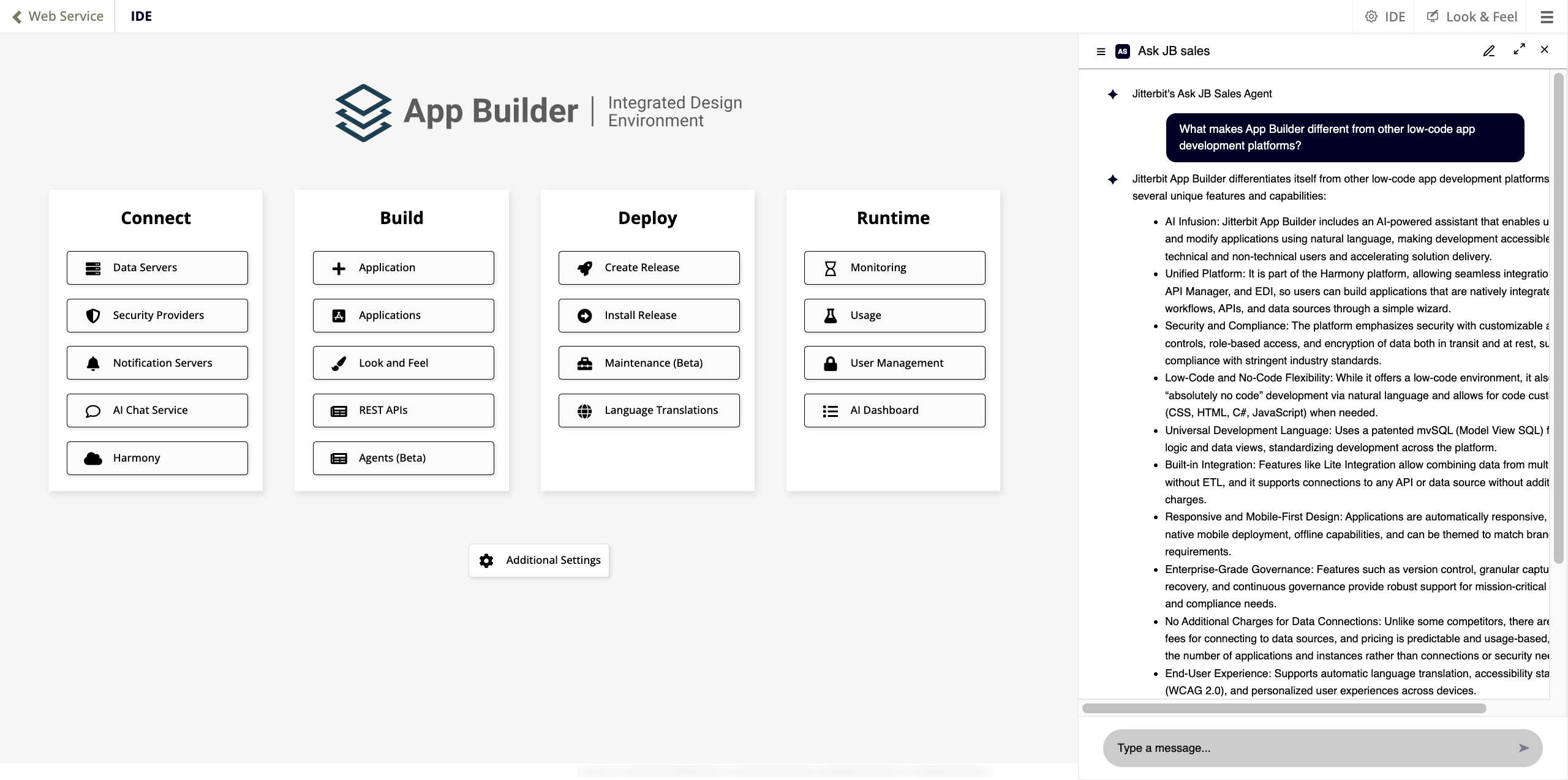
The chat window displays the following:
-
The default agent's name and logo at the top.
-
The welcome message configured for the agent.
-
A prompt text box at the bottom with a send button (or press Enter to send a message).
The top-right corner of the chat window has the following controls:
-
Pencil icon: Opens a new chat, clearing the current message history. The welcome message is displayed again.
-
Maximize icon: Expands the chat to full screen. In full-screen mode, a navigation bar appears to the left.
-
X: Closes the chat window.
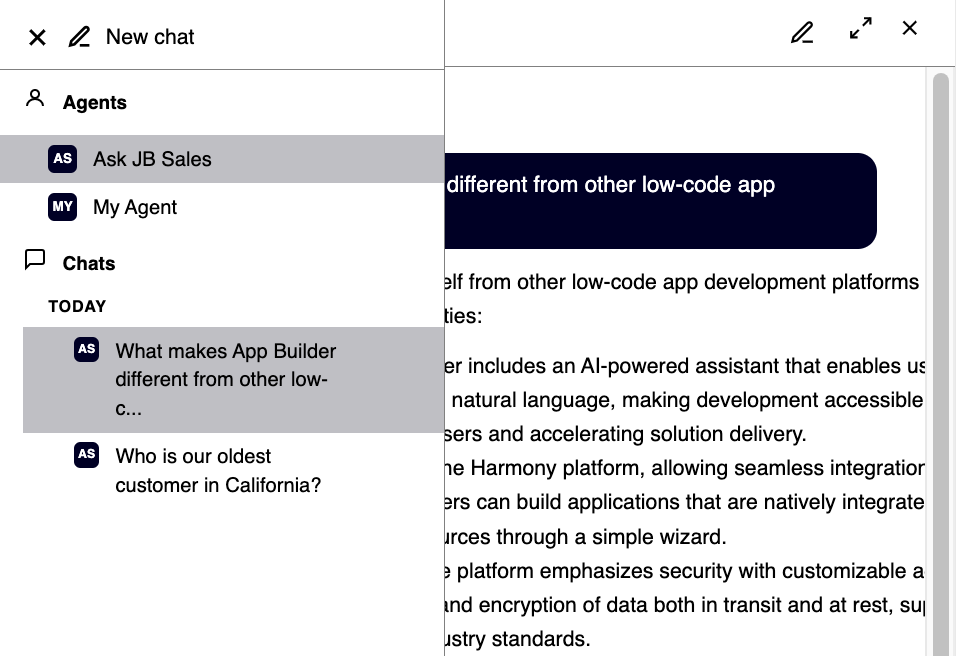
In the side panel view, clicking the hamburger menu in the top-left corner opens the navigation bar, which displays the following:
-
Agents: Lists all available agents. Click an agent to switch to it.
-
Chats: Displays chat history organized by date, with each entry showing the icon of the agent used in that conversation.
Next steps
After configuring an agent, you can optionally embed the chat interface directly in a page layout instead of using the floating chat bubble. See Add a chat panel to continue.