Connect an AI agent to Jitterbit App Builder
Overview
This guide shows how to connect App Builder to a Jitterbit AI agent via a REST API data source. This is the first step in setting up the Conversational UI feature.
The connection involves creating a REST data source server, configuring an endpoint for the AI agent, and assigning the column usage types that the Conversational UI requires to identify the prompt and response fields.
Create a REST data source server
-
Log in to your App Builder instance.
-
Access the IDE.
-
Under Connect, click Data Servers.
-
Click + Server. The Server Settings dialog opens.
-
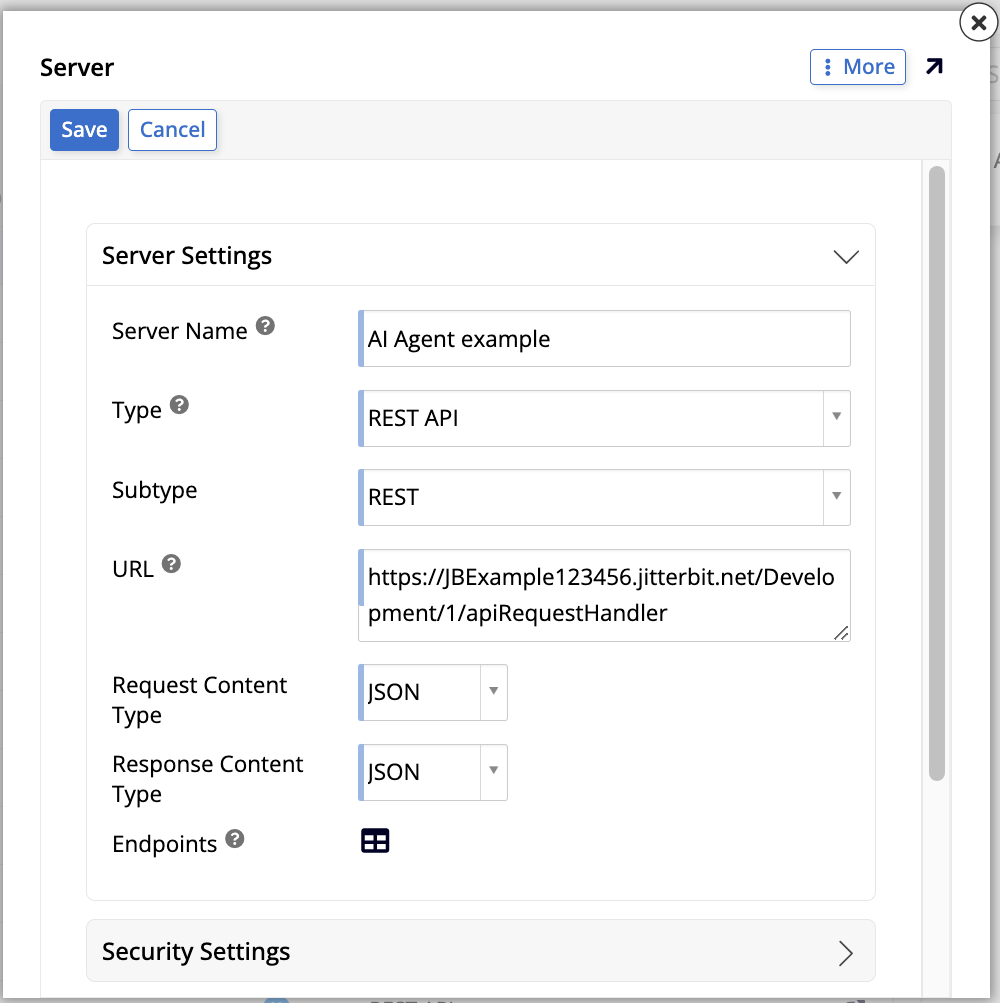
Configure the server:
-
Server Name: Enter a descriptive name for the server.
-
Type: Select REST API.
-
URL: Enter the base URL of your AI agent's REST API endpoint.
-
Request Content Type and Response Content Type: Select JSON.
-
-
Click Save, then close the dialog.
Important
Only users belonging to a group with access to this data source will be able to see and use the Conversational UI.
Configure the endpoint
-
In the Data Servers list, select the new server you've just created. Click the icon to see more details and click the Endpoints button.
-
(Optional) In the Web Service Parameters panel, add any parameters required for all endpoints, such as header parameters for API authentication. Click + Parameter, fill in the fields, then click the icon to save.
-
In the Endpoints panel, click + Endpoint. A new row appears.
-
Configure the endpoint:
-
Name: Enter a descriptive name.
-
Endpoint: Enter the path of the AI agent endpoint.
-
Method: Select the HTTP method (typically POST).
-
-
Click the icon to save the endpoint.
-
In the Endpoint Parameters panel, add parameters for the agent interaction. There are two ways to do so:
-
Manual creation: Click + Parameter to manually add endpoint parameters. The following dialog opens:
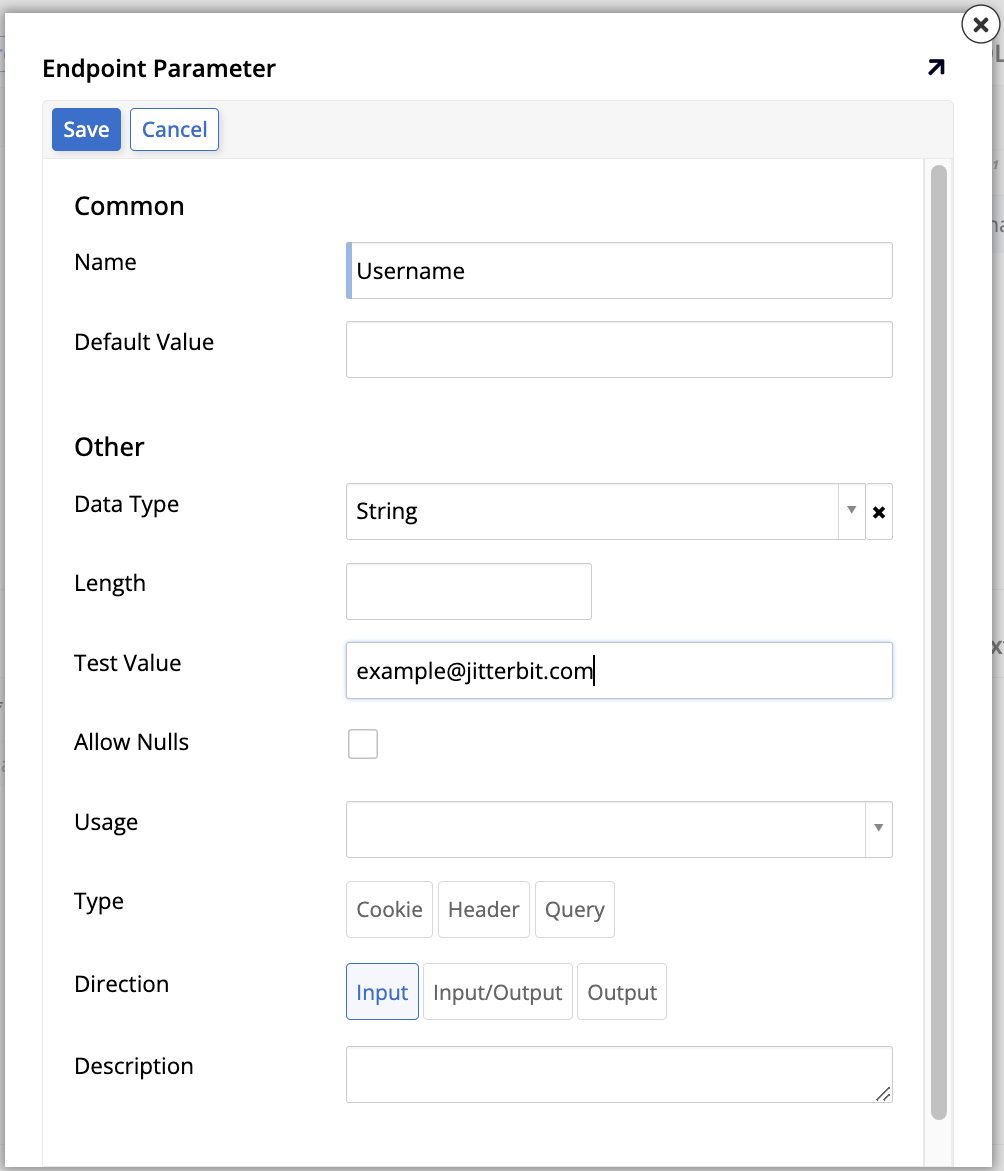
After adding all the parameters, return to the Endpoints panel and click Test Connection to verify the connection works. Next, click Discover and, in the dialog, click Discover to import the API's schema. The imported schema appears in the SQL Results panel.
-
Auto populate: For POST endpoints, you can click the Discover button in the Endpoints panel first. In the dialog that opens, enter a sample JSON request body in the Request Body field, then click Discover.
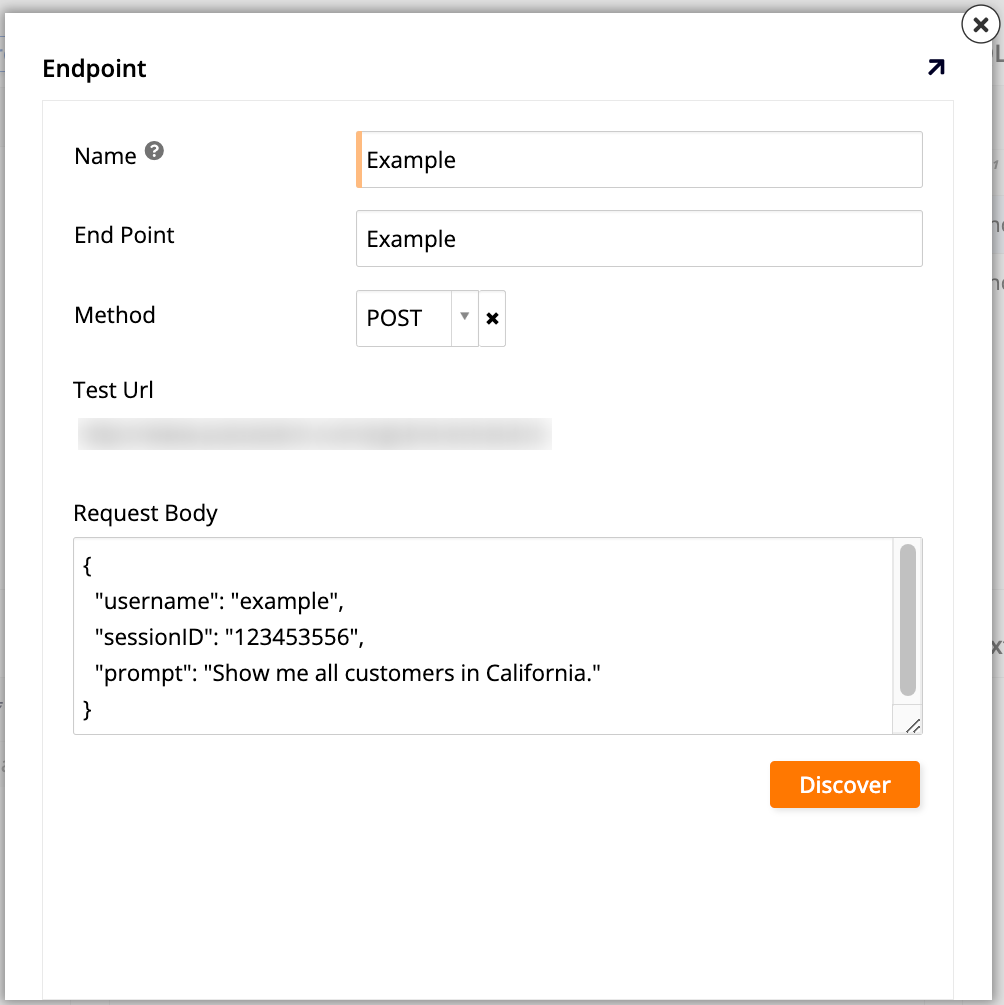
Click Discover. The SQL Results panel shows the tables for your REST API, while the Text Results panel shows JSON based on the request body you entered.
-
-
In the SQL Results panel, click the icon for each table that was imported. The table definition page opens, where you can configure the column usage types. The Conversational UI requires specific column usage types to identify which parameters carry the user's message and the agent's response. The following usage types are available:
Usage Type Description Agent Prompt The parameter that carries the user's message to the agent. Agent Response The parameter that carries the agent's response to the user. Agent User - UserID (Optional) A parameter that identifies the current user by ID. Agent User - Email (Optional) A parameter that identifies the current user by email address. Agent User - Username (Optional) A parameter that identifies the current user by username. Agent Session (Optional) A parameter that carries the current chat session's ID. Tip
For Jitterbit Marketplace AI agents, the column that carries the user's message is typically named "prompt" (corresponding to the Agent Prompt usage type), and the column that carries the agent's response is typically named "message" (corresponding to the Agent Response usage type). Refer to your specific agent's documentation for the exact field names.
For each column that corresponds to a usage type, double-click a column's row or click its icon to open its settings, then set the Column Usage Type field to the appropriate value.
Next steps
After connecting your AI agent, you can continue with the next steps in setting up the Conversational UI feature by setting up an agent in the IDE. See Set up an agent to continue.