App workbench Data sources tab in Jitterbit App Builder
Introduction
Data Sources is the second tab in the App Workbench. It is the first tab that relates to the data layer of your application and is where you connect your application to a data source.
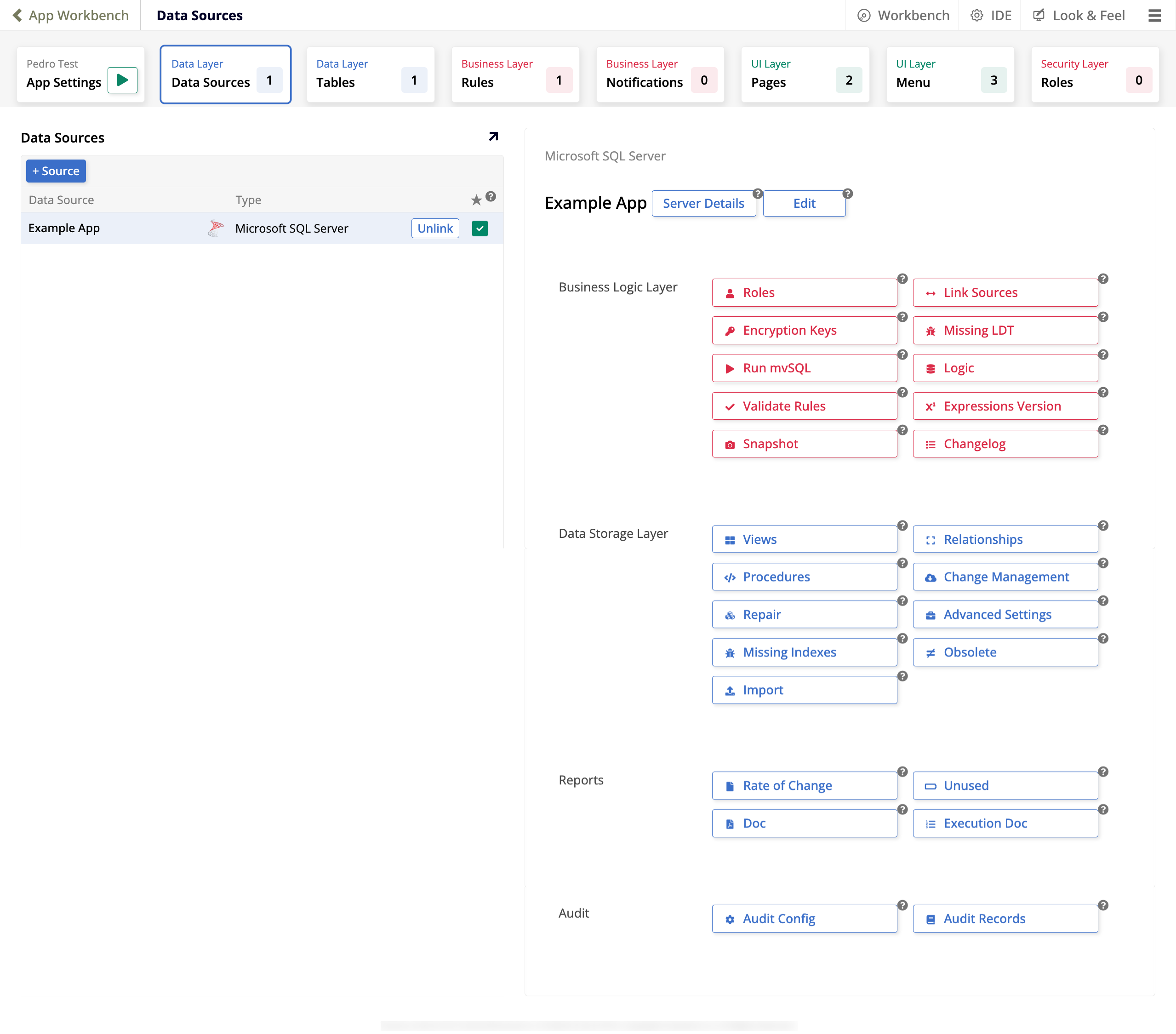
The image below illustrates the Data Sources tab of an application that has one configured data source:
Page options
The Data Sources panel contains the following:
-
The + Source button, which you can use to add a new data source to your application.
-
A table of the available existing data sources, with each row containing these columns:
-
Data Source: The name of the source.
-
Type: The type of database server.
-
Sources that are linked to your application display the Unlink button, which you can click to disconnect your application from that data source.
-
The final column indicates with a green checkbox which source is being used as the primary data source. This makes this source be sorted first on some pages, and selects it by default in list boxes on others.
-
When a data source is selected in the table under Data Sources, the right panel displays several options:
-
The first section has the same name as the selected data source, and offers the following options:
-
Server Details: Review the server settings and test the connection.
-
Edit: Access the data server's settings, import capabilities, and utilities.
-
-
The Business Logic Layer section contains these options:
-
Roles: Create and manage roles, which help organize and determine Read, Insert, Update, and Delete permissions.
-
Link Sources: Configure link mapping between data sources.
-
Encryption Keys: This button lists the encryption key(s) associated to that data source. Encryption keys are required before a database can be encrypted.
-
Missing LDT: Shows columns missing a logical data type.
-
Run mvSQL: This button launches an editor where you can use mvSQL query syntax to query information and/or create business objects.
-
Logic: Shows the business logic layer of the selected data source, that is, its tables and rules.
-
Validate Rules: Lists any business rules that are not currently validated.
-
Expressions Version: Opens the Upgrade Expressions Version dialog, where you can check and upgrade the rule's expression versions. Each new version brings syntax and feature improvements, or removes ambiguity.
-
Snapshot: Takes a snapshot of the data source. This creates a restore point that the data source can be restored to later.
-
Changelog: Shows a list of changes made to the data source.
-
File Policies: (App Builder 4.67 and later) Opens the File Policies dialog, where you can create and manage the file policies available to File columns in this data source.
-
-
The Data Storage Layer section contains these options:
-
Views: Displays existing views and corresponding columns for the selected data source. A view is the result set of a stored query on the data source and can in turn be used to query data.
-
Relationships: Opens a dialog that reports all of the key relationship constraints configured for selected data source.
-
Procedures: Lists any stored procedures and corresponding parameters for the selected data source. A procedure is a subroutine available to applications that access the relational database management system.
-
Change Management: Shows the history of all change management requests logged for the selected data source.
-
Repair: This button lists the tables and columns showing logical and physical values and supports direct editing of these values to make updates if needed.
-
Advanced Settings: Additional configuration settings available for the selected data source. See the Advanced Settings section below.
-
Missing Indexes: Lists any foreign keys that are missing defined indexes for the selected data source.
-
Obsolete: Shows a report on obsolete tables and columns.
-
Import: Supports importing of tables and business objects marked as public, and honors any pattern configuration if provided. As of App Builder 4.60, when importing remote objects, newly imported objects are automatically assigned public read and write access. Re-importing existing objects preserves their original public read/write settings.
-
-
The Reports section contains these options:
-
Rate of Change: Shows a report of new rules per month for the selected data source.
-
Unused: Shows a report of any unused business rules for the selected data source.
-
Doc: Shows a report of objects and business rules by table for the selected data source.
-
Execution Doc: Shows a report of event execution by table for the selected data source.
-
-
The Audit section contains these options:
-
Audit Config: Use this button to configure audit settings for the selected data source, including retention days to keep audit data for.
-
Audit Records: This button supports populating full audit records for the selected data source and tables.
-
Advanced Settings
To see additional options, click the Advanced Settings button, available in the Data Storage Layer section. Doing so brings up a dialog called Data Source:
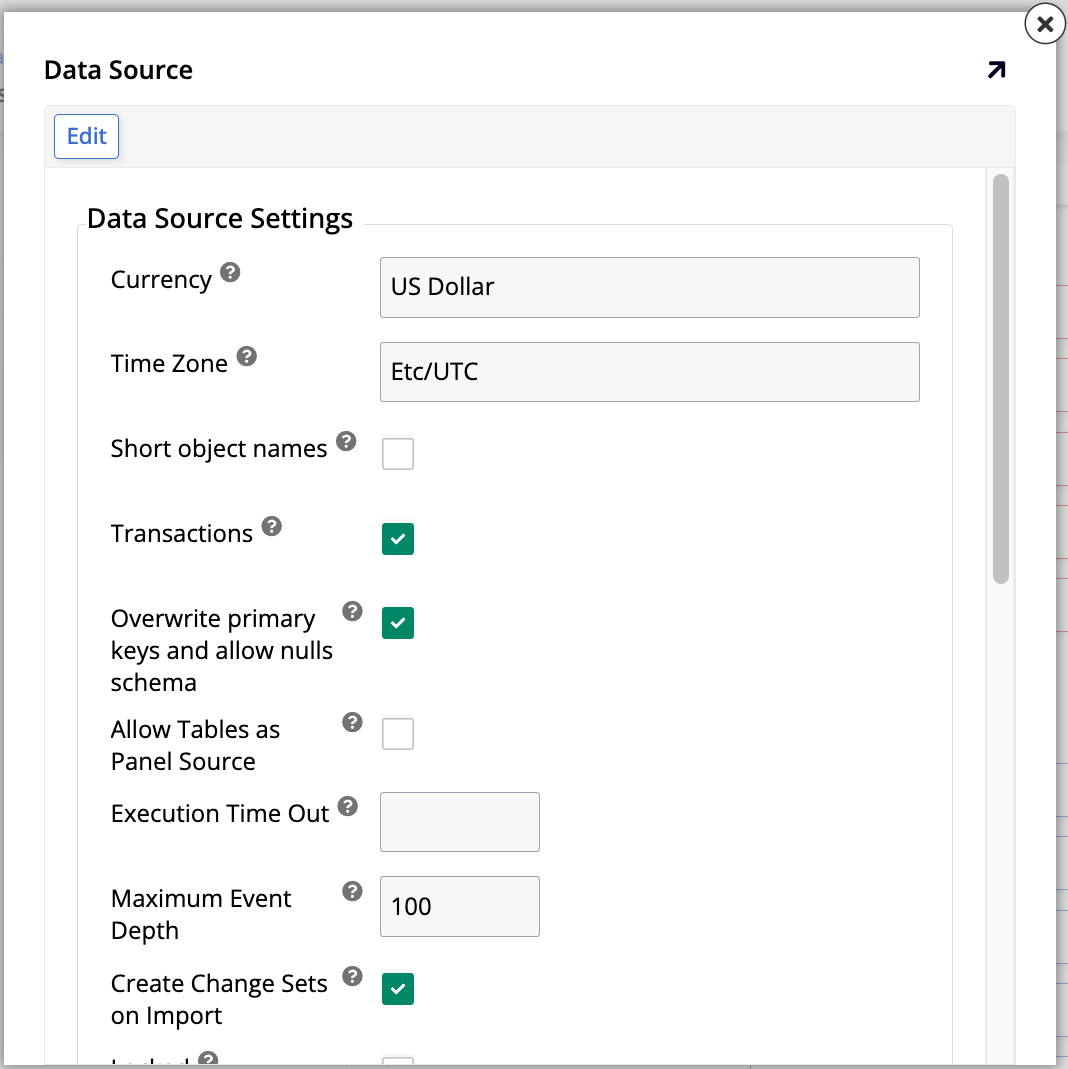
In the Data Source Settings section, these options are available:
-
Currency: The primary currency used by the application. The default value is
US Dollar. -
Time Zone: The time zone used by the application. The default value is
Etc/UTC. -
Short object names: Enable to make App Builder automatically shorten table and column names to fit within the lowest common denominator of relational databases supported (Oracle). Tables and columns greater than 30 characters get shortened. Disabled by default.
-
Transactions: Enable to make the associated data source's inserts and updates be performed in a transaction (and rolled back on error). Enabled by default.
-
Overwrite primary keys and allow nulls schema: Enable to make App Builder allow the overriding of the "allow nulls" flag on a column when re-importing the data source. Enabled by default.
-
Allow Tables as Panel Source: Enable to allow panels to run directly against tables instead of requiring a business object or rule. Disabled by default.
-
Execution Time Out: This field contains the number of seconds before a database execution timeout. When left blank, the timeout is inherited from the Default Command Time Out parameter configured under IDE > Parameters, which defaults to 30 seconds.
-
Maximum Event Depth: This field limits the number of events that can be executed in a chain to guard against stack overflow exceptions caused by infinite recursion. The default value is
100. -
Create Change Sets on Import: Enable to make changesets be brought as part of an import from a SQL database. Enabled by default.
-
Locked: Enable to prevent any schema changes to the associated data source. This is recommended when connecting to existing data sources that other systems also use, thus preventing edits to the schema from within App Builder that might disrupt those other systems. Disabled by default.
-
Supports Preview Default: Enable to have the option to see a preview of the results when creating new rules on a data source in the visual rule builder. Enabled by default.
-
Use as Column Template: This setting is not functional.
-
Require Explicit Linking: Enable so that only tables from linked data sources can be added to rules registered to this data source. Disabled by default.
-
Auto Enable Auto Inherit Events: Enable to automatically check the Auto Inherit Events option on newly created business rules. When enabled on a data source, any rule created under it has Auto Inherit Events pre-enabled, which makes App Builder keep the rule's events in sync with the business rule automatically. See Auto Inherit Events for more information. Enabled by default.
-
Default Rule Name Format: Click the icon to open a dialog of the same name where you can enter your own templates for the default names of new rules, whether business objects or lists.
-
Require Function Type Parameter: (App Builder 4.63 and later) Enable to require that runtime functions such as
Shared()andGenerated()include an explicit type parameter. This resolves ambiguity when evaluating the same expression across different database types, for example SQL Server vs. PostgreSQL. Disabled by default. -
Require UUID() Function: (App Builder 4.63 and later) Enable to require that all UUID literals be wrapped in the
UUID()function. This ensures UUID values are encoded properly across all database types. Enable this setting when building and deploying applications in environments without native UUID data type support. Disabled by default. -
Allow Passthrough Expressions: (App Builder 4.66 and later) Enable to treat rules containing mvSQL passthrough expressions as valid. Passthrough expressions inject vendor-specific SQL into an mvSQL query, so they aren't portable across database types. Disabled by default on new data sources. Data sources added before App Builder 4.66 have this option enabled.
Note
Saving a rule is still allowed even when a column doesn't satisfy the requirements enabled by the Require Function Type Parameter, Require UUID() Function, or Allow Passthrough Expressions settings. App Builder flags the rule as invalid only when you run Validate Rules or view its results, with an error such as:
One or more columns contain an expression disallowed by this data source: 1) a UUID constant not wrapped in a UUID() function; 2) a runtime function without an explicit data type; 3) a passthrough expression.
In the Auto Generate Primary Key section, these options are available:
-
Enabled: Enable to automatically create a Primary Key column every time a new table is created. Enabled by default.
-
Suffix: This field determines what suffix gets appended to a table's name to generate the name of its Primary Key column. The default value is
ID.
In the Data Source Server Settings section, this option is available:
- Change Logical Server: This field is used to indicate that the data source should belong to a different physical server. Such a scenario is possible, for instance, when databases reside on different servers in QA/Production, but on the same server in Development. Click the icon to open a dialog containing a dropdown menu. Use it to select the server that hosts the data source. Exercise caution when using this field.